Highlights
- Windows users often encounter the error code 0x80004005 on Windows.
- It occurs in different scenarios; the common ones are during downloading or updating third-party apps or Windows OS while accessing decrypting files or accessing them over a shared network.
- We have mentioned the methods to fix it under every circumstance.

With the increased digitization, you would be using technology for different gadgets. Whether it be school projects, college assignments, professional purposes, or miscellaneous, you can do it all.
While Windows PCs let you do almost everything, you don’t need a secondary device. But with various features comes technical errors also, like the one which you encountered 0x80004005. If you are looking for how to troubleshoot it, we have covered you all!
Don’t want to miss the best from TechLatest ? Set us as a preferred source in Google Search and make sure you never miss our latest.
Content Table
How to Troubleshoot Error Code 0x80004005?
Windows, with its comprehensive functionality, has several technical issues, which include several error messages like the error code 0x80004005.
Initially, Windows XP users encountered the problem while using Adobe Flash Player in Internet Explorer, which was simple to troubleshoot.
Fortunately, with subsequent updates and the integration of Internet Explorer into MS Edge, this problem no longer occurs. However, specific scenarios exist where the error code 0x80004005 is viable now!
Below-mentioned is a list of the same:
Error Code 0x80004005 When Updating Windows: How to Fix
Many of you would be facing the error message while updating your Windows. Though the error is standard and has increased to different scenarios, yet while updating the firmware, the issue is most common.
Follow the steps given below to fix it!
Method 1: Run Windows Update Troubleshooter
Windows Update processes might have a problem leading to the error message and interrupting the update procedure. Microsoft has inbuilt troubleshooters which let you scan issues on your PC, and they help you fix them.
Follow the steps given below to run Windows Troubleshooter:
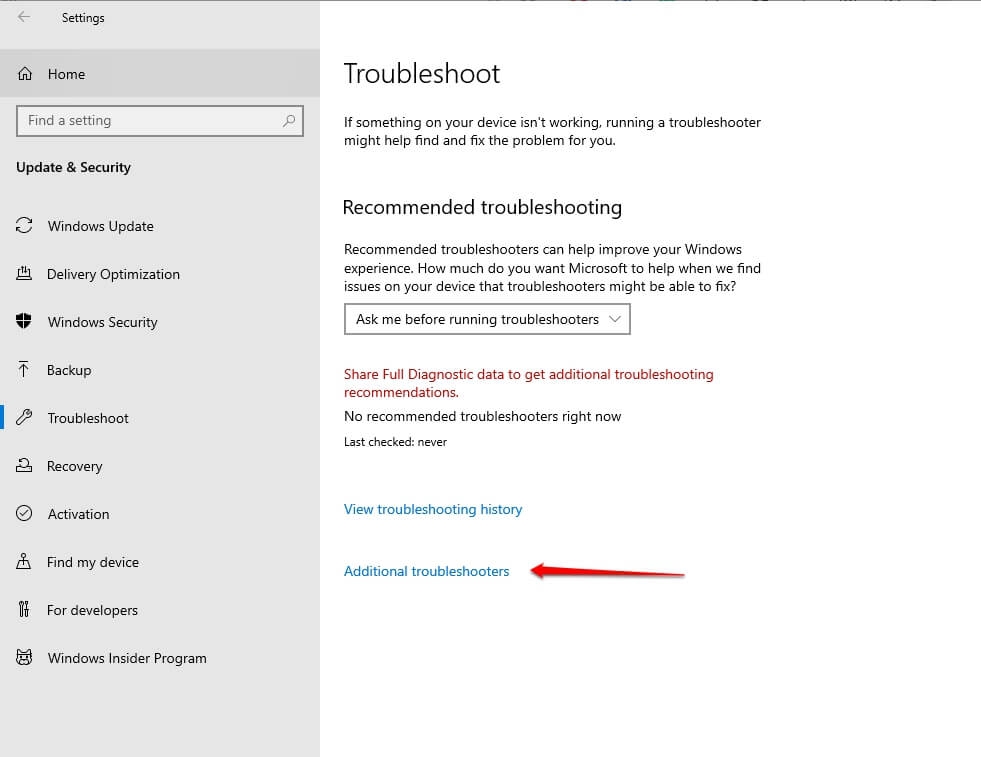
- Press the Win key to open the Start menu and click on Settings .
- Go to Update & Security .
- Select Troubleshoot from the left pane.
- Click on the Additional Troubleshooters label.
- Tap on Run the Troubleshooter beneath the Windows Update section.
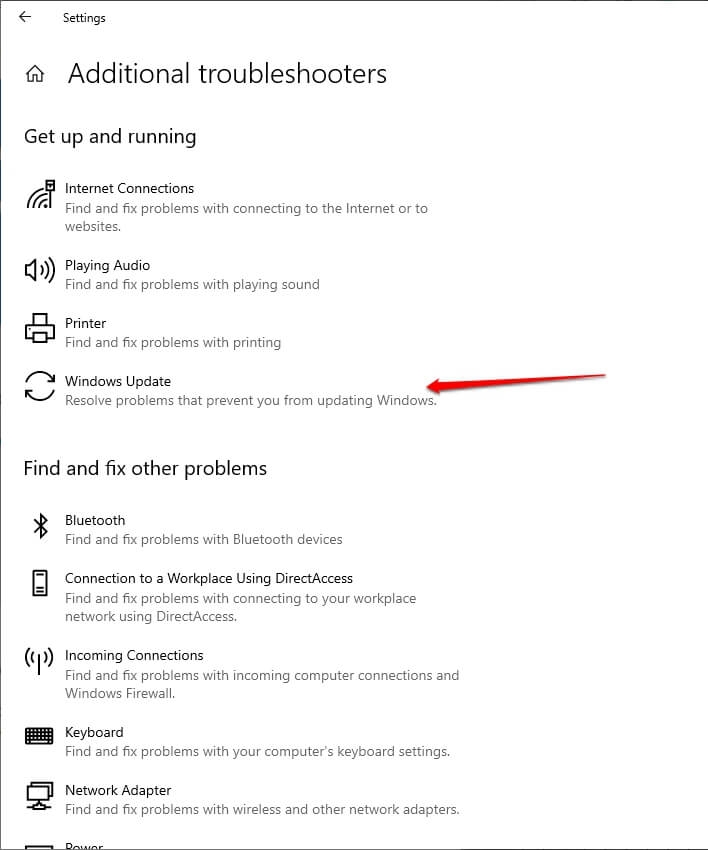
Windows Update Troubleshooter will now check for related issues and automatically fix them, if any. Afterward, exit Windows settings and restart your PC for the changes to reflect.
Method 2: Scan and Repair Corrupt Files in Windows
There might be Windows system files that would have gone corrupt, leading to error 0x80004005 while updating the device firmware. To resolve it, you must scan if any such files are causing the issue, and in most cases, Windows fixes it if there are any. For that, you can use the SFC scan tool.
Follow the steps given below to scan and repair corrupt files in Windows:
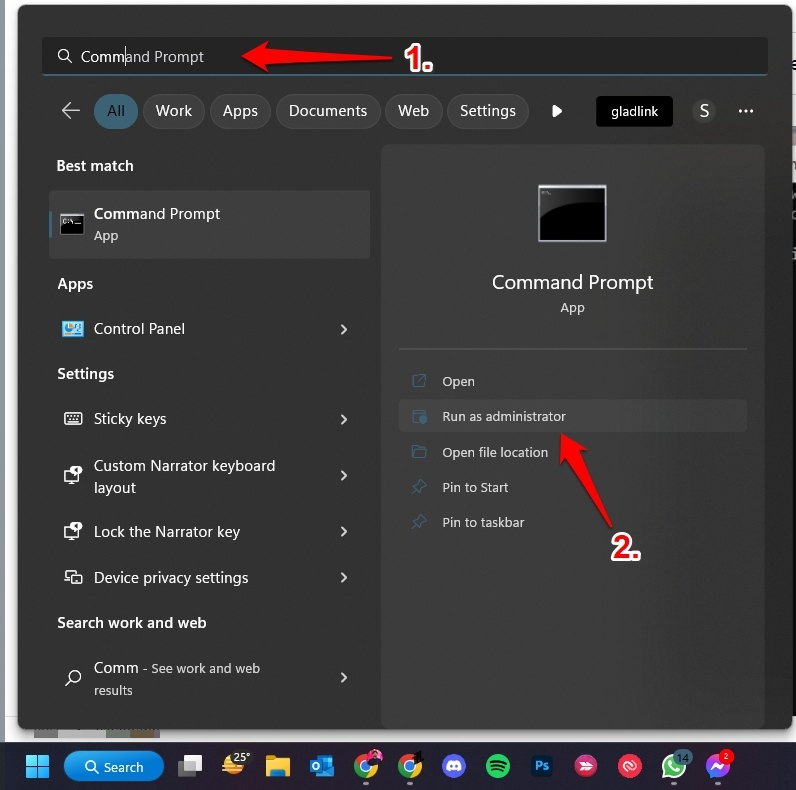
- Open the Start Menu and search cmd .
- Hover over the first search result, which says Command Prompt, and select Run as Administrator from the right pane.
- Execute the following command by typing it and pressing the Enter key.
sfc /scannow
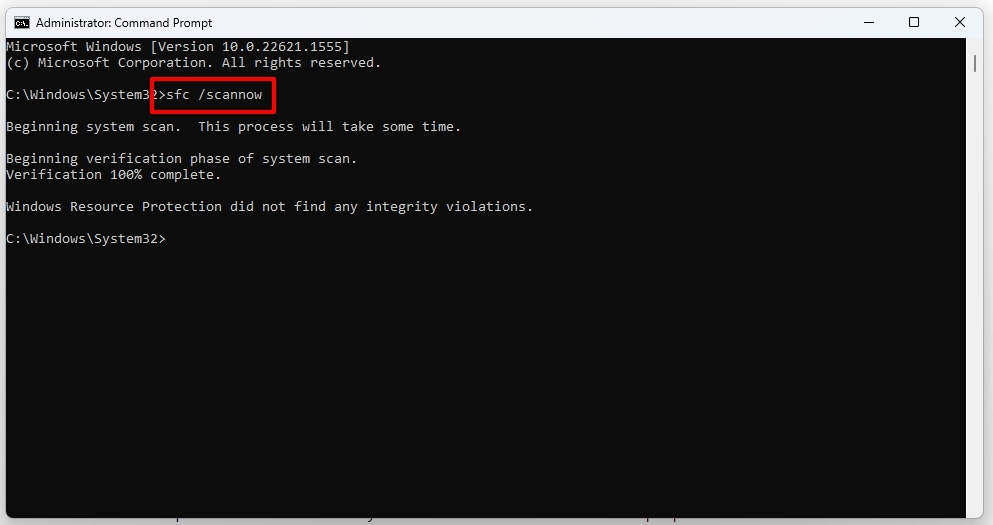
The SFC scan will begin the checking; let it be complete. Wait until you see the prompt that confirms that sfc scan has ended. Most of the time, it will fix the issue that it detects.
Method 3: Restart Update Services using Command Prompt
When the SFC scan doesn’t diagnose any issue, or it is unable to fix it, then there are chances that Windows Update Services are an issue. These let your device install updates frequently. Further, it is also required to let your PC check for updates.
If the update services malfunction, you will also face the error code. To resolve it, you have to restart these services. You cannot do so via any GUI but a CUI-like Command Prompt here.
Follow the steps given below to do so:
- Press the Win+R key to open the Run dialog box, type cmd and click on OK
- Type each of the commands one by one and press Enter key every time to execute
net stop wuauserv net stop bits net stop trustedinstaller net stop appidsvc net stop cryptsvc
- This will stop the Windows update services. Similarly, you have to execute the commands given below to execute them
net start wuauserv net start bits net start trustedinstaller net start appidsvc net start cryptsvc
Thus, after restarting Windows update services, try to install the update, and you won’t face the issue.
Method 4: Manually Install the Update
If you are unfamiliar with using Command line tools or if it doesn’t work for you, then there’s another simple solution. You can manually Install the Windows update.
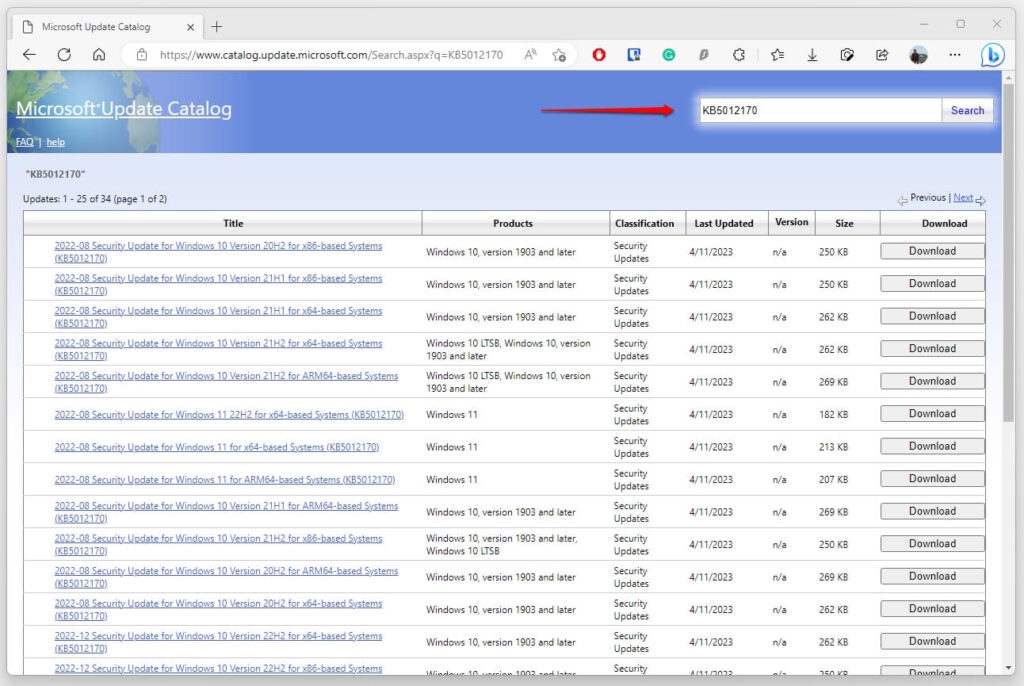
What’s noteworthy is that you don’t need to access a third-party website as Microsoft’s official website has a dedicated one for Microsoft Update Catalog. You can visit it by clicking the link here and searching for the update.
How to Fix Error 0x80004005 Encountered When Extracting ZIP Files?
It’s common for you to download large files on your PC for some reason. You can fetch them as compressed files in the .ZIP format, and you can unzip them by extracting them.
It’s noteworthy that often these files are encrypted with different encryption algorithms for Information Security.
You would try to extract and unzip files with Windows, but the error message sometimes prompts up. This implies that the ZIP file needs a password to extract it.
In such a scenario, Windows cannot decrypt as it has only ZIPCrypto and AES 128 standards and not AES 256 (which password encryption files use).
Hence, to overcome the issue, you must download and install a third-party tool meant for the purpose. Such tools use multiple encryption standards and even the latest ones.
Troubleshooting Network Error 0x80004005
If your PC is connected to a network and you try to access files, folders, drives, or similar, error messages might interrupt you. One of these is the error code 0x80004005. Thus, you might also be unable to access the network for a while. While if it’s only for specific files, then some configurations are needed.
Method 1: Enable Client for Microsoft Network on PC
In the initial case, where you cannot access the network, your PC does not have a client for Microsoft networks enabled.
Follow the steps given below to enable it:
- Press the Win+I keys to open Settings and go to Network & Internet .
- Select Ethernet from the left pane and click on the Change adapter options label from the right.
- Right-click on Ethernet and choose Properties from the context menu.
- Click on the Client for Microsoft Networks checkbox to enable it.
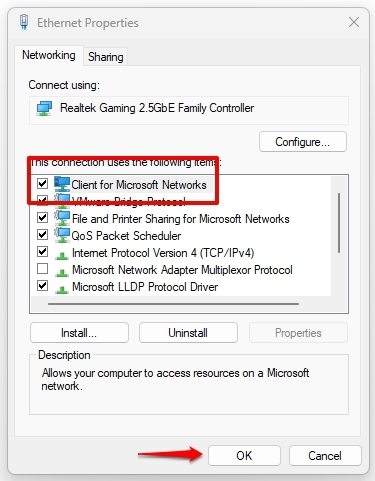
- Press the OK button to save changes
Now, retry, and your PC can access the network.
Method 2: Turn on SMB 1.0/CIFS File Sharing Support
The latter case, where you cannot access shared files over a network, occurs when the SMB protocol isn’t supported.
To overcome the same, you must enable SMB 1.0/CIFS File Sharing Support. Server Message Protocol or SMB is a prerequisite to open files and other data shared on a network.
Here’s how you can enable it:
- Press the Win key and search Windows Features on or off .
- Select the first search result, navigate to SMB 1.0/CIFS File Sharing Support , and click on the checkbox to enable it.
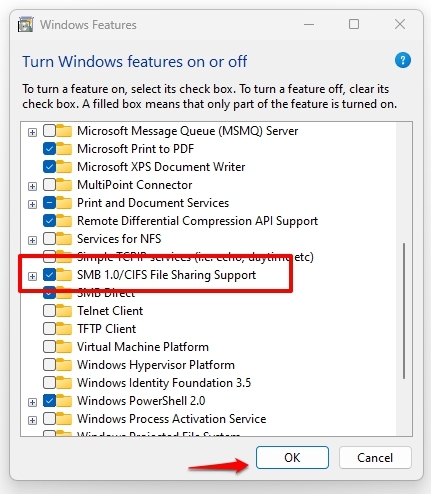
Now, you have saved the changes, and you can restart your PC for the feature to reflect.
How to Fix Error 0x80004005 When Installing or Updating Software?
Apart from the downloading and updating of your Windows OS, users access several times reported issues with that third-party apps also.
Three possible reasons exist for the error 0x80004005 while downloading or updating third-party apps. One of the most common reasons is that you might not have downloaded it from a trustworthy source. Hence, you should re-download it from any other website or the manufacturer’s site.
If it’s already from a reliable source, then your security program generates the error. Besides, if you don’t use any, then Windows Firewalls would be causing the issue.
Disable Windows Defender Firewalls
Windows Defender Firewalls is the default security program of Windows. Hence, disabling it would help you troubleshoot the error code.
Follow the steps given below to do so:
- Press the Win key to open the Start Menu, search, and open Windows Security .
- Navigate to Firewall & network protection and click on Network .
- Toggle off Microsoft Defender Firewall to proceed.
- Disable it for Domain Network , Private Network , and Public Network .
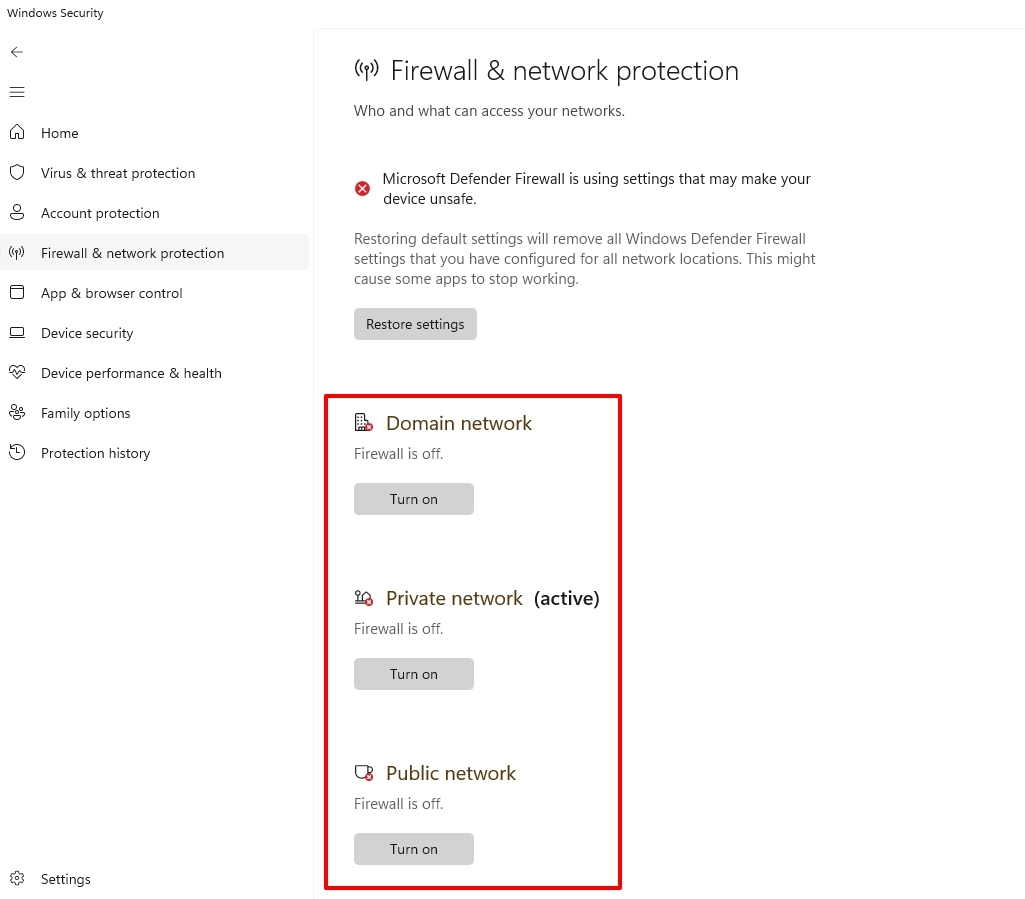
We recommend you restart your PC for the changes to reflect and try again. The error code won’t interrupt your downloads or upgrades.
Microsoft Outlook Error 0x80004005
There are quite some chances that you would use Outlook for various purposes. Users do encounter the Microsoft Outlook Error 0x80004005 also.
This mostly happens when the active antivirus program of your PC obstructs incoming mail, or you have disabled Outlook notifications.
In the latter case, you should disable your antivirus software and check if it works. If yes, then it was the portable reason. You can later turn it on. But if the issue persists, then you should enable Outlook notifications once again.
Enable Outlook Notifications
- Click on the gear-shaped icon at the top-right corner to open Settings .
- Go to General , select Notifications , and toggle on Send Me Desktop Notifications .
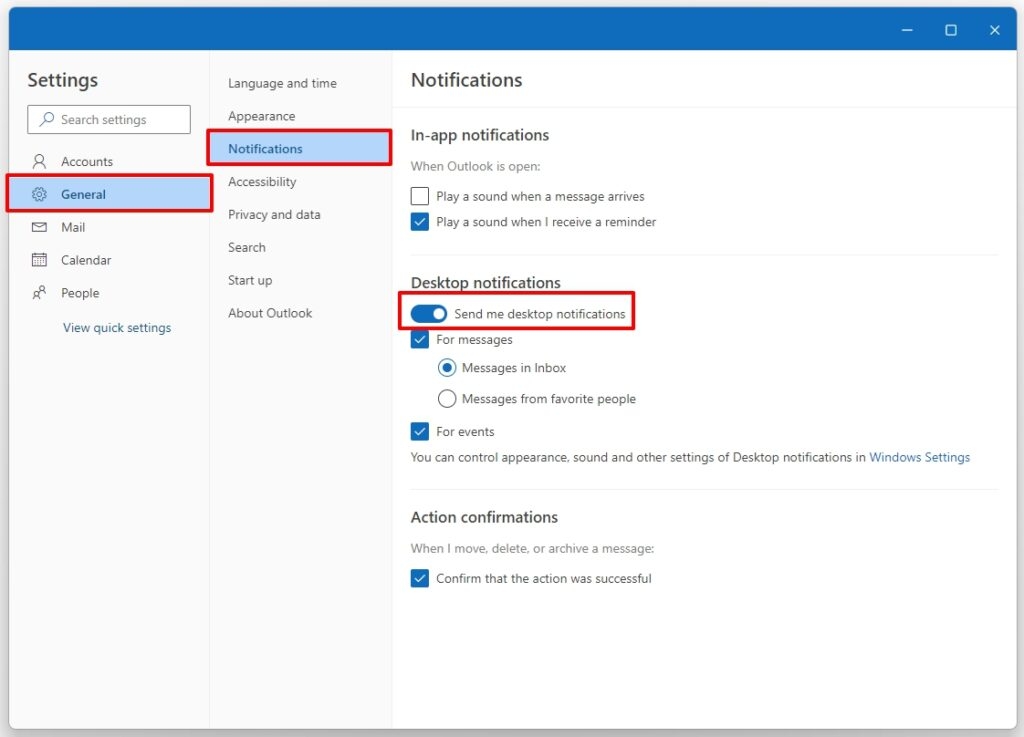
- Click on the For Messages or For Events checkbox to enable either.
You can even choose to enable both. Thus, you have successfully fixed the error code.
How to Eliminate Error 0x80004005 on VirtualBox?
If you are a coder, IT specialist, software developer, or software tester, you will use Oracle Virtual machine.
If you have set up a Virtual Machine and the error 0x80004005 obstructs your chores, then the VM software files would be corrupt or missing. It can also be due to driver issues related to VirtualBox NDIS6 Bridged Networking Driver.
Use VirtualBox Repair Tool
VirtualBox offers an inbuilt repair tool to resolve these issues. The best part is that for these, you won’t have to delete any of the setup VMs on your device.
Follow the steps given below to eliminate the error on VirtualBox:
- Go to VirtualBox Setup(exe file) and choose to Repair.
- VirtualBox will scan, repair and fix troublesome files after its repair process completes.
- Head over to Network and Sharing Center.
- Now, beneath the VirtualBox Host-Only Network adapter, see if NDIS6 is activated or not.
If not, click the checkbox to enable it and restart the software.
- What is error 0x80004005 in Windows File Explorer? The error 0x80004005 occurs in Windows File Explorer and says Access denied. It indicates that you don’t have enough permissions to open it, and hence running it as Administrator would give you sufficient privileges.
- What does error 0x80004005 mean? Error 0x80004005: Unspecified error occurs when extracting and decryption files using an inbuilt feature. It means that File Explorer doesn’t have the advanced encryption standards required.
Final Thoughts
When you were annoyed with the error code 0x80004005 while working through different simple tasks, our guide would have helped you a lot. Several reasons account for the error depending upon the situation in which you encounter the error.
You can follow it accordingly; however, ensure that you should follow the particular method when you are sure it will work. Most of you would face it while downloading or updating third-party programs or Windows updates.
Further Reading:
- 5 Best GarageBand Alternatives for Windows 10/11
- Everything about Windows 12 (Leaks, Features, Launch, Requirements)
- Top 10 Best Widgets for Windows 11 to take your PC to the Next Level
Enjoyed this article?
If TechLatest has helped you, consider supporting us with a one-time tip on Ko-fi. Every contribution keeps our work free and independent.
Highlights
- Windows 11 widgets provide users a quick and personalized method to obtain crucial data and functions.
- There is a widget for any requirement, whether you want to keep track of your daily duties or check the functioning of your system.
- Use these top 10 widgets for Windows 11 to increase productivity, maintain organization, and maximize your desktop experience.

The periodic upgrades from Microsoft enhanced the Windows UI by introducing additional features and customizations.
The classic Windows interface has undergone significant changes with Windows 11, including an updated Start menu, a centered taskbar, and additional personalization choices.
Don’t want to miss the best from TechLatest ? Set us as a preferred source in Google Search and make sure you never miss our latest.
Adding widgets to your desktop, giving you instant access to crucial information and practical tools, is one of Windows 11’s most helpful innovations.
These Windows 11 widgets can be accessed from the taskbar.
Here, we’ll examine the top 10 best widgets for Windows 11 that can elevate your computer’s digital experience.
Content Table
Best Widgets for Windows 11
1. CPU and RAM Widget
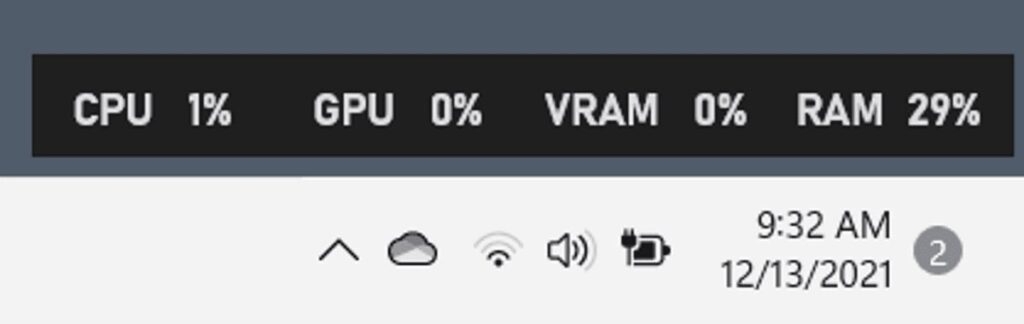
One of my favorite widgets for Windows 11 is the CPU and Memory widget, which lets users see how much CPU and RAM their machine is using in real time.
You may access this widget by clicking on the widget icon on the taskbar or by holding down the Windows key and A.
The CPU and RAM widget enables users to quickly and easily discover any performance issues that could harm their system by displaying real-time utilization data for the CPU and Memory.
The widget displays the amount of CPU and Memory being used in real-time and their % usage.
The widget may also be expanded by clicking on it, allowing users to see more precise data, such as the exact programs currently using the CPU and Memory.
This can be helpful for locating any processes that might be impairing computer performance or slowing it down.
Overall, the CPU and RAM widget is a useful tool for Windows 11 users who want to monitor their computer’s performance and ensure it is operating effectively.
This widget can assist users in quickly and easily identifying any performance issues by offering real-time use data and comprehensive information about particular processes.
2. Sticky Note Widget
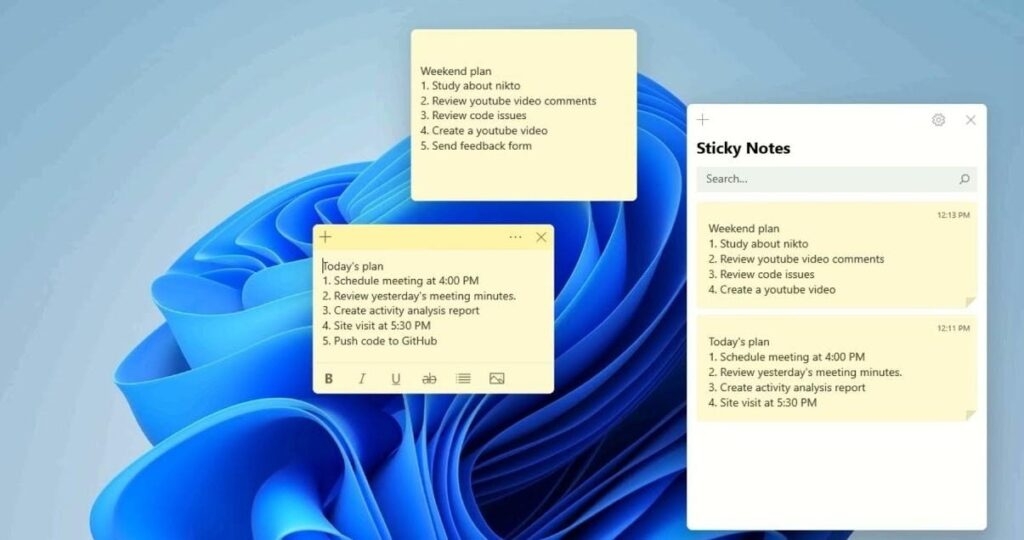
Users may make and arrange virtual sticky notes on their desktops with the Sticky Note widget in Windows 11.
Users may easily record notes, to-do lists, reminders, and other critical information that they want to keep track of with the Sticky Note widget.
Users do not need to download or install any additional software in order to utilize the Sticky Note widget because it is already included in the Windows 11 operating system.
The Sticky Note widget offers a blank note when accessed, which users may then edit with text, formatting, and even photos.
Also, users can add new notes, remove old ones, and pin significant notes to their desktops, so they are always accessible.
The Sticky Note widget’s compatibility with various Microsoft products, like OneNote and Outlook, is one of its best features.
Users may quickly send a sticky note to someone by email, for instance, or copy and paste content from a sticky note into an email or other document.
Overall, the Sticky Note widget is a handy tool for anyone who wants to keep track of important information on their desktops.
Its ease of use, customization options, and integration with other Microsoft apps make it a great addition to the Windows 11 operating system.
3. Traffic Widget
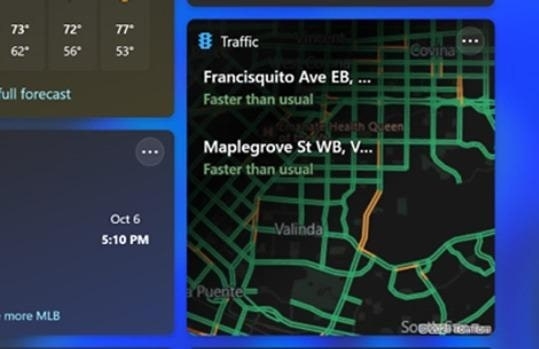
Windows 11 has a new traffic widget feature that gives users access to real-time traffic updates.
The widget is a tiny, resizable panel that can be put anywhere on the desktop and shows data on the traffic conditions right now where the user is.
Using data from Bing Maps, the widget provides information about traffic conditions, such as accidents, road closures, and congestion.
In order to help customers avoid traffic, it may also display projected journey times for various routes and propose alternate routes.
Users of the Traffic widget have complete control over the information presented, as well as the size and positioning of the panel.
Users may observe traffic conditions in several locations by selecting where the widget is focused.
Users must have location services enabled on their devices in order to utilize the Traffic widget. The widget will automatically determine the user’s location and present details on the local traffic patterns.
4. Entertainment Widget
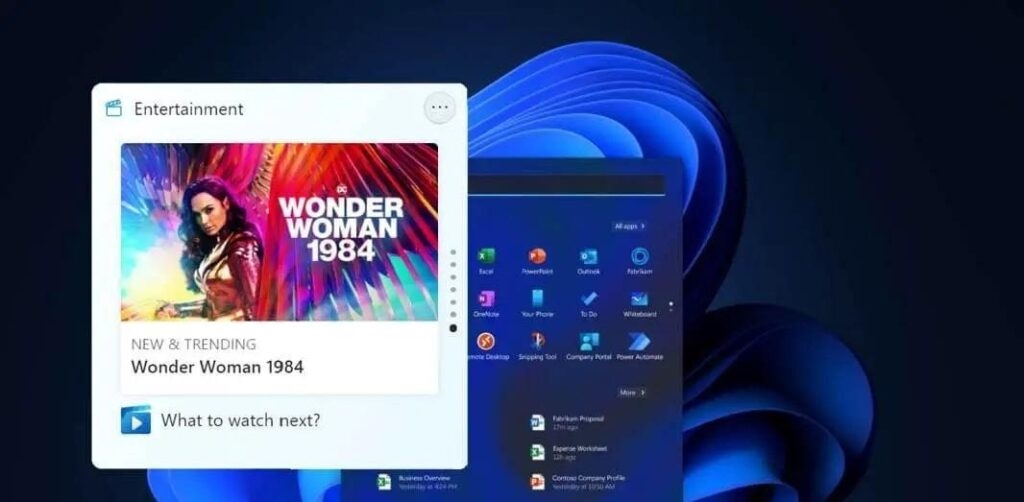
A little application called the Entertainment Widget gives users easy access to various entertainment materials, including games, music, movies, and TV shows.
Once activated, the widget will present a range of materials, such as suggested films and television programs, top games, top songs, and more.
Users may engage with the widget by clicking on the material they are interested in by being sent to the appropriate app or service.
The Entertainment Widget’s flexibility enables users to personalize it to their tastes. Users can view just certain sorts of material or exclude any stuff in which they have no interest.
The widget’s size and placement on the screen may change by the user.
The Entertainment Widget offers various helpful functions and gives consumers rapid access to entertainment information.
For instance, it can show alerts for upcoming events like movie releases or game updates. In order to make it simpler for consumers to locate what they’re searching for, it also has a search box that enables users to hunt for material across several services.
5. Esports Widgets
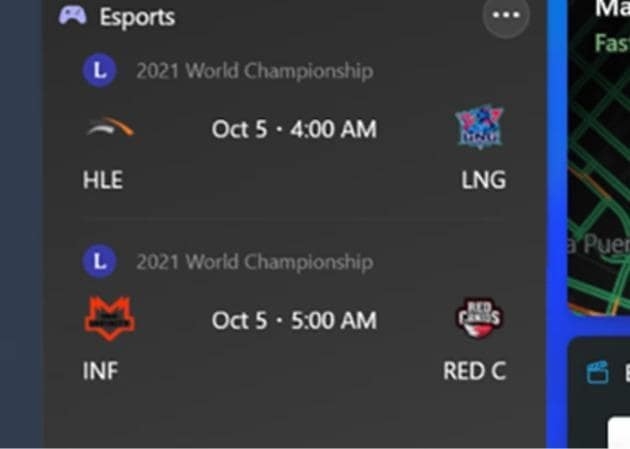
Users may quickly and easily access information on esports events, teams, players, and more by adding an esports widget, a tiny program, to their taskbar or desktop.
These widgets are becoming increasingly well-liked among gamers and esports enthusiasts as esports and competitive gaming gain popularity.
Microsoft could add an esports widget among its pre-installed widgets and gadgets in Windows 11.
This can provide players with an easy method to remain current on the most recent esports news and events without switching between different websites or applications.
6. To Do Widget
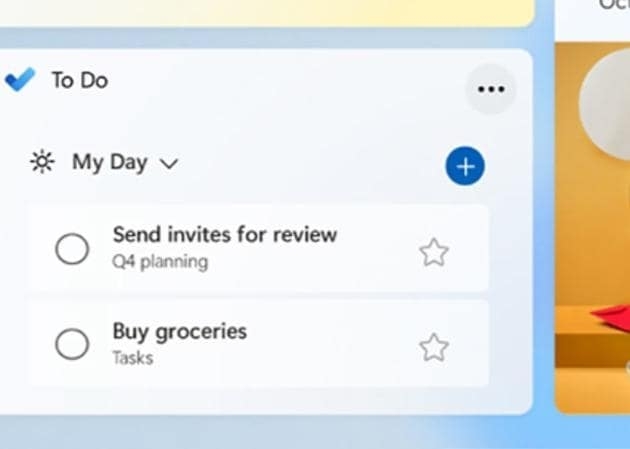
With Windows 11, users can easily manage their jobs and increase their productivity using the To Do Widget.
The new Windows 11 interface, which includes this widget, was created to give users a more simplified and natural experience.
Users may simply organize their projects, set reminders, and prioritize their work with the To Do Widget, accessible from the Windows 11 Start menu.
The task management tool Microsoft To-Do, available for free download from the Microsoft Store, is also integrated with the widget.
Users may add new tasks to the To Do Widget by clicking the “Add task” button and entering the assignment’s specifics.
The To-Do Widget’s ability to show a summary of the user’s chores and reminders on their desktop is one of its most helpful capabilities.
As a result, it is simple to stay on top of crucial due dates and impending events without having to move between applications or comb through several displays.
7. Watchlist Widget for Stock Market
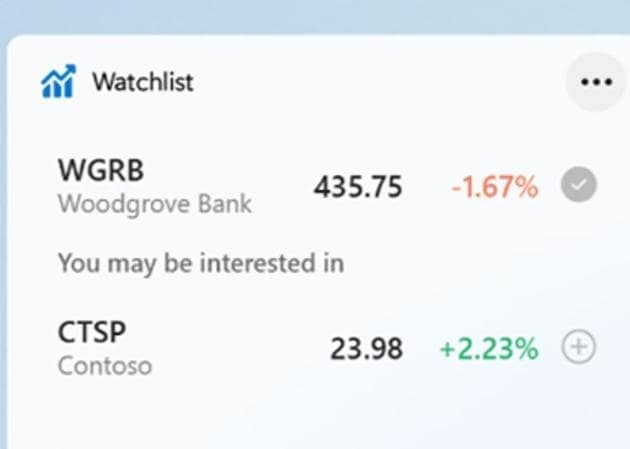
A new feature in Windows 11 called the Watchlist widget enables users to add a customized list of stocks on their desktops.
The widget allows users to effortlessly follow the performance of their favorite companies, check real-time stock quotations, and access pertinent news items and financial information.
Users only need to click the Widgets button on the taskbar and choose the Watchlist widget to add the widget to their desktop. The names of the stocks they want to follow may then be added, allowing them to modify the widget.
Users may examine each stock’s real-time price, price change, and percentage change after the stocks have been uploaded.
Also, by clicking on each stock, they may examine more details like market size, dividend yield, and earnings per share.
The Watchlist widget offers users stock information, pertinent news stories, and financial data on the stocks they have chosen.
To give users the most recent news and analysis, this data is continuously updated from a number of financial news sources.
8. Calendar Widget
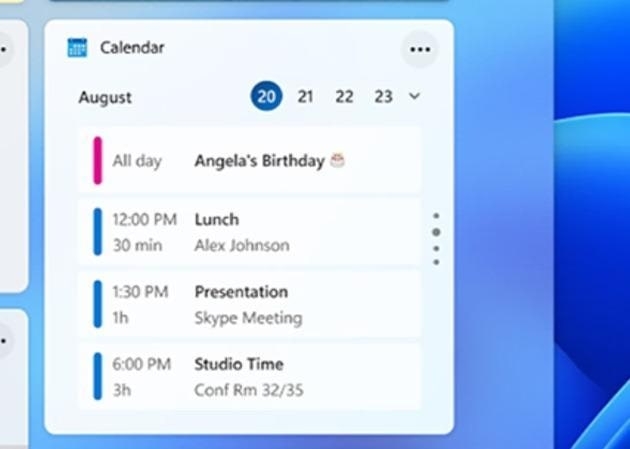
The user’s forthcoming appointments and events, together with the event’s name, time, and location, are shown in the Calendar Widget.
The schedule for the day is also briefly summarized, along with the number of activities planned and the proportion of “busy” events.
When a user clicks on an event, they may change it in their calendar app or view additional information about it.
Birthdays and holidays can be shown on the Calendar Widget according to your preferences. Users can select to view events from different calendars, such as their personal and professional calendars.
One advantage of the Calendar Widget is that it offers a simple and practical method to keep track of crucial events and appointments without requiring you to check a different program often.
It also interacts perfectly with the Windows 11 operating system, making it easy to access and utilize.
9. Photos Widget
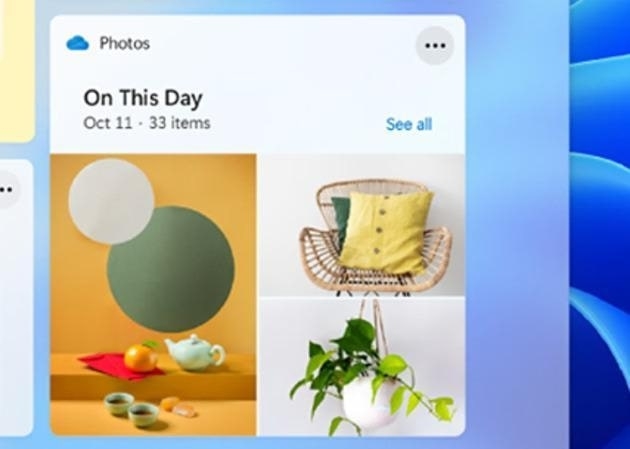
Users may construct a gallery of their favorite images on their desktops using the Photos widget in Windows 11.
Without having to look for manually and open individual images, the widget offers a handy method to highlight cherished occasions and often refreshes with fresh photographs.
A rotating collection of images from the user’s local Photos app library and any synced OneDrive folders will be shown after the added widget.
Users may select the albums or folders they wish to see in the widget and change options like the frequency of photo updates, how the images are displayed, and whether or not captions should be shown.
The Photos widget may give a personalized touch to the desktop and act as a helpful record of previous experiences and events.
Users may enjoy scrolling through their photo collection anytime they need a break from work or other duties, or use the widget to spark their memory and reflect on significant events.
10. Weather Widget
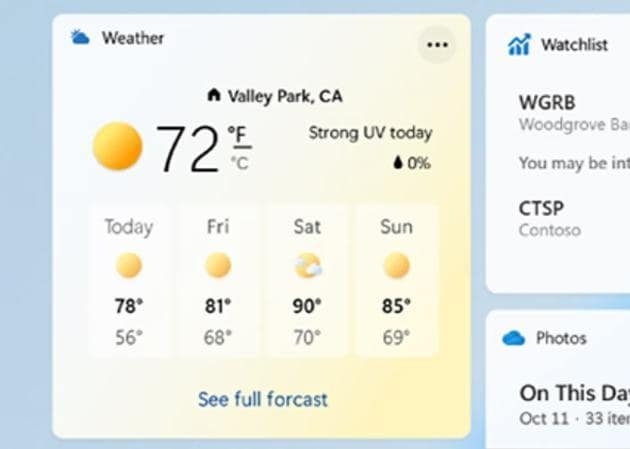
A variety of meteorological data, such as the current temperature, precipitation, wind speed, and humidity, will be displayed by this widget.
By default, it shows the user’s local weather conditions, but users may alter it to show weather data for other areas by adding other locations to the widget.
In order to help users plan ahead and stay ready for forthcoming weather conditions, the widget also offers users a five-day prediction.
High and low temperatures, anticipated precipitation, wind speed, and relative humidity are all included in this prediction.
The Windows 11 weather widget provides users with meteorological data and a button that directs visitors to the MSN Weather website, where they can get more specific weather data as well as news and articles on weather and climate.
Wrapping it All
In conclusion, Windows 11 widgets provide users a quick and personalized method to obtain crucial data and functions.
There is a widget for any requirement, whether you want to keep track of your daily duties or check the functioning of your system.
Use these top 10 widgets for Windows 11 to increase productivity, maintain organization, and maximize your desktop experience.
Further Reading:
- Windows 11 Tips and Tricks all Students Need to Know
- [Fixed]Snip and Sketch Not Working on Windows 11
- News and Interests Taking Up Memory: What is it and How To Fix?
Enjoyed this article?
If TechLatest has helped you, consider supporting us with a one-time tip on Ko-fi. Every contribution keeps our work free and independent.
