Emojis are a great way to express your feelings while conversing. It is widely used while you are texting on your phone. Most of the online platforms provide an emoji keyboard so that you can use the emojis while texting on PC. But sometimes you’d like to include in a specific document where there is no emoji keyboard. So we have included 2 methods to access Emoji in Windows 10 . These are very easy and don’t require any 3rd party application.
Method #1 Access Emoji in Windows 10 Using On-Screen Keyboard
- Right-click on the taskbar and select “ Show touch keyboard button ” from the context menu.
- This will add a keyboard icon to the system tray. Just click that icon to open the touch keyboard.
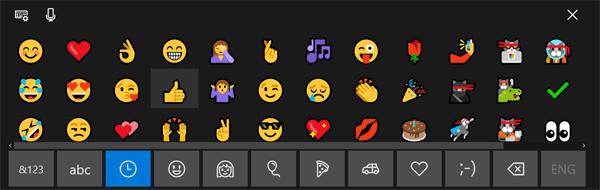
- Click the emoji button next to the space bar, and the alphabetical keys will convert into emoji keyboard.
- Select whichever emoji you’d like to use and it’ll be inserted where you left your cursor.
Method #2 Access Emoji in Windows 10 Using Keyboard Shortcut
- Put the cursor in any text field you’d like to insert an emoji. This could be Microsoft Word, Chrome, or Notepad app.
- Press the WIN + . (full stop) keyboard shortcut, or else the WIN + ; (semicolon). Either will open an emoji picker over the text field.
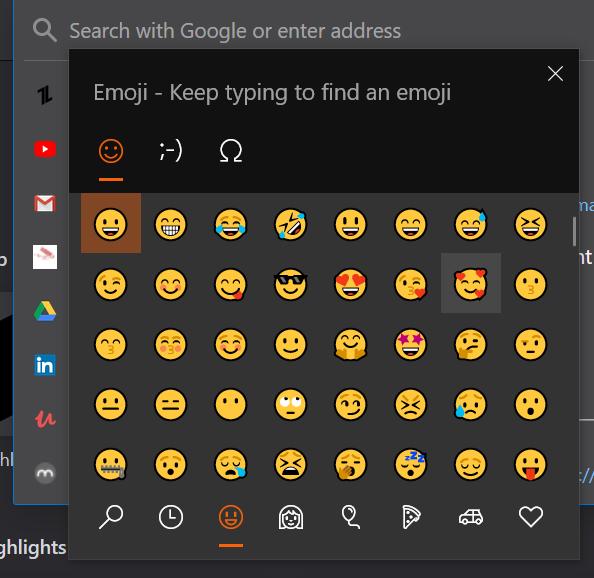
Emoji are divided into several categories: smiley faces and animals, people, celebrations and objects, food and plants, transportation and places, symbols.
You can pick a category from the bottom row and click any emoji to insert it.
How to Get iPhone Emojis on Android?
13+ Best Mac Keyboard Shortcuts
How to Install Snapchat on PC?
Enjoyed this article?
If TechLatest has helped you, consider supporting us with a one-time tip on Ko-fi. Every contribution keeps our work free and independent.
