Highlights
- Microsoft, with Windows 11 26220.6772 and 26120.6772 builds, blocked another widely used method (start ms-cxh:localonly) of bypassing the MS account during setup.
- So, now both the widely used MS account bypass methods, start ms-cxh:localonly and OOBE\BYPASSNRO, are blocked by Microsoft.
- We have tested a few more methods like registry tweaks, command prompts, and domain join tricks to bypass the MS account requirement, and it worked perfectly.
After the recent Windows 11 update ( builds 26220.6772 and 26120.6772), Microsoft has confirmed that it is blocking most of the available unofficial methods to bypass Microsoft accounts during the initial Windows setup, otherwise known as Out-of-Box Experience (OOBE).
One of the most used methods was OOBE\BYPASSNRO one that Microsoft blocked earlier via one of the updates. Now Microsoft is blocking another widely used method, i.e., the start ms-cxh:localonly command.
Don’t want to miss the best from TechLatest ? Set us as a preferred source in Google Search and make sure you never miss our latest.
Well, the good news is they weren’t the only two methods available. There are a few more workarounds available. So, follow this guide; we have tested 5 available methods and successfully bypassed the Microsoft account requirement during the Out-of-Box Experience (OOBE).
Read : Installing Windows 11 24H2 on Unsupported PC
Content Table
Bypass Microsoft Account in OOBE on Windows 11
We have tested 5 available methods that still can be used to bypass Microsoft Account in OOBE, till Microsoft decides to block each method exclusively. And for testing the below methods, we used the Windows 11 26220.6772 insider build from the dev channel.
In all the below methods, we didn’t show any initial steps like downloading the correct ISO file, making a bootable USB, clean installing Windows 11, etc. So, if you want to see those steps as well, check our guide .
#1 JavaScript function to create LOCALONLY account
This is one of the easiest methods to start with; you just need to execute a small JS command while you are in the region selection window on OOBE.
This JS command is used for the web technologies-based Windows 11 Out-of-Box Experience (OOBE), but this can be used in the consumer builds as well.
- While you are on the region selection window, press “ Ctrl + Shift + J ” to open the Developer Console.
- Type the below Javascript into the dev console and press enter to execute it.
WinJS.Application.restart("ms-cxh://LOCALONLY")
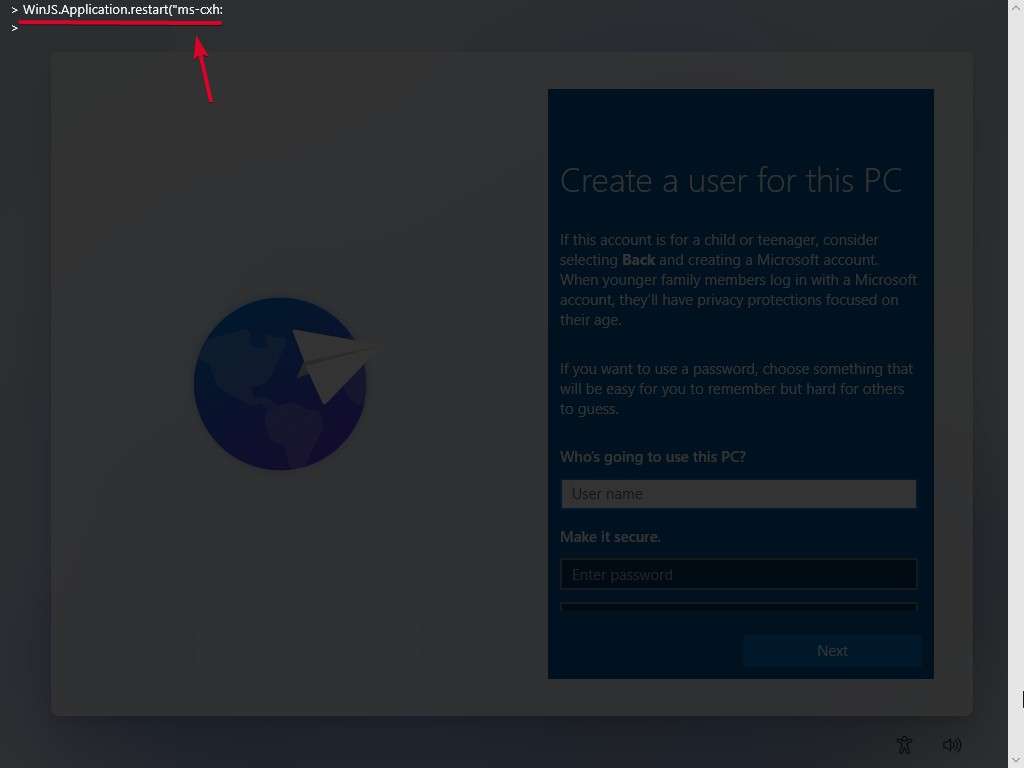
Windows 11 OOBE Developer Console
- After executing the command, press “ Escape ” to close the Developer Console. And in case it doesn’t close on pressing the escape key, click multiple times on the empty space to close it.
- Now, enter the name for the local account, and press the Next button. Note that if you decide to keep the account password-protected, this is the right time.
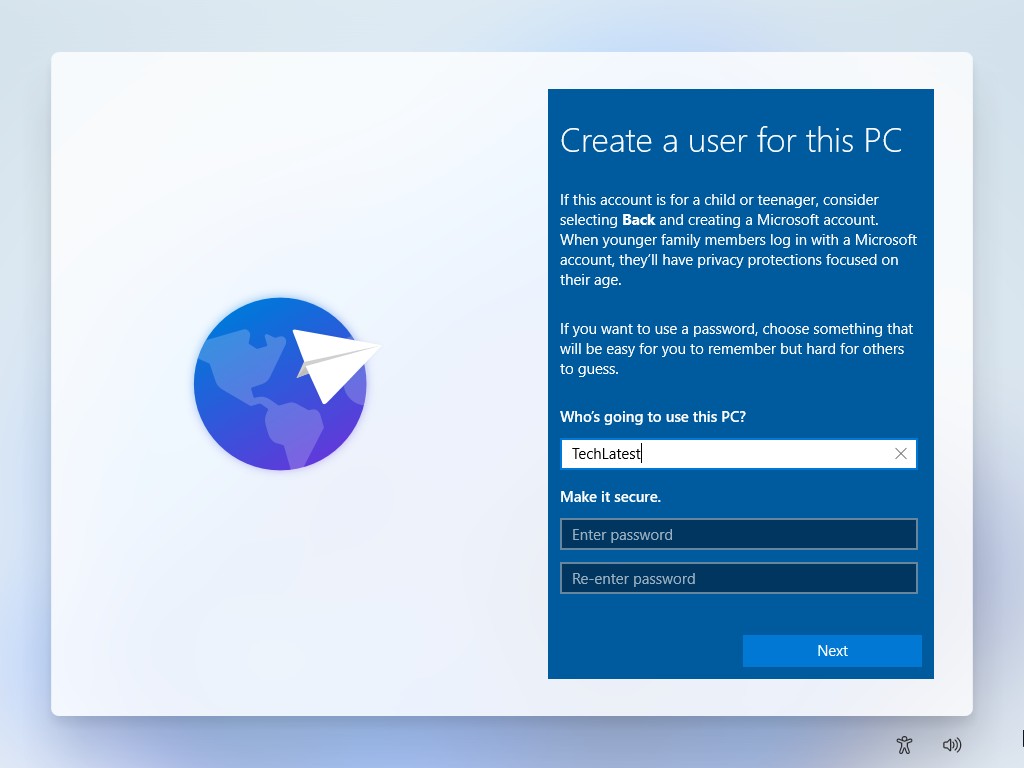
- Now, configure the privacy settings as per your preferences and click on the Next button.
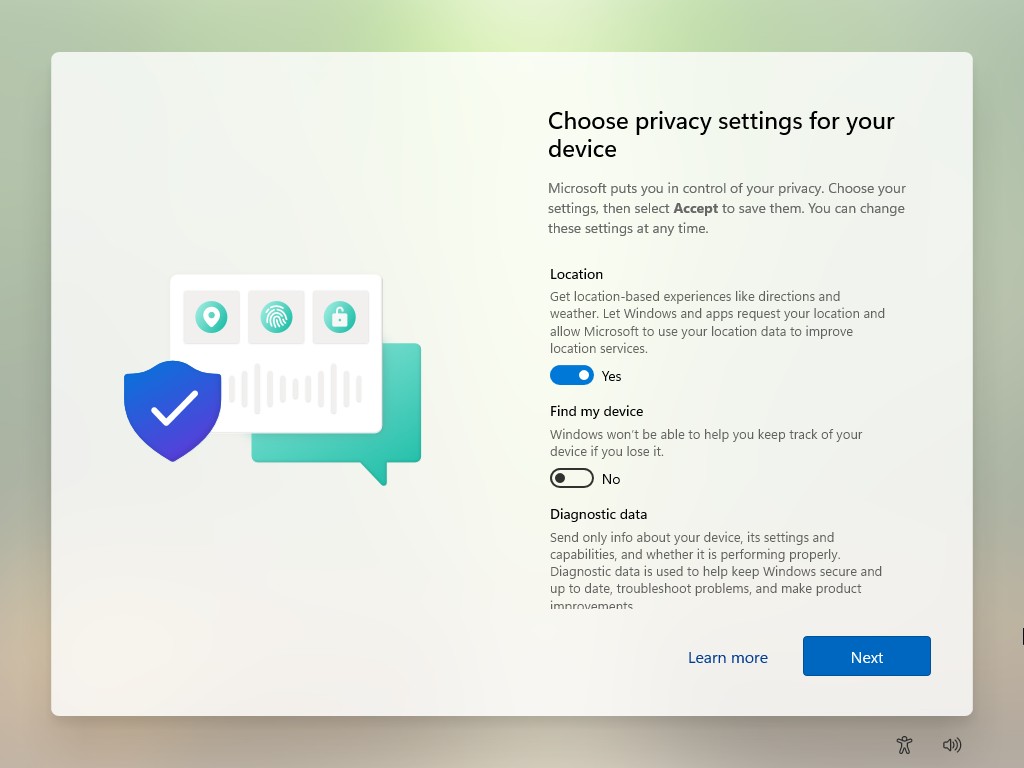
- Now, follow the on-screen instructions to complete the process (if any).
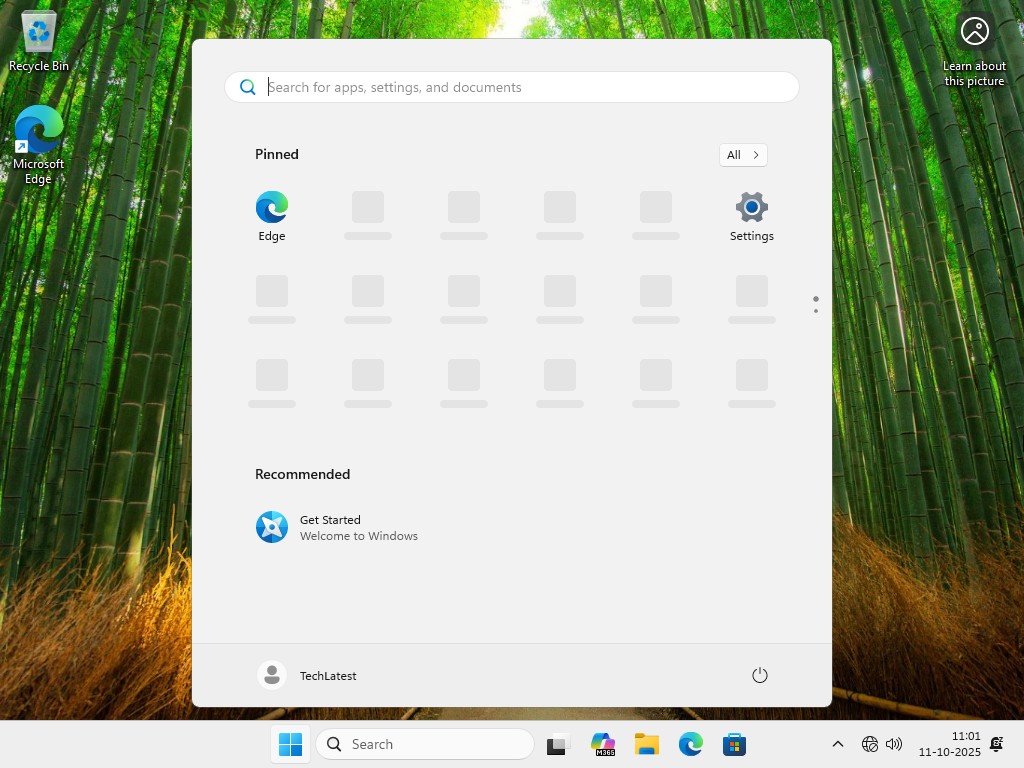
- Finally, you will be welcomed to the Windows 11 home screen.
#2 Disable the Microsoft login page from OOBE
In this method, we are going to disable the online accounts page using the HideOnlineAccountScreens function. By doing this, you can remove the Microsoft login page, which ultimately results in the creation of a local account.
- While you are on the region selection window, press “ Ctrl + F10 ” to open the Command Prompt.
- Type the below command into the Command Prompt and press enter to execute it.
reg add HKLM\Software\Microsoft\Windows\CurrentVersion\OOBE /v HideOnlineAccountScreens /t REG_DWORD /d 1 /f
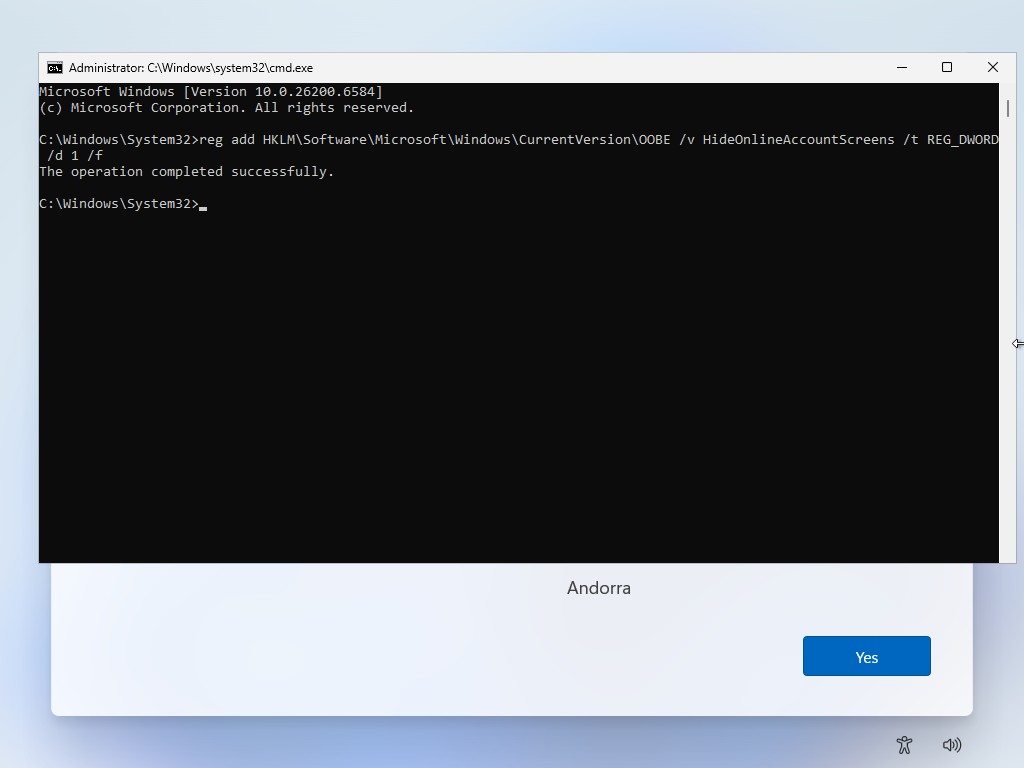
- Now, close the Command Prompt and restart the PC.
- On restart, select the region and keyboard layout as per your country and language.
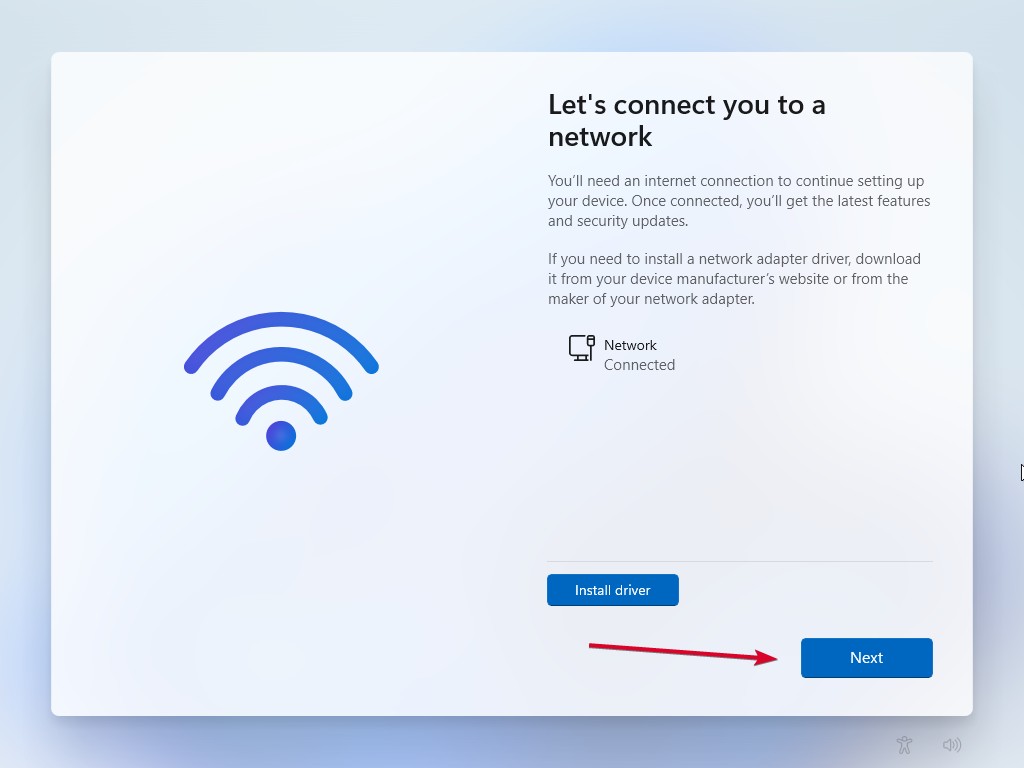
- Now, when you are on the network page, connect to the internet either via Wi-Fi or Ethernet. And click on the Next button.
- Now, configure the privacy settings as per your preferences and click on the Next button.
- Now, follow the on-screen instructions to complete the process (if any).
- Finally, you will be welcomed to the Windows 11 home screen.
#3 Use the BypassNRO function via Registry configuration
Microsoft has blocked the OOBE\BYPASSNRO command only; you still can use the BypassNRO registry config to bypass the Microsoft account and internet requirement during the OOBE.
- While you are on the region selection window, press “ Ctrl + F10 ” to open the Command Prompt.
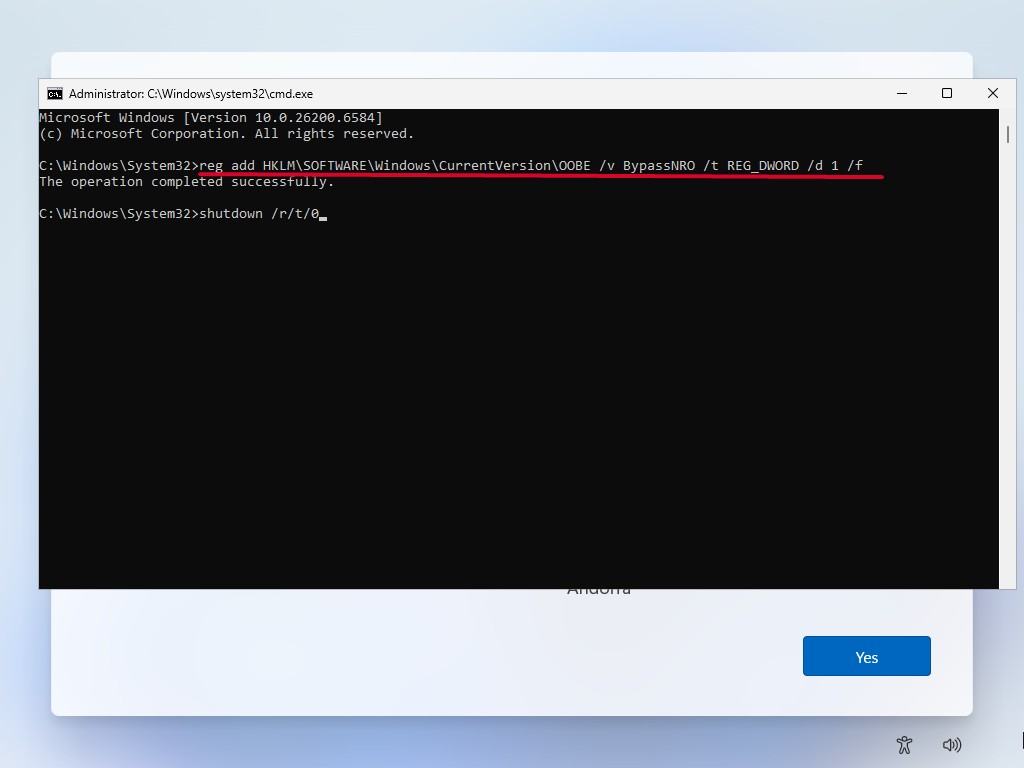
- Type the below command into the Command Prompt and press enter to execute it.
reg add HKLM\SOFTWARE\Microsoft\Windows\CurrentVersion\OOBE /v BypassNRO /t REG_DWORD /d 1 /f
- And then use the below command to restart the PC.
shutdown /r /t 0
- While the PC is restarting, remove the Ethernet cable if connected.
- On restart, select the region and keyboard layout as per your country and language.
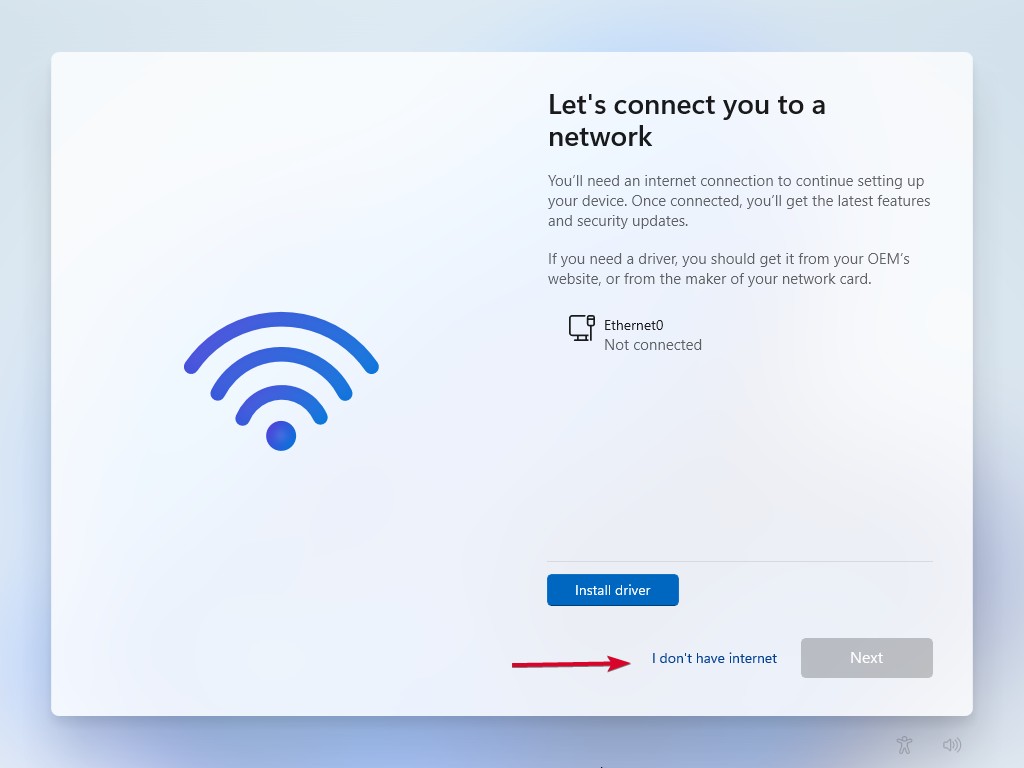
- Now, when you are on the network page, click on the “I don’t have internet” option near the Next button.
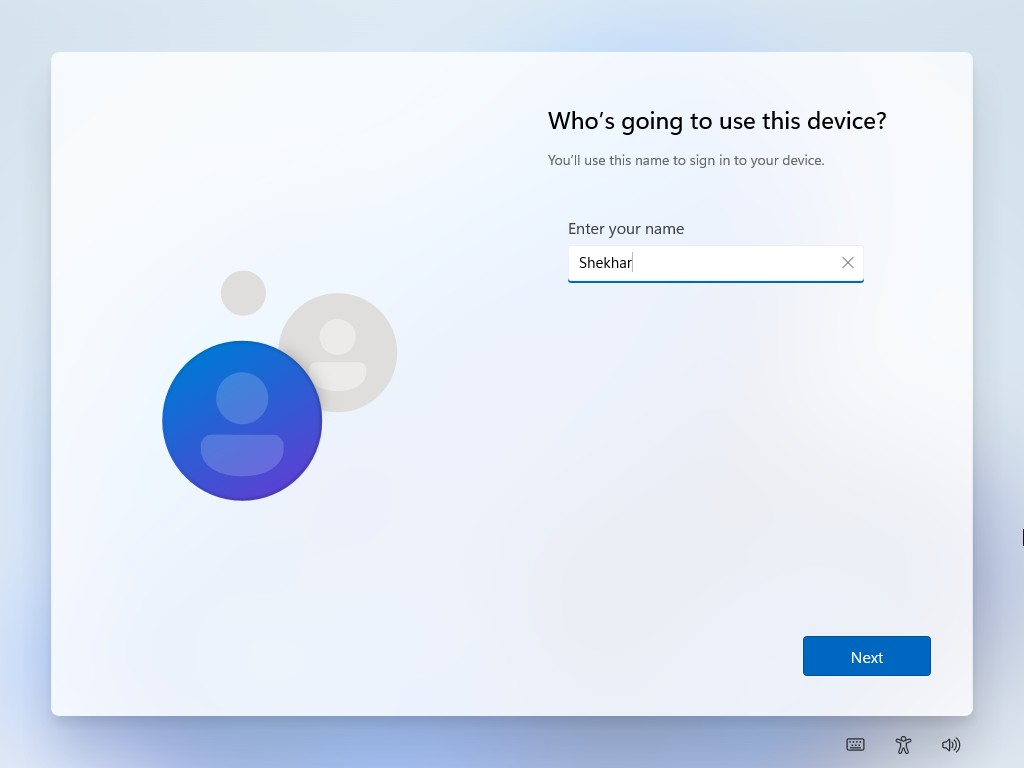
- Now, enter the name for the local account, and press the Next button. Note that if you decide to keep the account password-protected, this is the right time.
- Now, configure the privacy settings as per your preferences and click on the Next button.
- Now, follow the on-screen instructions to complete the process (if any).
- Finally, you will be welcomed to the Windows 11 home screen.
#4 Domain join instead Option (Windows 11 Pro)
This option is only applicable if you are installing Windows 11 Pro. Basically, the “Domain join instead” option is for those users who use the Windows device for work purposes. But this can also be used for consumers as well.
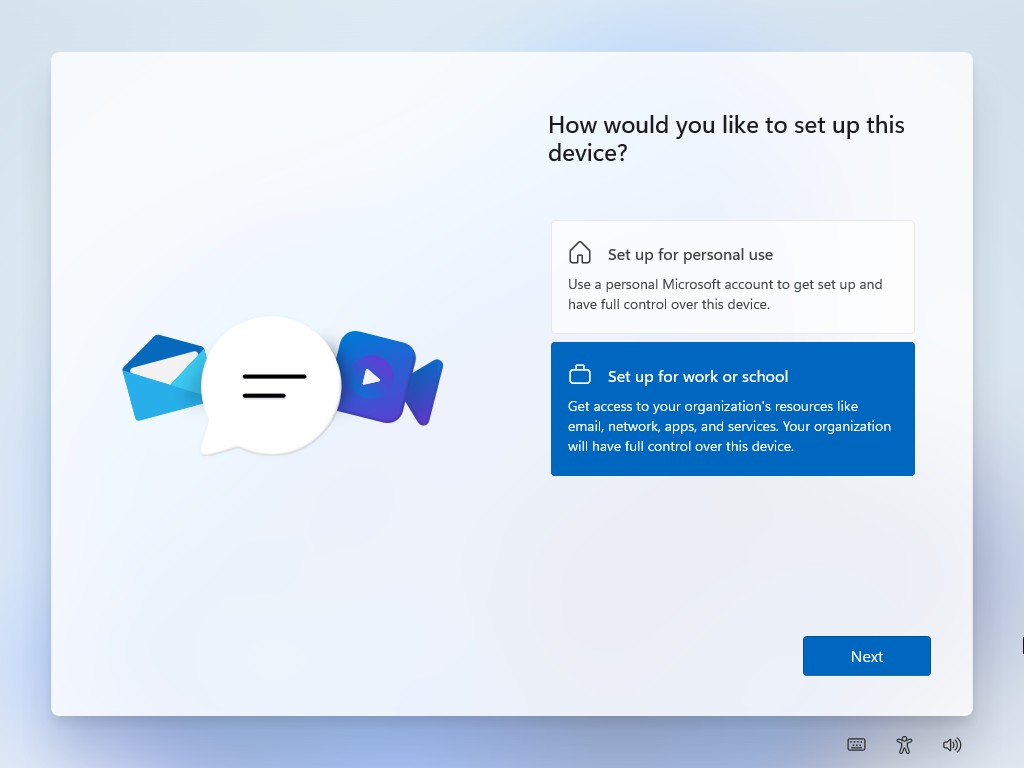
- Start the Windows 11 Out-of-Box Experience (OOBE) as usual, select the region, keyboard layout, network connection (Ethernet preferred), and computer name, and then when you are on the “ How would you like to set up this device? ” page, select the “ Set up for work or school ” option only.
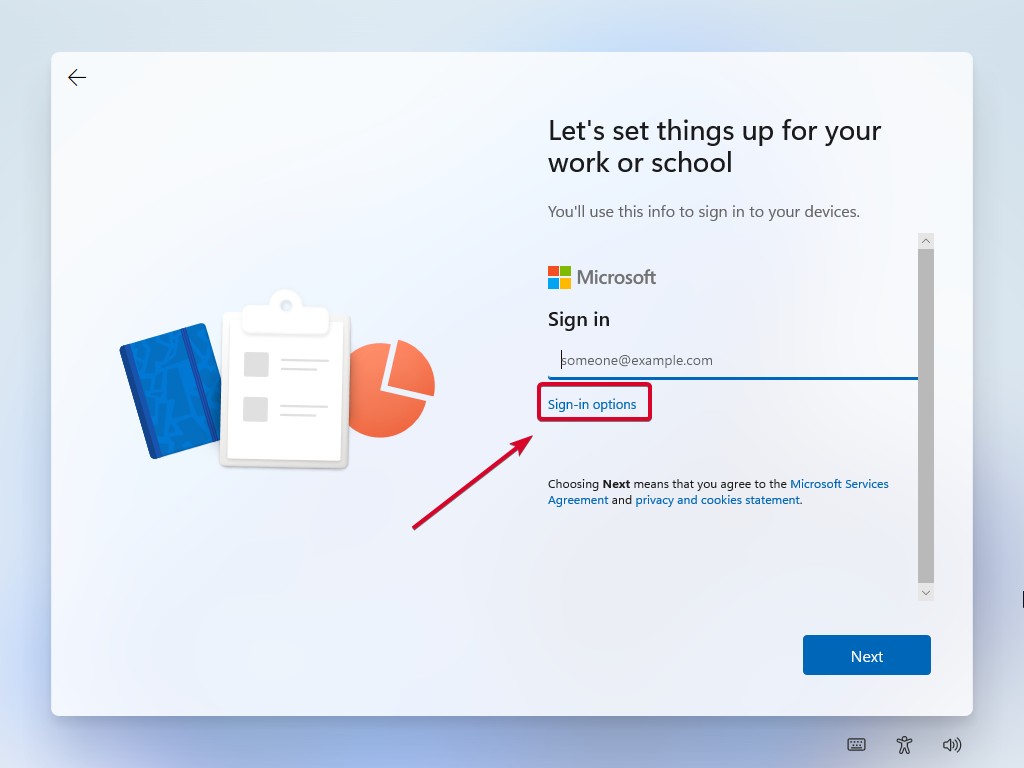
- Now, when you are on the login page, click on the “ Sign-in options ” option below the email address bar.
- And click on the “ Domain join instead ” option.
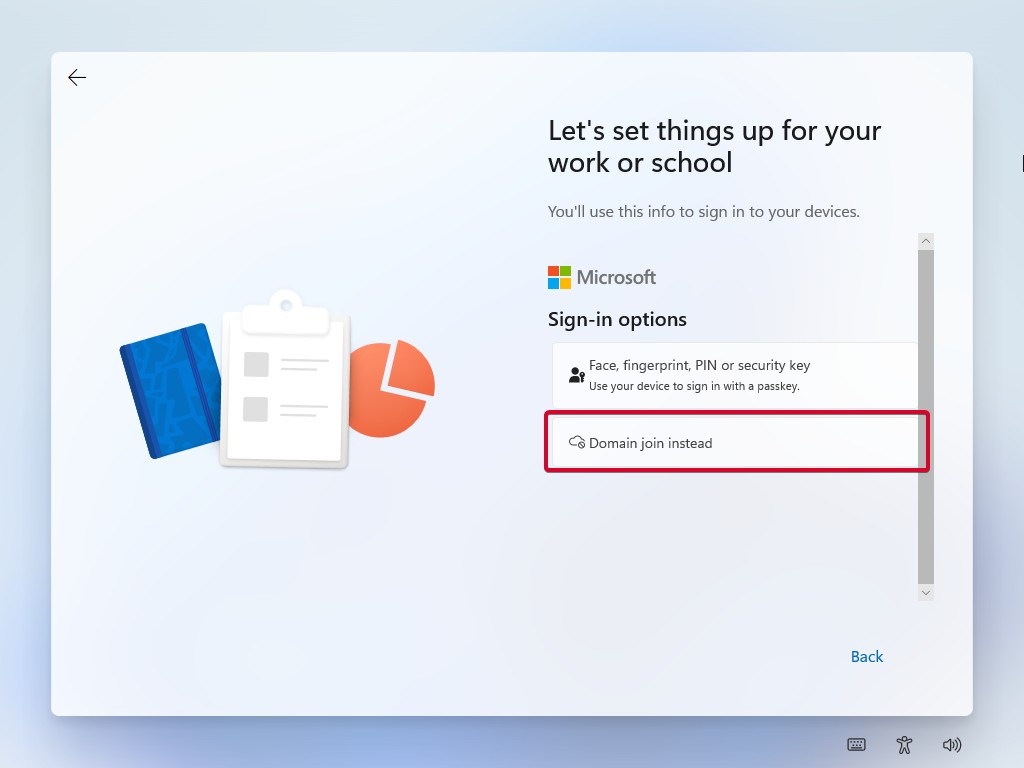
- Now finally enter the name of the local account holder and a password, if you want.
- Now, configure the privacy settings as per your preferences and click on the Next button.
- Now, follow the on-screen instructions to complete the process (if any).
- Finally, you will be welcomed to the Windows 11 home screen.
#5 Using Rufus (third-party)
Rufus is the third-party tool that we use most of the time to create a Windows bootable USB if we are not using the Windows Media Creation tool. It has been reliable and available in the market for a long time.
Rufus is a very effective tool and can be used to bypass Microsoft accounts, hardware requirements like TPM 2.0, and even the internet connection requirement.
- Download Rufus and the Windows 11 ISO file , and insert the USB drive into your PC.
- Open the Rufus tool, and select the USB drive and the downloaded ISO file. Click on the Start button.
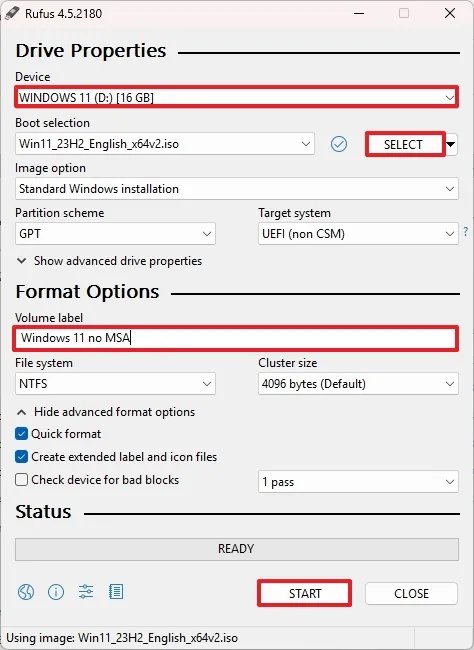
- On clicking the start button, a new Windows User Experience window will open.
- Now, select the bypass you need; we are selecting “ Remove requirement for an online Microsoft account ” for this guide. And click on the OK button.
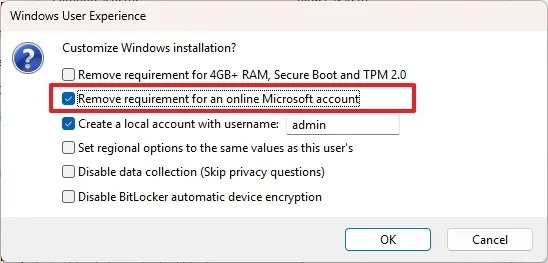
- Now, use the USB drive to clean install Windows 11 on your device.
- Since we created a custom ISO bootable drive, you won’t be asked to sign in to your Microsoft account.
Bypass Microsoft account requirement in Windows OOBE
These are a few working methods that can be used to bypass the mandatory Microsoft online account requirement during the Windows 11 Out-of-Box Experience (OOBE).
There are a few more working methods, like creating a custom ISO or opting for a custom Windows 11 like Tiny11 & Ghost Spectre , but that’s a topic for another day.
Enjoyed this article?
If TechLatest has helped you, consider supporting us with a one-time tip on Ko-fi. Every contribution keeps our work free and independent.
