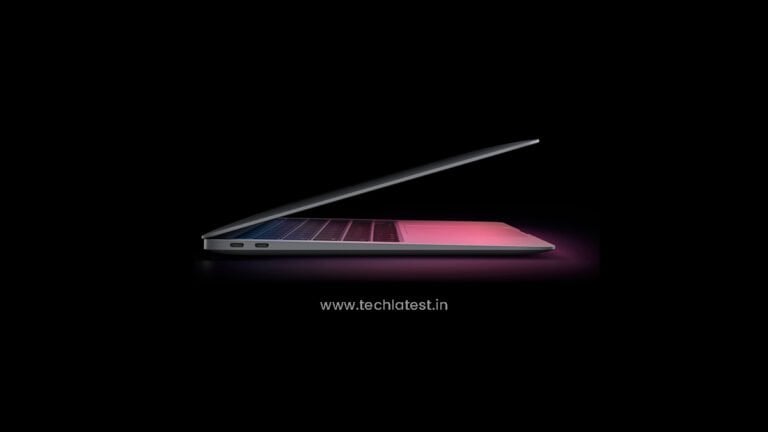
Accessories complete our computing experience. In this article, we are going to discuss and cover all the Best Budget Accessories for M1 MacBook Air.
These are the basic and necessary accessories that you will need in your day-to-day usages. These are handpicked accessories by us, these are being used by our team members, and you can just buy these right now using the links provided.
Don’t want to miss the best from TechLatest ? Set us as a preferred source in Google Search and make sure you never miss our latest.
Content Table
Apple MacBook Air M1 Edition
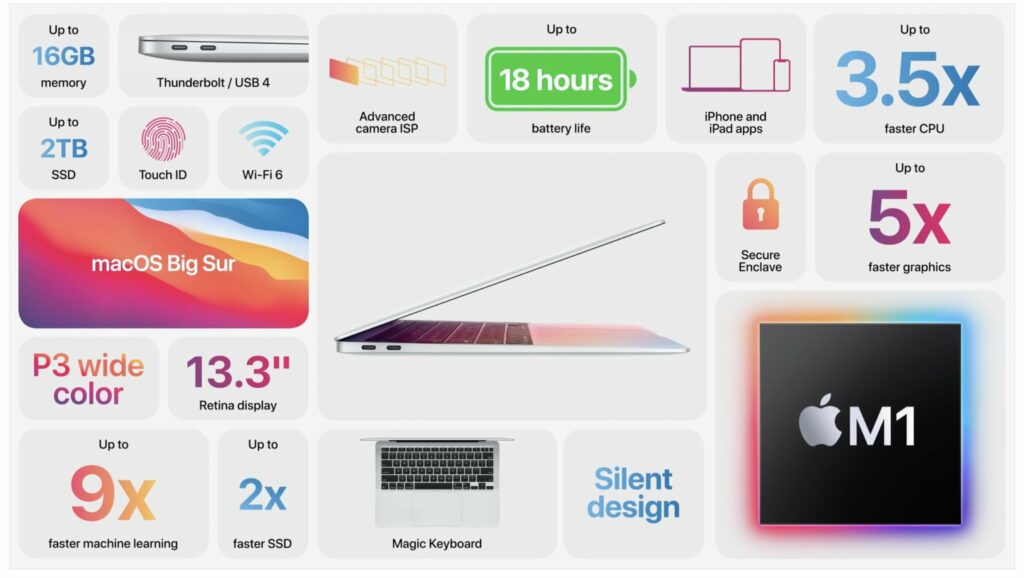
Apple MacBook Air M1 is the latest and first laptop to feature Apple ARM-based M1 SoC (System-on-chip). And M1 MacBook Air is Apple’s cheapest of the portfolio.
Features and Specs:
- Apple-designed ARM-based M1 SoC,
- Up to 18 hours of battery life,
- 8-core CPU,
- Up to eight GPU cores,
- 16-core Neural Engine,
- Up to 16GB of unified memory,
- Up to 2 TB superfast SSD storage,
- Fanless design for silent operation,
- 13.3-inch Retina display with P3 wide color
Budget Accessories for M1 MacBook Air
Laptop Sleeve
This is the basic necessity of any laptop whether it is new or old. The protection of the laptop is our responsibility, the performance is laptop’s. Although if you have a backpack then there is no need for a laptop sleeve. A laptop sleeve is the closed cover of the system. It perfectly contains the laptop and protects it from any external damage.
- 15-inch universal padded form-fitting sleeve
- Compatible with most 9.7” / 11” tablets
- Easily fit a cellphone or other accessories in the front zippered pocket
- Durable and water-resistant materials
- 1-year limited warranty

Dongle
MacBook Air M1 or any other MacBook (New) doesn’t have ports like USB Type-A, Ethernet, HDMI, etc. Speaking of MacBook Air M1, it has two Thunderbolt/USB 4 ports and one 3.5-mm headphone jack. So, buying a multiport dongle is kind of mandatory.
- Two Thunderbolt Type-C Ports,
- One 4K HDMI Port,
- Two USB USB-A 3.0 ports

Backpack
If you have a ton of other contents to carry, then only a laptop sleeve will not do the job, instead, get a perfect backpack. The below-shown backpack is actually is a smart backpack, it has a USB port, which can be used to charge your smartphone via a Power Bank. Other than that, it has space for everything, a laptop, a tablet, a smartphone, notebooks, pens, etc.

External Harddrive
Seagate 1TB Backup Plus Slim USB 3.0 External Hard Drive
The base variant of the MacBook Air M1 comes with only 256 GB SSD, and for users like me, isn’t enough. And in that case, it is necessary to own external storage. Although I always prefer SDD over HDD, if budget is an issue then Seagate will do the job as well.
- Seagate Dashboard software
- USB powered – no power supply necessary,
- Quick file transfer with USB 3.0 connectivity,
- Compatible with PlayStation 4
- Works interchangeably on PC and Mac computers—without needing to reformat
- Complementary 2 Months Free Adobe Creative Cloud Photography Plan (India)

Bluetooth Mouse
LogiTech M557 Bluetooth Mouse
I always use an external mouse, the touchpad is good enough for most of the tasks, but I feel that an external mouse can increase work productivity by a great margin, I don’t know whether it is my mentality or actual truth, but it is what I feels.
Logitech M557 is a totally Bluetooth unlike those traditional adapter mouse. It is small, compact and precise. You will not regret buying this.
- 12-month battery life,
- Bluetooth enabled,
- High-definition optical sensor,
- DPI changer via button

Bluetooth Keyboard
Logitech K480 Bluetooth Keyboard
This is another good investment. If you are hardcore user like you do a lot of programming and stuff where you have to write a lot then an external keyboard is kind of necessary.
This is a Bluetooth-enabled keyboard with up to 3 devices’ simultaneous connectivity and the usage can be tracked via a roller/wheel.

Logitech K400 Plus Keyboard (with touchpad)
This is an upgraded version of K480, it has an additional trackpad with the left and right-click button. But there is a drawback, it works on the old receiver tech, you will have to insert the mini-adapter to get it working.

Type-C to USB Type-A Adapter
Belkin USB Type-C to USB-A 3.0 Adapter
This is the last product in our list. In case you don’t need the whole of ports like USB, HDMI, Ethernet, etc., but only the USB port, then you can save some penny and go for this Type-C to Type-A adapter.
- Reversible USB-C connector
- 1.5A charging output
- Up to 5 Gbps data transfer speed

Closing Phrase
These were all the Budget Accessories for M1 MacBook Air, these will help you have a better MacBook experience. I hope we have covered all the necessary accessories, in case we missed anything, or you have some doubts and queries regarding the accessories, then reach us out via the comment section below or any of our social media handles.
Peace 😉
- Best Gaming Keyboards Available to Buy
- Printer Buying Guide: All You Need to Know
- Laptop Buying Guide: Things to keep in mind before buying
- 5+ Best Budget Gaming Accessories You Can Buy Right Now
Enjoyed this article?
If TechLatest has helped you, consider supporting us with a one-time tip on Ko-fi. Every contribution keeps our work free and independent.
Welcome to our buying guide special series, in this series we take you through the very basic and important options that you need to keep in mind before you head out to buy a gadget. In this edition, we are presenting you with a printer buying guide.
Yes, Printers are now very common because now they offer cool functionality and are more affordable. So, if you are planning to buy a printer make sure you keep these things in mind and read the complete printer buying guide here.
Printer Buying Guide
Don’t want to miss the best from TechLatest ? Set us as a preferred source in Google Search and make sure you never miss our latest.
The printer buying guide is important as, Over the past few years, the Pinter market is seeing a very intense competition between brands like HP, Epson , Brother , and Canon . This has made the prices drop down and companies have introduced some really cool features. So, it becomes a little confusing to select the right one. So here are some things to keep in mind. First of all, decide on what purpose you are going to buy a printer. It can be for personal use, for office purposes, or for something else, like in a shop or somewhere.
There are many types of printers that are available out there and they all serve different functionalities and let’s discuss them. And know some stuff about printers by this printer buying guide.
Type of Printers
Inkjet Printers
These are the most common and cheap printers available out there. The inkjet printers spray ink on paper to print photos and it uses ink that is stored in the cartridge. So, what’s wrong? Well, a lot of things.
First of all, the cartridges are very expensive and if you are a frequent user, you will have to buy them often. Second, The ink in the cartridge will dry if you will not use the printer regularly, the build quality is poor. It has low page yield and it will not print if any cartridge is missing. It’s a thing of the past, to be honest, and the only good thing is that it is cheap.
If you just print a few papers a week, only then you might consider it otherwise these types of printers are a big NO! and you will end up replacing them soon if you will buy the Inkjet printer.
Ink Tank Printers
Ink Tank printers are kind of new and better in the market and they are almost like the Inkjet printers, but these seem to have resolved the issue of expensive cartridge and low page yield.
These printers have an ink tank on the side that you can refill. So, if any of the colors goes out, you can refill it individually. These printers are great if you print a lot of stuff and initially, they might cost a little more, but these are very economical over time.
Ink Tank printers print better photos, have a high page yield, ink costs are lower compared to Inkjet printers. The only thing is that you don’t get new printheads every time you refill the ink. And the feeder tube clogs sometimes but these are not very big issues.
If you are a student or have a small local business, Ink Tank printers are a really great option for you as they will be more economical and useful for you.
Laser Printers
The laser printers work on a completely different mechanism, they use heated drums, toner to get the ink and stuff to work. The cartridge for this one is very expensive, but it evens out as the page yield is also very high.
The printers have a very high page yield, prints are fast, you have the option to replace cartridge individually, superb build quality, the good thing is that its ink won’t dry out if you will not use it for long. The downside is that photo printing is not that vibrant, and these printers are quite expensive.
Printing Cost
When it comes to printers, you need to see the long-term game. Just don’t fall for the cheap ones and then pay high amounts for cartridges. To give you an idea, in general printing a piece of paper from each type of printer will cost you as follows:
The lower end is for monochrome prints and the higher end is for colored prints.
As you can see the cheapest cost of printing a paper comes from Ink Tank printers, then Laser printers, and Inkjet are the most expensive.
Resolution
Printers have a thing called DPI and it is like pixels in displays. So more DPI means better quality of prints. Usually, 72DPI is ideal for monochrome prints and 150DPI for color prints. 300DPI is the recommended printing quality for Photos. The more high-quality prints you decide to generate, the more ink they will consume. So, it is also important to pay attention to DPI while printing and selecting a printer.
Speed
If you have a lot of stuff to print and distribute, then the printing speed is an important factor. If you print a lot of monochrome pages, just consider getting the Laser printers as they are very fast at printing while the Inkjet and Ink Tank printers are slow.
Paper Tray
Just see the number of papers a printer can hold, because if it less than the amount of paper you print daily, go for the printer with a bigger tray. It is important as you will be irritated if you have to fill papers again and again.
Added Functionality
Although the majority of the Ink Tank and Laser printers already have scanning and photo-copying support integrated to them, it is still important to keep in mind that you get the printer will scanning and photo-copying feature.
Some Other Things to Note
See for the wi-fi support in the printer. With wi-fi support, you will be able to print your photos wirelessly from your phone and PC and that is very useful functionality. And importantly, don’t fall for some fancy displays on printer, and some extra ports. These things just add up in cost and do not provide any good functionality.
- Graphics Card Buying Guide: All You Need to Know
- Television Buying Guide: All You Need to Know
- Graphics Card Buying Guide: All You Need to Know
Enjoyed this article?
If TechLatest has helped you, consider supporting us with a one-time tip on Ko-fi. Every contribution keeps our work free and independent.
