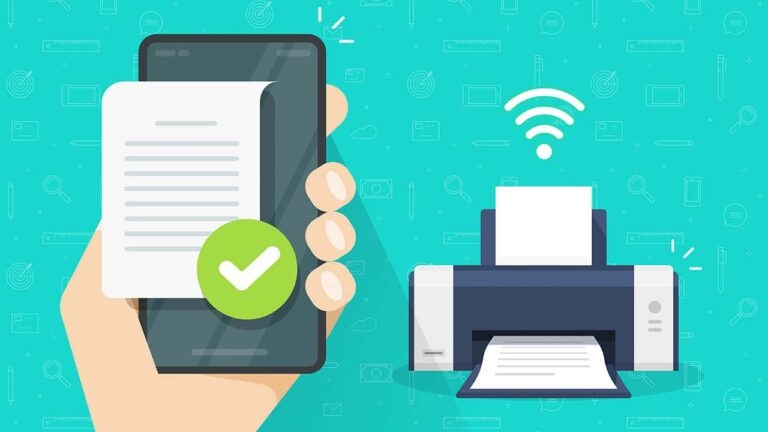
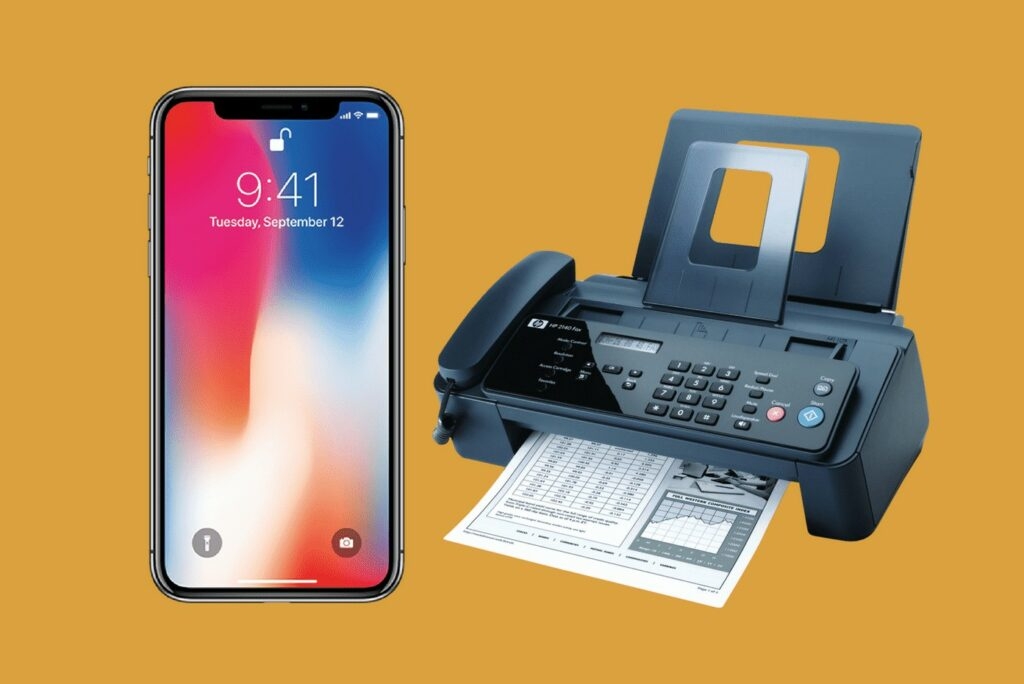
Like floppy disks and VHS, fax machines have long been obsolete. Even during this era, many companies demand using fax. But the good news is that people can still use iPhone to send a fax.
Lawyers, banks, real estate companies, etc., still use fax machines for printing important documents in the organization.
Don’t want to miss the best from TechLatest ? Set us as a preferred source in Google Search and make sure you never miss our latest.
Content Table
How to Fax from iPhone?
You can use third-party apps to print a fax from your iPhone. Some of these apps are free, while some apps are paid. You can use any of these apps based on your requirement.
The latest fax machines are compatible with smartphones and are also equipped with the latest technologies like Bluetooth, WiFi, etc. They also support third-party apps that can help you get the fax done in a fraction of a second.
iFax
- Firstly, install the app from the Apple App Store.
- In case you are using the iFax application for the first time on your iPhone, then you are asked to sign up for the service. Now, tap on the ‘Continue’ button and confirm the monthly subscription.
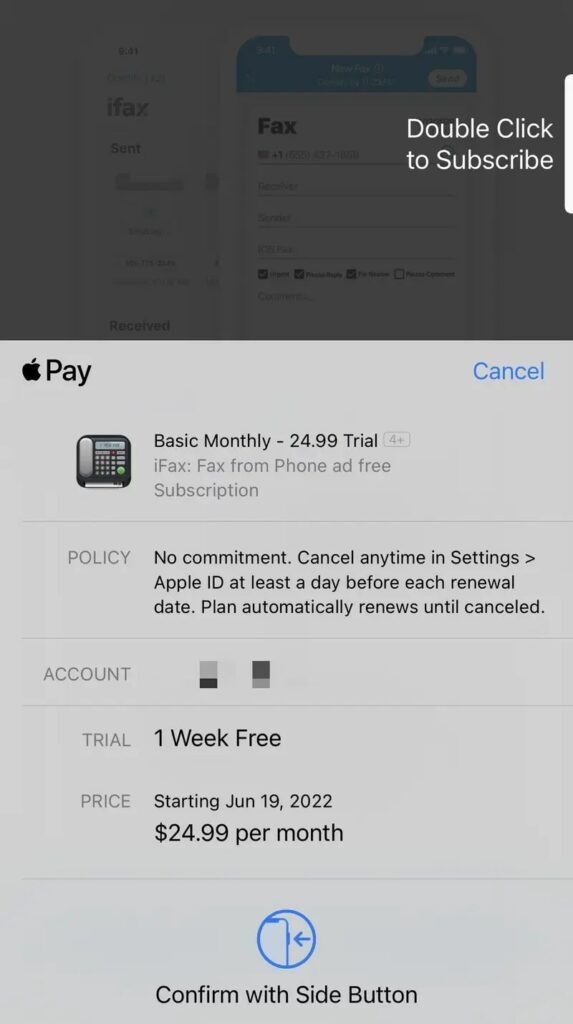
- If you are prompted with any special offers, click on the ‘Skip’ option.
- Now, enter your email or existing account credentials and log in to your iFax account.
- Once you see the account is activated, on the homepage, click on the ‘Create a Fax’ button.
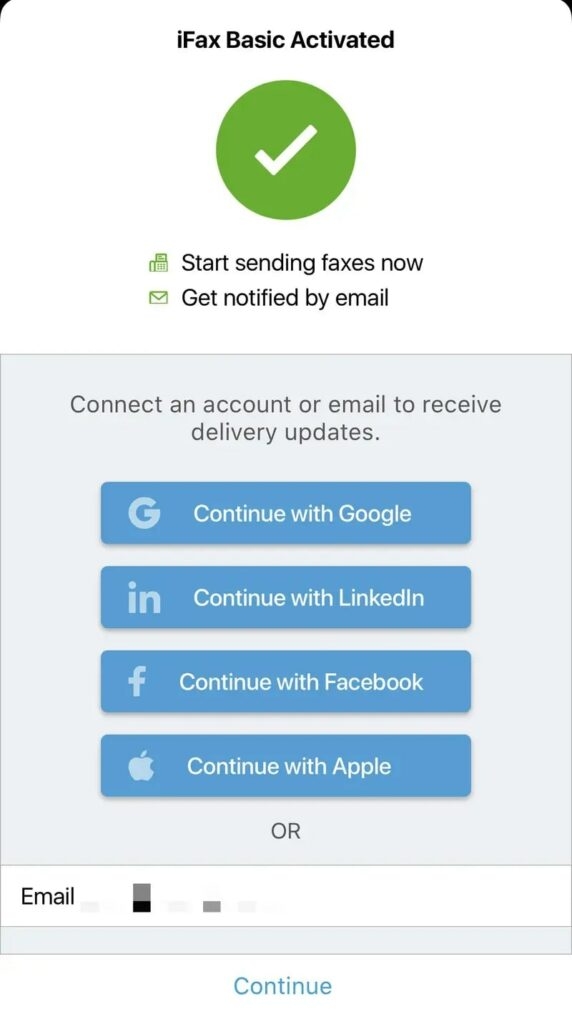
- Enter all the details like recipient name, fax number, subject of the fax, etc.
- Now, select the option ‘Scan or Add Document’.
- Now choose the option whether you want to scan the document, write a text, email, or gallery.
- Once you return to the fax page, you can find the ‘Scan or Add Document’ option. If you want to add more pages to the fax, you can use this option.
- Once done with the page selection, click on the ‘Send’ option to print the fax.
WeFax
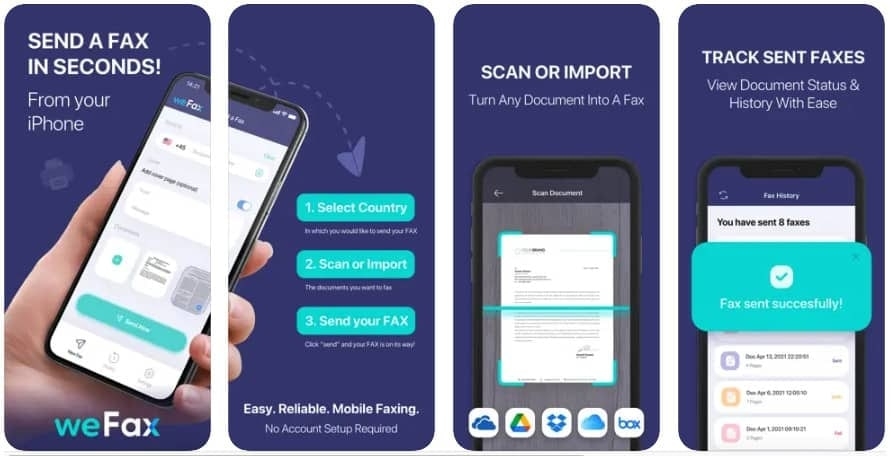
This is an easy-to-use fax application for iPhone. One of the best things about the WeFax Application is that it does not require signing up. This fax application is suitable for both individuals and businesses as it can get the fax done in a few simple clicks. Moreover, the layout of the app is very intuitive.
eFax
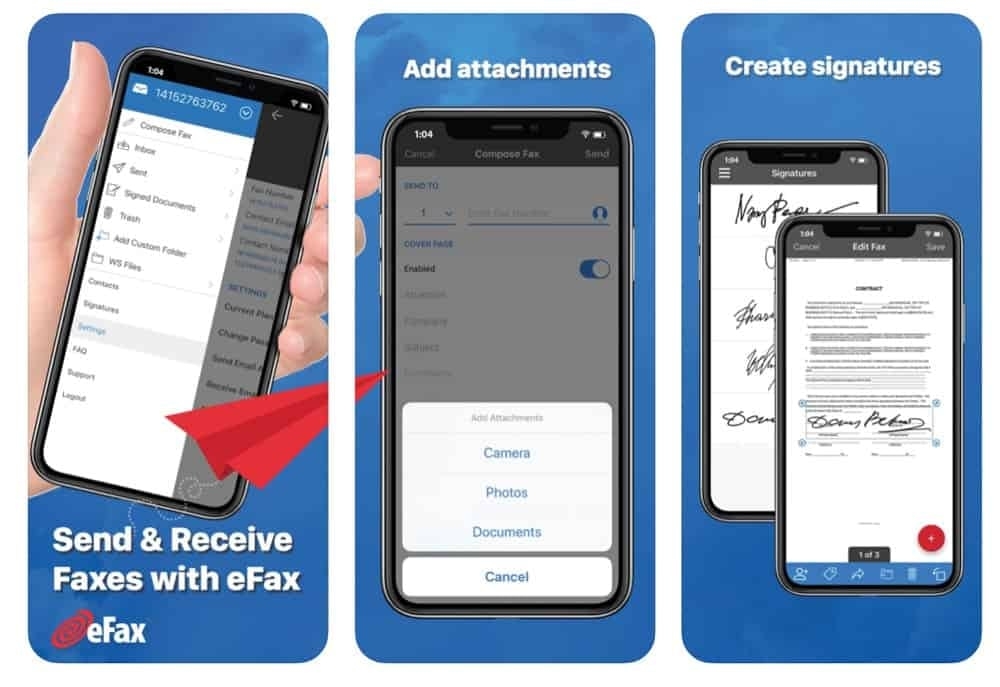
eFax is an award-winning iPhone application that has millions of users around the world at the moment. With the help of this fax app, you can edit, sign, and send a fax through your iPhone with a few simple clicks. One of the best things about this fax application is that it does not require any setup fees.
Fax.Plus
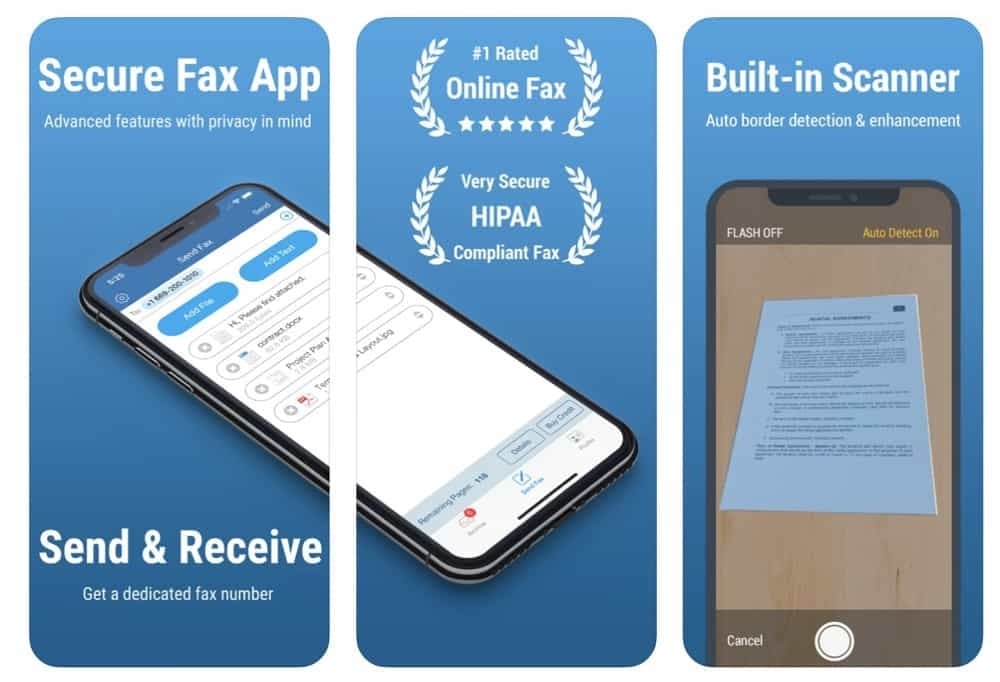
This application is as well an award-winning fax app. If you want the documents to be safe and secured when sending the fax, then Fax. If required, you can get a fax number and receive faxes on your iPhone with the help of fax.Plus application .
This application comes with an inbuilt scanner to scan the document, and then you just need to add the recipient’s fax number or email and send the fax. If needed, you can also attach the files from either iCloud or the local storage.
Which is the best Fax Application for iPhone?
Among the apps listed above, iFax and WeFax are the best ones as they are easy to use and also have an impressive user interface, which makes it easier to send fax from iPhone.
Conclusion
You can use either of the apps mentioned above to fax from your iPhone. While some apps are paid in this list, some are free.
Further Readings:
- 14 Best Microsoft Active Directory Alternatives
- Best Thermal Camera Apps for Android and iPhone
- How to Print to PDF on iPhone?
Enjoyed this article?
If TechLatest has helped you, consider supporting us with a one-time tip on Ko-fi. Every contribution keeps our work free and independent.
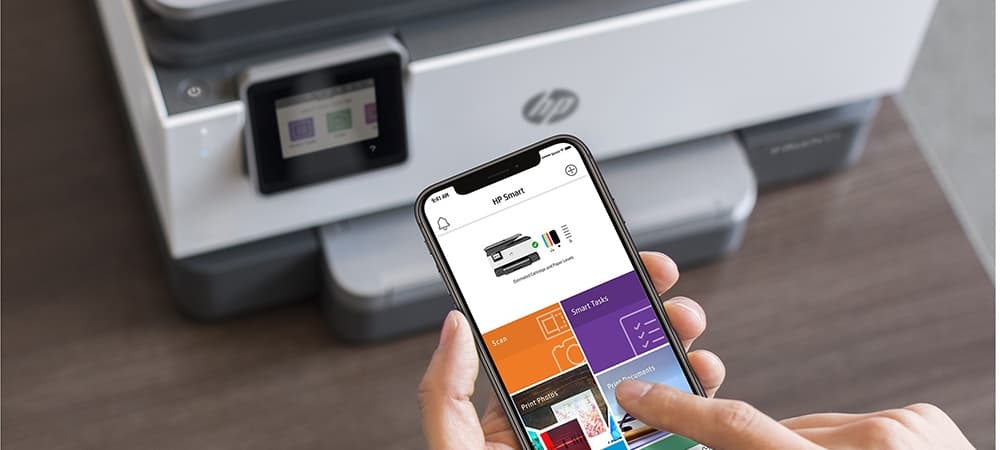
Phones are used to print nearly anything, whether it be a professional document or a personal document like recipes, posters, etc. One of the key advantages of printing to PDF is that the original structure of the file remains the same without losing the format.
In this article, we will show you how to print to PDF on iPhone by following simple steps.
Don’t want to miss the best from TechLatest ? Set us as a preferred source in Google Search and make sure you never miss our latest.
- How to Edit PDF on iPhone? (3 Methods)
- How Do I Transfer PDF Files to My iPad
- How to use Microsoft Office for Mac Free?
Content Table
How to Print to PDF on iPhone?
To print the PDF on iPhone, follow the steps given below:
Step 1: Click on the Share Icon
You will see an icon with an arrow pointing upwards. These icons are present at the bottom of the screen.
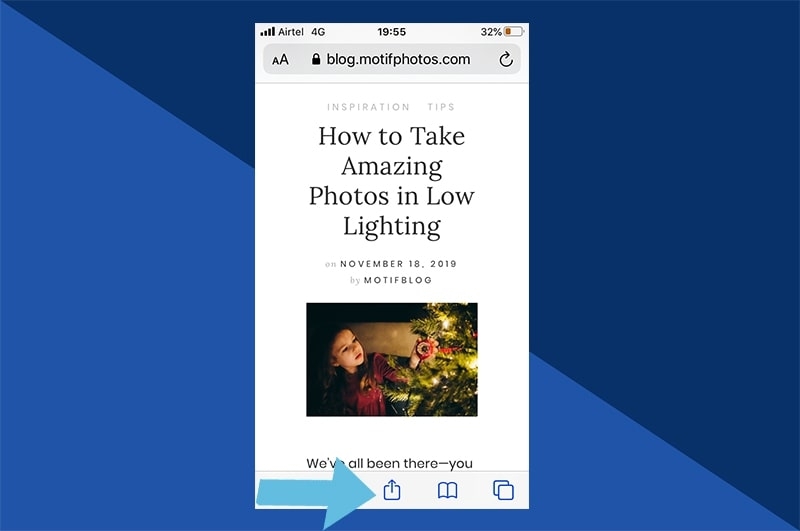
Now click on the print option. You will be navigated to the preview page.
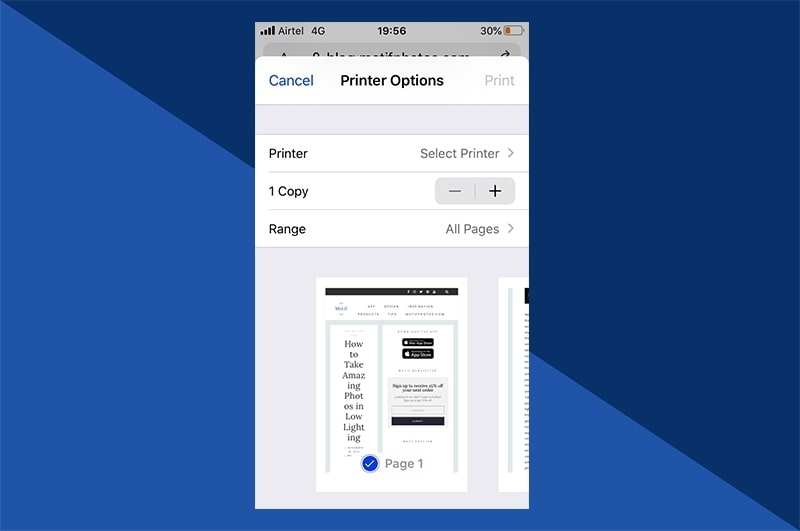
Step 2: View Preview
Once you are on the preview page, you will find a small preview of the page. You can also zoom in and zoom out to see if the print looks fine or not. If you are using iPhone 6 and above version, you can tap and hold the finger to use the pinch-out gesture.
Step 3: Tap on the Share icon and Save the PDF
Once you see the full preview mode, you can tap on the share icon present in the top-right corner of the screen, as shown in the image below.
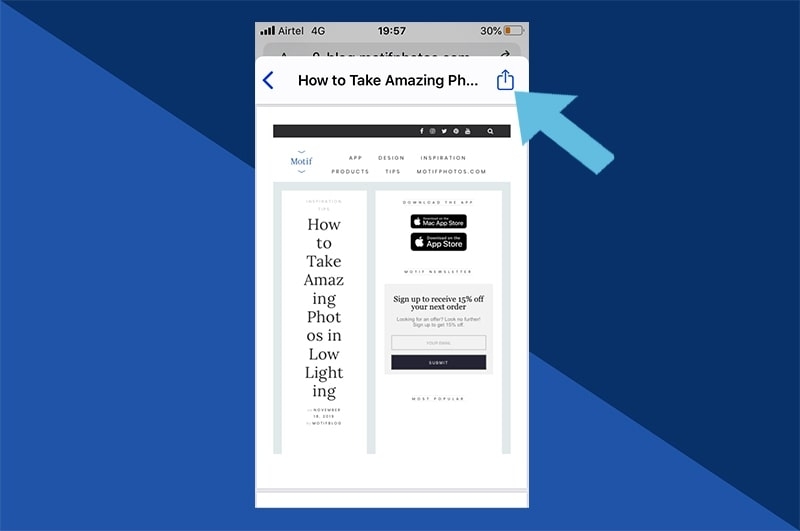
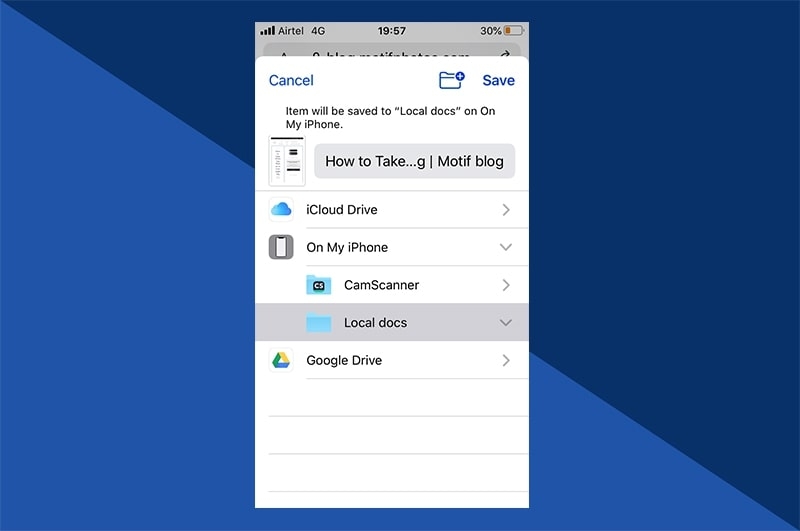
Once you select the format to save (save as PDF), choose where you would like to save the file. You can either save it on your iPhone, send it over email, or choose to use it with a PDF-compatible app.
How to Print email as a PDF on an iPhone?
To print the email as a PDF on iPhone, you need to first open the Apple Mail application and then scroll down and click on the option ‘print conversation’. If you are using Gmail, then you can find 3 dots beside the email. Tap on it and select the ‘Print’ option. The same process can be applied to print an email as a PDF on outlook as well.
Once you click on the ‘Print’ option in any of the respective email applications, the rest of the printing steps are common:
- Tap on the ‘Print’ option in the top-right corner and choose your desired print settings.
- In case you want to save the email as a PDF, you can long-press on the document preview to zoom it.
- Now, press on the bottom left corner and click on the ‘Share’ icon.
- Now, press the ‘Save to Files’ option to save the email as a PDF on your iPhone.
Things to Consider When Creating PDF in Different Browsers
Though the above steps are more inclined towards the Safari browser, you can follow similar steps to print PDF on other browsers as well. In case you don’t find the browser supporting the printing option, then we recommend you take a screenshot of the file and then send it to the ‘Share’ option after printing.
What can you ‘Print to PDF’ on your iPhone?
The latest ‘print to PDF’ feature on iPhone allows you to print any file, document, mail, photos, etc. You are not restricted to any file type for printing. Also, the print to PDF feature is not restricted to use only for Apple apps but also can be used for any third-party apps like Google Sheets, Gmail, and other browsers.
Conclusion
We hope this article has provided clear insights on how to use the ‘print to PDF’ feature on iPhone. If you are not using Safari on your phone, you can still print to PDF on other browsers as well because this feature supports even non-Apple apps.
Enjoyed this article?
If TechLatest has helped you, consider supporting us with a one-time tip on Ko-fi. Every contribution keeps our work free and independent.
