Highlights
- The CPU_FAN header is the main control point for your processor’s cooling, while CPU_OPT simply supports extra airflow.
- Your PC won’t start safely without a fan on CPU_FAN, but it won’t complain if CPU_OPT is empty.
- When both headers are used together, they can run dual fans in sync for stronger and more stable cooling.
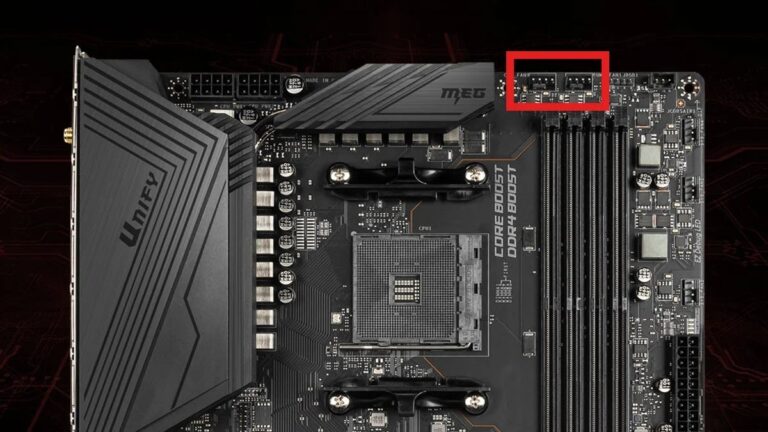
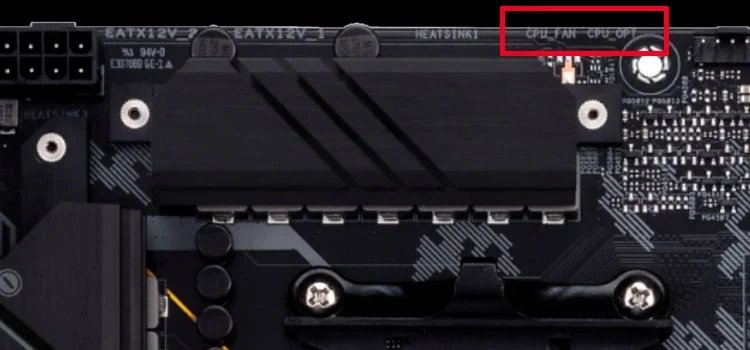
If you have ever opened a computer cabinet or built a PC from scratch, you must have seen different fan headers on the motherboard. Two names appear almost everywhere: CPU_FAN and CPU_OPT. Like when one day I opened my PC cabinet, at first glance, I found them looking the same.
Yeah, they have, like, the same pins and even the same fan connectors, so it is hard for me to differentiate. That’s why most beginners get confused and think both are identical. Some even use them randomly without knowing their purpose.
Don’t want to miss the best from TechLatest ? Set us as a preferred source in Google Search and make sure you never miss our latest.
But when I researched them, I found that both headers are there for good reasons. Their roles in our CPU are different, and using them correctly helps our processor to work correctly.
So, if you don’t know about the feature and what CPU_FAN and CPU_OPT really are , how they work , and when you should use each of them, then this guide will help you.
Content Table
What is a CPU_FAN Header?
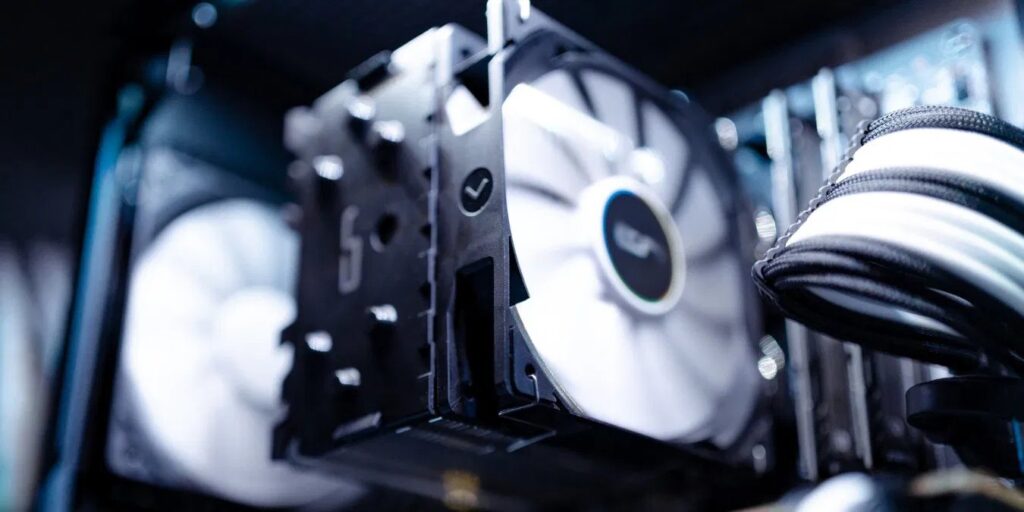
The CPU_FAN header is the main cooling connector on a motherboard that controls the primary fan connected to the CPU cooler .
Whether you’re using a stock air cooler , a tower cooler , or a liquid AIO cooler , the main fan that directly cools the processor is plugged into this header. The system constantly checks how fast the fan is spinning and how hot the CPU is. Based on that, it increases or decreases fan speed automatically.
Why Is CPU_FAN Important?
- If no fan is detected here, most computers refuse to boot or show a “CPU fan error” .
- It protects the CPU by shutting down the system if the fan stops working.
- It gives accurate RPM readings to the BIOS.
- It controls the temperature of the processor.
So, motherboard designers treat this header as critical because it is directly responsible for keeping the CPU safe.
What Are The Similarities Between CPU_FAN and CPU_OPT?
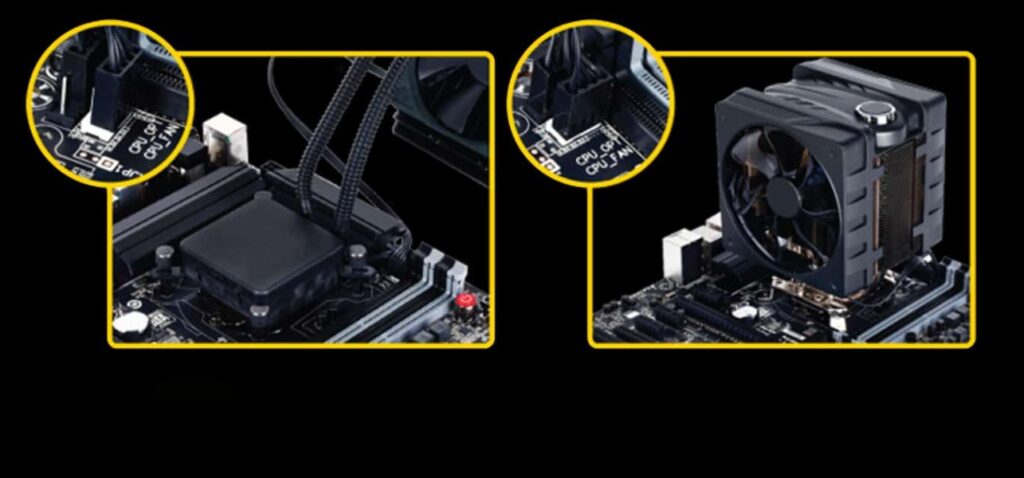
This is where confusion starts, because both headers are technically quite similar. Here’s why:
- Same Pin Type: Both headers support 4-pin PWM fans . You can also use 3-pin DC fans , but PWM is recommended for better control.
- Same Voltage: They both run at the same voltage levels (12V), so power is not a problem.
- Same BIOS Settings: Both headers can be seen in the BIOS, and you can monitor their RPM.
- Same Position: They’re usually placed close to each other near the CPU socket.
So, to a beginner like me, they look identical because they share almost everything. But their function is different.
Read : How to fix the CPU Fan Error in ASUS Motherboard?
How They Work Together in Real Cooling Systems
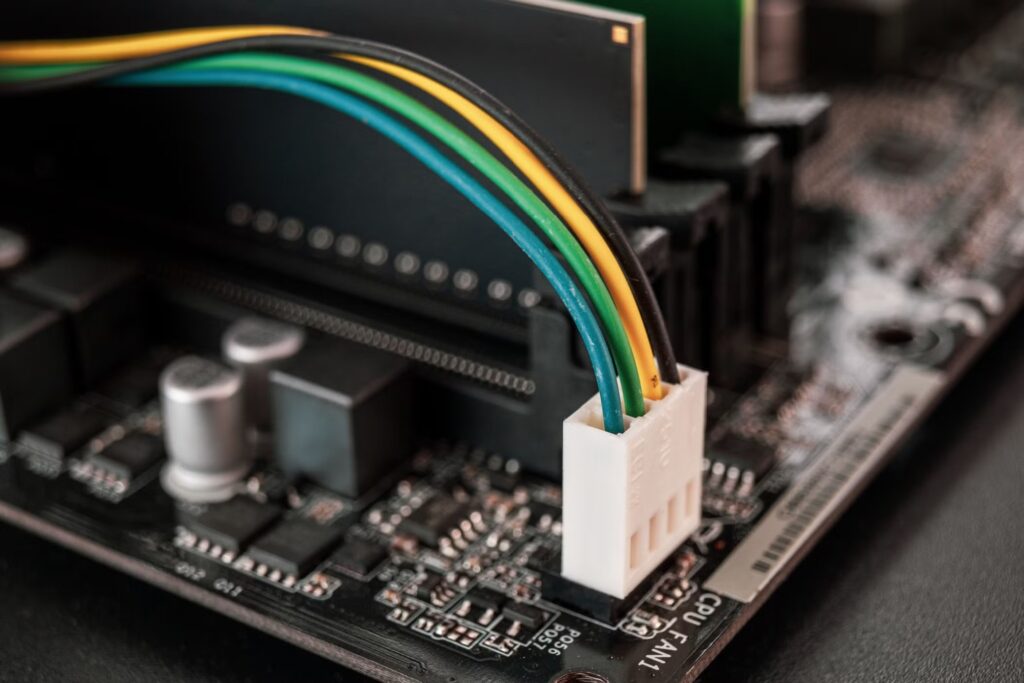
To understand the real difference, imagine you are building a PC using a dual-fan air cooler like the Noctua NH-D15. This cooler comes with two large fans. You need both of them active. If only one fan runs, the cooler loses a part of its performance.
So, you connect the first fan to CPU_FAN. And then the second fan must go somewhere. Naturally, you plug it into CPU_OPT. Once both fans are connected, the motherboard treats them as a paired cooling system .
Read : Best 120mm PC Case Fans | Best 140mm PC Case Fan
When the CPU becomes hotter, the BIOS simultaneously increases the speed of both fans. When the CPU cools down, both fans slow down together. This synchronized speed change is helpful because if one fan runs faster and the other slower, the airflow becomes unbalanced.
In the latest technologies, like a liquid cooler, the setup is similar but with an extra part: the pump. In most modern motherboards, you will find a header called AIO_PUMP or sometimes PUMP_FAN . That header is made to power the pump itself. The radiator fans again go into CPU_FAN and CPU_OPT.
Read : Best 360mm AIO Coolers: Our Top 5 Picks
Some people accidentally connect the pump to CPU_FAN, which creates problems. The pump keeps changing speed according to the temperature, and this can affect cooling. So, we always recommend plugging the pump into the pump header and using CPU_FAN + CPU_OPT for radiator fans.
What Happens When You Use Them Incorrectly?
Since there are almost thousands of instructions on the internet, people sometimes make simple mistakes. Like a new user may plug the main CPU fan into CPU_OPT . The fan will spin, but the motherboard will still say “CPU Fan Error” because it expects the primary fan to be on CPU_FAN. This can be confusing for beginners because they think the fan is broken. But the issue is only the wrong connection.
Like when one of my friends switches to a liquid cooler, he uses the CPU_FAN for the pump and connects radiator fans to CPU_OPT and some random system fan header. Thereafter, his computer boots up normally, but the cooling performance drops, as the pump speed continuously fluctuates.
Well, due to this, the CPU temperature keeps rising during gaming, and sometimes the processor may even reduce its clock speed to cool down, a process known as thermal throttling . But now everything worked fine for him, as I fixed the issue on his behalf.
However, if you want to avoid such problems, follow a simple rule, i.e., the fan that directly cools the CPU must go into CPU_FAN , and any additional fan used for the same cooling system should go into CPU_OPT.
Read : [Solved] GPU Fans Not Spinning
What If Your Motherboard Doesn’t Have CPU_OPT?
Well, not all motherboards are expensive. Many entry-level motherboards come only with a CPU_FAN header and a few system fan headers. If you are using a cooler with two fans, you may get confused and start thinking about how to connect them.
In such cases, you have two easy options. The first option is to use a PWM splitter cable . This cable allows you to plug two fans into one header . Thereafter, the motherboard will see only one fan signal, and both fans will follow the same speed. It works perfectly for dual-fan coolers.
However, the second option is to use a fan hub . A hub can power multiple fans from one place and keep your cable management clean. Some hubs even allow speed control directly through software.
How BIOS Controls Fan Speed
Well, if you are also thinking about how these fan systems work or how to control the fan speed. Then, inside the BIOS, there is a page where you can see the temperature graph of your CPU, and based on that, you can tell the fan how fast it should spin.
When the CPU is cool, the fan runs very slowly, producing almost no noise. When the temperature rises, the fan starts spinning faster.
Most motherboards also give control over CPU_OPT , depending on the cooler type. Some advanced boards even allow a customization curve for push and pull fans, enabling fine-tuning of airflow.
If you want a quiet PC, you can create a gentle curve . If someone wants maximum performance, they can make a steeper curve so the fan reaches full speed quickly. However, modern BIOS systems make this easy with a visual chart.
Read : Best Windows PC Software for Fan Speed Control
Wrap Up
So, that’s all we have for you about CPU_OPT vs CPU_FAN. We hope that this guide has helped you. However, in case you have any doubt regarding this guide, comment below and let us know.
Enjoyed this article?
If TechLatest has helped you, consider supporting us with a one-time tip on Ko-fi. Every contribution keeps our work free and independent.
