In this article, we are going to talk about Discord Webhook, and how it can be used to automate a ton of stuff, like sending YouTube new upload notifications to your Discord servers automatically or sending your Twitter feed to your Discord server.
Discord Webhook is a hidden gem that can actually ease our life in terms of menial jobs that we don’t want to do usually.
Don’t want to miss the best from TechLatest ? Set us as a preferred source in Google Search and make sure you never miss our latest.
So, we are going to implement this YouTube Discord Webhook, where a notification will be sent to your Discord server whenever you upload a new video. In this way, the notification can reach a larger audience.
Send YouTube New Upload Notification to Discord Server Automatically (YouTube Discord Webhook)
We are going to automate the whole process of sending the notification of a new upload from your YouTube channel to your Discord server.
Pre-requisite:
- A Discord Server
- YouTube Channel
- IFTTT Account
The Steps:
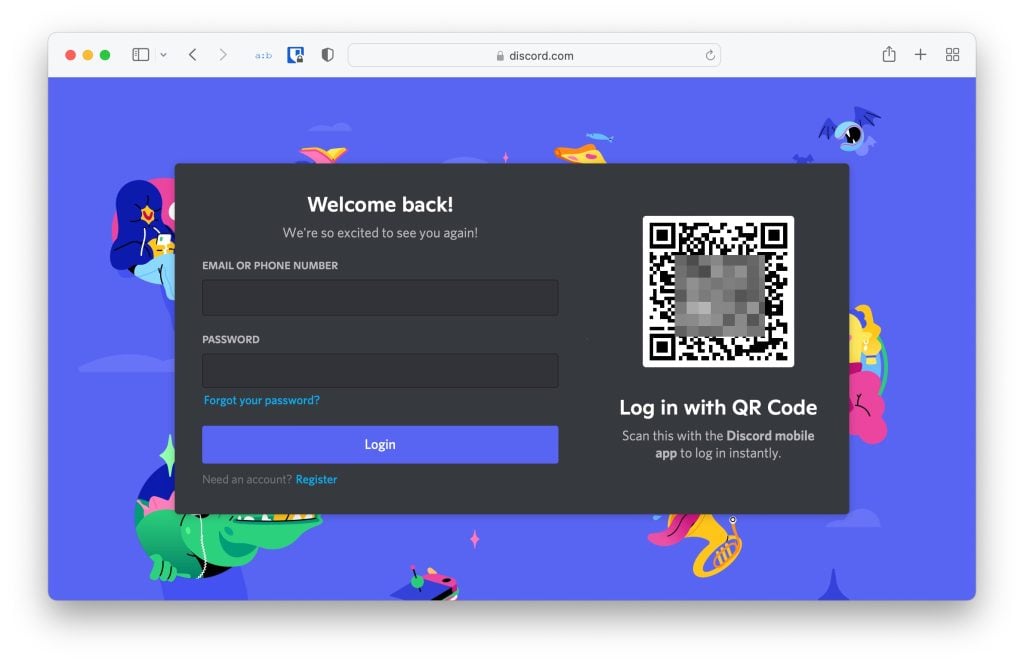
Step 1: First, go to the Discord website or open the Discord app and log in with your credentials.
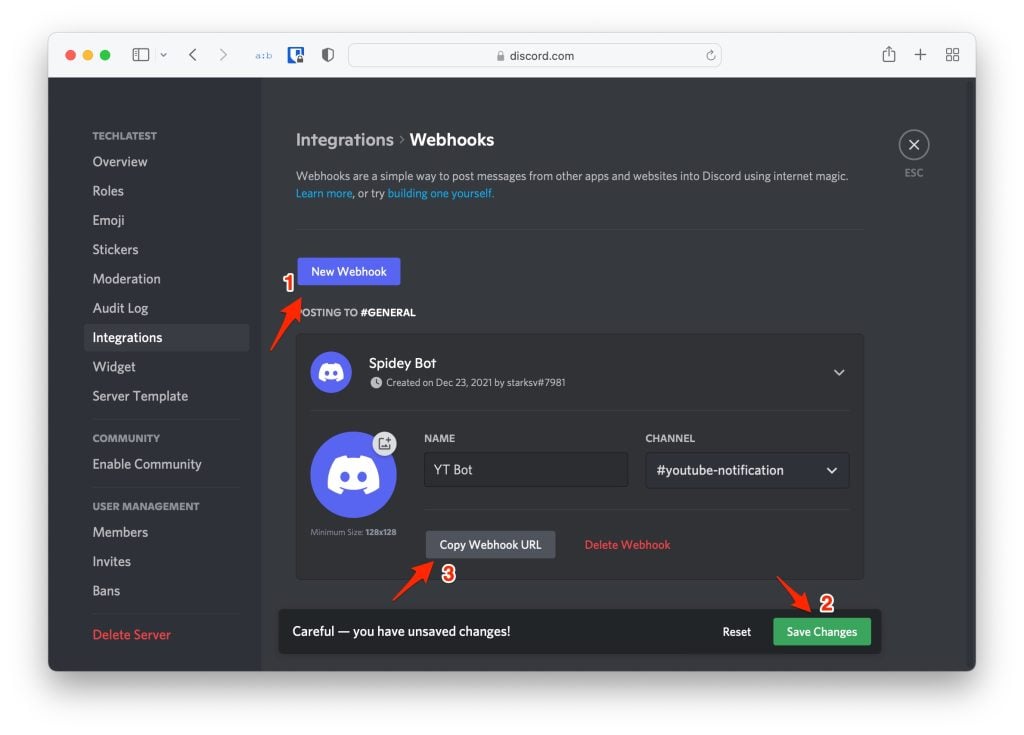
Step 2: Now, open Discord Server and then navigate to the Server Setting s → Integrations → Create Webhook .
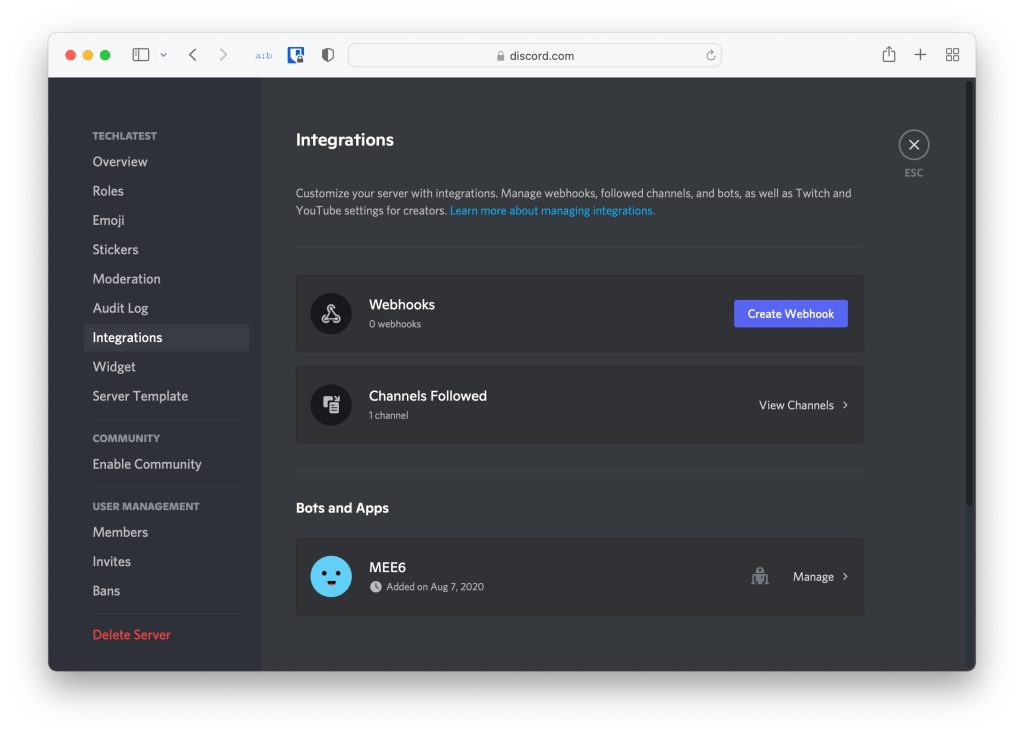
Step 3: Then, click on the New Webhook button and then select your preferred Name and Channel and then click on Save Changes and then click on Copy Webhook URL and save it in a safe place, we are gonna need it in the upcoming steps. New Webhook
Step 4: After saving the Webhook URL, we can move forward to IFTTT.com for creating an automated applet.
Step 5: Now, either log in or create an account using your Email, Gmail, or Facebook details. After login, you will find this page.
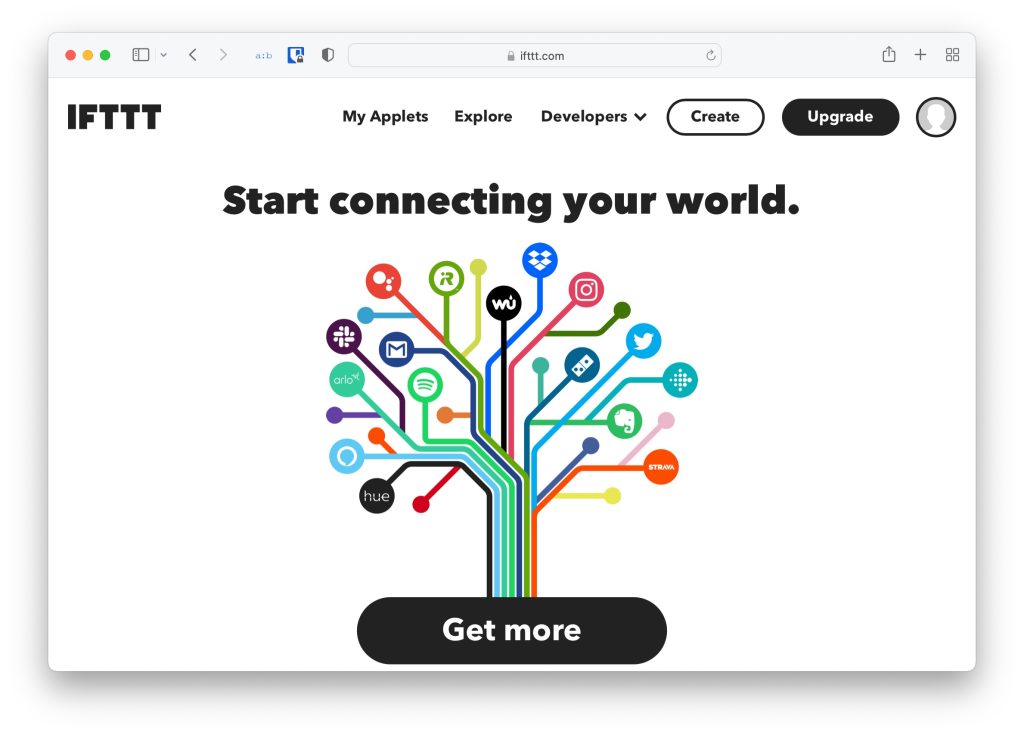
Step 6: Now, click on the Create button from the menu. You will see a new page with two sections, “ If This ” and “ Then That “.
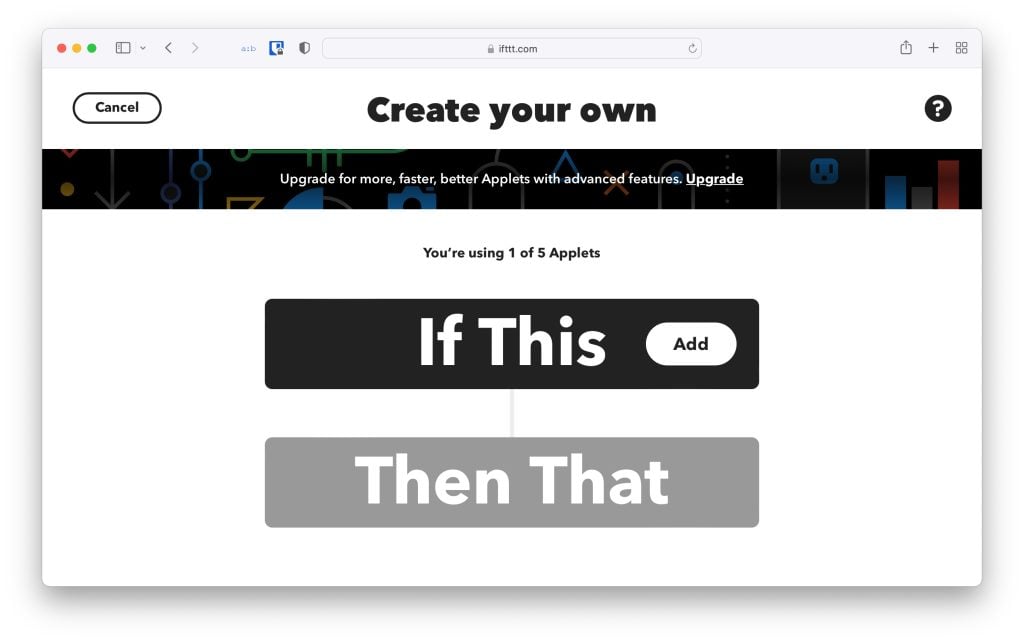
So, here, we are going to use YouTube on first “If This” section and then Discord on the “ Then That ” section.
Step 7: Click on the Add button in front of “If This”, and search for YouTube.
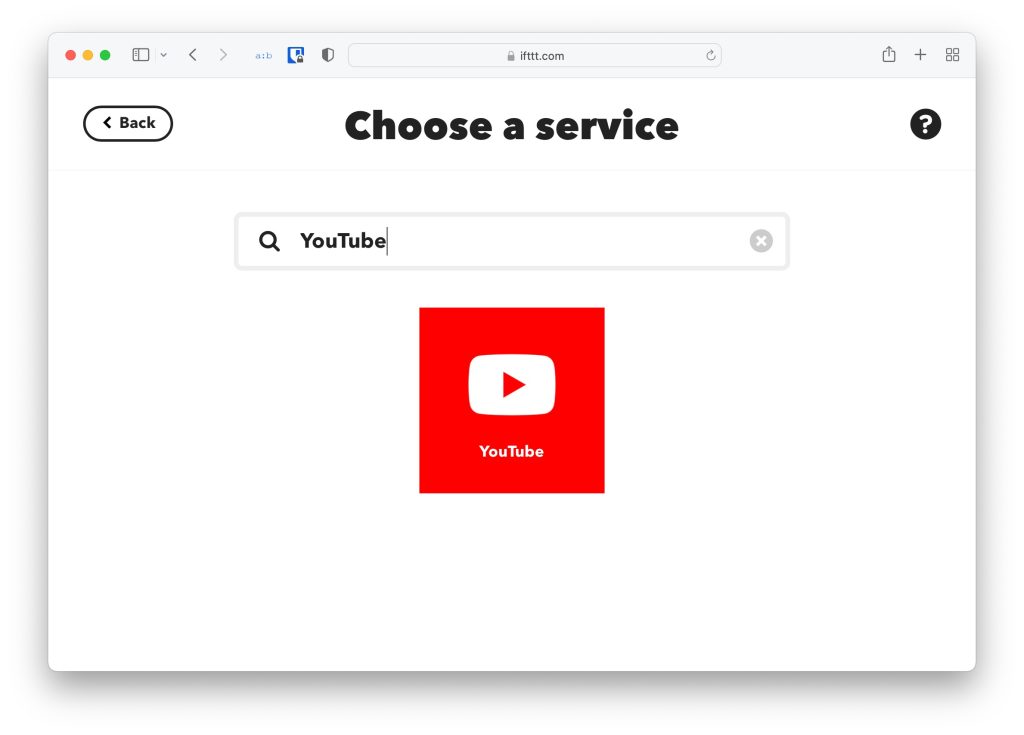
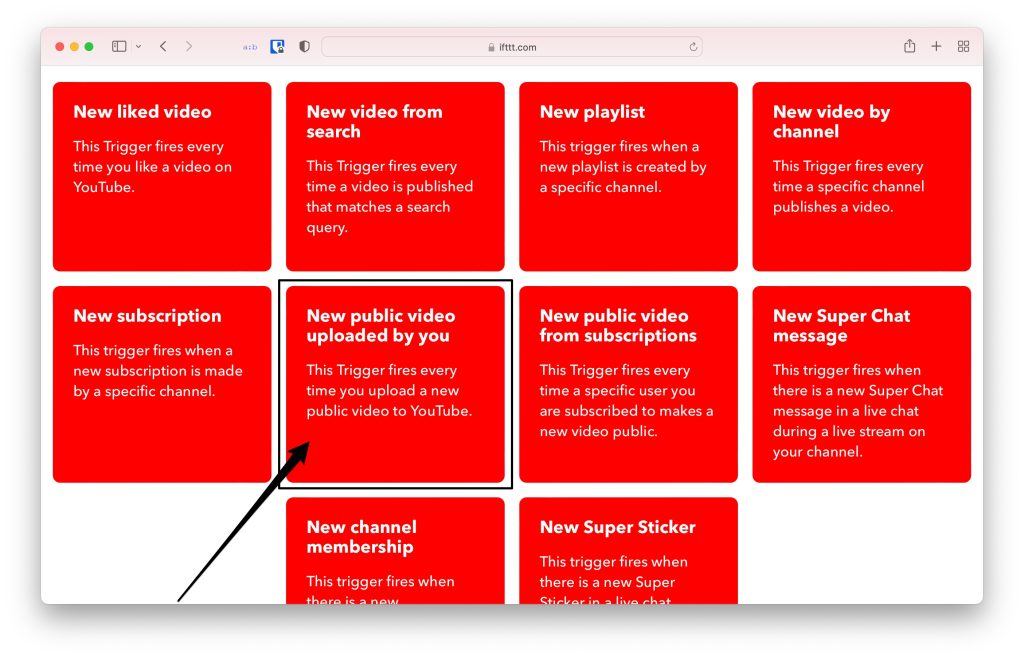
Step 8: On clicking the YouTube option, you will see a number of different triggers, we need to select “ New public video uploaded by you” .
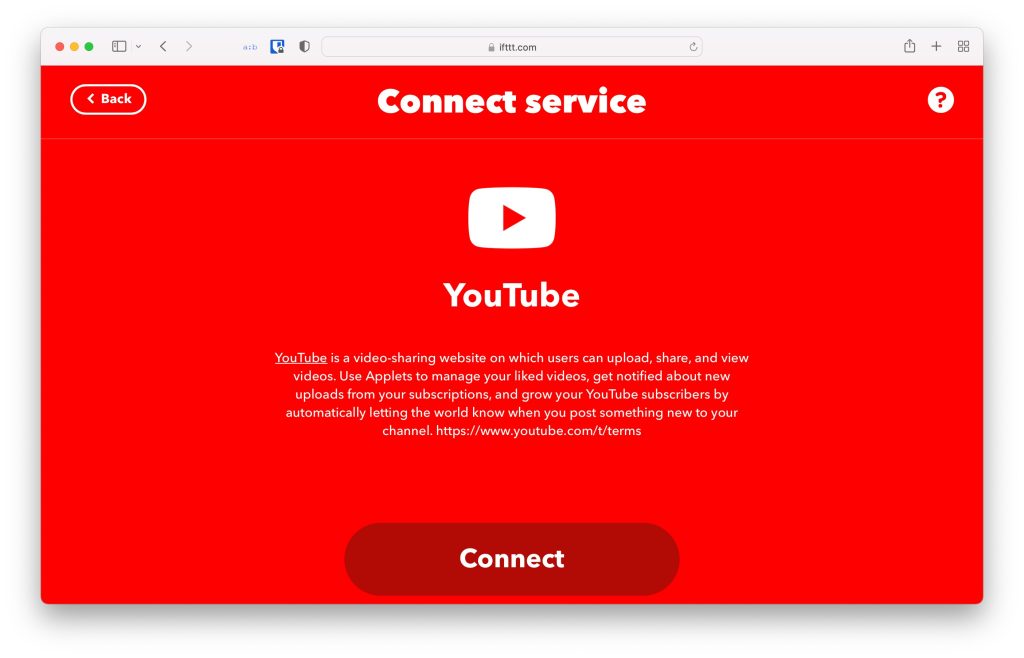
Step 9: Now, IFTTT will ask you to connect your YouTube account . Click on the Connect button and log in with your YouTube account .
Step 10: Since, that we have successfully done the first step, i.e., “If This”, now, we will move forward to our final step, i.e., “ Then That “
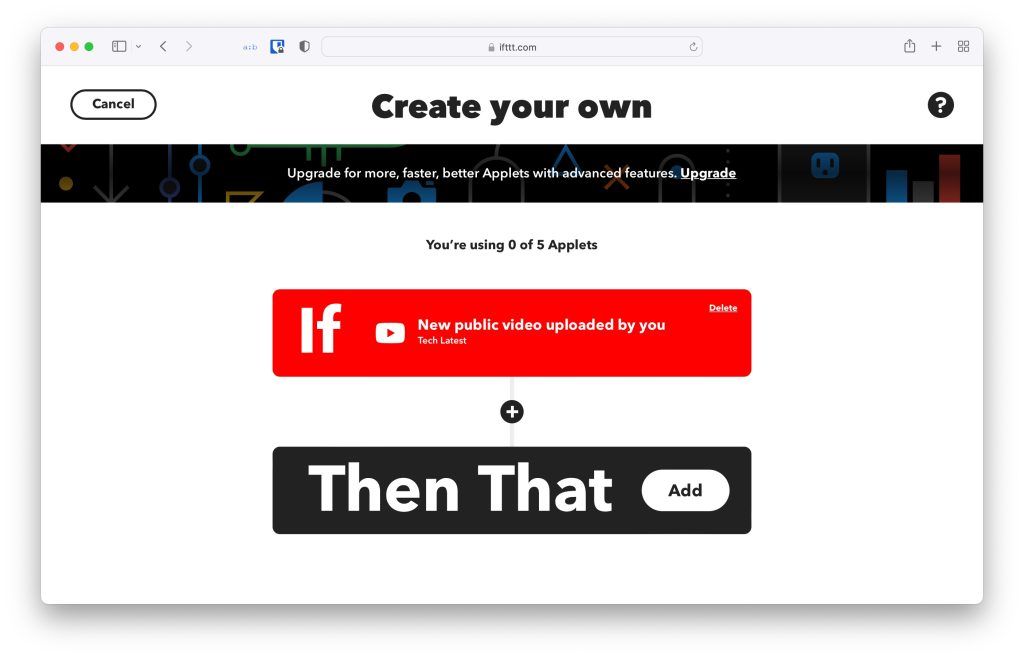
Step 11: Click on the Add button in front of “Then That”, and search for Webhook.
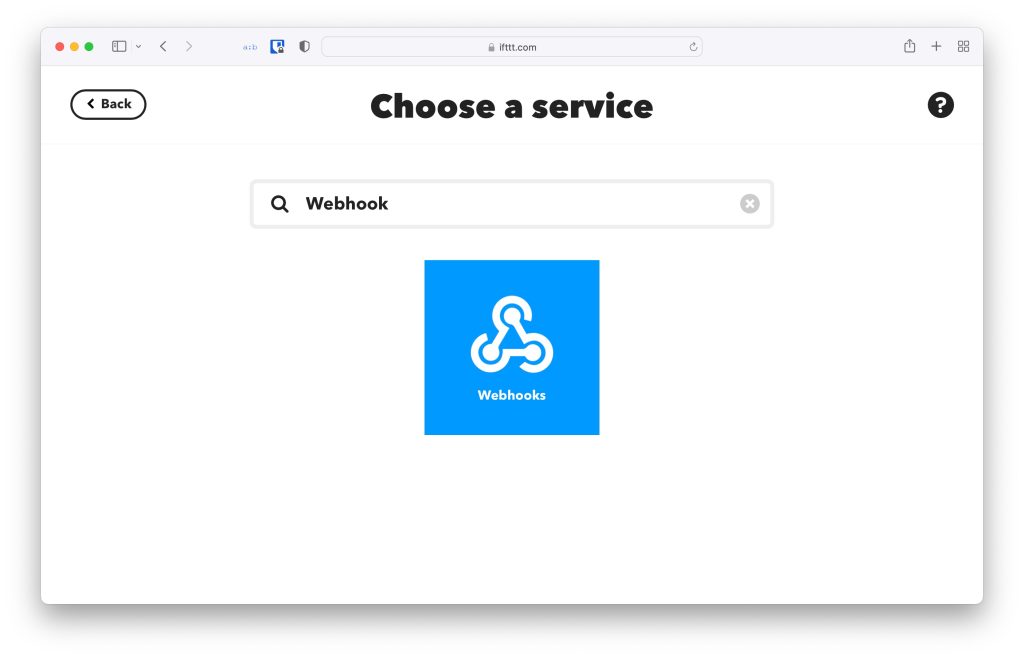
Step 12: Now, select the “Make a web request” option.
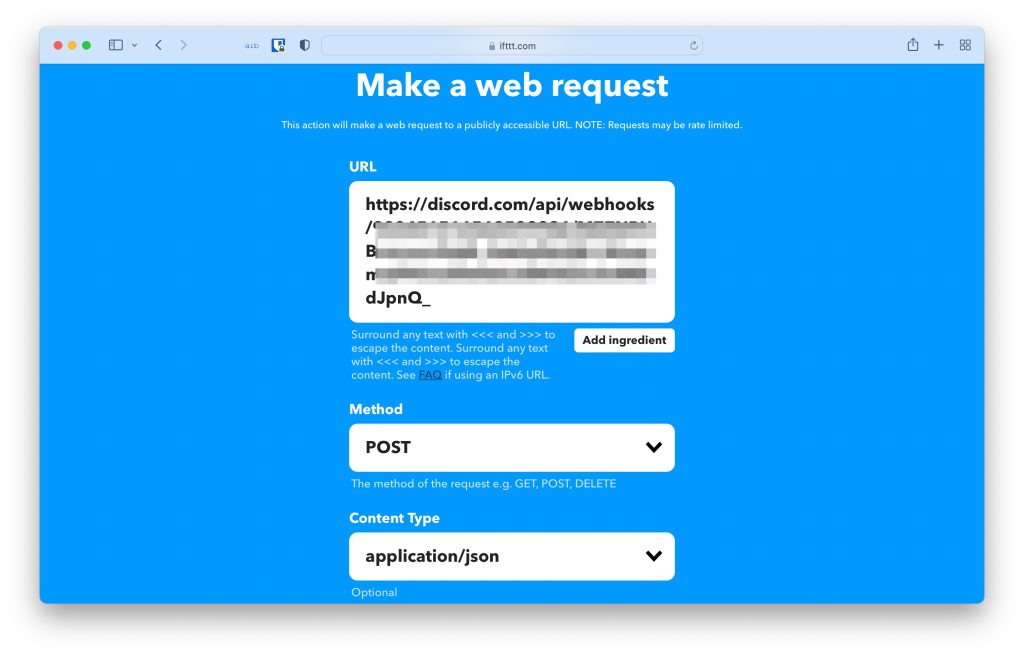
Step 13: You will see something like this, now start filling all the forms. In the first section ( URL ), paste the Webhook URL that we copied from Discord. In the second section ( Method ), select “ POST” , and in the first section ( Content Type ), select “ application/json ” from the drop-down menu.
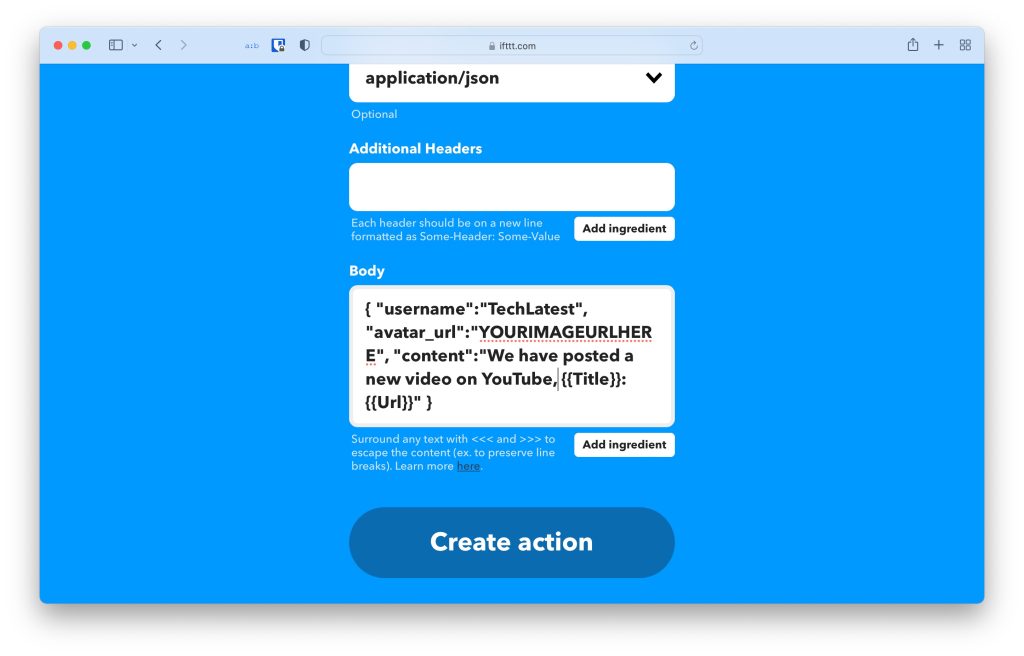
Step 14: Now, in the body section, paste the below code with your own data in fields like “YOURNAME”, “YOURIMAGEURL”, “YOURMESSAGE”. And finally, click on the Create Action button.
{ "username":"YOURNAMEHERE", "avatar_url":"YOURIMAGEURLHERE", "content":"YOURMESSAGEHERE {{Title}}: {{Url}}" }
Step 15: Finally, click on the Continue button.
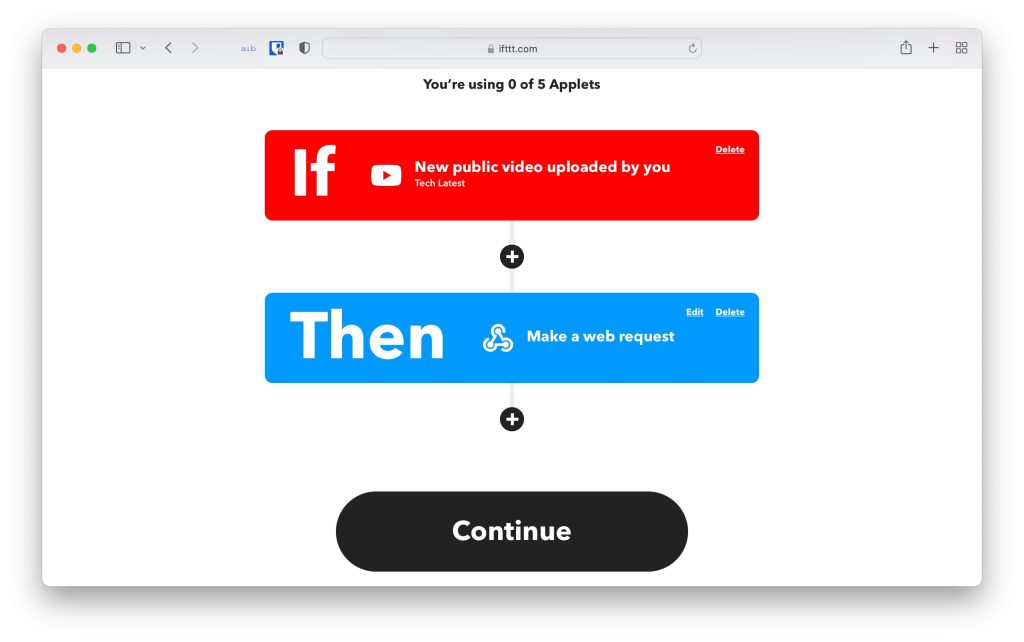
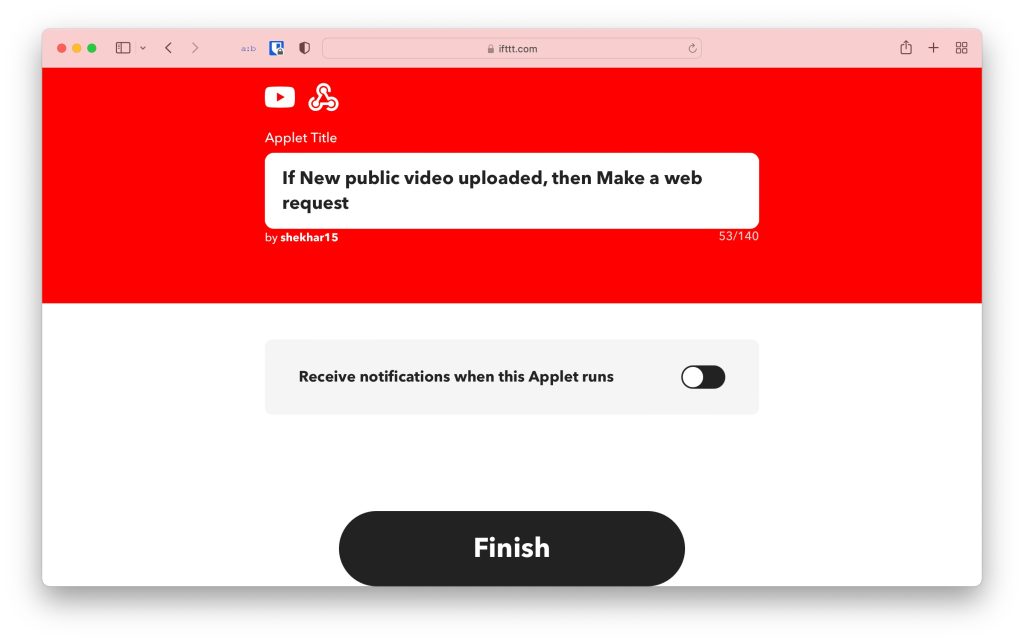
Step 16: And then click on the Finish button to start the automation.
Final Verdict: YouTube Discord Webhook
That was all, we have successfully implemented the YouTube Discord Webhook, now a new post will be posted on your Discord server that you have posted a new video on YouTube, the post will even contain the video title and URL so that the users can visit right from there.
In case you didn’t understand something, or you have any other queries regarding this article, then feel free to comment down below, we will be more than happy to assist you.
Peace (:
Enjoyed this article?
If TechLatest has helped you, consider supporting us with a one-time tip on Ko-fi. Every contribution keeps our work free and independent.
