Highlights
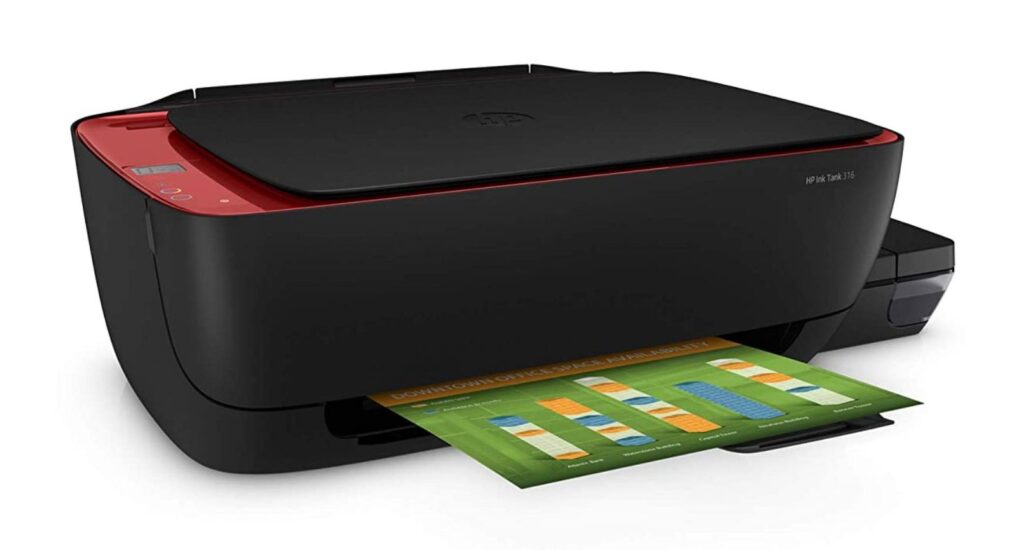
- HP Ink Tank 316 is an efficient and cost-effective home printer aimed at small offices.
- It is important to have the correct drivers for your operating system so that the printing process runs smoothly.
- Luckily, we are here with step-by-step guide to help you download and install the HP Ink Tank 316 driver.

You might have an HP Ink Tank 316 printer at home that you use for its efficient printing, scanning, and copying features at a low cost per page.
But to get the most out of your printer, you have to have the right driver — software that allows your computer and printer to talk to each other.
Don’t want to miss the best from TechLatest ? Set us as a preferred source in Google Search and make sure you never miss our latest.
Whether you are setting up your device for the first time, troubleshooting a stubborn connection, or you’re just looking to keep things running smoothly, getting the appropriate HP Ink Tank 316 driver and software downloads is important.
In this guide, we will help you get the official driver, step-by-step installation on Windows, Linux, and macOS, plus expert recommendations to avoid some common traps.
Content Table
What is the HP Ink Tank 316 Driver? Why Does It Exist?
The HP Ink Tank 316 driver is essentially software that will connect your computer and your HP printer.
Regardless of whether you run Windows, macOS, or Linux on your PC, this driver makes your system capable of sending print commands to the printer and collecting data from its scanner and maintenance functions, even if they include new firmware versions.
Put simply, it interprets your digital instructions and turns them into the physical printing, scanning, or copying actions, all while ensuring stability and functionality when OS updates.
Benefits of Keeping Your HP Ink Tank 316 Driver Updated
Some users just forget all about driver updates, believing that their printer will continue to ‘just work’ forever. In fact, the updates of your driver have many advantages:
- Improved Compatibility: Assures that your printer remains compatible with these OSs when updated.
- Error Fixes: Fixes problems such as print queue errors, disappearing scan options, or USB recognition issues.
- Performance Boosts: Improve print speeds and color accuracy and reduce print artifacts.
- Security Patches: Shields you from vulnerabilities that may harm your network or device.
- New Features: Updates may come with better maintenance tools or additional print settings.
Supported Operating Systems & System Requirements
Windows:
- Windows 11
- Windows 10 (32-bit & 64-bit)
- Windows 8.1 (32-bit & 64-bit)
- Windows 8 (32-bit & 64-bit)
- Windows 7 (32-bit & 64-bit)
- Windows Vista (32-bit & 64-bit)
macOS:
- macOS Catalina (10.15)
- macOS Mojave (10.14)
- macOS High Sierra (10.13)
- macOS Sierra (10.12)
- OS X El Capitan (10.11)
- OS X Yosemite (10.10)
- OS X Mavericks (10.9)
- OS X Mountain Lion (10.8)
- OS X Lion (10.7)
- OS X Snow Leopard (10.6)
- OS X Leopard (10.5)
Linux:
- Linux 32-bit
- Linux 64-bit (via HPLIP package)
Where to Safely Download the Driver
Only download from HP’s official support site :
For those using the Ink Tank 316 (in the 310 series), you can download the Full Feature Software and Drivers from HP’s driver center, which bundles everything into a single file, including printing, scanning, and device utilities. It is the safest and most reliable, with no malware or old files.
First-time installation? Keep an eye out for the hands-on Printer Setup Guide from HP, which should help you unpack, set up ink, load paper, and install software.
How to Install the HP Ink Tank 316 Driver on Windows
- Visit HP’s support page and select your operating system to download the “ Full Feature ” package.
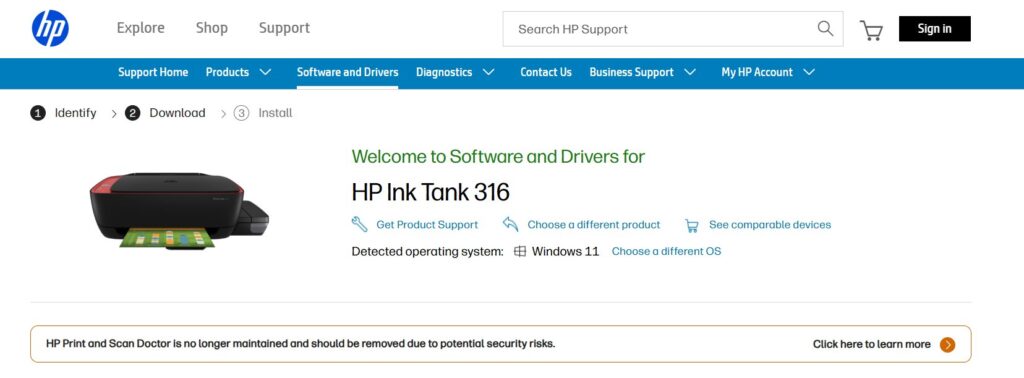
- Is the printer connected by USB cable to your computer? Disconnect that before installing the driver.
- Double-click the downloaded file and allow it to run with administrator privileges.
- Then, it will take you through the license agreements before installing the software, amongst other optional settings.
- Do not plug in the USB cable until you are told to by the installer.
- Now print a test page and try scanning to see if the issue is resolved.
Troubleshooting tip: If the installer fails, remove any old HP printer software using Programs & Features and then reboot the computer before running the installer.
Driver Capabilities:
Installing the Full Feature driver package gives you access to:
- High-quality scanning , with WIA/TWAIN support
- Printer maintenance utilities (cleaning, alignment, calibration)
- Enhanced print fidelity , system stability, and compatibility
- Tools to monitor ink levels , even in USB-connected printers
Installing on macOS: Be Prepared
The macOS experience with the Ink Tank 316 (a USB-only model) can be kind of tricky:
- Try HP Easy Start or go to System Preferences > Software Update and look for driver updates .
- If macOS can’t find a suitable driver, sharing the printer on your network from a standard Windows or Linux PC is probably the best alternative.
Platform-Specific Tips
Windows
- The most performing user experience with the Full Feature package.
- Diagnostics and ink monitoring come through the HP Smart app for all USB-only models.
- All firmware is turned into the driver package, so no need to download firmware separately from the internet for HP.
Linux
- This makes printing and scanning easier to integrate with HPLIP.
- The whole installation on the command line through hp-setup can also be done quickly.
- According to user feedback from our community, HP provides good and reliable support for its printers on Linux.
macOS
- Unfortunately, not all USB-only printers are supported, and that’s especially the case on modern macOS releases.
- HP Easy Start might work on older versions; otherwise, network sharing from another PC is a reliable backstop.
Can I use the HP Ink Tank 316 without installing a driver?
With certain OS versions, basic printing could potentially work, but without the printer driver, it would not be possible to scan or initiate copy controls and also some maintenance features.
Is the driver the same for HP Ink Tank 310, 311, and 316 models?
Yes, those models are in the same series and use all of the same drivers.
How often should I update my driver?
Check every 3–6 months or after any major OS update.
What’s the safest source for the driver?
HP’s official support site or the official HPLIP repository for Linux.
Conclusion
HP Ink Tank 316 is a simple and everyday printer that offers great print quality, but it will be in a bloodbathif you have not installed the proper driver.
Once downloaded, the official driver package you can get from the HP support page, with an appropriate version for your operating system, and perform according to their installation rules.
This way, you can benefit from everything that the printer has to offer, like high-resolution printing or fast scans and copies.
Besides maintaining the compatibility of a printer with changes in the system, regular driver updates better stabilize and correct errors, as well as enhance performance.
The key to using the HP Ink Tank 316 with a working hardware setup is reading a guide for your particular operating system, whether it be Windows, macOS, or Linux.
Enjoyed this article?
If TechLatest has helped you, consider supporting us with a one-time tip on Ko-fi. Every contribution keeps our work free and independent.
Highlights
- The HP LaserJet P1108 is not able to work without the driver installed, which will formally establish the link between your personal computer and the printer.
- Downloading the driver only from HP’s official support page ensures compatibility, security, and access to all printer features across different operating systems.
- When installing goes to plan, the act is as simple as prepping the printer, executing the appropriate driver package, then confirming with a test print; for the more usual headaches, USB checks and driver reinstalls can be the remedy.
The HP LaserJet Pro P1108 is amongst HP’s most popular monochrome printers, which is frequently used in homes, small offices, and small businesses. With a small footprint, high-quality printing and economical price, it’s proving to be an essential for anyone who values fast prints.
But even the latest printer is worthless without the proper driver, the software that allows your computer and printer to work together. The correct driver also enables your printer to function to its best.
Don’t want to miss the best from TechLatest ? Set us as a preferred source in Google Search and make sure you never miss our latest.
Content Table
What is the HP LaserJet P1108 Printer Driver?
The HP LaserJet Pro P1108 printer driver is a software specifically intended for the HP LaserJet Pro P1108 printer for it to work successfully with your computer.
Without the driver, your computer can not speak with the printer. The driver, when you send a print command, transforms the digital categories (letters, images, documents) with the language of the printers (PCL – Printer Command Language).
What are the key features of HP LaserJet P1108?
Understanding your printer will assist you in getting the most from it. Here are its notable features:
- Printing technology : Laser, monochrome
- Print speed : Up to 18 ppm (pages per minute)
- Resolution : 600 × 600 dpi effective output
- Connectivity : USB 2.0 (no Wi-Fi)
- Supported OS : Windows, macOS, Linux (via HPLIP)
- Monthly duty cycle : Up to 5,000 pages
As it’s USB-only, you have to connect it directly to the setup. This is important when downloading and installing the driver.
Download & Install HP LaserJet P1108 Printer Driver
Step 1: Prerequisites Before Installation
Before beginning, check the following:
- A stable internet connection (for downloading the driver).
- An available USB 2.0 cable (not wireless).
- Administrator privileges on your computer.
- At least 500 MB of free disk space for installation.
- Ensure your printer is powered on and has paper loaded.
Step 2: Visit HP’s Official Driver Download Page
There is a specific support page for the LaserJet Pro P1100 series (among which P1108). To access it:
- Launch your browser and go to the HP driver download website .
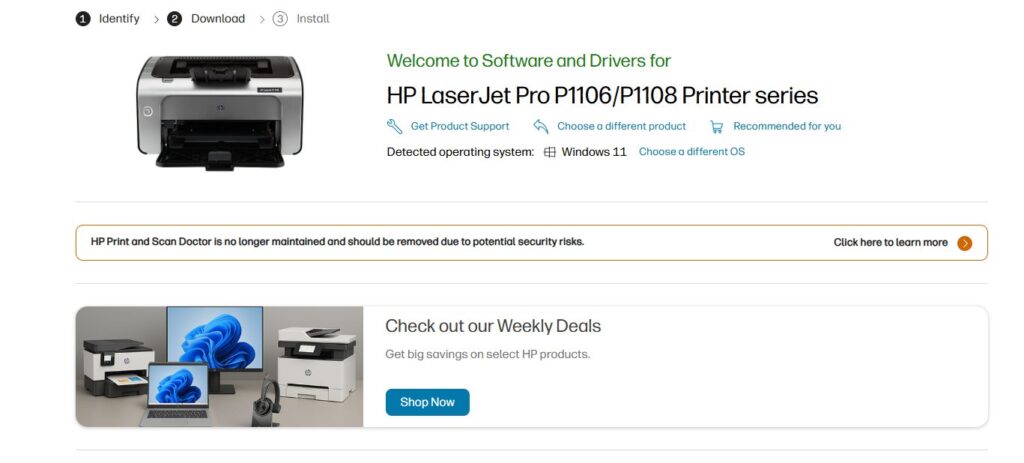
- You will need to navigate to the model page for your P1108 – most of the time, you will choose the “HP LaserJet Pro P1100 Printer Series (P1108)” option.
- Select your operating system (including, for instance, Windows 10 or Windows 11) from the drop-down list.
Step 3: Download the Correct Driver
Once you’ve selected your OS:
- HP typically offers a Full Feature Software and Driver package that bundles the drivers and some optional applications.
- Click Download . A .exe file (for Windows) will start automatically. Let it download completely.
Step 4: Prepare the Printer
Follow the initial printer setup if you haven’t already:
- Unbox the printer.
- Install the toner cartridge.
- Load paper into the tray.
- Connect the power cable and turn the printer on.
- Connect the printer to your computer with the USB cable (but don’t turn on the printer yet)
Step 5: Install the Driver on Windows
- Locate the downloaded .exe file (usually in your Downloads folder) and double-click it to launch.
- If you see a security warning (e.g., “Do you want to allow this app to make changes?, confirm to proceed.
- Follow the on-screen instructions: Select your language. Accept the license agreement. Select the type of installation (“Typical” is the default for most users).
- The software may recognize the connected printer during the installation.
- Complete the setup process and click Done or Finish when prompted.
Step 6: Verify Installation
To ensure the printer is properly installed:
- Initially, open the search panel, then search for Printers and Scanners and open it.
- Now, check if the HP LaserJet P1108 appears.
- Finally, right-click on the printer and select Print Test Page to check its functionality.
How To Install HP LaserJet P1108 Driver on macOS
Unlike Windows, macOS often auto-detects drivers. However, if needed:
- Connect the printer via USB.
- Now, go to System Preferences, then click on Printers & Scanners.
- Choose HP LaserJet P1108 from the list.
- After that, macOS will either auto-install the driver or ask you to download it.
How To Install HP LaserJet P1108 Driver on Linux (Ubuntu Example)
HP provides open-source support via HPLIP (HP Linux Imaging and Printing) .
- Open Terminal.
- Install HPLIP (if not installed): sudo apt-get install hplip
- Run the setup tool: sudo hp-setup
- Follow the on-screen prompts.
- Once done, check in Settings > Printers .
Optimizing Your Printer After Installation
Once installed, maximize performance:
- Enabling EconoMode can help you save on toner.
- Change paper type settings for high quality.
- Regularly check for driver updates on HP’s site.
- Keep the printer rollers clean every two to three months to prevent jamming of paper.
Do I need a CD to install the driver?
No. Even if your printer shipped with a CD, the updated drivers you download from HP’s site will be better.
Is the HP P1108 compatible with Windows 11?
Yes. HP provides updated drivers for Windows 11.
Can I install the printer without an internet connection?
Yes, but you would have to download a driver beforehand and put it on using a USB.
Can I use this printer wirelessly?
No. The HP LaserJet P1108 only supports a USB connection.
What if Windows automatically installs a generic driver?
You can download the official HP driver manually for better performance.
Why is my printer printing blank pages?
The cause for this may include low toner, a clogged nozzle, or the driver not being installed properly. Try reinstalling the driver first.
- Download Latest SPD Drivers (Spreadtrum) for Windows
- Download Android USB Drivers for Major Manufacturers
- Download & Install the HP Ink Tank 316 Driver — A Complete Guide
Conclusion
The HP LaserJet P1108 printer driver will be installed quickly with the proper procedure when you download the driver from HP’s official website.
Get your printer up and running on Windows, macOS, or Linux without having to install additional software. Just download the Full Feature Software, and once you’re done with the on-screen installation, simply verify the setup with your test page.
Most of those problems can be quite easily resolved by verifying USB connections, reinstalling drivers or using HP’s troubleshooting tools. Assuming it gets installed and maintained the proper way, HP P1108 is going to be your most reliable printer for many years.
Enjoyed this article?
If TechLatest has helped you, consider supporting us with a one-time tip on Ko-fi. Every contribution keeps our work free and independent.
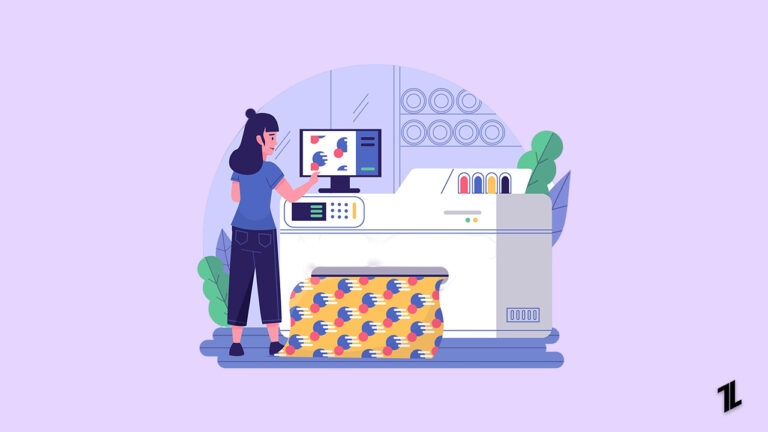
In the ever-evolving world of textile printing, Direct-to-Film (DTF) printing is making waves. With its remarkable versatility and superior print quality, DTF printing is quickly becoming the go-to method for printing on fabrics.
Whether you’re a seasoned professional or just starting out, choosing the right equipment and materials is crucial for achieving the best results.
Don’t want to miss the best from TechLatest ? Set us as a preferred source in Google Search and make sure you never miss our latest.
This comprehensive guide will walk you through the top equipment and materials essential for successful DTF printing, ensuring you can produce stunning prints with ease.
What is Direct-to-Film Printing?
Direct-to-film printing, or DTF, is a process where designs are printed directly onto a special film and then transferred onto various fabrics using a heat press.
Unlike direct-to-garment (DTG) or screen printing, DTF does not require pre-treatment of the fabric, making it a more straightforward and versatile option for many printing needs.
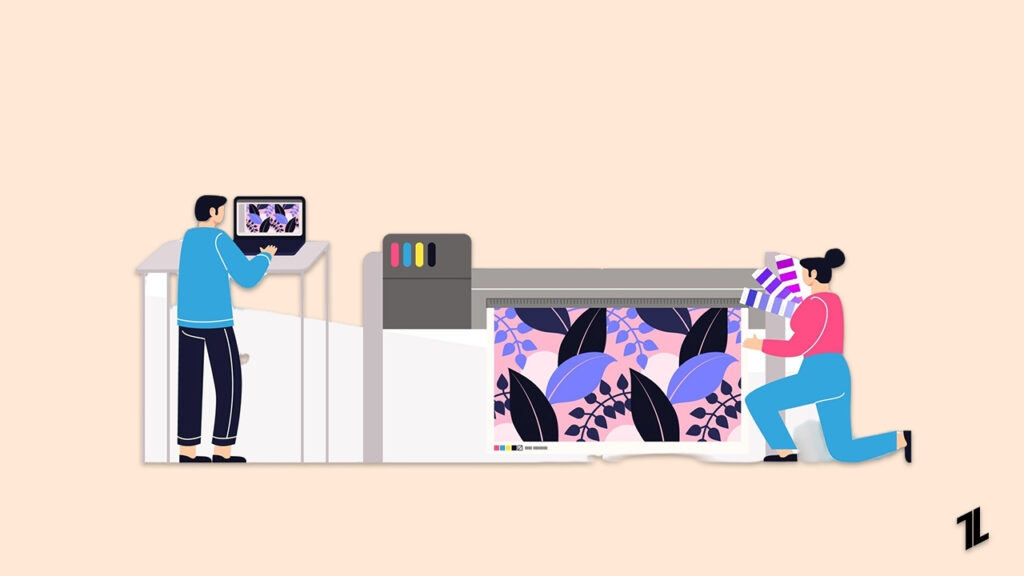
Image by freepik
Why Choose DTF Printing?
Flexibility
DTF printing allows for printing on a wide range of materials, including cotton, polyester, and blends. This flexibility is particularly beneficial for businesses looking to offer custom designs without the overhead of traditional methods.
Durability
The prints produced through DTF are highly durable, maintaining their quality even after multiple washes. This ensures customer satisfaction and repeat business.
Cost-Effectiveness
DTF printing is cost-effective, making it suitable for both small and large print runs. This means you can handle anything from small custom orders to large-scale production efficiently and affordably.
Essential Equipment for DTF Printing
DTF Printer: The Prestige XL2
The heart of any DTF printing setup is the printer. Among the various options available, the Prestige XL2 printer stands out. Known for its high resolution and speed, this printer is critical for producing vibrant, detailed prints. Key features to look for in a DTF printer include:
- Print Quality : High resolution ensures sharp, vibrant images.
- Speed : Efficient production without sacrificing quality.
- Ease of Use : User-friendly interfaces and maintenance procedures.
The Prestige XL2 excels in all these areas, making it a reliable choice for both beginners and experienced printers.
Heat Press Machine
A heat press machine is essential for transferring your design from the film to the fabric. When selecting a heat press, consider the following specifications:
- Temperature Control : Precise control to ensure consistent results.
- Pressure Settings : Adjustable pressure to accommodate different materials.
- Size : Larger presses allow for bigger prints and batch processing.
A quality heat press ensures that the design adheres properly to the fabric, resulting in durable, high-quality prints.
Powder Shaker
The powder shaker is a crucial component in the DTF process. It evenly applies adhesive powder to the printed film, which helps transfer the design to the fabric. When choosing a powder shaker, look for:
- Automation : Automated shakers ensure consistent application.
- Capacity : Sufficient capacity to handle your production needs.
- Ease of Cleaning : Regular cleaning prevents clogs and maintains quality.
Automated powder shakers streamline the process, reducing manual labor and increasing efficiency.
Curing Oven or Dryer
Curing is the final step in the DTF process, ensuring that the print is permanently bonded to the fabric. When selecting curing equipment, consider:
- Even Heat Distribution : Ensures consistent curing across the entire print.
- Adjustable Settings : Different fabrics require different curing times and temperatures.
- Size and Capacity : Match the equipment to your production volume.
Investing in a quality curing oven or dryer guarantees that your prints will be durable and long-lasting.
Image by freepik
Key Materials for DTF Printing
DTF Transfer Film
The transfer film is where your design is initially printed. There are two main types of transfer films: hot peel and cold peel.
- Hot Peel : Allows for immediate peeling after pressing, speeding up production.
- Cold Peel : Requires cooling before peeling, often resulting in a more durable transfer.
When choosing a transfer film, consider factors such as thickness and coating, as these can affect the final print quality.
DTF Ink
The quality of the ink is crucial for producing vibrant, durable prints. There are different types of DTF inks, including pigment-based and water-based options. High-quality inks are essential for achieving the best results.
- Pigment-Based Inks : Known for their durability and vibrant colors.
- Water-Based Inks : Often preferred for their eco-friendliness and ease of use.
Using high-quality inks ensures that your prints will remain bright and vibrant, even after multiple washes.
Adhesive Powder
The adhesive powder is used to bond the printed design to the fabric. There are different types of adhesive powders, including hot melt and polyester powders. The right adhesive powder ensures a strong bond and a smooth finish.
- Hot Melt Powder : Ideal for most fabrics and provides a strong bond.
- Polyester Powder : Offers flexibility and durability for various applications.
Choosing the right adhesive powder is essential for ensuring that your prints adhere properly to the fabric.
Protective Sheets
Protective sheets are used during the heat press process to prevent the design from sticking to the press. There are several types of protective sheets, including silicone and Teflon .
- Silicone Sheets : Provide a smooth, non-stick surface.
- Teflon Sheets : Durable and reusable, offering excellent protection.
Using protective sheets helps maintain the quality of your prints and prolongs the life of your heat press machine.
Additional Accessories and Tools
Cleaning Supplies
Maintaining your equipment is crucial for consistent print quality. Regular cleaning prevents clogs and ensures smooth operation.
- Cleaning Products : Use specialized cleaning solutions for your printer and heat press.
- Tools : Brushes and cloths for thorough cleaning.
Proper maintenance extends the life of your equipment and maintains print quality.
Design Software
Creating stunning designs requires good design software. Look for software that supports vector graphics and offers robust color management.
- Vector Support : Ensures designs are scalable without losing quality.
- Color Management : Accurate color representation for consistent results.
Investing in good design software enhances your ability to create detailed and vibrant designs.
Storage Solutions
Proper storage of films, inks, and powders is essential to maintain their quality. Consider organizing your materials in a way that protects them from environmental factors such as humidity and light.
- Storage Containers : Airtight containers to protect against moisture.
- Organization : Shelving and bins to keep materials accessible and protected.
Good storage practices help maintain the quality of your materials and ensure consistent print results.
Tips for Selecting the Best Equipment and Materials
Budget Considerations
Balancing cost with quality is essential when selecting equipment and materials. While it may be tempting to cut costs, investing in high-quality equipment can save you money in the long run by reducing maintenance costs and increasing production efficiency.
- Long-Term Investment : Consider the total cost of ownership, including maintenance and consumables.
- Short-Term Savings : Evaluate the immediate cost but don’t compromise on essential features.
Choosing the right balance ensures you get the best value for your investment.
Supplier Reputation
Buying from reputable suppliers ensures that you receive high-quality products and reliable customer service. Researching suppliers and reading customer reviews can help you make informed decisions.
- Customer Reviews : Look for feedback from other customers to gauge product quality and supplier reliability.
- Supplier Guarantees : Consider suppliers that offer warranties and guarantees.
A reputable supplier provides peace of mind and ensures you have access to quality products and support.
Trial and Error
Testing different brands and products can help you find the best fit for your specific needs. Keeping records of your experiences with different materials and equipment can help you refine your process over time.
- Testing : Try samples from different suppliers to evaluate quality and performance.
- Record Keeping : Document your experiences to track what works best.
Trial and error help you optimize your process and achieve the best possible results.
Conclusion
Direct-to-film printing offers a versatile and cost-effective way to produce high-quality prints on various fabrics.
By selecting the right equipment and materials, such as the Prestige XL2 printer, a reliable heat press, and high-quality inks and films, you can achieve stunning results.
Investing in good storage solutions and regular maintenance ensures consistent quality and longevity of your equipment.
Whether you’re just starting or looking to improve your existing setup, this guide provides the essential information you need to succeed in DTF printing.
Enjoyed this article?
If TechLatest has helped you, consider supporting us with a one-time tip on Ko-fi. Every contribution keeps our work free and independent.
