Highlights
- The new Windows 11 Run dialog based on WinUI is now available on Dev/Beta builds.
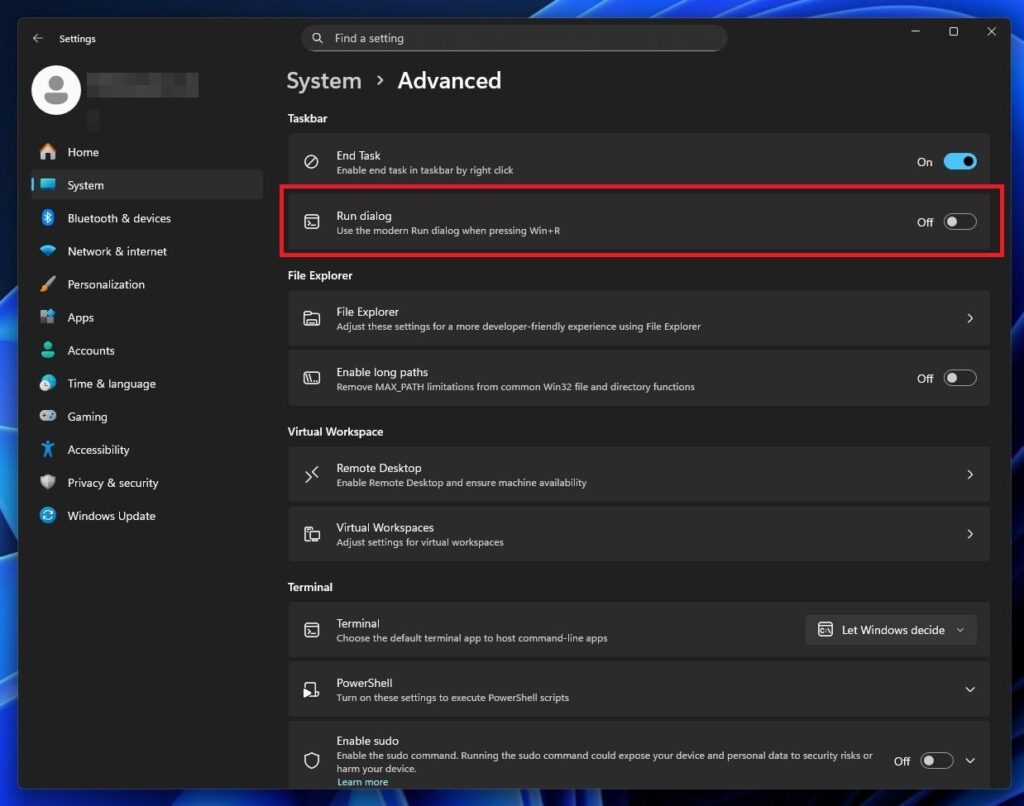
- You can enable it by navigating to Settings > System > Advanced and enabling Run dialog.
- If you are on stable builds, you can use ViVeTool to enable the feature manually.
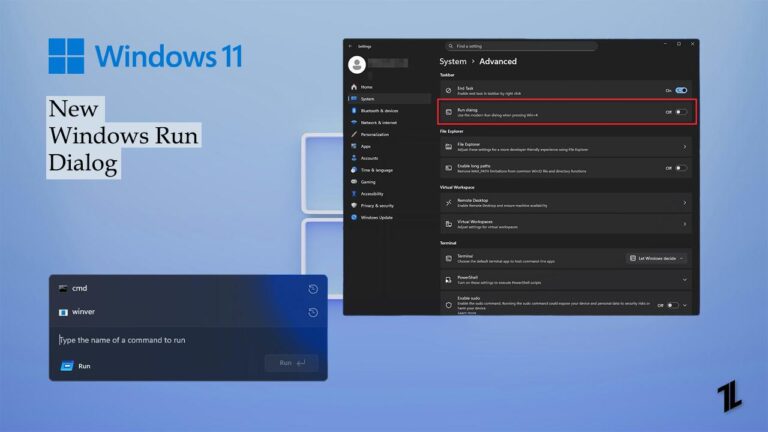
One of the oldest designs we still have in the latest Windows 11 is the Run dialog box. If you have been a longtime Windows user, you already know it: Microsoft hasn’t touched the Run box design for more than 3 decades.
Microsoft is slowly trying to replace every legacy design and feature in Windows 11 before moving to a newer version of Windows. The Run box now seems next in the queue for an upgrade.
Don’t want to miss the best from TechLatest ? Set us as a preferred source in Google Search and make sure you never miss our latest.
In this article, we will discuss the new and modern Windows 11 Run box and later how you can enable it right now.
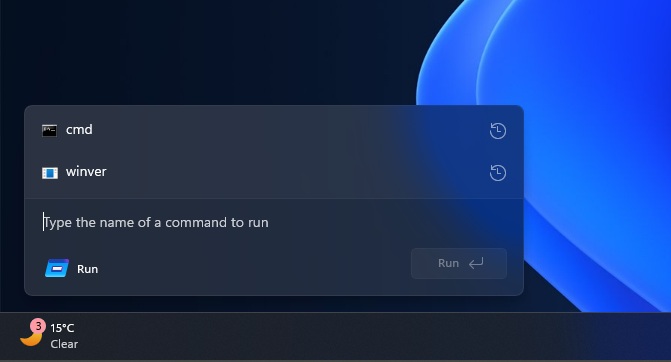
New Windows 11 Run Dialog
Content Table
What is the New Run Dialog in Windows 11?
Like the other new components we have already seen in Windows 11, Microsoft is rebuilding the Run box using its WinUI, which is the new UI toolkit for Windows 11 apps.
Unlike the current Run box built on Win32, the new Run box aims to replace it with new animations and translucent effects. It will use all the modern UI elements like smooth animations, appropriate spacing, fonts, Acrylic, etc.
As per our testing, the new Run box looks more like a flyout, unlike the older dialog box layout. And the most requested change: the theme switcher. It can now adapt the system theme, both light and dark.
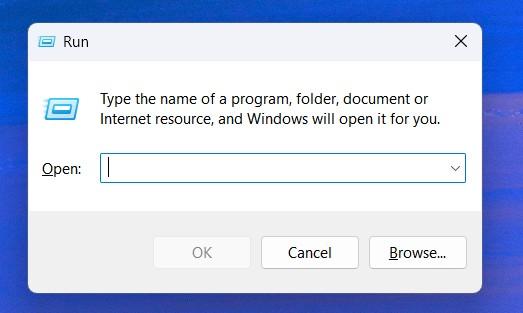
The new Run box is simpler and uncluttered. As you can see in the above comparison screenshots, the new box just has the text box to write the command, a Run button, and a simple logo with Run text.
Requirements and Availability
The new Run dialog design is currently under development and early testing and is only available as an optional feature under Windows 11 Dev & Beta channel builds.
So for now, you must update Windows 11 to the latest Dev or Beta builds to get the new Run box if you are on them.
The timeline is still uncertain, as Microsoft has not yet announced the exact timeline of the new Run box design and whether it will be an optional feature like now or it will replace the legacy Run box.
How to Enable the New Run Dialog in Windows 11
If you are on the latest preview of Windows 11 in the Dev and Beta Channels, you can just navigate to Settings > System > Advanced and enable it.
And if you are not on the Dev and Beta Channel and still want to try the new Windows 11 Run box, you can follow the below instructions, where we will be using ViVeTool to enable it. The below instructions are valid for Dev and Beta Channel users who didn’t receive the feature yet.
What is ViVeTool? And how does it work?
ViVeTool is an open-source and free command-line utility that helps Windows 11 and 10 users to enable experimental features that Microsoft has not officially rolled out yet.
It interacts with the Windows Feature Store (part of Windows Notification Facility), which is an internal kernel component used to
- control features rollouts
- enable or disable features remotely
- quickly disable problematic features
Without further ado, let’s start with the steps:
- Open the ViVeTool Github repo and download the latest release.
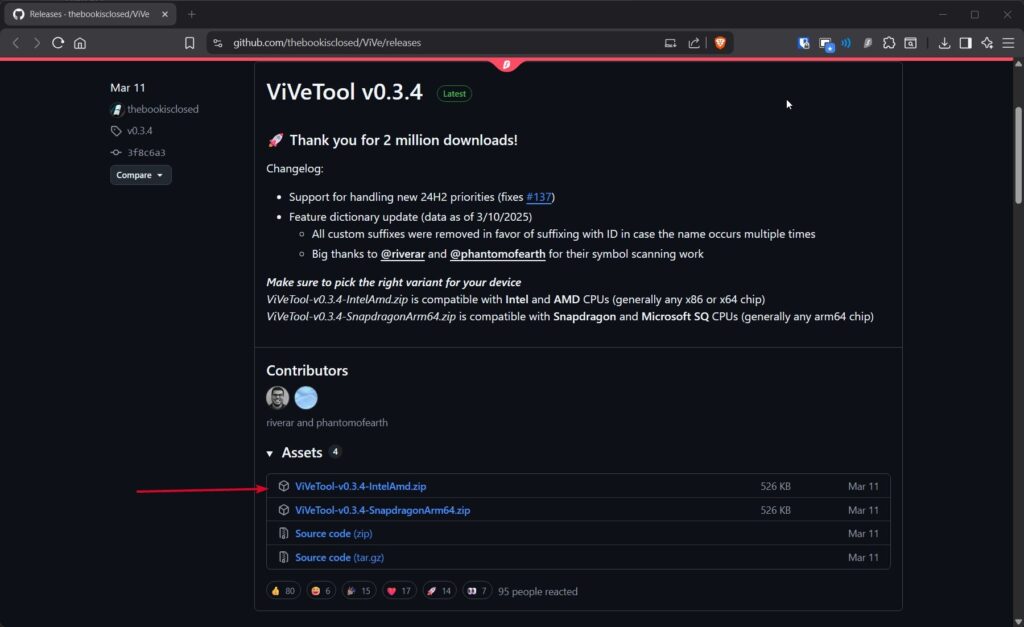
Download ViVeTool from GitHub Repo
- Extract the downloaded ViveTool-vx.x.x.zip file to a simple location. (like C:\ViVeTool)
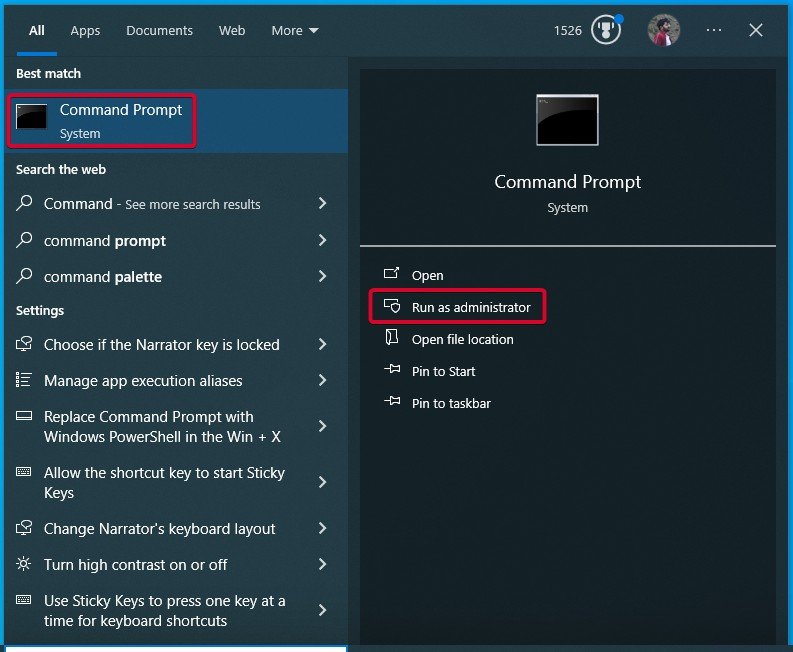
- Now, open Command Prompt as administrator.
- Use the CD command to navigate to the extracted ViVeTool directory/folder.
cd C:\ViVeTool
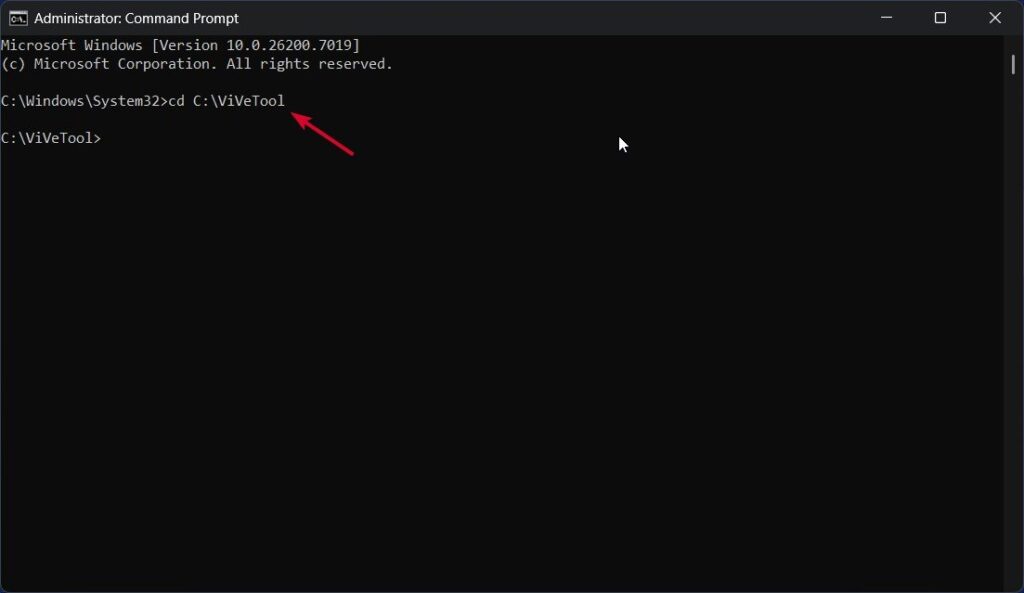
Use cd Command to Navigate to ViVeTool Folder
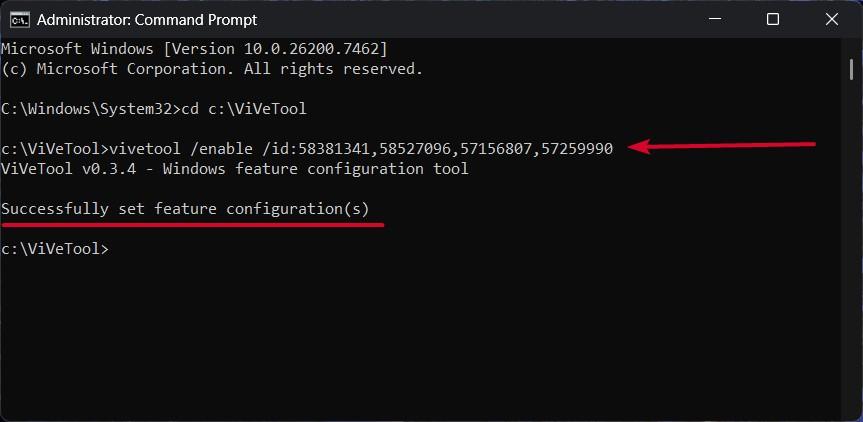
- Finally, execute the following ViVeTool command to enable the new Windows 11 Run dialog box. The feature IDs are 58381341, 58527096, 57156807, and 57259990.
vivetool /enable /id:58381341,58527096,57156807,57259990
- Restart your computer to get the option to enable the new Run box under Settings > System > Advanced .
Here are a few commonly asked questions and the answers to them.
Is ViVeTool safe to use?
Yes, ViVeTool is 100% safe to use, but note that it can enable experimental as well as untested features that may have unknown bugs, which can ruin your experience.
Do I need an admin account to use ViVeTool?
Yes, you are going to need an admin account to enable the feature via ViVeTool, as it runs on the command prompt with admin privileges.
Can I revert to the old Run design?
Yes, you can revert back to the old design whenever you want, until and unless Microsoft pushes the update to all the devices permanently. To revert to the old design, follow all the steps mentioned above, and instead of the enable command, execute the vivetool /disable /id:58381341,58527096,57156807,57259990 command.
Can I use ViVeTool to enable other hidden Windows features?
Yes, ViVeTool supports many feature IDs. Each ID corresponds to a different hidden feature. You can find the whole list in Windows forums.
Summing Up
That was all about the new Windows 11 Run box and how you can test it out right now.
Enjoyed this article?
If TechLatest has helped you, consider supporting us with a one-time tip on Ko-fi. Every contribution keeps our work free and independent.
