Highlights
- Xbox Full Screen Experience gives Windows handhelds a cleaner, console-style interface that’s far easier to navigate.
- Even if your device hasn’t received the update yet, you can still try a reliable method to get a similar full-screen launcher.
- Switching between full-screen mode and the regular Windows desktop is quick, letting you balance gaming and normal PC tasks effortlessly.
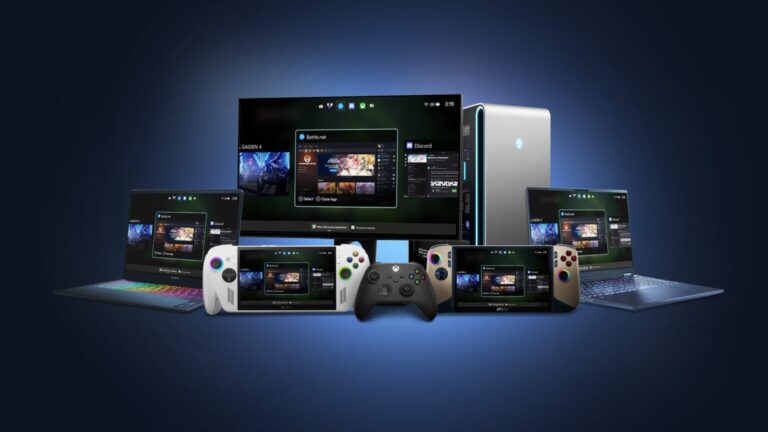
The Xbox Full Screen Experience is now available to all Windows handheld gaming PCs. This offers a smoother, console-like interface on devices like the Legion Go, ROG Ally, MSI Claw, and more.
There are some handhelds that have already received the update, but some are still waiting, which can be confusing if you’re waiting to try the new UI.
Don’t want to miss the best from TechLatest ? Set us as a preferred source in Google Search and make sure you never miss our latest.
Well, we’ve tested XFSE on our ROG Ally models and also analyzed a workaround for devices that haven’t received the update yet. This guide explains both methods and helps you set up the full-screen interface without confusing you.
So, let’s get started with the guide and see how you can put Xbox Full Screen Experience on your Windows handheld gaming PC.
Read : Xbox Full Screen Experience Expands as Microsoft Brings Ally X Interface to Major Handhelds
Content Table
What Exactly is Xbox Full Screen Experience?
Your handheld gaming PC is powerful, but its default Windows interface feels like it belongs to a laptop, not a portable gaming device. However, the Xbox Full Screen Experience fixes that by turning your handheld into a portable Xbox.
Here’s what makes it useful:
- A clean, distraction-free UI
- Easy to browse with a controller or touchscreen
- Quick access to Xbox Game Pass
- Game launcher support for non-Xbox titles
- Reduced background tasks for better performance
- Proper layout scaling for small displays
- Simple shortcuts like Win + F11 to toggle it
It is the direct competitor and Microsoft’s answer to Steam Deck’s SteamOS, as it is making a big difference when you’re gaming on a small laptop screen.
How to Set Up the Xbox Full-Screen Experience on Your Windows Handheld
So, before we start with the steps, make note that XFSE is rolling out slowly; therefore, if you don’t see the option yet, then don’t worry, as it may take a few days. Now, let’s get started with the setup process in simple and easy steps:
Step 1: Update Windows
- Swipe up from the bottom of your handheld’s screen.
- Tap Settings .
- Go to Windows Update .
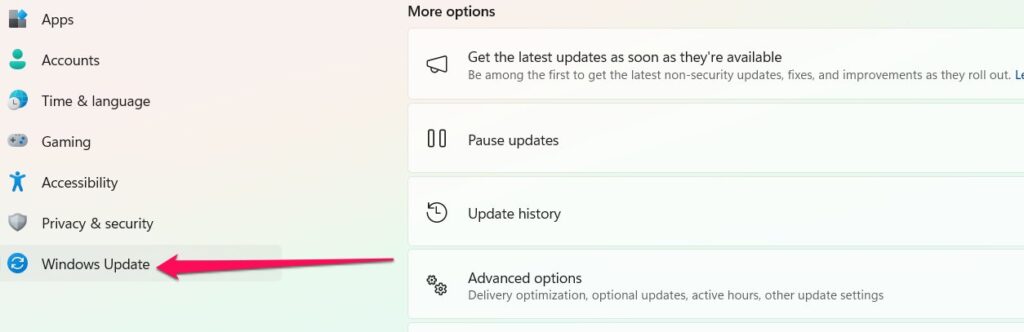
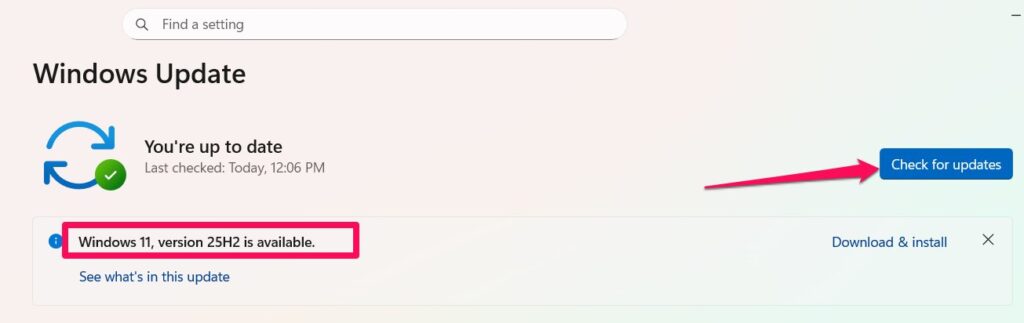
- Hit Check for updates .
- Make sure you install the update labeled Windows 11, version 25H2 .
- Restart your device once the update finishes.
Take your time here; the installation may take several minutes depending on your handheld’s speed.
Step 2: Enable Full-Screen Experience
After your device boots:
- Swipe up again.
- Open Settings .
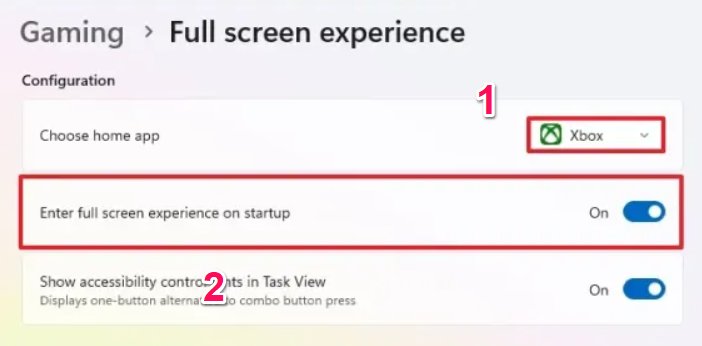
- Tap Gaming .
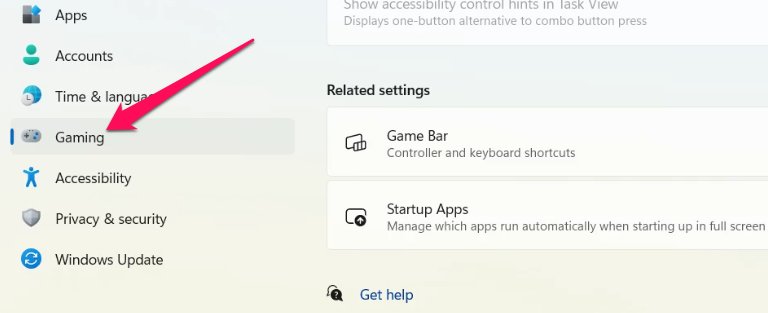
- Select Full Screen Experience .
- Change the drop-down menu to Xbox .
- To make XFSE launch automatically on startup, toggle the option labeled Enter full screen experience on startup .
Step 3: Reboot Into Xbox Full Screen Experience
Restart your handheld once more. If you enabled the auto-boot option, your device should now start directly into the Xbox-style interface.
What If the Update Hasn’t Arrived on Your Handheld Yet?
This happened to us with our Legion Go 2. While our ROG Ally and Ally X detected the update immediately, the Legion Go 2 simply didn’t show the Full Screen Experience setting. If you’re in the same situation, you have two choices:
Option 1: Wait for the Official Rollout
Not ideal, but sometimes you just need to wait a bit. Microsoft is pushing the update in phases.
Option 2: Use a Free Open-Source Tool
If you don’t want to wait, there’s a workaround using a free open-source application that mimics the Xbox interface almost perfectly. It’s lightweight, customizable, and works on any Windows handheld.
The tool creates a launcher that looks and feels like the real Xbox FSE, complete with full-screen navigation and controller support.
How to Make a Different Launcher Boot Into Full-Screen Mode
Some handheld owners prefer using other launchers instead of Xbox, the most popular one being Playnite , which has a full-screen “Big Picture” style mode. If you want your handheld to boot into something else instead of Xbox FSE (like Steam, Playnite, Heroic, or GOG Galaxy):
- You can configure Windows startup to launch your preferred full-screen launcher automatically.
- Many users switch to Playnite because it pulls all your games from Steam, Epic, Xbox, Ubisoft, and more into one clean library.
- We set up our ROG Ally X to boot straight into Playnite full-screen mode, and it feels very console-like.
How to Exit the Xbox Full-Screen Experience and Go Back to the Desktop
Even though XFSE gives your handheld a console-like vibe, you may want to return to the regular Windows desktop for tasks like:
- Installing drivers
- Managing files
- Browsing the web
- Changing system settings
Here’s how to exit quickly:
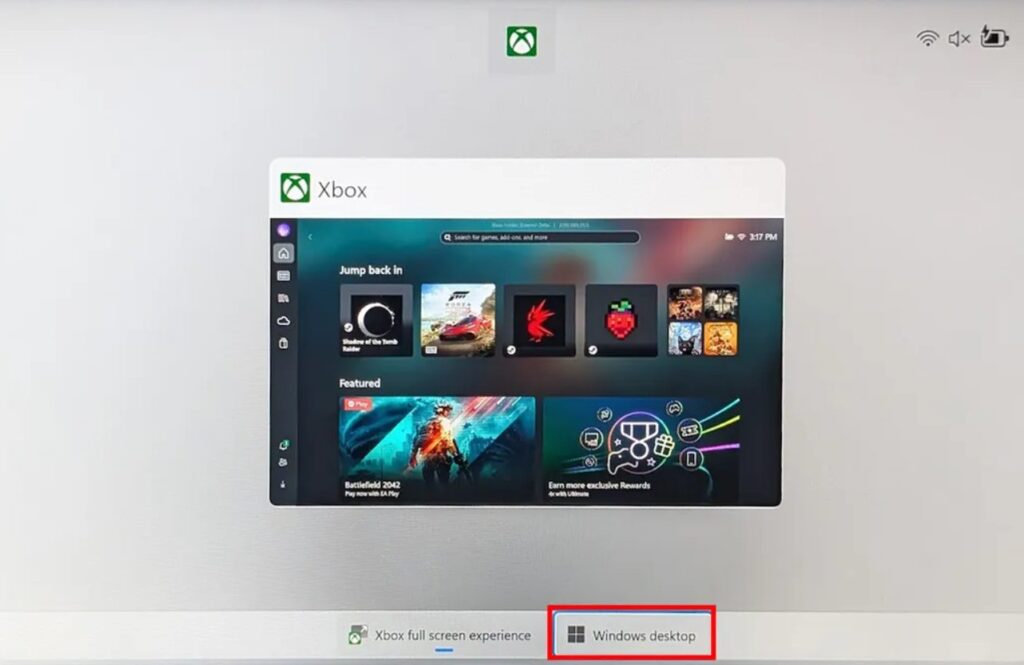
- While XFSE is open, swipe up from the bottom of the screen.
- Tap Windows desktop .
- Select Continue .
Source: WindowsCentral
That’s it. You’re instantly back in normal Windows mode. This is actually one of the best parts of XFSE; you’re not locked into it like some other handheld UIs. You can switch between gaming mode and desktop mode whenever you want.
Is the Xbox Full Screen Experience Worth Using?
In my experience, yes, especially if you’re someone who uses your handheld primarily for gaming. XFSE removes the usual clutter of Windows and gives you a UI that:
- Feels clear and clean
- It’s easy to navigate with a controller
- Loads your games quickly
- Puts Xbox Game Pass front and center
- Cuts down unnecessary Windows tasks
It basically removes the awkward parts of Windows navigation that don’t play well on a small touchscreen. This is especially helpful for handhelds like:
- ROG Ally
- ROG Ally X
- Legion Go
- MSI Claw
- AOKZOE models
- AYANEO handhelds
And more models will benefit as the rollout continues.
What the Xbox Full Screen Experience Can Do?
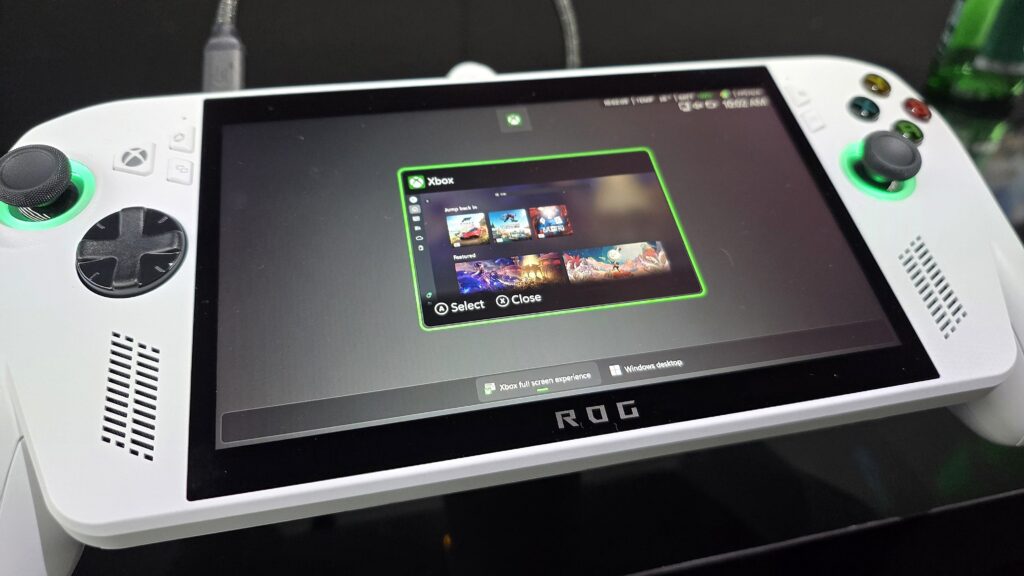
Here’s a quick breakdown of its biggest features:
Console-Like Interface
You get a UI that looks similar to the Xbox dashboard, but optimized for a handheld screen.
Way Less Background Noise
Windows normally runs many services in the background. XFSE cuts unnecessary ones, so your games run smoother.
Better Controller Navigation
Menus don’t feel cramped, and everything responds well to joystick and D-pad input.
All Your Games in One Place
You can easily access:
- Xbox Game Pass titles
- Xbox Play Anywhere games
- Games from other stores
Quick Switching
Hold the Xbox controller button , and you can jump between the launcher and other tasks smoothly.
Fast Toggle With Win + F11
If you’re on a desktop and want to jump back into full-screen mode, one shortcut is all it takes.
Is the Xbox Full Screen Experience Available Everywhere?
As of November 23, 2025 , yes, Microsoft has started rolling it out for all Windows handhelds . If you don’t see the option today, you may see it tomorrow.
Final Thoughts
If you want something that makes your ROG Ally, Ally X, Legion Go, MSI Claw, or any other handheld feel more like a true gaming console, the Xbox Full Screen Experience is absolutely worth exploring and using the method we have discussed above.
So, that’s all we have for you about how to put the Xbox Full Screen Experience on your Windows Handheld Gaming PC. We hope that this guide has helped you. For more info, comment below and let us know.
Enjoyed this article?
If TechLatest has helped you, consider supporting us with a one-time tip on Ko-fi. Every contribution keeps our work free and independent.
