
Often while plugging in USB devices in USB port 3.0, you would see the error message on your monitor saying “not enough USB controller resources.”
You might feel it is impossible to use your USB device, but it is not. One of the quickest yet temporary solutions is to plug your device into the USB 2.0 port.
Don’t want to miss the best from TechLatest ? Set us as a preferred source in Google Search and make sure you never miss our latest.
For a permanent solution, you can reinstall the USB device controller driver and have some additional yet easy methods; scroll down to know how to fix the error!
The biggest problem is that it won’t let you connect USB devices to the 3.0 port. Though it seems complicated and impossible to solve problems, it is not.
<img loading=“lazy” src=“https://media.tech-latest.com/wp-content/uploads/2022/07/06181355/main-5.jpg" onerror=“this.onerror=null;this.src=‘https://blogger.googleusercontent.com/img/a/AVvXsEhe7F7TRXHtjiKvHb5vS7DmnxvpHiDyoYyYvm1nHB3Qp2_w3BnM6A2eq4v7FYxCC9bfZt3a9vIMtAYEKUiaDQbHMg-ViyGmRIj39MLp0bGFfgfYw1Dc9q_H-T0wiTm3l0Uq42dETrN9eC8aGJ9_IORZsxST1AcLR7np1koOfcc7tnHa4S8Mwz_xD9d0=s16000';" alt=“Fix: “Not Enough USB Controller Resources” Error - 2”>
- How to Fix NET::ERR_CERT_REVOKED Error on Google Chrome?
- How to Fix HBO Max Can’t Play Title Error?
- How to Fix Disney Plus Error Code 401(Roku TV)?
Content Table
Why Does Not Enough USB Controller Resources Error Occur?
As per the error, Windows doesn’t have adequate resources to connect with your USB device. Some error messages often proclaim that the USB Host Controller Drivers of your computer would be non-functional or buggy. But it is a small issue, so before calling a technician for your service, try on with these solutions.
How to Fix Not Enough USB Controller Resources in Windows?
Here, you will find four ways to fix the issue. Follow them in sequence. If one does not, then only try another one!
Solution 1: Plug the USB into the 2.0 Port
Be it control device data or actual data, and the USB 3.0 has several endpoints. Multiplication communications go on simultaneously, also referred to as buffers. Whereas USB 3.0 can have a maximum of 16 endpoints. Therefore, you as a user might not realize when it exceeds, but you get notified with the error message “Not Enough USB Controller Resources”.
It’s not massive or complicated that you cannot fix. If you face an issue due to this reason, then here’s a simple fix for you.
- Plug out the device from the USB 3.0 port
- Plug your device into the USB 2.0 port
However, if it doesn’t work, the issue is something else. Follow the method mentioned below to resolve it!
Solution 2: Reinstall USB Host Controllers
If there’s an issue with the Universal Serial Bus Host Controllers, then the simple method will help you tackle it.
Follow the steps given below for the same:
- Press Windows + R keys simultaneously, and the Run command windows will open.
- In its search box, input “devmgmt.msc” and press the Enter key. The Device Manager will open.
- In it, click to expand the USB Controllers section
- Right Click upon any of your devices and navigate to Host Controller. In it, click the Uninstall Device option.
- You will be prompted to unplug your device in the window. Tap on the Uninstall button to proceed with your activity.
<img loading=“lazy” src=“https://media.tech-latest.com/wp-content/uploads/2022/07/06181426/1-2.jpeg" onerror=“this.onerror=null;this.src=‘https://blogger.googleusercontent.com/img/a/AVvXsEhe7F7TRXHtjiKvHb5vS7DmnxvpHiDyoYyYvm1nHB3Qp2_w3BnM6A2eq4v7FYxCC9bfZt3a9vIMtAYEKUiaDQbHMg-ViyGmRIj39MLp0bGFfgfYw1Dc9q_H-T0wiTm3l0Uq42dETrN9eC8aGJ9_IORZsxST1AcLR7np1koOfcc7tnHa4S8Mwz_xD9d0=s16000';" alt=“Fix: “Not Enough USB Controller Resources” Error - 3”>
- If you have any other device as the Host Controller, then go to Device Manager and then expand its USB controllers section.
- Now Reboot your Computer.
You will see that the USB Host Controller Drivers will be re-installed. Further, if you’re wondering how it happened, it was an automatic process. Now, replug the USB drive, and the issue will be resolved.
If it wasn’t fixed, follow the method given below!
Solution 3: Disable the XHCl Mode
Before you proceed with this method, it is crucial to understand that USB 3.0 would function like USB 2.0. However, what matters is that the Not Enough USB Controller Resources problem will be solved by this solution.
Follow the steps given below to proceed:
- Restart your computer.
- When the brand logo appears on the screen, continuously press the Setup key.
- The setup key depends on your PC; that’s different as per model but would usually be F2, F10, F1, or the delete button of the keyboard.
- Stop when the Advanced option Window appears.
- Navigate to UEFI Firmware Settings, and the BIOS setting will open
- In BIOS, go to Advanced.
- In the Device option, navigate to USB EHCI debug
- Click to Enable it that would disable the xHCl from BiOS
<img loading=“lazy” src=“https://media.tech-latest.com/wp-content/uploads/2022/07/06181446/2-3.jpeg" onerror=“this.onerror=null;this.src=‘https://blogger.googleusercontent.com/img/a/AVvXsEhe7F7TRXHtjiKvHb5vS7DmnxvpHiDyoYyYvm1nHB3Qp2_w3BnM6A2eq4v7FYxCC9bfZt3a9vIMtAYEKUiaDQbHMg-ViyGmRIj39MLp0bGFfgfYw1Dc9q_H-T0wiTm3l0Uq42dETrN9eC8aGJ9_IORZsxST1AcLR7np1koOfcc7tnHa4S8Mwz_xD9d0=s16000';" alt=“Fix: “Not Enough USB Controller Resources” Error - 4”>
Afterward, save your changes and reboot your computer as you do. When the computer boots, connect your USB, and the problem will be resolved.
But, if you do not wish to proceed with the solution for XYZ reasons, then we have the most effective fix for you.
Solution 4: Use Windows USB Troubleshooter
Windows has an inbuilt USB Troubleshooter to fix your common USB-related problems.
<img loading=“lazy” src=“https://media.tech-latest.com/wp-content/uploads/2022/07/06181506/3-2-7.jpg" onerror=“this.onerror=null;this.src=‘https://blogger.googleusercontent.com/img/a/AVvXsEhe7F7TRXHtjiKvHb5vS7DmnxvpHiDyoYyYvm1nHB3Qp2_w3BnM6A2eq4v7FYxCC9bfZt3a9vIMtAYEKUiaDQbHMg-ViyGmRIj39MLp0bGFfgfYw1Dc9q_H-T0wiTm3l0Uq42dETrN9eC8aGJ9_IORZsxST1AcLR7np1koOfcc7tnHa4S8Mwz_xD9d0=s16000';" alt=“Fix: “Not Enough USB Controller Resources” Error - 5”>
Follow the steps given below to proceed:
- Press the Win key to open the Start menu.
- Navigate to Run, which will launch the Run Command box.
- Type cmd and press the Ctrl and Shift keys simultaneously to open an Elevated Command Prompt on your Windows 11/10.
- The cmd will open and enter the following command in it: msdt.exe -id DeviceDiagnostic
- Press the Enter key.
- The Hardware and Devices Troubleshooter window will open. Navigate to the Advanced option.
- You will see the Apply Repairs Automatically check box, check and then press the Enter key.
- Windows USB Troubleshooter will detect the problem.
- The errors would be displayed as a report if any.
- Click to select the problem, and Windows Troubleshooter will resolve it.
- Reboot your PC
As per your expectations, the solution will solve your problem, and your USB device will work normally.
But it is to be noted that often USB 3.0 would be the cause of the problem. Therefore, it is recommended to use your old devices in the 2.0 ports and newer ones in the 3.0 port for high speed.
What is the limit of USB devices per controller?
A single host controller device allows 127 connected devices to run simultaneously. However, one USB can have 32 endpoints, while the USB 2.0 has only 16 endpoints.
Can you Overload a USB Port?
You can Overload a USB port but only after considering its consequences. Overloading the USB port range would make it temporarily or even permanently dysfunctional. A 5V range supply affects the Host and peripheral when it exceeds 12V.
How can I increase my USB slot?
You can increase your USB slot by buying a USB extension. Usually, hubs have 4 additional ports. However, if you require more, then you can plug an additional hub from one of the 4 ports and get access to more; make sure that a standard supports only 127 devices, so do not use more than 2 ports.
The Final Verdict
Enjoyed this article?
If TechLatest has helped you, consider supporting us with a one-time tip on Ko-fi. Every contribution keeps our work free and independent.
Highlights
- “Driver is unavailable” is a common issue people face with their printer on a Windows PC.
- The issue occurs due to various reasons like the driver is not properly installed or is corrupted, etc.
- We’ve given a number of solutions that can help you resolve the issue in no time and you can get back to your daily chores.
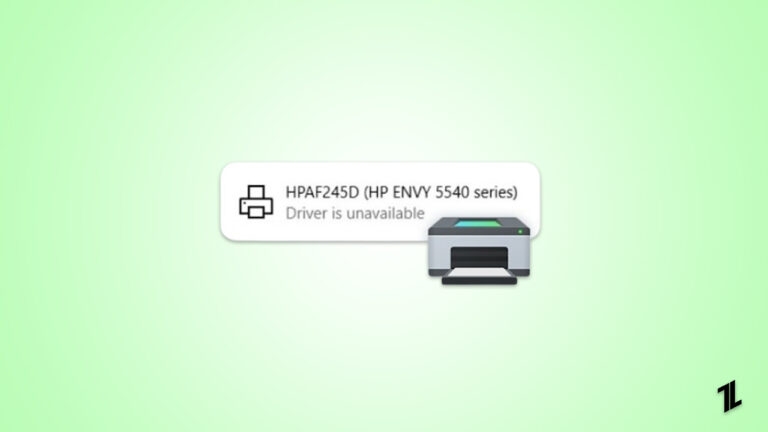
Printing is one of the most common tasks people do on a daily basis. Nowadays there are a ton of printers available on the market, and every one of them requires a different driver to operate.
Hence, you might see a very common error while you try to print any document or photo, i.e., Driver is Unavailable. Since it is a common issue, solutions are also very easy to implement.
Don’t want to miss the best from TechLatest ? Set us as a preferred source in Google Search and make sure you never miss our latest.
“Driver is unavailable” simply means that your system is trying to find the right driver for your printer to operate but can’t find any and halts the printing of any document or photo.
As mentioned earlier, the solutions are simple but before that, we would like to tell you the reason why you get the “Printer Driver is unavailable” error on Windows.
Content Table
Why do you get the “Printer Driver is unavailable” error on Windows?
This is a very common error among Windows 10 users as so many have complained to us that they get the Driver is Unavailable on their Printer devices.
Talking about why you get this error, there is no single reason why this error could pop up on your PC. There are multiple reasons why this error could occur on your PC, and we have listed them down below. You could be facing an error due to any of them.
Here are the reasons:
- Your Printer’s driver is missing or not installed properly
- Your Printer’s driver is corrupted
- Your Printer’s driver is not compatible with your PC
- Your Printer’s driver is outdated
- Windows Update needs to be installed
Now that we have told you about the possible reasons you are getting the “Printer Driver is unavailable” error, we will talk about how to fix the “Printer Driver is unavailable” error.
How do we fix the “Driver is unavailable” error on Windows?
These are some of the ways to fix the “Printer Driver is unavailable” error on Windows, and they are as follows:
1. Reconnect the Printer Device
The first thing you need to do is simply reconnect the Printer Device so that you can check if it works or not. It is quite possible that this could fix all the things, and you don’t need to do anything else to fix the issue.
To reconnect your Printer device, follow these steps:
- Press the Windows + S key on your keyboard and then type Settings in the window that opens.
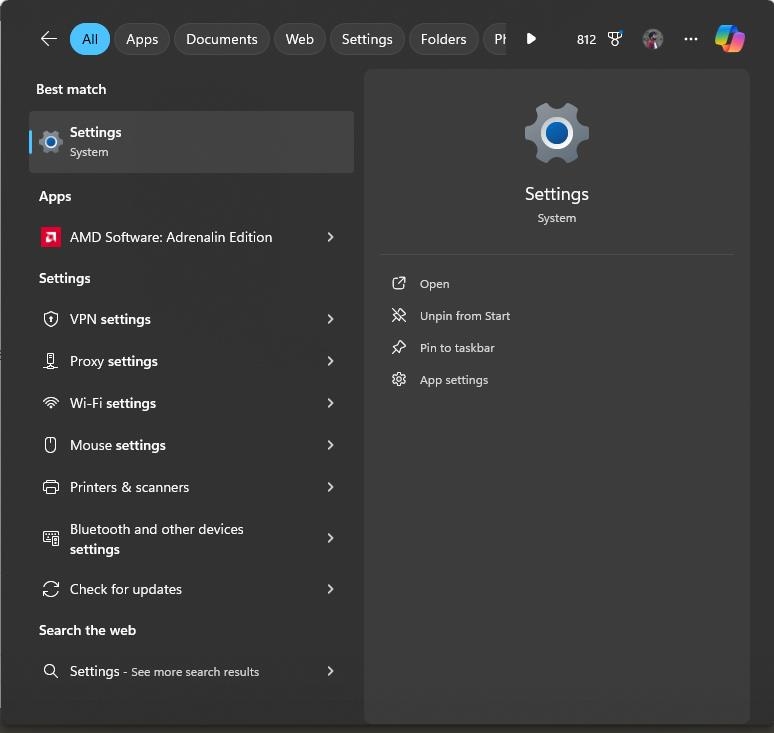
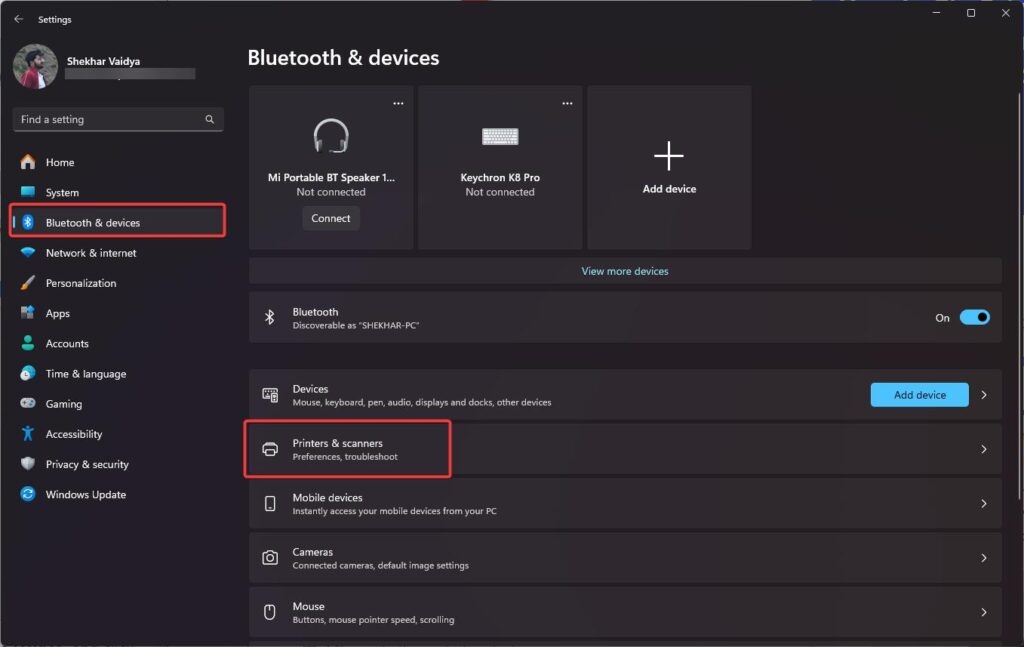
- Launch the Settings window, click on Bluetooth & devices , and then Printers & scanners .
- Click on the Printer that is troubling you, select Remove Device, and click Yes if you are prompted.
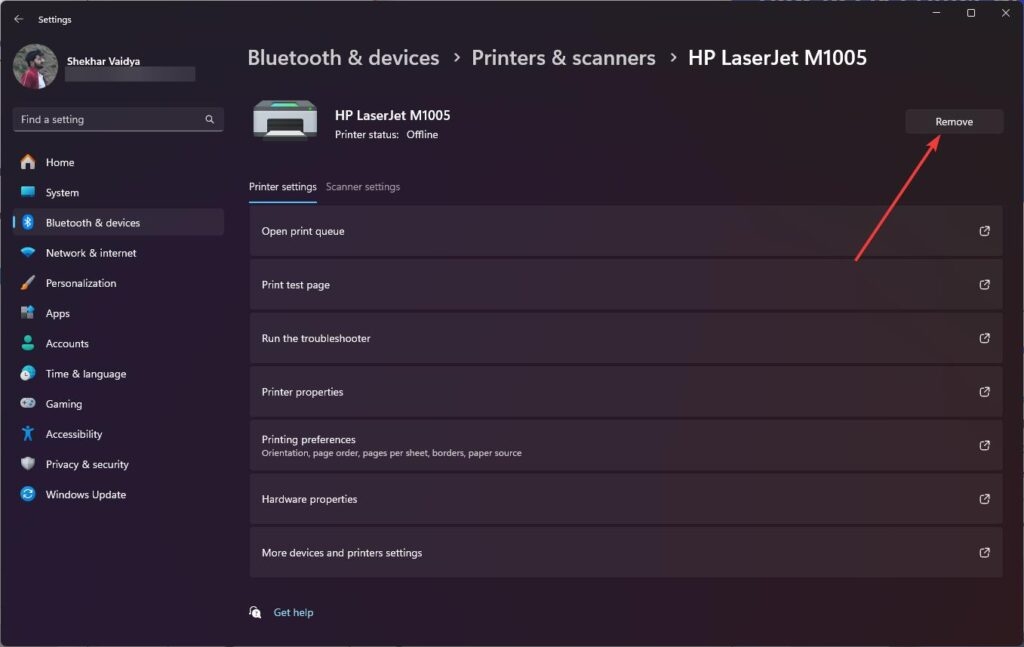
- After this, your Printer will be removed from your PC, and then you can reconnect your Printer as you would normally do.
If this doesn’t work, you can try the other troubleshooting methods mentioned below.
2. Update your Printer Driver via Device Manager
If your method of reconnecting the Printer did not work, then you can try to update your Printer’s drivers because outdated drivers could also cause problems with the functioning of any device.
To update your Printer’s drivers inside Windows, follow these steps:
- Press the Windows + X key, click on Device Manager , and then expand the Printers menu.
- Right-click on the Printer listed in the menu and then click on Update Driver to update its drivers.
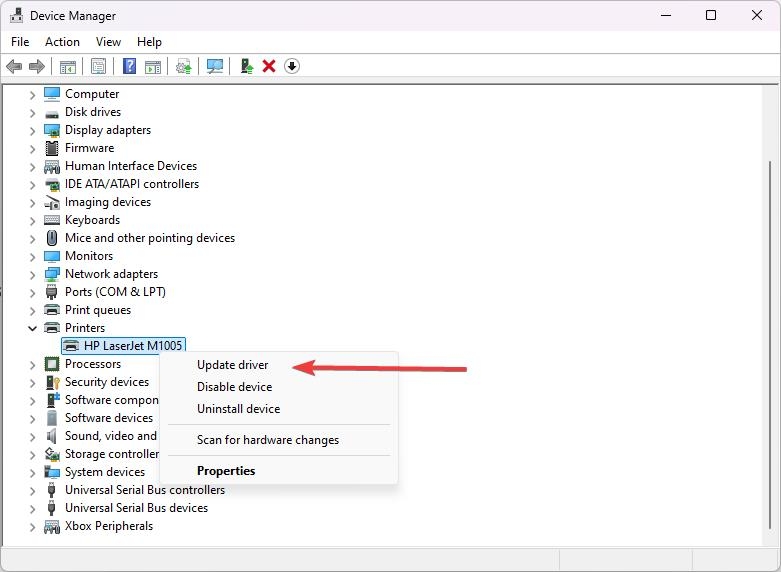
- Select the Search Automatically for drivers option and allow Windows to search for existing drivers inside the system as well as online.
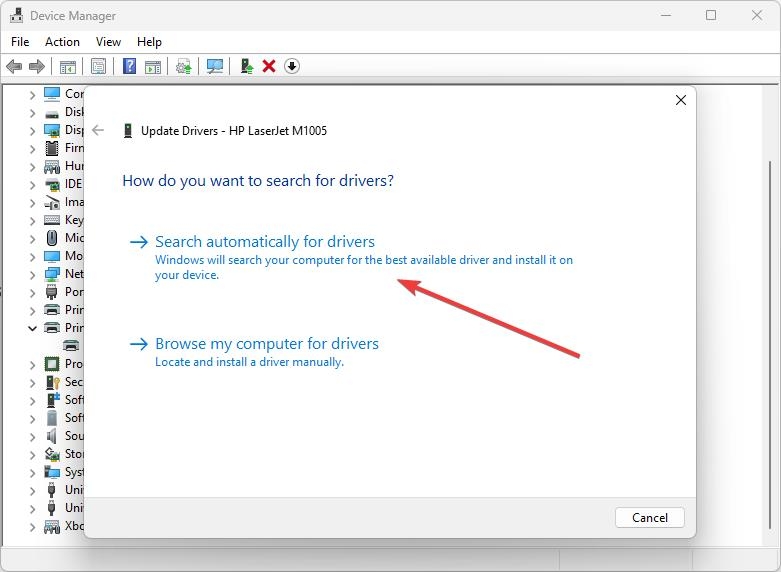
- Wait for the driver installation to complete, and then restart your PC for changes to take effect.
3. Install Printer Drivers manually
It is quite possible that Windows cannot find the Printer Drivers, so you may need to install them manually.
- For this, you need to go to Device Manager once again by clicking Windows + X.
- After that, you need to go to Printers and Expand the list, right-click on your Printer, and click on Update Driver .
- Now comes the part where you need to concentrate because you will need to click on Browse my computer for drivers.
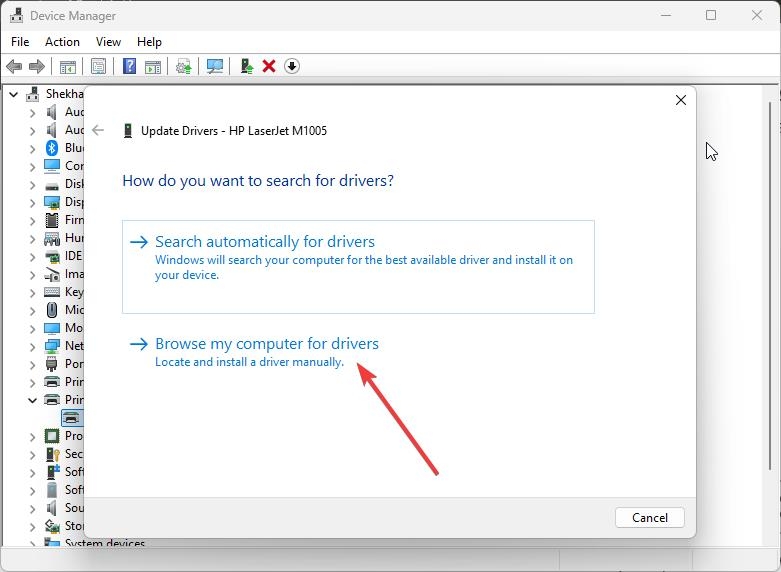
- Download the Printer Driver for your respective printer, depending upon its manufacturer. We have given links to some of the top printer manufacturers down below: Canon Driver Download HP Software and Driver Downloads Epson Downloads Brother Driver Downloads Sharp Driver Downloads Samsung Printer Software Installer
- Download the correct driver, remember the file path where you have downloaded the drivers, and then select and install them on your PC.
4. Install Generic Printer Driver
Users say installing generic printer drivers instead of those specific to their device manufacturers has also done the job for them. This could be because generic drivers are compatible with each and every printer out there unless there is something specific that needs to be changed.
So, we will try and install a generic driver on our Printer and see if it works.
- To do that, go to Device Manager by pressing the Win + X key once again.
- Expand the Printers menu, right-click on your Printer, and click on Update Driver .
- Then click on Browse my computer for drivers and then click on Let me pick from a list of available drivers on my computer .
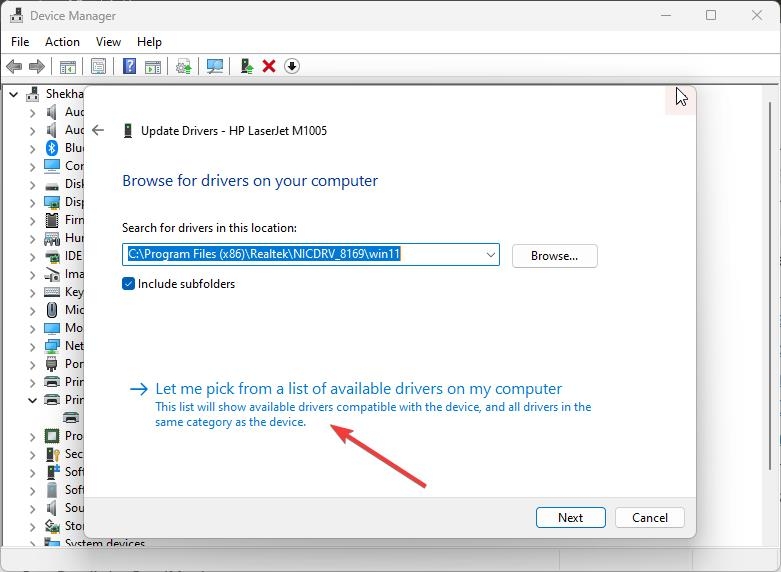
- Click on Generic Software Device as seen above and then click on Next.
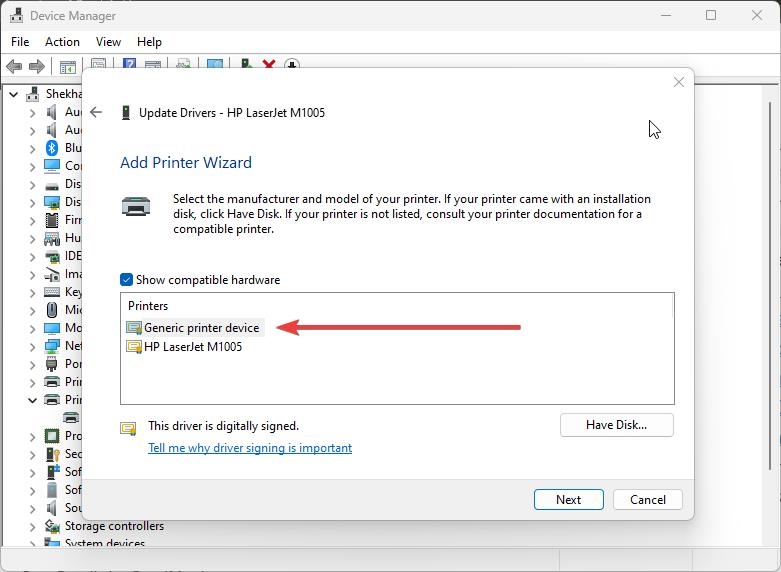
- Now, your Generic drivers will be installed, and you can restart your PC after that.
5. Update Windows 10
While we know that the problem of the Printer Driver being unavailable is related to the drivers of your Printer, it is possible that your Windows being outdated could also be the issue.
We have noticed this issue in users who did not update their Windows 10 and were running an outdated version.
So, make sure to check and update your Windows if you have an update pending because it could bring bug fixes that could fix the “Printer Driver is unavailable” issue.
- To check for Windows updates, press Win + I simultaneously to open Settings .
- Now, click on Windows Update .
- Click on the Check for Updates button and then wait for Windows to check if any update is available.
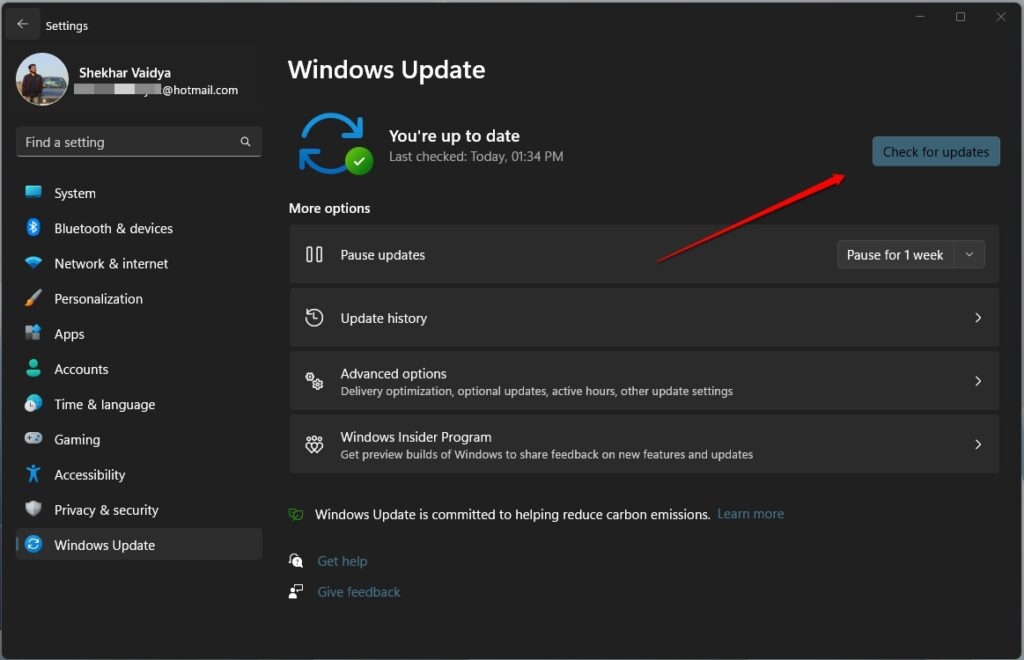
- If any update is available, click on the Download and Install Now button and then wait for it to be installed on your PC.
6. Fix Corrupt Windows Files
There can be errors related to “Driver is unavailable” when system files are corrupted.
You can make these files work again with the System File Checker (SFC) and Deployment Imaging Service and Management Tool (DISM).
Run SFC
- Run Command Prompt as an administrator.
- Then type sfc /scannow and hit Enter.
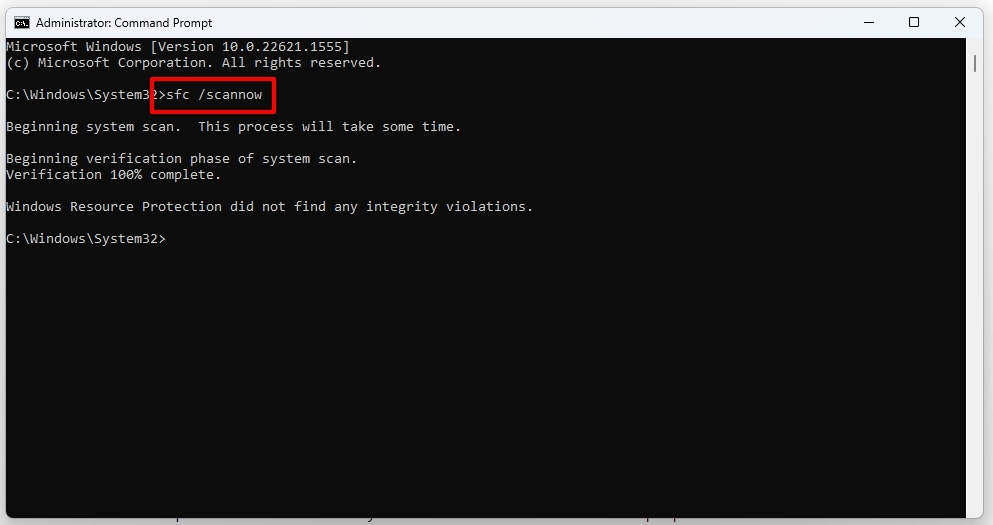
- Wait until the Scan is complete. Whenever it finds corrupted system files, it automatically fixes them.
Run DISM
- You will need to open Command Prompt as an administrator.
- Enter DISM /Online /Cleanup-Image /RestoreHealth .
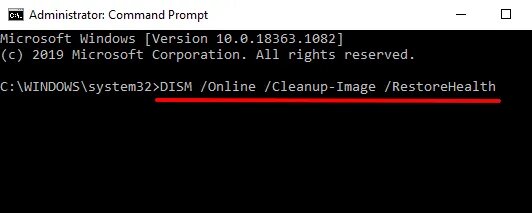
- Let the process run its course. Be patient; it may take some time.
7. Don’t Let Faulty Drivers Install
Sometimes the issue of “Driver is unavailable” is because of the driver’s latest update. Usually in the latest Windows editions like 10 or 11, Windows tends to update the driver automatically when available.
We can stop this phenomenon by using Microsoft’s Show or hide updates tool. Follow the below instructions step-by-step to do so,
- Download the Microsoft Show or hide updates tool using this link .
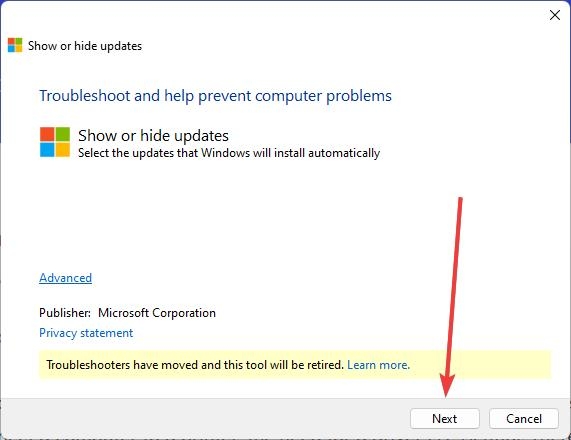
- Open the app by single/double clicking the wushowhide.diagcab file.
- Click on the Next button located in the down section of welcome windows.
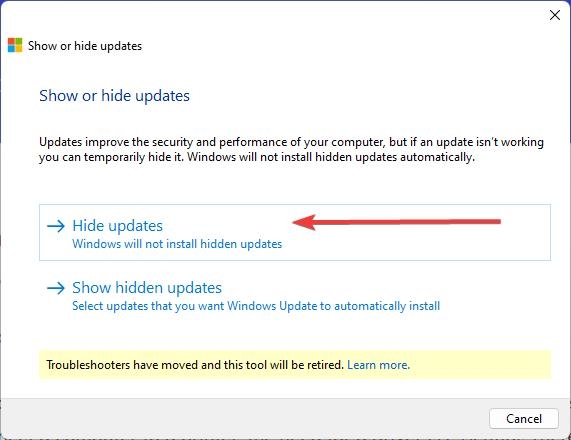
- From the two options available, click on the Hide updates option.
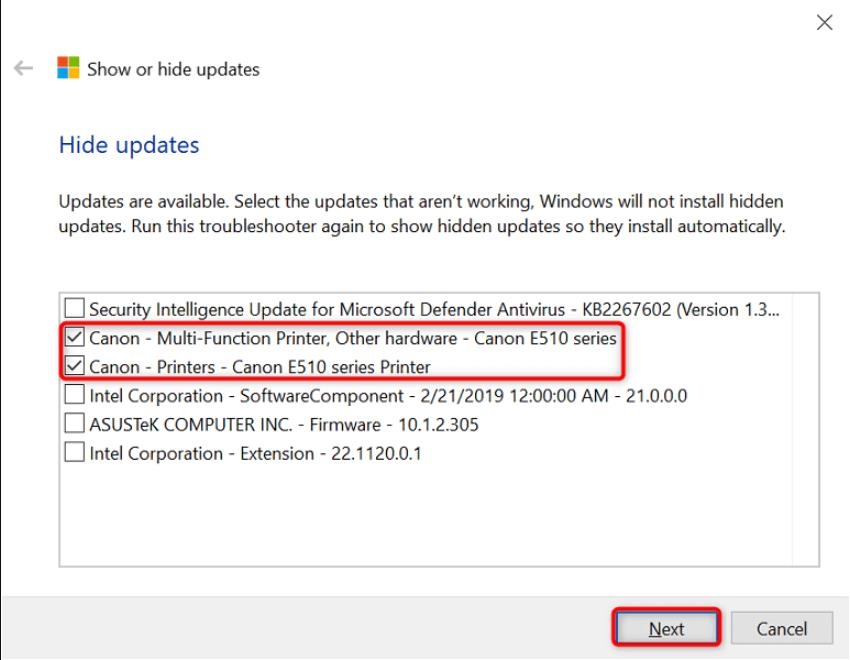
- Check the boxes of the faulty printer and click on the Next button.
- Finally, select Close the troubleshooter .
By doing this, Windows will ignore any updates available and prevent installing any faulty drivers.
Conclusion
There you go. We have mentioned everything there is to know about the “Printer Driver is unavailable” error, from how it is caused to knowing how you can fix it.
Some part of this article is contributed by Abhishek Jariwala .
Further Reading:
- Why is My Computer Slow All of a Sudden?
- Windows was Dominant, But Now It’s Not: What Happened?
- Winpilot (BloatyNosy): Debloat Your Windows 11 PC (Remove Bloatware)
Enjoyed this article?
If TechLatest has helped you, consider supporting us with a one-time tip on Ko-fi. Every contribution keeps our work free and independent.


