Highlights
- Android smartphones are said to be the most popular smartphones due to their user-friendly features and the fact that they are cheaper than other smartphones.
- Sometimes, when we try to download an app, a message appears saying, “there was a problem parsing the package.”
- Luckily, we have some fixes to resolve the package problem parsing the error message in this article.
It’s not just you who has encountered a “There was a Problem Parsing the Package” error when installing an Android app. It can be frustrating when you try installing an app you need, especially when it gives this error.
In spite of this, there are various ways to resolve the issue and install your app. Here’s what the “Problem parsing the package” error means and some solutions to help you fix it.
Don’t want to miss the best from TechLatest ? Set us as a preferred source in Google Search and make sure you never miss our latest.
Content Table
What is the “There was a Problem Parsing the Package” error?
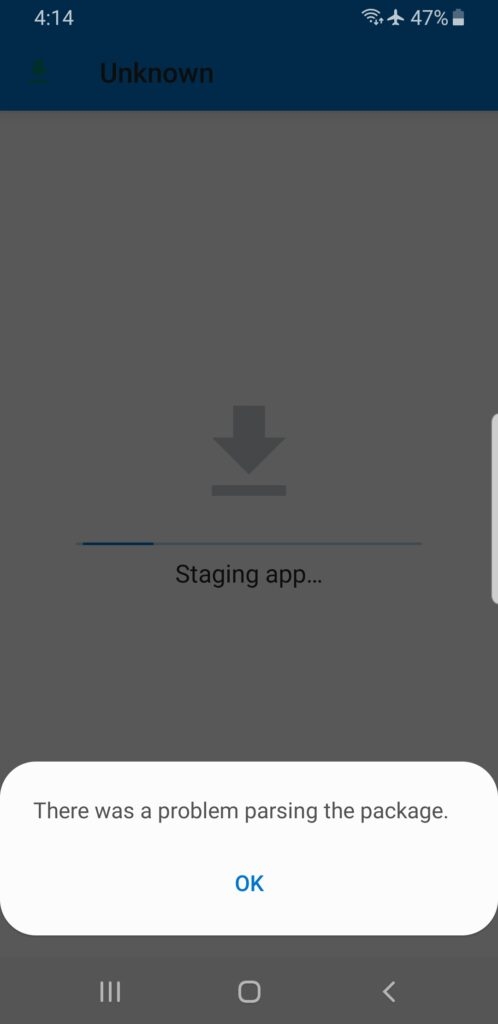
It is common for Android apps to fail to install because of errors such as “There was a Problem Parsing the Package.”
If your device does not support the package file (APK) or if the file is corrupted, incomplete, or not compatible, you’ll receive this error message.
It is possible that the error also occurs if the APK file was not downloaded completely or if the operating system version you are running is not compatible.
Solutions to fix the “Problem parsing the package” error:
So, here are some solutions that will help you resolve the error message “there was a problem parsing the package”:
Enable installation of apps from unknown sources:
Normally, Android devices only allow app installations from the Google Play Store. However, it may be necessary to install apps from other sources from time to time.
It’s possible that your device is not set up to allow installations from unknown sources if you receive the “Problem parsing the package” error when installing an app outside the Play Store. Here’s how to enable unknown source app installation:
- On your Android device, open the “ Settings ” app.
- Tap on the “ Security ” option.
- Select “ Unknown sources ” and turn it on.
And, in the case of Android 10 and above, follow the below steps,
- On your Android device, open the “ Settings ” app.
- Tap on the “ Apps ” option.
<img loading=“lazy” src=“https://media.tech-latest.com/wp-content/uploads/2023/03/27134351/Allow-Installtion-from-Unknown-Sources-1-461x1024.jpg" onerror=“this.onerror=null;this.src=‘https://blogger.googleusercontent.com/img/a/AVvXsEhe7F7TRXHtjiKvHb5vS7DmnxvpHiDyoYyYvm1nHB3Qp2_w3BnM6A2eq4v7FYxCC9bfZt3a9vIMtAYEKUiaDQbHMg-ViyGmRIj39MLp0bGFfgfYw1Dc9q_H-T0wiTm3l0Uq42dETrN9eC8aGJ9_IORZsxST1AcLR7np1koOfcc7tnHa4S8Mwz_xD9d0=s16000';" alt=“Fix: “There was a problem parsing the package” on Android 1 - 3”>
- Select “ Special spp access, “
- Then “ Install Unknown apps ,” and allow the apps accordingly.
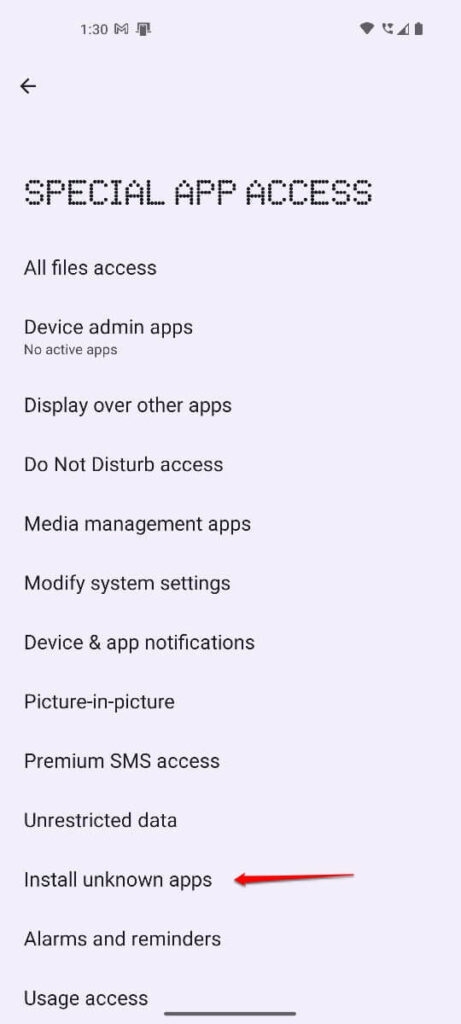
If the error still persists, try installing the app again after turning on installation from unknown sources.
Clear Google Play Store’s cache and data:
The Google Play Store is the primary method for downloading and installing Android apps. It is sometimes possible to resolve app installation issues by clearing the cache and data of the Play Store.
To clear the Google Play Store’s cache and data, follow these steps:
- On your Android device, open the “ Settings ” app.
- Tap the “ Apps ” option at the bottom.
- Tap on “ Google Play Store ” in the list of installed apps.
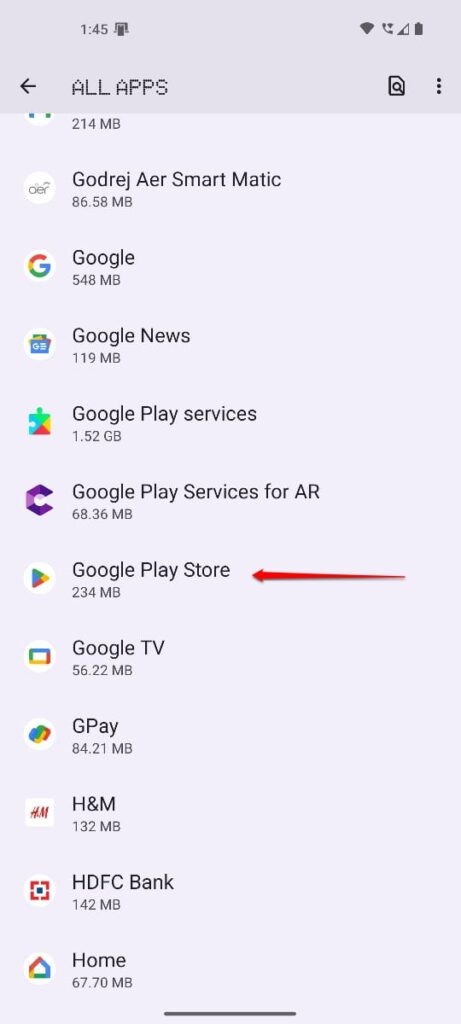
- Click on “ Storage .”
- Click “ Clear cache ” and then “ Clear data .”
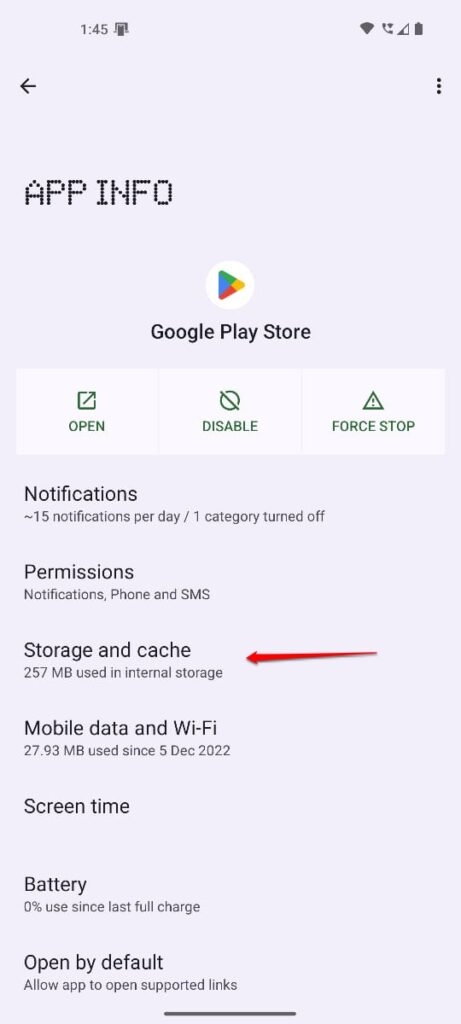
Check if the error has been resolved after clearing the Play Store cache and data.
Check the compatibility of the app:
It’s possible that you’re getting the “There was a problem parsing the package” error because your device isn’t compatible with the app you are trying to install.
If you are unsure whether the app will work on your device, check its compatibility with your Android version and hardware specifications.
Check the APK file for corruption:
It is possible to receive a “There was a problem parsing the package” error if the APK file is corrupt or incomplete. You can try downloading the APK file again to see if the error has been resolved.
To ensure that the APK file is not corrupt, try downloading it from another source if you still have issues.
Disable Antivirus and Firewall:
Your device’s antivirus program or firewall may prevent an app from installing and cause an error message stating, “Problem parsing the package.” Then, try installing the app again after disabling any antivirus programs or firewalls.
Use APKMirror or other trusted APK download sites:
If you have trouble downloading from the original source, you can download the APK from trusted APK download sites such as APKMirror.
If you want to avoid downloading a corrupted or infected file, download it from a reputable website.
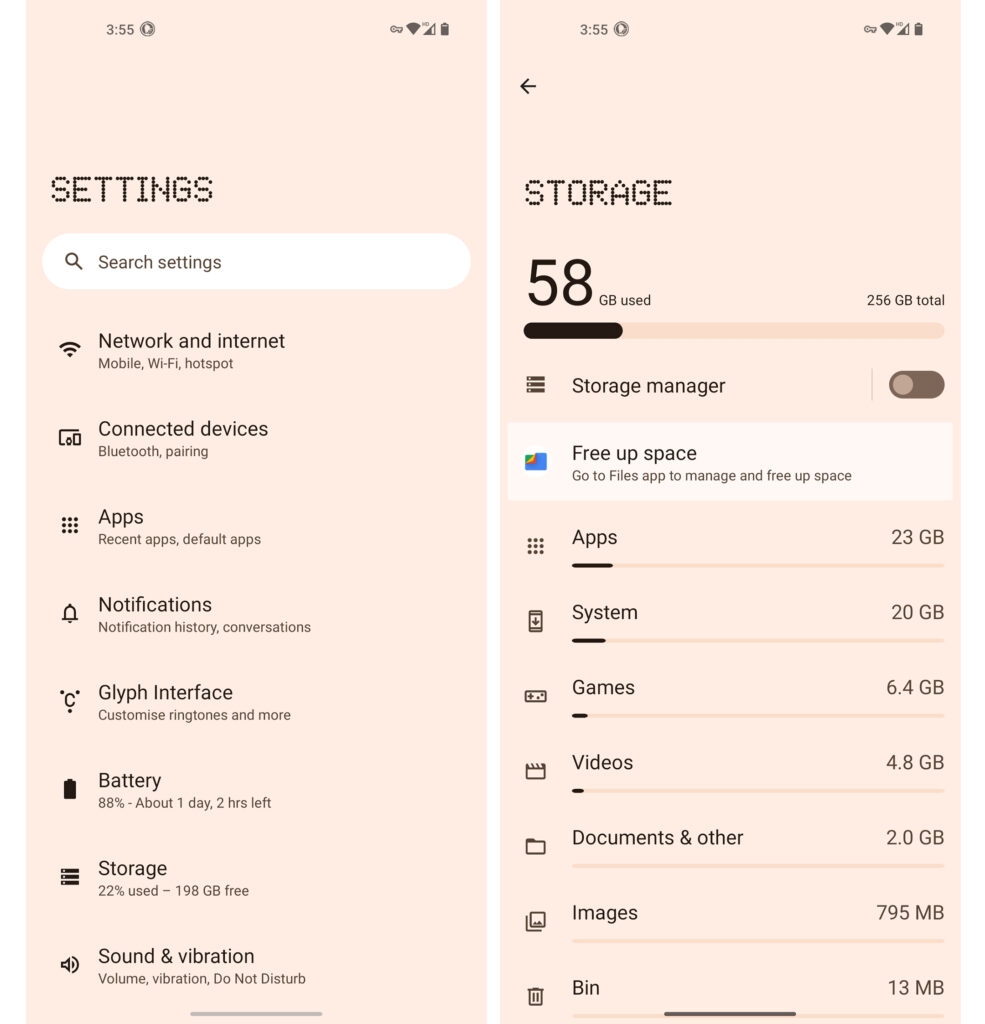
Check storage space:
It can be difficult to install apps if your device lacks enough storage space. If there is not enough space on your device, delete unnecessary apps, files, or media.
Factory reset:
It may be necessary to perform a factory reset if no other solution works. This method will wipe every piece of data and settings from your device and put it back in its original state.
It is extremely important that you back up your important data and files before performing a factory reset. However, to perform a factory reset on your Android device, follow these steps:
- Initially, on your Android device, go to the “ Settings ” app.
- Tap “ System ” at the bottom of the page.
- Click on “ Reset options .”
- Then click on “ Erase all data (factory reset) .”
- To complete the reset, follow the on-screen instructions.
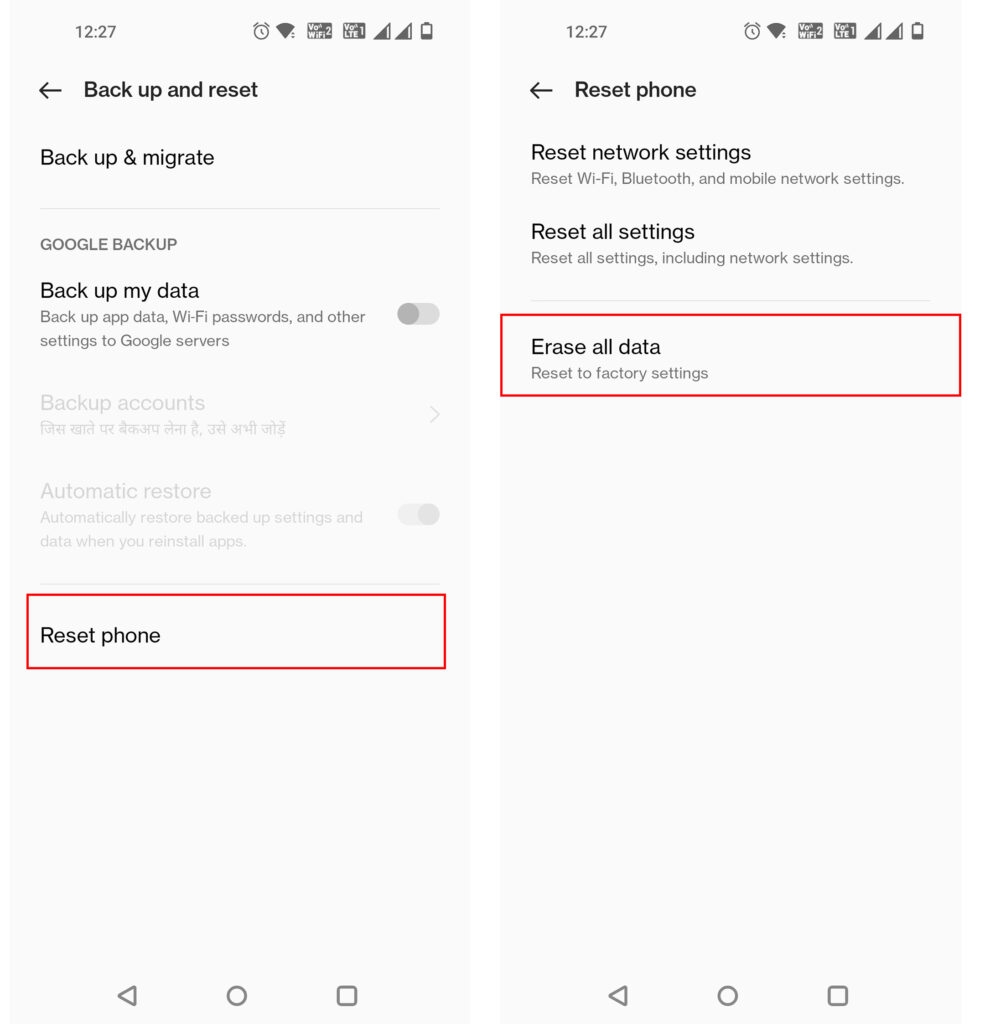
You should back up any important files and data before performing a factory reset, as it erases all your data.
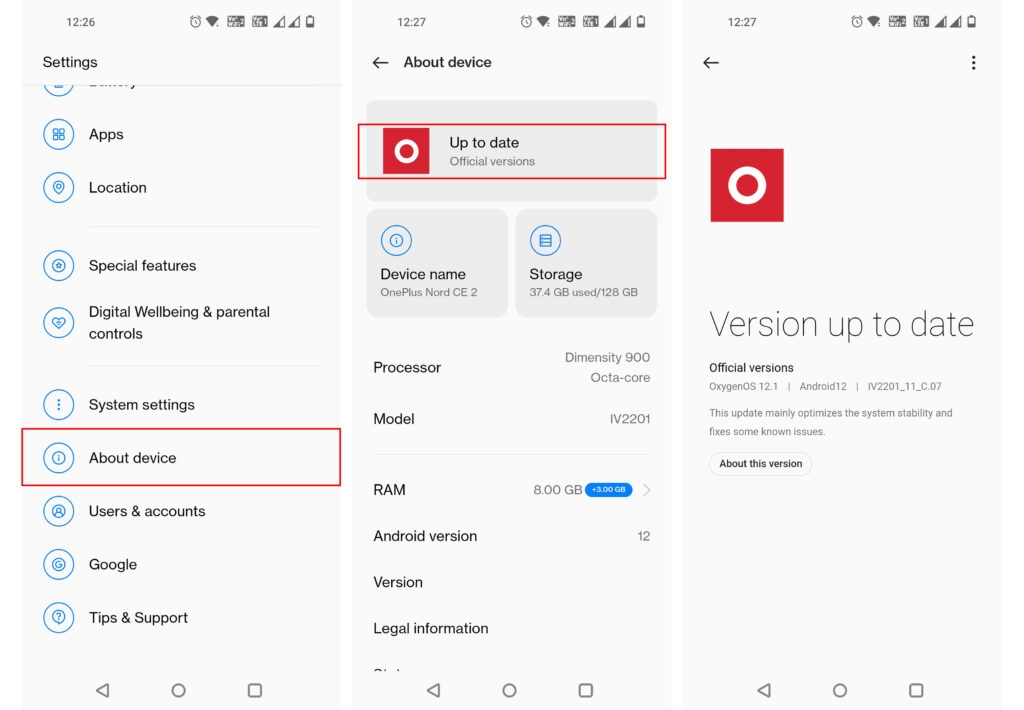
Update your device’s software:
If your device’s software is not current, you may get the error “Problem parsing the package.” It is recommended that you update the operating system on your device so that the app you are trying to install is compatible with it.
Conclusion
It can be frustrating to receive the “There was a problem parsing the package” error, but there are ways to resolve it.
Your device risks malware and other security threats when you download APK files from untrusted sources.
Download apps from trusted sources such as the Google Play Store to ensure your device’s safety whenever possible.
So, that’s all we have for you. We hope that this guide has helped you. Moreover, comment below and let us know your doubts or queries.
Further Reading:
- Downgrade from Android 14 to Android 13 on Google Pixel
- Best Android Tablets that can Overtake the Apple iPad
- Best Calorie Counter App for Android and iOS
Enjoyed this article?
If TechLatest has helped you, consider supporting us with a one-time tip on Ko-fi. Every contribution keeps our work free and independent.

