
HP is a well-known brand to provide printing and PC solutions. HP has introduced a limited-period free helpdesk support for PC users of all brands to address their operational issues in India.
So the goal is to make sure that all brands can make sure that their PCs are operated nicely in the current situation where it’s very clear that regular support and service channels are hard to operate.
Validity for Free Remote Help Desk
Don’t want to miss the best from TechLatest ? Set us as a preferred source in Google Search and make sure you never miss our latest.
HP said that the individual users can use the free remote help desk till the 31 st of May. The small and medium business(SMB) users can only use this service for a period of one month from the date of registration.
To avail of this remote service, individual PC users can call the toll-free number 1800 258 7140. Business users will need to register via an email to hpindiaservices@hp.com.
Working of Free Remote Help Desk by HP
So the company will have HP certified technicians for this free remote help desk and users can convey their problems and these technicians will help users on the problems that can be solved remotely.
The problems can be anything related to performance, security, connectivity, OS, media support, software installation and operation or mobility, etc.
Managing Director for HP Inc. India, Bangladesh, and Sri Lanka, Vinay Awasthi said, “Today working, learning or earning from home is the new normal, and this 24/7 help desk is aimed at making sure users can do so in an uninterrupted fashion.”
A team of trained technicians is already in place since last Wednesday. HP has also announced its partnership with Gamooz which is an educational content provider based in India. It will provide free resources to teachers and students who are using the digital way of learning stuff.
How to Uninstall Built-in Apps on Windows 10
How to Use Dark Mode on WhatsApp Desktop?
Enjoyed this article?
If TechLatest has helped you, consider supporting us with a one-time tip on Ko-fi. Every contribution keeps our work free and independent.
Highlights
- The HP LaserJet P1108 is not able to work without the driver installed, which will formally establish the link between your personal computer and the printer.
- Downloading the driver only from HP’s official support page ensures compatibility, security, and access to all printer features across different operating systems.
- When installing goes to plan, the act is as simple as prepping the printer, executing the appropriate driver package, then confirming with a test print; for the more usual headaches, USB checks and driver reinstalls can be the remedy.

The HP LaserJet Pro P1108 is amongst HP’s most popular monochrome printers, which is frequently used in homes, small offices, and small businesses. With a small footprint, high-quality printing and economical price, it’s proving to be an essential for anyone who values fast prints.
But even the latest printer is worthless without the proper driver, the software that allows your computer and printer to work together. The correct driver also enables your printer to function to its best.
Don’t want to miss the best from TechLatest ? Set us as a preferred source in Google Search and make sure you never miss our latest.
Content Table
What is the HP LaserJet P1108 Printer Driver?
The HP LaserJet Pro P1108 printer driver is a software specifically intended for the HP LaserJet Pro P1108 printer for it to work successfully with your computer.
Without the driver, your computer can not speak with the printer. The driver, when you send a print command, transforms the digital categories (letters, images, documents) with the language of the printers (PCL – Printer Command Language).
What are the key features of HP LaserJet P1108?
Understanding your printer will assist you in getting the most from it. Here are its notable features:
- Printing technology : Laser, monochrome
- Print speed : Up to 18 ppm (pages per minute)
- Resolution : 600 × 600 dpi effective output
- Connectivity : USB 2.0 (no Wi-Fi)
- Supported OS : Windows, macOS, Linux (via HPLIP)
- Monthly duty cycle : Up to 5,000 pages
As it’s USB-only, you have to connect it directly to the setup. This is important when downloading and installing the driver.
Download & Install HP LaserJet P1108 Printer Driver
Step 1: Prerequisites Before Installation
Before beginning, check the following:
- A stable internet connection (for downloading the driver).
- An available USB 2.0 cable (not wireless).
- Administrator privileges on your computer.
- At least 500 MB of free disk space for installation.
- Ensure your printer is powered on and has paper loaded.
Step 2: Visit HP’s Official Driver Download Page
There is a specific support page for the LaserJet Pro P1100 series (among which P1108). To access it:
- Launch your browser and go to the HP driver download website .
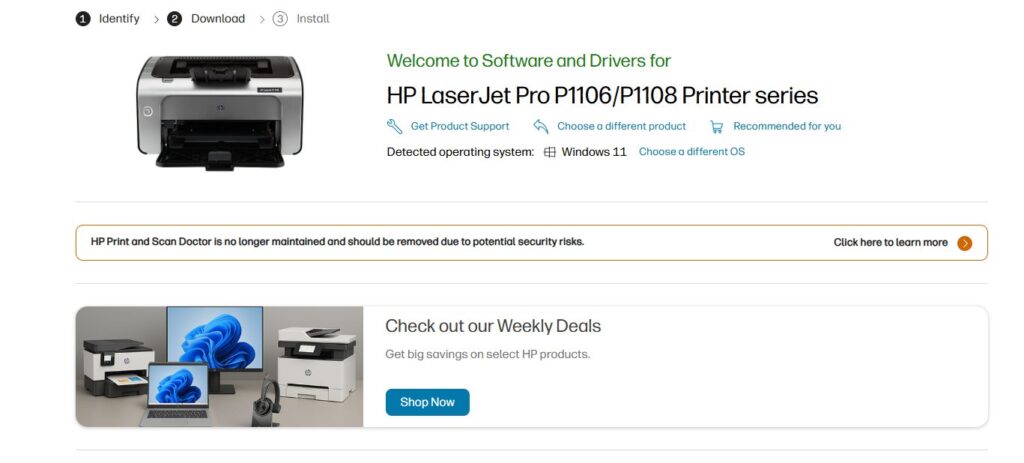
- You will need to navigate to the model page for your P1108 – most of the time, you will choose the “HP LaserJet Pro P1100 Printer Series (P1108)” option.
- Select your operating system (including, for instance, Windows 10 or Windows 11) from the drop-down list.
Step 3: Download the Correct Driver
Once you’ve selected your OS:
- HP typically offers a Full Feature Software and Driver package that bundles the drivers and some optional applications.
- Click Download . A .exe file (for Windows) will start automatically. Let it download completely.
Step 4: Prepare the Printer
Follow the initial printer setup if you haven’t already:
- Unbox the printer.
- Install the toner cartridge.
- Load paper into the tray.
- Connect the power cable and turn the printer on.
- Connect the printer to your computer with the USB cable (but don’t turn on the printer yet)
Step 5: Install the Driver on Windows
- Locate the downloaded .exe file (usually in your Downloads folder) and double-click it to launch.
- If you see a security warning (e.g., “Do you want to allow this app to make changes?, confirm to proceed.
- Follow the on-screen instructions: Select your language. Accept the license agreement. Select the type of installation (“Typical” is the default for most users).
- The software may recognize the connected printer during the installation.
- Complete the setup process and click Done or Finish when prompted.
Step 6: Verify Installation
To ensure the printer is properly installed:
- Initially, open the search panel, then search for Printers and Scanners and open it.
- Now, check if the HP LaserJet P1108 appears.
- Finally, right-click on the printer and select Print Test Page to check its functionality.
How To Install HP LaserJet P1108 Driver on macOS
Unlike Windows, macOS often auto-detects drivers. However, if needed:
- Connect the printer via USB.
- Now, go to System Preferences, then click on Printers & Scanners.
- Choose HP LaserJet P1108 from the list.
- After that, macOS will either auto-install the driver or ask you to download it.
How To Install HP LaserJet P1108 Driver on Linux (Ubuntu Example)
HP provides open-source support via HPLIP (HP Linux Imaging and Printing) .
- Open Terminal.
- Install HPLIP (if not installed): sudo apt-get install hplip
- Run the setup tool: sudo hp-setup
- Follow the on-screen prompts.
- Once done, check in Settings > Printers .
Optimizing Your Printer After Installation
Once installed, maximize performance:
- Enabling EconoMode can help you save on toner.
- Change paper type settings for high quality.
- Regularly check for driver updates on HP’s site.
- Keep the printer rollers clean every two to three months to prevent jamming of paper.
Do I need a CD to install the driver?
No. Even if your printer shipped with a CD, the updated drivers you download from HP’s site will be better.
Is the HP P1108 compatible with Windows 11?
Yes. HP provides updated drivers for Windows 11.
Can I install the printer without an internet connection?
Yes, but you would have to download a driver beforehand and put it on using a USB.
Can I use this printer wirelessly?
No. The HP LaserJet P1108 only supports a USB connection.
What if Windows automatically installs a generic driver?
You can download the official HP driver manually for better performance.
Why is my printer printing blank pages?
The cause for this may include low toner, a clogged nozzle, or the driver not being installed properly. Try reinstalling the driver first.
- Download Latest SPD Drivers (Spreadtrum) for Windows
- Download Android USB Drivers for Major Manufacturers
- Download & Install the HP Ink Tank 316 Driver — A Complete Guide
Conclusion
The HP LaserJet P1108 printer driver will be installed quickly with the proper procedure when you download the driver from HP’s official website.
Get your printer up and running on Windows, macOS, or Linux without having to install additional software. Just download the Full Feature Software, and once you’re done with the on-screen installation, simply verify the setup with your test page.
Most of those problems can be quite easily resolved by verifying USB connections, reinstalling drivers or using HP’s troubleshooting tools. Assuming it gets installed and maintained the proper way, HP P1108 is going to be your most reliable printer for many years.
Enjoyed this article?
If TechLatest has helped you, consider supporting us with a one-time tip on Ko-fi. Every contribution keeps our work free and independent.
