Highlights
- InShot is a quick and simple video editing tool for novices. Users chiefly use it for creating a slideshow of their beloved ones.
- It becomes difficult to edit on smaller screens, and using it on PC is a good option.
- We have recommended ways with which you can use InShot on Windows.

Collecting some of your or your beloved ones’ best pictures and preparing a video is fantastic. But it is more incredible to give it a bit of refined touch.
Plus, would you like to create stop motion also easily? In such cases, you need a mediocre yet adequate video editor like InShot.
Don’t want to miss the best from TechLatest ? Set us as a preferred source in Google Search and make sure you never miss our latest.
However, you would be looking for how to download InShot for PC for more precision and protection, as it features a pretty simple interface! When you want the software on Windows, we have covered you with it!
Content Table
Is InShot Available for PC?
No, InShot Inc has designed its apps for Android and iOS devices. Therefore, if you are a Windows or Mac user, you cannot use InShot. Besides, it’s neither available to use online.
However, there’s still a workaround. You can create an Android environment on your PC by using an emulator.
Further, after doing so, you can install the InShot app, which is available for Android, and then access it in the emulator.
How to Download InShot for PC?
Accessing InShot on Windows requires the need of an emulator. However, the Emulators and their interfaces differ. Hence, you can choose from the different ones available. BlueStacks, MEmu PLAY, and Nox are the best and safest.
Let’s learn how to download InShot for PC and use it via Emulators!
1] Get InShot for PC using BlueStacks
There is a range of BlueStacks versions available. The latest one is BlueStacks 10, while some people use v5 as it’s also relatively stable.
Here’s how you can download and use InShot using BlueStacks:
- Head over to the website given here and press on the complete Download BlueStacks 10 button
By default, the latest version is 10; you can click on See All Versions to navigate through them and download any other if you want.
- Let the download process complete, and it will download a .exe file.
- Further, extract the file and install BlueStacks.
- Now, open the emulator after installation and sign in with your Google account.
- Go to PlayStore and search for Video Editor & Video Maker – InShot.
- Press the Install button next to the first search result that comes up.
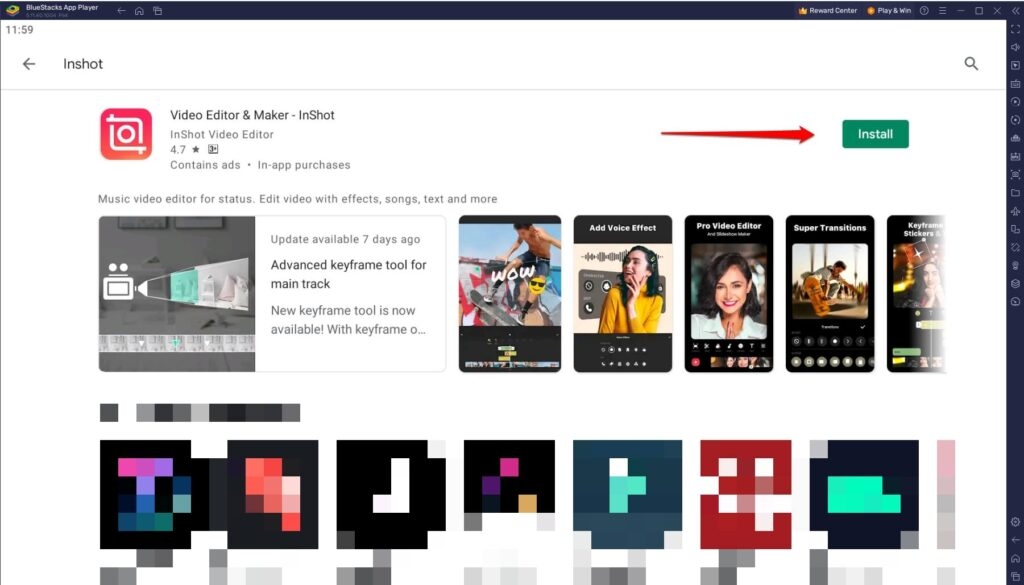
- Let the download and install process completely.
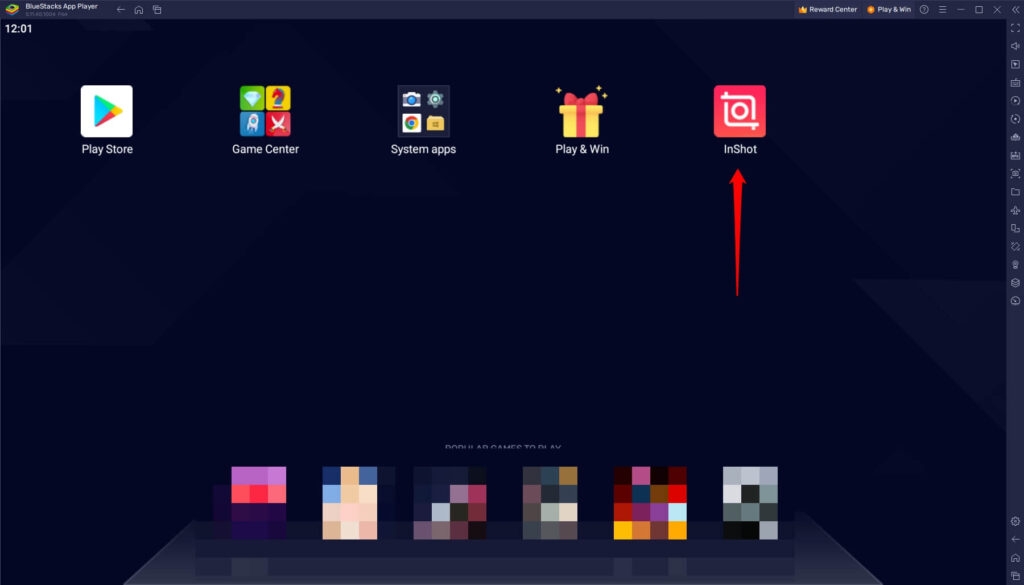
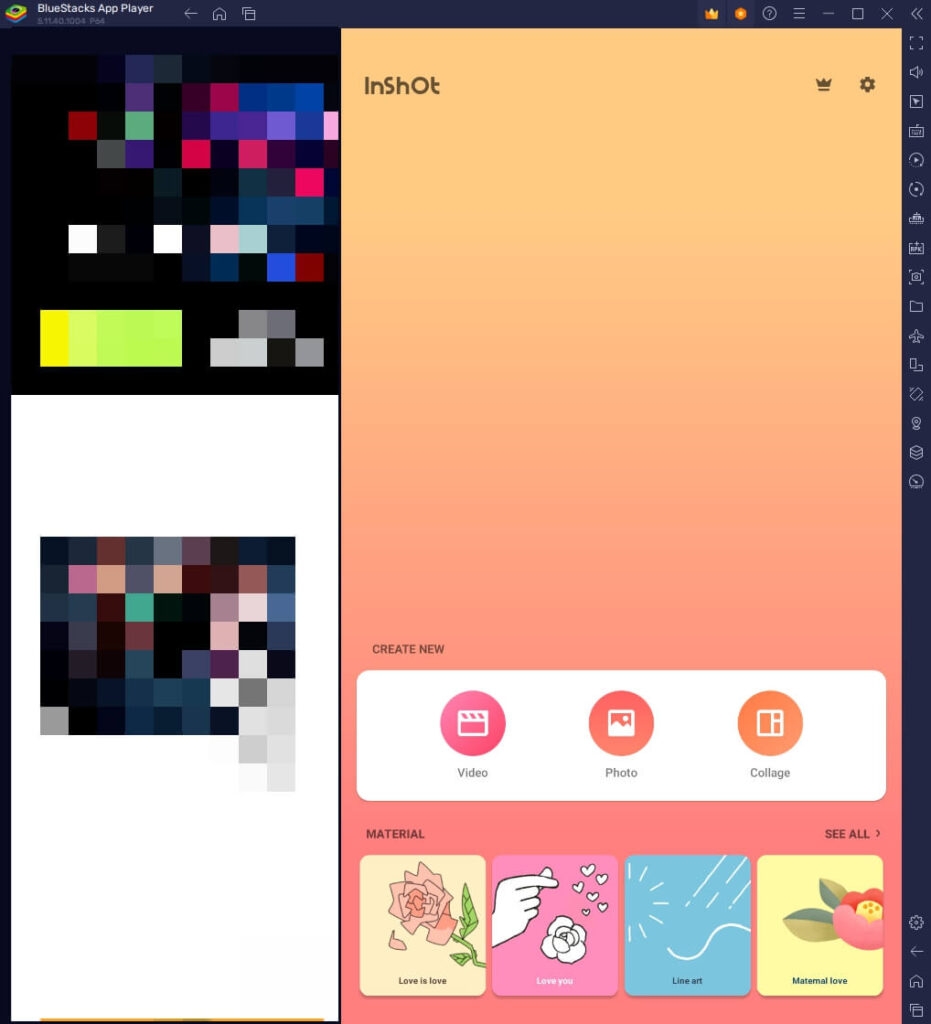
You can then access InShot in the BlueStacks emulator and enjoy video editing.
BlueStacks 5 System Requirements
Before installing BlueStacks, you should know your system’s hardware requirements.
Below mentioned is a list of the same:
2] Get InShot for PC using MEmu PLAY
Another emulator on our list is MEmu; it’s specially designed considering hard-core tasks like gaming and graphics. The good part is that it doesn’t have special requirements like a GPU.
Here’s how you can download and use InShot MEmu:
- Visit the website here on your PC and press the Download button.
- After the download, double-click on the .exe file, and it will prompt you to complete the file extraction.
- Now, open the emulator and sign in with Google.
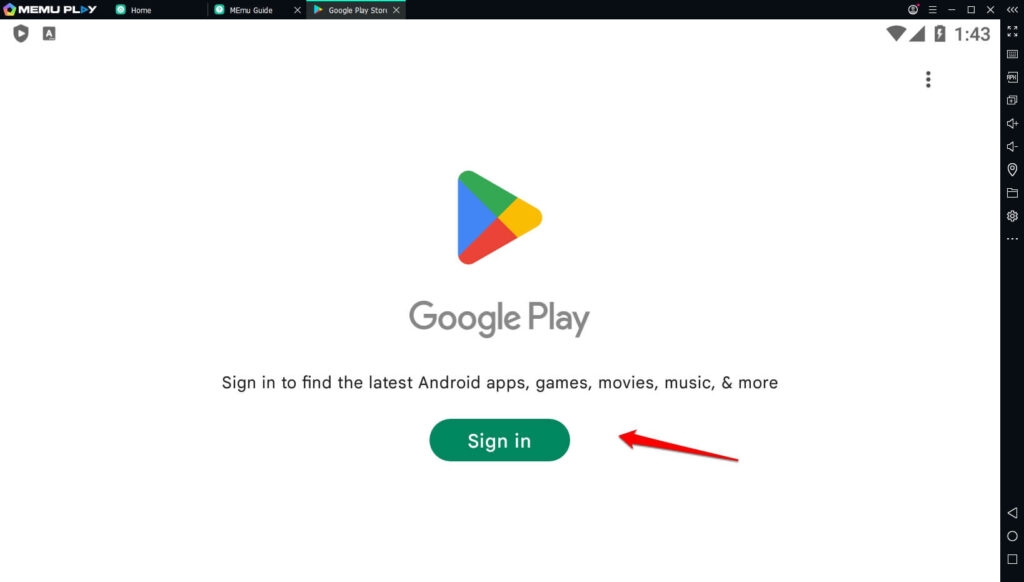
- Launch PlayStore and search for InShot
- Click on Install next to the Video Editor & Video Maker – InShot search result
- PlayStore will download and install the app and notify you when it’s done
Further, when you open the app for Android, MEmu PLAY will prepare it for you to use on your PC.
3] Get InShot for PC using Nox Player
When you are looking for a later Android version like v9.0, the Nox emulator is what you should go for!
- Click on the link here to visit Nox’s official website and tap on the Download button
- Let the file install and complete the configuration process.
- Nox will prompt you to sign in and complete the process.
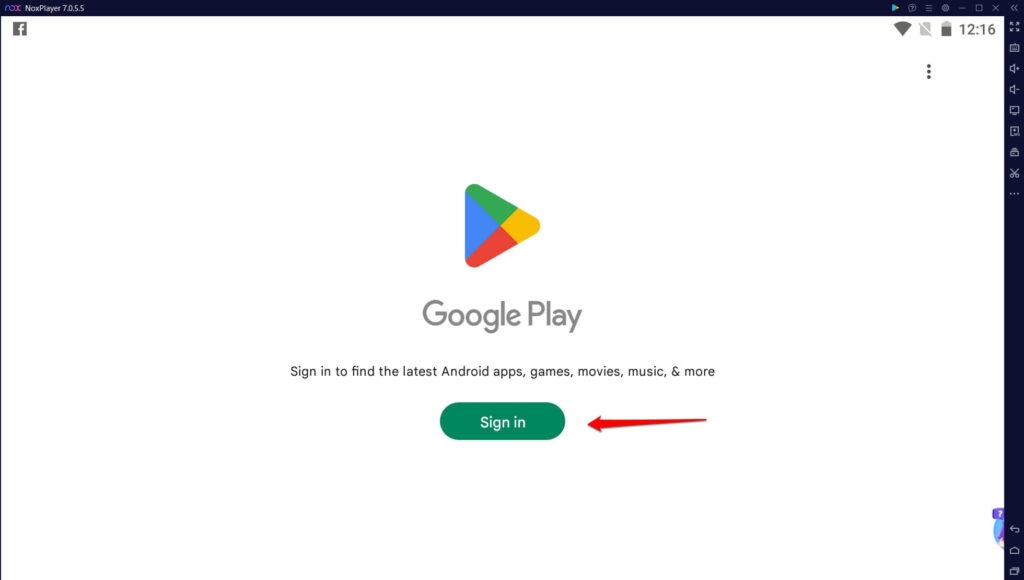
- Head over to PlayStore and download InShot.
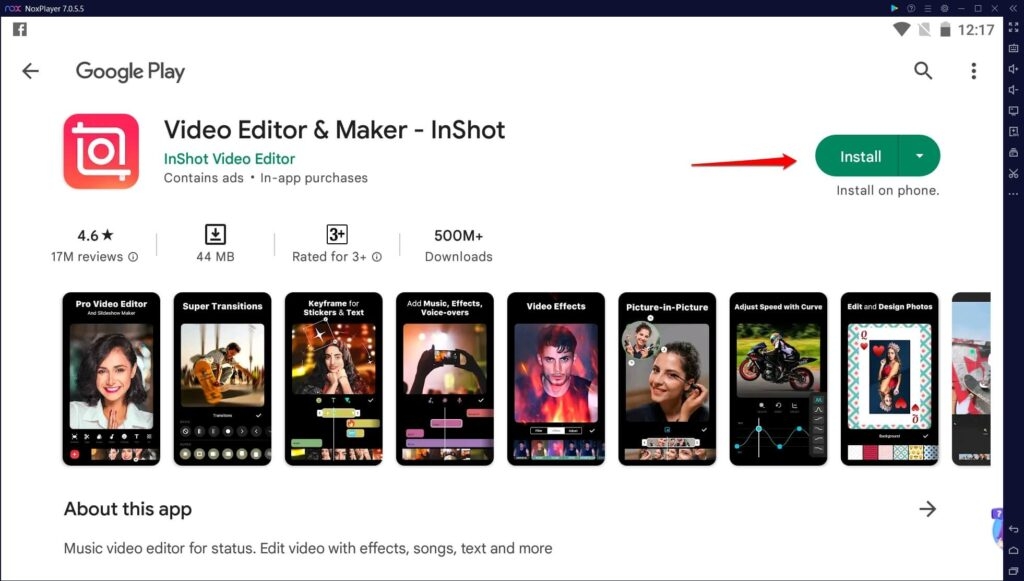
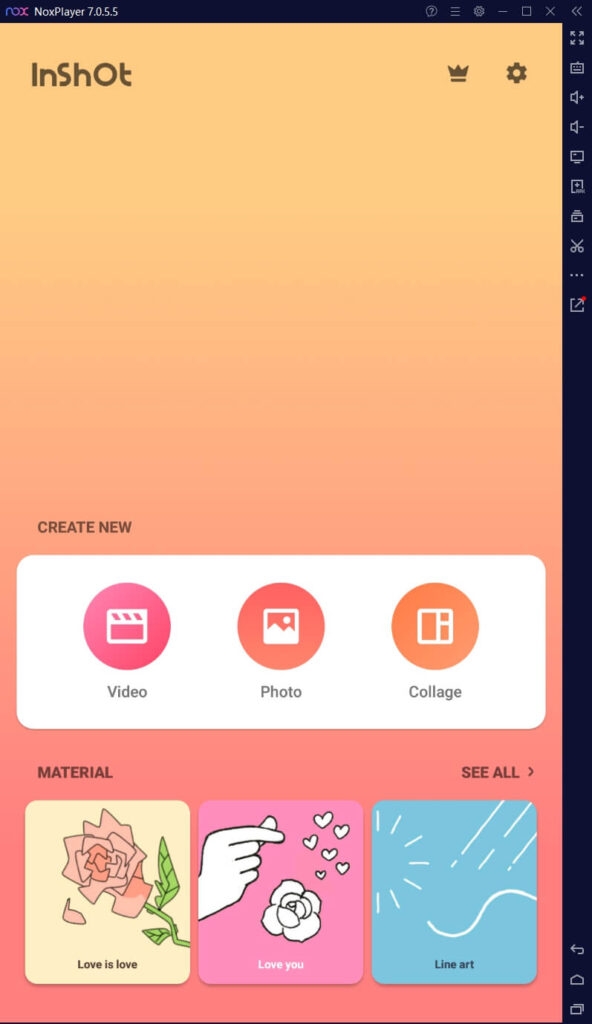
After installation, open the app, and it will be ready. But it does happen that if you don’t have InShot Pro, the videos contain a watermark which can be troublesome for academics amd social media. The following section will help you tackle it.
How to Edit Videos on InShot for PC Without Watermark?
Whether for academic purposes or social media profiles, the watermark next to the videos puts a wrong impression.
Further, even SMEs use InShot but cannot afford the premium plan. Plus, the watermark covers the contents of the video in such cases you wish to remove it. While you think that it’s not possible to do so, we have a method for you to do so.
InShot Pro Mod Apk lets you do so. InShot Inc has not developed it, but developers have modified it to make it freely available, removing watermarks.
It’s unavailable on PlayStore or App Store, so you must visit third-party websites on a browser.
A thumb rule is to have an emulator like BlueStacks, Nox, or similar on PC before you follow the process.
Now, on BlueStacks home or that of any other emulator, you can access the InShot Pro apk
Best Alternatives to InShot for PC
Using InShot on PC is an incredible idea, but it does need an emulator, which requires an adequate emulator. You might worry about your device’s health and hence drop the idea.
Even InShot Pro MOD APK is illicit . In such situations, you can use video editors similar to InShot. These alternative editors have common features like InShot and an official version for Windows, too!
Let’s check them out one by one!
1. Filmora
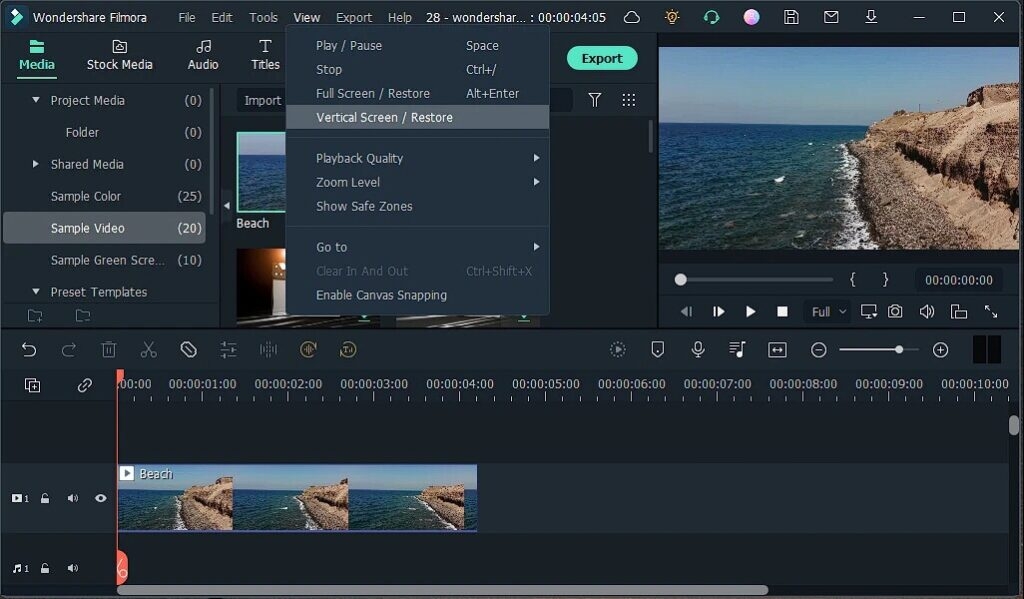
When you think of editing videos in HD quality, then Filmora is something we cannot miss! Apart from its suite of features, it does not focus on diminishing the video quality but rather enhances it.
Whether it be adding backgrounds or canvas, or emojis, Filmora has it all. Like InShot, it does let you add transitions. What’s noteworthy is that Filmora has more cool transitions and a variety of them.
Videos are imperfect, so video editors like InShot come into the picture. Unlike most others, it does not have a trim and cut video feature, but you can crop them.
You can add filters and also adjust the aspect ratio of the video as per your preferences.
There are more features like adding keyframes and adding special effects.
Get it now!
2. HitFilm Express
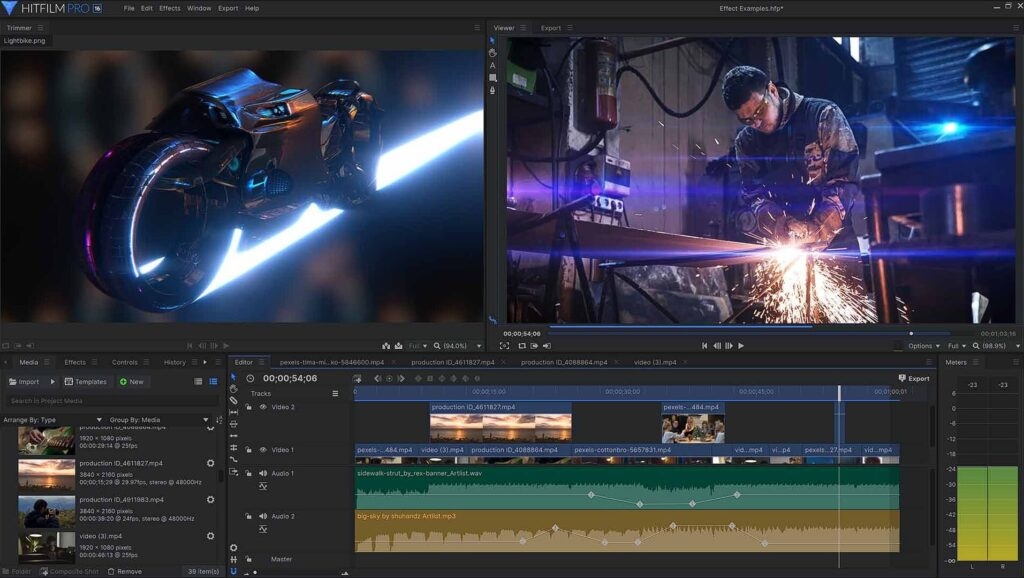
Are you looking for advanced video editing software with features of InShot? If yes, then HitFilm Express is what you must go for! Besides, you can even cut, splice, trim, crop, and flip videos.
You can create or edit video content with an 8k resolution and 8× faster playback. Further, it exports videos at a fast speed.
It has a variety of presets to add to your videos and make them perfect within a few clicks.
Like other tools, it does have transitions, and the exciting part is that they are of professional quality. Thus, they enhance your overall video.
Get it now!
3. CapCut
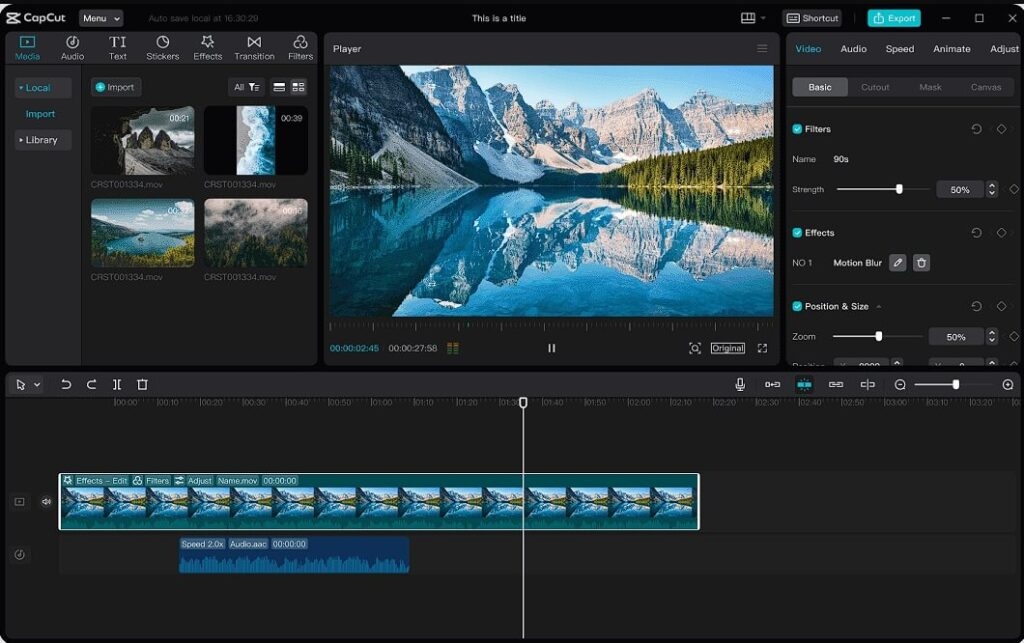
Are you looking for an InShot alternative? Then one of our favorite video editors is CapCut! It is a moderate-level functionality.
This means it isn’t precisely based like InShot but has some additional features for advanced editing. You can add keyframes, transitions, sounds, and much more.
Plus, you can even mask videos and add overlays. One of the remarkable features of CapCut is that it even has a prompter named CapCut prompter.
Not only for us, but it’s even the favorite tool for Instagram creators. If you are thinking about adding canvas, text, stickers, filters, and similar, it lets you do that too!
However, as a Chinese app, you must use a VPN for most regions to access this software.
Get it now!
Tips for Video Editing using InShot for PC or its Alternatives
Editing videos on PC is more convenient and seamless due to the bigger screen and better. However, if you know little about making better videos or haven’t used such software on a PC before, we have specific tips for you!
- Choose the Correct Canvas: The canvas or the background surrounding your video plays a crucial role. Whether you choose a blur or a colorful one, ensure that it complements perfectly with the colors of the video. For instance, A forest scene with dark background won’t complement a purple hue.
- Carefully Choose the Duration of your Video: Instagram videos, reels, TikTok, or similar video duration play an important role. These platforms are limited to uploading videos; if they exceed, your video will automatically be trimmed to the desired duration. For instance, WhatsApp Status supports 30 seconds video, so create one for it.
- Use Masking and Overlays to Add Filters: For more precision in adding filters to your video, you should use mask and overlay features. Further, taking the help of keyframes help with the purpose.
- Mute Unnecessary Sounds and Add Music: Your videos would have certain unnecessary sounds that affect their quality. Hence, mute the video sound and add music presets if required.
- Check Whether Text Color Complements the Video and Doesn’t Cover its Content: You would add text to your video as subtitles or similar. But ensure that its color doesn’t hide the video content. Plus, it should complement the video colors.
So, what are you waiting for? Begin your Editing journey on Windows now!
Is InShot app free?
Yes, the InShot app is free to use. But, the InShot watermark is visible in your videos without the premium (PRO) plan.
Which Online Editor is Like InShot?
VN Editor, CapCut, Power Director, HitFilm Express, and Filmora are like InShot.
How to Get InShot on PC?
Download an Android emulator like BlueStacks or Nox on your PC, download the InShot app for Android and then access it from the emulator.
How do I remove the Filmora watermark for free?
You can remove the Filmora watermark for free with tools like veed.io.
Summing Up
You would have gotten your answer when you were looking for how to Download and use InShot for PC!
The software doesn’t have an official Windows app, so you need an Android environment. In such cases, you should use Emulators like BlueStacks, Nox, or MEmu, depending upon your convenience.
Further, you sign in with Google, access the PlayStore, and download the app on your PC. If you don’t want to sign in, skip the part and download InShot from a browser.
Besides, you can download InShot Pro MOD APK if you don’t want a watermark.
You might feel that your system requirements aren’t enough for an emulator; hence you can check out alternatives. CapCut, HitFilm Express, and Filmora are the top ones on the list!
Further Reading:
- Best Steam Wallpaper Engine Alternative for PC
- How to Install FaceApp Online on PC?
- Top 10 Best Widgets for Windows 11 to take your PC to the Next Level
Enjoyed this article?
If TechLatest has helped you, consider supporting us with a one-time tip on Ko-fi. Every contribution keeps our work free and independent.
Highlights
- Windows 11 widgets provide users a quick and personalized method to obtain crucial data and functions.
- There is a widget for any requirement, whether you want to keep track of your daily duties or check the functioning of your system.
- Use these top 10 widgets for Windows 11 to increase productivity, maintain organization, and maximize your desktop experience.

The periodic upgrades from Microsoft enhanced the Windows UI by introducing additional features and customizations.
The classic Windows interface has undergone significant changes with Windows 11, including an updated Start menu, a centered taskbar, and additional personalization choices.
Don’t want to miss the best from TechLatest ? Set us as a preferred source in Google Search and make sure you never miss our latest.
Adding widgets to your desktop, giving you instant access to crucial information and practical tools, is one of Windows 11’s most helpful innovations.
These Windows 11 widgets can be accessed from the taskbar.
Here, we’ll examine the top 10 best widgets for Windows 11 that can elevate your computer’s digital experience.
Content Table
Best Widgets for Windows 11
1. CPU and RAM Widget
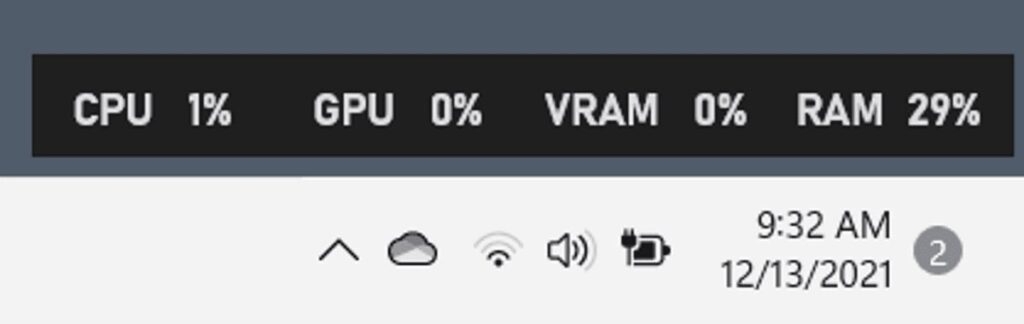
One of my favorite widgets for Windows 11 is the CPU and Memory widget, which lets users see how much CPU and RAM their machine is using in real time.
You may access this widget by clicking on the widget icon on the taskbar or by holding down the Windows key and A.
The CPU and RAM widget enables users to quickly and easily discover any performance issues that could harm their system by displaying real-time utilization data for the CPU and Memory.
The widget displays the amount of CPU and Memory being used in real-time and their % usage.
The widget may also be expanded by clicking on it, allowing users to see more precise data, such as the exact programs currently using the CPU and Memory.
This can be helpful for locating any processes that might be impairing computer performance or slowing it down.
Overall, the CPU and RAM widget is a useful tool for Windows 11 users who want to monitor their computer’s performance and ensure it is operating effectively.
This widget can assist users in quickly and easily identifying any performance issues by offering real-time use data and comprehensive information about particular processes.
2. Sticky Note Widget
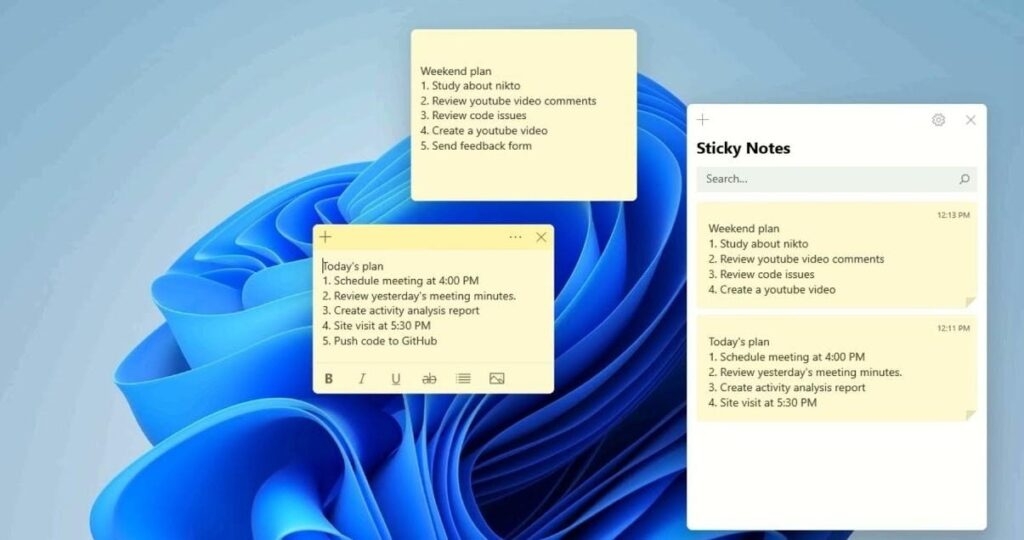
Users may make and arrange virtual sticky notes on their desktops with the Sticky Note widget in Windows 11.
Users may easily record notes, to-do lists, reminders, and other critical information that they want to keep track of with the Sticky Note widget.
Users do not need to download or install any additional software in order to utilize the Sticky Note widget because it is already included in the Windows 11 operating system.
The Sticky Note widget offers a blank note when accessed, which users may then edit with text, formatting, and even photos.
Also, users can add new notes, remove old ones, and pin significant notes to their desktops, so they are always accessible.
The Sticky Note widget’s compatibility with various Microsoft products, like OneNote and Outlook, is one of its best features.
Users may quickly send a sticky note to someone by email, for instance, or copy and paste content from a sticky note into an email or other document.
Overall, the Sticky Note widget is a handy tool for anyone who wants to keep track of important information on their desktops.
Its ease of use, customization options, and integration with other Microsoft apps make it a great addition to the Windows 11 operating system.
3. Traffic Widget
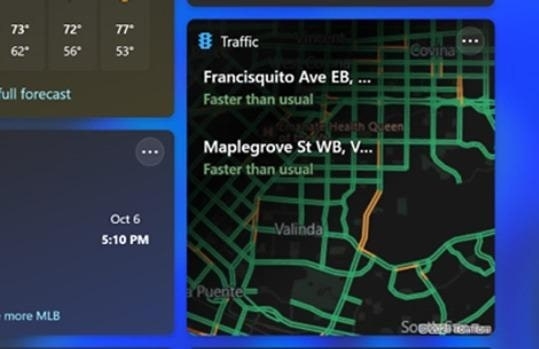
Windows 11 has a new traffic widget feature that gives users access to real-time traffic updates.
The widget is a tiny, resizable panel that can be put anywhere on the desktop and shows data on the traffic conditions right now where the user is.
Using data from Bing Maps, the widget provides information about traffic conditions, such as accidents, road closures, and congestion.
In order to help customers avoid traffic, it may also display projected journey times for various routes and propose alternate routes.
Users of the Traffic widget have complete control over the information presented, as well as the size and positioning of the panel.
Users may observe traffic conditions in several locations by selecting where the widget is focused.
Users must have location services enabled on their devices in order to utilize the Traffic widget. The widget will automatically determine the user’s location and present details on the local traffic patterns.
4. Entertainment Widget
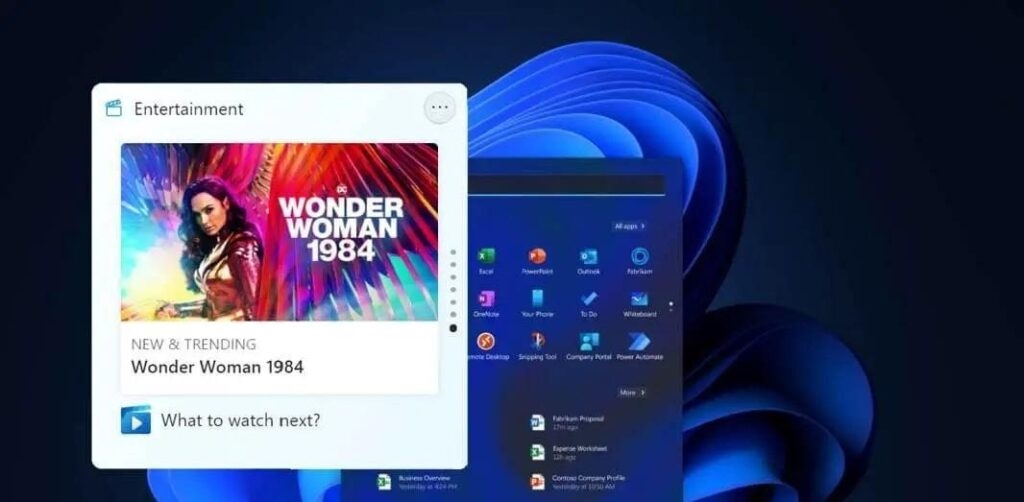
A little application called the Entertainment Widget gives users easy access to various entertainment materials, including games, music, movies, and TV shows.
Once activated, the widget will present a range of materials, such as suggested films and television programs, top games, top songs, and more.
Users may engage with the widget by clicking on the material they are interested in by being sent to the appropriate app or service.
The Entertainment Widget’s flexibility enables users to personalize it to their tastes. Users can view just certain sorts of material or exclude any stuff in which they have no interest.
The widget’s size and placement on the screen may change by the user.
The Entertainment Widget offers various helpful functions and gives consumers rapid access to entertainment information.
For instance, it can show alerts for upcoming events like movie releases or game updates. In order to make it simpler for consumers to locate what they’re searching for, it also has a search box that enables users to hunt for material across several services.
5. Esports Widgets
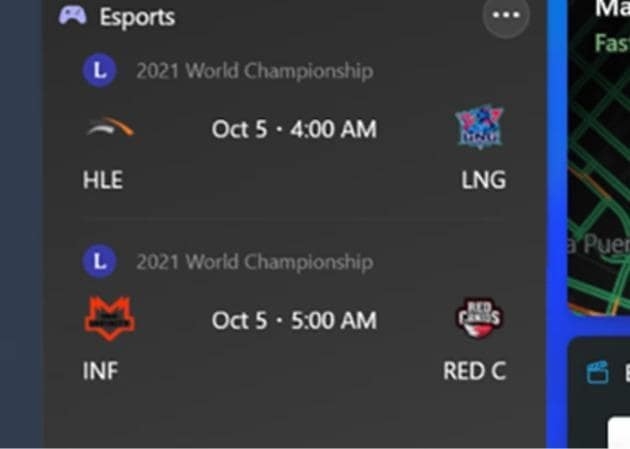
Users may quickly and easily access information on esports events, teams, players, and more by adding an esports widget, a tiny program, to their taskbar or desktop.
These widgets are becoming increasingly well-liked among gamers and esports enthusiasts as esports and competitive gaming gain popularity.
Microsoft could add an esports widget among its pre-installed widgets and gadgets in Windows 11.
This can provide players with an easy method to remain current on the most recent esports news and events without switching between different websites or applications.
6. To Do Widget
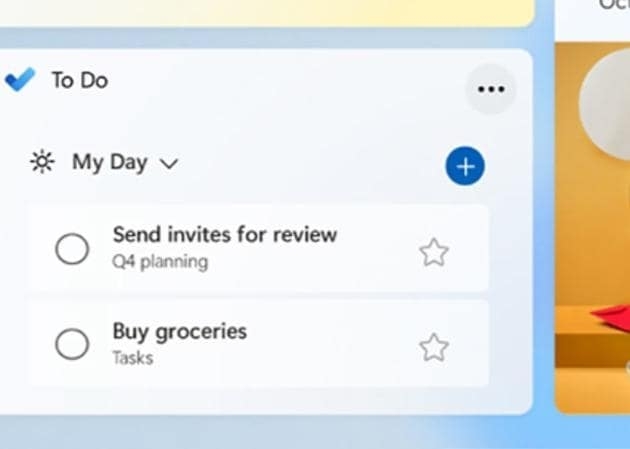
With Windows 11, users can easily manage their jobs and increase their productivity using the To Do Widget.
The new Windows 11 interface, which includes this widget, was created to give users a more simplified and natural experience.
Users may simply organize their projects, set reminders, and prioritize their work with the To Do Widget, accessible from the Windows 11 Start menu.
The task management tool Microsoft To-Do, available for free download from the Microsoft Store, is also integrated with the widget.
Users may add new tasks to the To Do Widget by clicking the “Add task” button and entering the assignment’s specifics.
The To-Do Widget’s ability to show a summary of the user’s chores and reminders on their desktop is one of its most helpful capabilities.
As a result, it is simple to stay on top of crucial due dates and impending events without having to move between applications or comb through several displays.
7. Watchlist Widget for Stock Market
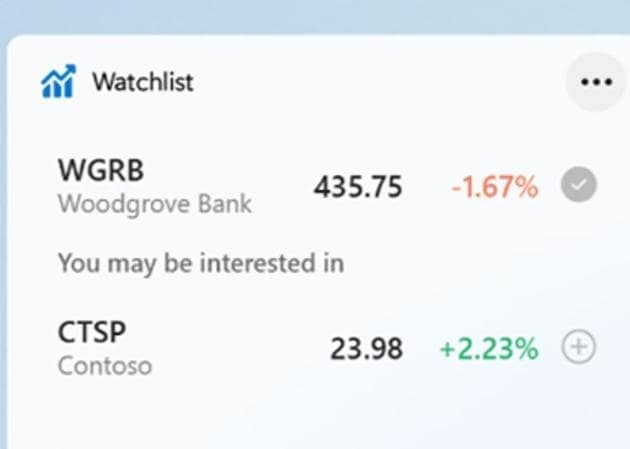
A new feature in Windows 11 called the Watchlist widget enables users to add a customized list of stocks on their desktops.
The widget allows users to effortlessly follow the performance of their favorite companies, check real-time stock quotations, and access pertinent news items and financial information.
Users only need to click the Widgets button on the taskbar and choose the Watchlist widget to add the widget to their desktop. The names of the stocks they want to follow may then be added, allowing them to modify the widget.
Users may examine each stock’s real-time price, price change, and percentage change after the stocks have been uploaded.
Also, by clicking on each stock, they may examine more details like market size, dividend yield, and earnings per share.
The Watchlist widget offers users stock information, pertinent news stories, and financial data on the stocks they have chosen.
To give users the most recent news and analysis, this data is continuously updated from a number of financial news sources.
8. Calendar Widget
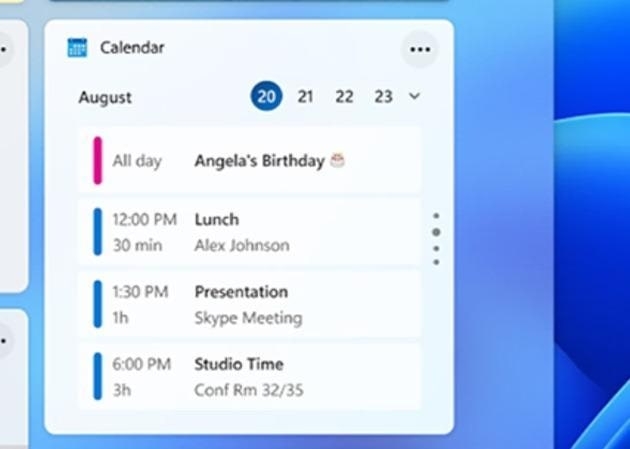
The user’s forthcoming appointments and events, together with the event’s name, time, and location, are shown in the Calendar Widget.
The schedule for the day is also briefly summarized, along with the number of activities planned and the proportion of “busy” events.
When a user clicks on an event, they may change it in their calendar app or view additional information about it.
Birthdays and holidays can be shown on the Calendar Widget according to your preferences. Users can select to view events from different calendars, such as their personal and professional calendars.
One advantage of the Calendar Widget is that it offers a simple and practical method to keep track of crucial events and appointments without requiring you to check a different program often.
It also interacts perfectly with the Windows 11 operating system, making it easy to access and utilize.
9. Photos Widget
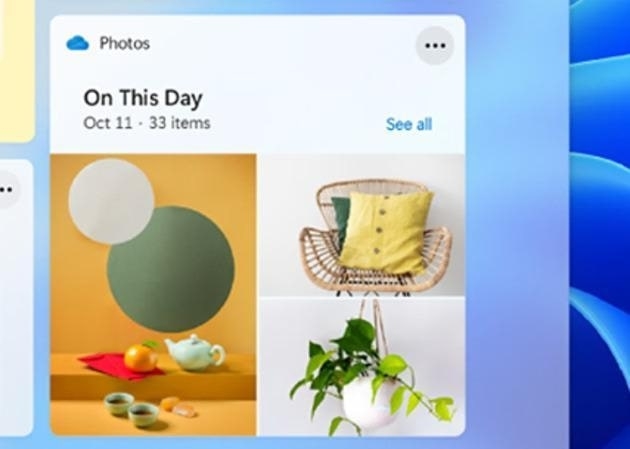
Users may construct a gallery of their favorite images on their desktops using the Photos widget in Windows 11.
Without having to look for manually and open individual images, the widget offers a handy method to highlight cherished occasions and often refreshes with fresh photographs.
A rotating collection of images from the user’s local Photos app library and any synced OneDrive folders will be shown after the added widget.
Users may select the albums or folders they wish to see in the widget and change options like the frequency of photo updates, how the images are displayed, and whether or not captions should be shown.
The Photos widget may give a personalized touch to the desktop and act as a helpful record of previous experiences and events.
Users may enjoy scrolling through their photo collection anytime they need a break from work or other duties, or use the widget to spark their memory and reflect on significant events.
10. Weather Widget
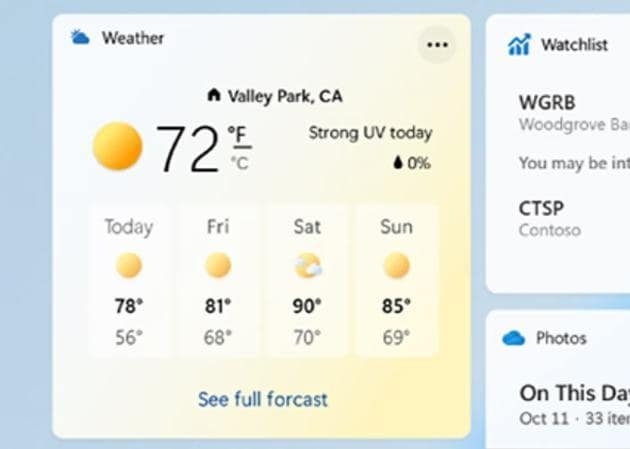
A variety of meteorological data, such as the current temperature, precipitation, wind speed, and humidity, will be displayed by this widget.
By default, it shows the user’s local weather conditions, but users may alter it to show weather data for other areas by adding other locations to the widget.
In order to help users plan ahead and stay ready for forthcoming weather conditions, the widget also offers users a five-day prediction.
High and low temperatures, anticipated precipitation, wind speed, and relative humidity are all included in this prediction.
The Windows 11 weather widget provides users with meteorological data and a button that directs visitors to the MSN Weather website, where they can get more specific weather data as well as news and articles on weather and climate.
Wrapping it All
In conclusion, Windows 11 widgets provide users a quick and personalized method to obtain crucial data and functions.
There is a widget for any requirement, whether you want to keep track of your daily duties or check the functioning of your system.
Use these top 10 widgets for Windows 11 to increase productivity, maintain organization, and maximize your desktop experience.
Further Reading:
- Windows 11 Tips and Tricks all Students Need to Know
- [Fixed]Snip and Sketch Not Working on Windows 11
- News and Interests Taking Up Memory: What is it and How To Fix?
Enjoyed this article?
If TechLatest has helped you, consider supporting us with a one-time tip on Ko-fi. Every contribution keeps our work free and independent.
