Highlights
- Even in 2025, Windows doesn’t fully use NVMe SSDs the way they’re built to work, so the system underperforms for most tasks.
- Tech enthusiasts find a way to force a hidden storage feature that can easily improve system responsiveness, but it has some side effects, too.
- So, if you are someone who wants to try this hidden feature, then this guide is for you.
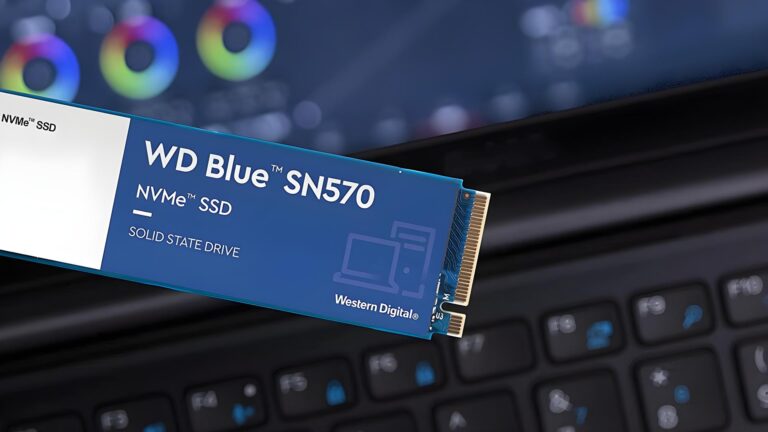
If you already use an NVMe SSD on Windows 11, you likely think your system is already running at full speed.
Yes, because your boot times are quick, apps open fast, and file transfers feel instant. But what if Windows isn’t actually using your SSD the way it was designed to be used?
Don’t want to miss the best from TechLatest ? Set us as a preferred source in Google Search and make sure you never miss our latest.
Recently, many users have found a hidden storage feature inside Windows that could unlock much higher NVMe performance, mainly in random read and write tasks.
However, users in various forums like Reddit and Guru3D reported gains of up to 70–80% in specific benchmarks. Sounds incredible, right?
But there’s a catch, and you must know that. So, before jumping in, it’s important to understand what this hack really is , why it exists , and who should stay far away from it .
Read : How to Enable New Windows 11 Start Menu
Content Table
What’s This NVMe ‘Driver Hack’ All About?
To understand this hack, we need to look at how Windows communicates with your SSD. Actually, Windows treats most storage devices as Small Computer System Interface(SCSI) devices . SCSI is a very old system that was originally designed for hard drives and slower storage.
When NVMe SSDs arrived, much faster and capable of handling thousands of commands at once, Windows didn’t fully change its storage logic.
You can check whether your system is using the SCSI or not by navigating to Device Manager -> Storage Controllers -> Standard NVM Express Controller -> Properties -> Details -> Class (under Property).
It will be mentioned as SCSIAdapter.
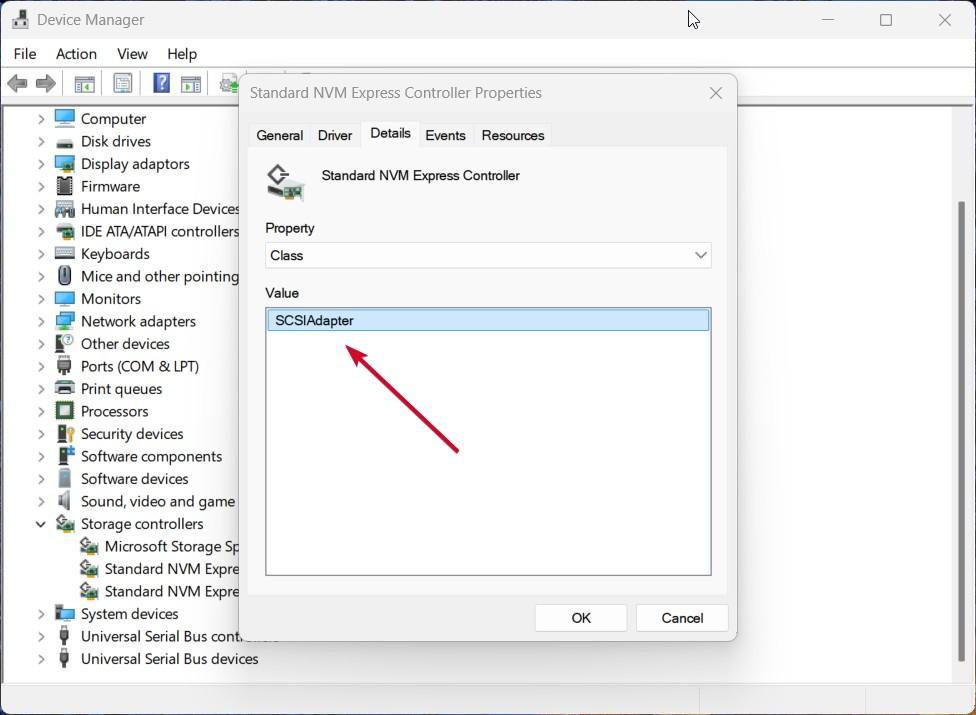
So, instead of directly using SSDs, Windows takes NVMe commands and converts them into SCSI commands , processes them, and then sends them back to the SSD. Well, this extra step adds delay and wastes CPU power.
However, now talking about the so-called NVMe driver hack, it simply turns off this translation layer and allows Windows to communicate with NVMe SSDs directly, the way NVMe was meant to work.
Don’t worry, this process doesn’t need any third-party app or cracked software to do so, as the driver already exists inside the Windows system file. It’s just disabled by default in Windows 11.
How Much Faster Can NVMe SSDs Get?
Now, the things here get more interesting. Users ( Jonathanwashere1/Reddit ) while testing this hidden driver, noticed the biggest improvements in random 4K read and write speeds .
These are the types of operations that your system performs constantly in the background, like opening apps, loading small files, multitasking, and ensuring system responsiveness. So, here’s what early testing finds:
- Random read/write speeds can improve by 10% to 80% (as reported by X user ), depending on the SSD
- Lower latency , meaning faster response times
- Reduced CPU usage during heavy disk activity
- Better performance under load , like running multiple apps or virtual machines
But, unfortunately, large file copies, game loading times, and video exports usually show little to no improvement . Those tasks already run near the maximum speed of modern SSDs.
- System responsiveness improves
- Benchmarks look better
- Everyday usage feels slightly smoother
- Gaming FPS doesn’t change
Cheetach2kk on Reddit also posted similar results after enabling NVMe support on Windows 11 25H2.
Why This Driver Exists: Native NVMe in Windows Server 2025?
This feature wasn’t created for Windows 11 users at all. Microsoft officially introduced native NVMe support in Windows Server 2025 .
Servers handle massive workloads, databases, virtual machines, and AI models, and the old SCSI-based storage stack simply couldn’t keep up. However, NVMe drives are generally designed to handle:
- Up to 64,000 queues
- 64,000 commands per queue
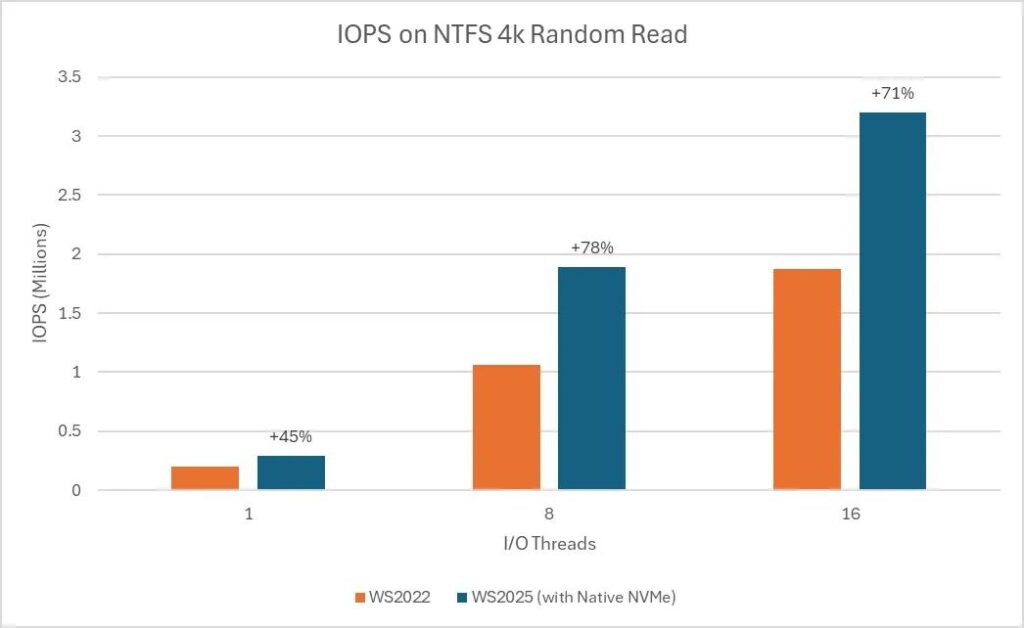
Graph showing IOPS gains on WS2025 w/ Native NVMe (Image: Microsoft)
Meanwhile, SCSI was built for spinning hard drives and supports fewer commands at once. To address this issue, Microsoft redesigned the storage stack in Windows Server 2025, enabling NVMe devices to operate directly without translation , thereby reducing clusters and improving efficiency.
Well, Windows 11 shares much of the same internal architecture, and the same driver is already included in newer Windows 11 builds. The matter of fact is that it’s just not enabled.
Read : Enable the New Windows 11 Run Dialog (Step‑by‑Step Guide)
How Enthusiasts are Unlocking it on Windows 11
Tech-savvy users found that by enabling specific feature flags in the Windows Registry , Windows 11 begins using the same native NVMe driver found in Windows Server 2025. So, once enabled, something interesting happens:
- NVMe drives no longer appear as SCSI devices
- They show up differently in Device Manager
- Windows talks to them directly, without conversion
A recent Heise article posted the exact registry values that need to be changed to fully utilize the new feature in your machine.
reg add HKEY_LOCAL_MACHINE\SYSTEM\CurrentControlSet\Policies\Microsoft\FeatureManagement\Overrides /v 735209102 /t REG_DWORD /d 1 /f
reg add HKEY_LOCAL_MACHINE\SYSTEM\CurrentControlSet\Policies\Microsoft\FeatureManagement\Overrides /v 1853569164 /t REG_DWORD /d 1 /f
reg add HKEY_LOCAL_MACHINE\SYSTEM\CurrentControlSet\Policies\Microsoft\FeatureManagement\Overrides /v 156965516 /t REG_DWORD /d 1 /f
But this is not officially supported by Microsoft, and we do not recommend it. There’s no toggle in Settings. No warning screen. No rollback button.
It’s a manual registry change that means you’re on your own if something breaks, Microsoft, and we are not responsible for that.
Risks, Limitations, And who Should Avoid This
Although editing the Windows registry is not risk-free , especially when it affects storage drivers, here are the real risks reported by users:
1. Data loss or boot issues
If something goes wrong, Windows may fail to recognize your SSD properly. In the worst cases, systems refuse to boot until the change is reversed, and for that, you need technical help.
2. Broken SSD tools
Popular software like SSD health monitors, firmware tools, and performance utilities may:
- Detect the drive twice
- Fail to detect it at all
- Show incorrect information
3. Backup software problems
Some backup tools depend on disk IDs. This driver change can modify those IDs, causing backups to fail silently.
4. No guarantee of gains
Well, not all SSDs benefit. Some users report zero improvement , particularly on mid-range or older NVMe drives.
Who Should Avoid This Completely?
This is not recommended for every user, as some serious issues may happen if they are not from a technical background. So, you should avoid doing this if you are a:
- Casual users
- Laptops with important data
- Office or work PCs
- Anyone unfamiliar with registry edits
- Systems without full backups
If you don’t understand what the registry is or don’t know how to restore Windows from scratch, this trick is not for you .
What Does This Mean for Future Windows SSD Performance?
Recently, Microsoft accepted the fact that modern SSDs need modern storage handling . Native NVMe support removes years of limitations and prepares Windows for future storage technologies, such as faster PCIe generations. So, as we think that this feature may:
- Become official in Windows consumer versions
- Be enabled automatically on compatible systems
- Improve system responsiveness for everyone
So, that’s all we have for you about this guide on the hidden Windows 11 NVMe driver hack that promises up to 80% faster SSDs. We hope that this guide has helped you. For more info, comment below and let us know.
Enjoyed this article?
If TechLatest has helped you, consider supporting us with a one-time tip on Ko-fi. Every contribution keeps our work free and independent.
