
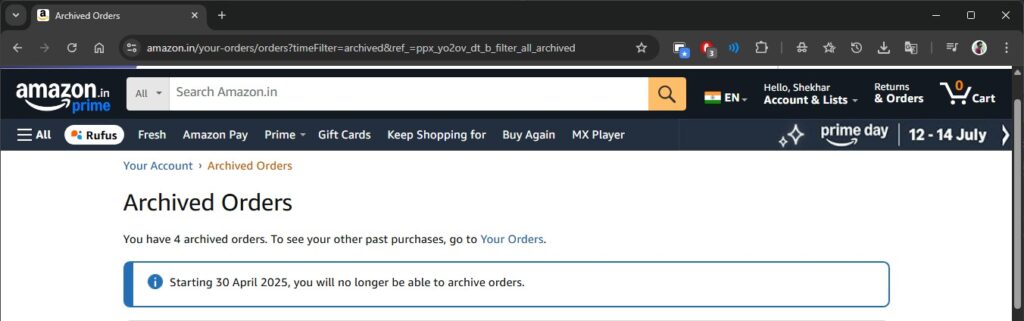
“ Starting 30 April 2025, you will no longer be able to archive orders. “
Don’t want to miss the best from TechLatest ? Set us as a preferred source in Google Search and make sure you never miss our latest.

- Is Your Amazon Account Locked? Here’s How to Fix
- How To Fix If Amazon OTP Not Working?
- 5 Methods to Get Amazon Prime Free of Cost [India]
Content Table
- Firstly, navigate to the Amazon website and then log in.
- Now, go to the ‘Account and List’ tab and click on the ‘orders’ option.
- Scroll through the list of orders you want to archive and then click on the ‘Archive order’ that is present on the bottom-left of the order.
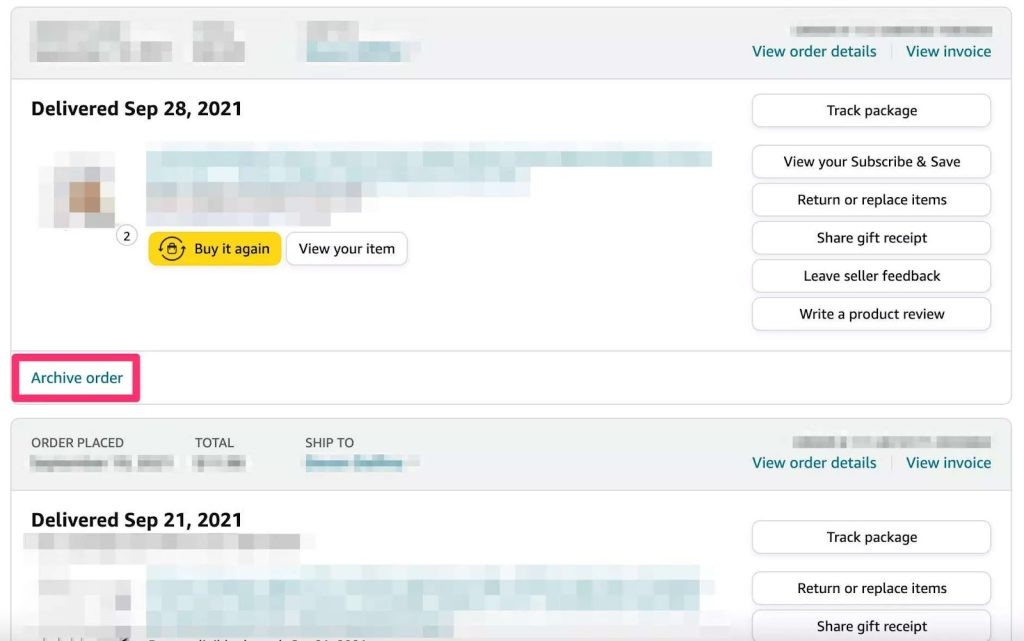
Now, you will get a popup. Click on ‘Archive Order’ again to make the confirmation.
Finally, the product is archived on the Amazon order section.
Firstly, open the amazon.com website on your mobile browser.
Now, click on the sign-in page and then provide your login credentials.
Request a ‘desktop website’ version in the browser you have opened on Amazon.
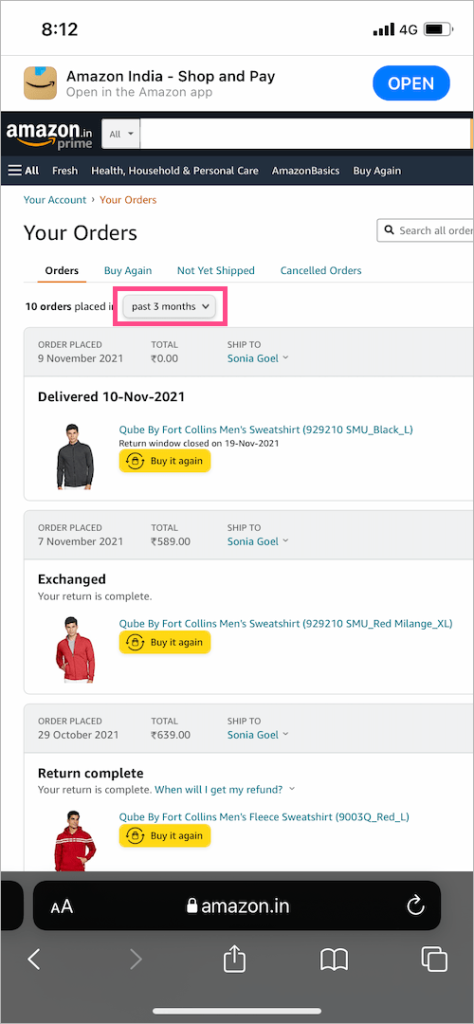
Now, navigate to the ‘Accounts and Lists’ in the top-right corner and select the option ‘your orders.’
- Navigate to the Amazon website and log in.
- Now, click on the ‘edit your browsing history’ present under the option ‘recently viewed.’
- Now, find the item that you want to delete from the Amazon browsing history and click on the ‘Remove from view’ option (as shown in the image below).
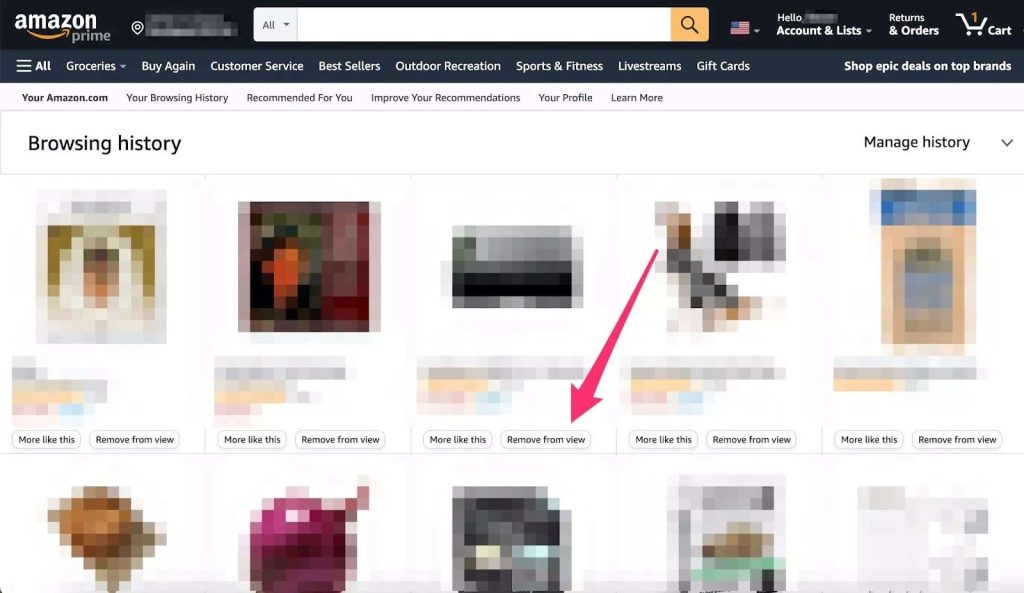
- Now, when you refresh the page, you will not see the removed orders.
Conclusion
Enjoyed this article?
If TechLatest has helped you, consider supporting us with a one-time tip on Ko-fi. Every contribution keeps our work free and independent.
