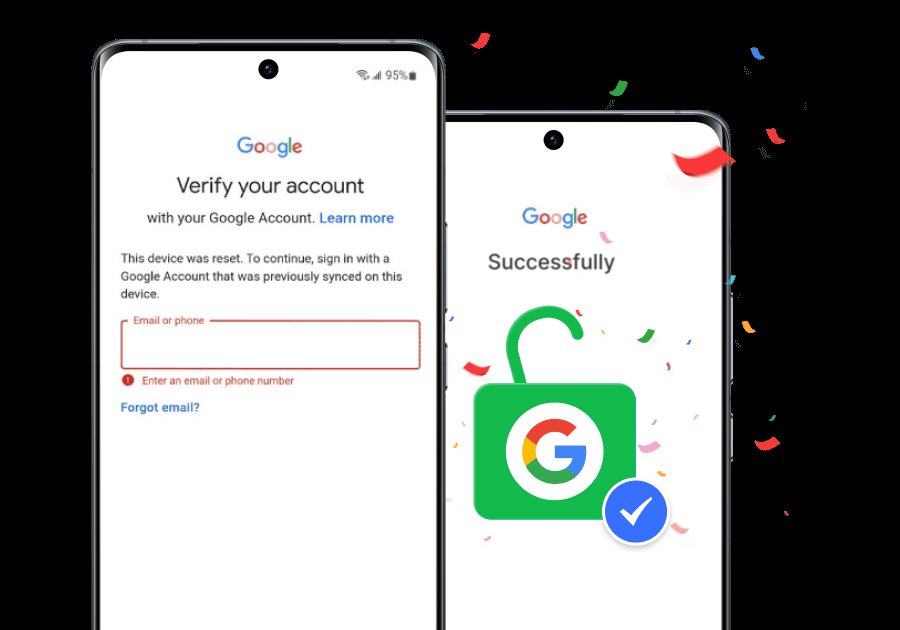
Have you reset your Samsung Galaxy phone and become stuck on the FRP lock screen, which asks for an unknown Google account? FRP is Factory Reset Protection.
As a security measure, Google links your phone to the previous synced account. FRP safeguards your data if your phone is stolen, but forgetting your details is irritating.
Don’t want to miss the best from TechLatest ? Set us as a preferred source in Google Search and make sure you never miss our latest.
The lock is tougher to bypass on newer Samsung Galaxy devices, such as the S23 or A54, because Samsung and Google have fixed previous techniques.
No worries—this article covers how to bypass FRP on newer Galaxy models. Safe smartphone unlocking methods include certified Google recovery and Dr.Fone.
Read : Is Samsung’s FE Series Dying with Every New Model? Galaxy S25 FE Answers It
Content Table
Method 1: The Official Solution – Google Account Recovery
This is the safest initial step. Use it if you know the phone’s Gmail address but not the password. You can reset the password and clear FRP using the recovery email or phone number. Follow the steps below:
Step 1. Type the phone’s suspected Gmail address on the FRP lock screen.
Step 2. Tap “Forgot password?” or “Try another way.” Follow the on-screen prompts. Google will send texts, calls, and recovery emails.
Step 3. Check your recovery phone or email code. Reset and save your Google password.
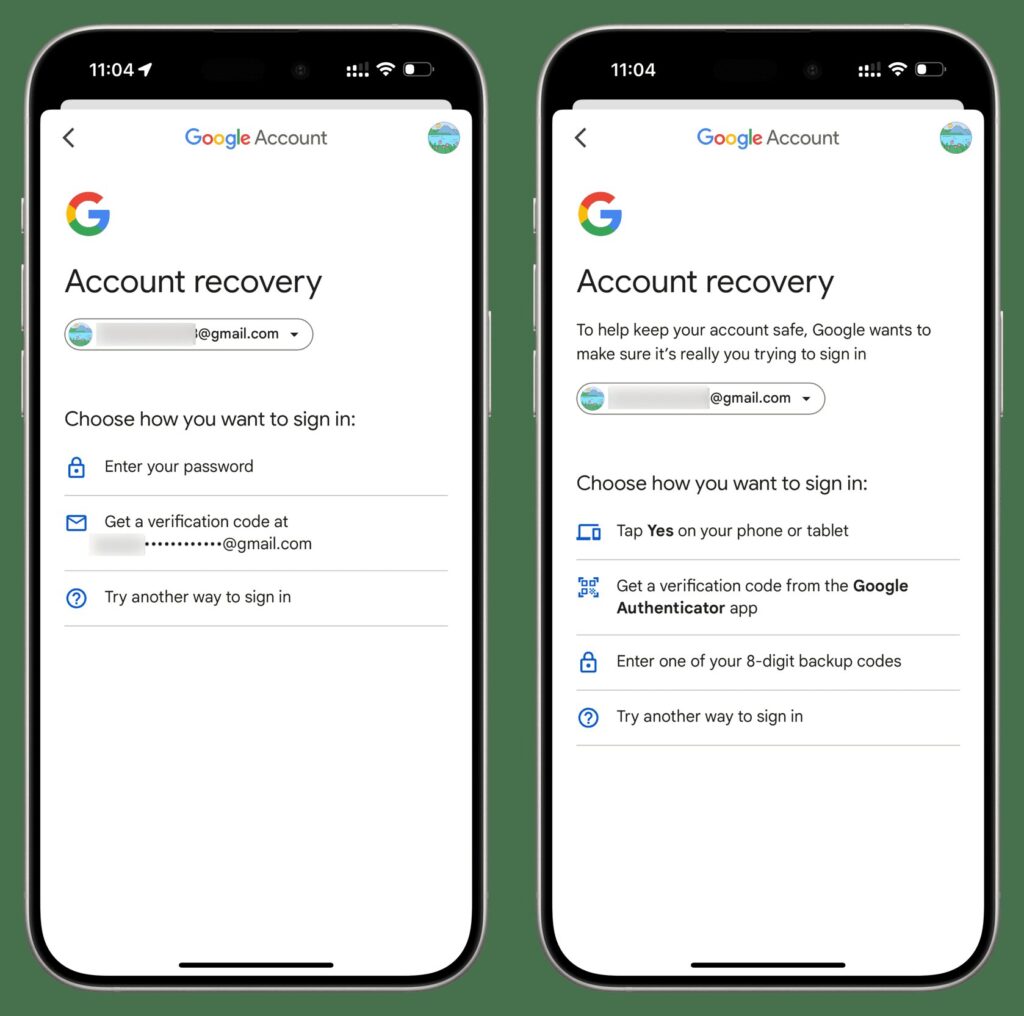
Step 4. Your new password may take 24–72 hours to sync with the locked phone. After that, sign in with the changed password on FRP.
This only works for recoverable accounts. Unable to access recovery options, official recovery won’t assist. Next are trusted Android unlocker tools or a manufacturer’s service center. Dr.Fone-Screen Unlock (Android) can be used when official recovery fails.
Method 2: Using Dr.Fone – Screen Unlock (Android) — The Recommended Software Solution
Samsung devices and One UI updates often resolve manual FRP issues. Dr. Fone-Screen Unlock (Android) is updated periodically to reflect patches. It automates safe Google FRP removal on various Galaxy phones. That makes it more trustworthy than manual tricks.
Key features
- Other brands and Samsung devices (including the latest Galaxy series) are compatible.
- Easy-to-use, click-by-click interface.
- Targets Samsung FRP with a temporary helper APK to reach settings.
- Clear prompts for phone and PC taps.
- Quick process and help if needed.
Step-by-Step Guide:
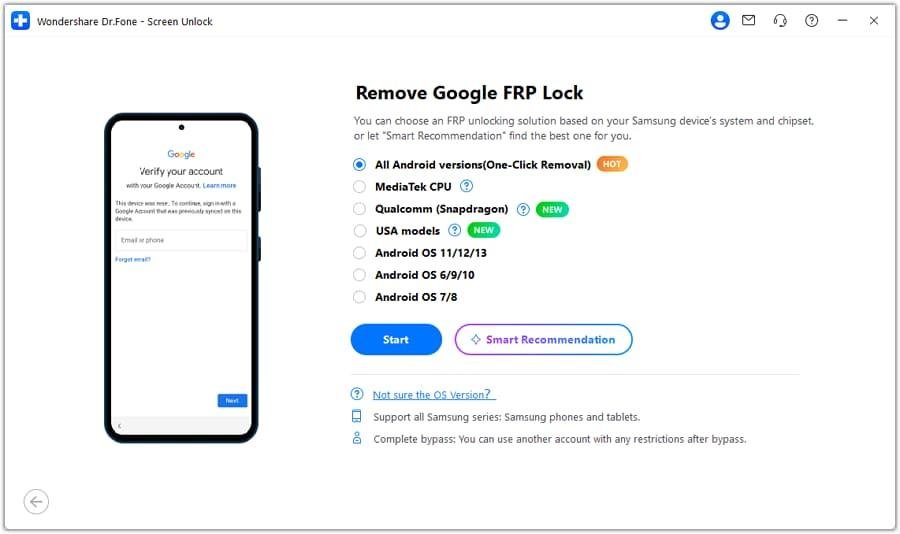
Step 1. Launch Wondershare Dr.Fone on your computer, connect your android phone or tablet. Navigate to “Toolbox > Screen Unlock > Android.” Select “Remove Google FRP Lock,”
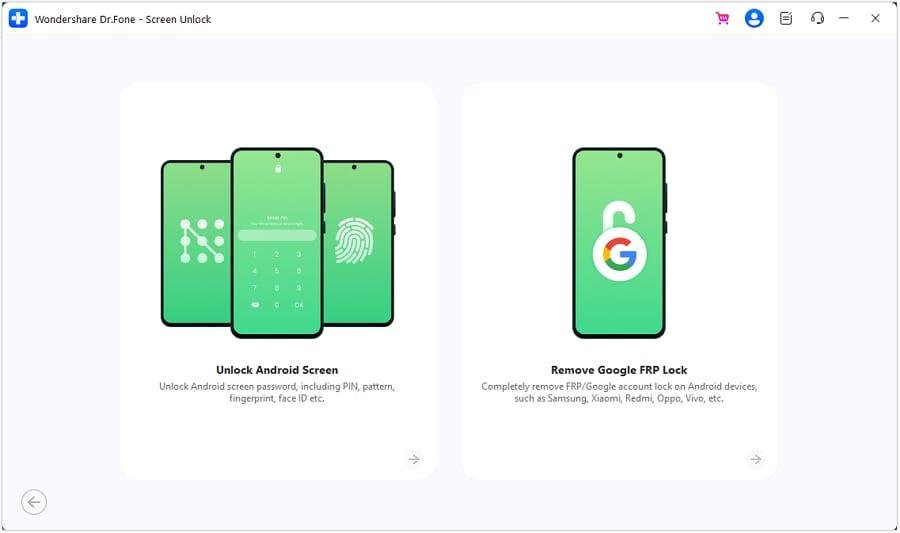
Step 2. If you don’t know your phone’s Android OS version, choose All Android versions (One-Click Removal) and click Start.
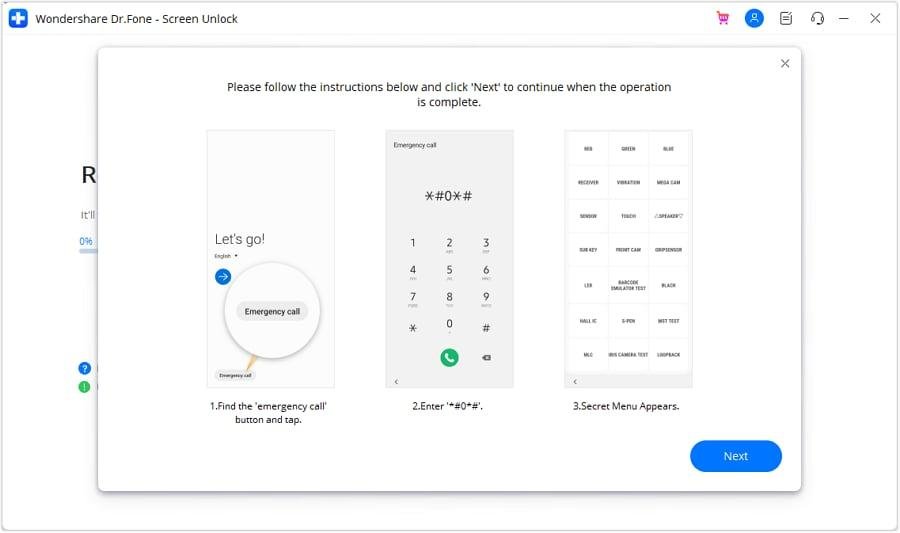
Step 3. Tap Emergency Call on your device and enter #0# to open the hidden service menu. Then, click Next on your computer to continue.
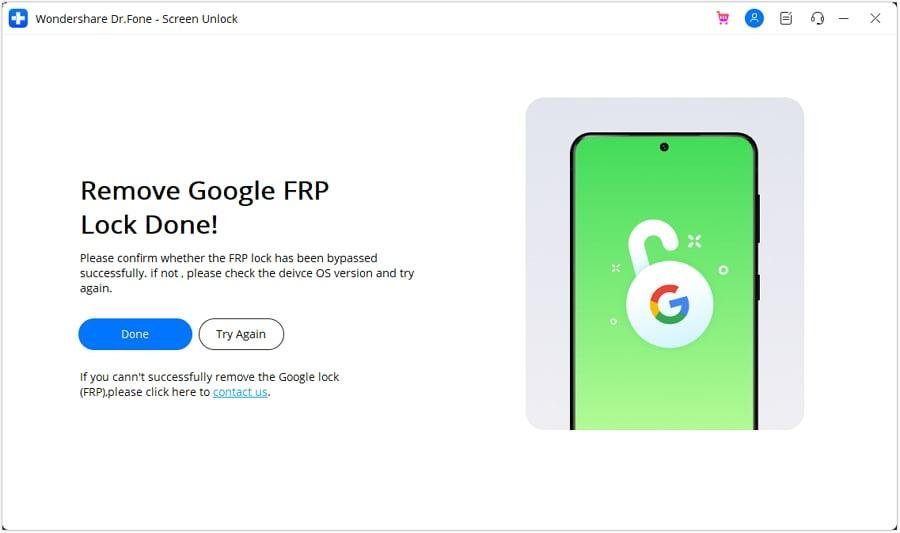
Step 4. Once complete, a confirmation message will appear. Click Done if successful.
Read : Samsung One UI 8.5 to Use AI to Auto-Manage Wi-Fi and Mobile Data
Method 3: Bypass via Odin
If your Samsung phone goes through alternative solution failures, then you might want to try flashing a FRP reset firmware via Odin.
This way is not only complicated, risky, and might not be effective on latest Galaxy phones but also requires you to show that you are the owner of the device and accept the risks. Step-by-step instructions are given here:
Step 1. Download and install the latest Samsung USB driver, Odin for Windows, and the correct FRP reset firmware (.tar/.tar.md5) for your specific model. Unzip all files.
Step 2. Boot to Download Mode by turning off the phone and pressing Volume Up at the warning screen using the model-specific key combo (e.g., Volume Down + Bixby + Power or Volume Down + Home + Power). Connect the phone to your PC via a suitable USB cord.
Step 3. Run Odin as administrator to load firmware. When Odin shows your device (ID:COM goes blue), click “AP/PDA,” select the “FRP.tar.md5 file,” and check only “Auto Reboot” and “F.”
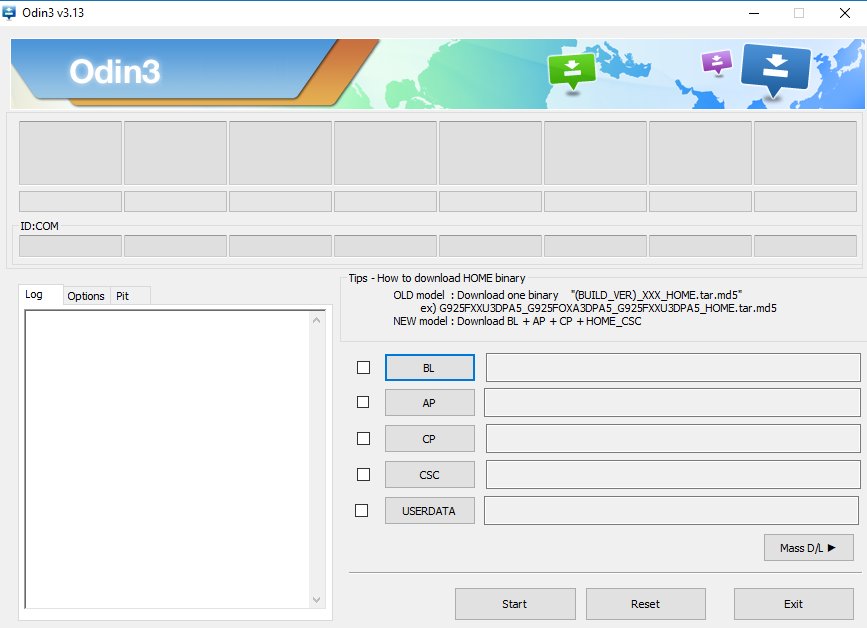
Step 4. Click “Start” to flash and finish. Let the phone reboot when Odin displays “PASS.” FRP can be deleted after rebooting the phone.
Read : What are the Methods to Download Odin Flash Tool?
Method 4: Official Service Channel – Samsung Service Center
When to use this: Visit a Samsung Service Center if other options fail or you are unable to regain access to your Google account. With the original receipt, use this for a safe, legal fix.
Process: Take the locked phone, original invoice, and ID to an approved Samsung repair location. Technicians will verify phone ownership and IMEI. They will remove the FRP lock using official tools after verification is complete. This may take hours or days, depending on the center’s workload and capacity.
Pros: Legal and formal. It works practically every time. No technical expertise or third-party Android unlockers, such as Dr.Fone-Screen Unlock, are needed.
Cons: This can be costly and time-consuming. Purchase evidence is required. You may need the seller’s receipt or authorization to buy a used phone.
Comparison Table: Choosing Your Bypass Method
Conclusion
FRP locks secure phones but block the rightful owners after a reset. Google Account Recovery is free and typically works. If not, Dr.Fone-Screen Unlock (Android) or any reliable Android Unlocker unlocks Android phones quickly and easily.
The Odin method is a bypass that will discreetly go around FRP lock or you can try the Samsung Service Center that is authorized to remove FRP if all other methods fail. Make sure the method that suits your abilities, money, and data safety is the one you pick.
Enjoyed this article?
If TechLatest has helped you, consider supporting us with a one-time tip on Ko-fi. Every contribution keeps our work free and independent.
