As we know, Apple is one of the popular companies and is liked by many users across the world. Since 2015, its music has also grown into a popular music streaming service.
Don’t want to miss the best from TechLatest ? Set us as a preferred source in Google Search and make sure you never miss our latest.
You can listen to a playlist, stream more than 70 million songs, and also listen to a music expert’s playlist. Moreover, you can tune into Apple music radio stations from all across the world which is selected by DJs.
Apple also offers you a 3-month free trial , and you can listen to Apple Music on iPad, iPhone, Mac, PC, Apple TV, iPod, and on the web.
All these things sound very interesting, but it totally depends on you if you want Apple music or not, and if you already have a subscription and want to cancel it, the choice is totally yours.
If it seems to be too expensive or you don’t use it too much to justify its cost and many personal reasons which you think are inappropriate, you can cancel your membership.
Content Table
How to Cancel Apple Music on iOS/iPadOS
- First, go to Settings,

- then your name,

- and then subscription,

- then finally select the Apple Music.

- When you see the Edit Subscription screen, select the Cancel Subscription

- and then confirm the cancellation.

Alternatively, you can directly go to the Apple Music app and select the Listen Now icon, then select the profile icon in the upper right corner.
Then from the account page select ‘Manage Subscription’ to cancel your subscription.

How to Cancel Apple Music on Mac
On the iTunes app, the process for canceling an Apple music subscription has changed.
- If you run in Big Sur or Catalina, select the Apple icon,

- Click on system preferences,

- And then select Apple ID.

- After that, on the side bar, click on media and purchases,

- then click on the Manage button which is on the side of the subscription.

- Now you will be able to view all your subscriptions. Select edit which is next to Apple music subscription,

- And then select Cancel subscription.
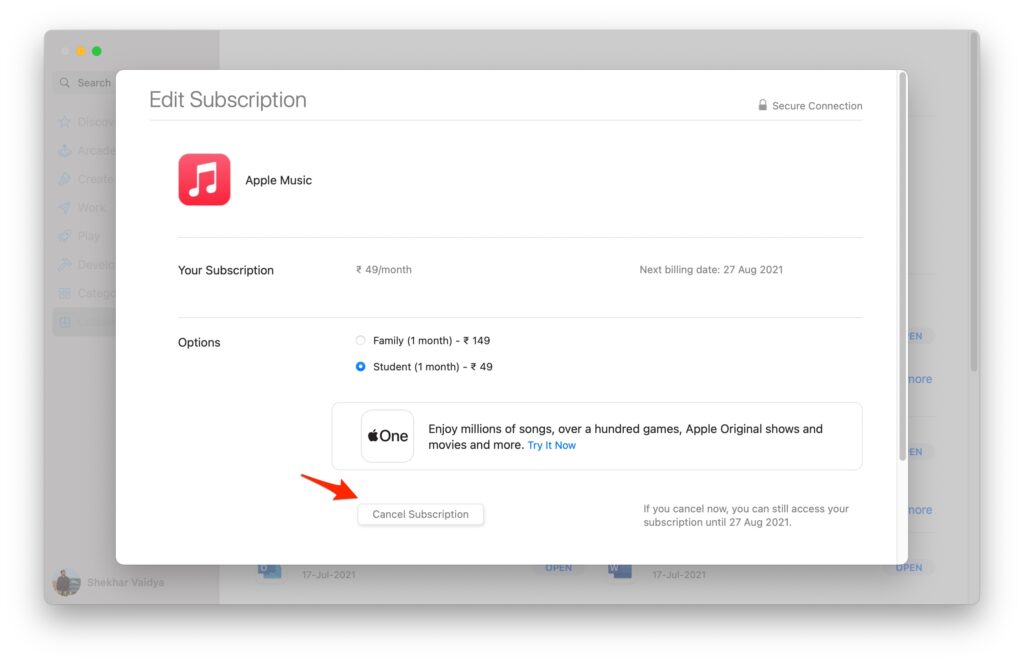
- After confirming cancellation, then click on done to exit the subscription window.

Also, there is another way in which directly opening the app store can manage or cancel your Apple Music subscription. Below are the steps:-
- On your Mac, open the app store and select your image and account name in the lower left corner.
- Select view information, then you can sign in with your Apple ID password if you have it.
- Scroll the account information screen to the bottom till you see the manage section.
- Select the manage link which is on the side of the subscription.
Click on the edit link which is next to the Apple Music subscription. After that, click cancel subscription, confirm your cancellation, and you are done.
Final Verdict – Cancel Apple Music Subscsiption
That was it, we have successfully learned hope to cancel Apple Music subscription from iPhone, iPad, or a Mac system.
In case you didn’t understand something, or you can have any other queries regarding this article, then feel free to comment down below, we will be more than happy to assist you.
Enjoyed this article?
If TechLatest has helped you, consider supporting us with a one-time tip on Ko-fi. Every contribution keeps our work free and independent.
