Electricity bills, Mobile Bills, Subscription plans, property maintenance, and lots of expenses await every month or at a greater frequency. To avoid the same, you use the recurring payment option on PayPal and at the selected date your payments are transferred.
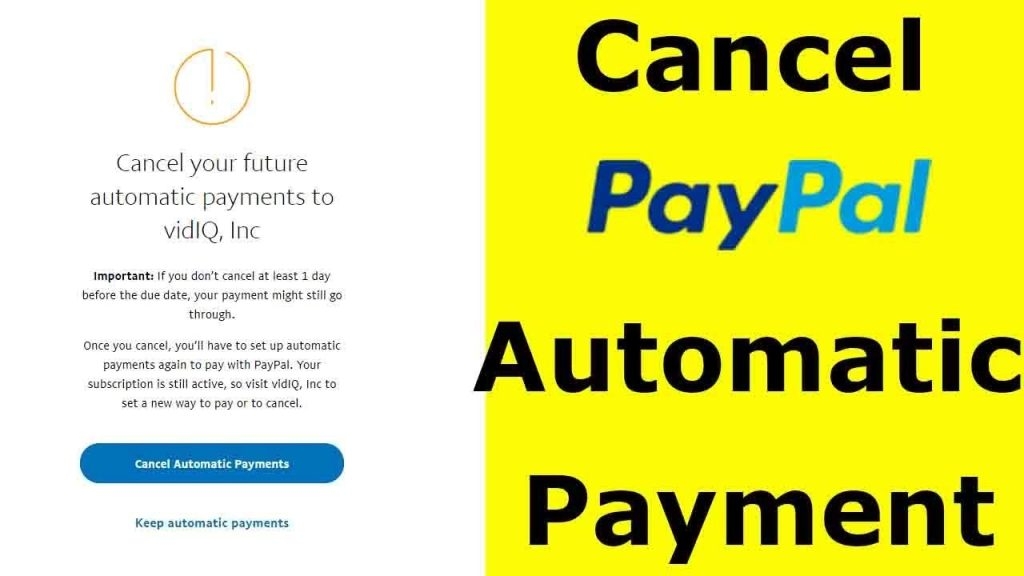
Many users struggle with how to Cancel Automatic Payments on PayPal due to XYZ reasons. Therefore, we got you covered with the same.
Don’t want to miss the best from TechLatest ? Set us as a preferred source in Google Search and make sure you never miss our latest.
- Top 8 Best “Buy Now Pay Later” Apps in the US
- WhatsApp Payments Coming Soon Globally
- Is Your Apple Pay Not Working? Here’s How to Fix
Content Table
How to Cancel Automatic Payments on PayPal App?
You have first to find your automatic payments and then cancel them.
Steps To Cancel the Automatic Payments:
- Open the PayPal app
- Go to Wallet
- Navigate to Automatic Payments
- Click on Merchant to update
- Go to Preferred Payment Methods and choose Remove PayPal as your Payment Method option
This will Cancel your automatic or recurring payments on the PayPal app.
How to Cancel Automatic Payments on PayPal from the Website?
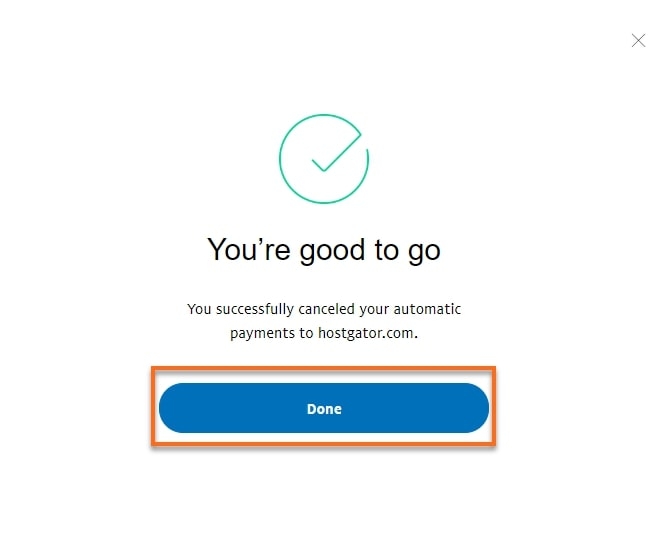
Canceling your recurring payments can also be done via PayPal’s official website.
Steps to Cancel Automatic Payments on PayPal from its website
- Open www.paypal.com in your browser
- Head over to Settings
- Navigate to Payments
- Select the Manage Automatic Payments option
- Click on your merchant
- Now proceed to Change Payment Method and press the cancel button
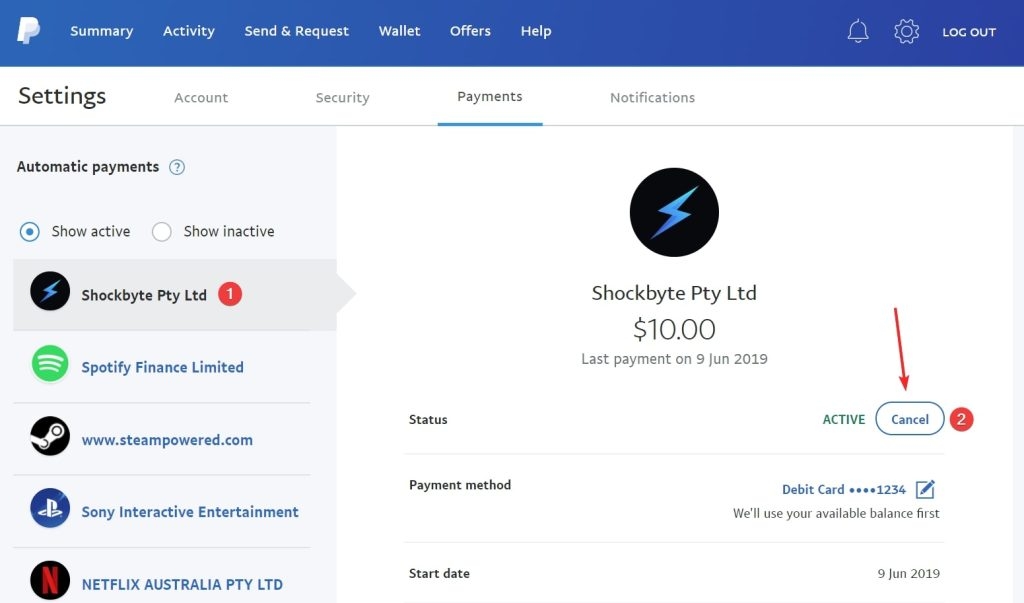
Thus you have successfully canceled your recurring payments on PayPal.
How do I stop a recurring payment on my debit card?
You need to connect with your Debit card Issuer online or via call. Let them know that you want to cancel your recurring payments, share the details, and follow the procedure your card issuer asks for.
The Final Word
Enjoyed this article?
If TechLatest has helped you, consider supporting us with a one-time tip on Ko-fi. Every contribution keeps our work free and independent.
