
You have to change the currencies of the data if you are working on multiple currencies in your sheet. We will teach you how to change the currency in Microsoft Excel so that you can handle your data accurately. You have to format your numbers as “Currency” so that you can easily use multiple currency symbols in the same Excel spreadsheet.
Steps to Change the Currency in Microsoft Excel
- First select all the number data you want to convert into currency.

- Then, select “Currency” from the “Number Format” drop-down list in the “Number” section of the “Home” tab.
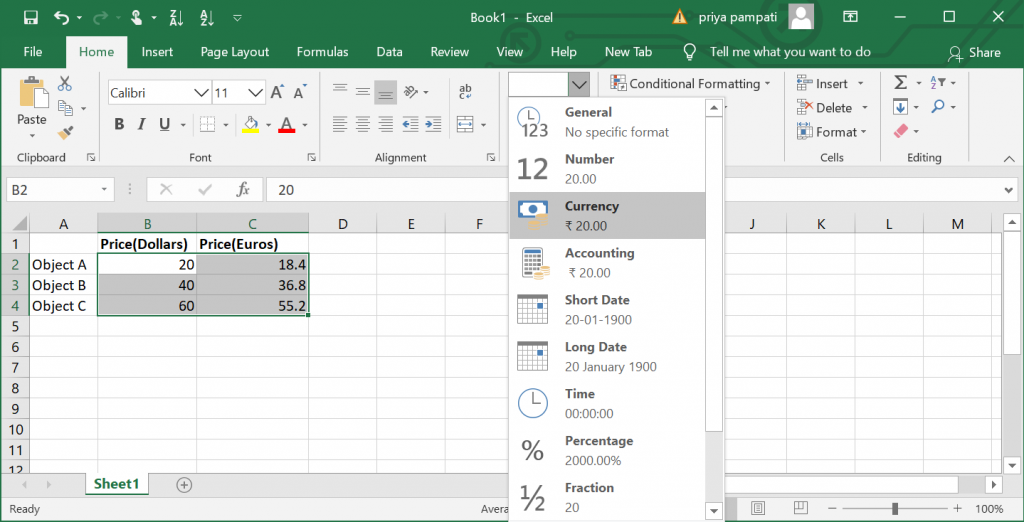
- Then, select the the set of data you want to convert into a particular currency.

- Click on the number format window. It will open up a new window where you can see different currency options laid out.

- From the drop-down list called ‘Symbol’, select the currency you want to change the data into.
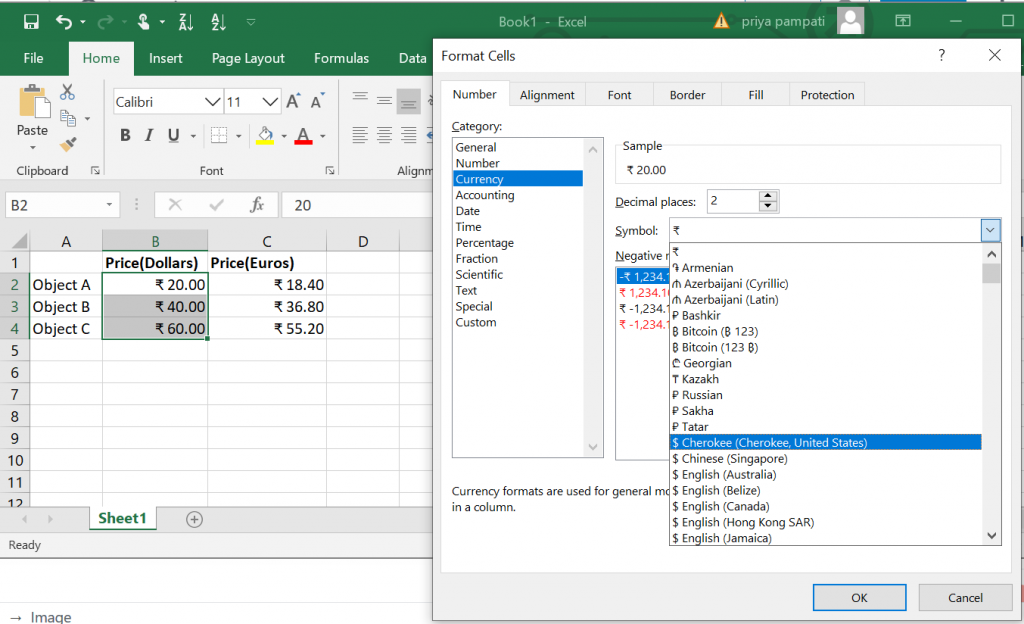
- You can apply this for any data that has been formatted to currency. You can change the currency from one to another using these simple steps.

That’s it! This is how you change the currency of data from one currency to another.
Don’t want to miss the best from TechLatest ? Set us as a preferred source in Google Search and make sure you never miss our latest.
- Microsoft Editor: A Good Alternative to Grammarly?
- 3+ Methods to Find Your Windows 10 Product Key Instantly
- How to Fix Microsoft Edge Automatically Opening on Windows and Mac
Enjoyed this article?
If TechLatest has helped you, consider supporting us with a one-time tip on Ko-fi. Every contribution keeps our work free and independent.
