Highlights
- Checking your CPU temperature helps ensure your PC runs smoothly and avoids performance slowdowns.
- You can monitor CPU heat easily through BIOS settings or reliable third-party tools.
- Regularly keeping an eye on system temperatures helps extend your processor’s life and maintain stability.
Ever notice your laptop fan suddenly getting loud or your PC slowing down for no reason? Your CPU is heating up.
The processor, the “brain” of your computer, works hard every second, and like any brain, it performs best when it’s not overheating.
Don’t want to miss the best from TechLatest ? Set us as a preferred source in Google Search and make sure you never miss our latest.
Keeping an eye on your CPU temperature helps ensure your system stays healthy and runs smoothly.
Windows 11 doesn’t show CPU temperature directly in the Settings app, but there are several easy ways to check it, both through your system’s built-in firmware and simple third-party tools.
In this guide, I’ll tell you all the methods step-by-step so anyone, even a beginner or student, can do it easily.
Content Table
Why Checking CPU Temperature Matters
Every time you open a browser, edit a video, or play a game, your processor gets hot. A little heat is normal; in fact, it’s proof your CPU is working, but too much heat can slow things down or cause long-term damage.
If your computer randomly shuts down, freezes, or the fan keeps running at full speed, it could be overheating. Monitoring temperature lets you catch this early before it harms your system’s performance or life span.
Read : How to Get Free Extended Security Updates (ESU) After Windows 10 End of Support
What’s a Safe CPU Temperature Range?
Different CPUs handle heat differently, but most modern processors from Intel and AMD have a maximum safe temperature limit between 95°C and 100°C .
When the temperature gets close to this point, your system automatically reduces performance to protect itself; this is called thermal throttling .
If your system consistently crosses 85°C, you should check your cooling system, dust, fans, or thermal paste before it leads to serious problems.
Method 1: Check CPU Temperature in BIOS/UEFI
The most direct way to read CPU temperature is from your motherboard’s firmware (BIOS or UEFI). This method doesn’t need any software and works even before Windows loads. However, it only shows temperature at startup, not real-time values while using the computer. To do so:
- Save your work and close all apps.
- You’ll need to restart your computer to access the BIOS.
- Open Windows Settings (Win + I).
- Go to System > Recovery .

- Under Advanced startup , click Restart now .

- Your computer restarts into a blue menu, choose Troubleshoot .

- And then navigate to Advanced options > UEFI Firmware Settings .

- Click Restart again.

- When your PC restarts, you’ll see the BIOS or UEFI screen. Use the arrow keys (or mouse, depending on your system) to navigate.
- Look for a tab called Hardware Monitor , PC Health Status , H/W Monitor , or Status .
- Inside, you’ll find your CPU temperature displayed in degrees Celsius.
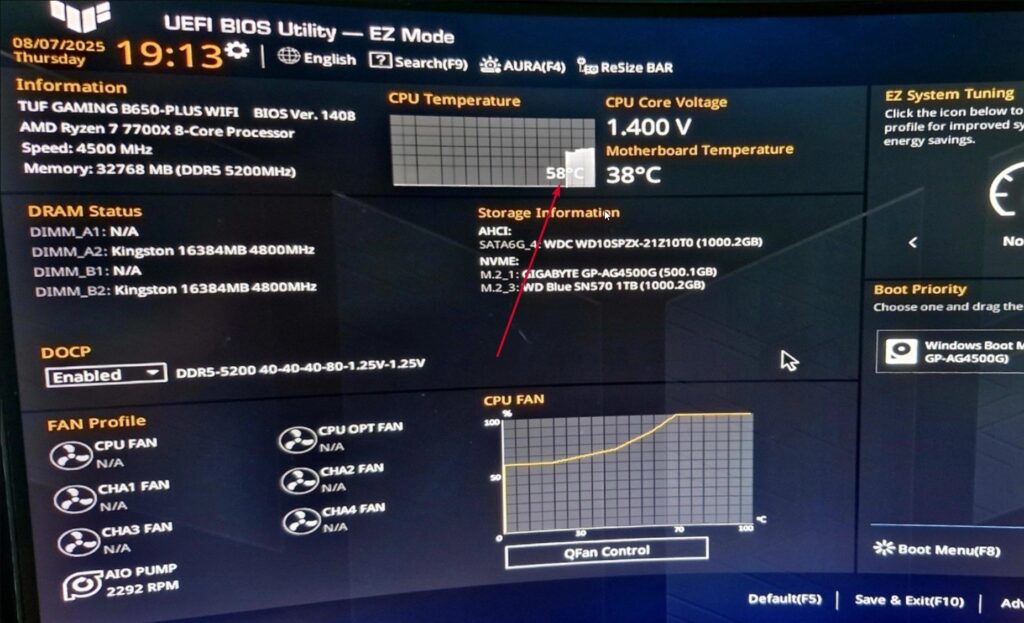
ASUS TUF Gaming Motherboard BIOS
That’s it. If you don’t see the reading, your motherboard might not display it. In that case, skip to the next method for Windows-based tools.
Method 2: Check CPU Temperature Inside Windows
To see live CPU temperatures while using your computer, you’ll need a monitoring program. Don’t worry, these tools are small, safe, and easy to use. Here are the best ones:
Option 1: Core Temp (Lightweight and Simple)
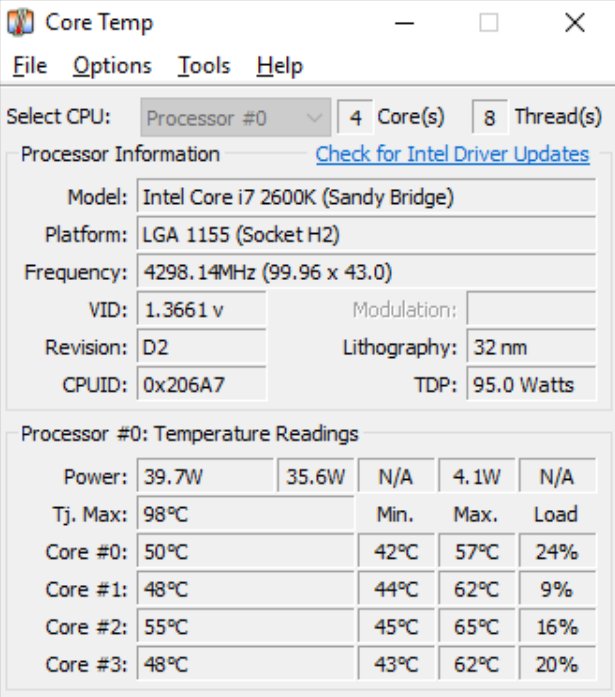
Core Temp is one of the most popular tools for checking CPU temperature. It’s free and shows real-time readings for each core of your processor.
- Download Core Temp from its official website.
- During installation, uncheck any extra offers or bundled software.
- Open the .exe file. You’ll see the temperature of each CPU core in the main window.
- You can also view it in the Windows taskbar for quick access.
This is great if you just want a no-frills temperature display without advanced graphs or settings.
Option 2: Speccy (Beginner-Friendly Overview)
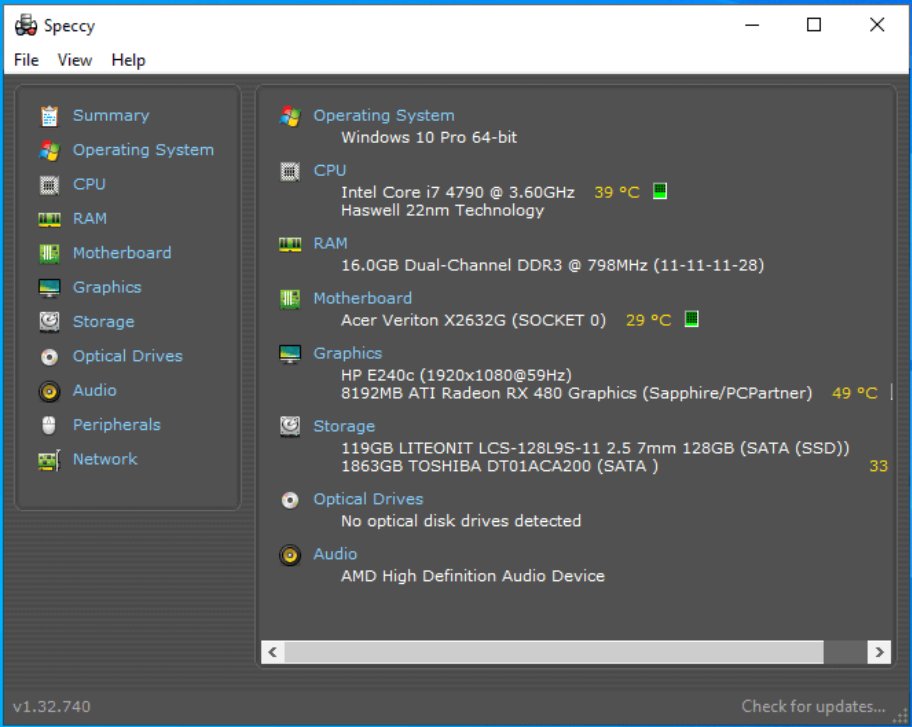
If you want to check more than just the CPU, like the motherboard, graphics, RAM, and storage, try Speccy . It’s also free and simple.
- Download and install Speccy .
- Open the program and wait for it to scan your system.
- On the left panel, click CPU or just view the Summary tab.
- You’ll see your processor’s current temperature along with other hardware details.
Speccy’s interface is clean and perfect for quick snapshots of your system’s health.
Option 3: HWiNFO (For Detailed Monitoring)
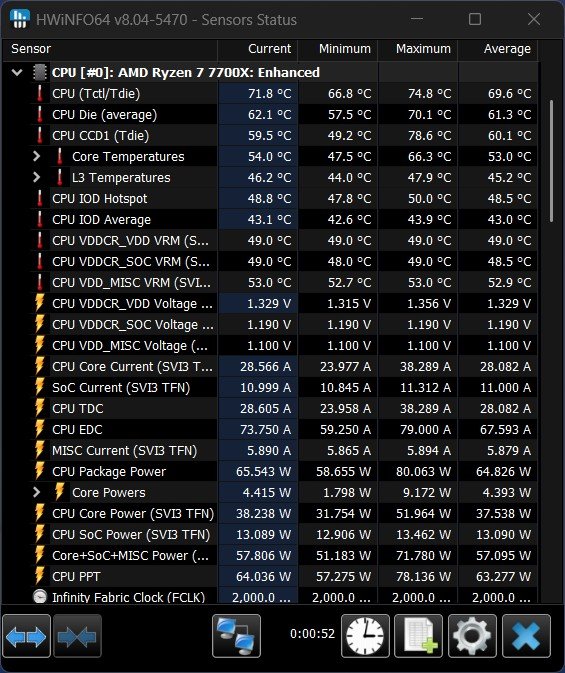
HWiNFO is a professional-grade tool that provides detailed temperature, voltage, and fan-speed readings. It’s slightly more advanced but still easy once you know where to look.
- Download HWiNFO (choose the “Sensors-only” mode when you start it).
- The sensors window lists every temperature sensor on your system.
- Scroll to the CPU section, you’ll find “Core Temperatures” and “CPU Package.”
- You can keep it running in the background to watch how temperatures change while gaming or rendering videos.
This tool is especially useful if you want to track temperature trends or test your cooling performance.
Option 4: Open Hardware Monitor (Free and Open-Source)
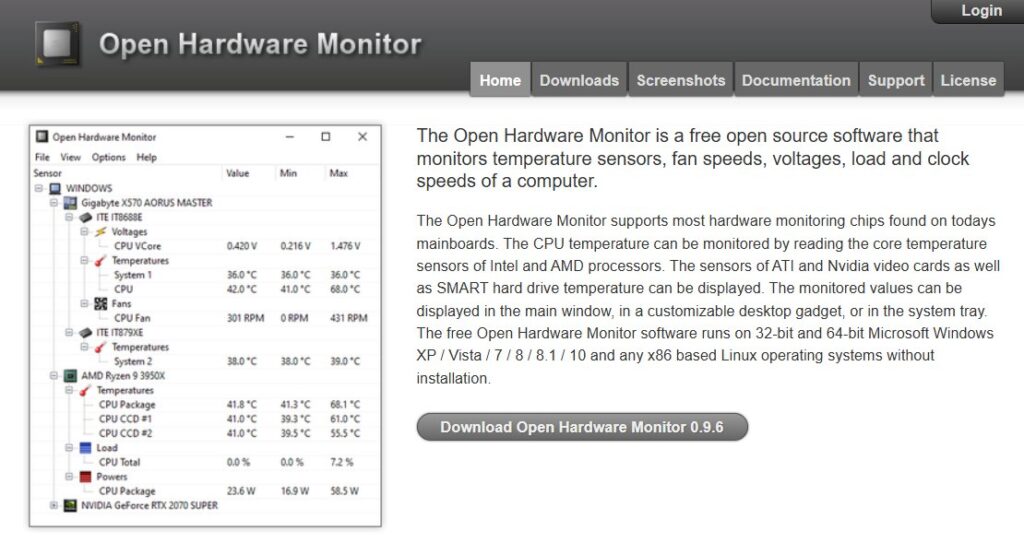
If you prefer open-source software, Open Hardware Monitor does an excellent job. It shows CPU, GPU, and fan information in a simple tree view.
- Download the ZIP package and extract it.
- Run the program (no installation required).
- Look for Temperatures > CPU Cores .
- You’ll see current, minimum, and maximum values.
Option 5: Intel XTU or AMD Ryzen Master (Manufacturer Tools)
Both Intel and AMD provide their own utilities:
- Intel Extreme Tuning Utility (XTU) : Lets you monitor and tune Intel processors. Temperature appears in the “System Information” or “Monitoring” section.
- AMD Ryzen Master : Offers real-time temperature and performance data for AMD Ryzen CPUs, along with safe tuning options.

These are ideal if you’re using a compatible processor and want official software from the manufacturer.
What to Do if CPU Temperature Is Too High
If your CPU runs too hot, don’t panic; there are simple fixes. Here’s what to check:
- Clean Dust and Improve Airflow
Dust is the number-one reason for rising temperatures. Open your PC case or laptop vents and gently clean them with compressed air. Keep the fans and vents clear. ( Best Budget PC Cases )
- Check the Cooling Fans
Make sure your CPU and case fans are actually spinning. If one isn’t, it could be unplugged or faulty. ( Best 120mm PC Case Fans )
- Reapply Thermal Paste
Thermal paste between the CPU and the cooler transfers heat. If it has dried out (common after 2–3 years), temperatures can rise quickly. Reapplying fresh paste can drop temps by several degrees. ( Best Thermal Pastes for CPU and GPU )
- Optimize Case Airflow
Ensure cool air can enter and warm air can exit. Having one intake fan in front and one exhaust at the back is a good start. ( Best PC Cases for Water Cooling )
- Avoid Overclocking (Unless You Know What You’re Doing)
Overclocking increases heat output. If you’ve boosted your CPU speed, reset it to default and see if temps stabilize.
- Adjust Windows Power Settings
Set your power mode to Balanced instead of Performance when you’re not gaming or editing videos. This reduces heat during light tasks.
- Undervolt (Advanced Users)
Lowering CPU voltage slightly reduces heat without sacrificing performance, but it should only be done by users who understand the risks.
Read : Is My CPU Bottlenecking? How to Check & Fix It
How Often Should You Check CPU Temperature?
You don’t need to monitor it every day. A quick check every few weeks, or when your system feels lagging or unusually warm, is enough for most people. Gamers or video editors might want to keep a live widget (like Core Temp in the taskbar) for quick checks during heavy use.
Final Thoughts
Keeping your CPU cool isn’t complicated. Windows 11 might not show temperatures out of the box, but with tools like Core Temp , HWiNFO , or Speccy , you can easily monitor heat levels and protect your computer’s performance.
So, that’s all we have for you about how to check CPU Temperature in Windows 11 (Updated for 2025). We hope that this guide has helped you. For more info, comment below and let us know.
Enjoyed this article?
If TechLatest has helped you, consider supporting us with a one-time tip on Ko-fi. Every contribution keeps our work free and independent.
