Highlights
- In this digital age, YouTube has become a popular platform for sharing videos and engaging in discussions with users.
- The ability to see your previous comments and conversations is easier than ever before.
- Luckily! Here in this article, we have mentioned some of the best methods using which you can easily check your YouTube comments.
Don’t want to miss the best from TechLatest ? Set us as a preferred source in Google Search and make sure you never miss our latest.
Content Table
Can you See or Delete Your YouTube Comment from History?
You can access your YouTube account using your Google account. To put it simply, you logged in to YouTube using your Gmail address. Do you agree? You will receive all of your activities in your Google account, which is aliased as your Gmail account.
How To Know Your YouTube Comment History?
There are times when you may need to revise a comment because it contains some grammatical errors, may hurt someone’s sentiments, or sounds rude. In order to change that comment, follow these steps:
On Android Devices
#1. Using Google My Activity Page
#2. Using YouTube App
- On your smartphone, open the YouTube app.
- Go to your Profile and select Settings .
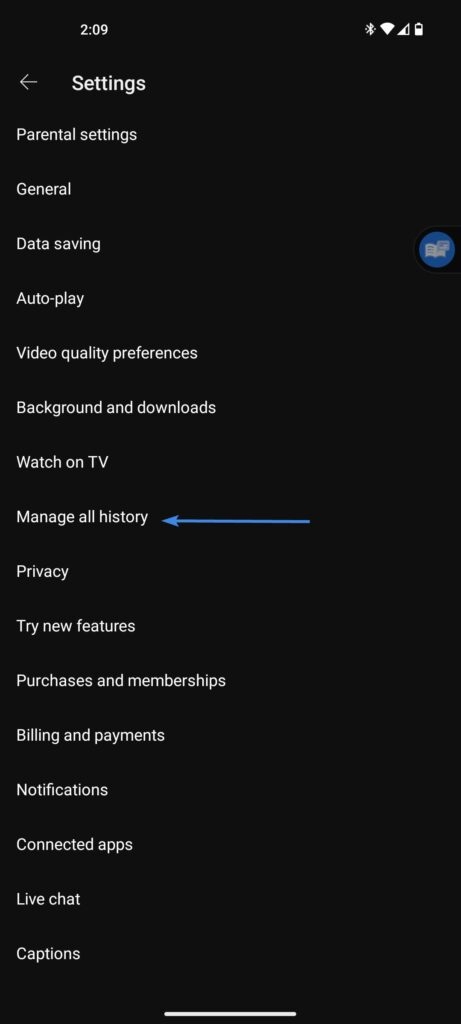
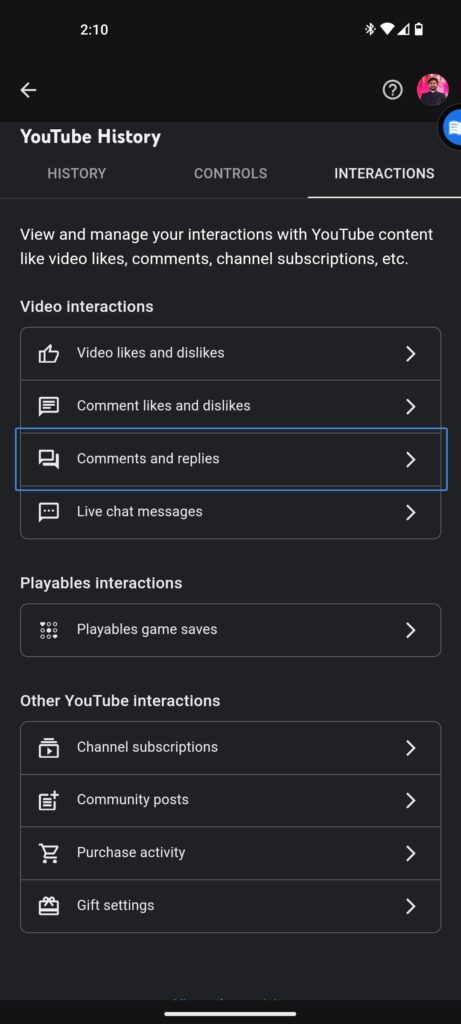
- Choose ‘ Manage all history ‘ and then ‘ Interactions .’
- Click ‘ Comments & Replies ‘.
On iOS Device
The above method can also be applied to the iOS YouTube app. So, follow the same method to do so. If you use the Safari browser to browse YouTube, follow the steps below.
- Using the Safari browser app on your iPhone, go to ‘ YouTube.com ‘. In general, YouTube forces the YouTube app to open when you open it in a web browser. In such a case, you should open YouTube in a private window.
- Firstly, switch to the Desktop mode in the browser tab. There are only options available in ‘ Desktop mode ‘ for checking the comment history. Therefore, you should first switch YouTube to desktop mode. Select “ aA ” and click “ Request Desktop Website .” By doing this, YouTube will open in desktop mode.
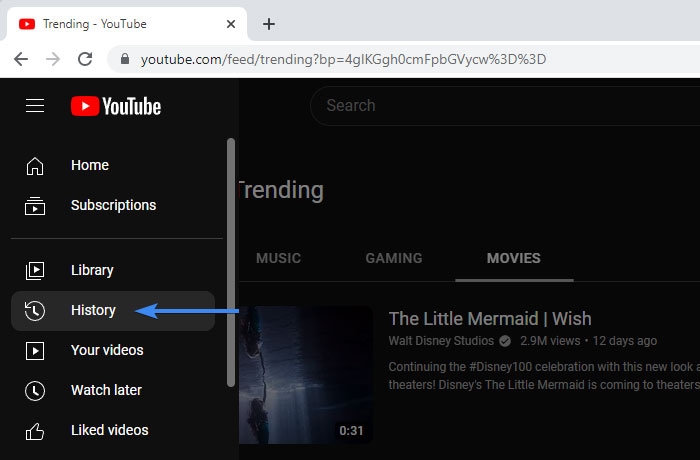
- On the left side of the screen, once YouTube has been switched to desktop mode, you will see a list of options. Click “ History ” from the list, and you’ll see all your YouTube watch history and comments is saved.
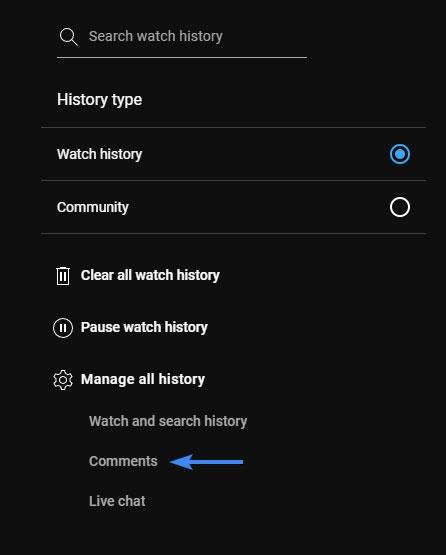
- Next, under “ Manage All History “, select “ Comments ” under “ History ” on the right side. Here you will find all your comments under “ My Activity ” on Google.
- Your comments are listed at the bottom of the list. Scroll through it to see them. In the upper right corner of each comment, you will find the ‘ Cross ‘ icon that you can click on if you wish to delete the comment.
On Desktop
You must use a web browser to view your YouTube comment history since YouTube doesn’t have a dedicated app. To do this, follow these steps:
- Go to YouTube in any browser. Use your Google account if prompted.
- At the top left of the screen, click the hamburger menu .
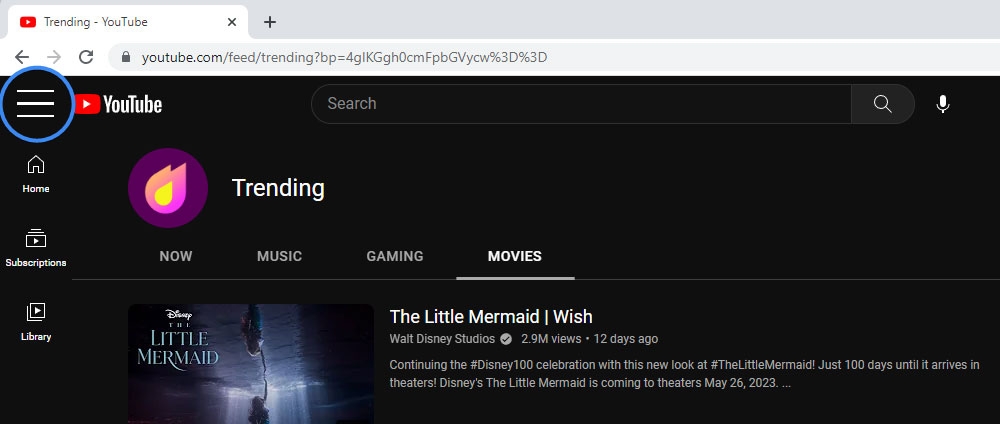
- The next step is to select History .
- Select ‘ Manage all history .’
- You can edit comments on YouTube videos by opening the comment history page and clicking the video name.
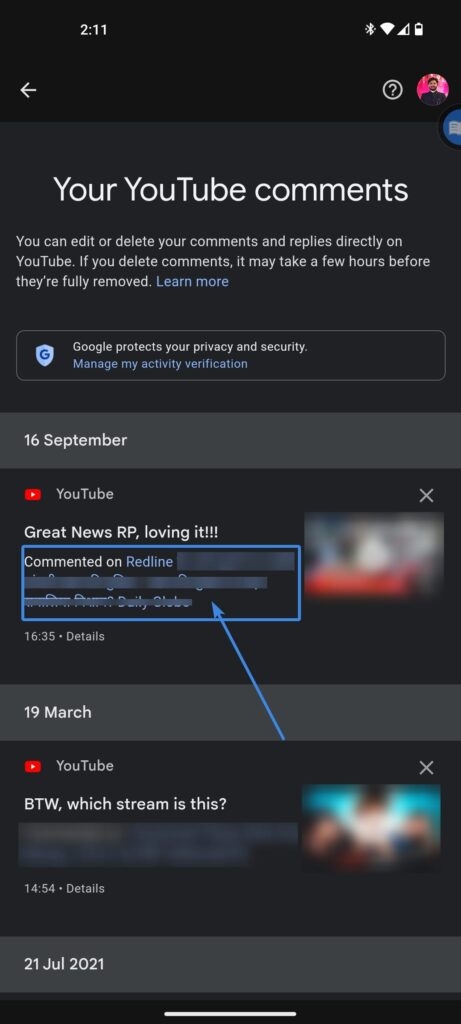
Important: You can remain in the browser or redirect to the YouTube app if you’re asked to redirect to the YouTube app on your smartphone.
- Under the Highlighted comment tag, you’ll see your comment under the comments section.
- In the comment box, click the three dots on the left.
- Choose Edit .
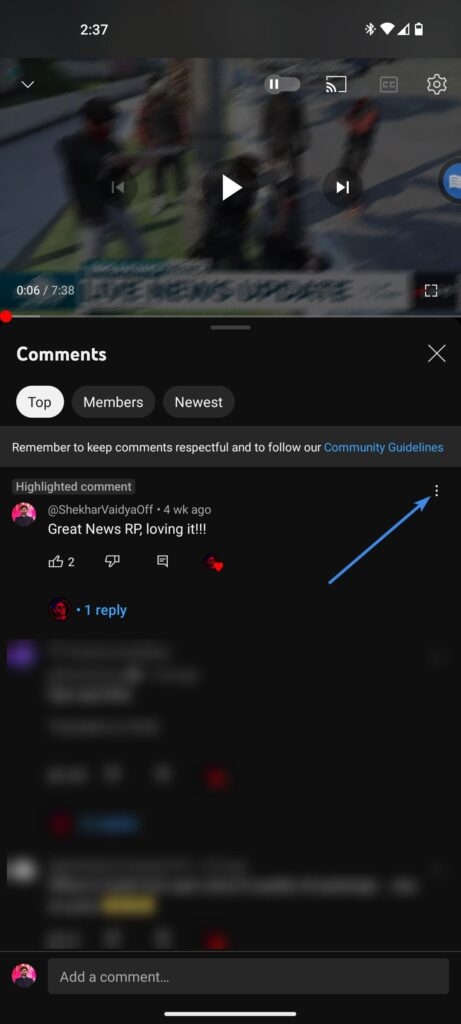
- Once you’ve made the necessary edits, click send.
Have you ever posted something that hurt someone’s feelings, offended someone’s sense of humor, or is no longer relevant to the topic? If you want, you can remove it. You can learn how to do that by reading the following steps:
Open the YouTube app and tap on Profile .
Click on Your data on YouTube .
You can now view all the comments by tapping on the number of comments.
To edit a comment, find it here and click on it. You can now tap on the video where you made the comment once you’ve found it.
To comment, swipe down. From the right side of your comment, tap the three-dotted icon.
After that, tap on Delete .
From the popup, tap Delete .
Open YouTube Studio and edit the video.
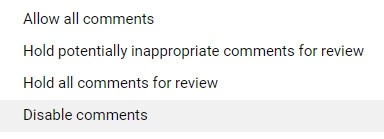
To change the visibility of a comment, go to Comments and Ratings .
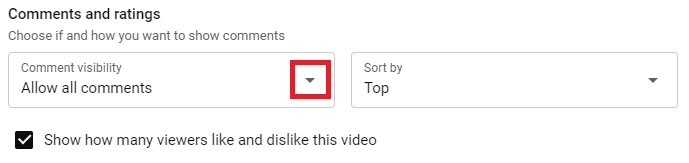
- Then select Disable comments and click Save .
Further Reading:
- Best YouTube Vanced Alternatives
- YouTube Now Offers the Choice to Turn Off Video Recommendations
- Best Ways to Fix “A name has not been set for this account” Error on YouTube
Enjoyed this article?
If TechLatest has helped you, consider supporting us with a one-time tip on Ko-fi. Every contribution keeps our work free and independent.
