Highlights
- It is a fact that Brave Browser’s AI assistant, Leo, is useful for some people but not for others.
- Maybe you just want to disable Leo altogether for privacy reasons, performance reasons , or just because you don’t actually need it.
- This post will help you find all the ways to switch off Leo AI in Brave Browser.
Brave browser’s built-in AI assistant feature “LEO” offers many breathtaking features like page summarization, smart replies, and AI-enhanced search – but not every user wants AI to interfere while they browse.
Leo AI might be intrusive for users who want privacy or just prefer a cleaner interface. Well, that’s the reason why users want to completely stop the LEO AI.
Don’t want to miss the best from TechLatest ? Set us as a preferred source in Google Search and make sure you never miss our latest.
Luckily, we are here with a step-by-step guide on how you can easily disable LEO AI in Brave browser. So, if you want to disable it, too, make sure to read the guide until the end.
Content Table
What is Leo AI in Brave Browser?
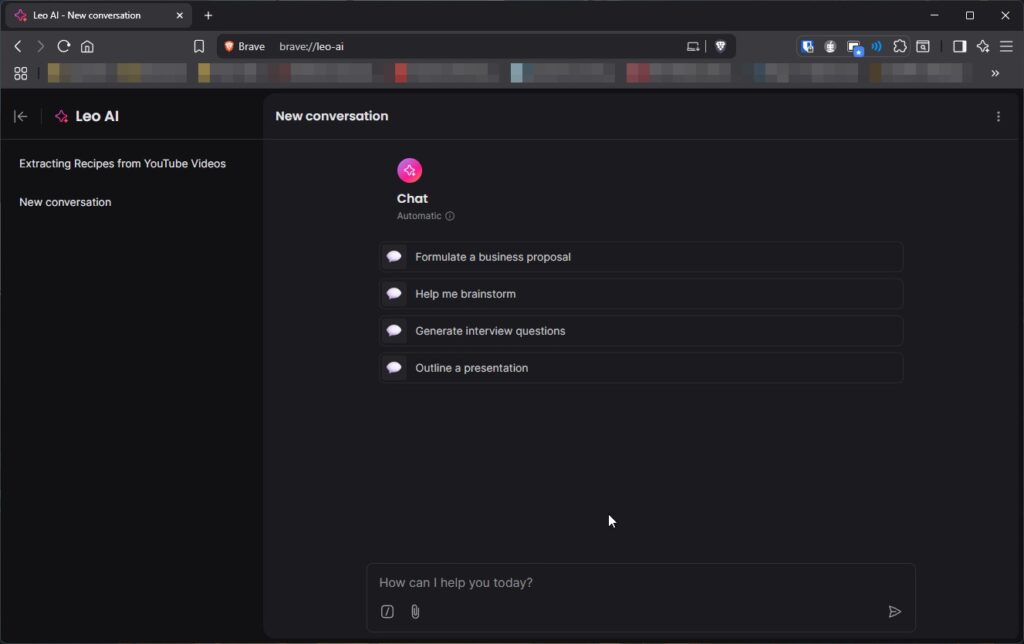
Leo AI is Brave’s generative AI chatbot, which runs on the browser; it exposes a similar interface to tools like ChatGPT or Bing AI.
In your Settings & Subscriptions, it either uses local inference or sends your request to Brave’s servers to get answers.
Key features include:
- Web page summarization
- Answering questions in real time
- Writing and rewriting content
- AI helper in new tabs and context menus
While Brave says Leo is privacy-respecting (it logs no input and can be optional cloud-based), some users would rather not have a virtual assistant at all.
Why You Might Want to Disable Leo AI in Brave Browser
Here are some common reasons users choose to disable Leo:
Privacy Concerns : Though Brave insists that Leo is secure, the notion of any in-browser AI will leave some people feeling like it could be a risk.
Performance Impact : Memory usage, especially on low-end computers, can be high due to AI services running in the background.
Clutter-Free UI : Leo’s button and command prompt bar amount to clutter for those who like things nice and simple.
Accidental Activations : Leo often shows up when you drag to select text, open a new tab, or click a certain icon — which can be irritating.
Methods to Disable Leo AI in Brave Browser Completely
For Windows 11 Pro & Enterprise Users – Using Group Policy Editor
To initiate the process, you’ll have to download and install the Brave Browser Group Policy templates. These are settings that let you manage different things in Brave, and among those is Leo AI.
Step-by-Step Instructions:
- Download Brave Browser Official Policy Templates .
- Extract the contents of the file: you will see folders like admx, example, and adm .
- Press Win + R , type gpedit.msc , and hit Enter.
- Go to Computer Configuration > Administrative Templates.
- Right-click on Administrative Templates and click Add/Remove Templates .
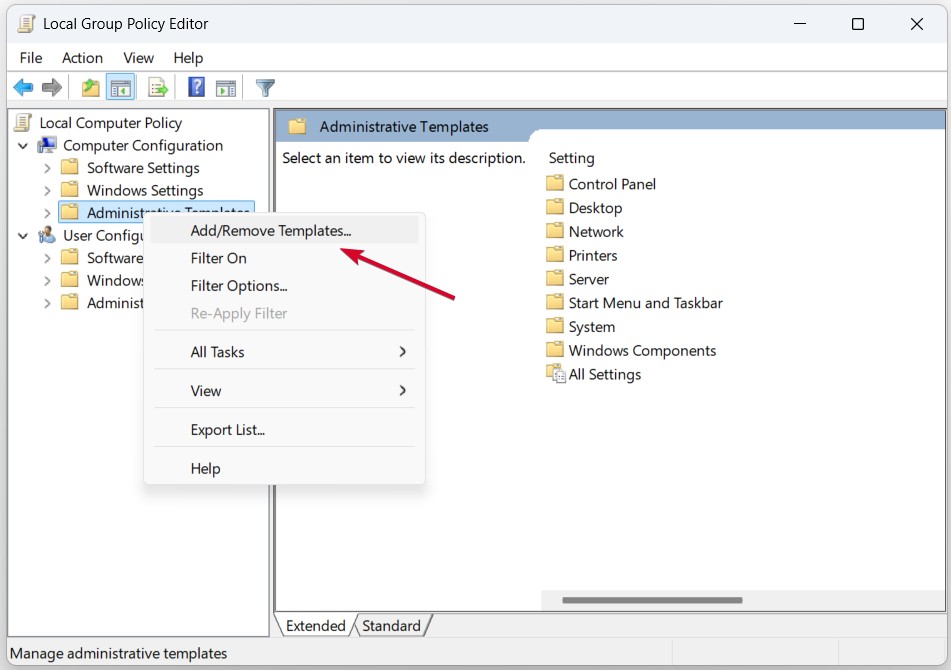
- Click on Add , navigate to the extracted folder > adm > en-US (or your language) > select brave. adm .
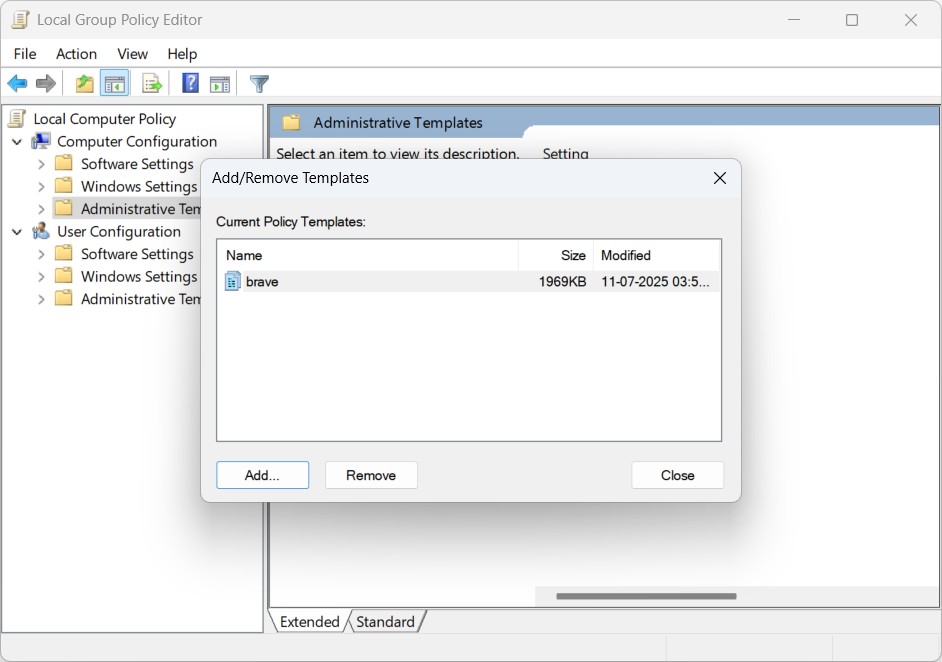
- After importing, navigate to Classic Administrative Templates and expand Brave Software > Brave .
- Locate and click Brave Software Settings .
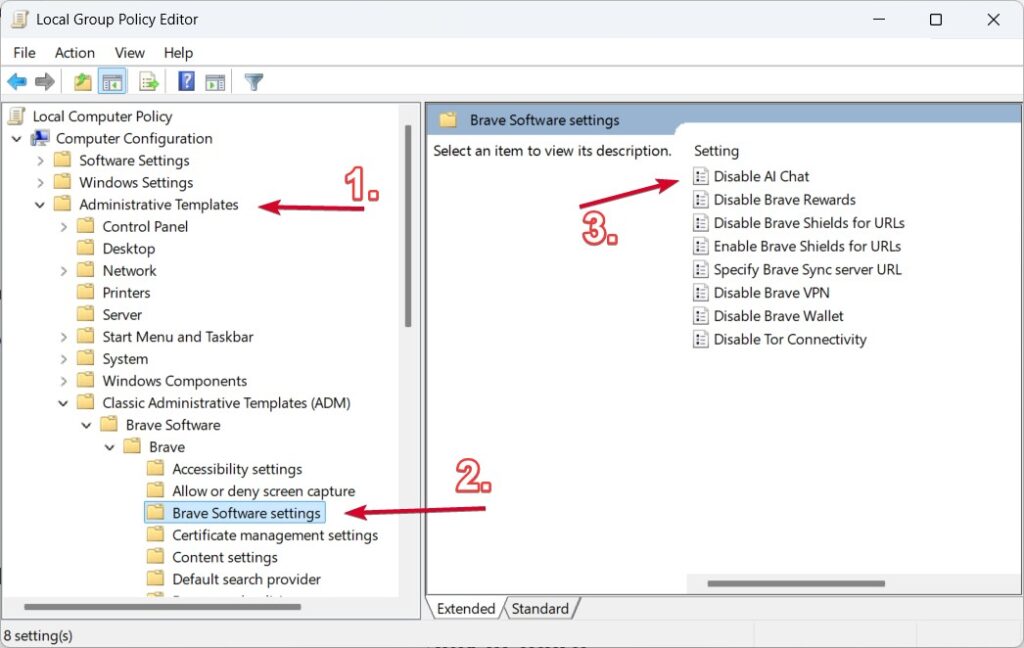
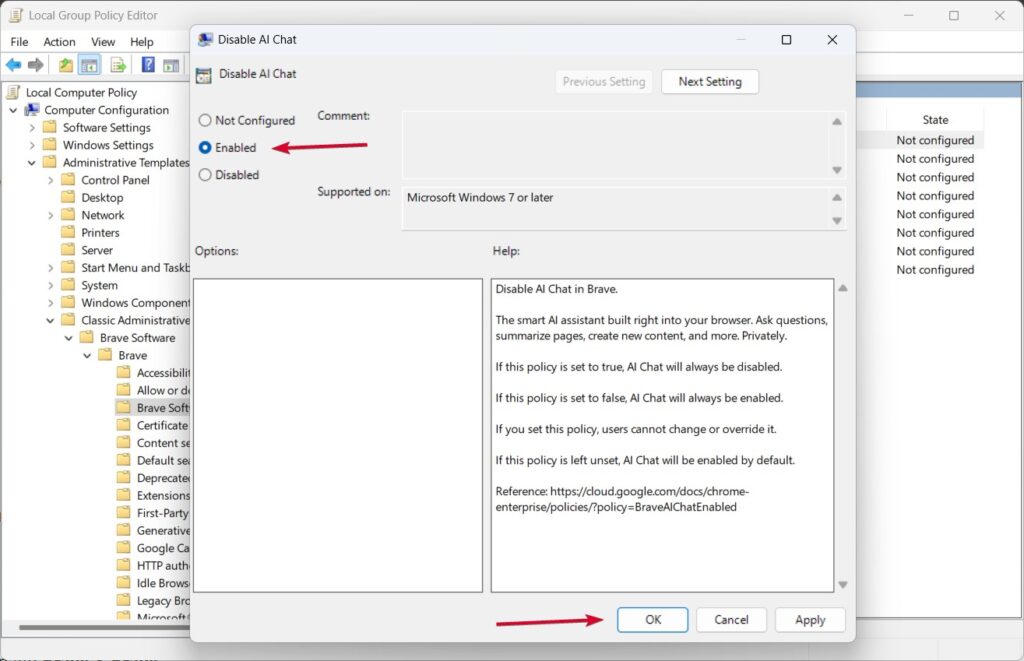
- Find Disable AI Chat, open it, choose Enabled , and press Apply and OK .
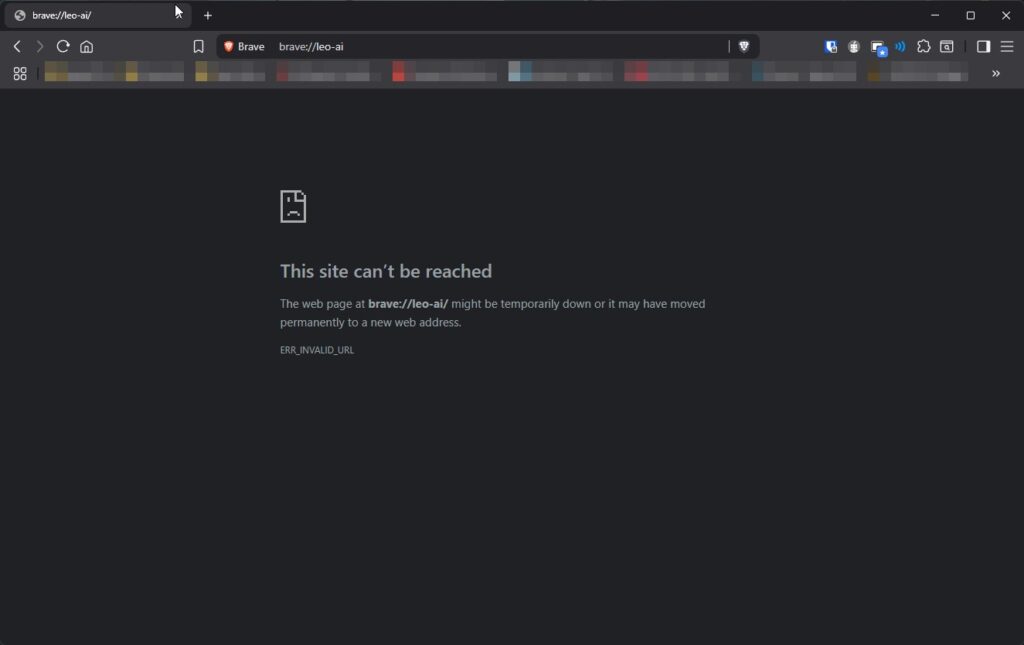
- Close everything and relaunch Brave. Now, you’ll find that Leo AI is completely disabled.
For Windows 11 Home Users – Using Registry Editor
As the Group Policy Editor is missing from Home editions, if you’re using one of those, you’ll have to use the Windows Registry Editor instead. Here’s what you need to do:
Here’s how:
- Type regedit in the Windows search bar, and click on regedit to launch it.
- If you see the User Account Control prompt , click Yes .
- Go to: HKEY_LOCAL_MACHINE\SOFTWARE\Policies\BraveSoftware\Brave If the BraveSoftware or Brave Folders aren’t there, you can right-click to make them yourself.
- Inside the Brave key, right-click on it > New > DWORD (32-bit) Value.
- Name it: BraveAIChatEnabled
- Set its value data to 0 .
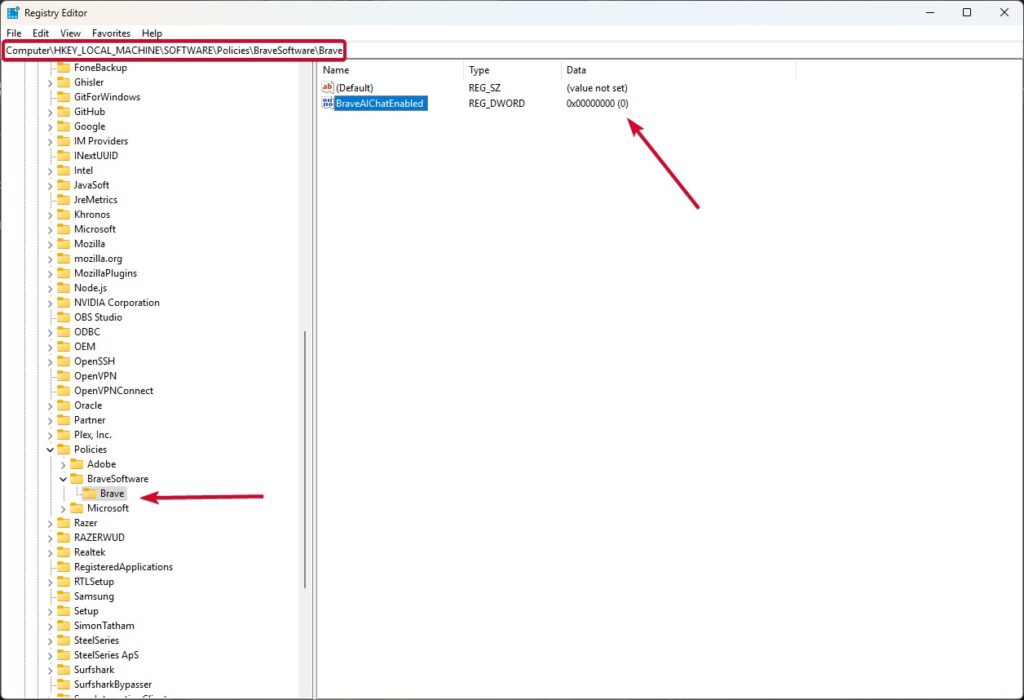
- Close Registry Editor and start Brave. Leo AI is no longer running now.
People Also Ask For:
Is Leo AI collecting my personal data?
Leo is privacy-preserving by default, Brave says, and no chat data is retained unless you opt for some cloud AI providers to be used.
Does disabling Leo improve performance?
Yes. Leo can be turned off to save a bit of background memory and clean up the interface a bit on an older machine.
Is Leo available on mobile?
As of 2025, Leo works only on the desktop versions of Brave.
Can I use Brave without Leo forever?
Yes. Leo is optional, and Brave offers full disabling — in contrast to some browsers that make AI integration mandatory.
Final Thoughts: Should You Disable Leo?
If you don’t want to use Brave’s AI assistant or are skeptical of built-in AI assistance in general, turning off Leo should make for a cleaner, faster, and possibly more private browsing experience.
However, Leo does come with a few powerful features, and Brave should be commended for offering users the option. Best of all, Leo is opt-in, not imposed.
Note: Save this guide as a bookmark. Brave updates all the time, and in the future, these settings (or their location) could change!
Enjoyed this article?
If TechLatest has helped you, consider supporting us with a one-time tip on Ko-fi. Every contribution keeps our work free and independent.
