Highlights
- Autoplay also eliminates the hassle of pressing play each time you want to keep a video going.
- By holding on to viewers for a longer time , Autoplay helps platforms grow their advertising revenue and keep subscribers continuously watching.
- It’s a way to make entertainment easy for users; on the other hand, and this is where companies come in, it’s a weapon to grab more of our attention.
Autoplay on streaming and social media platforms can be both convenient and intrusive. Though they provide seamless viewing experiences, they may still cause sudden data waste, battery consumption and distractions you didn’t ask for.
If you want to reclaim your viewing experience, here’s a full guide on how to disable Autoplay for a number of popular platforms.
Don’t want to miss the best from TechLatest ? Set us as a preferred source in Google Search and make sure you never miss our latest.
What is Autoplay?
Autoplay is a feature that’s included in most streaming and social networks; it plays the next video/episode/previews without user interaction. The only reason you have it is for bringing easier and more controlled watching.
Content Table
How to Disable Autoplay on Streaming and Social Media Apps (Web Included)
Here are the steps for every platform, respectively, that you can use to disable Autoplay on Streaming and Social Media apps, including web:
Streaming Apps
1. Netflix
If you are a Netflix user, then there’s good news for you. It allows its users to disable autopay for both previews and the next episode in a series.
To disable Autoplay on Netflix On Desktop:
- Visit Netflix.com and log in .
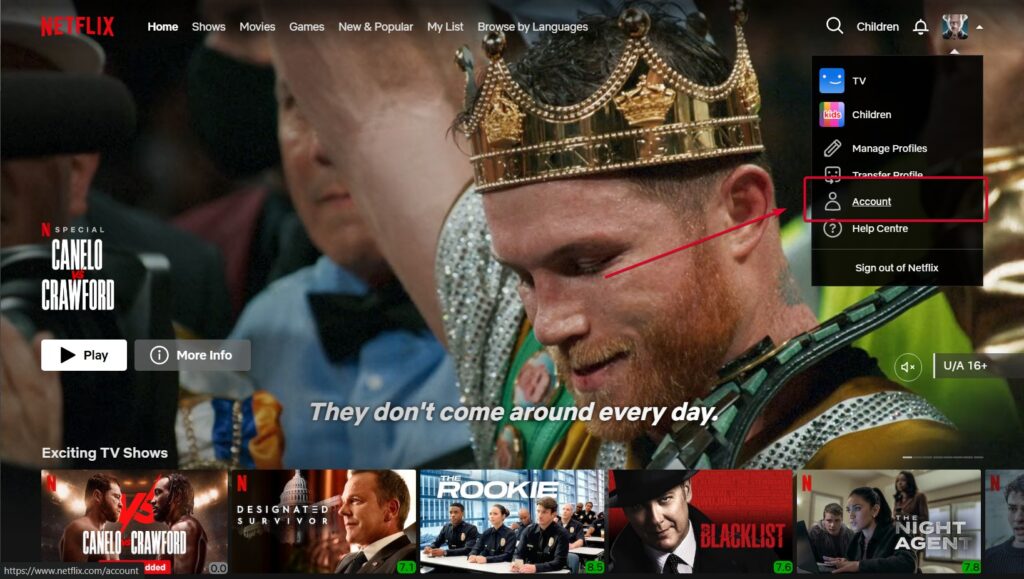
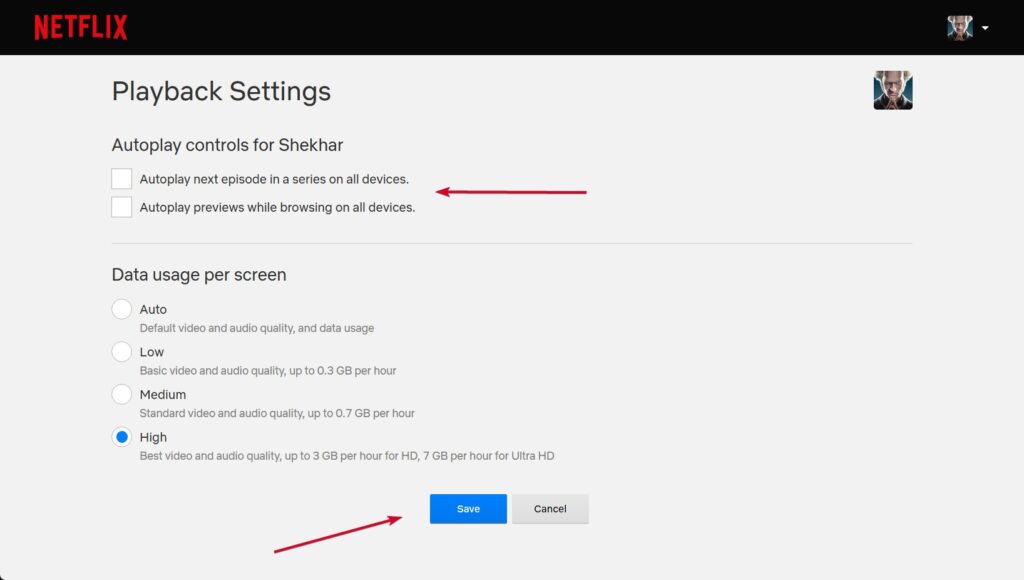
- Thereafter, click on your profile icon and select Account .
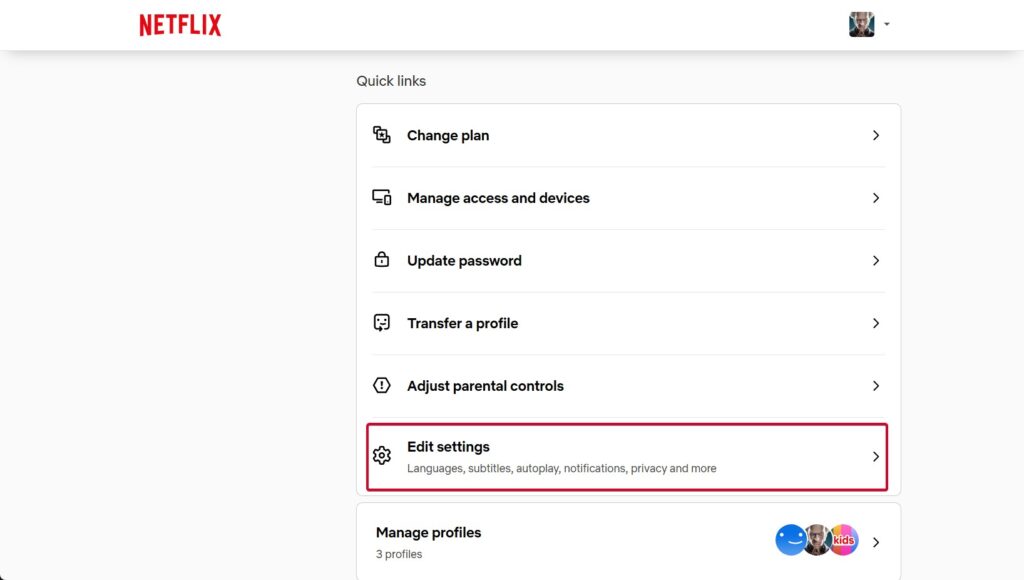
- Now, under Quick Links , click on Edit settings .
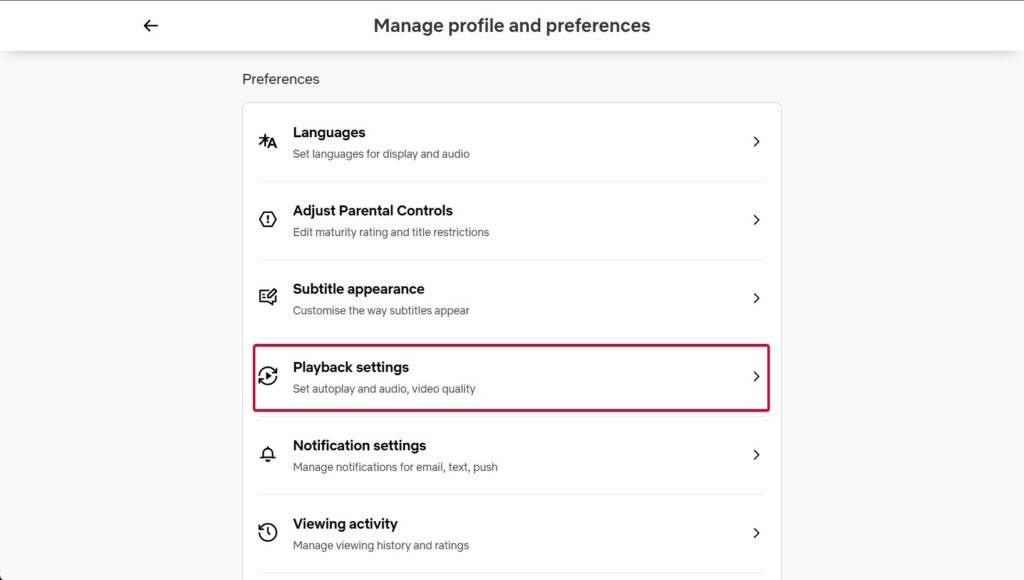
- And then Playback settings .
- Uncheck the boxes for: Autoplay the next episode in a series on all devices Autoplay previews while browsing on all devices
- Click Save .
To disable Autoplay on Mobile (iOS & Android):
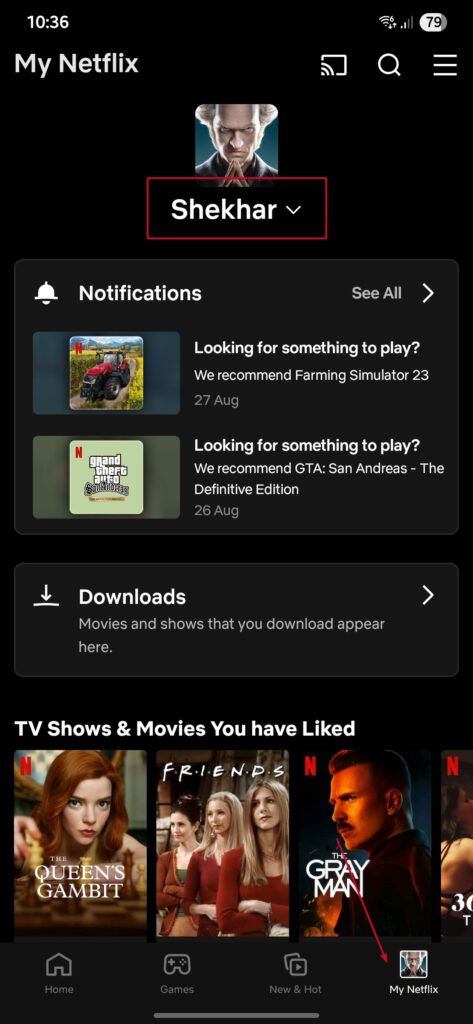
- Initially, open the Netflix app.
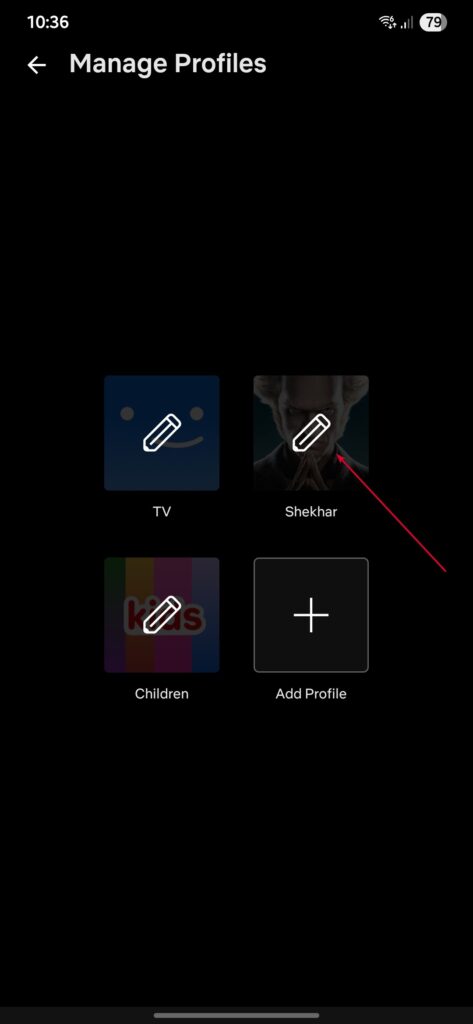
- Thereafter, tap on your profile icon and select Manage Profiles .
- After that, choose the Profile you want to modify.
- Toggle off Autoplay Previews .
- Tap Save .
Note : Changes made on one device may take a few moments to reflect across all devices.
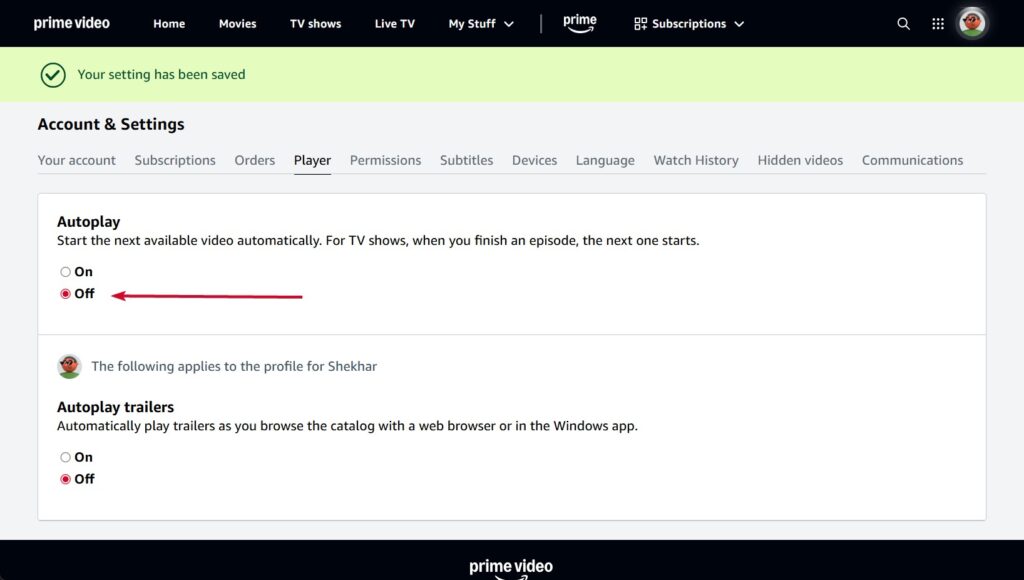
Prime Video provides an option to disable Autoplay for both episodes and trailers.
On Desktop:
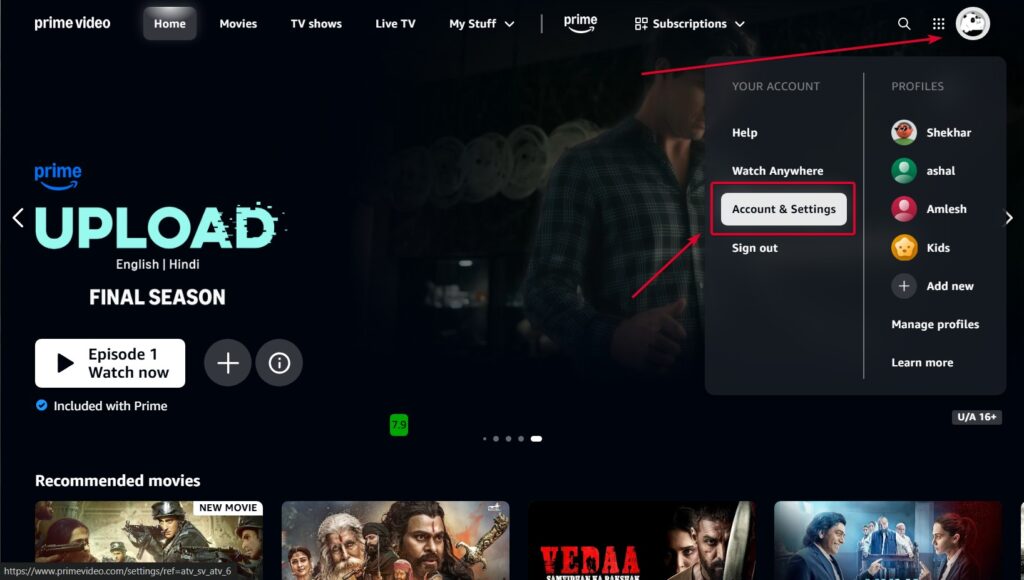
- First of all, go to Prime Video and log in .
- Afterward, click on your profile icon and select Account & Settings .
- Navigate to the Player tab.
- Under Autoplay , toggle off the options for: Autoplay next episode Autoplay previews
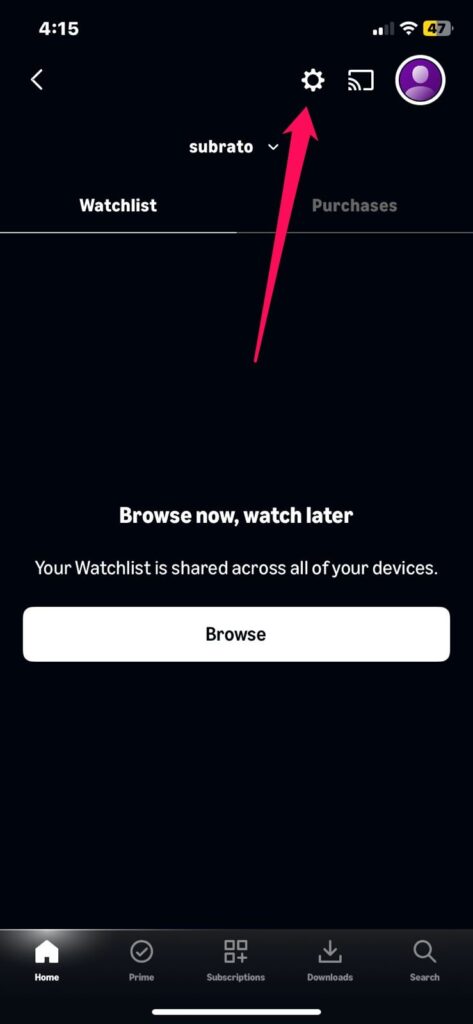
On Mobile (iOS & Android):
- Open the Prime Video app.
- Then, go to Profile.
- Tap on the Settings gear icon.
- Select Autoplay .
- Thereafter, toggle off the desired autoplay options.
Note : Settings may vary slightly depending on the device and app version.
- What is the Future of AR/VR in Live Sports and Concerts?
- How to Use VPN for Netflix to Watch Worldwide Content?
- Disney Plus to Introduce Paid Sharing Like Netflix this Summer
3. Hulu
If you are a Hulu user, you need to manage autoplay settings during playback and disable Autoplay on Hulu during Playback:
- Start playing a video.
- Click on the Settings icon (gear symbol).
- Toggle off Autoplay .
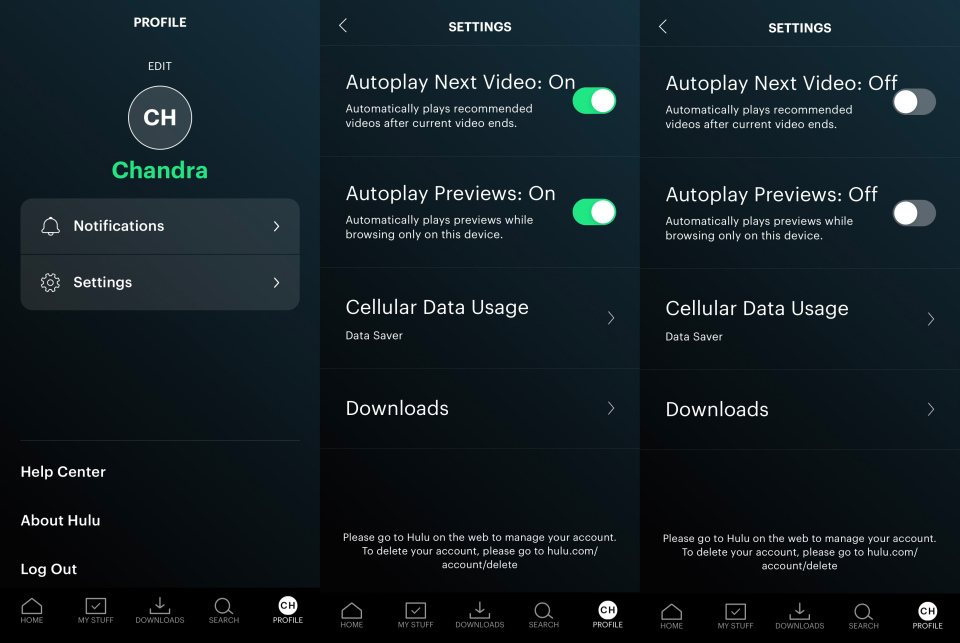
Credit: Hulu
Note : This setting needs to be adjusted for each device individually.
4. YouTube
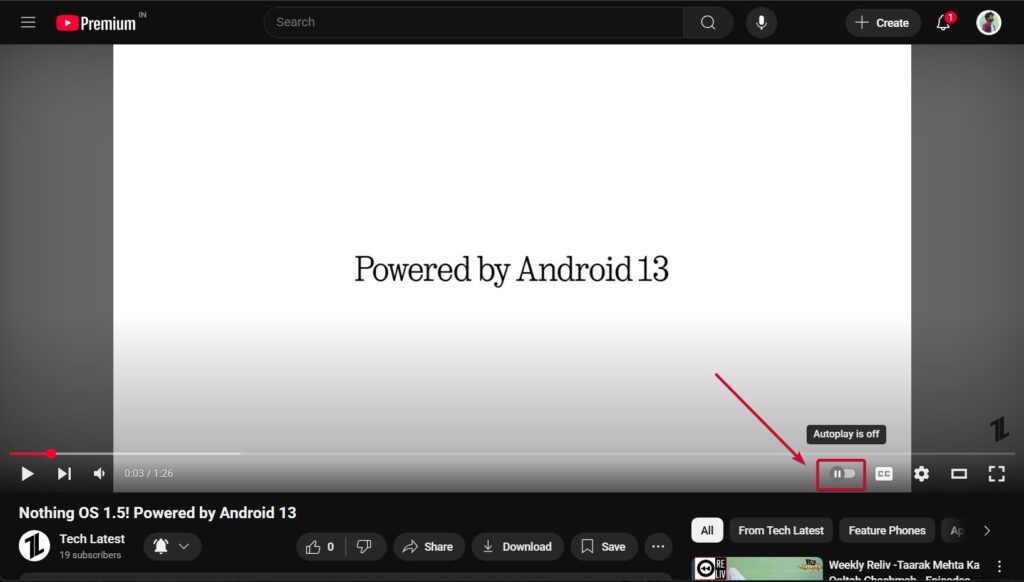
For YouTube users autoplay feature automatically plays the next video in a playlist or after the video that you are watching ends. To disable Autoplay on YouTube, follow these steps:
On Desktop:
- While watching a video, locate the Autoplay toggle on the right side of the video player.
- Click to toggle it off.
On Mobile (iOS & Android):
- Open the YouTube app.
- Tap on your profile icon and go to Settings > Playback.
- Select Autoplay .
- Toggle off Autoplay next video .
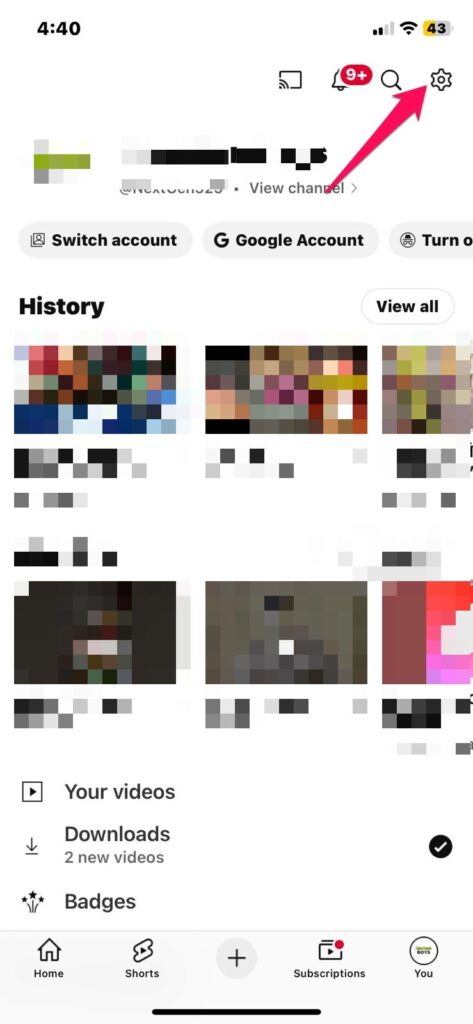
Note : Disabling Autoplay on mobile devices can also be done directly from the video player interface.
5. Disney+
To enable users to control autoplay settings for episodes in Disney+, follow these steps:
On Desktop:
- Visit Disney+ and log in .
- Click on your profile icon and select Account .
- Under Profile , click on Playback settings .
- Uncheck Autoplay next episode in a series on all devices .
- Click Save .
Credit: Disney
On Mobile (iOS & Android):
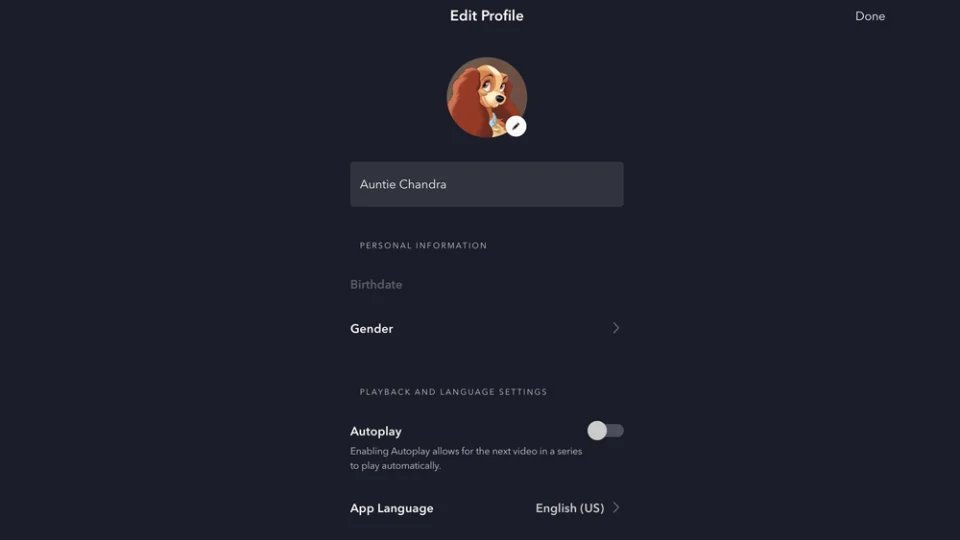
- Open the Disney+ app.
- Tap on your profile icon and select Account .
- Choose Playback settings .
- Toggle off Autoplay next episode .
Note : Settings may take a few moments to update across all devices.
6. Peacock
For Peacock users, disabling Autoplay is very easy for trailers and previews, and to do that:
On App:
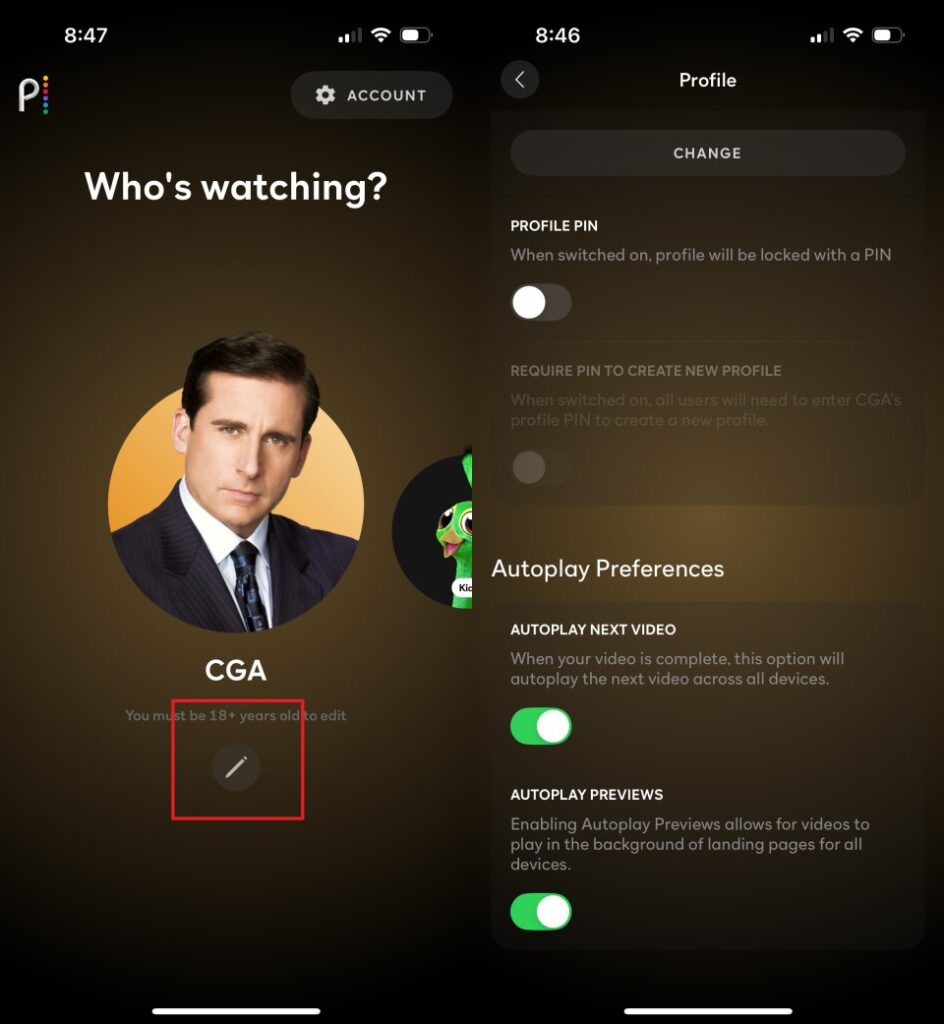
- Go to Peacock app.
- Click on your profile icon and select Pencil icon .
- Scroll down to the Autoplay Preferences section.
- Toggle off Autoplay Next Video and Autoplay Previews .
- Click Save .
Credit: Peacock
Note : This setting may vary based on the device and app version.
Social Media Apps
1.Facebook
Facebook’s autoplay feature can be managed through the app’s settings. To disable:
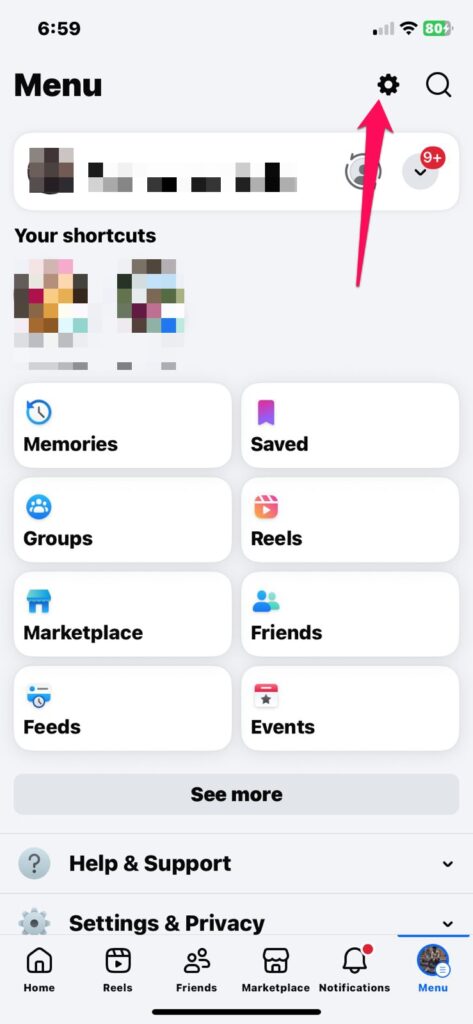
- Open the Facebook app .
- Tap on the Menu icon ( three horizontal lines ).
- Scroll down and select Settings & Privacy > Settings .
- Under Preferences , tap on Media .
- Toggle off Autoplay .
Note : Disabling autoplay can help conserve data and prevent unexpected video playback.
2.X (formerly Twitter)
X allows users to control autoplay settings for videos. To disable:
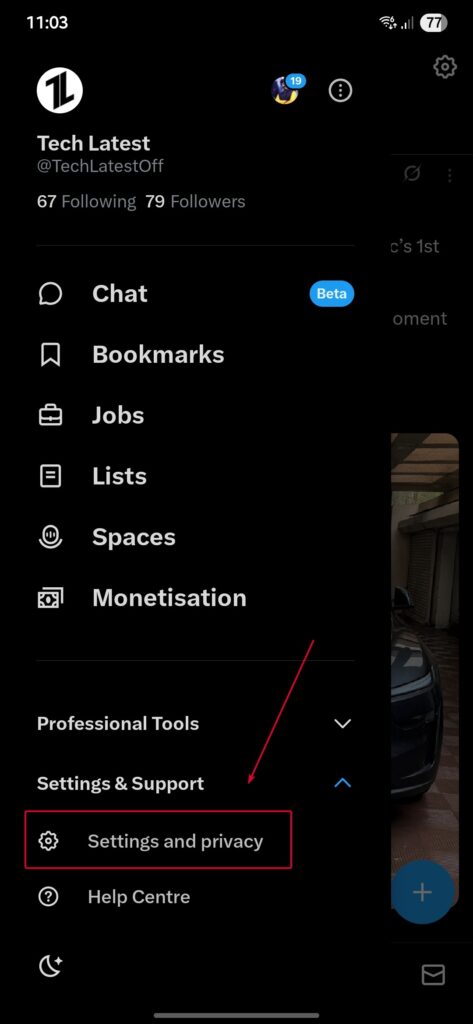
- Open the X app.
- Tap on your profile icon and select Settings and privacy .
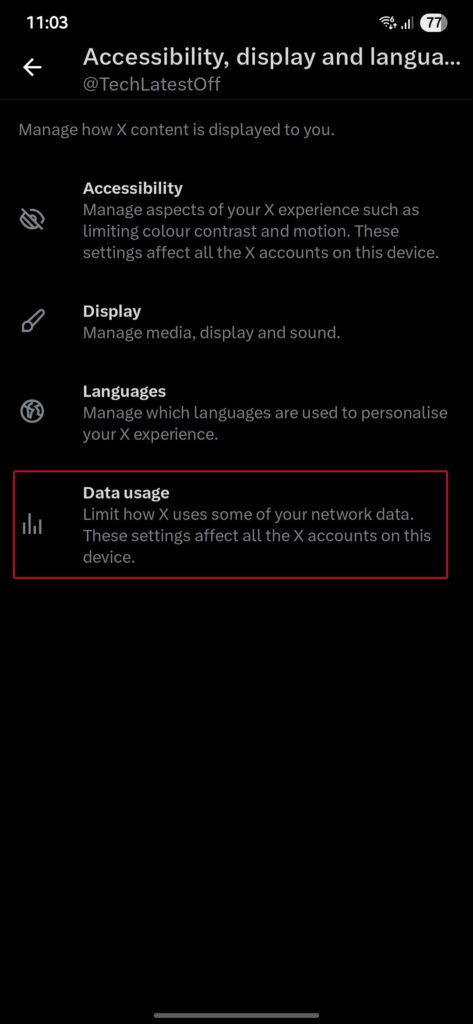
- Go to Accessibility, display, and languages .
- And then tap on the Data usage .
- Toggle off Video autoplay .
Note : Disabling autoplay can help save data and battery life.
- How to Auto Delete YouTube History on Android
- Best OTT Streaming Devices in 2025: Roku, Fire TV, Chromecast, Apple TV, and More
- YouTube AI Editing Raises Serious Concerns About Trust and Authenticity Online
3. Instagram
Instagram’s autoplay feature can be managed through the app’s settings. Here are steps steps that you need to follow to disable it:
- Open the Instagram app.
- Tap on your profile icon and select Settings .
- Go to Media Quality section.
- Toggle off Use Less Data .
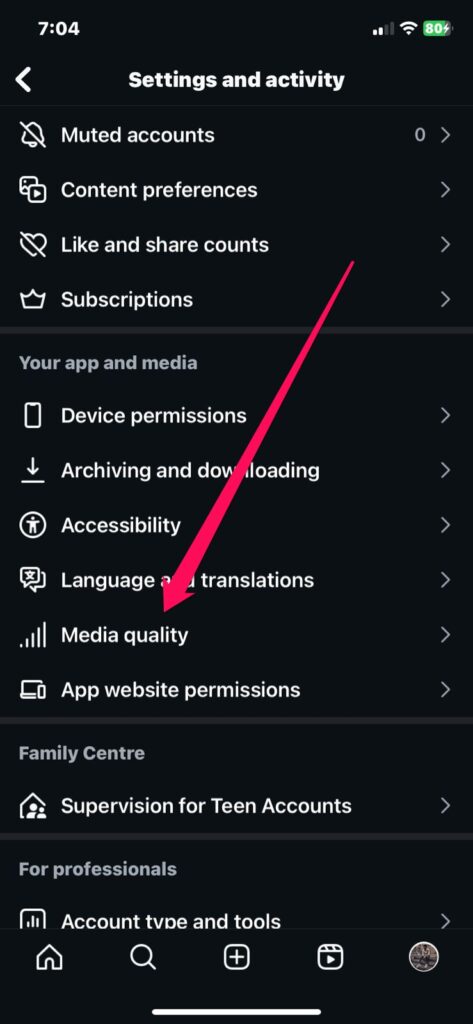
Note : While this doesn’t directly disable Autoplay, it reduces data usage, which can indirectly limit Autoplay behavior.
So, that’s all we have for you about how to disable the Autoplay on Streaming and Social Media Apps (Web Included). We hope that this guide has helped you. For more info, comment below.
Enjoyed this article?
If TechLatest has helped you, consider supporting us with a one-time tip on Ko-fi. Every contribution keeps our work free and independent.
