The Local User and Group Management (lusrmgr.msc) tool is used to manage local user accounts and groups on your computer. Without this tool, you won’t be able to add, delete, or modify local user accounts or groups.
If you’re like most Windows 10/11 users or you may have upgraded to Windows 10/11 Home and found that the Local User and Group Management (lusrmgr.msc) option is missing from the Administrative Tools menu. Now what?
Don’t want to miss the best from TechLatest ? Set us as a preferred source in Google Search and make sure you never miss our latest.
Don’t worry, you can still enable this tool by using a third-party program. Windows 10/11 Home does not come with the Local User and Group Management (lusrmgr.msc) snap-in by default.

So, if you need to use Local Users and Groups Management (lusrmgr.msc) in Windows 11 Home, you will need a third-party program.
Today I’m going to show you how to enable Local Users and Groups Management (Lusrmgr.msc)in Windows 10/11 Home running computers.
Now it’s time to get started!
Content Table
What Is lusrmgr.msc (Local Users and Groups Management)?
Local User and Group Management (lusrmgr. msc) is a console for managing local users and groups on a Windows system.
The Windows Console is a universal console that has been included in all versions of Windows since Windows 2000, including Windows XP, Vista, 7, 8, and now Windows 10.
You can use it to create, delete, or modify user and group accounts, as well as to add or remove users from groups. Additionally, you can use lusrmgr. msc to change user account properties, such as password policies, login scripts, and home directories.
How to Enable Local User and Group Management(lusrmgr.msc) in Windows 10/11 Home?
Local Users and Groups Management works similarly to the Local Group Policy Editor, so it is only available for Windows 11 Pro, Edu, and Enterprise edition of the OS.
The built-in Local Users and Groups Management snap-in is not available on Windows Home edition. In other words, Windows 10/11 Home edition does not come with a built-in management tool for local users and groups.
But we can use a third-party tool called lusrmgr.msc that works in a similar manner to the built-in tool and has the same features.
Lusrmgr is a portable application that can run on any edition of Windows 11 and Windows 10, including the Home version. And you can download it for free from GitHub.
- Various Methods to Boot into Safe Mode in Windows 10/11
- How To Run Windows Update From Command Line?
- Download Microsoft Visual C++ Redistributable (All Versions)
Note: To function correctly, The lusrmgr program requires administrative privileges and the .NET framework 4.5 or higher.
Here’s how to enable Local User Group and Management Console in Windows 11 Home Edition:
- First of all, Download the lusrmgr.exe file from this Github page .
- Once downloaded, simply double-click the program to run it. The executable is not digitally signed, so you may encounter a Microsoft Defender SmartScreen prompt. Click More info , then Run anyway .

- After launching the program, you will see the following screen, which is very similar to what you see in the built-in Lusrmgr tool:

You can now create and manage users and groups under the Local users and groups console.
Using lusrmgr, create a new user account:
- Click the Users menu and select Create to create a user.
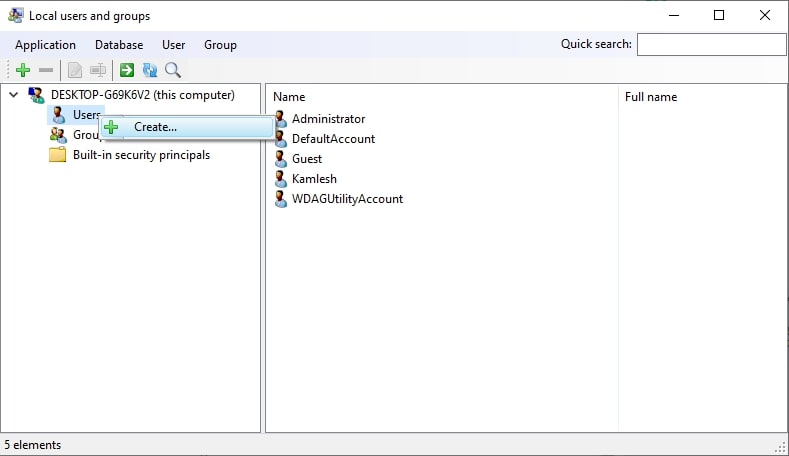
- After that, fill in all the details of a new user and click the Create button.

- To configure the advanced account options, local path, and profile path, click the Advanced button. Then click on Create to add the new account.
You can also edit, delete, rename, or add a password to an existing user account. With the Local Users and Groups Management tool, you can also enable the secret administrator account.
Furthermore, with this program, you can connect to a remote computer if the remote computer allows the remote connection. If you want to use this feature, just right-click on your computer’s entry and select connect to a computer.
Additional Features in Lusrmgr
In addition to the usual account-management features, Lusrmgr provides some additional features that are not available in the built-in utility. Here are a few examples:
If you are looking for a specific account, you can use the search function. It’s especially helpful for system administrators who manage multiple user accounts in an organization.
You can also define the access times for individual accounts. For individual accounts, you can set blocked times for specific days and times.
Right-click on the user name and choose Edit to define the access time. After that, click Define access time on the Account tab.
By default, all user accounts don’t have a time limit set. But if you want, you may select a time block for different days to define access time.
What Are The Requirements Of The lusrmgr Program?
The lusrmgr program requires administrative privileges and the .NET framework 4.5 or higher to work properly.
How Do I Open Local Users And Groups In Windows 11?
To open local users and groups on Windows 11, follow these steps:
- First of all, open the Run command by pressing the Windows key + R on your keyboard.
- Then, type in lusrmgr.msc .
- After that, press Enter on your keyboard.
This will open the Local Users and Groups window. From here, you can add new users, manage user permissions, and more.
There are many other ways to open Local Users And Groups in windows 10/11, such as:
- Using the Computer Management utility
- Directly by using lusrmgr.msc
Conclusion
So, this was all about how to enable Local User and Group Management(lusrmgr.msc) in Windows 10/11 Home. Hopefully, you enjoyed reading this post.
The Local Users and Groups Management tool is a handy tool that can help you easily manage your local users and groups.
With this program, you can add, delete, or modify user accounts and groups on your computer.
Lusrmgr is a portable application that can run on any edition of Windows 10/11, even on the Home edition. And it’s completely free to download and use.
So, if you are using Windows 10/11 Home edition and want to manage your local users and groups, then the only option you have is to use the third-party GitHub application (lusrmgr.msc).
Now it’s your turn!
Have you used the tool before? If yes, please share your experience in the comment section below.
I appreciate you taking the time to read this article!
Enjoyed this article?
If TechLatest has helped you, consider supporting us with a one-time tip on Ko-fi. Every contribution keeps our work free and independent.
Highlights
- Microsoft Windows 10 offers a new print-to-PDF feature that lets you print anything on your computer as a PDF.
- Many users, however, complained that Print to PDF did not work on their Windows machines.
- If the Microsoft Print to PDF feature is missing on Windows 11/10, we have some fixes for you that you can easily implement
With Microsoft Print to PDF, users can convert any application that supports printing into PDF files.
However, reports have been received that Windows 11 and Windows 10 users are unable to print to PDF because the Microsoft Print to PDF option is missing from the available printer list.
Don’t want to miss the best from TechLatest ? Set us as a preferred source in Google Search and make sure you never miss our latest.
Particularly if you utilize this feature regularly for work or personal purposes, this can be frustrating.
In this article, we will explain a step-by-step guide to help you fix if Microsoft Print to PDF Missing on Windows 11/10 issue. So, let’s check out the steps.
Content Table
Why is Microsoft Print to PDF Missing?
There are several reasons why you may not be able to print to PDF on a Windows 11 or Windows 10 computer.
In order to troubleshoot and resolve the problem effectively, it is important to understand these reasons. Some of the leading causes are as follows:
- Corrupted system files
- Outdated or incompatible printer drivers
- Disabled or missing the Microsoft Print to PDF feature
- Windows update issues
How to Fix Microsoft Print to PDF Missing on Windows 11/10
So, here are some fixes that will help you fix Microsoft Print to PDF missing on Windows 11 or 11 PC:
Fix 1:Using Windows PowerShell, Reinstall Microsoft Print to PDF
Microsoft Windows Powershell can be used to complete the reinstallation process as well. Microsoft Print to PDF mission Windows 11 can be resolved with the same set of two commands.
- In Search, type powershell , right-click Windows PowerShell, and choose Run as administrator .
- After each command, press Enter .
Disable-WindowsOptionalFeature -online -FeatureName Printing-PrintToPDFServices-Features
Enable-WindowsOptionalFeature -online -FeatureName Printing-PrintToPDFServices-Features
Fix 2: Add Print to PDF Via Windows Features Dialog
There are additional features available in both Windows 11 and 10 called Optional Features. You can opt to have some of these features pre-installed, while others are available as a download or installation on demand.
If Print to PDF has been disabled on your computer, you can enable it in the Windows Features dialog. Here are a few easy steps for adding or removing Optional Features in Windows.
- Initially, open the Search box.
- Enter Optional Features and click OK to open the Dialog for Optional Features . Alternatively, you can access it through Settings > Apps > Optional Features > More Windows features .
- Find Microsoft Print to PDF in the Turn Windows features on or off dialog box.
- To install Microsoft Print to PDF, select it and click OK .
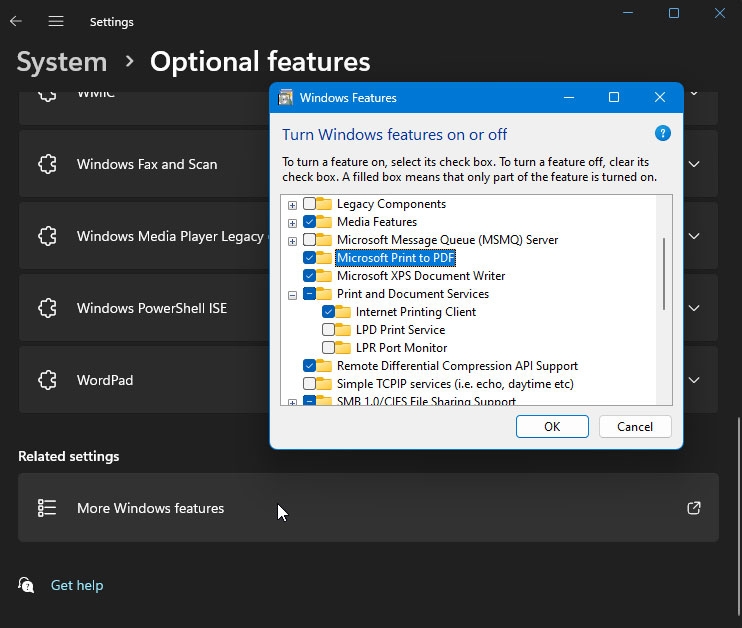
- Once the installation has been completed, click Close . In the Printer interface, check whether the Print to PDF option is restored.
Ensure that the Microsoft Print to PDF option is not already selected and uncheck it. In this way, the OS will be prompted to uninstall the feature correctly.
Once the driver has been uninstalled, launch the Windows Features dialog and enable the Print to PDF option.
You can solve the problem by turning off the feature in the Windows Features dialog box and restarting your computer.
If the Print to PDF option is not restored after the restart, try enabling the feature again in Optional Features.
Fix 3: Disable/Enable the Print to PDF Feature Via Command Prompt
You can disable or enable optional Windows features with the Deployment Image Service Management (DISM) command-line tool if you prefer.
To install Print to PDF using the Command Prompt, follow these steps:
- To open Run , press Win + R .
- Enter cmd, then press and hold the Ctrl + Shift keys and click OK. This opens the Command Prompt as an administrator .
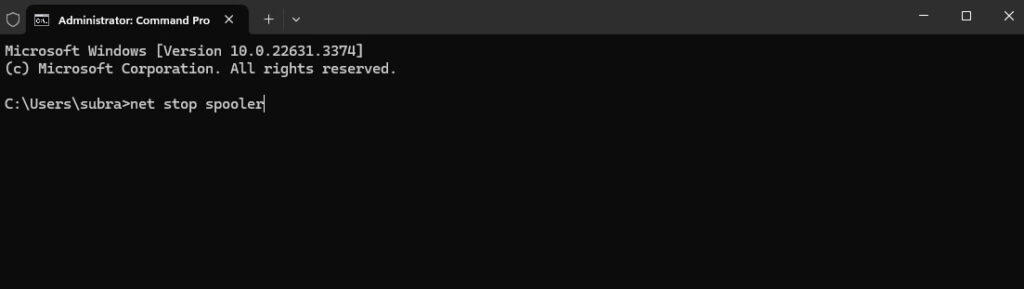
- To stop the spooler service, type the following command at the Command Prompt. net stop spooler
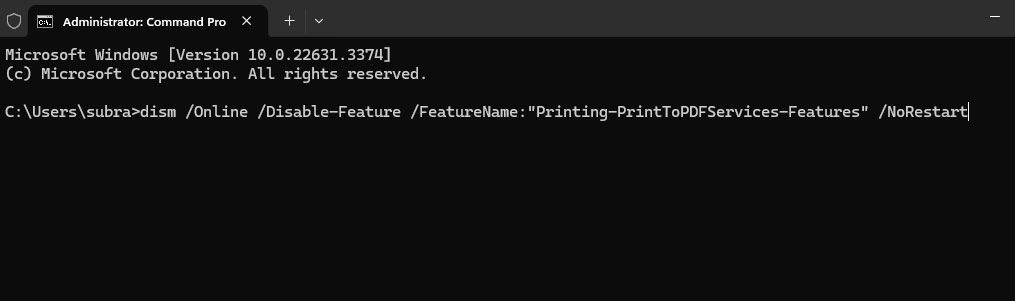
- After you have successfully stopped the Print to PDF services, type the following command to disable it:
dism /Online /Disable-Feature /FeatureName:"Printing-PrintToPDFServices-Features" /NoRestart
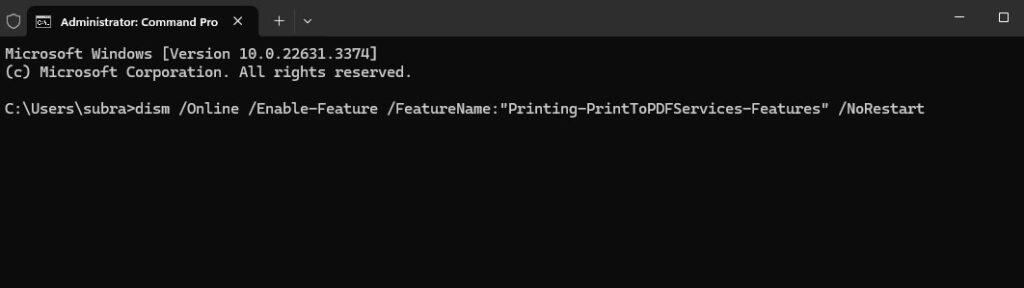
- To enable the feature again, type the following command and press enter after the Operation is complete message appears:
dism /Online /Enable-Feature /FeatureName:"Printing-PrintToPDFServices-Features" /NoRestart
- Afterwards, you will see the message Operation completed successfully if it was successfully installed.
- Now that Windows has the Print to PDF feature, you should be able to save documents in PDF format.
Fix 4: Add Print to PDF Via Add Printer Wizard
You can also add a new printer from the Settings tab if the Print to PDF option is missing. If you choose the Print to File option when adding a new printer, you will be able to choose the Print to PDF option as well. However, to manually add the Print to PDF printer, follow these steps:
- To open Settings , press Win + I .
- Go to the left pane and click Bluetooth & Devices .
- On the left side, click Printers & Scanners .
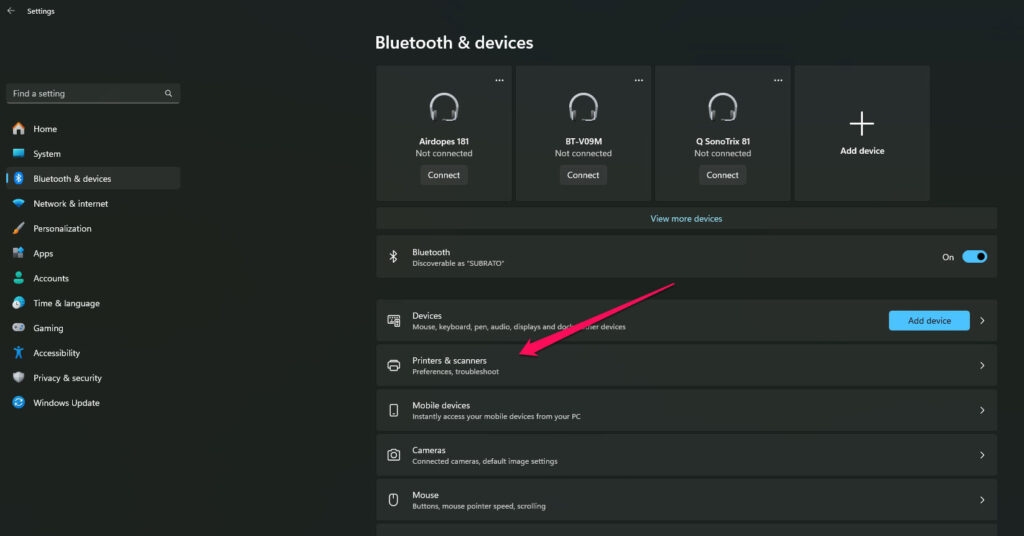
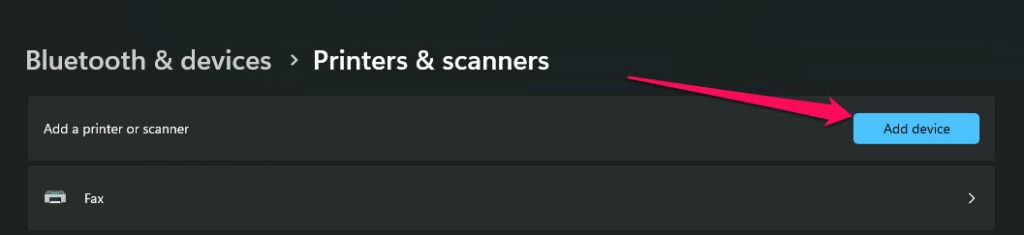
- Thereafter, in the top right corner, click the Add Device button. When a printer is connected, Windows automatically starts scanning for it.
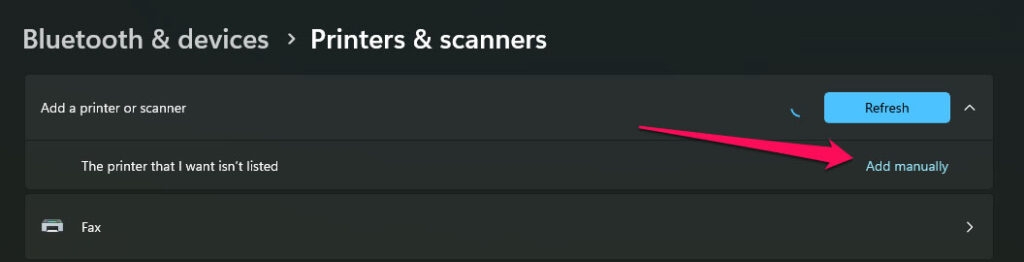
- Suppose the printer you are looking for isn’t listed there, then click Add manually .
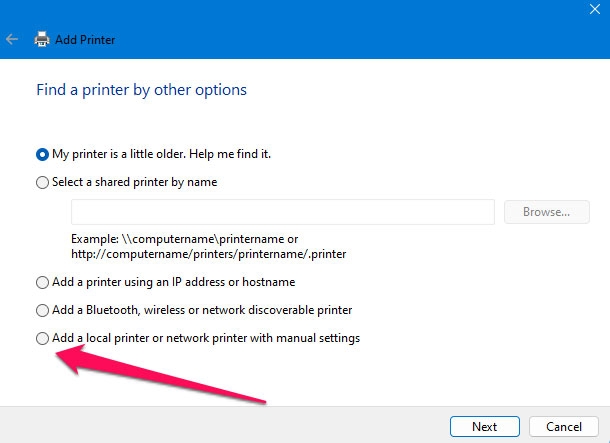
- Afterwards, select Add a local printer or network printer with the manual settings option in the Add Printer dialog.
- Click on Next .
- Choose Use an existing port from the drop-down menu. Select File: (Print to File) . When Print to File isn’t available or doesn’t work, try PORTPROMPT (Local Port) or PDF (Local Port) . You can also use this with older versions of Windows 10.
- To continue, click Next .
- Afterwards, on the Install the printer driver screen, select Microsoft from the Manufacturer drop-down menu. Under Printers , select Microsoft Print to PDF .
- To continue, click Next .
- To save the changes, type your new printer’s name or leave it as it is by default and click OK .
- Afterwards, open the Print interface and check whether the Print to PDF option is available.
Fix 5: Turn Off/On The Feature
Windows 10 and 11 come with a native Print to PDF feature. Hence, if it is missing, there could be a minor problem surrounding it, which can be fixed by turning off and re-enabling the feature.
- Enter Turn Windows features on or off in the Search box.
- In the Windows features, look for “ Microsoft Print to PDF “.
- Uncheck the box and check it again. To save your changes, click OK .
- Check your printer list after restarting the PC.
Fix 6: Reinstall Microsoft Print to PDF Using Device Manager
Microsoft Print to PDF can be reinstalled via Device Manager if the above methods do not resolve the issue “Microsoft Print to PDF missing”.
- Initially, in the Search box, type Device Manager and click Open .
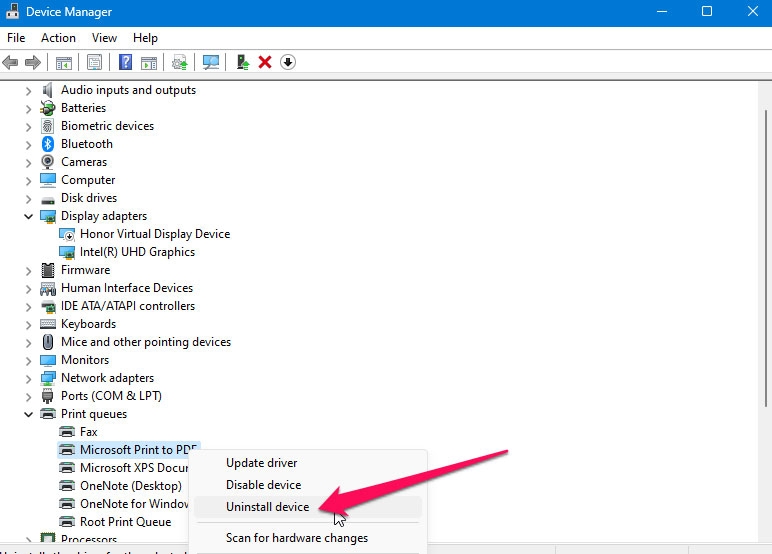
- Afterwards, expand the Print queues list.
- Thereafter, right-click on the Microsoft Print to PDF option. Choose Uninstall device . Once the driver has been installed, you can use it again.
So, that’s all we have for you on how to fix Microsoft Print to PDF missing on Windows 11 or 11 PC. It is our hope that you have found this guide helpful. Feel free to comment below if you need more information.
Further Reading:
- Best Windows PC Software for Fan Speed Control
- How to Fix the “Your PC needs to be repaired” Error?
- How to Enable/Disable Memory Compression in Windows 11?
Enjoyed this article?
If TechLatest has helped you, consider supporting us with a one-time tip on Ko-fi. Every contribution keeps our work free and independent.
