Highlights
- Still trying to figure out why you didn’t get the latest Windows 11 start menu, and your friend & colleague have it?
- Well, due to the huge Windows 11 user base, the rollout is being done in batches, and no one knows when you will get it exactly.
- In case you want to enable it manually, ViVeTool will help you do it; just run the ViVeTool command with feature ID 47205210.
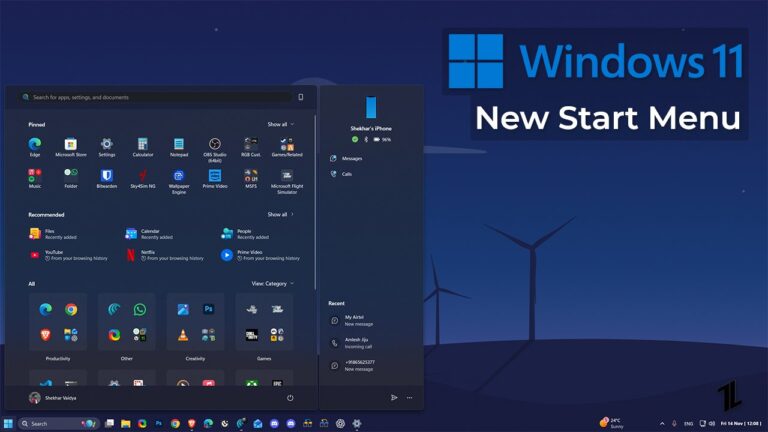
You are on the latest Windows 11 build ( 26200.7019 or later) and still didn’t get the latest and new unified Windows 11 start menu? Well, I was also one of you, and even I didn’t get the new start menu.
As the Windows user base is still one of the largest, with over 1.4 billion active Windows devices around the globe. Although not all the devices have Windows 11 on them, still the number is large, and the rollout of any new feature is done in batches.
Don’t want to miss the best from TechLatest ? Set us as a preferred source in Google Search and make sure you never miss our latest.
The new Windows 11 start menu comes with a number of modifications that enhance the user experience. One of the most wanted features is the All Apps list, which offers two views, a familiar grid list and a new category view.
If you want to know all the changes in the new Windows 11 start menu, head to this article , where we talked about the October 28, 2025—KB5067036 (OS Builds 26200.7019 and 26100.7019) update.
If you are convinced enough not to wait for the rollout time and want to enable the new Windows 11 start menu, follow the instructions listed below.
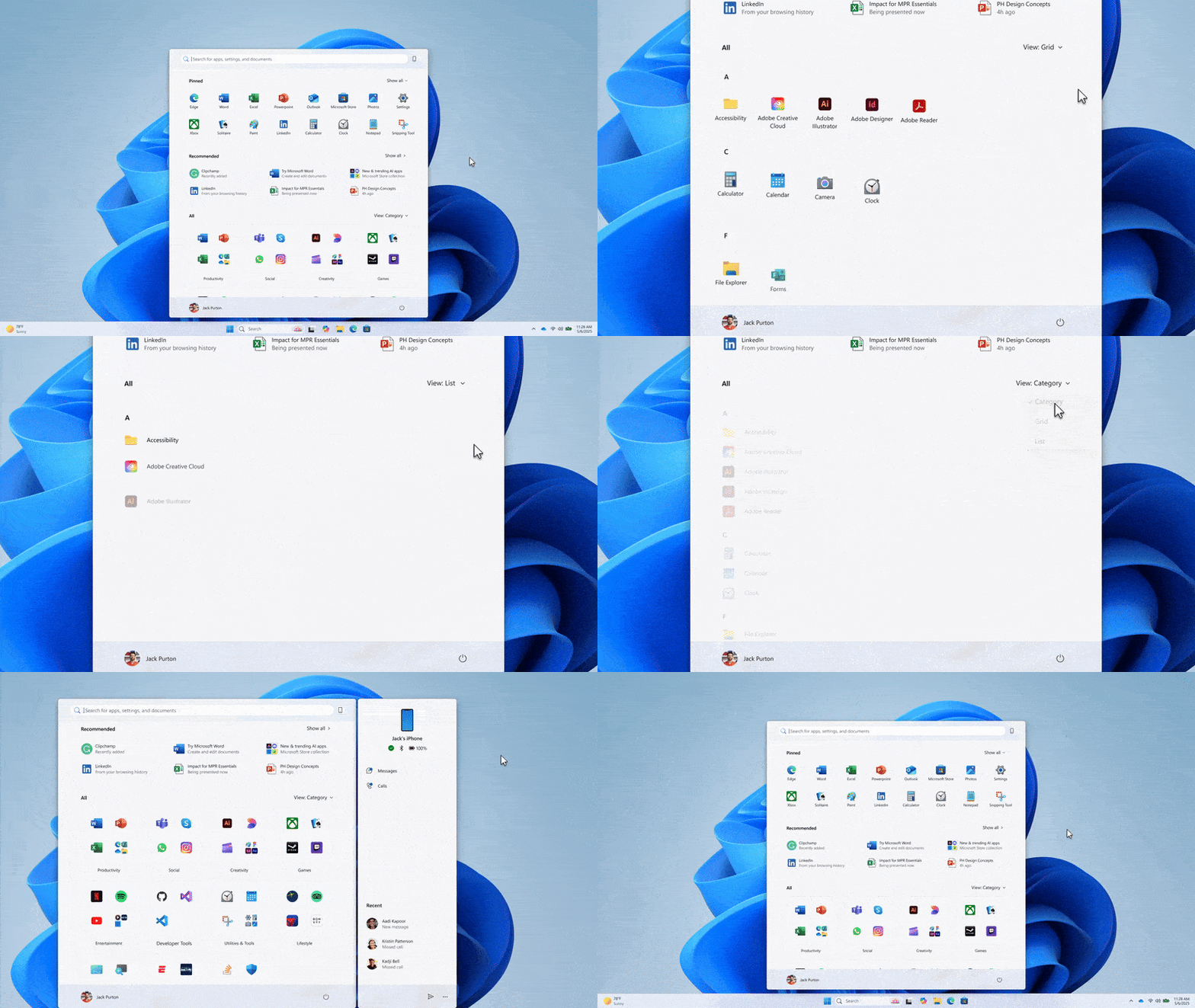
New Windows 11 Start Menu
Content Table
Enable new Windows 11 Start Menu
What is ViVeTool? And how does it work?
ViVeTool is an open-source and free command-line utility that helps Windows 11 and 10 users to enable experimental features that Microsoft hasn’t officially rolled out yet.
It interacts with the Windows Feature Store (part of Windows Notification Facility), which is an internal kernel component used to
- control features rollouts
- enable or disable features remotely
- quickly disable problematic features
Without further ado, let’s start with the steps,
- Open the ViVeTool Github repo and download the latest release.
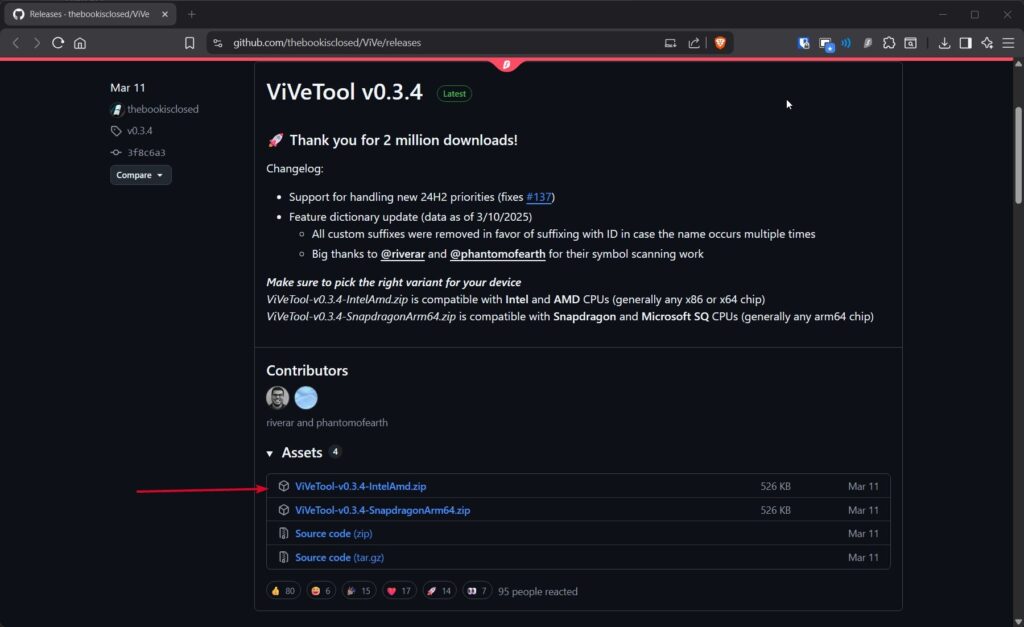
Download ViVeTool from GitHub Repo
- Extract the downloaded ViveTool-vx.x.x.zip file to a less complicated location. (like C:\ViVeTool)
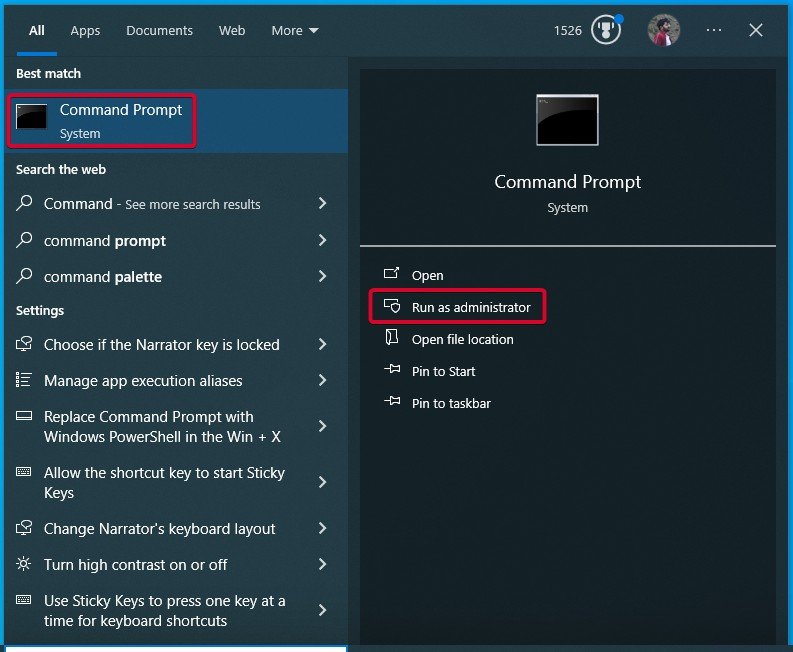
- Now, open Command Prompt as administrator.
- Use the CD command to navigate to the extracted ViVeTool directory/folder.
cd C:\ViVeTool
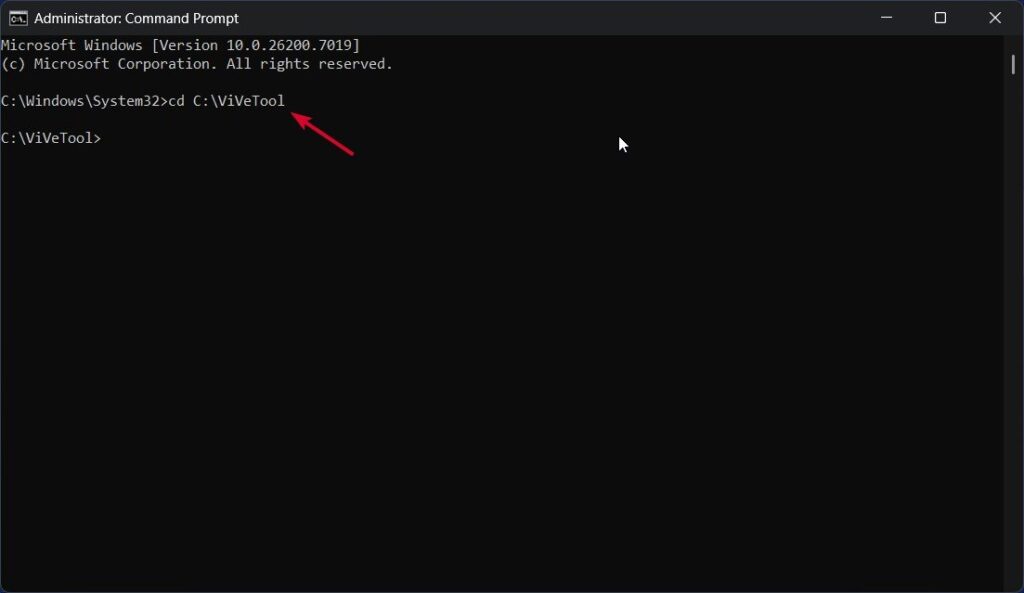
Use cd Command to Navigate to ViVeTool Folder
- Finally, execute the following ViVeTool command to enable the new Windows 11 start menu. The feature ID is 47205210.
vivetool /enable /id:47205210
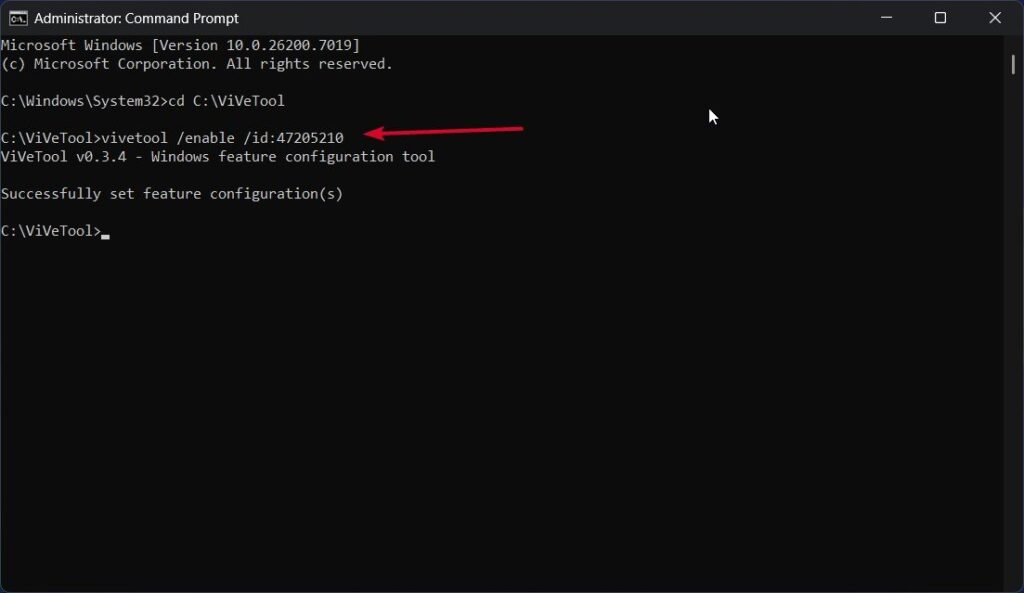
- Restart your computer to transition the old start menu to the new Windows 11 start menu.
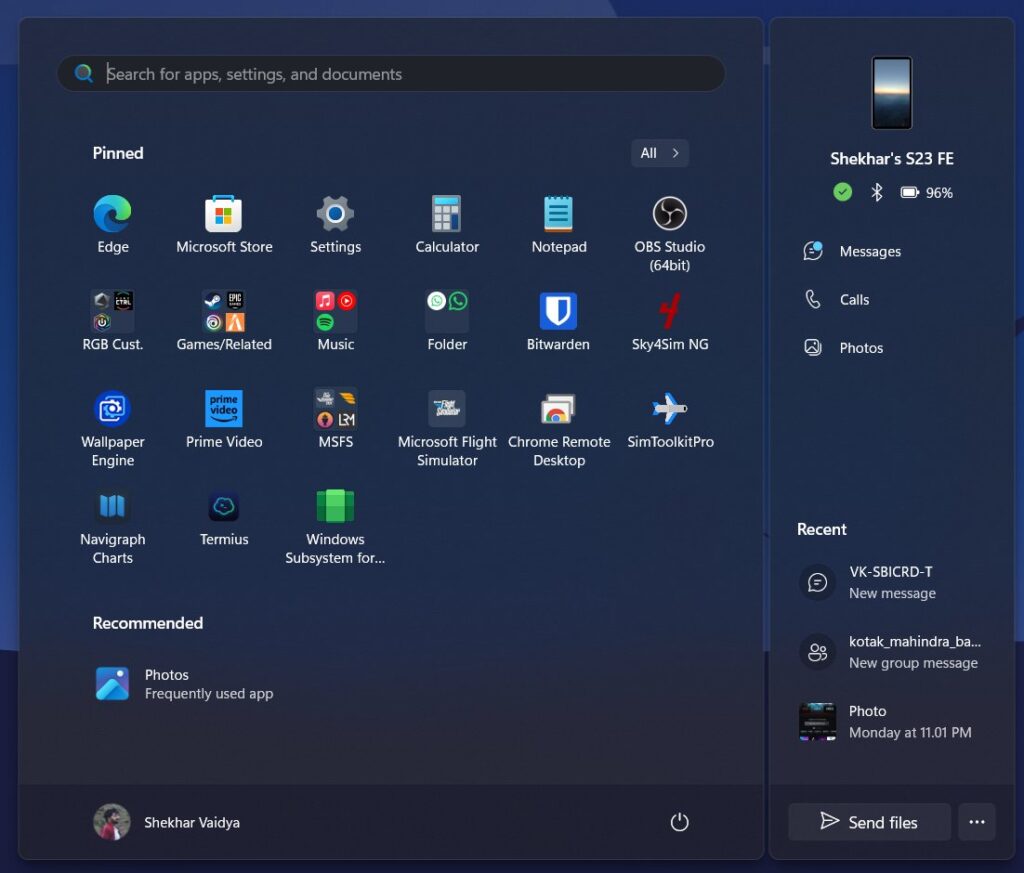
Old Start Menu
- I Tested the Native Windows 11 Live Wallpaper Feature
- 5 Tested Methods to Bypass Microsoft Account in OOBE on Windows 11
- How to Get Free Extended Security Updates (ESU) After Windows 10 End of Support
Is ViVeTool safe to use?
Yes, ViVeTool is 100% safe to use, but note that it can enable experimental as well as untested features that may have unknown bugs, which can ruin your experience.
Do I need an admin account to use ViVeTool?
Yes, you are going to need an admin account to enable the feature via ViVeTool, as it runs on the command prompt with admin privileges.
Can I revert to the old Start menu design?
Yes, you can revert back to the old design whenever you want, until and unless Microsoft pushes the update to all the devices permanently. You revert back to the old design follow all the above steps mentioned above and instead of enable command, execute the vivetool /disable /id:47205210 command.
Can I use ViVeTool to enable other hidden Windows features?
Yes, ViVeTool supports many feature IDs. Each ID corresponds to a different hidden feature. You can find the whole list in Windows forums.
Enjoyed this article?
If TechLatest has helped you, consider supporting us with a one-time tip on Ko-fi. Every contribution keeps our work free and independent.
