Highlights
- Portrait Mode on Snapchat highlights your face by blurring the background for professional-looking selfies.
- iPhone users can enable or adjust Portrait Mode via Snapchat Controls, while Android users rely on lenses.
- The feature works seamlessly with other Snapchat effects and can be turned on or off anytime.
Snapchat’s Portrait Mode is a feature designed to enhance your selfies by blurring the background, allowing you to stand out in your photos.
This effect will mimic the depth-of-field seen in DSLR photography, creating a professional look for your snaps.
Don’t want to miss the best from TechLatest ? Set us as a preferred source in Google Search and make sure you never miss our latest.
While this feature is available on iPhones, Android users can achieve a similar effect using Snapchat’s lenses. So, if you are looking for a guide that will help you use Portrait Mode on Snapchat, then this guide will help you do so.
Content Table
What is Portrait Mode on Snapchat?
Portrait Mode on Snapchat utilizes your iPhone’s front camera to create a depth-of-field effect. However, blurring the background ensures that the focus remains on your face, enhancing the overall quality of your selfies.
This feature is particularly useful when you’re in surroundings with distracting backgrounds or when you want to achieve a more polished look for your snaps.
How to Enable Portrait Mode on Snapchat (iPhone)
To activate Portrait Mode on Snapchat using your iPhone, follow these steps:
- Open Snapchat Camera : Launch the Snapchat app and switch to the front-facing camera.
- Access Control Center : Swipe down from the top-right corner of your iPhone screen to open the Control Center.
- Navigate to Snapchat Controls : At the top of the Control Center, you’ll see the Snapchat Controls. Tap on it to access additional camera settings.
- Enable Portrait Mode : In the Snapchat Controls menu, tap the Portrait icon. When activated, the icon will be highlighted in white, indicating that Portrait Mode is now enabled.
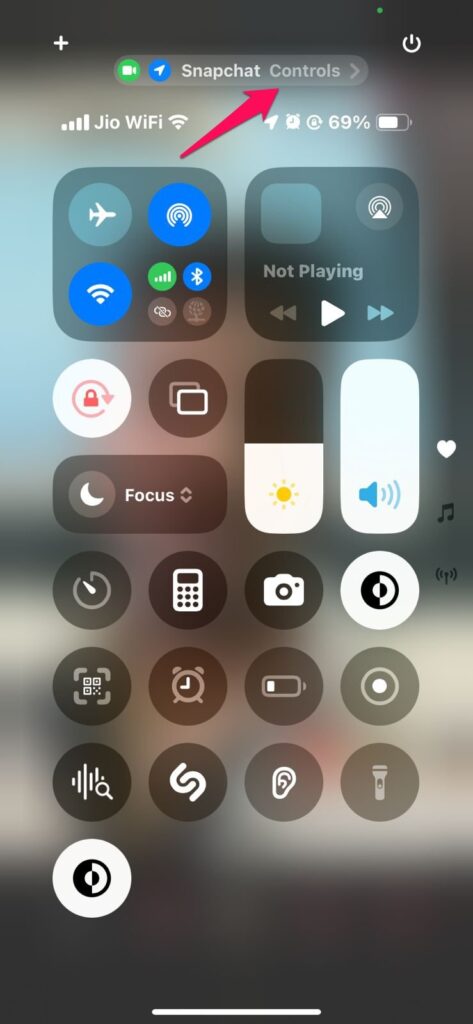
- Adjust the Blur Effect : Once Portrait Mode is active, you can fine-tune the background blur. Tap the arrow icon and use the slider to increase or decrease the blur effect to your preference.
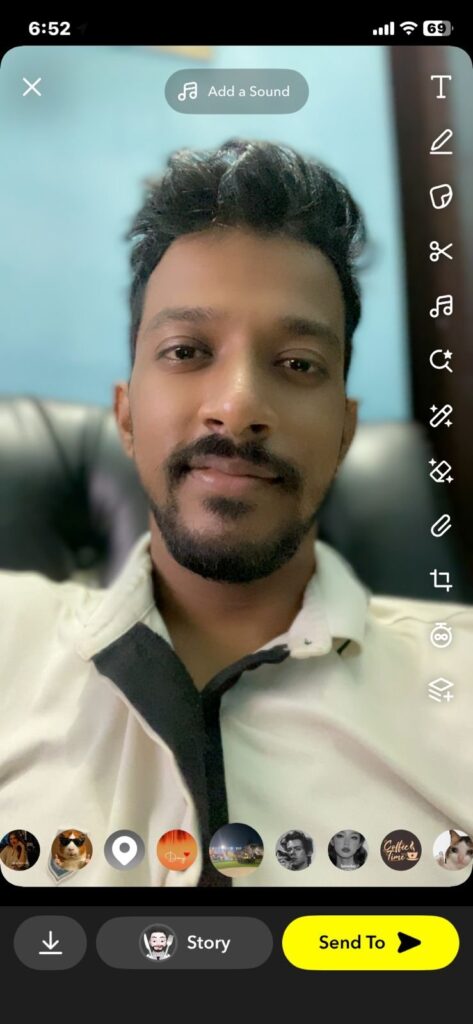
- Additional Features : While in the Snapchat Controls menu, you can also enable other features like Studio Lights, Reactions, and Centre Stage to further enhance your snaps.
How to Disable Portrait Mode on Snapchat (iPhone)
If you wish to turn off Portrait Mode, follow these steps:
- Open Snapchat Camera : Launch the Snapchat app and switch to the front-facing camera.
- Access Control Center : Swipe down from the top-right corner of your iPhone screen to open the Control Center.
- Navigate to Snapchat Controls : At the top of the Control Center, tap on the Snapchat Controls to access camera settings.
- Disable Portrait Mode : In the Snapchat Controls menu, tap the Portrait icon to deactivate Portrait Mode. The icon will no longer be highlighted, indicating that the feature is turned off.
How to Turn On Portrait Mode on Android Devices
Currently, Snapchat’s Portrait Mode is exclusive to iPhone users. However, Android users can achieve a similar background blur effect by using Snapchat’s lenses. To do this:
- Open Snapchat : Launch the Snapchat app on your Android device.
- Access Lenses : Tap on the screen to bring up the lens options.
- Select a Lens with Background Blur : Browse through the available lenses and select one that offers a background blur effect similar to Portrait Mode.
- Capture Your Snap : Once you’ve selected the desired lens, take your selfie. The lens will apply the background blur effect to your photo.
Does Portrait Mode reduce the quality of my snaps?
No, enabling Portrait Mode does not affect the resolution or quality of your photos. It only applies a background blur effect to enhance the subject.
Can I use Portrait Mode with Snapchat lenses?
Yes, you can use Portrait Mode in conjunction with Snapchat lenses. The background blur effect will still apply, and the lens features will be added on top.
Why is Portrait Mode not working on my iPhone?
If Portrait Mode isn’t functioning correctly, try restarting the Snapchat app, updating it to the latest version, or restarting your iPhone. If the issue persists, check your camera settings to ensure that Portrait Mode is enabled.
Is Portrait Mode available on Android devices?
No, Portrait Mode is currently exclusive to iPhone users. Android users can use Snapchat lenses to achieve a similar background blur effect.
Can I adjust the level of background blur in Portrait Mode?
Yes, once Portrait Mode is enabled, you can adjust the blur effect by tapping the arrow icon and using the slider to increase or decrease the background blur to your liking.
- Snapchat Charging for Memories? What It Means for Saving Photos
- Can Your Snap Score Go Up Without Opening Snapchat?
- How to Unlock the Butterflies Lens on Snapchat?
Conclusion
Snapchat’s Portrait Mode is a valuable feature for iPhone users who wish to enhance their selfies by blurring the background and focusing on their face. By following the steps outlined above, you can easily turn this feature on or off as per your preferences.
While Android users currently don’t have access to Portrait Mode, they can use Snapchat’s lenses to achieve a similar effect. Remember to keep your app updated and check your camera settings to ensure optimal performance of Portrait Mode.
So, that’s how you can turn on Portrait Mode on Snapchat for iPhone users. We hope that this guide has helped you. For more details, comment below.
Enjoyed this article?
If TechLatest has helped you, consider supporting us with a one-time tip on Ko-fi. Every contribution keeps our work free and independent.
