Highlights
- SVG files are a popular choice for logos, icons and drawing as they are scalable with no quality loss.
- Unfortunately, though, Windows 11 does not show thumbnail previews of SVG files in File Explorer by default, so previewing these files without having to open them is not really fun.
- The good news is that, here in this guide, we have some easy tricks to enable SVG thumbnail preview.

SVG (Scalable Vector Graphics) files are a vector image format used by web developers, designers, and anyone who works with graphics.
Windows 11 brings improved UI and improved file handling but not native support for SVG thumbnail previews in File Explorer.
Don’t want to miss the best from TechLatest ? Set us as a preferred source in Google Search and make sure you never miss our latest.
Instead, they appear as nondescript icons that don’t tell me what the file is without opening every single one.
If you have a few SVGs you want to quickly preview in File Explorer, then this article is for you. Here we will tell you how you can easily enable the SVG Thumbnail Preview in Windows 11 File Explorer. So, let’s get started.
Why Windows 11 Doesn’t Show SVG Thumbnails by Default
Thumbnail previews in Windows File Explorer are available for many file types, including PNG, JPG, and MP4. But SVG is not in the list of supported formats because:
- The native rendering is complicated because the SVGs are vector-based and can consist of code (JavaScript/CSS).
- Security risks from the execution of potentially unsafe code.
- Microsoft tends to support the popular file types with this sort of out-of-box thumbnail support.
This limitation can be super annoying for devs and architects, but fortunately, there are workarounds to get multi-select back via a little markup.
Steps to Enable SVG Thumbnails in Explorer in Windows 11/10
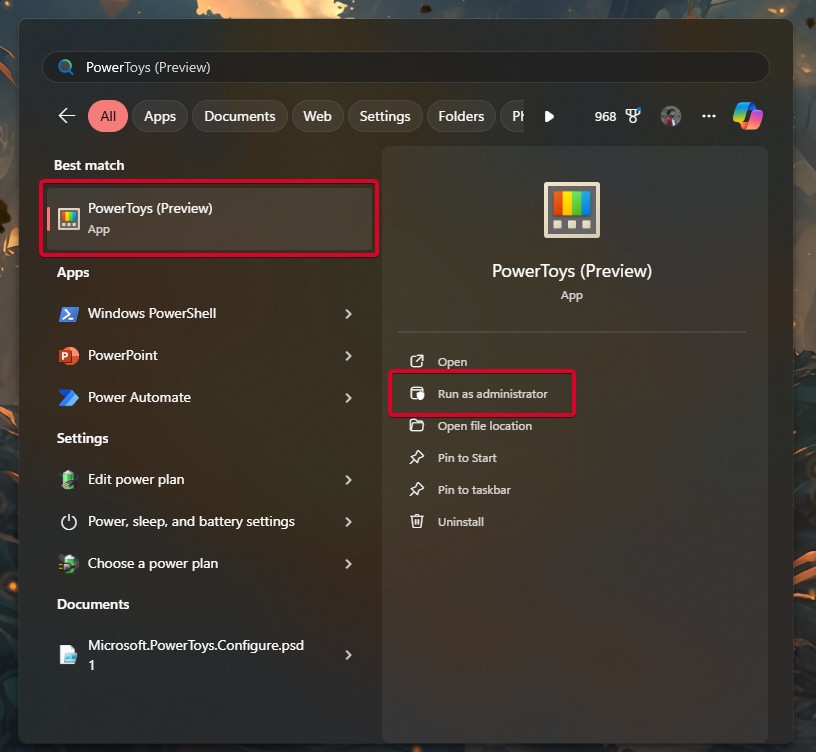
If you want to see SVG file previews directly inside File Explorer, you can with Microsoft PowerToys , a free utility by Microsoft that adds extra functionality to Windows. Just follow the steps below:
First, open the PowerToys app as administrator. Once you have the app opened, go to the left-side menu, then click on File Explorer add-ons.
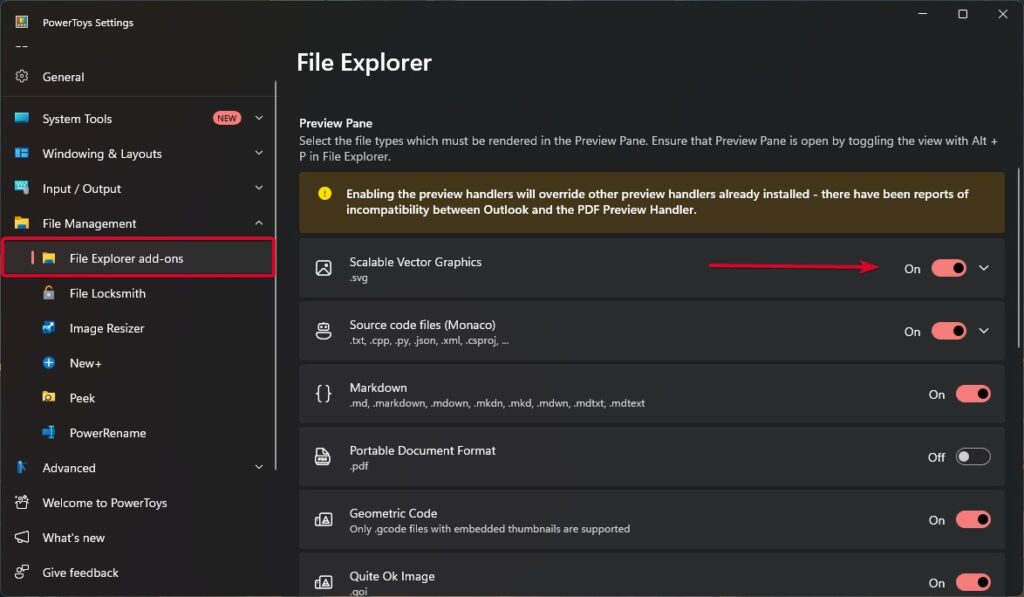
You’ll find two key options here:
- SVG (.svg) Preview – Preview SVG files in Preview Pane (press Alt+P to toggle).
- SVG (.svg) thumbnails – This enables thumbnail previews right in the icon view.
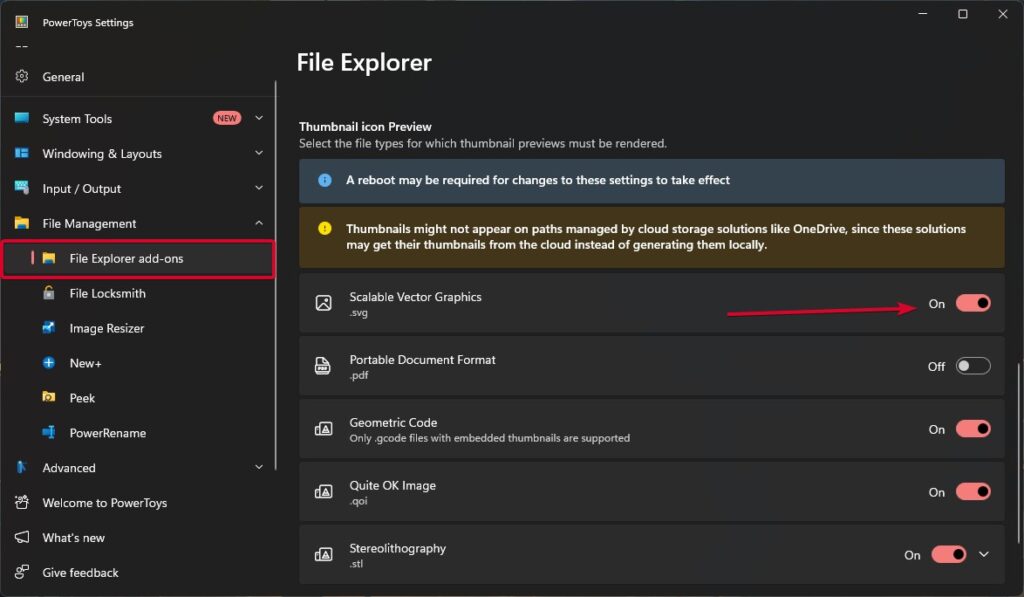
To enable these features, turn both of the switches to On . The first will allow you to see SVGs in the preview pane, while the second will allow File Explorer to show thumbnail images of SVGs in large or extra-large icon views.
Once on, go to any folder with .svg files . You should now see real-time thumbnails instead of boring icons, which makes it far easier to visually discern your vector art on the fly.
Is It Safe to Enable SVG Previews?
Yes, if you’re using trusted tools like PowerToys, SVG Explorer Extension, or Inkscape . But these are SVGs, and we all know SVGs can contain inline scripts, so just ensure that you:
- Don’t download SVG files from untrusted sources.
- Employ an antivirus program that provides real-time protection.
- Turn off scripts in homegrown viewers if possible.
Conclusion
SVG (scalable vector graphic) thumbnails are not supported by Windows 11 out of the box, but it’s easy to set up the feature with the right tools.
There are a couple of different methods to work around this, with SVG Explorer Extension being the best for actual thumbnail previews, while PowerToys adds handy Preview Pane support.
With a little setup and a few system setting tweaks, you can make browsing SVGs in File Explorer much quicker and far more visual, spending less time and improving your productivity.
Enjoyed this article?
If TechLatest has helped you, consider supporting us with a one-time tip on Ko-fi. Every contribution keeps our work free and independent.
