
Windows 10 is a weird OS, it is very good to use but then you have these weird errors appearing on your screen every now and then. One of those is the Error Code 0x80070005 known as the “Access Denied” error and it is related to Windows updates. It is important to fix 0x80070005 error for a seamless experience on Windows 10 OS.
This error generally occurs when a user doesn’t have the required files or permissions to adjust the settings for Windows updates and as a result, the process of Windows update is aborted, or another reason could be something wrong with your hard disk, it can be anything like a bad sector where the Windows update files are stored and that is why they get corrupted.
Don’t want to miss the best from TechLatest ? Set us as a preferred source in Google Search and make sure you never miss our latest.
This causes a lot of problems. Some of the problems that one faces are the slow performance of the system, abrupt restart, weird crashes (Blue Screen of Death -BSOD).
In this article, we are going to discuss some of the methods that one can use to fix 0x80070005 error in Windows 10. So, follow all the steps and methods:
Content Table
Fix 0x80070005 Error in Windows 10
Creating a Backup
It is always recommended that you create a backup for all of your important files in case you are facing this error. In general, too, having a backup of important files is always good.
Checking Disk Space
One the very basic things, Windows updates require a good amount of free space and that is why you should always keep enough storage space. Keep your system clean, keep entertainment data in external storage. Also keep the C: disk which is where the Windows files are generally stored clean.
Windows Update Trouble-shooter
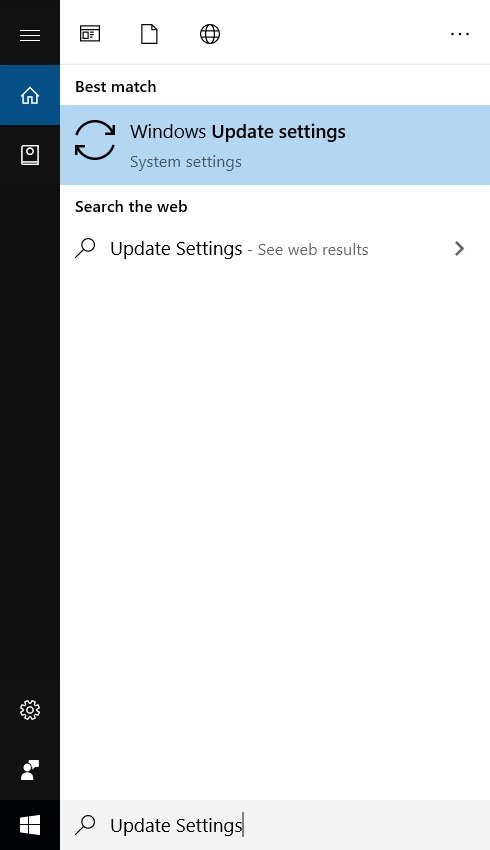
Step 1: Go to Windows search bar and type “Update Settings”.
Step 2: From the left side, click on ‘Troubleshoot’.
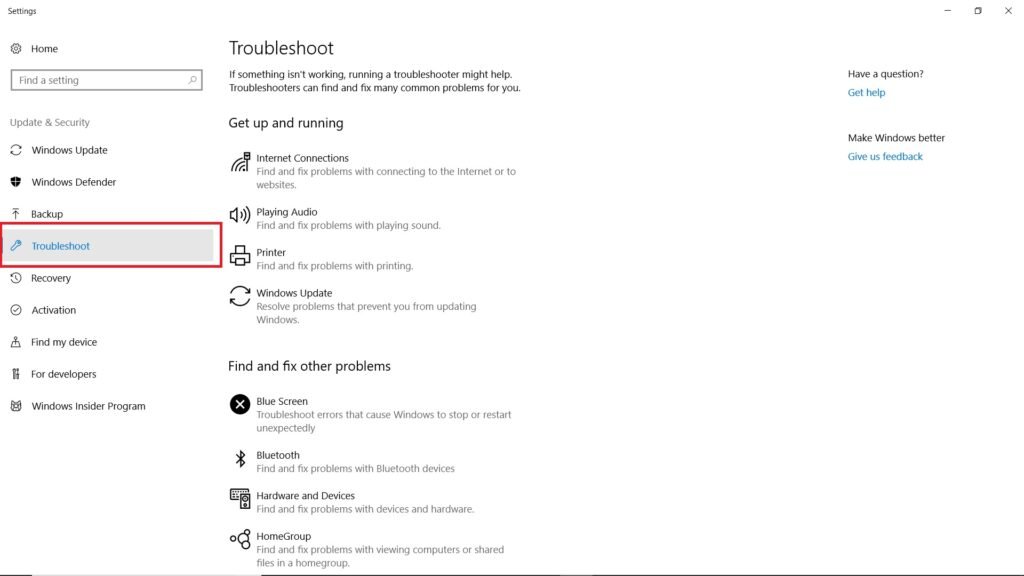
Step 3: Run the trouble shooter and complete all the steps by granting permissions.
Follow the Troubleshoot wizard and you should be good.
Using Command Prompt
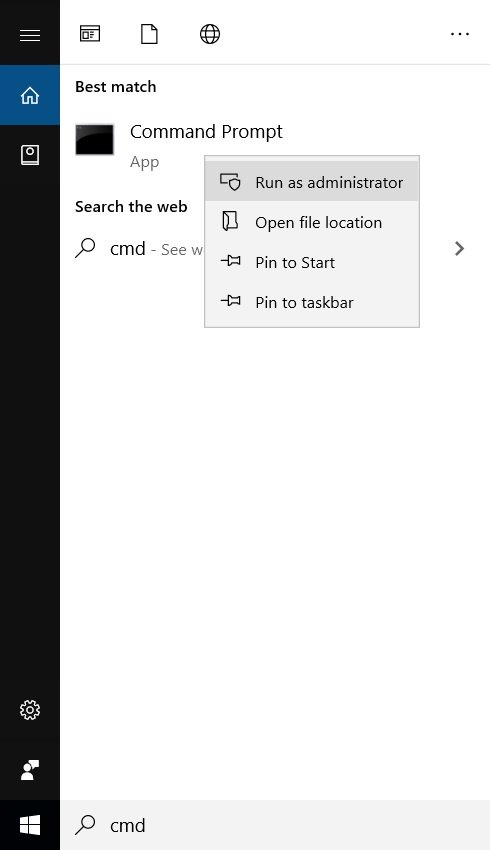
Step 1: Go to Windows search bar and type “cmd’, right-click on it to Run as administrator.
Step 2: Type the following command,
sfc /scannow
and press enter.
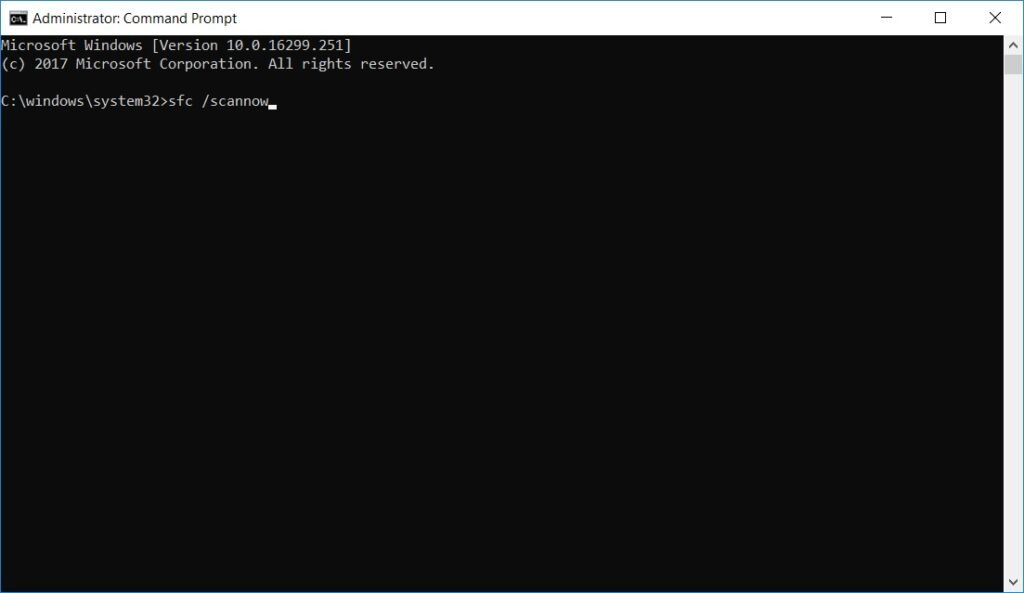
Let the process complete, after successful completion, restart your system and it should fix the problem.
Scan for Malware or Virus
Malware or viruses can also be one of the reasons that cause this error. Use the in-built Windows Defender to run a scan and check for malware. You can also use third-party software. After running the scan, just restart your PC.
Are you facing any other problems and issues with Windows 10? Then there is nothing to worry about, we have an article dedicated to Windows 10’s issues and guides, visit Windows 10 Troubleshooting Guide , moreover, you can search the error in your site’s search bar, you will get the desired solution. I hope you would like this content if you have some more suggestions let us know in the comment section.
- How to Create Undeletable Folder in Windows 10
- How to Control Windows 10 from an Android Smartphone
- 5 Best Email Clients for Windows 10 in 2020
- Best Recovery Software for Windows
Enjoyed this article?
If TechLatest has helped you, consider supporting us with a one-time tip on Ko-fi. Every contribution keeps our work free and independent.
