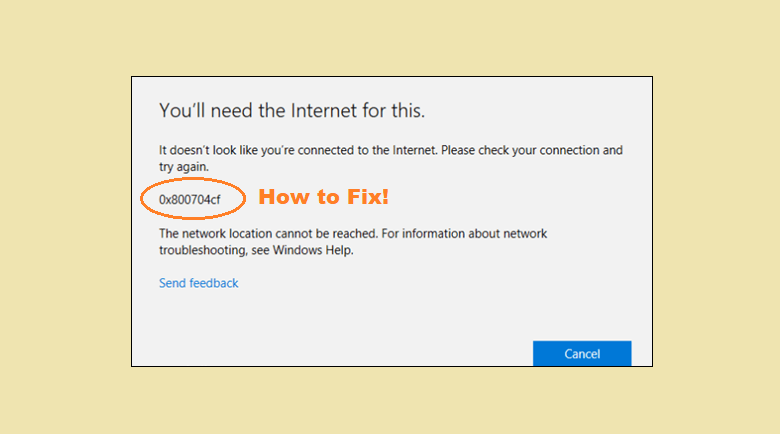
Windows 10 is prone to a lot of errors and one of them is the 0x800704cf error. This error generally occurs when you are trying to access Network PC, or when a Workgroup is initiated. A lot of things can be easily transferred with the network and sharing center and that is why it becomes important to fix 0x800704cf error in Windows 10.
Windows network and sharing feature give a lot of important features if you work in a team. You can easily share files in a common folder, divide work for the team, and other important stuff can also be done. The problem occurs when you try to connect to a network, workgroup, an error code 0x800704cf flashes on the screen and it reads, “Network error- Windows cannot access”.
Don’t want to miss the best from TechLatest ? Set us as a preferred source in Google Search and make sure you never miss our latest.
In this article, we are going to show you some of the steps and methods that you can try to fix the 0x800704cf error in Windows 10.
Content Table
Fix 0x800704cf Error in Windows 10
By Changing Adapter Settings
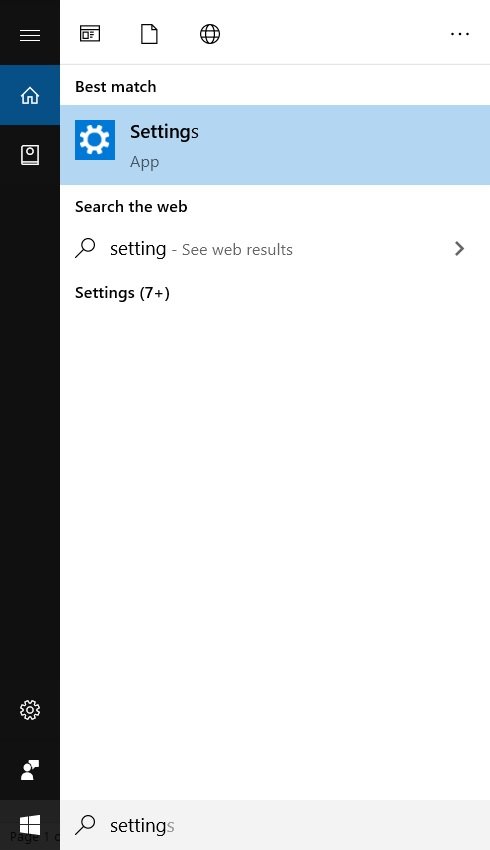
Step 1: Go to the Windows search bar and type, “Settings”, and hit enter.
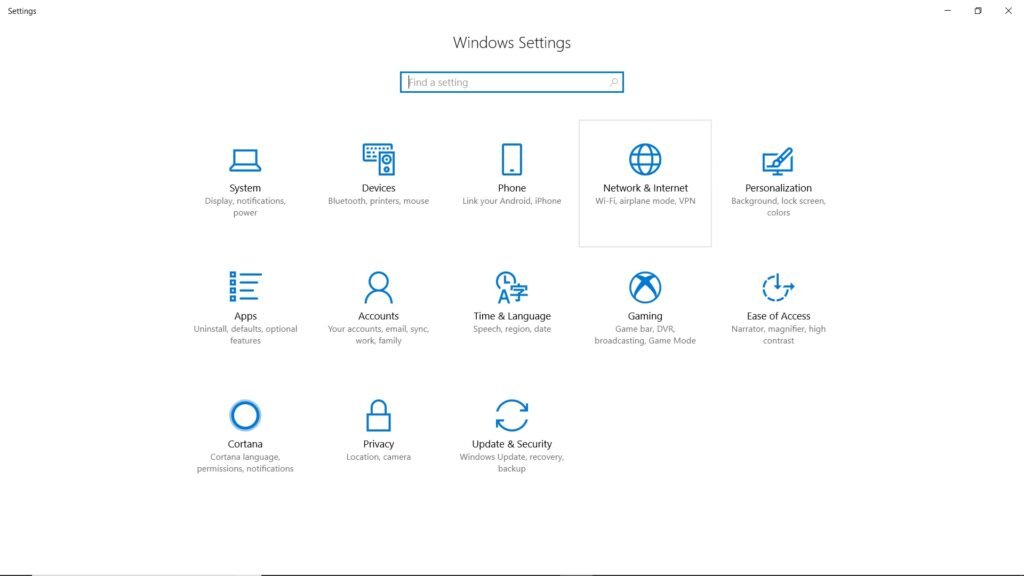
Step 2: Click on ‘Network & Internet’, go to Wi-Fi. You shall be seeing a list of available network connections on your computer screen.
Step 3: Navigate to ‘Change adapter options’, click on it and you will be seeing ‘Network Connections’.
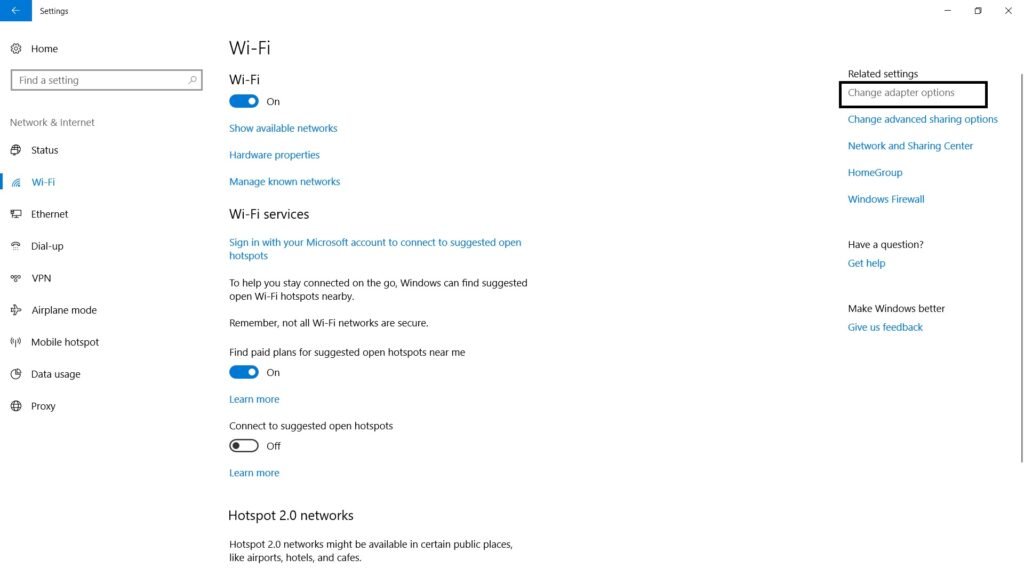
Step 4: Right-click on the current Wi-Fi network that you are connected to and click on ‘Properties’.
Step 5: Uncheck the first option that reads, “Client from Microsoft Networks”.
Just Apply the changes and restart your computer and that should fix the problem for you.
By Resetting TCP/IP
Step 1: Go to the Windows Search Bar and type “Command Prompt”, right-click on it to Run as administrator.
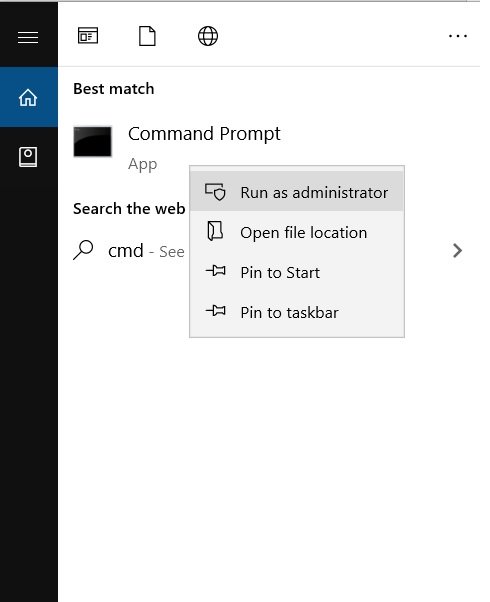
Step 2: Type the following,
ipconfig /flushdns
, and hit enter. It will clean the DNS cache.
Step 3: Now we have to refresh the NetBIOS, for that in the same command prompt windows, type the following command,
nbtstat -RR
, and hit enter.
Step 4: Now you have to run two more command lines. Type,
netsh int ip reset
, and hit enter, and type,
netsh winsock reset
,and hit enter.
Once you are done with running these command lines, restart your system to save the changes.
By Reinstalling Network Adapters
Step 1: Go to the Windows Search bar, type “Device Manager”, and hit enter.
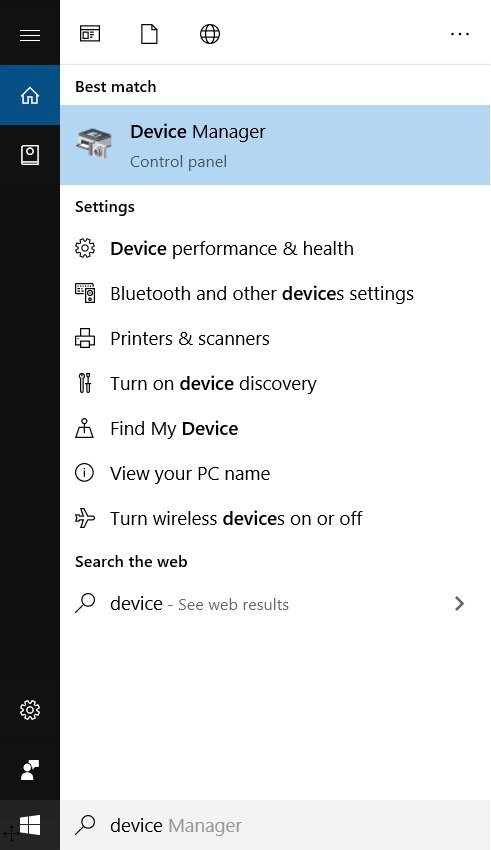
Step 2: Now expand the ‘Network adapters’ and you will see all the related drivers that may be causing problems.
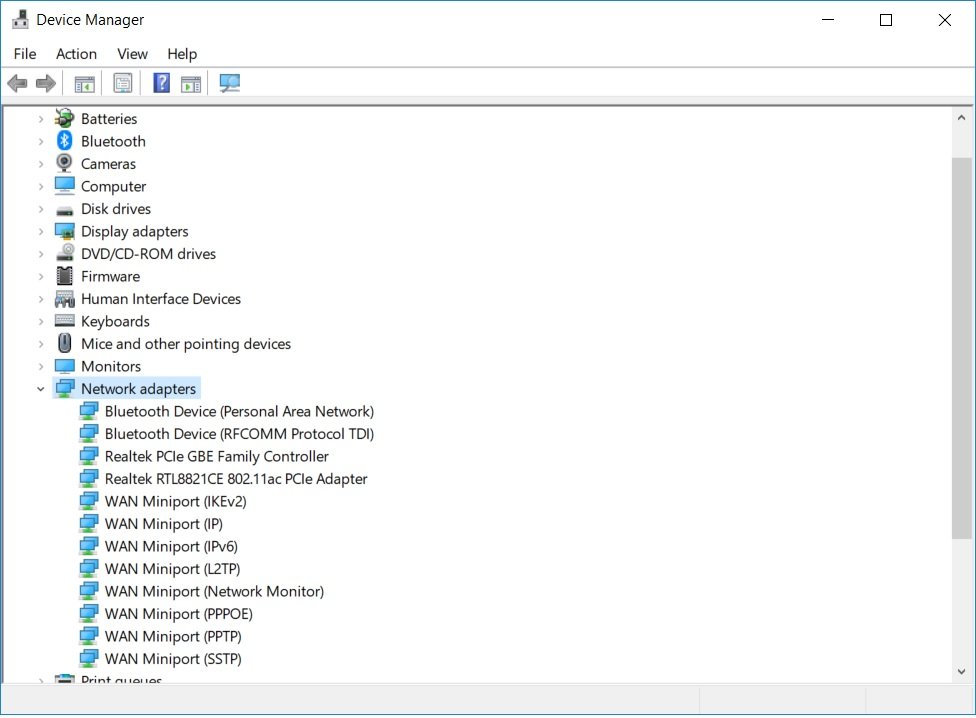
Step 3: Now one-by-one uninstall all the items from the context menu by right-clicking on each item and selecting, ‘Uninstall’. You might also get a confirmation message to verify that you want to uninstall the adapters, select uninstall.
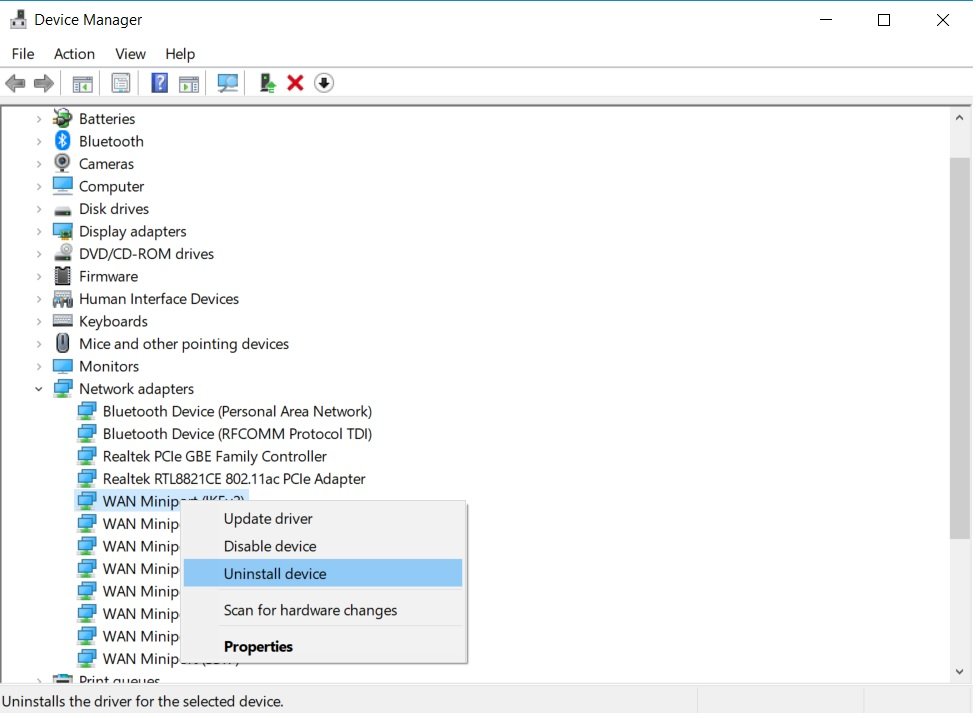
Step 4: Remove all the adapters from the context menu and then reboot your system.
Now you should be able to use Network connection without any hassle.
Are you facing any other problems and issues with Windows 10? Then there is nothing to worry about, we have an article dedicated to Windows 10’s issues and guides, visit Windows 10 Troubleshooting Guide , moreover, you can search the error in your site’s search bar, you will get the desired solution. I hope you would like this content if you have some more suggestions let us know in the comment section.
- How to Create Undeletable Folder in Windows 10
- How to Control Windows 10 from an Android Smartphone
- 5 Best Email Clients for Windows 10 in 2020
- Best Recovery Software for Windows
- How to Fix 0x80070005 Error in Windows 10
- How to Fix 0xc000007b Error in Windows 10
Enjoyed this article?
If TechLatest has helped you, consider supporting us with a one-time tip on Ko-fi. Every contribution keeps our work free and independent.
