
Regular Windows update is very essential for optimum performance. One of the spoilers to the Windows updates is the 0x8007371b error in Windows 10 which hinders and stops the installation of Windows 10 updates. It is very important to fix 0x8007371b error in Windows 10.
In this article, we’re going to show you some of the steps and methods that you can try to fix 0x8007371b error in Windows 10.
Don’t want to miss the best from TechLatest ? Set us as a preferred source in Google Search and make sure you never miss our latest.
Content Table
Fix 0x8007371b Error in Windows 10
By Running the Troubleshooter
Step 1: Go to the Windows search bar and type, “Troubleshoot”, and hit enter.

Step 2: Select ‘Windows Update’ troubleshooter from the list. If you do not see the option for Windows Update troubleshooter, navigate to ‘Additional troubleshooters’, and click on it and you will find the ‘Windows Update’ troubleshooter.

Step 3: Now run the troubleshooter and try applying the fixes which the troubleshooter suggests for you.
This shall fix the problem for you.
By Running DISM Scans
Step 1: Go to the Windows search bar and type, “cmd”, right-click on it to ‘Run as administrator’.
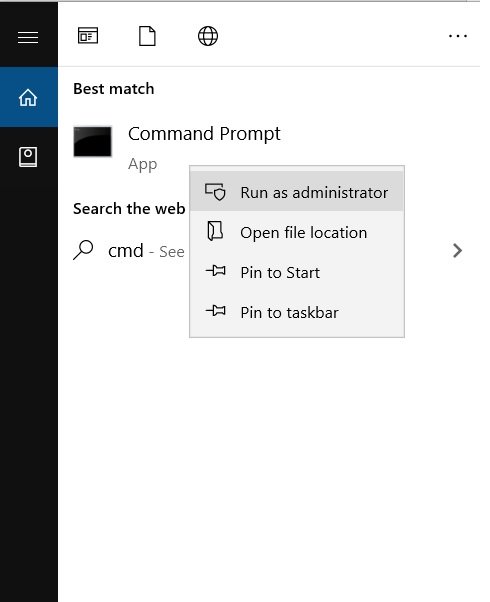
Step 2: In the command prompt type the following command,
Dism /online /cleanup-image /ScanHealth
, and hit enter.
Step 3: Now enter the following command,
Dism /online /cleanup-image /CheckHealth
, and hit enter.
Step 4: Run the following command,
Dism online /cleanup-image /RestoreHealth
, and hit enter.
That’s it now reboot your system and this shall fix the problem for you.
By Running the sfc Command
Step 1: Go to the Windows search bar and type, “cmd”, right-click on it to ‘Run as administrator’.
Step 2: Now type in the following command,
sfc /scannow
, and hit enter.
Now, wait for the process to be finished and in upon a successful scan, you shall be seeing a message saying Windows Resource Protection repaired corrupt files. Now just reboot your system. And that shall fix the error for you.
By Cleaning Windows Update’s Cache Folder
Step 1: Go to the Windows search bar, and type, ‘Services’, hit enter.

Step 2: Navigate down and find ‘Windows Update’. Right-click on it and select ‘Stop’.

Step 3: Now press ‘Windows key+E’ on your keyboard to open File Explorer.
Step 4: In the address bar, type,
%windir%\SoftwareDistribution\DataStore
, and hit enter.

Step 5: Press the‘ ctrl+A’ key to select all elements, and then delete them by pressing the ‘delete’ key.

Step 6: Go to the Services window again, and navigate to ‘Windows Update’.
Step 7: Now right-click on it and select ‘Start’.

That’s it and all you have to do now is restart your system and that shall fix the problem for you.
So these were some of the steps and methods by which you can fix the 0x8007371b error in Windows 10 . Do try these methods and let us know if you find some difficulty in executing any of the methods.
Are you facing any other problems and issues with Windows 10? Then there is nothing to worry about, we have an article dedicated to Windows 10’s issues and guides, visit Windows 10 Troubleshooting Guide , moreover, you can search the error in your site’s search bar, you will get the desired solution. I hope you would like this content if you have some more suggestions let us know in the comment section.
- How to Partition an External Hard Disk in Windows 10
- How to Use Kinemaster in Windows 10
- How to Manually Add VPN Profiles on Any Device
- How to Use 2 Speakers to Play Audio in Windows 10 Simultaneously
Enjoyed this article?
If TechLatest has helped you, consider supporting us with a one-time tip on Ko-fi. Every contribution keeps our work free and independent.
