
The good thing about an Android smartphone is the vast availability of apps that you can have on your smartphone. You can literally have thousands of apps for doing one thing, if the app isn’t available on the Play Store, you can download it from some other place and then install it. However, you might see an error reading “App not installed”. It is actually not that hard to fix APK not installed problem.
In this article, we are going to show you how to fix APK not installed problem, all the methods you can try to fix it, and what are the possible reasons for this to happen in the first place.
Don’t want to miss the best from TechLatest ? Set us as a preferred source in Google Search and make sure you never miss our latest.
Content Table
Why Do You See “App not installed” Error?
While this is not an issue that you will see generally, there are some reasons that the APK file which you are trying to install is giving you this problem. Here are some possible reasons:
Corrupted Files
Also to differentiate between a corrupted file and a good file, always know that the corrupted file will have a smaller size compared to the original one as it has some files missing.
Storage Problem
Low storage might also cause this error as the APK needs all the files in the package to be installed on your storage and a lack of storage will restrict some of the files from being installed which will cause the error.
System Permissions Missing
If you have not given the necessary system permissions that are required to install an APK file from some unknown sources, your file will not be installed.
Unsigned App
You see that all of the apps must be signed by a Keystore. A Keystore is a binary file that contains a set of private keys for apps and these keys allow the apps to work on devices. If that app is unsigned, it won’t work.
Incompatible Versions
If the app that you want to install is not compatible with your device’s OS version, then it won’t be installed on your device and you will get this error message.
Fix APK Not Installed Problem
By Resetting App Preferences
Step 1: Go to Settings, tap on ‘Apps & notifications.
Step 2: Tap on ‘See all apps.
Step 3: On the top-right corner, tap on the three dots, then tap on ‘Reset app preferences.
Step 4: When the dialog box open, tap on ‘RESET APPS’.

That’s it and you are all set. Now try installing the APK file again.
By Disabling Google Play Protect
Step 1: Open Google Play Store, tap of the top-left of the search bar to open the menu.
Step 2: Tap on ‘Play Protect’.
Step 3: On the top-right corner, you will find the settings icon, tap on it.
Step 4: From the menu, disable ‘Scan apps with Play Protect’.

That’s it and you are all set now try installing the APK file, and after successful installation, turn Play Protect on again.
By Signing an APK File Yourself
As discussed above, if an APK file isn’t signed by a Keystore, it won’t work. The good news is that you can sign the APK file yourself. Here’s how to do it.
Step 1: Download “apk-signer” from the Play Store .
Step 2: Open the app, click on ‘SIGNING’ tab.
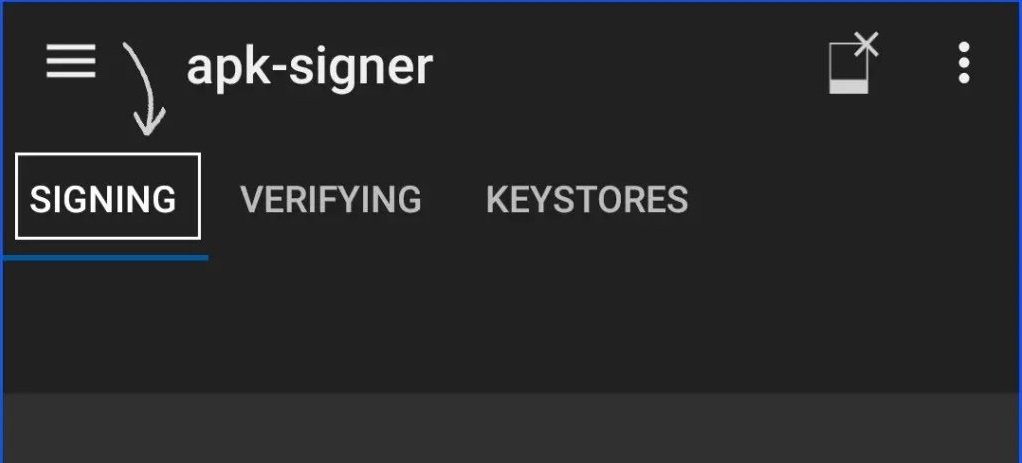
Step 3: Click on the “pencil” icon on the bottom-right, and select the APK file that is causing the problem.

Step 4: Now you will see the ‘SAVE’ button, click on it and the signed version of the app will be saved on your device.
Step 5: Now open the signed APK file and try installing it.
That’s it and you are all set.
Some Other Tips to Fix This Issue
Make sure that you allow installation of apps from unknown sources. Whenever you will download an APK file, then you click to open it you will see the option to enable installation from unknown sources, all you have to do is allow that.
Do not install APK files from an old SD card or some old physical storage.
You can also try formatting your SD card if you have any, and then try installing the APK file.
How to Control Windows 10 from an Android Smartphone
How to Install Custom Kernel on Your Android Smartphone Easily
How to Disable Google Assistant on Your Android Smartphone
Download Android USB Drivers for Major Manufacturers
Enjoyed this article?
If TechLatest has helped you, consider supporting us with a one-time tip on Ko-fi. Every contribution keeps our work free and independent.
