Highlights
- The DLG_FLAGS_INVALID_CA error occurs when Windows is unable to confirm a website’s security certificate.
- This popular error restricts your entry to secure websites in all the leading browsers, such as Chrome, Edge, and Firefox, among others.
- In this guide, we’ll discuss a couple of fast and effective ways to tackle this certificate error on Windows 10 and 11.

Have you received or had the DLG_FLAGS_INVALID_CA error while browsing in Microsoft Edge, Google Chrome, or any other browser on Windows 11?
This certificate warning message is a real culprit, particularly when it comes to visiting secure websites.
Don’t want to miss the best from TechLatest ? Set us as a preferred source in Google Search and make sure you never miss our latest.
In this guide, we’ll take you through the cause of the DLG_FLAGS_INVALID_CA error, what it means for your system’s security, and most importantly, how to fix it yourself in little more than a few steps.
Content Table
What is the DLG_FLAGS_INVALID_CA Error?
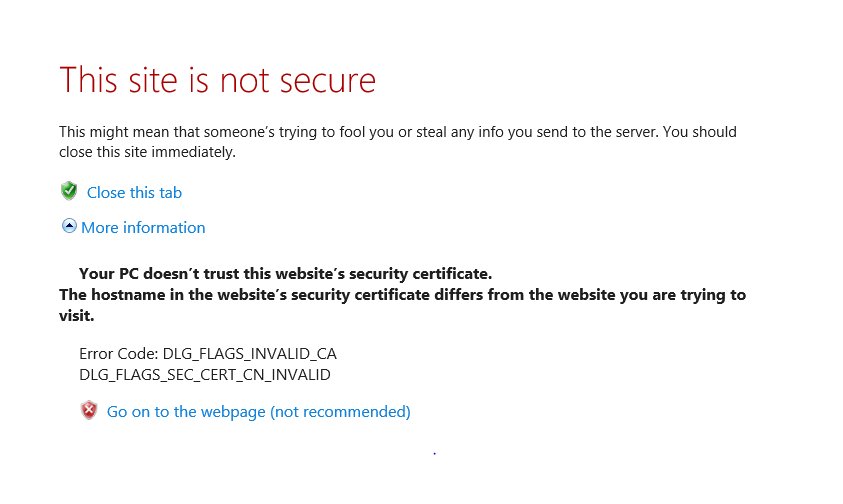
The DLG_FLAGS_INVALID_CA error is a browser error message letting you know that the website’s SSL certificate has been issued by a Certificate Authority (CA), which your system or browser does not recognize or trust.
- “DLG_FLAGS_SEC_CERT_CN_INVALID”
- “There is a problem with this website’s security certificate.”
- “Your connection is not private.”
This error tends to appear in Microsoft Edge and Chrome, but for that matter, it may appear in other browsers such as Firefox and Opera.
Read : Top 5 Best Browsers for Windows
Causes of DLG_FLAGS_INVALID_CA in Windows 11
Once you know the why, you can troubleshoot what’s wrong. Here are some of the most typical reasons:
- Untrusted Certificate Authority
- Expired Certificate
- Incorrect System Date & Time
- Corrupt Windows Certificate Store
- Antivirus or Firewall Interference
- Network or Proxy Issues
How to Fix DLG_FLAGS_INVALID_CA in Windows 11
Here are some solutions to the DLG_FLAGS_INVALID_CA error. Work your way methodically from the top to the bottom until the problem has been fixed:
Fix 1: Clear the Browser’s Cache
You can also attempt clearing the cache of the browser to solve the error code DLG_FLAGS_INVALID_CA. Here are the steps:
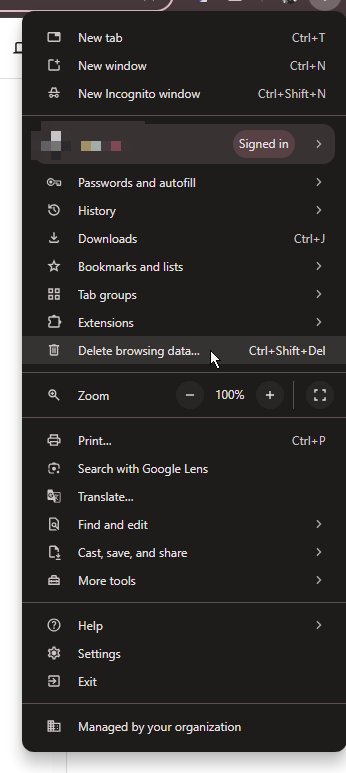
- Open Chrome and click the three-dot menu under the X button to select Delete Browing Data.
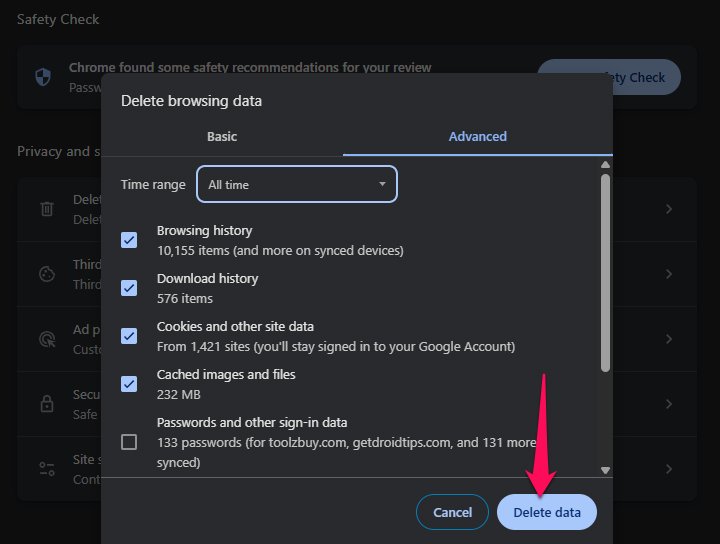
- Click on the Advanced tab and set the Time range to All time.
- Thereafter, tick the box next to Cached images and files , and click on Delete data .
- Restart your backup and try to see if the error code DLG_FLAGS_INVALID_CA is now gone.
Fix 2: Change the Time and Date Settings
You may attempt to change the Time/Date to solve the error code DLG_FLAGS_INVALID_CA. Here is how to do that:
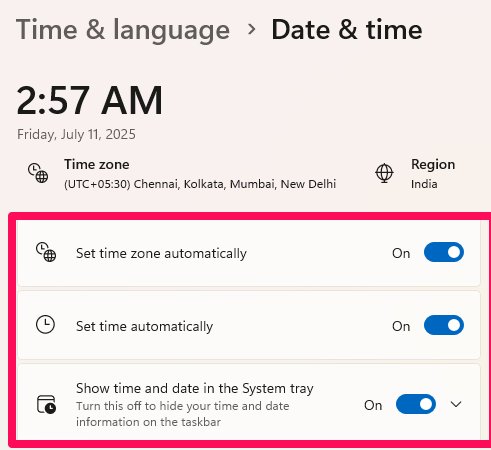
- Initially, in the Search box , enter the date , and then click Date and Time settings .
- If you have it turned off, switch Set time automatically to On . If the time and date don’t appear correct, even with the Set time automatically option enabled, try syncing the clock with a time server.
If you have Windows 10, then you can further perform these:
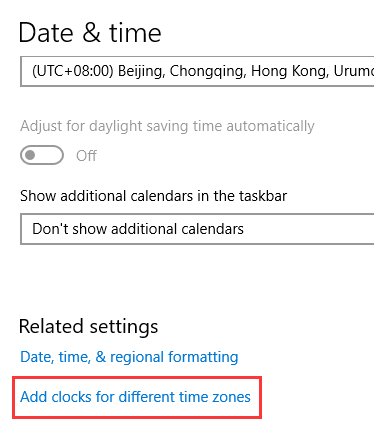
- Click + Add clocks for different time zones .
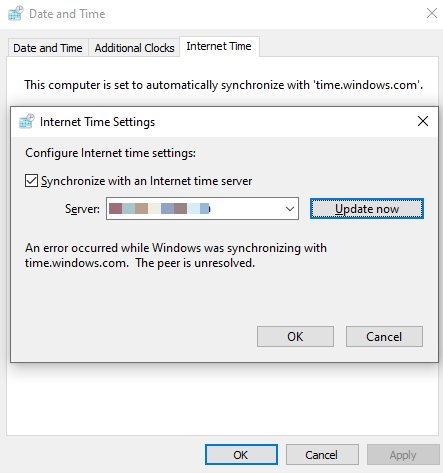
- Navigate to the Internet Time tab and click the Change settings… button.
- Mark the box by Synchronize with an Internet time server, select a server from the dropdown list, and then click Update now .
- Visit the website and see if you are still encountering the error code DLG_FLAGS_INVALID_CA.
Fix 3: Reset the Browser
You may also attempt resetting the browser to fix the error code DLG_FLAGS_INVALID_CA. Here, we use the example of Chrome:
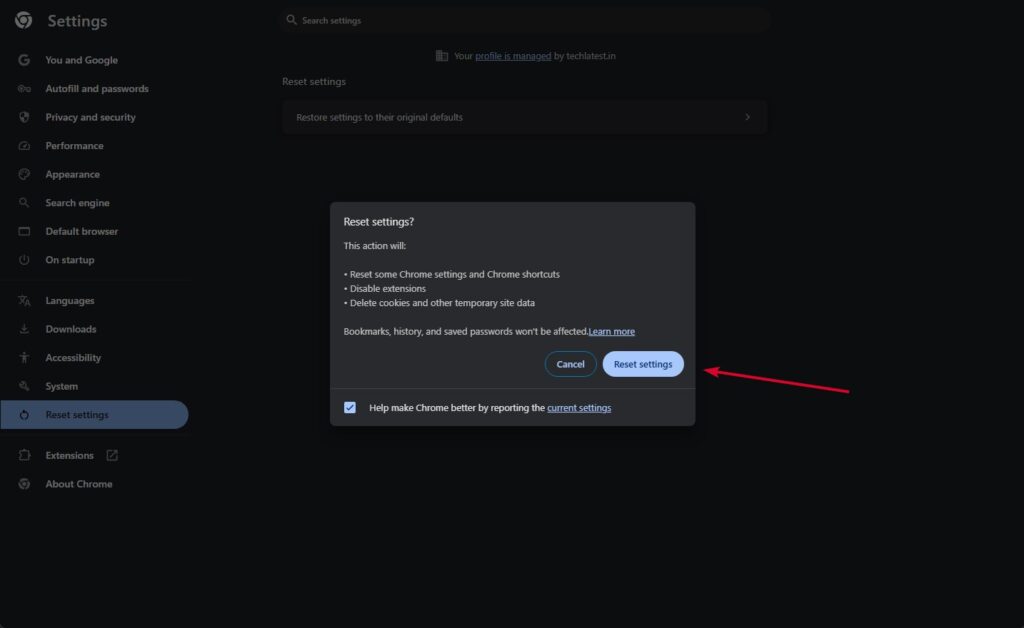
- Open Chrome , click the three dots , and then go to Settings.
- Afterward, scroll down the Settings and click the Reset settings tab.
- Thereafter, click the option Restore settings to their original defaults and click Reset settings to confirm the action.
Fix 4: Stop Browser Warnings for Certificate Address Mismatch
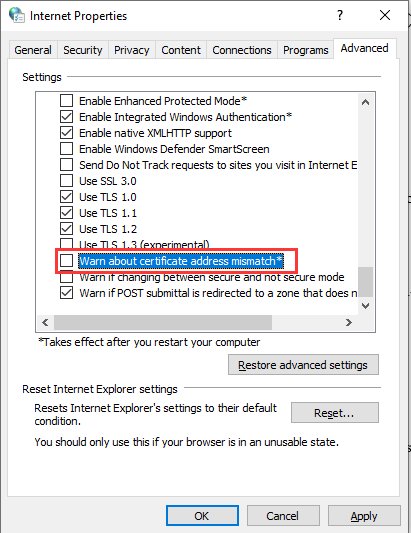
A final approach is to turn off the Warn about certificate address mismatch option. Here is how to do that:
- In search, type internet options and click the search result best match one to open it.
- Click the Advanced tab, and then deselect Warn about certificate address mismatch .
- Afterward, click Apply and OK to save the changes.
- Try emptying the list and then restart your computer to see whether the error is resolved.
Fix 5: Contact Website Owner
If the site is important (for example, your company intranet), contact the admin or web developer.
How to Prevent Future DLG_FLAGS_INVALID_CA Errors
- Keep Windows and browsers updated.
- Use a good antivirus collector, but use caution when scanning your HTTPS.
- Don’t perform sensitive activities on an open public Wi-Fi.
- Look for the padlock and the URL and check them before you fill in your information.
- It is advisable to educate yourself about the simple rules of the internet to recognize false websites.
Conclusion
The DLG_FLAGS_INVALID_CA error on Windows 11 is a hint that something is not right with the SSL certificate of the website you want to visit.
Although it’s typically a server-side problem, it can also be due to local settings and system misconfigurations.
In most cases, walking through the troubleshooting steps in this guide helps you resolve the issue.
Enjoyed this article?
If TechLatest has helped you, consider supporting us with a one-time tip on Ko-fi. Every contribution keeps our work free and independent.
