
The displays are one of the essential parts of any smartphone. That is one thing with which users interact actively. Now OnePlus makes some of the most beautiful displays in the town.
But unexpected things can happen at times. One of them is the screen flickering issue on the OnePlus 9 series. If you want to fix frequent screen flickering on the OnePlus 9/9R/9 Pro, then you have come to the right place.
Don’t want to miss the best from TechLatest ? Set us as a preferred source in Google Search and make sure you never miss our latest.
In this article, I will show you some methods by which you can fix frequent screen flickering on OnePlus 9/9R/9 Pro.
Content Table
Fix Frequent Screen Flickering on OnePlus 9/9R/9 Pro
Most times, the screen flickering issue is because of some hardware issue, but there can be instances when your software might be the reason for screen flickering. And in that case, you can try the following fixes:
Check for Screen Damage
First, you need to inspect the smartphone for any physical screen damage, if there is some, that could be the root cause of it, and it won’t be beneficial to implement any of the below-instructed solutions. In that case, you will directly have to visit the OnePlus Service Center for repair.
A Forced Reboot
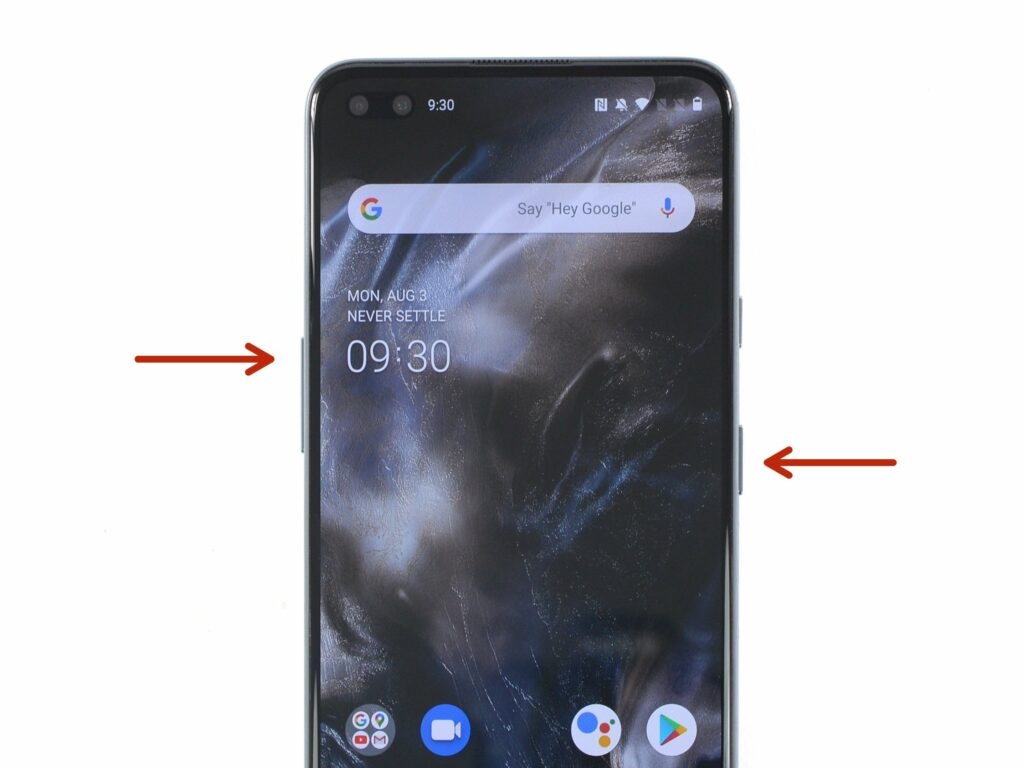
I am assuming that everyone owning a OnePlus 9 flagship can restart their smartphones. Just long-press the power button, and you will see the restart option.
If your screen is giving you issues and you can’t restart it normally, just hold down the power button for about 30 seconds, and your smartphone will be forced to close. You can then reboot it. This shall fix frequent screen flickering on OnePlus 9/9/9 Pro.
Adjust the Screen Brightness
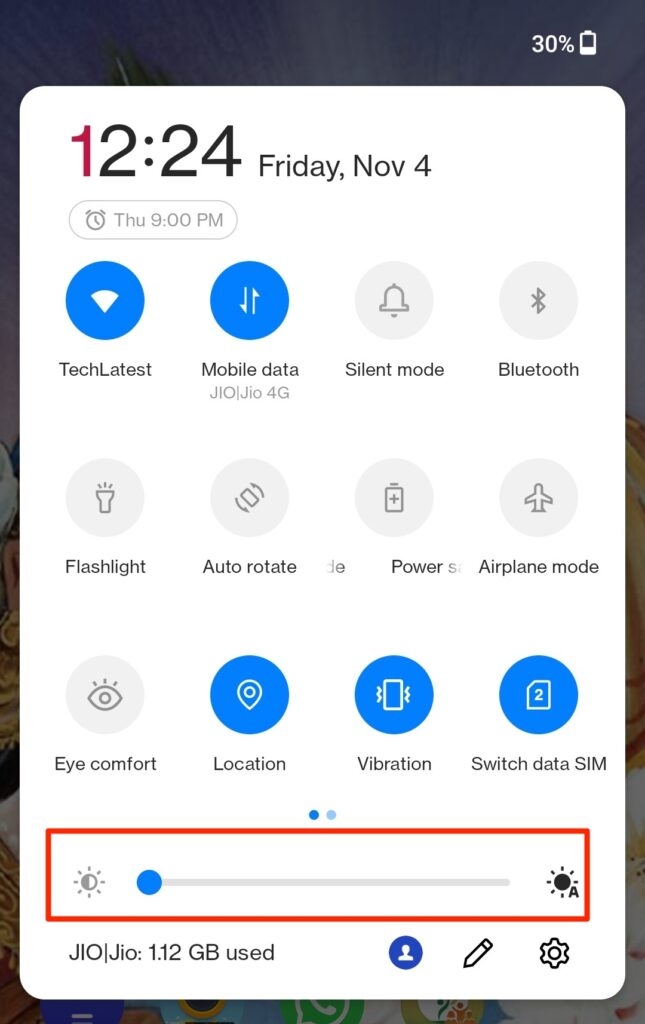
The screen flickering issue can also be fixed by adjusting the brightness of your device’s screen and then restarting your phone. For that:
- Bring your screen brightness to the lowest level.
- Now press and hold the volume down button.
- With the volume down button, press and hold the power button.
- Hold the buttons for about 10 seconds, and the device will be restarted automatically.
Once the smartphone turns back on, you can check if the screen is stable or not.
Turn Off the Adaptive Brightness
If you use adaptive brightness settings with your device, chances are that you might be getting screen flickering issues because of the. You can turn on/off the adaptive brightness setting to possibly fix the issue.
- Go to the Settings.
- Now, navigate to Display. And go to Adaptive Brightness.
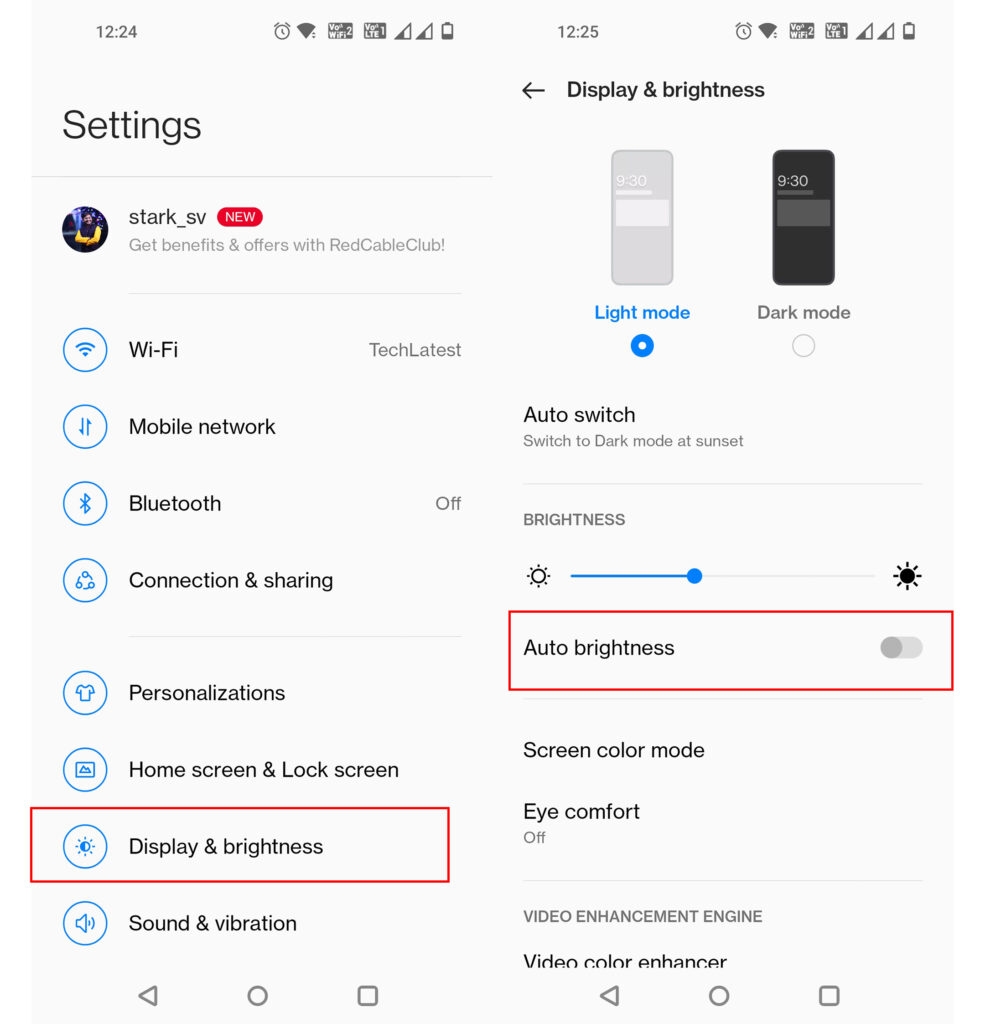
- Now turn off the Adaptive Brightness using the toggle.
- Finally, restart your device.
This shall fix the frequent screen flickering issue on OnePlus 9/9R/9 Pro.
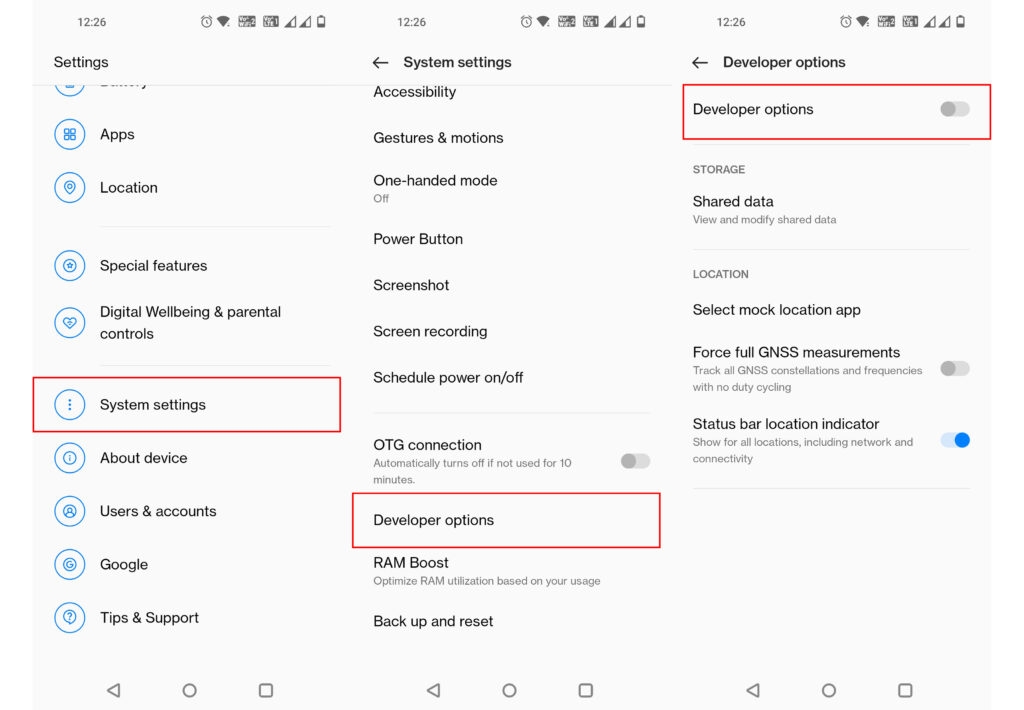
Turn Off the Developer Settings
- Go to Settings.
- Navigate to System.
- Tap on Developer options.
- Turn off the Developer options using the switch.
Software Update
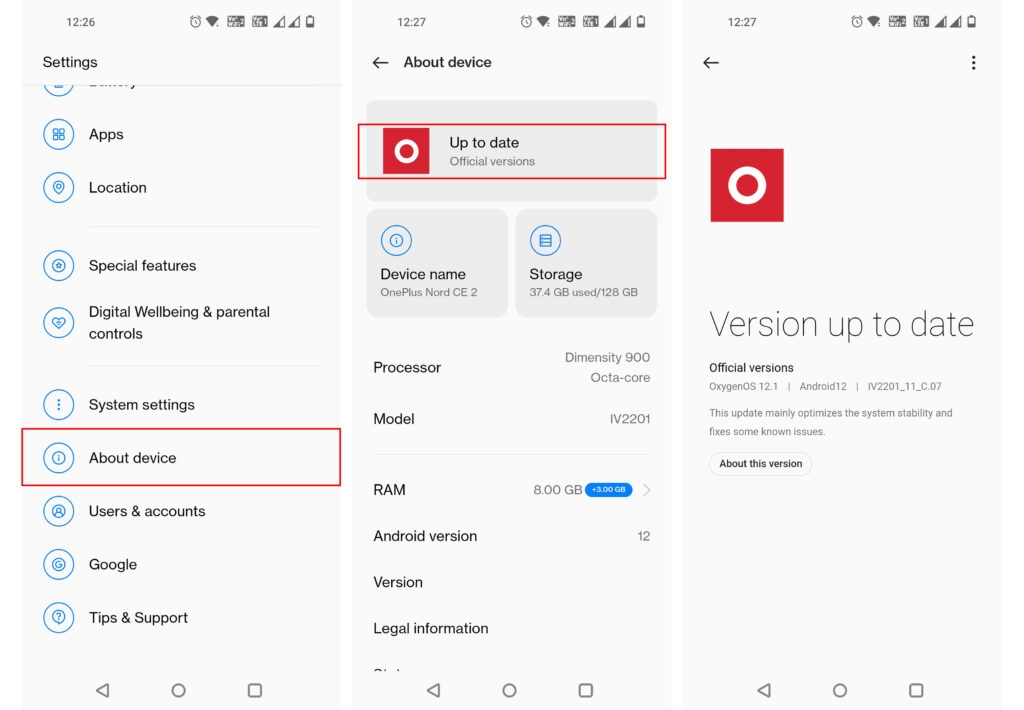
Sometimes there might be a bug that is causing the screen to flicker. You can easily fix frequent screen flickering issues on OnePlus 9/9R/9 Pro by updating the software.
Just go to ‘Settings,’ navigate to ‘System,’ and tap on ‘System updates.
Troubleshoot Apps in Safe Mode
Safe Mode disables all the third-party apps on your smartphone temporarily. By doing this, you can detect the apps that could be causing problems. Here is how to turn on Safe mode:
- Press and hold the power button on your OnePlus 9/9R/9 Pro.
- Now hold ‘Power off’ on your screen.
- You will now see the option to boot your device in safe mode, tap OK to reboot into Safe mode.
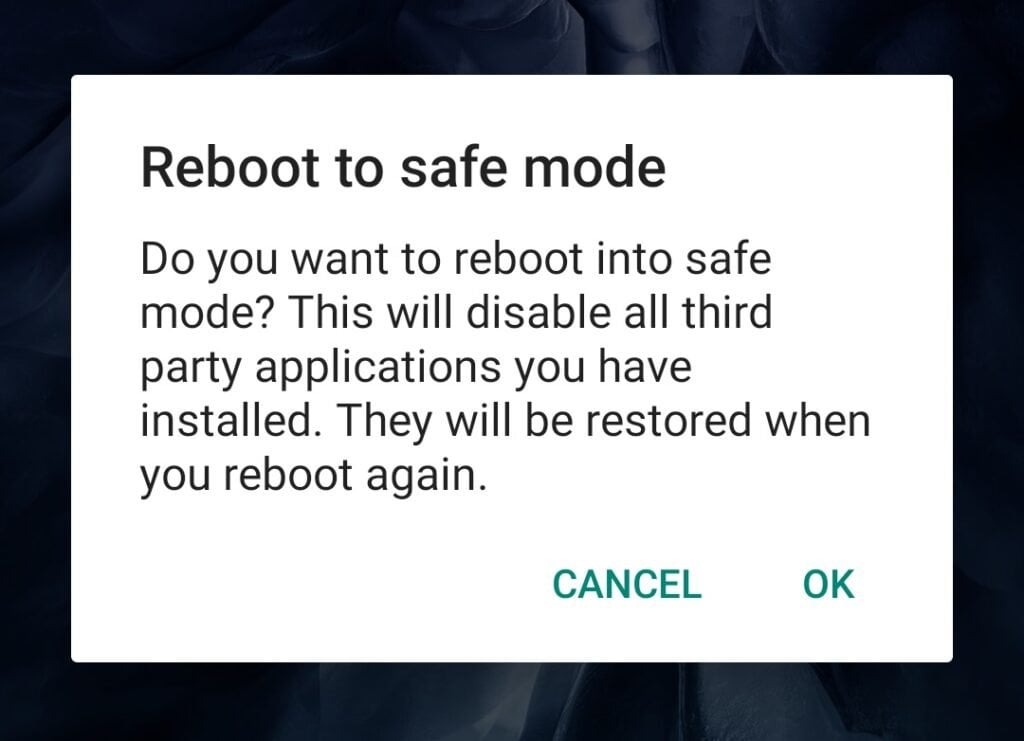
Now you can easily see which of the apps were creating the problems. If you find any app causing the issue, you can uninstall it, which shall fix the issue for you.
Reset Your Phone
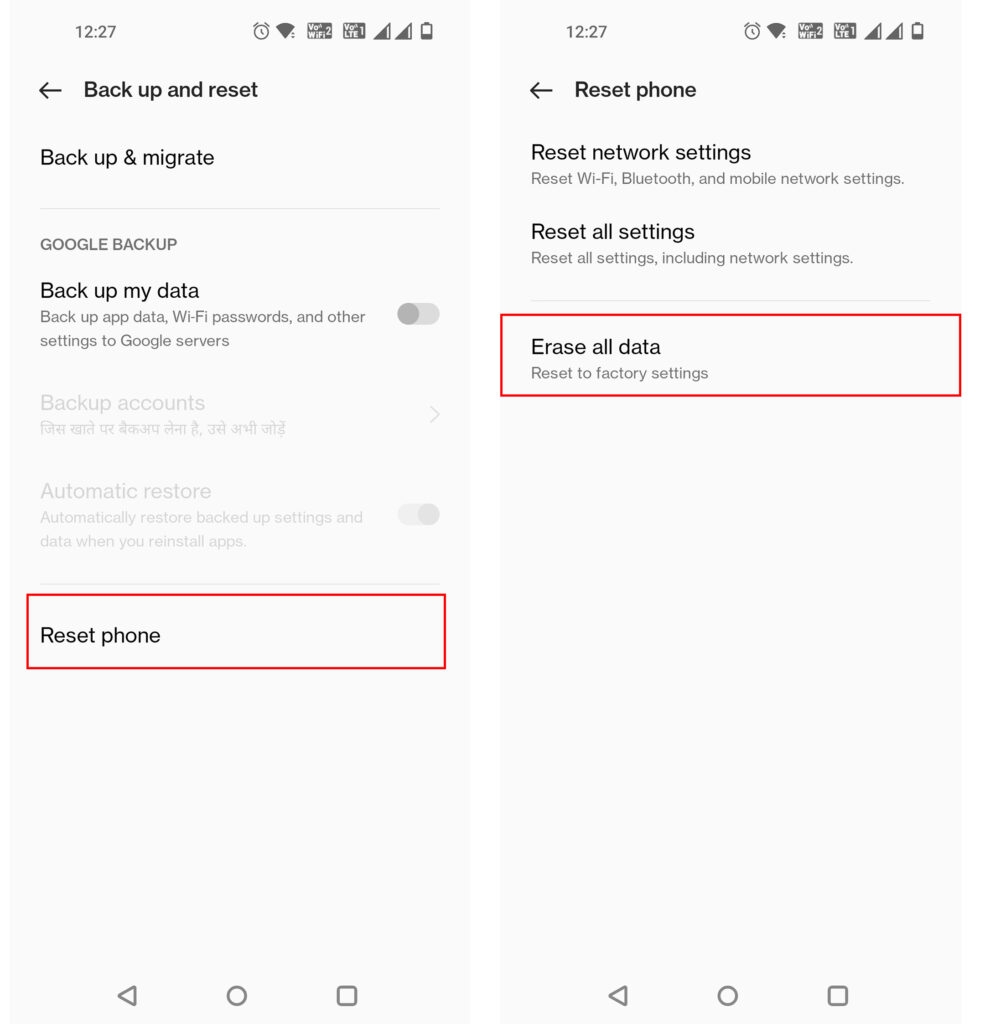
This is one of the last options that you can try from your side. It will reset your phone and clear it out of any data. Make sure that you take a backup of all of your data before doing this. Here is how to do it:
- Go to the ‘Settings.’
- Navigate to ‘System.’
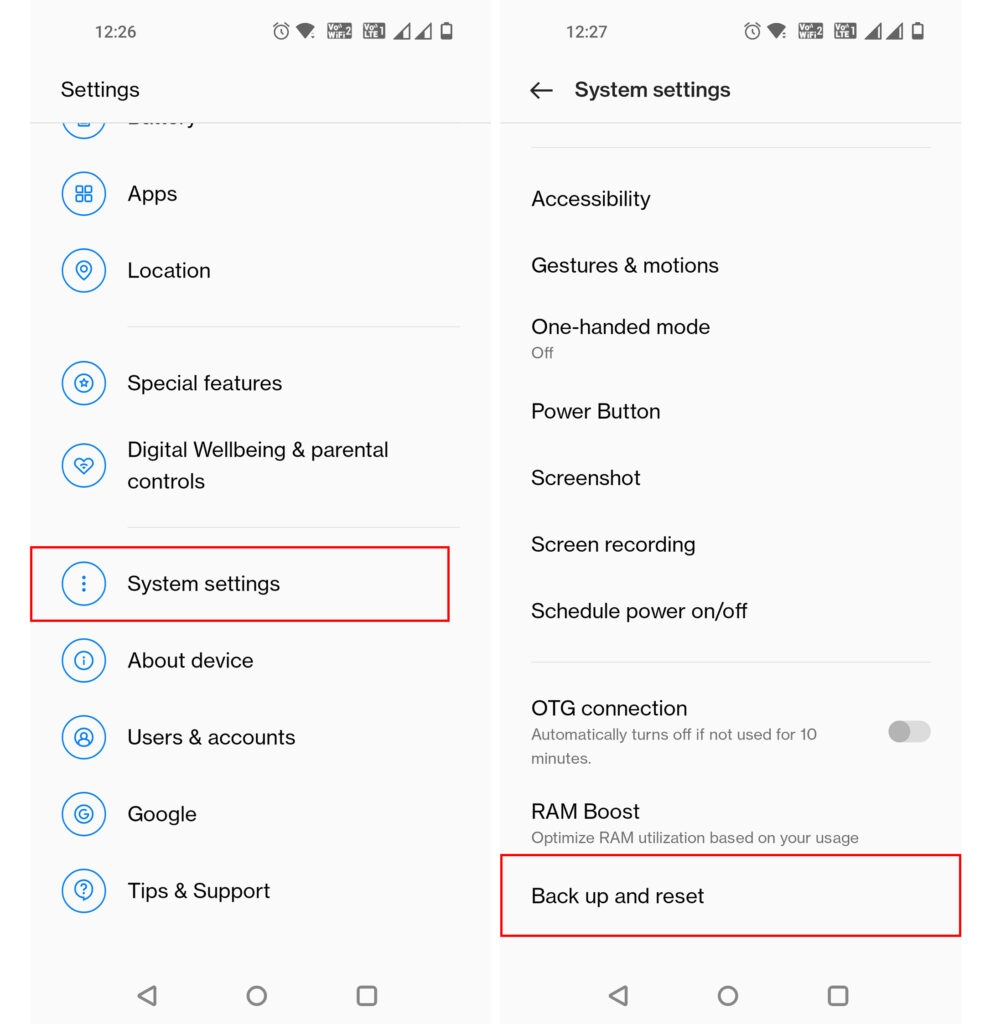
- Tap on ‘Reset options.’
- That’s it, and you are all set.
Conclusion
So that was all about how to fix frequent screen flickering on OnePlus 9/9R/9 Pro. If none of these methods work, you can reach out to the nearest OnePlus Support Center around you and replace your screen, but make sure that you back up your data before doing so.
Further Reading
- How to Fix Overheating Issues on OnePlus 9/9R/9 Pro
- How to Extract boot.img from OnePlus OxygenOS Stock ROM
- How to Root OnePlus 9 and 9 Pro (Without TWRP)
- How to Unlock Bootloader on OnePlus 9 and 9 Pro
Enjoyed this article?
If TechLatest has helped you, consider supporting us with a one-time tip on Ko-fi. Every contribution keeps our work free and independent.

The OnePlus 9 series has its fingerprint scanners placed way more down on the display and they are harder to reach. There are always some issues with the in-display fingerprint scanners. If you are facing fingerprint scanner not working issues on your OnePlus 9/9R/9 Pro, this is the right article for you as I have can help you to fix the fingerprint scanner not working or not detecting on OnePlus 9/9R/9 Pro.
In this article, I am going to show you how to fix the fingerprint scanner not working or not detecting on OnePlus 9/9R/9 Pro using some simple steps and methods.
Don’t want to miss the best from TechLatest ? Set us as a preferred source in Google Search and make sure you never miss our latest.
If you ask me, I have never really been a fan of in-display fingerprint scanners because, to be honest, they are actually a downgrade from a physical fingerprint reader. How? Well, they are a little slower and more unreliable than a physical fingerprint reader. But that seems to be the new “trend” as it allows the smartphone manufacturers to give more stunning designs on their smartphones.
Before we go straight in to the fixes, here are some of the potential reasons for why your OnePlus 9/9R/9 Pro’s fingerprint scanner isn’t working or detecting your fingerprint:
- You are using the wrong finger.
- Your fingers are dirty, cut, or wrinkled.
- Your fingers are wet
- Some software issue
- Issues with the sensor.

OnePlus 9
Content Table
Fix if Fingerprint Scanner Not Working or Not Detecting on OnePlus 9/9R/9 Pro
By Cleaning Your Screen
The in-display fingerprint sensor is an optical sensor that takes photos of your fingerprint. So if the screen is dirty, it will be hard for it to detect your fingerprint. To fix the fingerprint scanner not working or not detecting on the OnePlus 9/9R/9 Pro, you should clean your screen with a soft cloth and use an alcohol-based cleaner to wipe off any dirt.
Replace Your Screen Protector
As mentioned above, the in-display fingerprint scanner reads your fingerprint through the display. A lot of users apply screen protectors on their smartphones and it is good for the protection of the screen. But what generally happens is that the screen protector collects a lot of scratches over time. These can create a problem and a lot of screen protectors also hinder the screen sensitivity causing the issue. So try replacing your screen protector and use a good quality one.
Add New Fingerprints and Remove The Older Ones
Over fingerprints change with time and there can be many reasons for it like the climate around us and seasons. So you should add your new fingerprints and remove the older ones occasionally to fix the fingerprint scanner not working or not detecting on the OnePlus 9/9R/9 Pro. Do note that you should clean your fingers and device’s display properly before doing so.
Here is how to remove your old fingerprints:
- Go to Settings.
- Navigate to Security and lock screen.
- Now tap on Fingerprint Unlock.
- You will have to type in PIN, Password, or Pattern if prompted.
- Now you will see the delete icon right across the fingerprint(s) you have registered, tap on it.
- Select Yes and Remove to confirm.
To add new fingerprints, follow these steps:
- Go to Settings.
- Navigate to Security and lock screen.
- Now tap on Fingerprint Unlock.
- You will have to type in PIN, Password, or Pattern if prompted.
- Tap on Add Fingerprint, You will have to type in PIN, Password, or Pattern if prompted.
- Now follow the on-screen instructions to add the fingerprints.
- Finally, tap on Done. You can also tap on Add Another if you wish to add more fingerprints.
Check for Hardware Problem and Then Proceed
You can perform a fingerprint test and check if it’s a hardware issue or not on your OnePlus 9/9R/9 Pro. To do it:
Dial *#808# and go to the fingerprint test and you can do a fingerprint auto-test.
If your device passes the test, then it is not a hardware issue but the software is having trouble reading it. You can reboot your device into safe mode and see if the sensor is working properly or not. Here is how to boot your device into safe mode:
- Press and hold the power button on your OnePlus 9/9R/9 Pro.
- Now hold ‘Power off’ on your screen.
- You will now see the option to boot your device in safe mode, tap OK to reboot into Safe mode.
<img loading=“lazy” src=“https://tech-latest.com/wp-content/uploads/2021/04/Reboot-in-Safe-Mode-Android-2-300x217.jpg" onerror=“this.onerror=null;this.src=‘https://blogger.googleusercontent.com/img/a/AVvXsEhe7F7TRXHtjiKvHb5vS7DmnxvpHiDyoYyYvm1nHB3Qp2_w3BnM6A2eq4v7FYxCC9bfZt3a9vIMtAYEKUiaDQbHMg-ViyGmRIj39MLp0bGFfgfYw1Dc9q_H-T0wiTm3l0Uq42dETrN9eC8aGJ9_IORZsxST1AcLR7np1koOfcc7tnHa4S8Mwz_xD9d0=s16000';" alt=“fix the fingerprint scanner not working or not detecting on the OnePlus 9/9R/9 Pro
- 12”>
Once you are in safe mode and your fingerprint sensor is working properly then it is some app that is giving problems. Now what you can do is, see all the apps that ask for fingerprint permissions and uninstall them.
By Clearing Cache from Recovery Mode
You can fix a lot of problems by clearing cache from Recovery Mode. Here is how you can do it:
- Switch off your OnePlus 9/9R/9 Pro.
- Now press and hold the Power button and the Volume Down button at the same time until you see the recovery mode options on your device.
- When you see the recovery options, you can take your hands off the two buttons.
- Now you will see the Recovery menu.
- You have to use the Volume button to go to ‘Wipe Cache Partition’.
- Press the Power button to confirm the selection.
Now let the process complete and once it is done you can turn on the device by pressing the Power button.
By Resetting Your Phone
This is the last option that you can try from your side. It will reset your phone and clear it out of any data. Make sure that you take a backup of all of your data before doing this. Here is how to do it:
- Go to the ‘Settings’.
- Navigate to ‘System’.
- Tap on ‘Reset options’.
- Tap on ‘Erase all data(factory reset).
- Finally, tap on ‘Erase all data’ to confirm the reset.
Conclusion
So that was all about how to fix the fingerprint scanner not working or not detecting on the OnePlus 9/9R/9 Pro using some simple steps and methods. If none of the methods mentioned above work out for you, you can just visit any nearby OnePlus Support Center and they will help you out with the issue.
- How to Fix Overheating Issues on OnePlus 9/9R/9 Pro
- How to Extract boot.img from OnePlus OxygenOS Stock ROM
- How to Fix Frequent Screen Flickering on OnePlus 9/9R/9 Pro
- How to Root OnePlus 9 and 9 Pro (Without TWRP)
- How to Unlock Bootloader on OnePlus 9 and 9 Pro
Enjoyed this article?
If TechLatest has helped you, consider supporting us with a one-time tip on Ko-fi. Every contribution keeps our work free and independent.

