The gdi32full.dll is one of the DLL (Dynamic Link Library) that is shared between software. It is a very important part of the Microsoft Graphics Device Interface. If gdi32full.dll is missing or not found error is showing up, it is important to fix gdi32full.dll is missing or not found error in Windows 10 as it is an important file for graphics and formatted text utilization on displays and printers.
The gdi32full.dll is missing or not found error is because of a corrupted file and in this article, we are going to show you how to fix gdi32full.dll is missing or not found error in Windows 10.
Don’t want to miss the best from TechLatest ? Set us as a preferred source in Google Search and make sure you never miss our latest.
You will get a message reading, “This application failed to start because gdi32.dll was not found. Re-installing the application may fix this problem”, or it may simply read, “The file gdi32.dll is missing”. Here are some steps and methods to fix it.
Content Table
Fix Gdi32full.dll is Missing or Not Found Error in Windows 10
By Keeping the Windows Updated
One of the best things that you can do for optimum performance on your system is keeping your Windows updated. So, make sure that your Windows 10 is always updated.
By Using DriverFix to Keep the Drivers Updated
You see that the gdi32full.dll is missing error might be because of a corrupted or an outdated driver and the fix for it is very simple. Just download and install DriverFix from the link given below.
Simply launch the app and the app will scan and show you the list of the drivers that need to be updated. Just press the Update button on each item on the list and the software will update the drivers for you.
By Running DISM Scan and SFC Scan
Step 1: Go to the Windows search bar, type “cmd”, right-click on it to ‘Run as administrator’.
Step 2: Now enter the following two commands and press enter after each one:
DISM.exe /Online /Cleanup-image /Restorehealth
sfc /scannow
Step 3: Now wait for the scan to be completed and you shall see a message reading, “Windows Resource Protection found corrupt files and successfully repaired them.”
Now restart your system and you should be good.
By Reinstalling the Program Showing gdi32full.dll Error
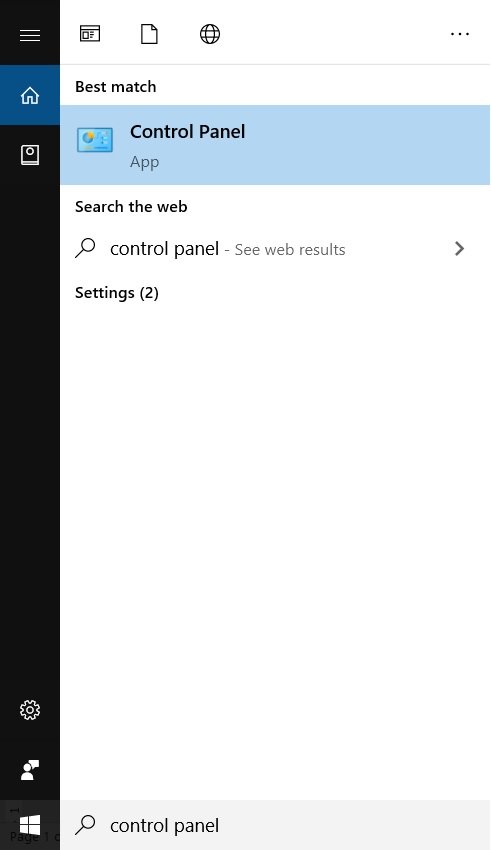
Step 1: Go to the Windows search bar and type “control panel”, hit enter.
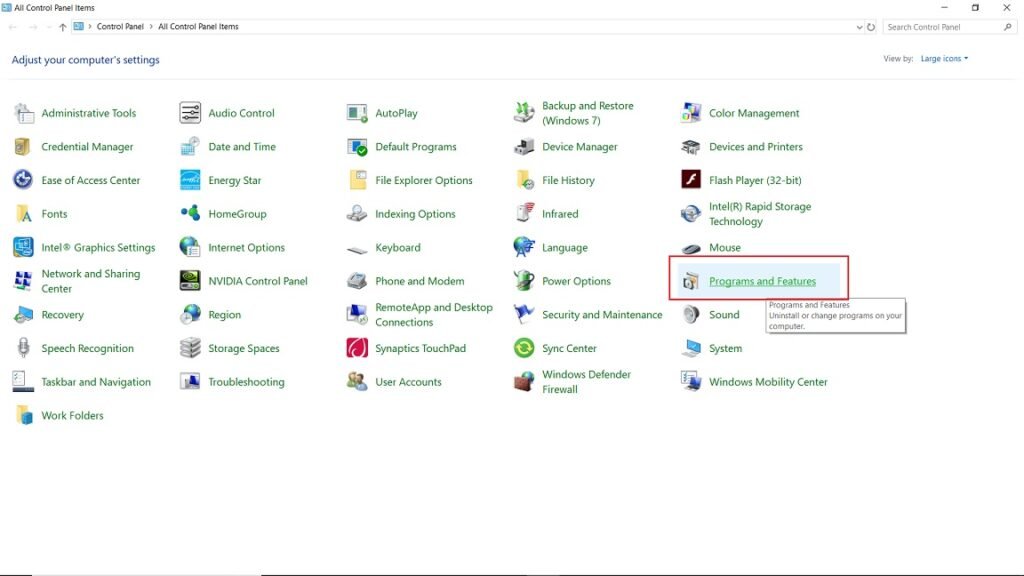
Step 2: Now select ‘Programs and Features’.
Step 3: Select the program/software/app that is giving the gdi32full.dll error.
Step 4: Right-click on the selected program and click on ‘Uninstall’.
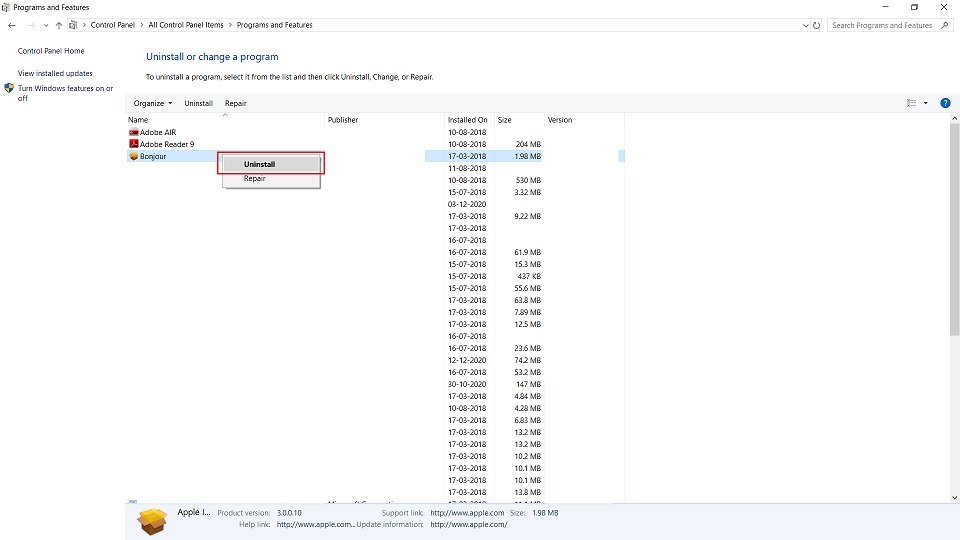
Uninstall the program and then reinstall the program. This shall fix the problem for you.
By Installing New gdi32full.dll File
Step 1: First of all we have to check if the gdi32full.dll file is missing or not for that just type “gdi32full.dll” in the Windows search bar. Now if you do not see it in the results then the file is missing.
Step 2: To download the file, go to DLL-Files.com and look for your file, download it in ZIP (32 or 64-bit according to your Windows version).
Step 3: Open the downloaded ZIP file from file explorer and click on ‘Extract all’.
Step 4: Now click on ‘Browse’ to select a target location and press the ‘Extract’ button.
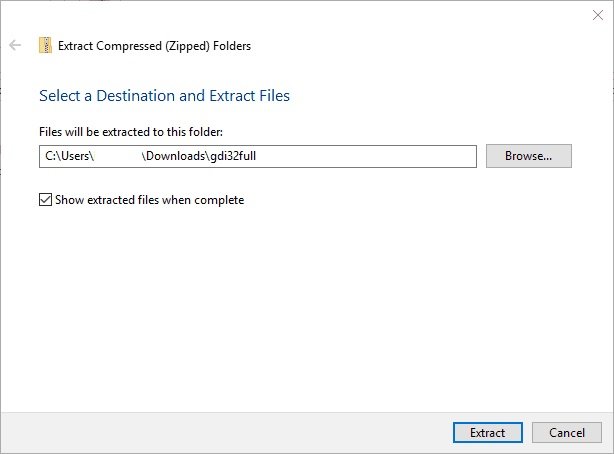
Step 5: Now go to the folder in which the files have been extracted and select ‘gdi32full.dll’ and copy it.
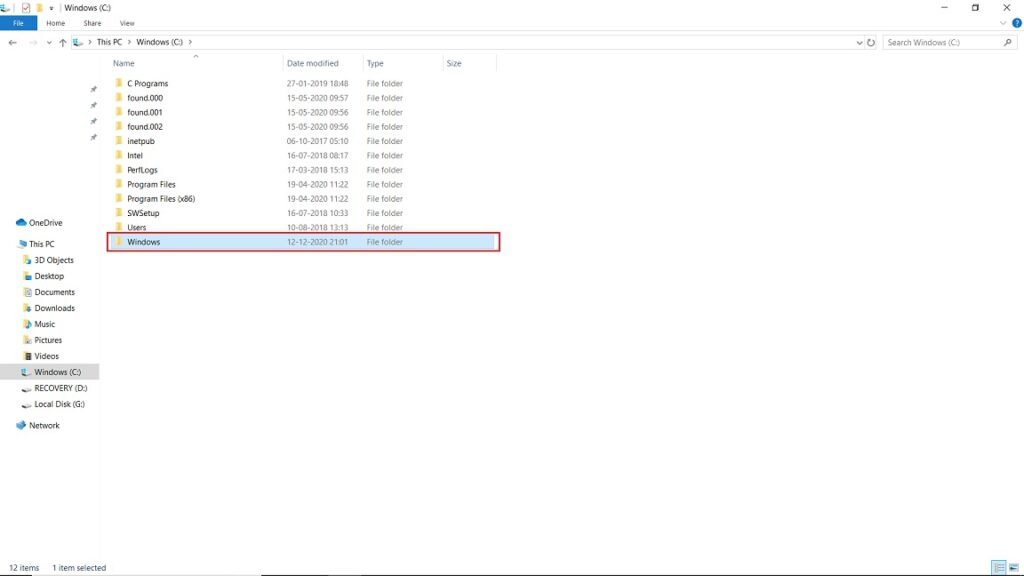
Step 6: Go to the drive in which the Windows is installed, open ‘Windows’ folder.
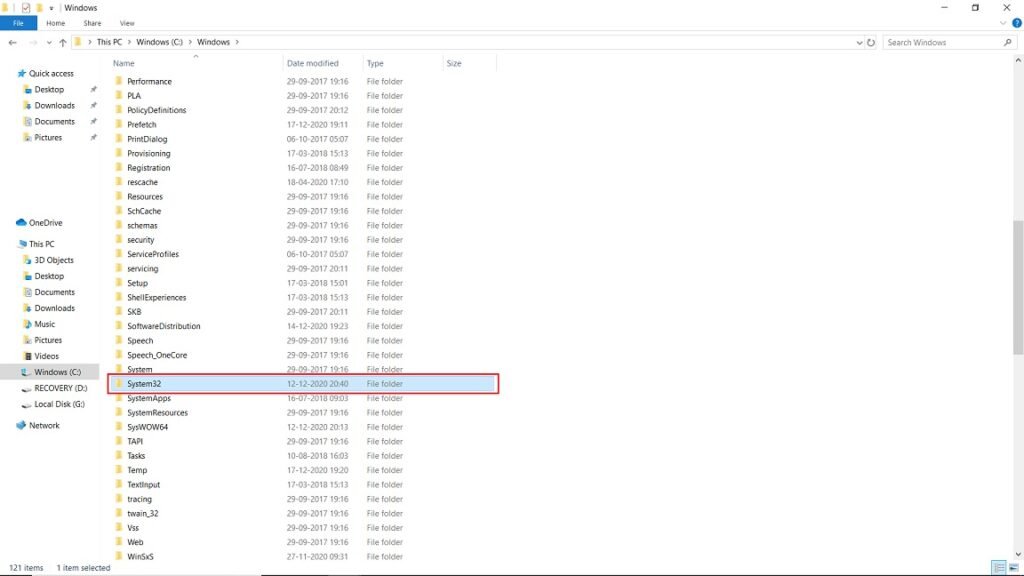
Step 7: Now open the ‘System32’ folder and paste the file.
Step 8: Delete the gdi32full.dll file from the folder in which it was originally extracted.
Step 9: Go to Windows search bar and type “cmd”, right-click on it to ‘Run as administrator’.
Step 10: Type the following command to register the DLL,
regsvr32 gdi32full.dll
, and hit enter.
That’s it and you are all set.
Are you facing any other problems and issues with Windows 10? Then there is nothing to worry about, we have an article dedicated to Windows 10’s issues and guides, visit Windows 10 Troubleshooting Guide , moreover, you can search the error in your site’s search bar, you will get the desired solution. I hope you would like this content if you have some more suggestions let us know in the comment section.
- 5 Best Email Clients for Windows 10 in 2020
- Best Recovery Software for Windows
- How to Partition an External Hard Disk in Windows 10
- How to Use Kinemaster in Windows 10
Enjoyed this article?
If TechLatest has helped you, consider supporting us with a one-time tip on Ko-fi. Every contribution keeps our work free and independent.
