Don’t want to miss the best from TechLatest ? Set us as a preferred source in Google Search and make sure you never miss our latest.
Content Table
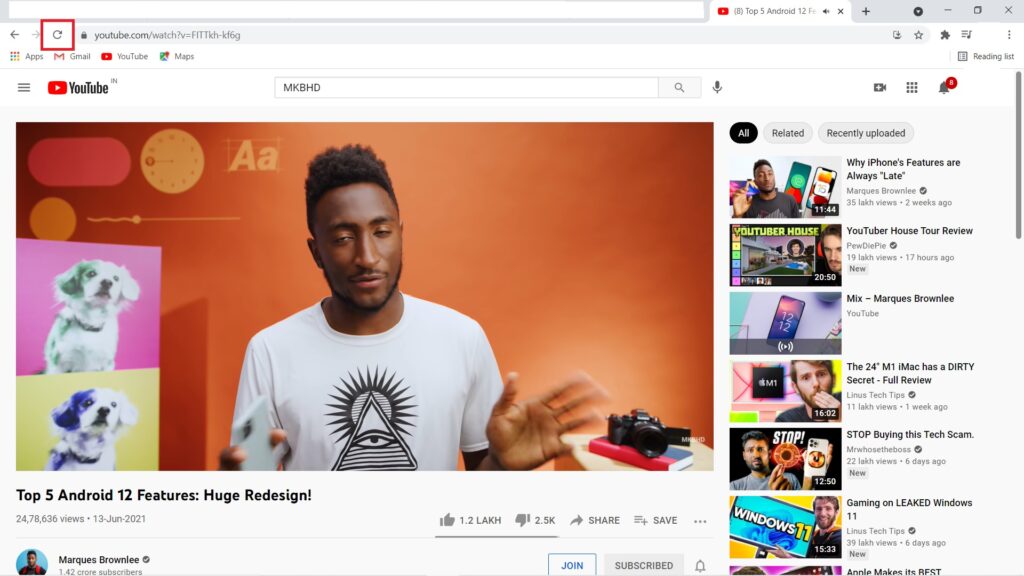
Reload YouTube
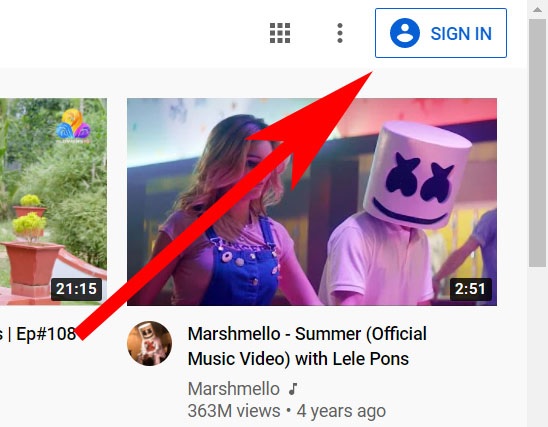
Make Sure that You Are Signed In
Check if YouTube Servers are Up or Not
Additionally, you can also follow YouTube’s Twitter page to check for any news.
Check for Other Videos
Try YouTube in Incognito
You can browse YouTube in incognito mode and that will possibly solve the issue for you.
On Browser
Well, it’s quite simple to browse YouTube in incognito using a browser. For example, on Chrome you have to follow these steps:
Step 1: Open Google Chrome.
Step 2: Click on the three-dots icon on the top-right corner and select ‘ New incognito window ’.
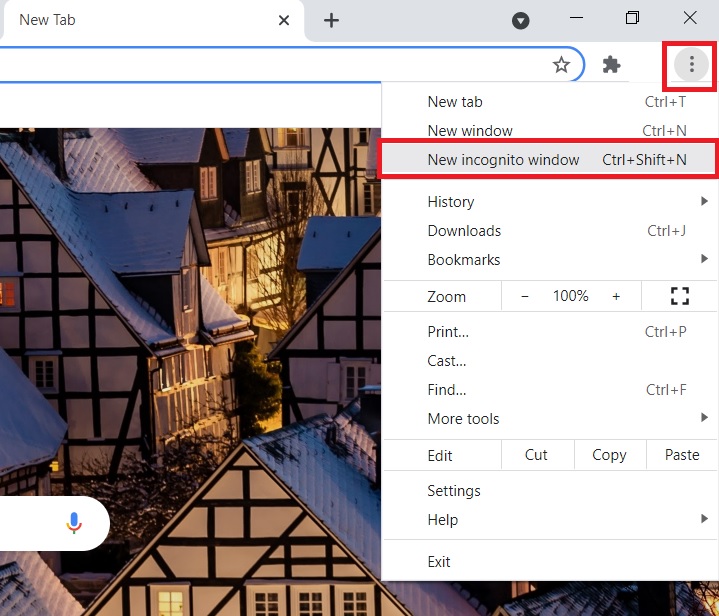
That’s it and now you can browse YouTube in incognito mode.
On YouTube App
Step 1: Open the YouTube app on your smartphone.
Step 2: Click on the Google Account photo.
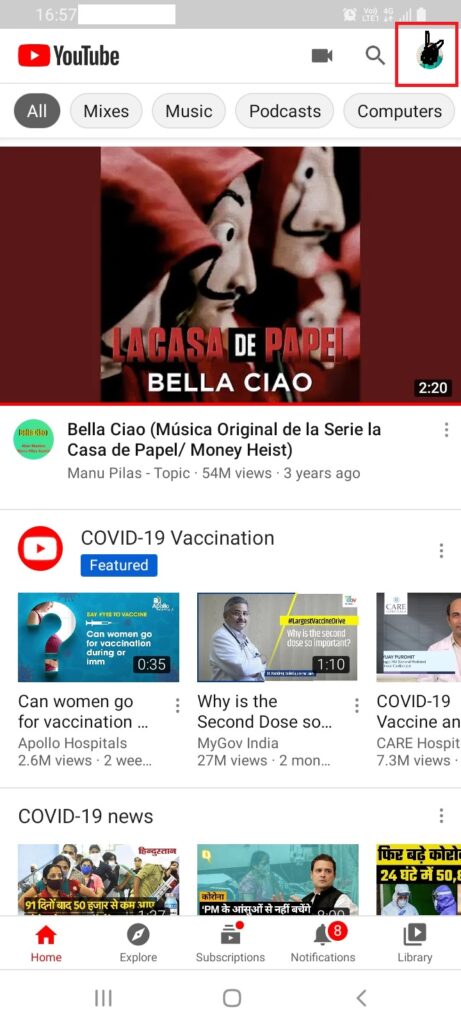
Step 3: Navigate down and top on ‘ Turn on Incognito ’.
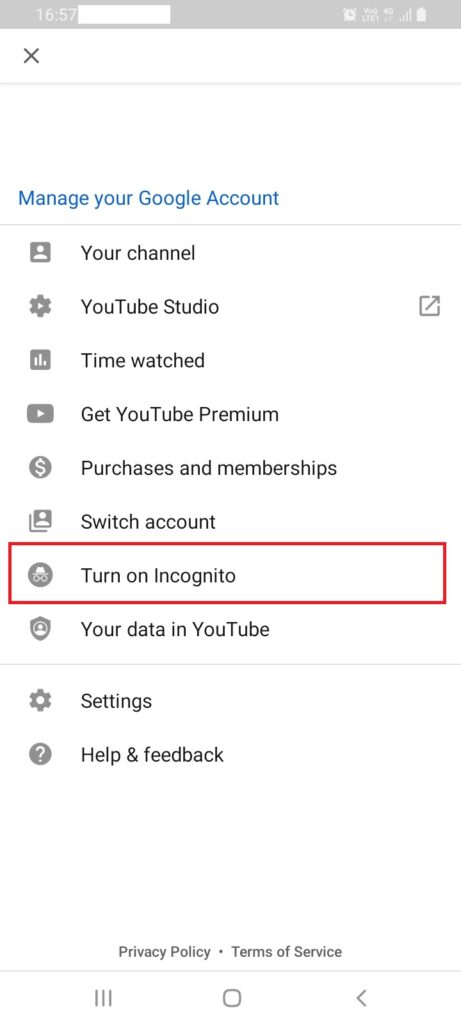
That’s it!
Disable Extensions
If you are using any extensions for ad-blocking on YouTube or for something else, it might be a possible cause for this issue.
Step 1: Open Google Chrome.
Step 2: Click on the three-dots icon on the top-right corner. Go to ‘ More tools ’ and click on ‘ Extensions ’.
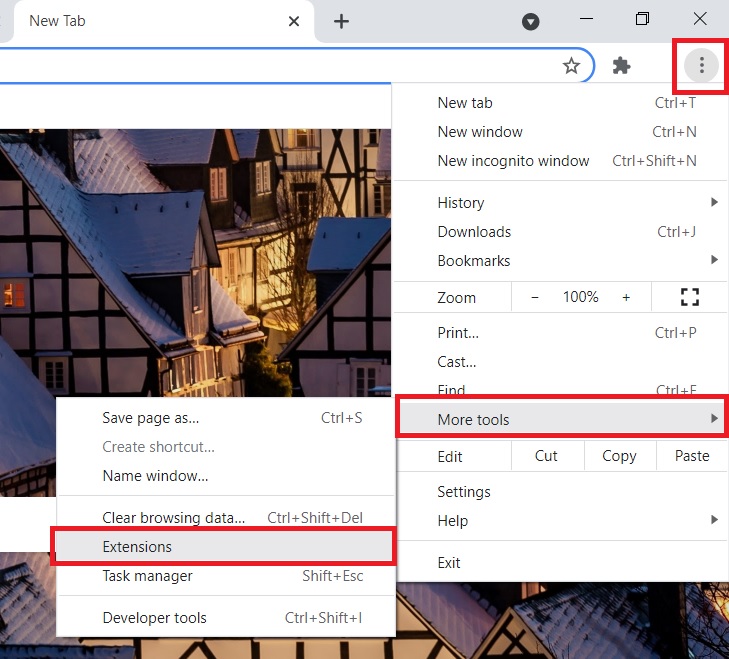
Step 3: If you are using an ad-blocker extension, disable it by turning off the toggle.
Disconnect from VPN
You can try disconnecting from the VPN service if you are using one and then check if the issue is still there or not.
Clear Cache and Browsing History
Here is how to clear the browsing history, cache, and cookies in Google Chrome:
Step 1: Open Google Chrome.
Step 2: Click on the three-dots icon on the top-right corner.
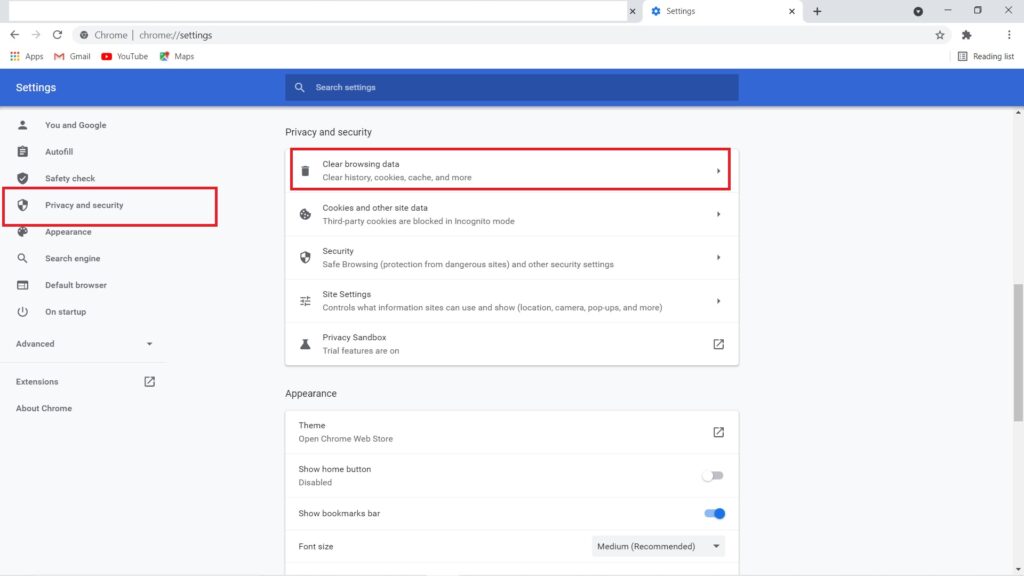
Step 3: Click on ‘ Settings ’.
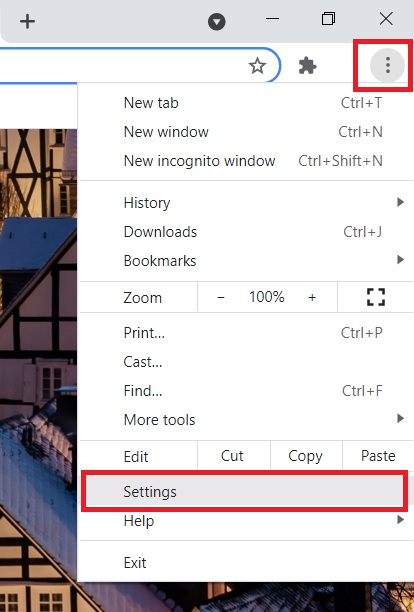
Step 4: Go to ‘ Privacy and security ’. Click on ‘ Clear browsing data ’.
Step 5: Open the ‘ Advanced ’ tab and check the first four boxes. Click on ‘ Clear data ’. Make sure the ‘ Time range ’ is set to ‘ All time ’.
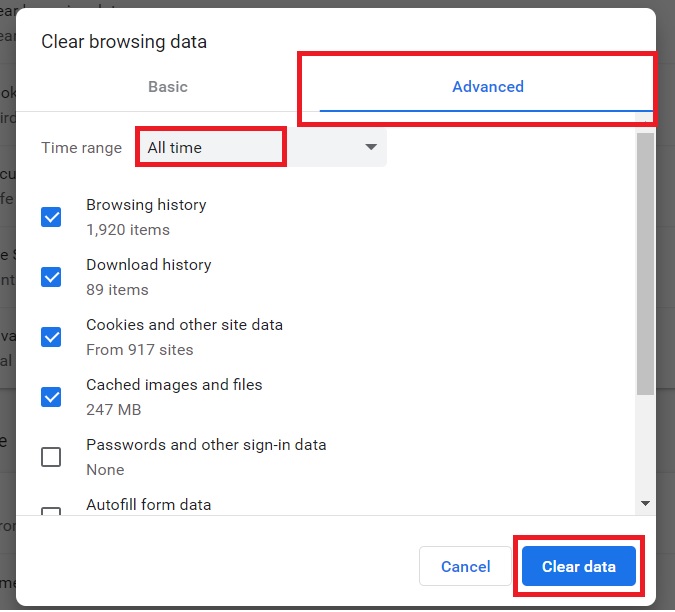
Let the process complete. Close Google Chrome and re-open it. This will fix the issue for you.
Restore Your Browser
Restoring your browser can also help in fixing this issue. Here is how to restore Google Chrome:
Step 1: Open Google Chrome.
Step 2: Click on the three-dots icon on the top-right corner.
Step 3: Click on ‘ Settings ’.
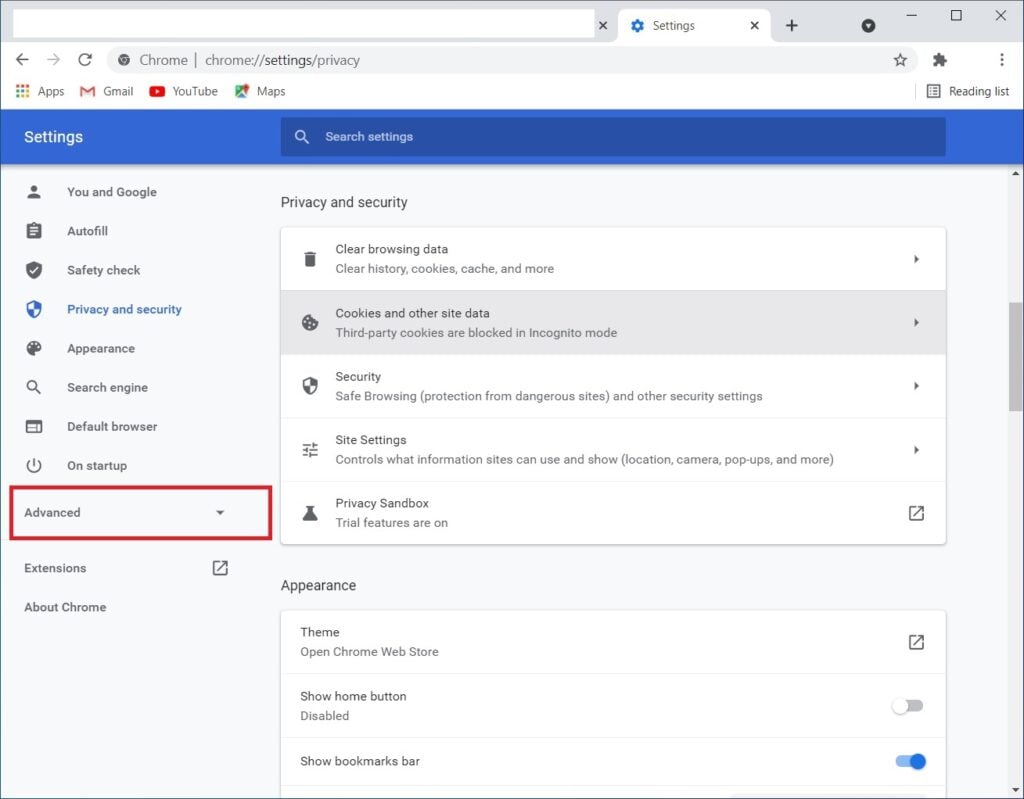
Step 4: On the left side menu, click on the ‘ Advanced ’ drop-down menu to expand it.
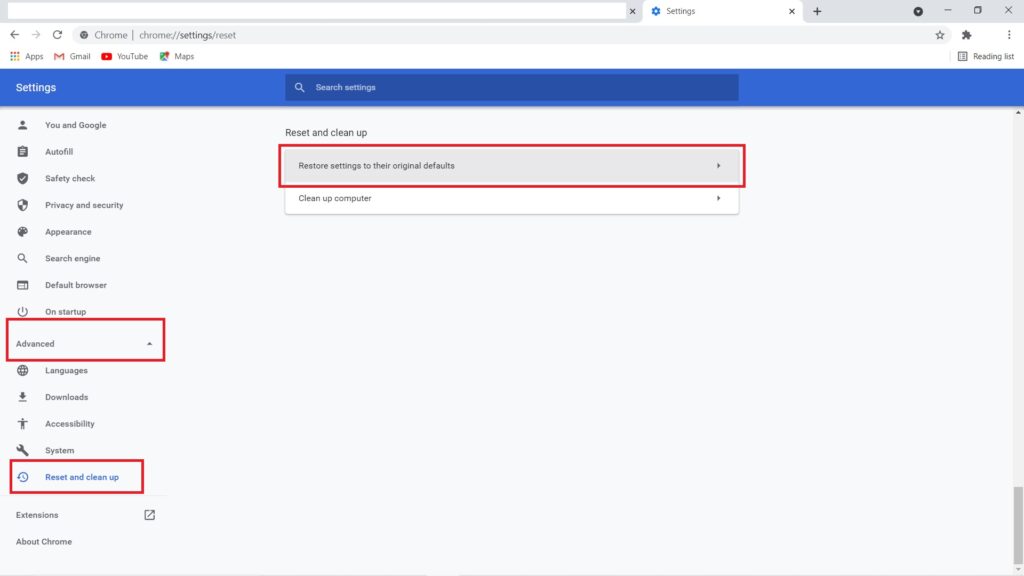
Step 5: Click on ‘ Reset and cleanup ’. Now click on ‘ Restore settings to their original defaults ’.
Step 6: Finally click on ‘ Reset settings ’.
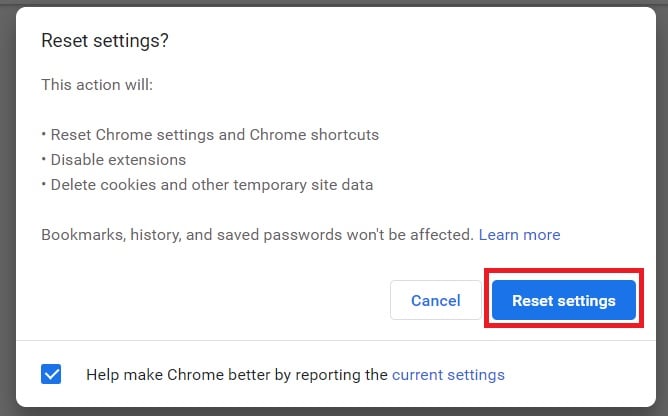
That’s it!
Clear YouTube App Data
Just like restoring your browser on a computer can fix YouTube comment not loading issue, Clearing cache and app data on a smartphone can also fix the issue.
For Android
Step 1: Long press on the YouTube app icon on your smartphone.
Step 2: Tap on the ‘ i ’ icon to open App info.
Step 3: Now tap on ‘ Storage ’.
Step 4: Here tap on tap on both the options to clear the cache and storage.
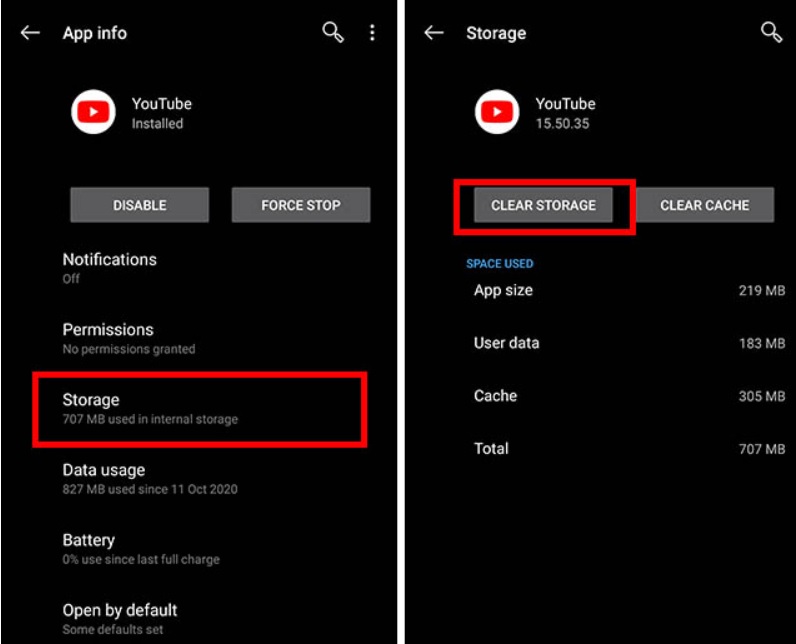
That’s it! Now open your YouTube app once again and this problem should be gone now.
For iOS
The only way to clear app data on iOS is by uninstalling the app and then reinstalling it.
So just uninstall YouTube from your iPhone and then reinstall it. This will fix the issue for you.
Enjoyed this article?
If TechLatest has helped you, consider supporting us with a one-time tip on Ko-fi. Every contribution keeps our work free and independent.
