Highlights
- The iPhone 14 makes an impressive first impression with its cutting-edge features and svelte design. However, it is possible that it may encounter occasional issues that need to be resolved.
- There is a common iPhone 14 black screen problem that users may experience.
- Luckily, this guide has some fixes to resolve the black screen issue on iPhone 14.
There are a number of potential causes or underlying problems that could cause an iPhone 14 screen to become black.
However, if you encounter a black screen on your iPhone 14, the right troubleshooting steps can often help you resolve the issue.
Don’t want to miss the best from TechLatest ? Set us as a preferred source in Google Search and make sure you never miss our latest.
And guess what? In this article, we have some fixes that have the potential to resolve the iPhone 14 Black Screen issue. So, let’s get started with the guide.
Content Table
Why is My iPhone Screen Black?
It is usually a sign that something is causing your iPhone to go black when the display is turned off. As a result, the device is either powered off or unable to boot up normally.
There are a number of factors that can impact your iPhone’s performance and cause it to become unresponsive when this problem occurs.
It is possible for this problem to be caused by many different things. In addition to a hardware issue, a software issue, a low battery, or an app issue, the problem can also be caused by a software issue. Additionally, you will find several different ways to fix your iPhone.
Fix iPhone 14 Black Screen Issue
If you are facing the black screen issue on iPhone 14, make sure to check out the fixes we have mentioned further in this article:
Fix 1: Restart Your iPhone 14
In order to resolve various iPhone issues, a restart is one of the simplest and most effective troubleshooting steps. Follow these steps to restart your iPhone 14:
- Hold down the power , including the Volume Down button, on your device.
- On the screen, you will see the power-off slider after a few seconds.
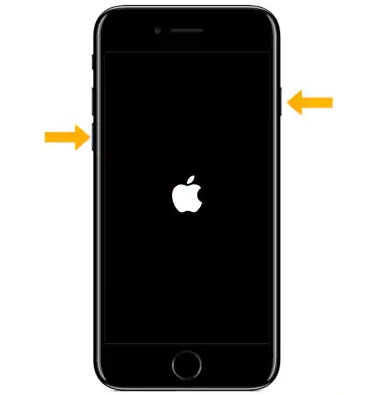
- Click and drag the slider to turn off your iPhone.
- Then, wait for some time, and press the power button until you see the Apple logo. This indicates that your device has started rebooting. Now, check whether the iPhone 14 black screen issue gets resolved or not.
Fix 2: Force Restart
In cases where your iPhone screen is not responding to your touch, you may need to force a restart. To restore your smartphone to working order, you have to try this quick fix in times of need. Here are the steps you need to follow to force restart your computer.
- Hold down the Volume Up button and release it.
- Press and release the Volume Down button.
- Once you see the Apple logo on your screen, press the side button on the right of your phone.
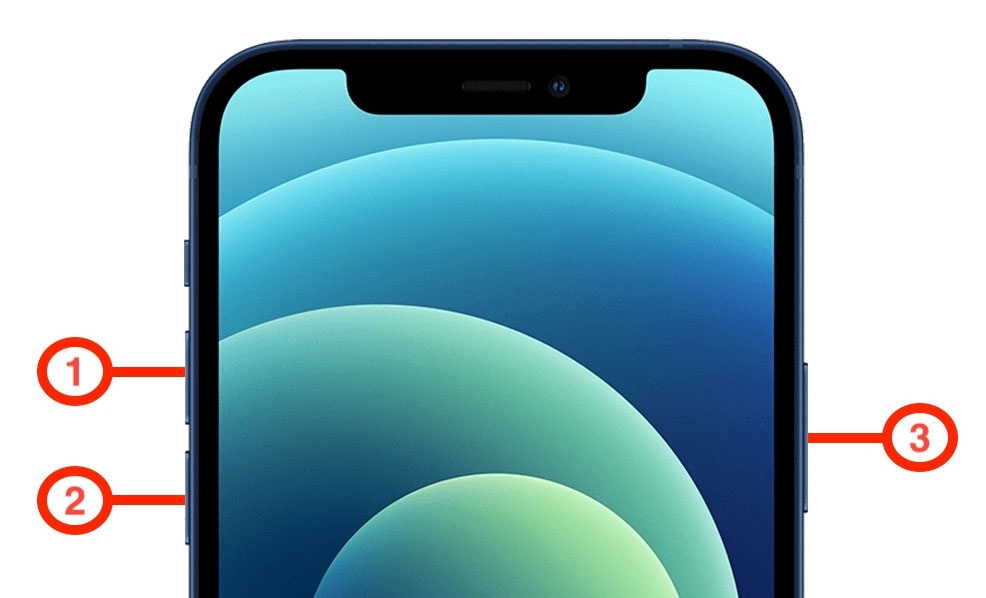
Afterward, your phone should normally start without any issues.
Fix 3: Check for Physical or Hardware Damage
It is possible that you have a hardware issue if none of these methods resolves your issue. Unless you are an authorized Apple technician, you won’t be able to solve such problems.
Make sure your smartphone is free of physical damage (e.g., dents and cracks). So, do not hesitate to visit the nearest Apple service center if there is a possibility that internal components may have been damaged.
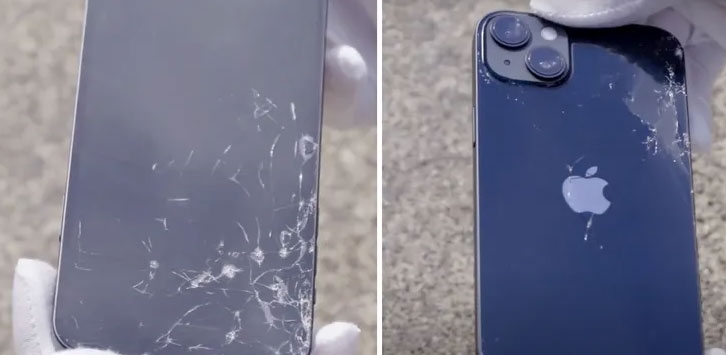
Generally, hardware-related issues can be resolved without incurring additional charges if your device is under warranty and you have the proper billing documents.
Fix 4: Use Apple’s Official Charger
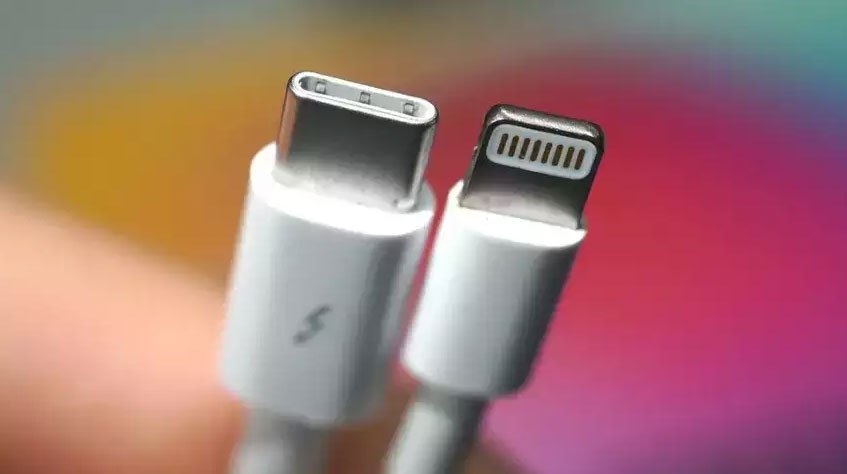
When it comes to accessories, Apple has a strict policy. Some third-party accessories work with Apple smartphones, but a small number are not. Currently, only Apple’s wireless charger allows you to charge iPhone 12, iPhone 13, and iPhone 14 smartphones wirelessly.
In this case, if you use any charger from another company, it could lead to your problems as well. With the iPhone 14, you must use Apple’s default charger for charging since most other chargers are incompatible with iPhones.
There is a risk that third-party chargers will push abnormal wattage into the phone, causing it to freeze or experience the Black Death. Hence, if you are using a third-party charger, you should switch to an original charger to see if that resolves the issue.
Fix 5: Remove The External Screen Protector
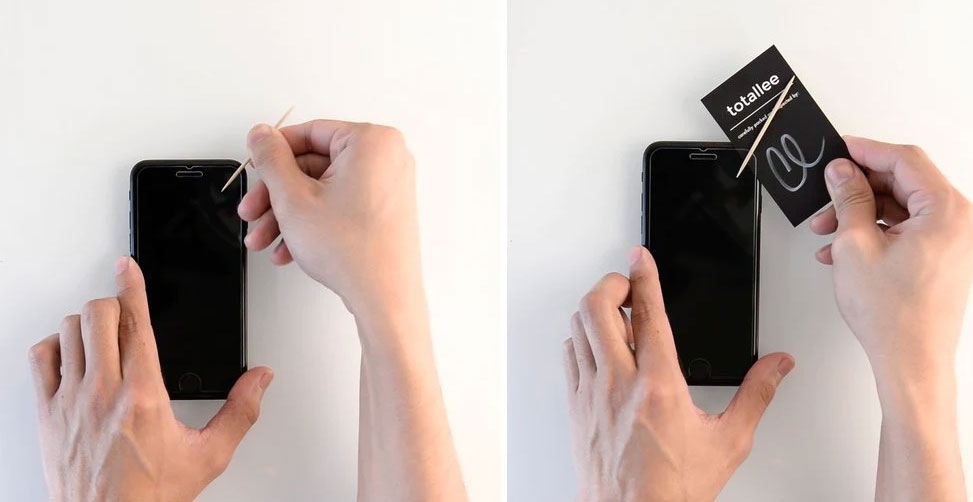
Sometimes, screen protectors can ruin the responsiveness of the iPhone, causing it to freeze or go blank.
It is recommended to use an official Apple screen protector instead of a third-party one in order to avoid this issue. In order to resolve the issue, remove any preinstalled screen protectors from third-party manufacturers.
Fix 6: Check Your iPhone Brightness
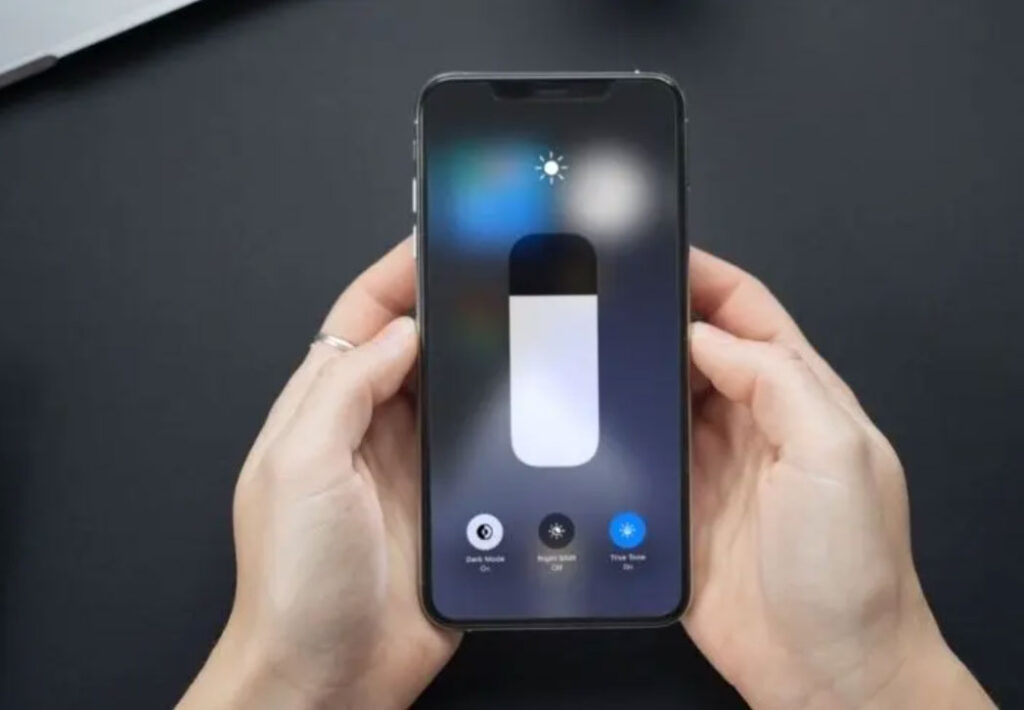
You might also experience an iPhone 14 black screen due to auto brightness settings being turned off in settings or having low brightness levels accidentally set.
If the iPhone’s brightness levels are low, you can check them manually by swiping down from the top right corner of the screen to the control center.
Fix 7: Update Your iOS (if possible)
It is possible that your iPhone’s software is to blame for the black screen issues in some cases. It is common for iOS updates to contain bugs that cause the device to have performance issues in the initial build.
Make sure you update your iOS if you wish to solve this issue. If you want to check if your iPhone is up to date, follow these steps:
- On your iPhone, go to Settings .
- Go to General .
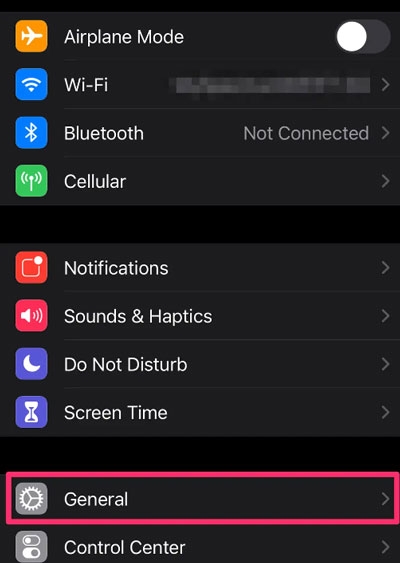
- Choose Software Update .
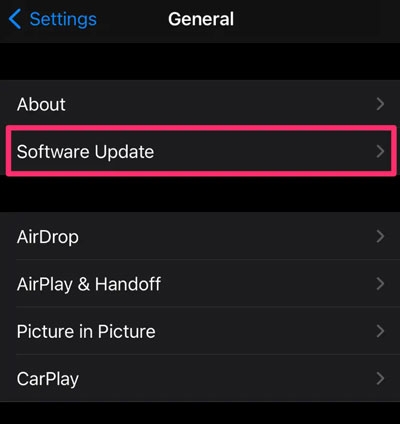
To ensure a smooth operation, install any pending updates. After that, check if the iPhone 14 black screen issue gets resolved or not.
Fix 8: Restore Your iPhone 14
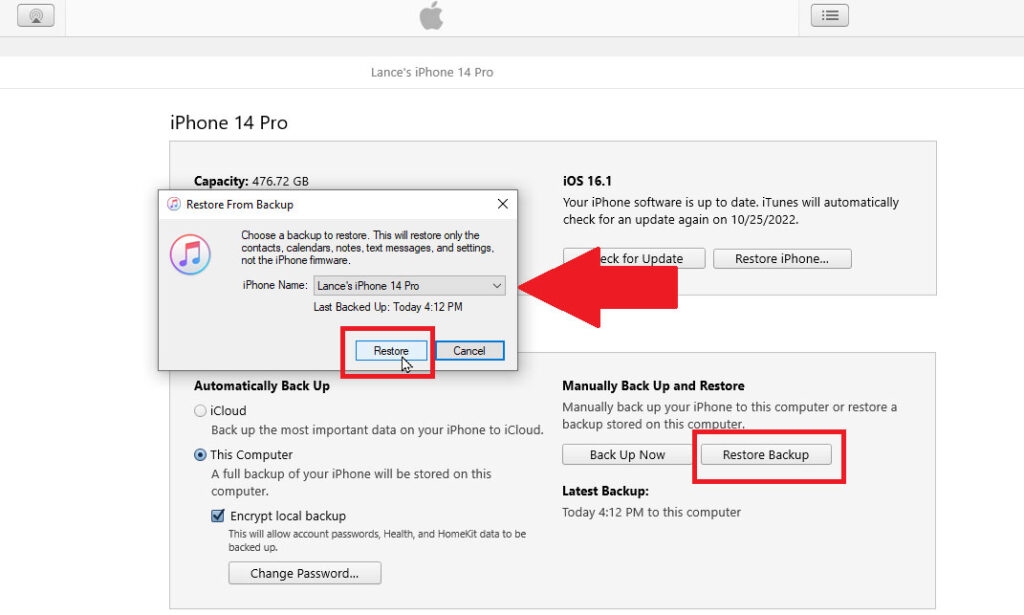
Lastly, if none of the above solutions resolves your iPhone 14 black screen of death issue, you should restore it. You should back up your iPhone before doing this because it will erase all of your data.
- Using a USB cable, connect your iPhone 14 to your Mac or Windows PC.
- Select your device in Finder/iTunes and click on Restore Backup .
- Click Restore to restore your iPhone. To restore your iPhone to its original settings, follow the on-screen instructions.
Sum Up – iPhone 14 Black Screen Issue
So, that’s all we have for you on how to fix the iPhone 14 black screen issue. It’s our hope that this guide has helped you. Moreover, in case you need more info regarding the black screen issue, comment below and let us know.
Further Reading:
- Apple iPhone 15 Series New Colourways Leaked
- How to Remove AirPods From Apple ID?
- Top 6 Methods to Help Transfer Your Data to New iPhone
Enjoyed this article?
If TechLatest has helped you, consider supporting us with a one-time tip on Ko-fi. Every contribution keeps our work free and independent.
