Highlights
- Error 0x8007016A usually appears when Windows loses proper communication with OneDrive’s background services.
- Most OneDrive access issues can be resolved by fixing sync, power, or system settings without advanced technical skills.
- Keeping OneDrive stable and backed up helps prevent repeated file access problems in the future.

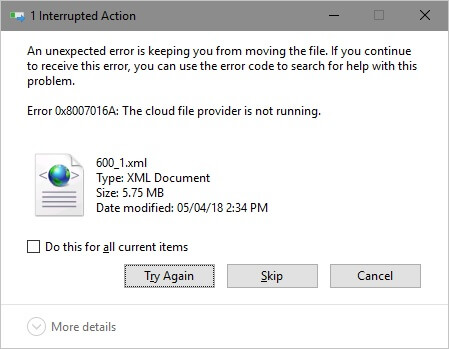
I know not everyone, but most of us use OneDrive on Windows PC, and if you are one of them and are facing a strange error message while trying to open, move, or delete files. The message usually pops up a message that says, “Error 0x8007016A – The cloud file provider is not running.”
Well, this error is really frustrating, especially when your files are right there, yet Windows refuses to work with them. But the good news is you do not need to worry, as we have some fixes that you can use to easily fix this problem.
Don’t want to miss the best from TechLatest ? Set us as a preferred source in Google Search and make sure you never miss our latest.
So, without any further ado, let’s start with our guide and see what error 0x8007016A is, why it happens, and how to fix it.
Content Table
What is Error 0x8007016A?
Error 0x8007016A is a Windows error mostly linked to Microsoft OneDrive . It appears when Windows is unable to communicate properly with OneDrive’s background service, which manages cloud files. When this error occurs, you may notice problems like
- Files not opening from OneDrive folders
- Unable to move or delete OneDrive files
- Files are showing but not downloading
- OneDrive appears stuck or paused
Well, Windows expects OneDrive to be running in the background, but for some reason, it isn’t working the way it should.
Why Does Error 0x8007016A Occur?
There isn’t just one reason behind this issue. It usually happens because of small system or OneDrive-related misconfigurations. Below are the most common causes explained in easy terms.
- OneDrive Is Not Syncing Properly: If OneDrive syncing is paused or stopped, Windows cannot access cloud files correctly.
- Files On-Demand Feature Causing Conflict: OneDrive’s Files On-Demand feature saves space by keeping files online only. Sometimes, this feature fails to fetch files when needed.
- Power Saving Mode Is Enabled: Windows’ power-saving mode may stop background services like OneDrive from running to save battery, especially on laptops.
- Corrupted OneDrive App Data: Over time, OneDrive files or settings may become corrupted, leading to communication errors.
- Incomplete or Buggy Windows Updates: A broken or outdated Windows update can interfere with OneDrive services.
- System Cache or Temporary Files: Old cache data may confuse OneDrive and prevent it from working properly.
Read : How to Fix if OneDrive Not Syncing?
How to Fix OneDrive Error 0x8007016A
Here are some of the best fixes that you can try to resolve the 0x8007016A error code:
Method 1: Check Your Internet Connection
Error 0x8007016A often appears when OneDrive cannot communicate with Microsoft’s servers. If your internet connection is unstable, slow, or disconnected, OneDrive fails to load cloud files properly. Here are the things that you need to perform:
- Make sure Wi-Fi or Ethernet is connected .
- Open a browser and check if websites load normally.
- If using a mobile hotspot, switch to a stable network if possible.
- Restart your router once if the connection feels slow.
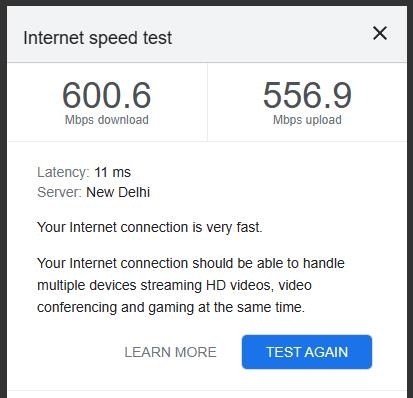
Internet Speed Test using Google
After confirming a stable internet connection, try accessing your OneDrive files again.
Method 2: Confirm That OneDrive Is Signed In
Most of the time, OneDrive runs in the background but is not signed in to your Microsoft account . In this case, Windows cannot fetch cloud files, which leads to the cloud file provider error. Here are the steps to follow:
- Click the OneDrive icon in the system tray
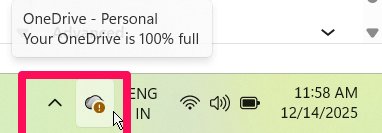
- Check if it asks you to sign in
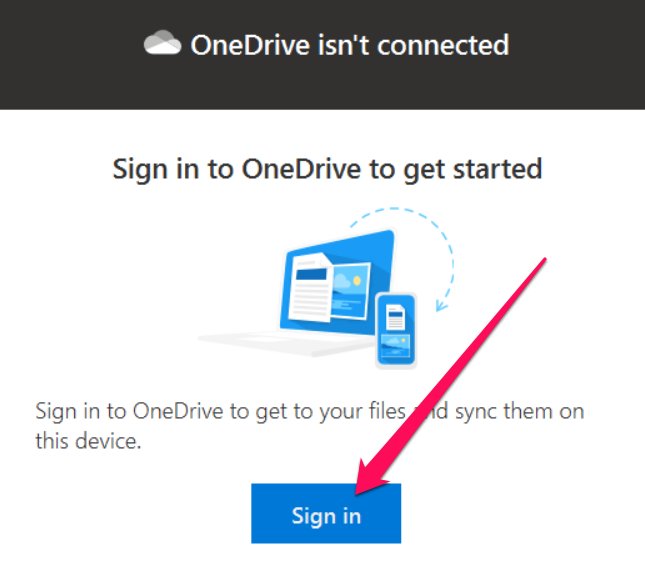
- If signed out, log in using your Microsoft account
- Make sure your email and password are correct
Once signed in, wait a few minutes for syncing to start, and then retry the file operation.
Method 3: Restart Your PC
Most of us ignore this as we think that a simple restart can fix the problem. But many OneDrive-related problems get resolved by just rebooting your PC. Temporary system glitches, stuck services, or background sync errors often clear automatically after restarting Windows. Here’s what you need to do:
- Save all open work
- Click Start > Restart
- After reboot, let the system load completely
- Open OneDrive and wait for syncing to resume
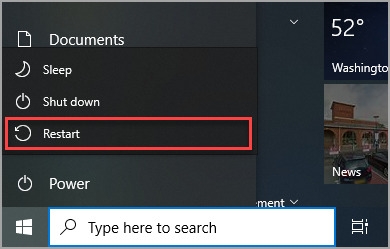
In many cases, this alone resolves error 0x8007016A .
Method 4: Update Windows to the Latest Version
Many OneDrive issues are fixed automatically through Windows updates. Here are the steps that need to be performed to resolve the 0x8007016A error code:
- Click the Start button
- Open Settings
- Go to Windows Update
- Click Check for updates
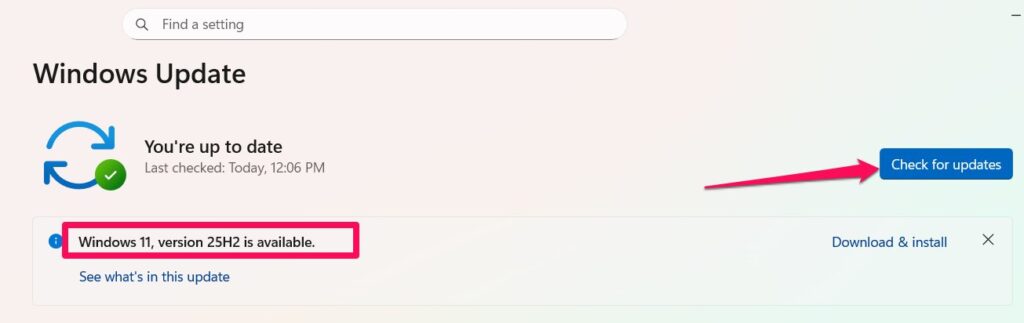
- Download and install any available updates
- Restart your computer
After restarting, try accessing your OneDrive files again.
Method 5: Turn Off OneDrive Files On-Demand
Files On-Demand is useful, but it often causes error 0x8007016A. Here’s what you need to do:
- Click the OneDrive icon in the system tray
- Click Settings
- Go to the Sync and Backup tab
- Find Files On-Demand > Download all files > Continue.
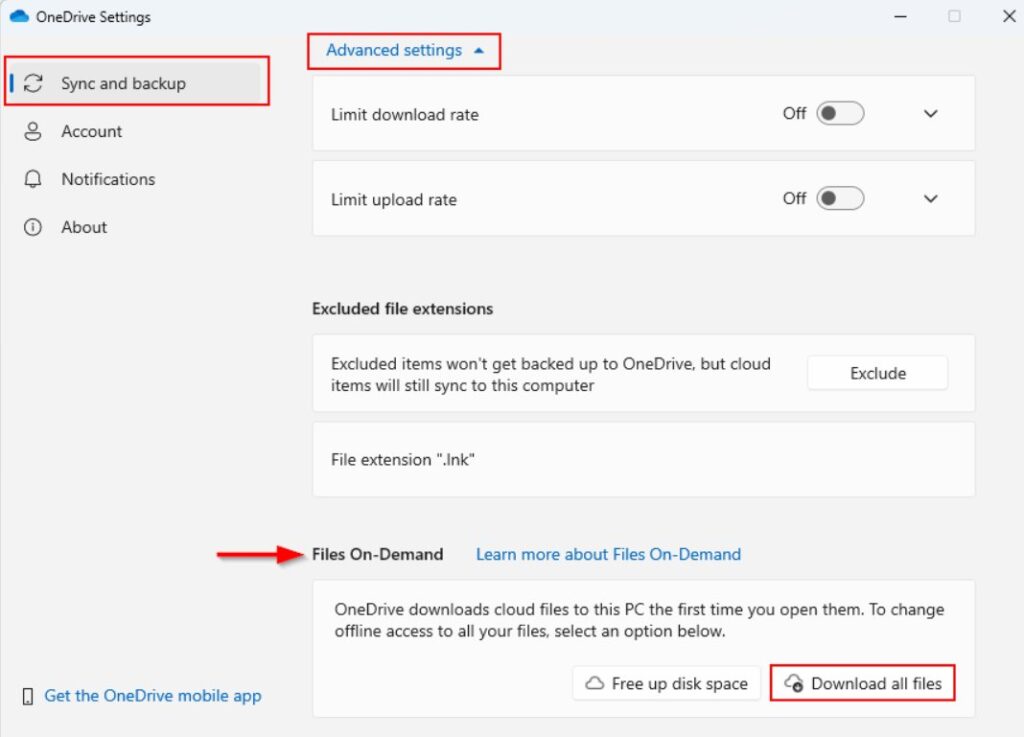
- Turn it Off
- Restart your PC
This forces OneDrive to store files locally, reducing access errors.
Method 6: Resume OneDrive Sync Manually
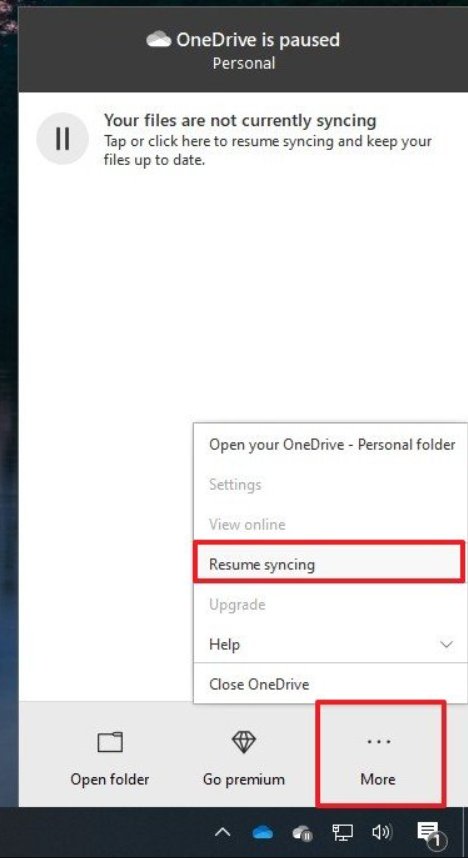
Sometimes syncing gets paused without notifying you, and in that case, you may start facing the error code 0x8007016A.
- Click the OneDrive icon in the taskbar
- Select Resume syncing
- Wait a few minutes
- Try opening or moving files again
Method 7: Disable Power Saving Mode
Power saving mode may block OneDrive services in the background. Here’s what you need to do:
- Press Windows + R
- Type powercfg.cpl and press Enter
- Select Balanced or High Performance
- Save changes
- Restart your system
Method 8: Reset OneDrive Completely
Resetting OneDrive clears bugs without deleting your files. These steps will help you do so:
- Press Windows + R
- Paste the following command: %localappdata%\Microsoft\OneDrive\onedrive.exe /reset
- Press Enter
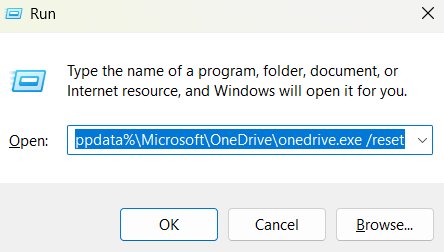
- Wait for OneDrive to restart
- Sign in again if required
After a reset, OneDrive usually starts working smoothly.
Method 6: Restart OneDrive Services
If OneDrive is running incorrectly, restarting it helps. To restart your OneDrive Services:
- Press Ctrl + Shift + Esc to open Task Manager
- Look for OneDrive
- End the task
- Restart OneDrive from the Start Menu
This refreshes the cloud file provider service.
Method 7: Check Disk for Errors
File system errors can also trigger this issue. To do so:
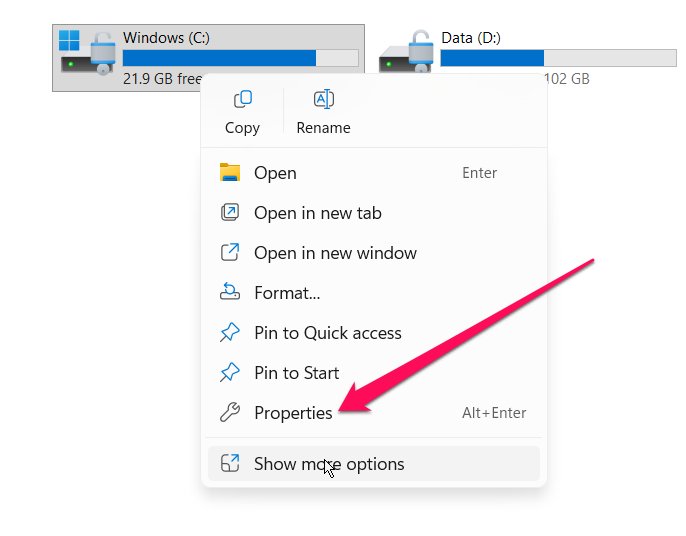
- Open This PC
- Right-click your system drive (usually C:)
- Select Properties
- Go to Tools
- Click Check under Error Checking.
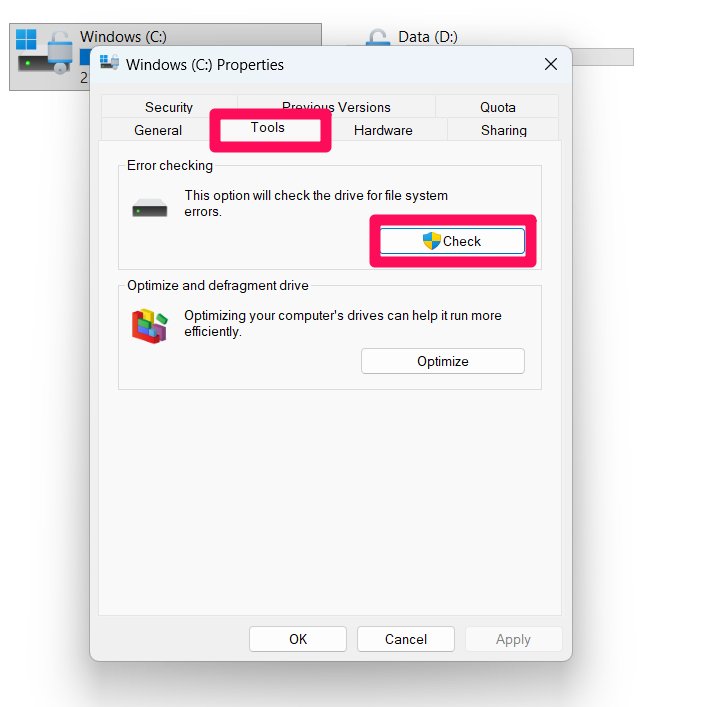
- Restart if prompted.
What if manual fixes don’t work?
I have found that the error keeps coming back, especially if OneDrive files are already damaged. In such cases, backing up your OneDrive data becomes very important. So, in this situation, backup ensures that:
- Your files stay safe
- Data is accessible even if OneDrive fails
- You can restore files anytime
Backing up is not just a fix; it’s a long-term safety habit.
Read : Google Drive vs. OneDrive, Which one is Safe to Share?
Why Backing Up OneDrive Is a Smart Move
Many users rely completely on cloud storage and forget that cloud services can fail, too. Errors like 0x8007016A are a reminder that no storage system is perfect . However, a proper backup helps you:
- Avoid data loss
- Move files easily to another drive
- Access files even without the internet
Whether you use manual methods or a dedicated backup tool, keeping a copy of your important files is always a wise precaution.
So, that’s all we have for you about how to fix the Error 0x8007016A – The cloud file provider is not running message. We hope that you find this guide helpful. However, in case you need more help, comment below and let us know.
Enjoyed this article?
If TechLatest has helped you, consider supporting us with a one-time tip on Ko-fi. Every contribution keeps our work free and independent.
