Highlights
- Most “Connected without Internet” issues start from the router losing its link to the ISP, not from your device.
- Checking whether the problem exists on one device or all helps you diagnose the exact source within seconds.
- Stable DNS and regular firmware updates keep the network working smoothly and prevent silent failures.

It is really frustrating when our WiFi continuously starts showing Connected but having no internet, even after you have paid all pending bills.
It means you are connected to the WiFi network, your phone shows a full signal, and your laptop says “Connected”, yet webpages don’t open, videos don’t stream, and everything feels stuck.
Don’t want to miss the best from TechLatest ? Set us as a preferred source in Google Search and make sure you never miss our latest.
This is the most common problem that almost every WiFi user faces regularly, especially people who use broadband connections at home. Its most confusing part is that the device shows a connection, due to which we start thinking that everything should work, but inside the network, something is broken.
But, now no worries as we have some fixes using which you can easily fix the Connected Without Internet problem. So, let’s get started with the guide.
Content Table
What Does the “Connected Without Internet” Message Mean?
So, before starting with the fixes, let us check out what this message is about or what it really means. When you connect to WiFi at home, you are actually connecting to two things:
- Your WiFi router
- The internet service provided by your ISP (Internet Service Provider)
The device will establish a connection in this way: Device > Router > Internet
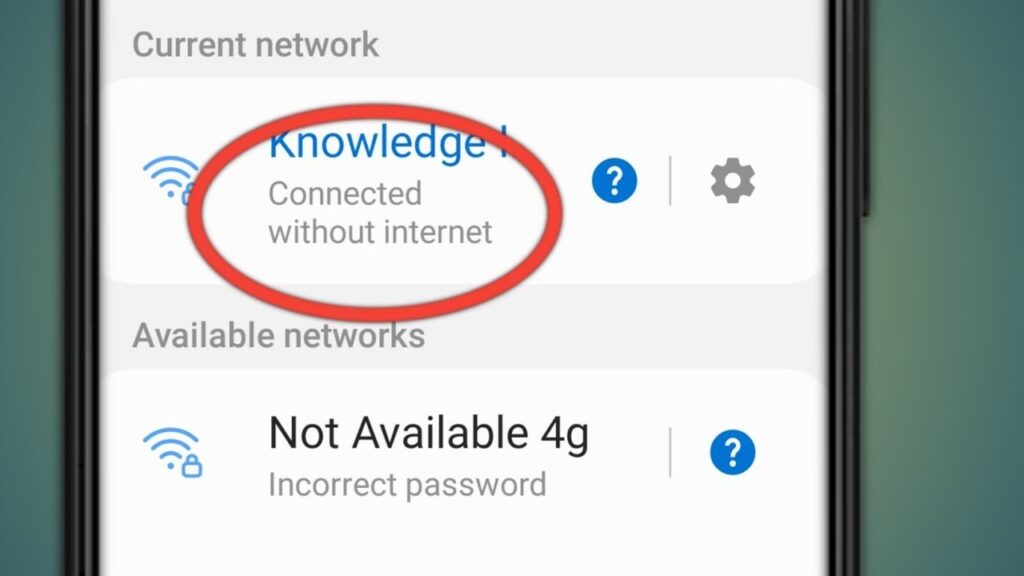
So, when your phone says “Connected” , it means your device is able to talk to your router . But when there is no internet , it means the router is not able to reach the internet .
So, you may get this error message: You are connected to the router, but the router has no internet.” This is why apps and websites don’t load even though the WiFi icon looks perfect.
What Is the Reason Behind the Connected Without Internet Problem?
There is not just one reason behind this problem. Different situations create the same message. Below are the most common causes , explained in simple language.
1. Your Internet Connection is Down
This is the most common reason. Your router is fine, your phone is fine, but the internet from the provider is temporarily down. They might appear due to these:
- Fiber cable damage in your area
- Network maintenance
- Your account has expired or is due for payment
- Power outage at the ISP center
In such cases, the router keeps running, so your device connects to WiFi, but there is no actual internet.
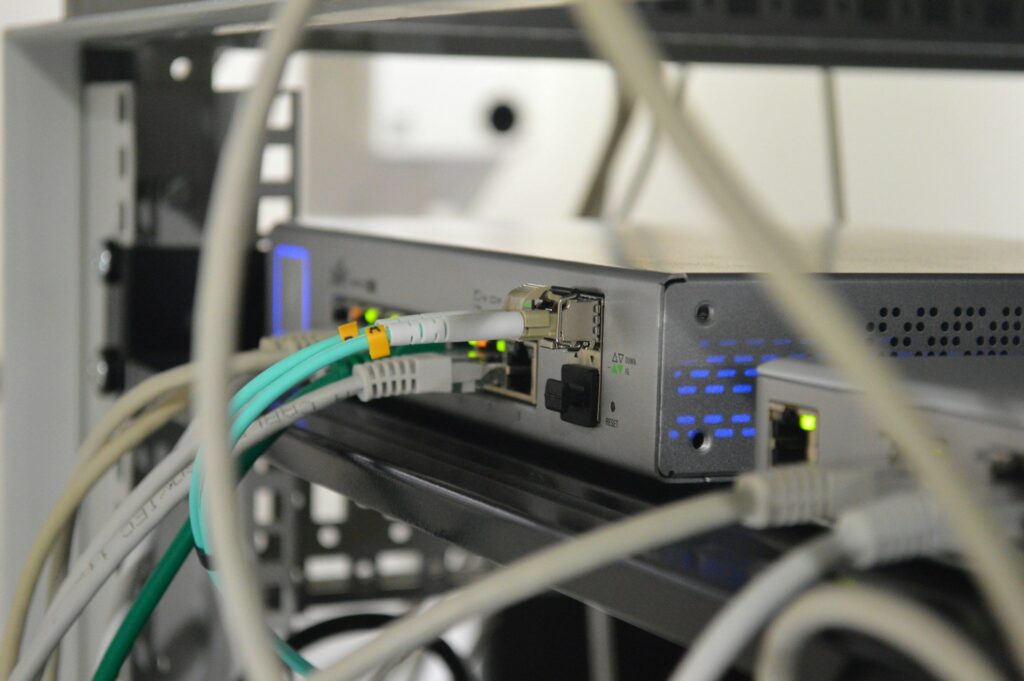
Photo byThomas JensenonUnsplash
2. Router Malfunction
Routers are like mini-computers. They have their own memory, processor, software, and logs. Sometimes they get stuck because:
- They have been running for days without a restart
- Too many devices are connected at once
- Overheating due to closed placement
- Firmware bugs
- Wrong settings
A simple restart refreshes the memory and solves the issue.
3. IP Address Conflict
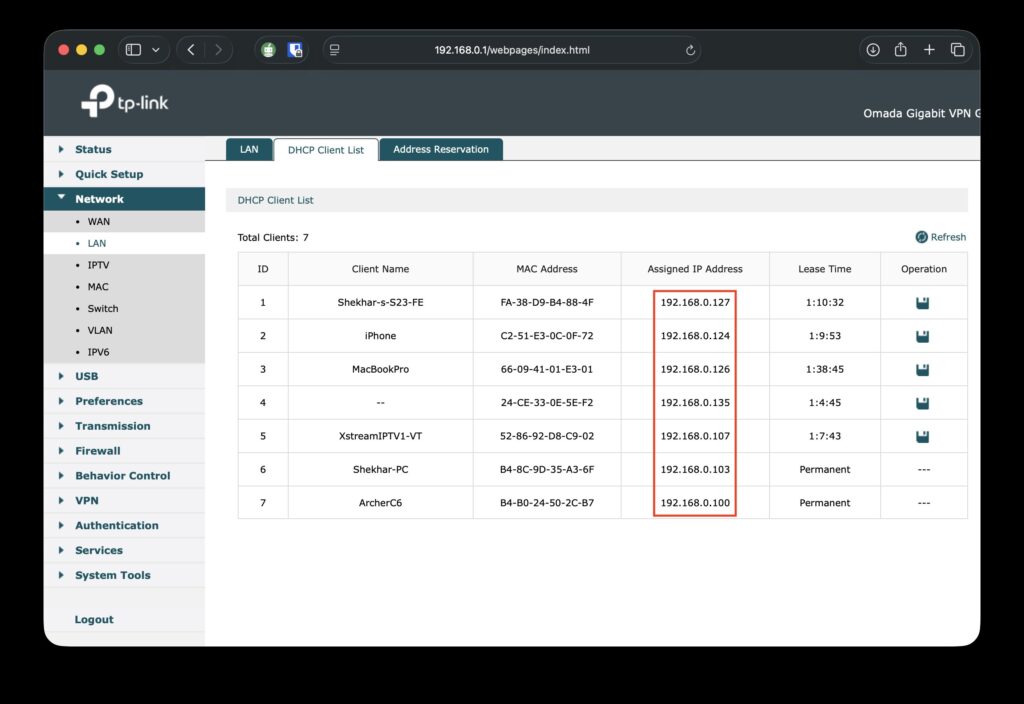
Every device on a network needs a unique IP address . If two devices accidentally get the same IP, a conflict happens. This can confuse your router, and your device might show connected, but the internet will not work.
This usually happens when:
- Many devices are using the network
- Someone changed the router settings
- The DHCP feature is not working
4. DNS Issues
DNS is like a telephone directory of the internet. When you enter “youtube.com”, DNS tells the device the exact server address of YouTube.
If DNS is not working properly, your device is connected but cannot find websites . This leads to “no internet”.
5. Device Cache Problem
Phones and laptops store network information. If this cache gets corrupted, your device may show the wrong status. This can happen after:
- System updates
- Router change
- Switch between networks (Mobile hotspot ↔ WiFi)
- VPN usage
6. Expired Network Drivers (Laptop Issue)
On Windows laptops, network drivers take care of WiFi connections. If drivers are old or broken, you may face this issue only on your laptop.
7. Router Settings Blocking Your Device
Some routers have features like:
- MAC address filter
- Parent control
- Access control
These features can block a device even when it is connected to the network.
Now that we understand the reasons, let’s move to solutions .
How to Fix the “Connected Without Internet” Issue
Here are some fixes that you can use to easily fix the WiFi connected without internet issue:
Method 1: Restart Your Router
Many people ignore this basic solution. But restarting solves more than half of the WiFi problems. It clears old data, frees memory, and reconnects the router to the ISP. Here’s how to do it:
- Turn off your router using the power button
- Wait for 15–20 seconds
- Turn it back on
- Wait until all lights become stable
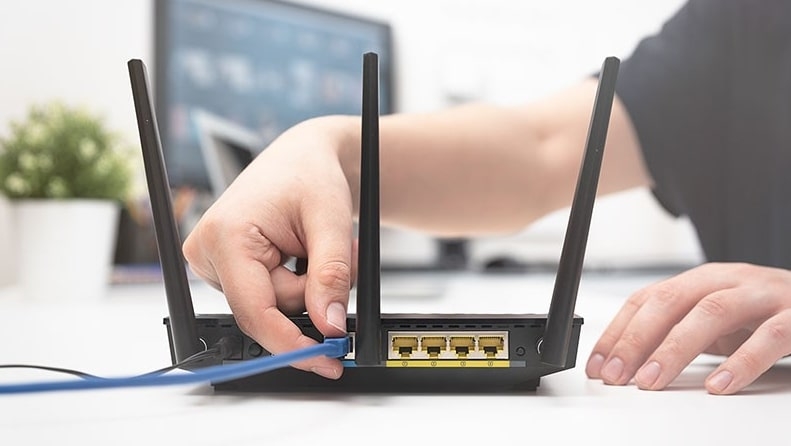
Try using the internet again. If the issue is temporary, this will solve it within one minute.
Method 2: Check if the Internet is Really Working
Sometimes we keep trying fixes even when the internet is actually down from the provider. Try this:
- Turn on mobile data
- Search “Internet down in my area.”
- Open your ISP’s app (Airtel, Jio, BSNL, ACT, etc.)
- Ask a neighbor if their internet is working
- See if the internet works on another device at home
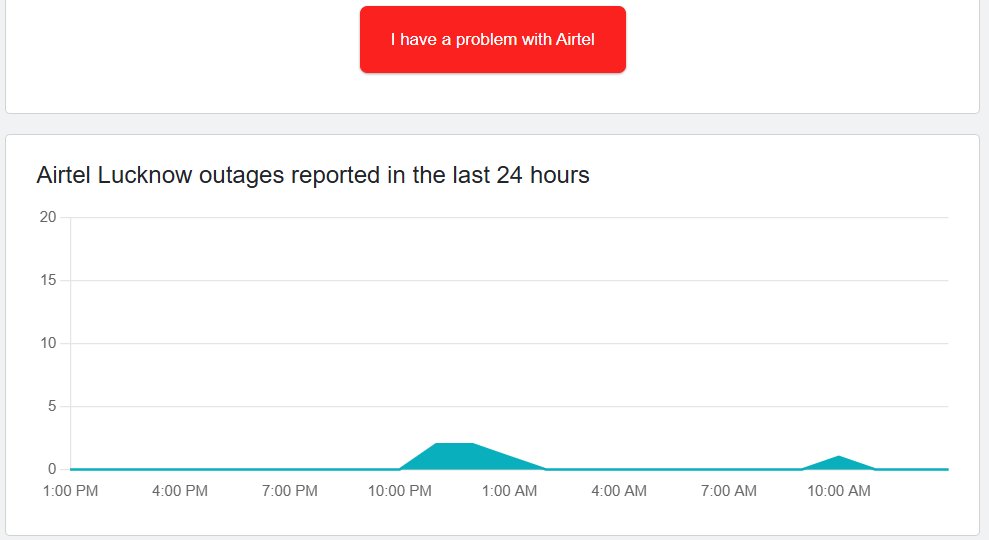
If the problem is with the ISP, no method will work , and you must wait.
Method 3: Forget and Reconnect WiFi
Your mobile stores WiFi settings. If those settings are wrong, you get this error. Here are the steps to do it:
- Go to WiFi settings
- Select your WiFi name
- Tap Forget
- Connect again using the password
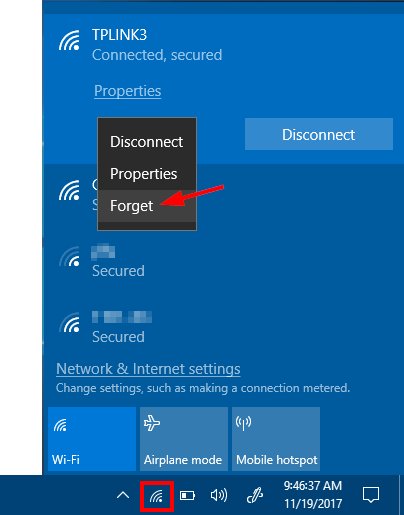
This gives your device fresh settings.
Method 4: Check if the Issue is on One Device or All
This will help you understand the source.
- If only one phone/laptop shows no internet > the problem is in that device.
- If all devices show no internet > the problem is in the router or the ISP.
This single check saves a lot of time.
Method 5: Change DNS
DNS issues are more common than people think. Use Google DNS because it is fast and reliable.
- Primary : 8.8.8.8
- Secondary : 8.8.4.4
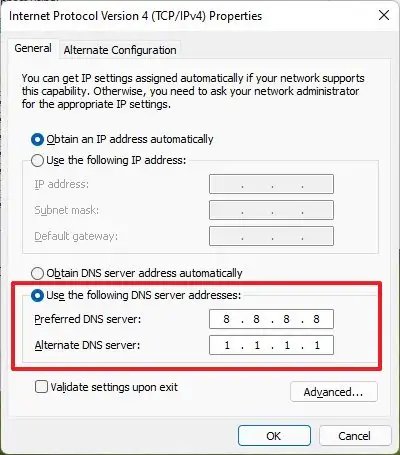
After saving, restart your WiFi and check whether you are connected without internet.
Method 6: Reset Network Settings (Mobile)
If your phone is the only device facing the problem, reset its network settings. It removes:
- invalid network cache
- old passwords
- temporary errors
But it does not delete photos or apps.
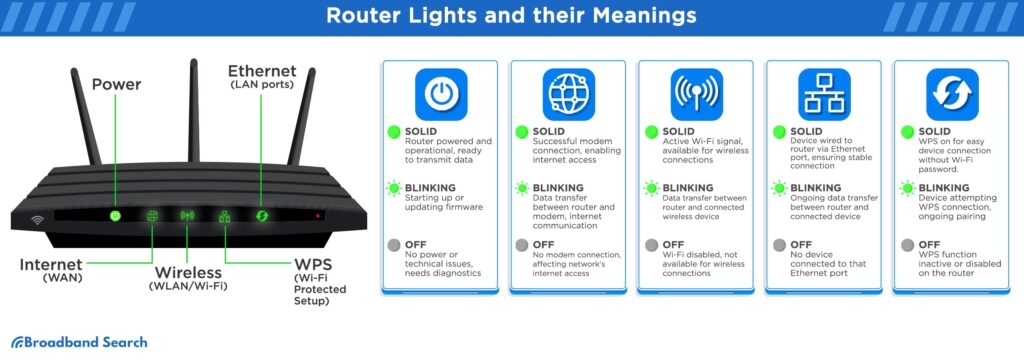
Method 7: Check Router Indicators
Router lights tell the story of whether it is working perfectly or not. If the Internet light is red or blinking , the problem is definitely not in your phone. It is in the router or the ISP. If the lights look normal, move to the next method.
Method 8: Router Firmware Update
Old router software can cause bugs. Open the router page from the browser and type:
- 192.168.1.1 or
- 192.168.0.1
Go to Administration > Firmware Update . Then, Update if available.
Method 9: Release and Renew IP (Laptop)
If none of the above methods worked for you, then try this method, as this clears the IP conflict. Open CMD and type:
- ipconfig /release
- ipconfig /renew
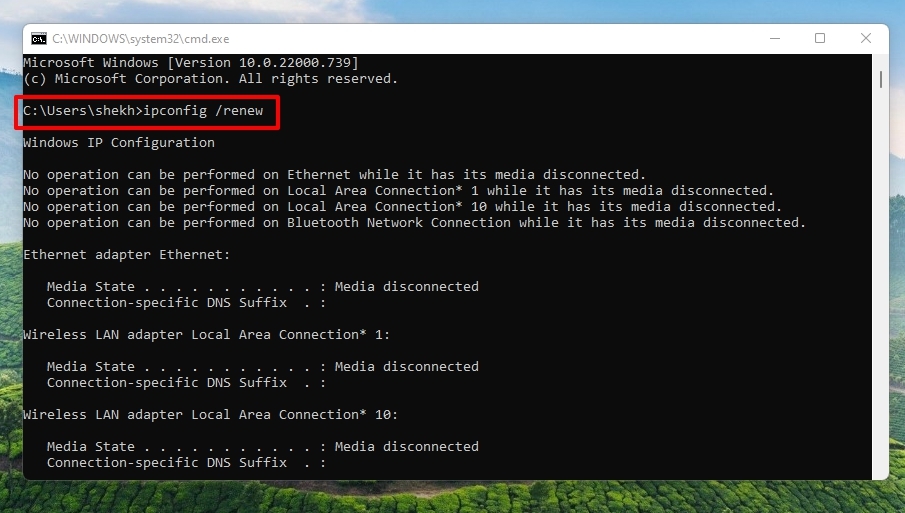
Then, restart the WiFi and check if the issue of connecting without internet gets resolved.
Method 10: Reset Router Completely
If none of the above fixes work, then the router may have the wrong settings. So, resetting it to factory mode will help you. However, there is a small RESET pin hole on the backside. Then, press and hold for 10 seconds . After that, set up WiFi again.
Method 11: Call ISP Support
If your router reset didn’t solve the issue, the problem is with the service provider. They can:
- Verify account status
- Refresh the connection from their end
- Fix backend errors
- Send a technician if needed
Usually, this fixes the connected without internet issue within minutes .
So, that’s all we have for you about how you can easily fix if WiFi is showing connected without an internet problem. We hope that this guide has helped you. However, in case you need more info, comment below and let us know.
Enjoyed this article?
If TechLatest has helped you, consider supporting us with a one-time tip on Ko-fi. Every contribution keeps our work free and independent.
