Windows is a good OS and has some really cool features and all good, but it has a long history with bugs. These bugs cause a different error and performance-related issues so that is a problem. One of the common errors that you will see is ‘ The File or Directory is Corrupted and Unreadable ’ and it becomes important to fix The File or Directory is Corrupted and Unreadable error in Windows 10.
The issue is common and its solution is fairly easy too. You can fix The File or Directory is Corrupted and Unreadable error in Windows 10.
Don’t want to miss the best from TechLatest ? Set us as a preferred source in Google Search and make sure you never miss our latest.
In this article we will show you how to fix The File or Directory is Corrupted and Unreadable error in Windows 10.
Content Table
How to Fix The File or Directory is Corrupted and Unreadable Error in Windows
You will generally see this issues with an external hard drive that could be a PenDrive, SD cards, SSD, HDD, etc. and the possible reasons for this could be a corrupted hard drive, malware infection, physical damage to the hard drive, or improper removal of the hard drive.
So here are some methods by which you can fix this issue:
ChkDsk Command
Step 1: Open File Explorer in your computer.
Step 2: Go to the external hard drive and right click on it and navigate to ‘Properties’.
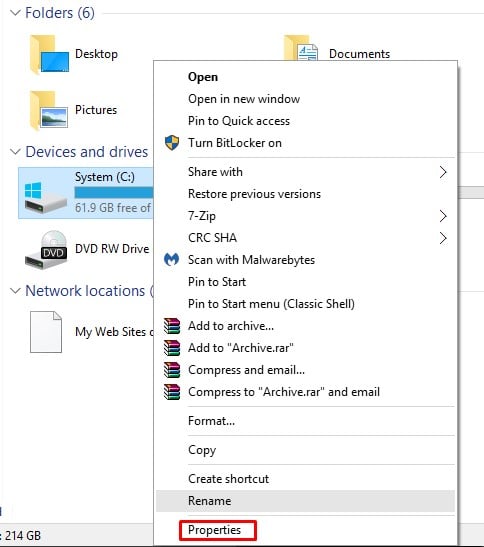
Step 3: Go to ‘Tools’ and click on ‘Check’ button under ‘Error checking’.

Step 4: Click on ‘Scan drive’ and let the scan complete.

Step 5: After completion of the scan you will see a message that will inform you about the completion of the scan, click ‘Close’ button.

That is it and this will most probably fix your issue.
Using Command Prompt
Step 1: Go to Windows search bar and type ‘Command prompt’ and right click on it to run as administrator.

Step 2: In the command prompt, type the following code
chksdk /r (disk letter):
Note: Here “(Disk letter)” should be a letter of the disk that is displaying the error. For example is I am seeing error in disk ‘e’ then I will type
chkdsk /r e:

Step 3 : Let the scan complete and restart your computer.
This should also fix your error.
Using an AntiMalware
You can also use a third party AntiMalware software. Just install it and run a custom scan for the disk that is giving you the error and this shall fix your problem.
So these were some of the methods by which you can fix The File or Directory is Corrupted and Unreadable error in Windows 10 .
- How to Fix All Sound Issues in Windows 10?
- How To Fix ‘Your PC Ran Into a Problem and Needs to Restart’ in Windows 10
- How to Transfer Windows 10 License To New PC, Hard Drive, or SSD
- How to Fix the Windows 10 Update Error that Makes the Desktop Automatically Switch to Tablet Mode
Enjoyed this article?
If TechLatest has helped you, consider supporting us with a one-time tip on Ko-fi. Every contribution keeps our work free and independent.
