Highlights
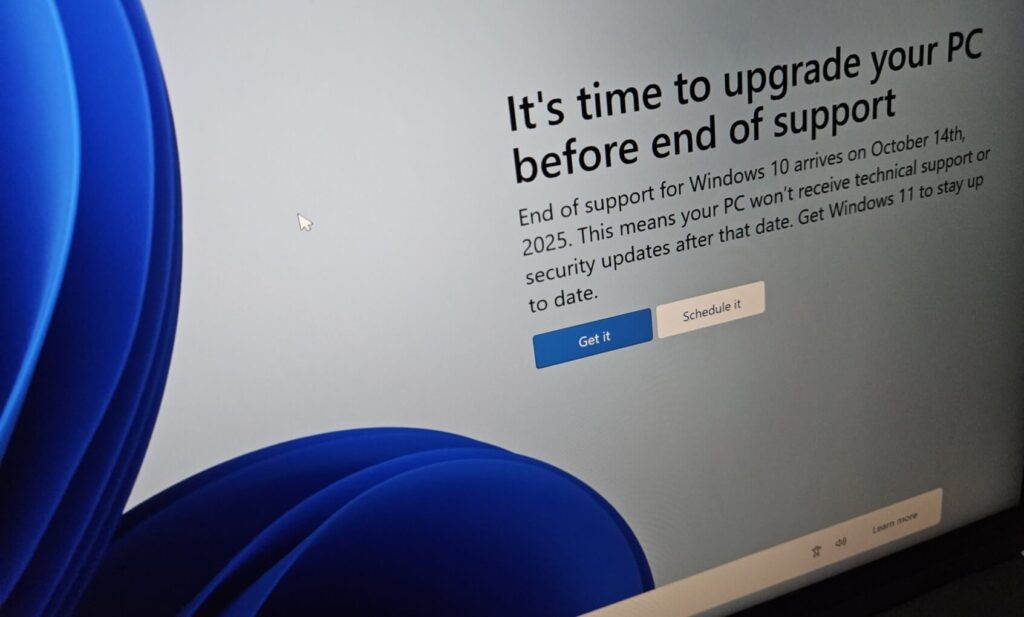
- Microsoft has announced Windows 10 End of Support. Starting from Oct 14, 2025, no updates, technical assistance, or security fixes.
- Either you can upgrade to Windows 11 or opt for the Extended Security Updates (ESU) program for free.
- ESU enrollment provides one year (3 years for enterprise users) of additional security updates after Oct 14, 2025.
Microsoft is finally retiring Windows 10 after more than 10 years of a successful run. It was first officially announced on July 29, 2015, to all the public users.
As of now, Windows 11 is dominating the Windows market share, but a notable 45% of Windows users are still using Windows 10 . And by 45%, it means more than 445 million users are still depending on the best Windows OS ever developed by Microsoft.
Don’t want to miss the best from TechLatest ? Set us as a preferred source in Google Search and make sure you never miss our latest.
Well, now it’s time to finally say goodbye to Windows 10 and upgrade to Windows 11 or move to another alternative.
But, if we still want to stick with Windows 10 after a few more times, you can opt for Extended Security Updates (ESU), which Microsoft previously used to offer to enterprise users and are now available for consumers as well.
Content Table
What do Extended Security Updates (ESU) mean?
Extended Security Updates (ESU) is self-explanatory by its name. As per the program, Microsoft will push security updates to the Windows 10 users after the End of Support.
- Security patches (but not feature updates or noncritical fixes)
- Extra time (until October 2026) to plan your eventual migration
- And for enterprise users, up to 3 years of security updates by paying the yearly subscription fee of 61 USD.
Read : Installing Windows 11 24H2 on Unsupported PC
How to Enroll in the Windows 10 ESU Program?
Prerequisites
- Windows 10 22H2 with all the latest updates installed.
- User account with administrative privileges.
Method 1: Using Windows Backup or Microsoft Reward Points (1000)
The step for using this method is straightforward and simple. You just need to open Windows Update settings and look for the banner/notification and click on the Enroll now button under “Windows 10 support ends in October 2025.”
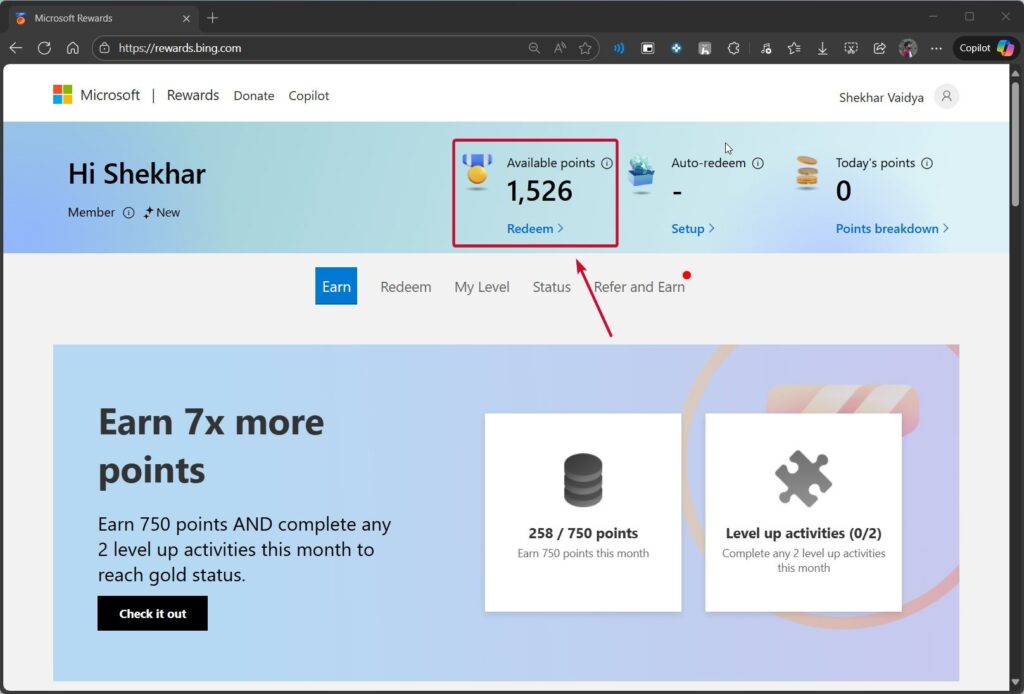
But before you click on the enroll button, you need to check that either your device is synced to the cloud via Windows Backup or you have at least 1000 Microsoft Reward points.
Checking the reward points:
- Go to the Microsoft Rewards website.
- Log in with your Microsoft account.
- And check the available points section.
Checking the Windows Backup status:
- Go to Windows Settings and open Accounts .
- Sign in with your Microsoft account if you haven’t already.
- Go to Windows Backup and toggle on the following settings: Remember my apps Remember my preferences
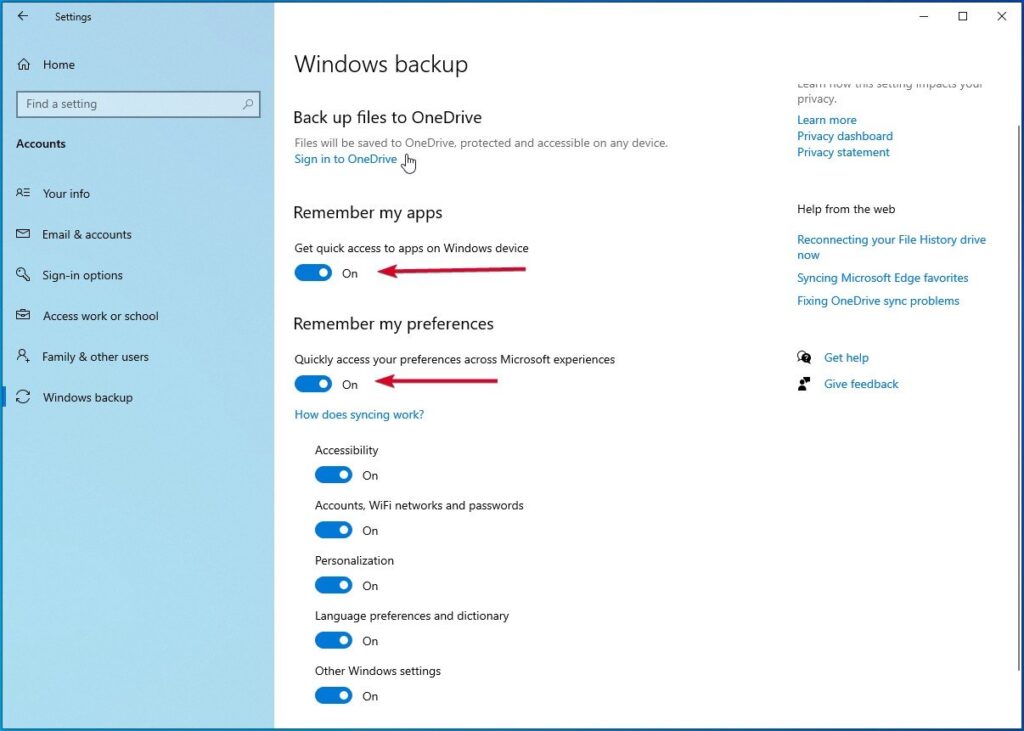
If you have done either of these two, you are good to go; follow the below steps and enroll in the Windows 10 ESU Program for free (for a year):
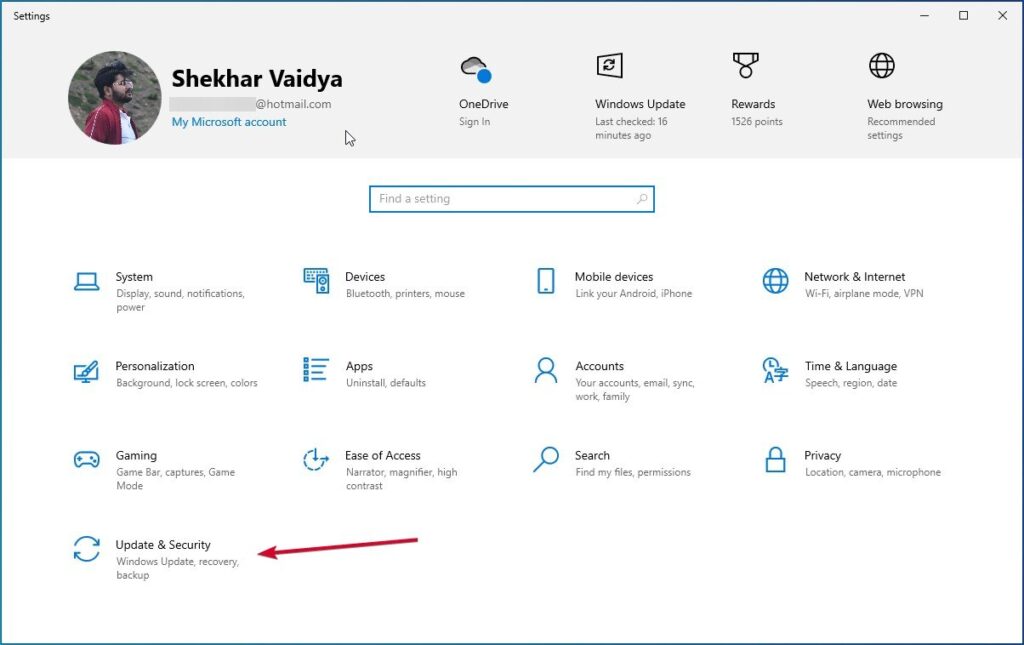
- Open Windows 10 Settings and go to Update & Security .
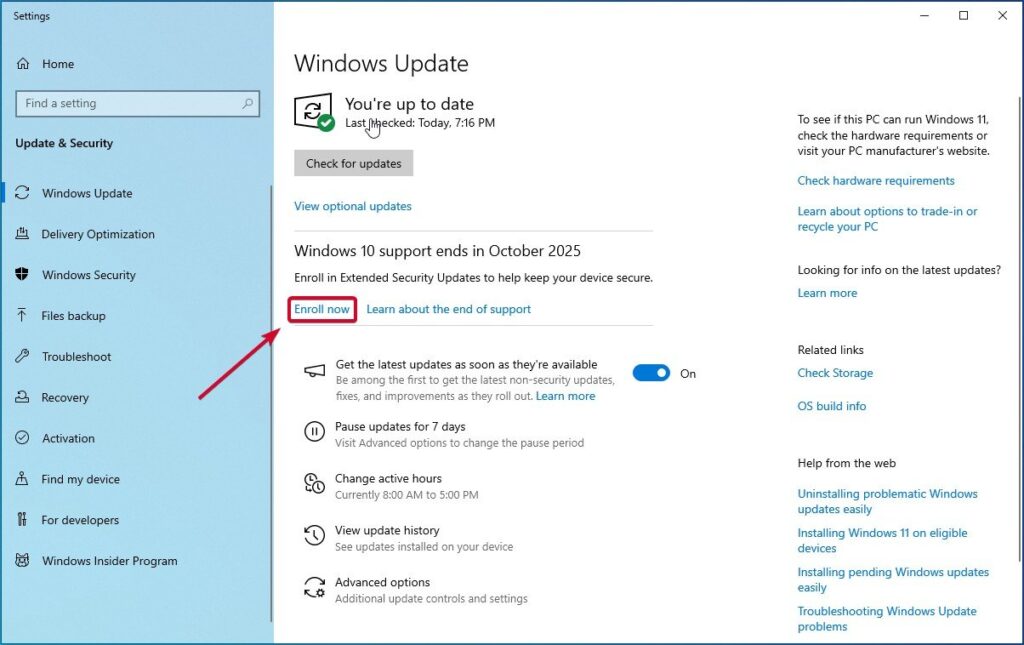
- Click on Windows Update . And check the updates to make sure you are updated to the latest. updates.
- You will see a banner/notification titled “ Windows 10 support ends in October 2025″; click on the Enroll now option.
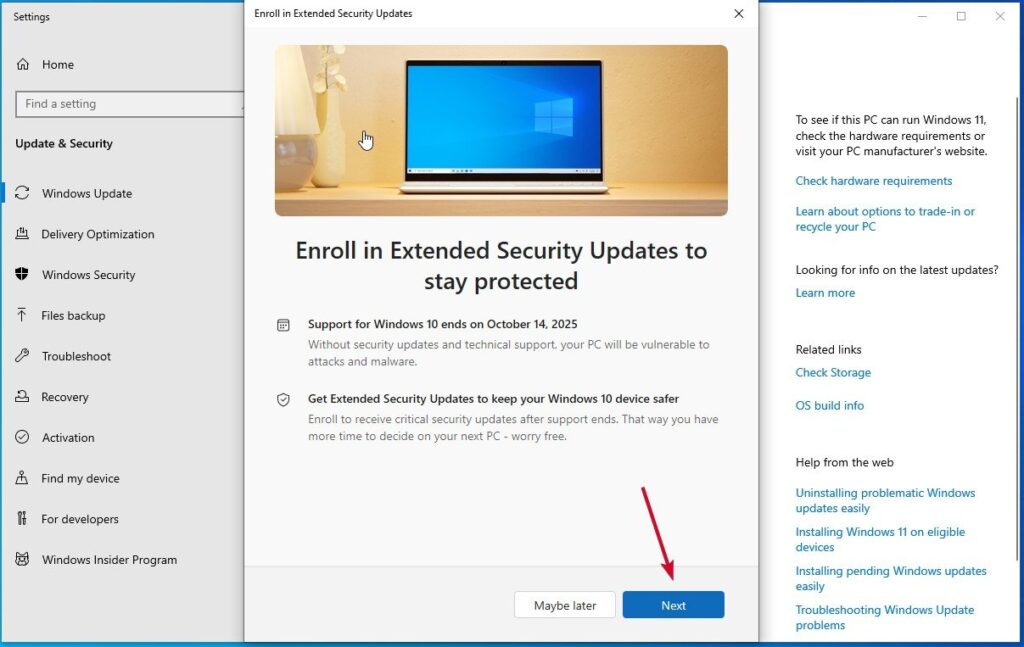
- You will be welcomed to a new dialog box named “Enroll in Extended Security Updates”; look for the Next button and click on it.
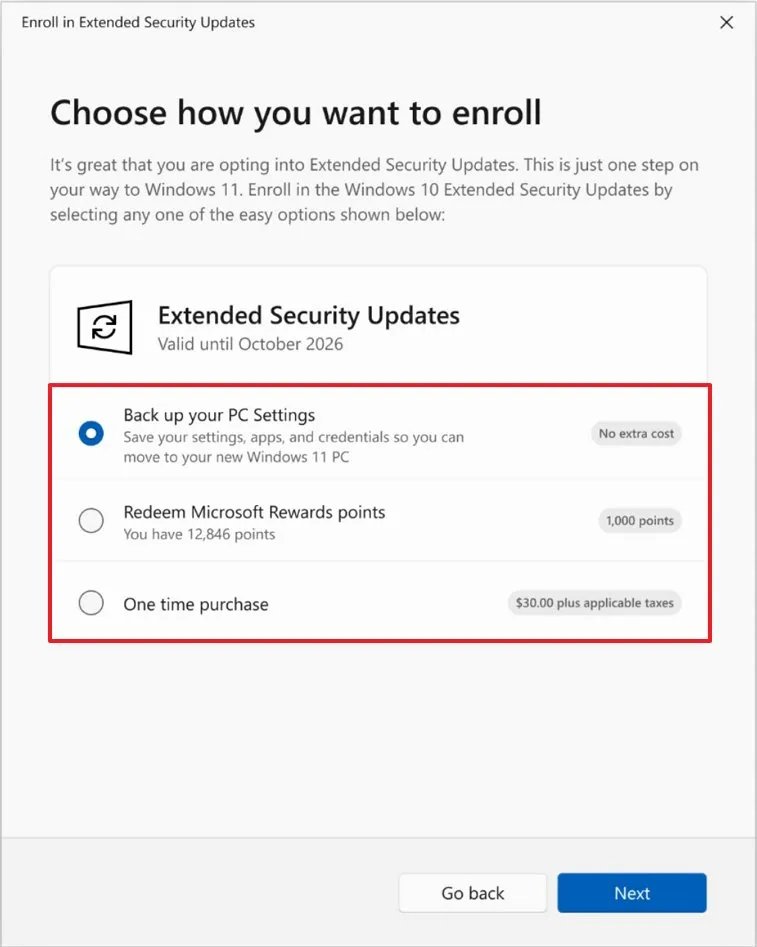
- Now, you will be given the following three options; click on either the 1st or 2nd option, as per your preferences. Back up your PC settings (No extra cost) Redeem Microsoft Rewards points (1,000 points) One time purchase. ($29.99 plus applicable taxes)
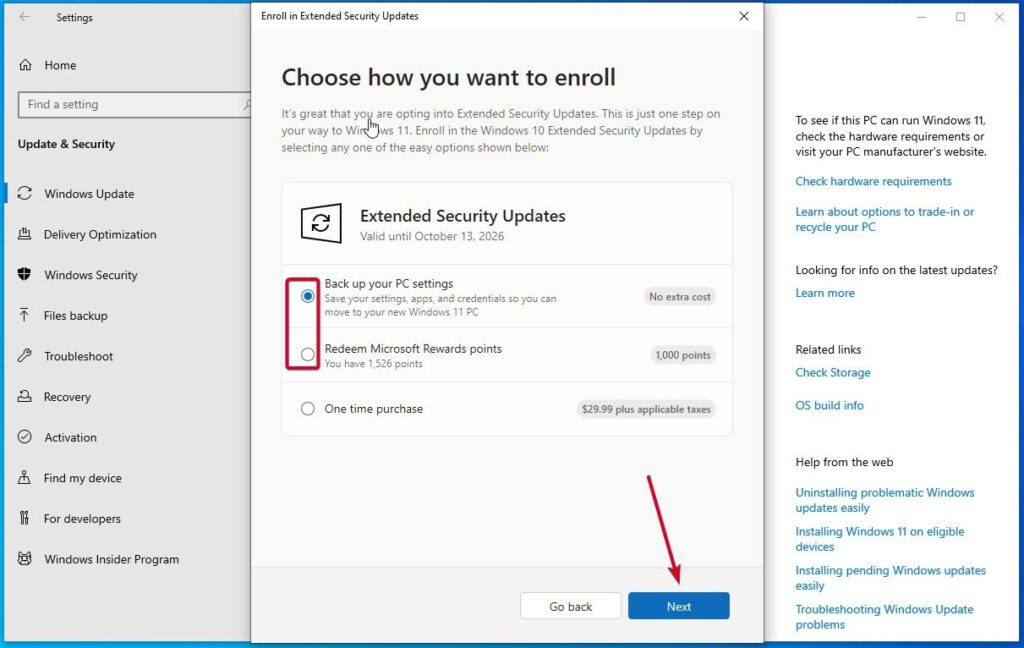
- Click on the Next button and follow the on-screen instructions, if any.
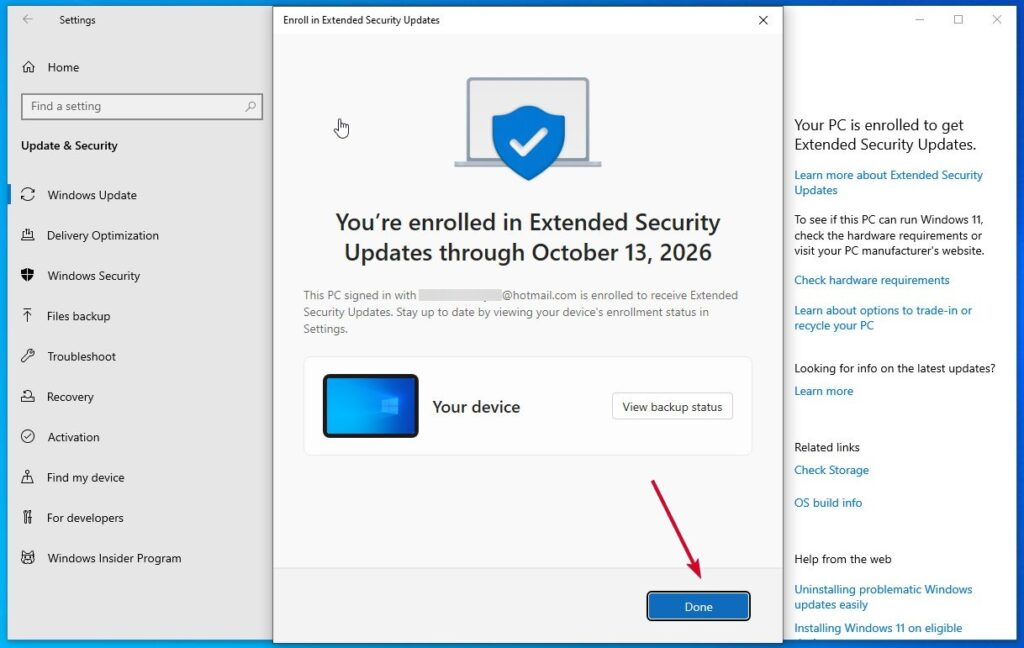
- Finally, you will be shown a completion dialog box; click on the Done button to finish it.
Read : Windows 10 Support Ends October 14; Here is How to Upgrade to Windows 11
Method 2: By Paying the Yearly Subscription Fee
In case Method 1, where we used the Windows Backup and/or the Microsoft Reward points to enroll in ESU, is not applicable to you and you are ready to pay the one-time purchase amount of 30 USD (plus taxes), then follow the below steps:
- Open Windows 10 Settings and go to Update & Security .
- Click on Windows Update . And check the updates to make sure you are updated to the latest. updates.
- You will see a banner/notification titled “ Windows 10 support ends in October 2025″; click on the Enroll now option.
- You will be welcomed to a new dialog box named “Enroll in Extended Security Updates”; look for the Next button and click on it.
- Now, out of the three options, choose the third one that says “ One time purchase. ($30.00 plus applicable taxes)” and click on the Next button.
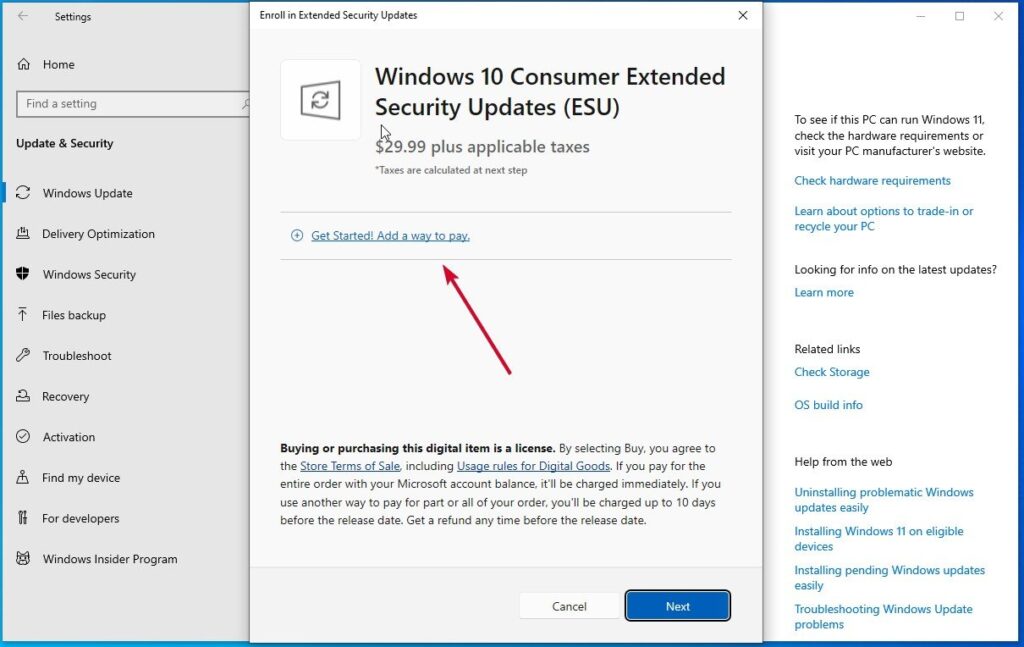
- Now, click on “ Get Started! Add a way to pay. “
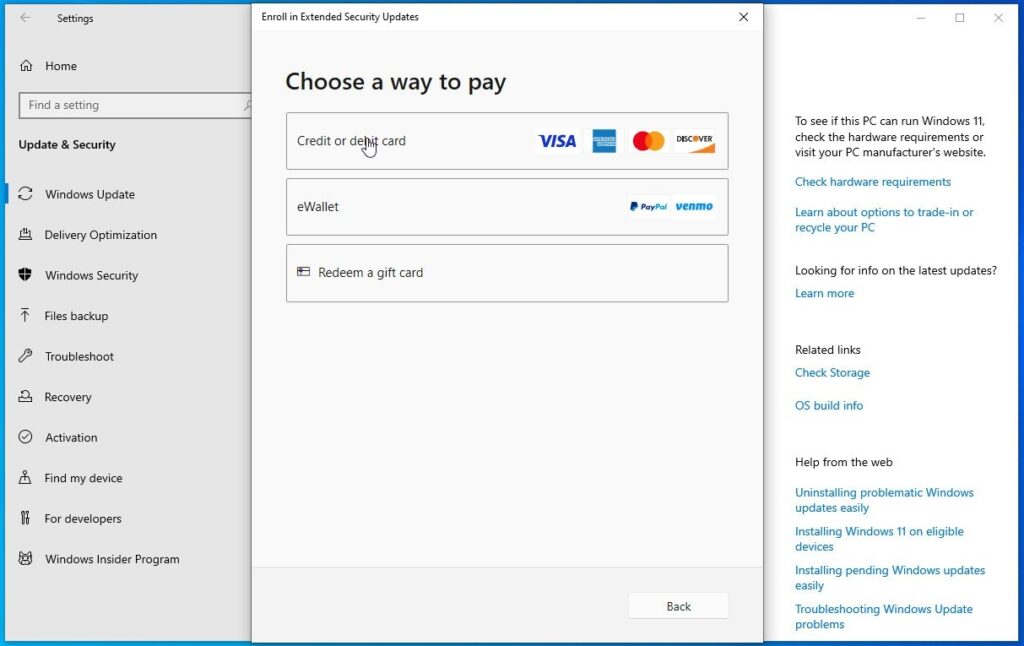
- And add a payment method as per your preference: either Credit or debit card, eWallet or Redeem a gift card.
- You need to complete the payment procedure and then follow the on-screen instructions.
- Finally, you will be shown a completion dialog box; click on the Done button to finish it.
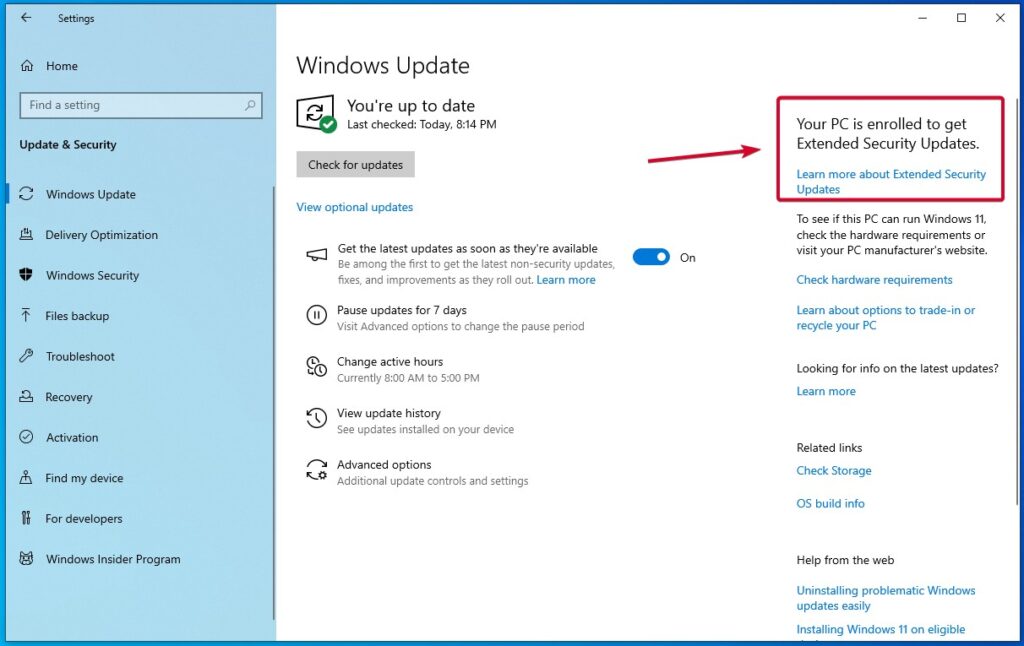
You can also confirm whether your PC is enrolled in Extended Security Updates or not. For that, you need to go to Windows 10 Settings -> Update & Security -> Windows Update and confirm the “ Your PC is enrolled to get Extended Security Updates ” message.
I can’t see the ESU notification? How to Fix
Before moving forward with the fix, you need to make sure that the below few things are already satisfied:
- the device is running on Windows 10 22H2 with all the latest updates installed
- you are already signed with your Microsoft account
- although not mandatory, make sure TPM 2.0 is disabled
If all the above options are satisfied, then follow the below option to force the Windows 11 ESU enrollment option manually:
- Since we are modifying system files, to be on the safe side, you should back up important files.
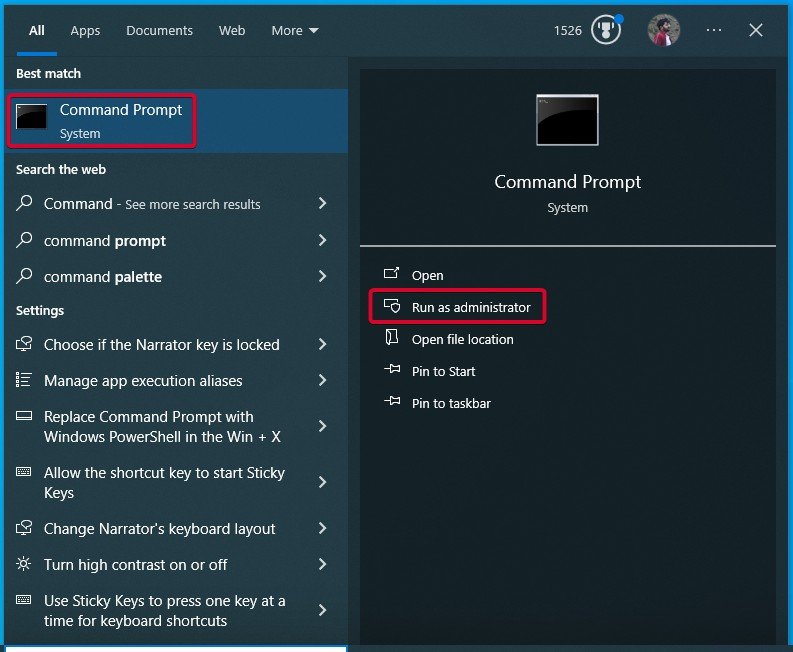
- Open Start and search for Command Prompt and choose the Run as administrator option.
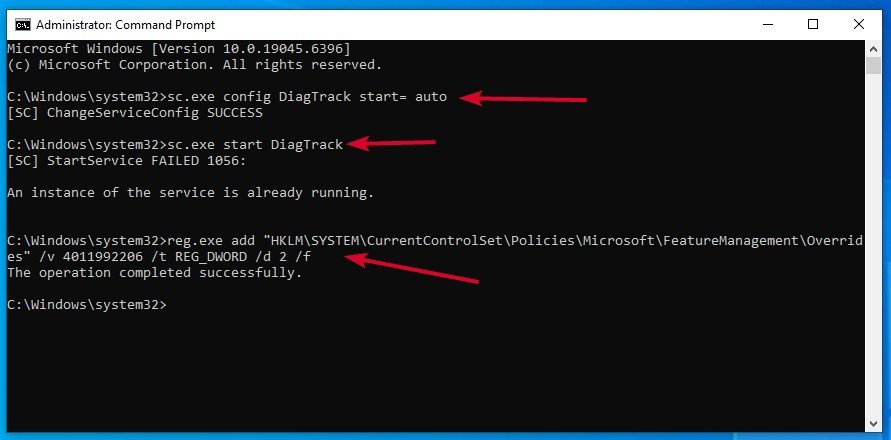
- Run the following commands one by one.
sc.exe config DiagTrack start= auto
sc.exe start DiagTrack
reg.exe add "HKLM\SYSTEM\CurrentControlSet\Policies\Microsoft\FeatureManagement\Overrides" /v 4011992206 /t REG_DWORD /d 2 /f
- After executing the commands, restart your PC.
- After the restart, open the Command Prompt again as admin.
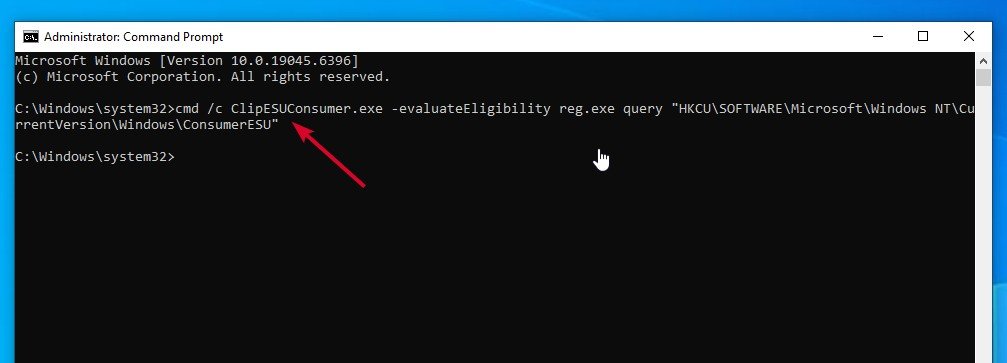
- Now, finally, run the following command to enable the Extended Security Updates program.
cmd /c ClipESUConsumer.exe -evaluateEligibility reg.exe query "HKCU\SOFTWARE\Microsoft\Windows NT\CurrentVersion\Windows\ConsumerESU"
- Finally, once again restart the PC.
Will my PC suddenly stop working on October 14, 2025?
No. Windows 10 will continue to function, but without updates, security patches, or support. Over time, risks will increase.
Is the upgrade to Windows 11 free?
Yes, as long as your PC meets the hardware requirements. Microsoft does not charge for the upgrade.
How long is ESU available?
Extended Security Updates (ESU) program is available for 1 year for normal users and up to 3 years for enterprise/organization users.
How many PCs can I enroll in the Extended Security Updates?
You can use your same Microsoft account for up to 10 Windows 10 devices. And if you are opting for the paid ESU program, you need to pay only once.
Conclusion
That was all. In case you don’t want to upgrade to Windows 11 or move to another OS from Windows 10 after the end of support, enrolling in the Extended Security Updates (ESU) program is the best option possible.
Enjoyed this article?
If TechLatest has helped you, consider supporting us with a one-time tip on Ko-fi. Every contribution keeps our work free and independent.
