Highlights
- Spot CPU and GPU mismatches instantly with the free TechLatest bottleneck calculator.
- Get accurate bottleneck percentages and upgrade suggestions in just a few clicks.
- Plan smarter PC builds by testing part combinations before you buy.

Ever noticed your PC feels slower than expected, like choppy FPS in games or lag while you work? That’s often due to a PC bottleneck , where your CPU and GPU are mismatched.
One part is waiting on the other, wasting performance. Knowing how to spot this is key to smoother gaming, snappier productivity, and smarter hardware upgrades.
Don’t want to miss the best from TechLatest ? Set us as a preferred source in Google Search and make sure you never miss our latest.
Traditionally, diagnosing bottlenecks was a chore involving performance monitors, testing, and guesswork.
But with the TechLatest Bottleneck Calculator , you can figure it out with just a couple of clicks, in seconds and without headaches.
Content Table
Step-by-Step Guide to Using the TechLatest Bottleneck Calculator
What Is a Bottleneck Calculator?
A bottleneck calculator, like the TechLatest bottleneck calculator , is a web tool that checks whether your CPU or GPU is lagging behind.
You simply pick your parts, and it calculates a “bottleneck percentage.” This tells you how much one component is slowing down the other. No sign-ups, no data harvesting, and it’s totally free to use. Just honest, useful feedback in a moment.

Image Credits: Tech-Latest
Why Choose TechLatest Bottleneck Calculator?
Here’s what makes the techLatest bottleneck calculator stand out:
Clean and friendly interface : Simple dropdowns, no overwhelming menus, and easy to navigate even if you’re not tech-savvy.
Up-to-date parts : Supports the latest CPUs and GPUs, so you’ll find your components, even the newest ones.
Multi-resolution support : Works for 1080p, 1440p, and 4K setups, plus it’s useful for both gaming and productivity workloads.
Smart upgrade advice : When a bottleneck is found, the tool gives you helpful suggestions, whether it’s time for a new CPU or GPU.
100% free and anonymous : No signup, and none of your data is stored. Use it anytime, anywhere, without worry.
It’s built for clarity and action, letting you see where your PC stands and how to fix any imbalance.
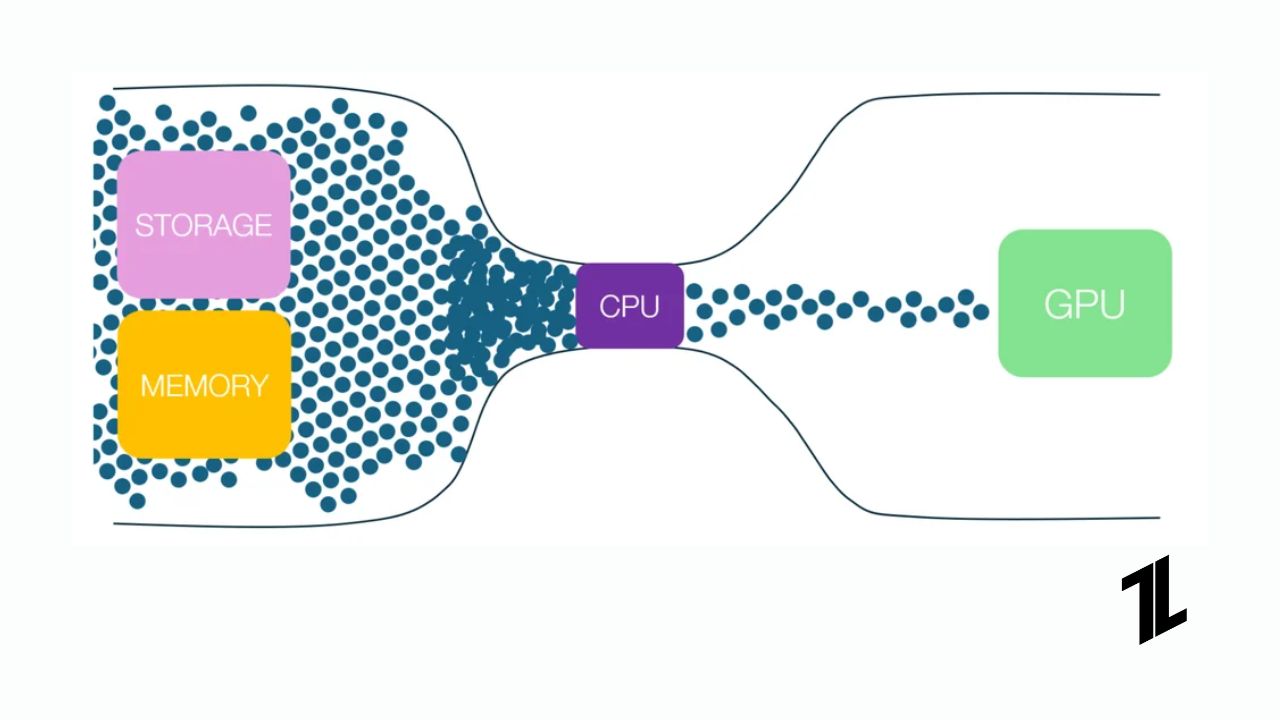
Image Credits: Tech-Latest
Step-by-Step: How to Use the TechLatest Bottleneck Calculator?
Here’s your friendly walkthrough on using the tool:
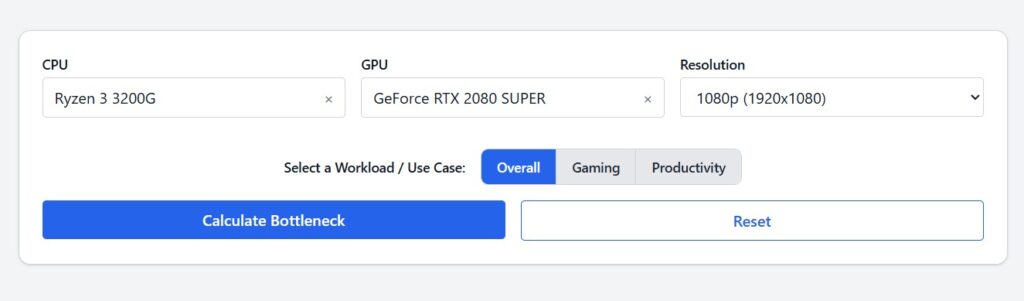
Step 1: Enter Your CPU and GPU Models
Start typing your component names, and you’ll see suggestions pop up in the dropdown. Select the right ones—easy, quick, and no typing mistakes needed.
Step 2: Choose Your Screen Resolution
Why it matters: higher resolution pushes the GPU harder. Gamers usually pick 1080p, and content creators might go 1440p or 4K. Select the one you use or plan to use.
Pro Tip: If you’re unsure, choose the resolution you game or work on most often. That gives the clearest picture of your setup.
Step 3: Select Your Workload
Pick between “Gaming” or “Productivity” (or similar categories). Gaming leans on the GPU, while productivity (like editing and modeling) can be more CPU-heavy. This choice helps the tool frame the results accurately.
Step 4: Click “Calculate”
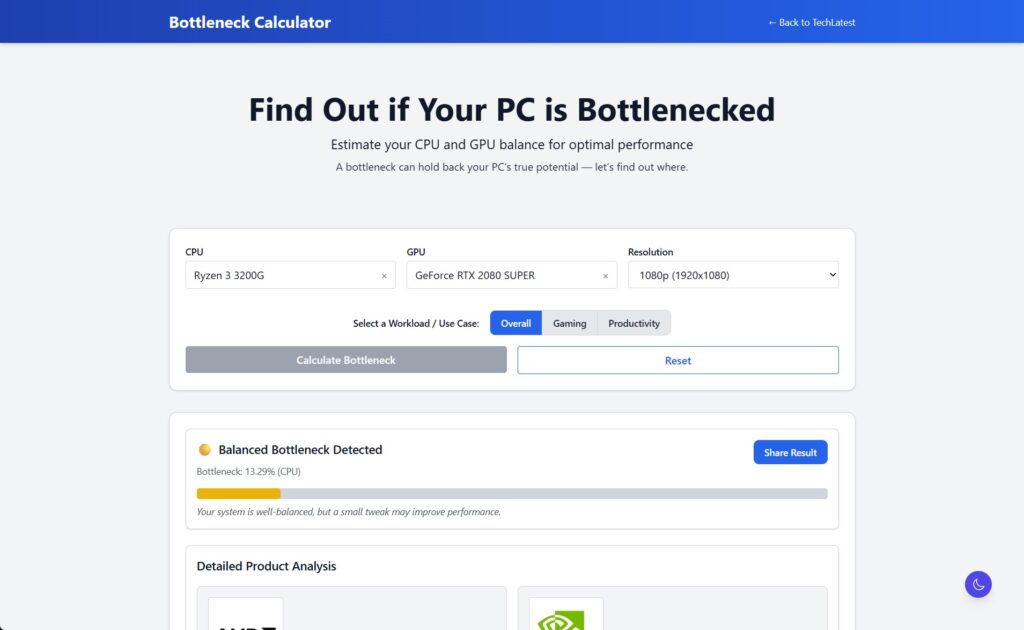
In a flash, the TechLatest Bottleneck Calculator shows:
- Bottleneck % (e.g., 12%)
- Severity label : Minor, Moderate, or Severe
- Performance bar graph showing which part is holding things back
Step 5: Read the Upgrade Suggestions
Based on your result, the tool gives smart advice:
- If it’s a GPU bottleneck: Suggest better graphics cards.
- If it’s a CPU bottleneck: Recommends stronger processors.
Use this to plan your upgrade path; know before you buy!
Real Examples
Let’s walk through a few real-world setups:
These examples show how to interpret results. A low percentage means you’re good to go. High percentage? Time for smarter upgrades, not guesswork.
Is the tool really free?
Yes! Always free, no premium version, no hidden fees.
Does it store my personal data?
Nope. The tool doesn’t store your selections or any personal info.
How accurate is the bottleneck percentage?
It gives a reliable estimate based on specs and resolution, but real-world performance can vary slightly based on games, drivers, or OS. Use it as a guide, not a gospel.
Can I use it to plan future builds?
Absolutely! Pair the CPUs and GPUs you’re thinking about; see if they’d match well before buying.
My CPU/GPU isn’t in the list; what now?
No worries, pick a close match or a recent generation equivalent. The database is updated frequently, so your exact part may appear soon.
Wrapping It All
Running a quick bottleneck check with TechLatest bottleneck calculator helps you unlock the full power of your PC without guesswork.
Whether you’re fine-tuning your current setup or building next-gen performance, this tool puts answers right in your hands.
Bookmark it now and get ready to game smoother, work faster, or just enjoy the ride. Try the TechLatest bottleneck calculator now!
Enjoyed this article?
If TechLatest has helped you, consider supporting us with a one-time tip on Ko-fi. Every contribution keeps our work free and independent.
