Highlights
- You can now install Google TV 13 on a USB drive and carry it with you anywhere.
- Just plug it into any PC and boot from USB without affecting your main operating system.
- We have mentioned each and every steps from creating the bootable USB to booting into the Google TV.
Do you know you can carry Google TV in your pocket and use it whenever and wherever you like? You just need to plug it into a PC and boot via the USB, and you are good to go.
Before moving forward and explaining what it is and how to use it, I want to let you know there are also a few official methods, and one of them is Android Studio.
Don’t want to miss the best from TechLatest ? Set us as a preferred source in Google Search and make sure you never miss our latest.
You can use the prebuilt Google TV emulator, otherwise known as Virtual Device Manager, on your Windows PC via Android Studio. Note that you will need a medium- to high-configured PC to run this.
And this method, which I am going to explain, is basically installing the Google TV image on an external USB drive or an SSD and then using it as bootable media. So, basically Google TV will be installed on the external drive, so no extra stress on the current host OS.
This guide is intended solely for educational use. Community builds of Google TV 13 are experimental, and you should always create a complete backup of your data before modifying any drives or boot partitions.
So, if you are convinced to follow our method, let’s get started and install Google TV on your USB drive.
Content Table
Install Google TV on Your USB Drive
Prerequisites
Before moving forward, make sure you have these necessary prerequisites already gathered.
- A USB drive, preferably 16 GB or higher and 3.0,
- or an SSD with SATA-to-USB adapter,
- Google TV ISO file and Data File,
- Rufus for creating bootable USB,
- And a Windows PC
Step 1: Preparing Bootable USB Drive
This is the easiest step out of the three. If you are familiar with making a bootable Windows USB, it is the same. You just need to download both the Google TV ISO file and the Rufus tool.
- Download the Google TV file from the link provided in this YouTube video ‘s description.
- Once downloaded, extract the files inside it; you will find one Google TV 13 image file and a Data folder.
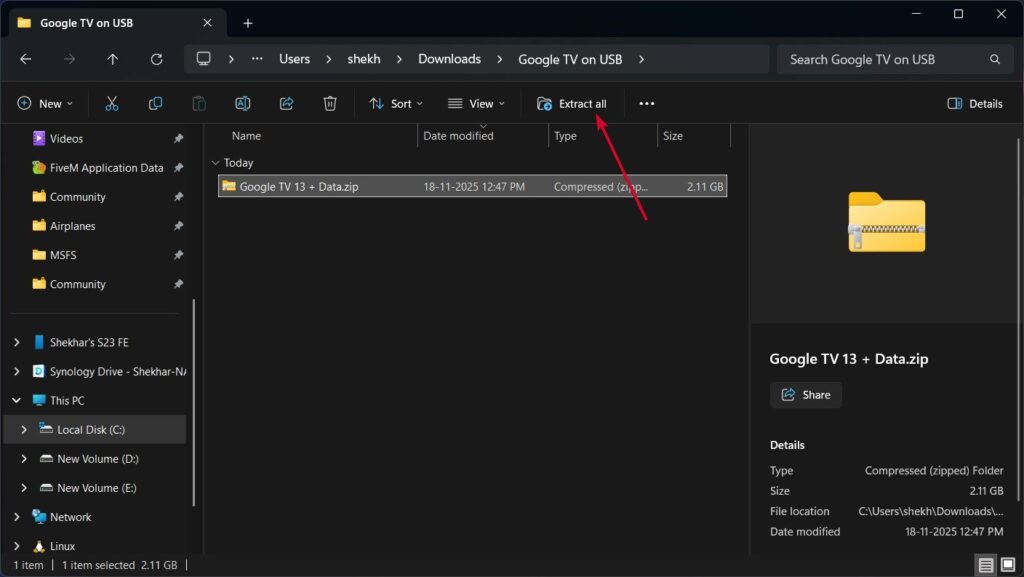
Extract Google TV Zip
- Download the Rufus tool , insert the USB drive , and open Rufus.
- Select the USB from the drop-down menu, then click on the SELECT button and select the ISO file .
- Once the ISO file is selected, a new section will appear named Persistent partition size . Move the slider towards the right to get the full storage of the USB drive.
- Now in the File system section, select FAT32 , and then finally click on the START button.
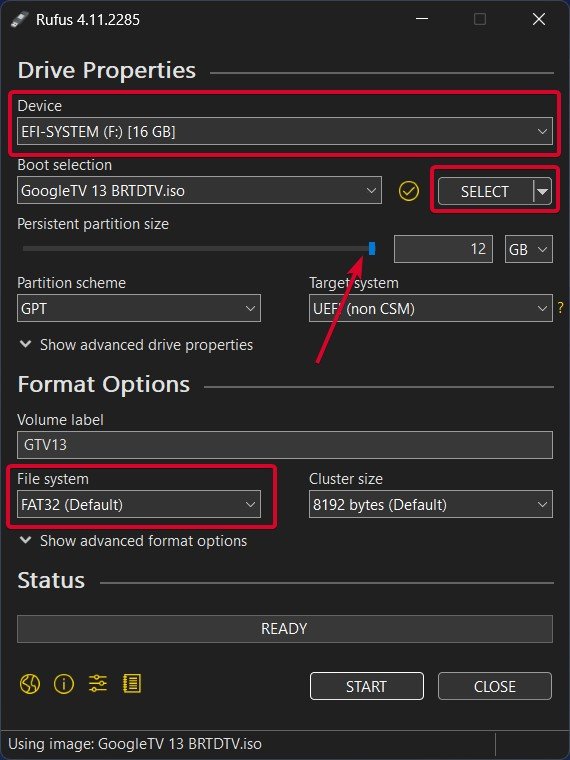
Create Bootable USB using Rufus
- It will take a few minutes, as per your USB drive’s speed, to complete the process.
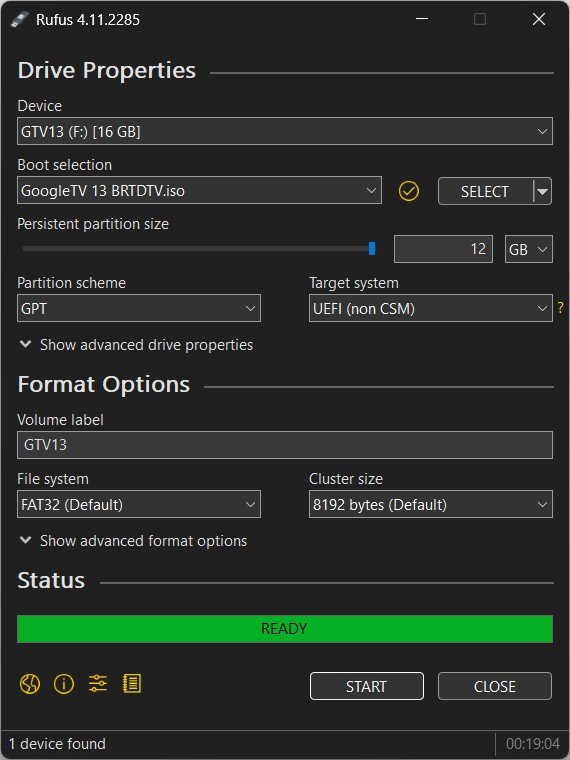
- Once completed, you will see a new Drive in the This PC section, but you will notice the drive doesn’t show the full storage.
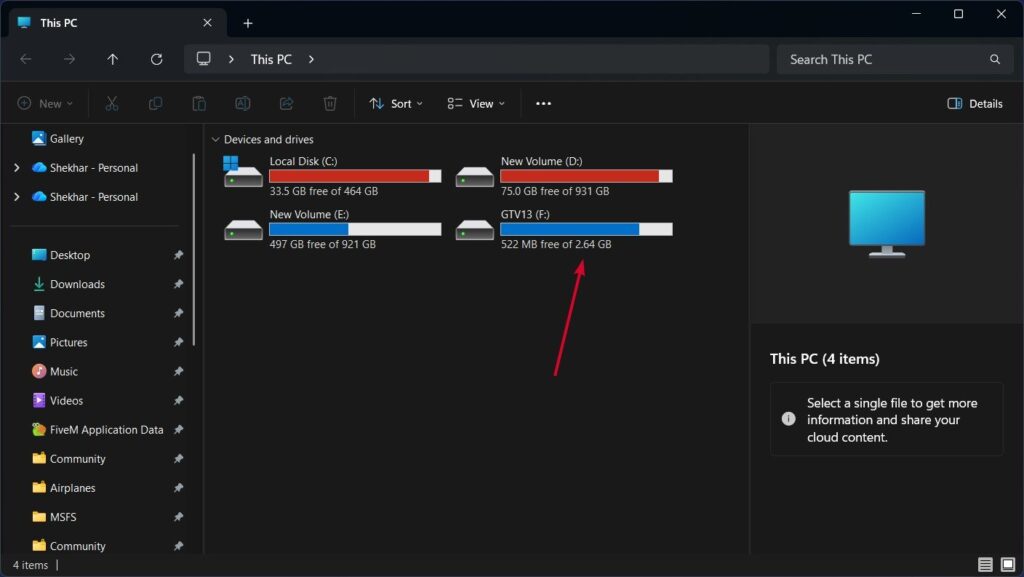
Bootable USB Drive in This PC
- To increase the storage to the maximum available storage, open Disk Management by right-clicking on the Windows logo .
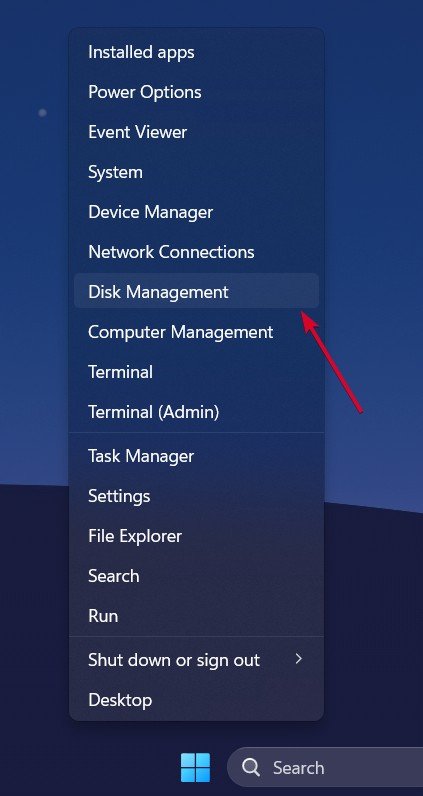
Open Disk Management
- On the Disk Management page, you will see an unallocated space at the end. Right-click on it and click on the New Simple Volume option.
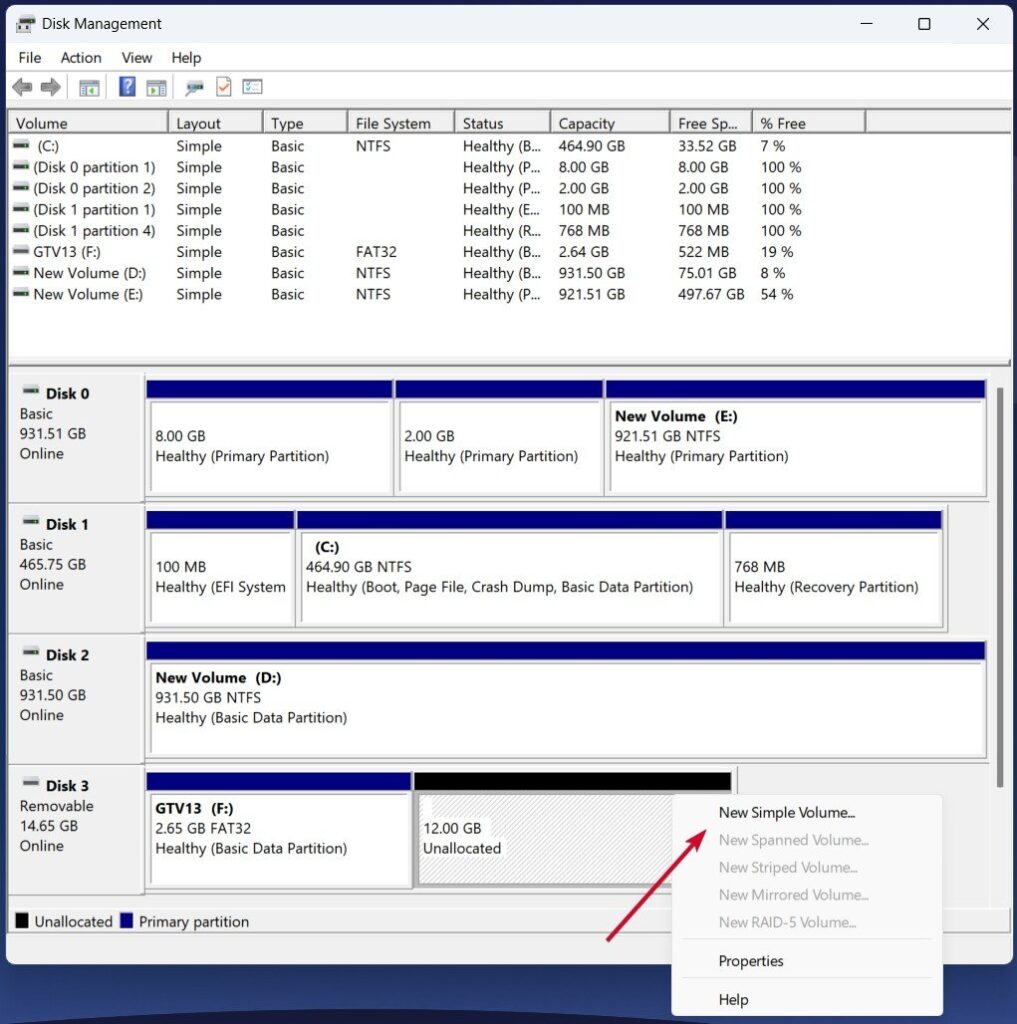
- When you are in the Format Partition page, select exFAT as the File system , and if it is not available, select NTFS .
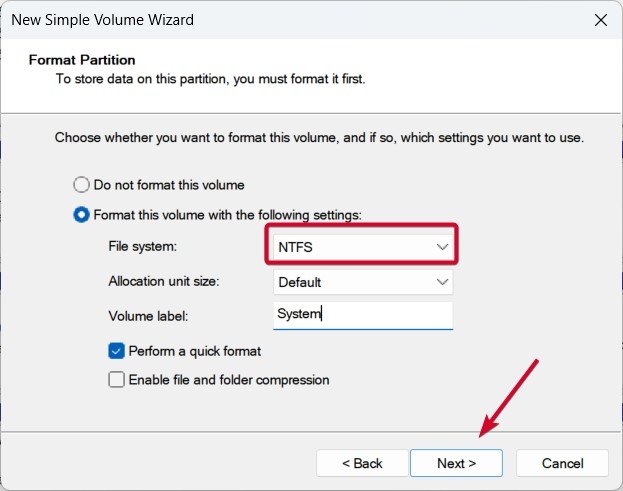
Choose File System as exFAT or NTFS
- And later on the Disk Management page, right-click on it and select Format. And finally select exFAT as the File system , and click on the OK button.
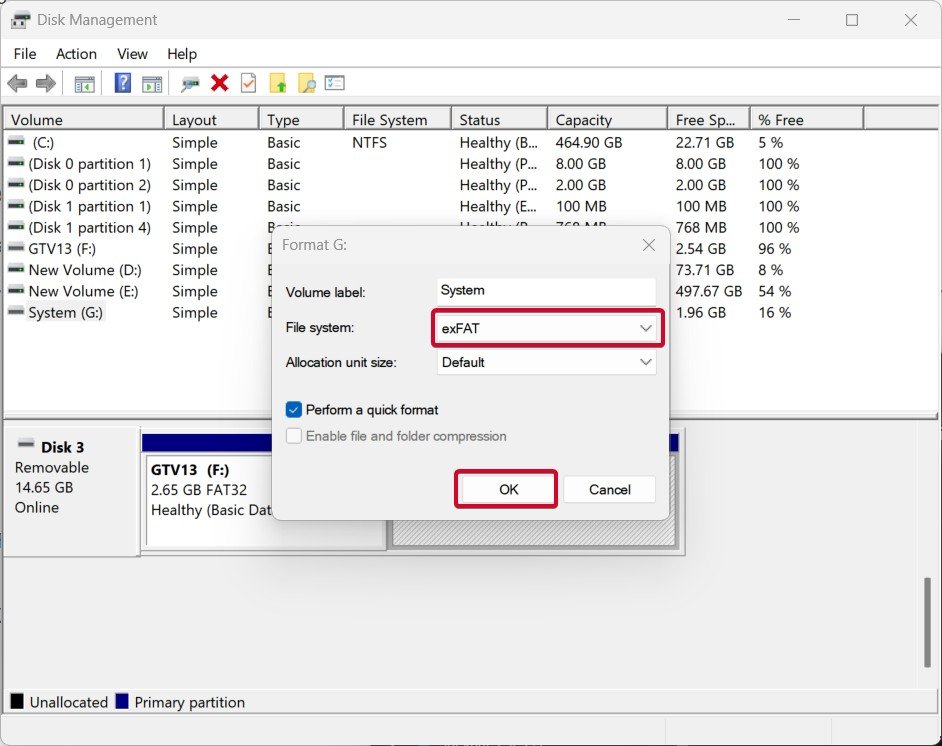
Format File System as exFAT
- Now, in This PC, you will see two drives .
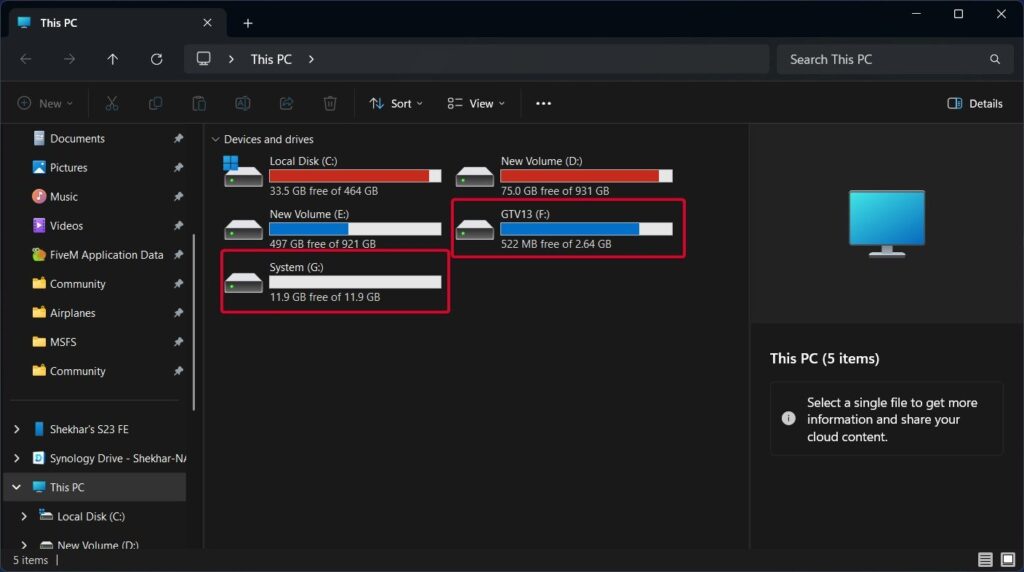
Bootable Drive and Storage Drive
Step 2: Placing System and Data Files
This is the most crucial step of the three; if we mess it up in this step, either your USB won’t boot up to the Google TV interface or the extra storage won’t be visible in the Google TV settings.
- Open the bootable drive, which we created using Rufus in the previous steps; most of the time it will be named as GTV13.
- There will be a file named system (system.sfs); cut the file and paste it into the newly created storage drive, which we created via Disk Management.
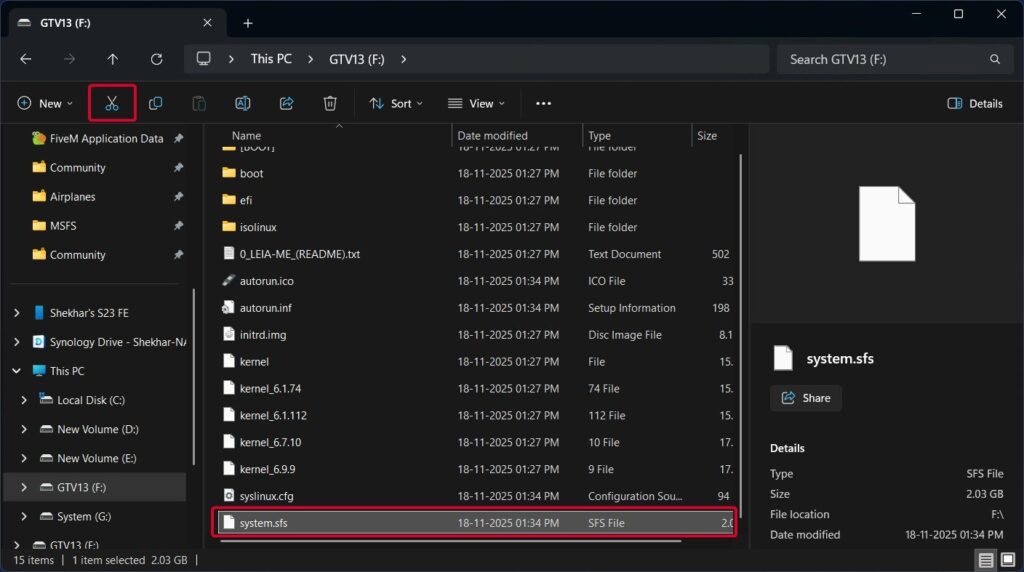
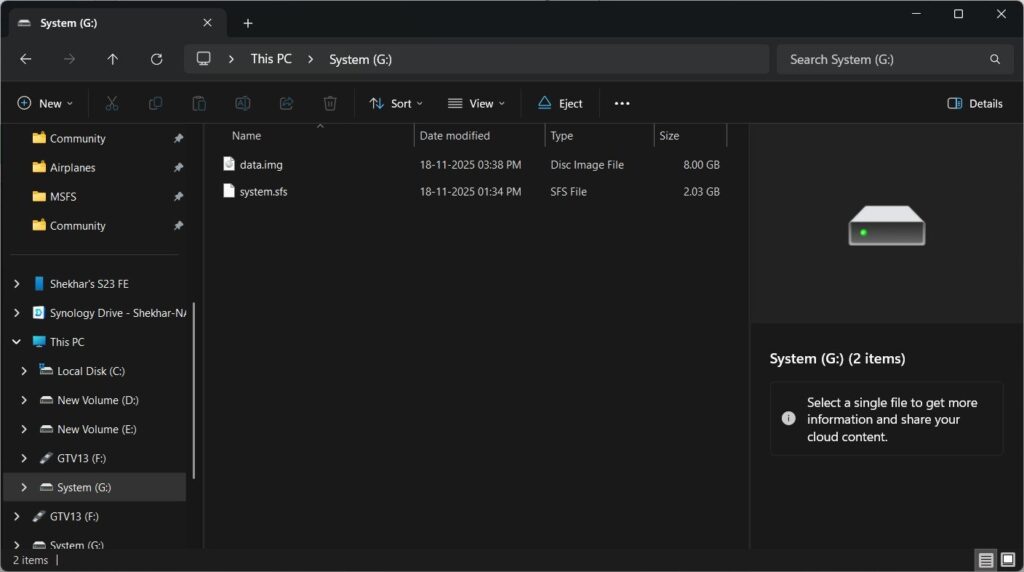
- Now, navigate to the extracted folder (from step 2) and then the Storages folder. You will see 5 prebuilt storage zips. Choose the one suitable to your condition. Like if you have a 16 GB USB drive, choose the 8 GB zip. Extract the zip, and then move that data (data.img) file to the storage drive.
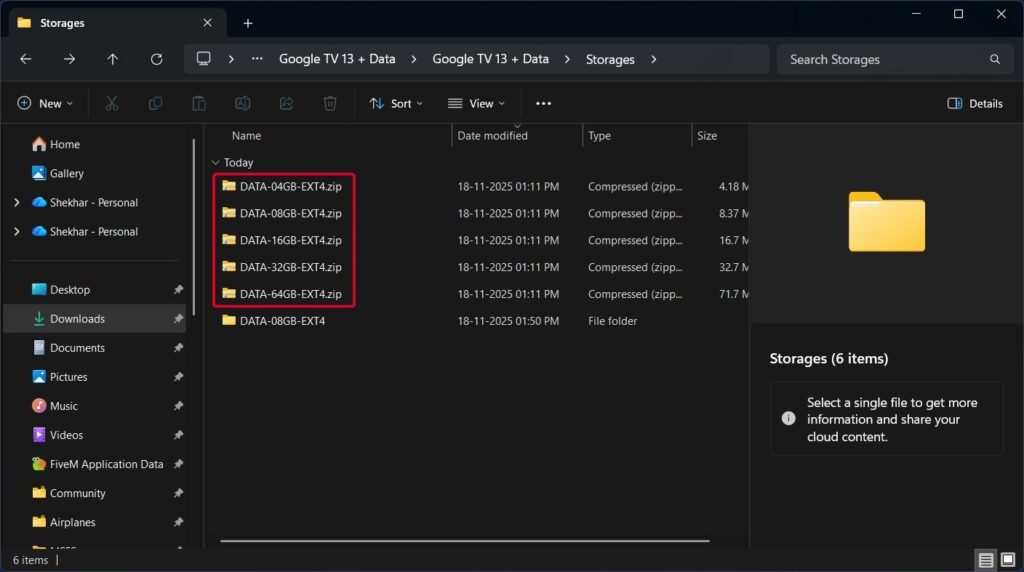
- Finally, the storage drive will look like this.
Step 3: Booting Into Google TV 13
This is the final and most exciting part. We can now finally boot into Google TV via our USB drive.
Insert the USB drive into the PC where you want to use the Google TV.
Switch on the PC/Laptop and press the BIOS boot menu button. Every OEM has a different pre-assigned button. Check the below table to check yours.
Once you are in the Boot Menu, select the USB drive that we inserted earlier. In our case, Sandisk.
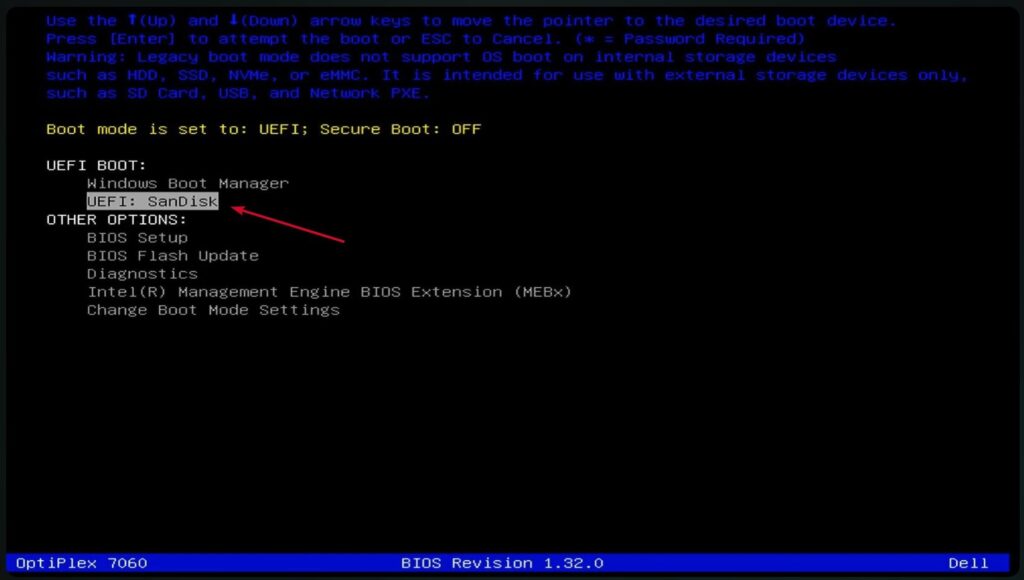
Choose the Bootable Device
In case the Android TV kernel page doesn’t load for you, check that your BIOS secure boot is ON or OFF, in case it is ON, switch it off and then restart the process.
- Now, you will be asked to select an Android TV kernel. Choose the one as per your system; like for a laptop w/o any external display, select one out of the top 5, and if your laptop/PC has an external display connected via HDMI or DP cable, select the one with (External Display) in the name.
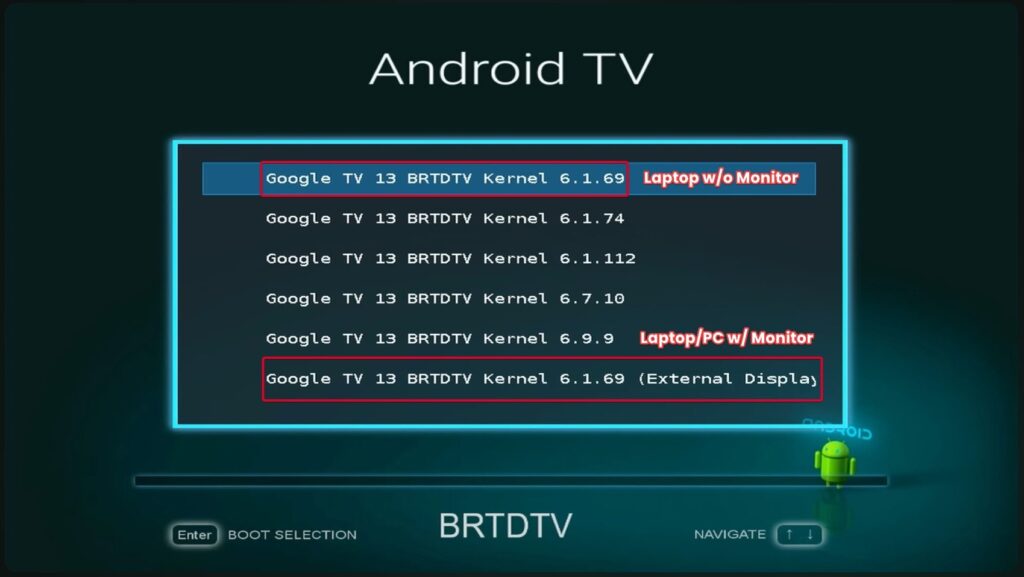
Select an Android TV kernel
- The Google TV interface will load up; for the first time, it might take a few minutes, depending upon your USB drive speed—slower for 2.0 drives and much faster for 3.0 drives.
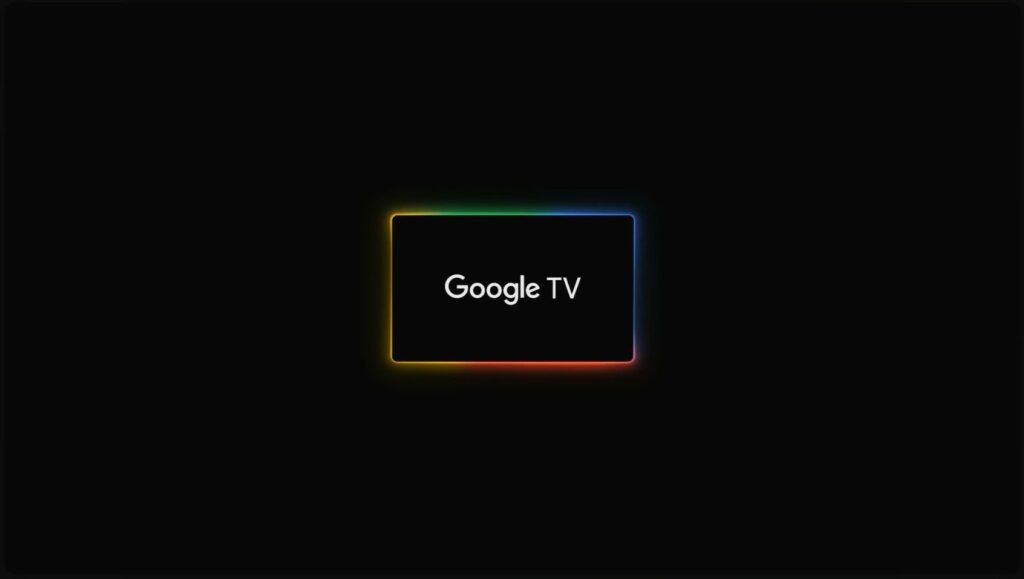
Google TV Loading Screen
- Finally, you will be asked to choose a language; it means everything is alright, and the Google TV setup process has started.
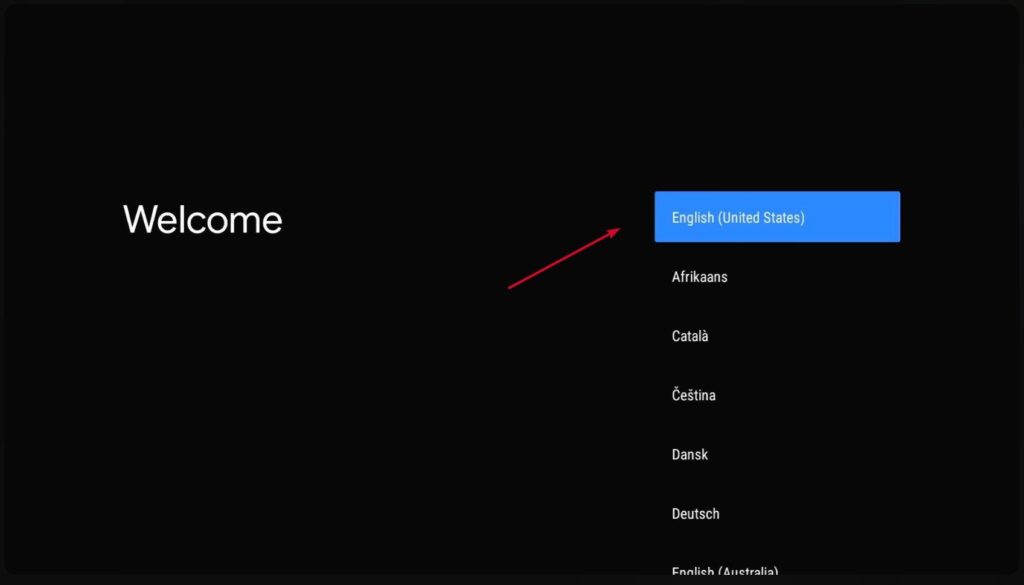
Google TV Setup – Language Selection
- Now, you will be asked to continue setup using your Android device; it will be fast and hassle-free as it transfers your device’s Wi-Fi network and Google account. If you don’t want it, you click on the Skip button.
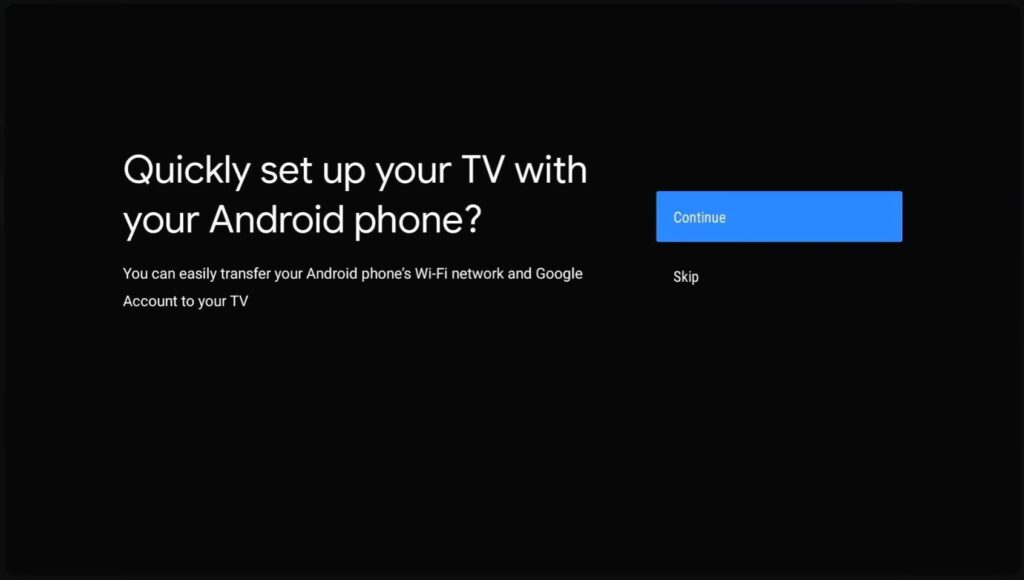
Google TV Setup – Android Device Linkup
- If you choose the Android device options, you will be welcomed to the Google TV home screen, and in case you chose to skip that process, you will be asked to do the following in order: Select your Wi-Fi network Sign in to your Google Account or skip it Google Assistant setup Terms of Service Location permission
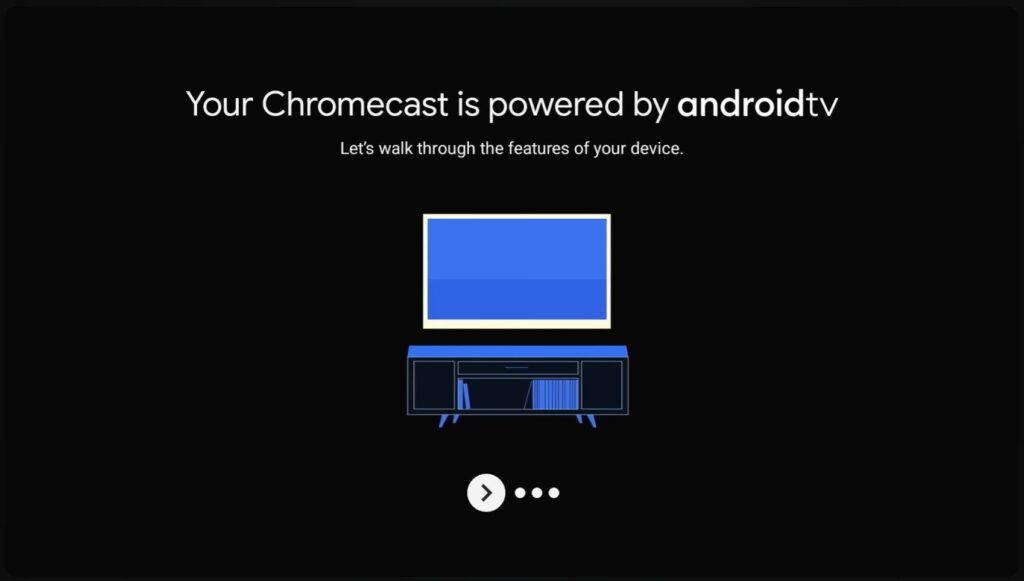
Android TV Welcome Page
- Finally, you are in the Google TV home screen.
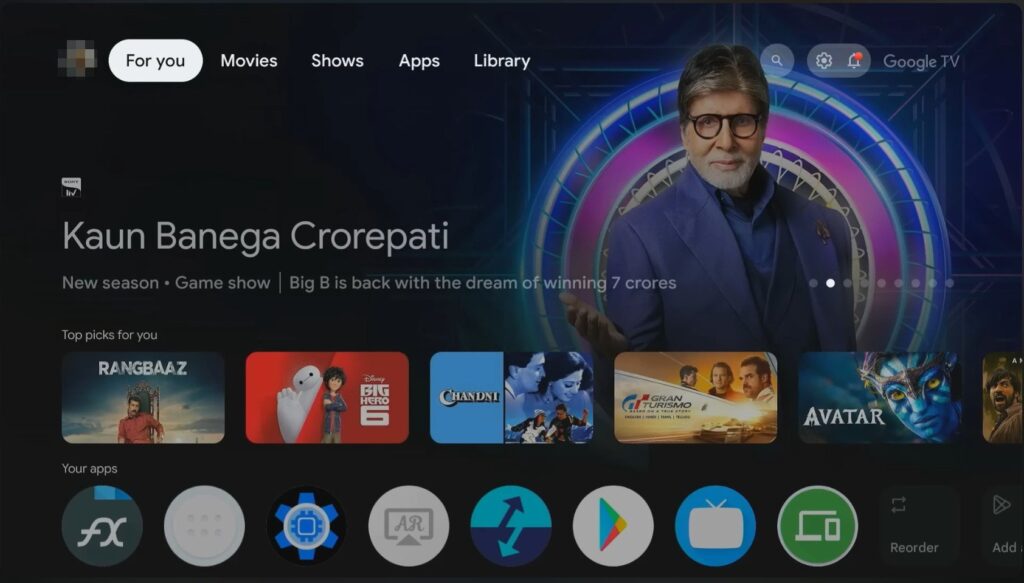
Google TV HomeScreen
How to install apps and apk files?
It is as simple as installing the app on your Android device. If you chose to log in to your Google account, then you can simply head to the Play Store and install it, and if not, then there are many 3rd-party solutions like Aptiode.
Black Screen After Logo? How to Fix It?
Since you saw the Google TV logo, that means it is not the kernel issue; you just need to press the Windows key, and it will return back to the menu.
How to Use an Android Phone as a Remote Control?
It is a simple two-step process. First, install DroidMote Server on your Google TV, and enable it by navigating to Settings → Accessibility. Second, DroidMote Client on your Android phone. Make sure both the devices are in the same Wifi network, and then open the DroidMote Client and use it.
How to safely shut down and remove USB?
You just need to navigate to Settings and then scroll down till you see Shut Down. Click on it, once Google TV is shut down properly, you can remove the USB.
Summing Up
That was all; we have together done a great job. The steps look pretty complicated at first glance, but I tried my best to showcase them in simple language. And if you go through the steps a couple of times, it will be easier for you too.
Enjoyed this article?
If TechLatest has helped you, consider supporting us with a one-time tip on Ko-fi. Every contribution keeps our work free and independent.
