Highlights
- Windows 11 locks the taskbar to the bottom, but third-party tools like Start11 or ExplorerPatcher can still move it safely.
- Registry tweaks mostly stopped working after 2024 updates, so built-in customization is your best friend.
- Microsoft may reintroduce taskbar flexibility in future builds, but for now, external apps are the easiest fix.

When Windows 11 first came out, one of the biggest changes people noticed wasn’t the icons or widgets; it was the Taskbar. For years, Windows users could drag the Taskbar to the Top or sides of the screen.
It was simple, familiar, and gave everyone a way to personalize their setup. Then came Windows 11, with its brand-new design, centered icons, and a locked Taskbar that refused to move.
Don’t want to miss the best from TechLatest ? Set us as a preferred source in Google Search and make sure you never miss our latest.
If you’ve tried to move your Taskbar and realized it just won’t move, don’t worry, you’re not alone. In this guide, I’ll tell you why Microsoft removed this option, what you can still customize , and the latest working ways to move your Taskbar to the Top, left, or right side of the screen. So, let’s get started with the guide.
Content Table
Why You Can’t Move the Taskbar in Windows 11 Anymore?
Back in Windows 7, 8, and 10, it was effortless; you could just drag the Taskbar to any edge of your screen. So why did Microsoft take that away in Windows 11? The answer lies in the complete redesign of the Taskbar.
When Windows 11 launched, Microsoft rebuilt much of the interface from scratch. The new Taskbar is not the same one from Windows 10; it’s coded differently, with new animations, transitions, and layouts designed specifically for the bottom of your screen.
Everything, the Start menu, notification center, and even the quick settings, depends on this bottom placement. Moving it to another edge isn’t as simple as changing a line of code. It would break several visual elements and behaviors.
Microsoft has publicly said that only a very small percentage of users used to move the Taskbar, so redesigning the entire UI just to support that again wasn’t worth the cost.
So, officially, the Taskbar stays at the bottom. That said, “officially” doesn’t mean “impossible.” With some changes and tools, you can still move it, but it takes a little effort.
What You Can Still Customize Without Any Hacks
So, now let’s talk about what Windows 11 actually lets you customize safely.
- Change Taskbar Icon Alignment (Left or Center)
By default, Windows 11 centers your Start button and icons, similar to macOS. If you prefer the classic left-aligned look, here’s how to do it:
- Right-click on any empty space on your Taskbar.
- Select Taskbar settings .
- Scroll down and click on Taskbar behaviors .
- Under Taskbar alignment , select Left instead of Center .
![How to Move the Taskbar in Windows 11; Latest Working Methods [2025 Update] - 2](https://media.tech-latest.com/wp-content/uploads/2025/10/13174406/1_pixlyzer-7-1024x705.jpg)
That’s it. Your icons will shift to the left instantly, and the Start button will return to its old position.
- Show or Hide Icons
You can choose which icons appear, like Widgets, Copilot, Task View, or Search. Under Taskbar items , simply turn off what you don’t want. This makes the Taskbar cleaner and more minimal.
- Combine or Separate Icons
Windows 11 now lets you decide whether to combine taskbar icons or show them individually. Go to: Settings > Personalization > Taskbar > Taskbar behaviors > Combine taskbar buttons
Select your preferred option:
- Always combine
- When the Taskbar is full
- Never combine
- Change Taskbar Size
Want more space for apps or smaller icons? You can adjust the Taskbar size too:
- Open Settings > Personalization > Taskbar > Taskbar size
- Choose Small , Medium , or Large
These built-in settings might be enough for most users. But if you really want your Taskbar at the Top , left , or right , read on.
Moving the Taskbar Using Registry Tweaks (If You Haven’t Updated Your Windows 11 to 25H2 Version)
Let’s cover the “manual” method, editing the Windows Registry.
Note: This method no longer works on the latest Windows 11 versions (like 25H2 build). But it’s still worth understanding how it worked in older versions, because it helps explain how Windows stores your Taskbar preferences.
Here are the steps that you need to perform:
- Press Win + R , type regedit , and hit Enter .
- Navigate to this location: HKEY_CURRENT_USER\Software\Microsoft\Windows\CurrentVersion\Explorer\StuckRects3
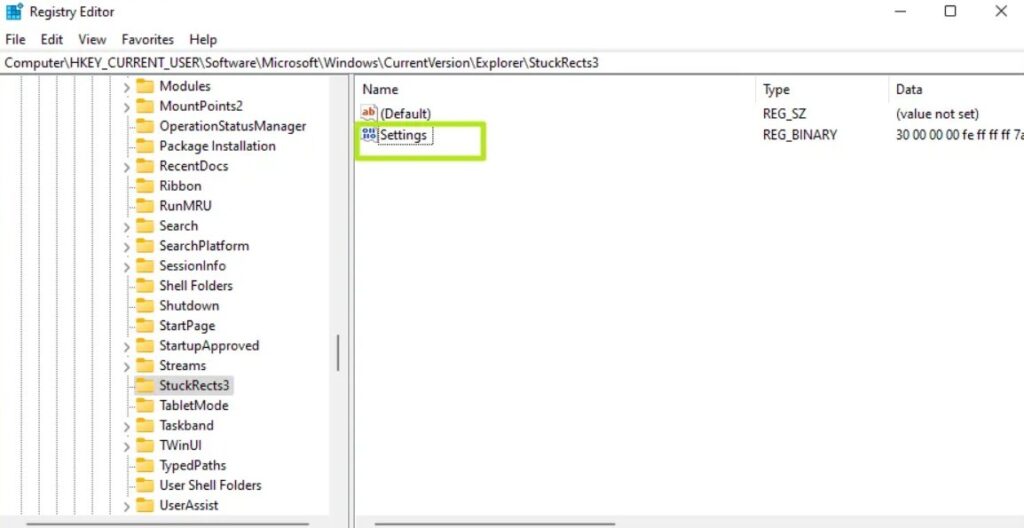
- Double-click the Settings value on the right.
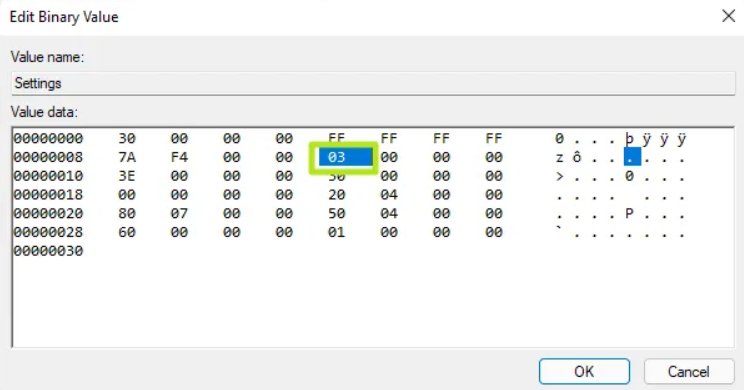
- You’ll see a long string of numbers. Find the second row, sixth column (the value often starts as 03).
- Change this value to: 01 → Taskbar at the Top 00 → Left 02 → Right 03 → Bottom
- Click OK .
- Open Task Manager (Ctrl + Shift + Esc).
- Find Windows Explorer , right-click it, and click Restart .
If you’re on an older Windows 11 version (like 21H2), this might still move your Taskbar to the Top. But since Microsoft updated the Taskbar system in later builds, this change is now mostly non-functional.
Third-Party Tools That Actually Work in 2025
If you want a working solution today, you’ll need help from third-party software. Let’s explore the most popular (and safe) ones people use right now.
1. ExplorerPatcher (Free)
ExplorerPatcher is a lightweight, open-source program that restores many old-school Windows 10 features. It can move the taskbar to the Top , bring back the classic Start menu, and even adjust taskbar behavior like in older Windows versions.
- Visit the official ExplorerPatcher GitHub page .
- Download the latest version (ep_setup.exe) from the Assets section.
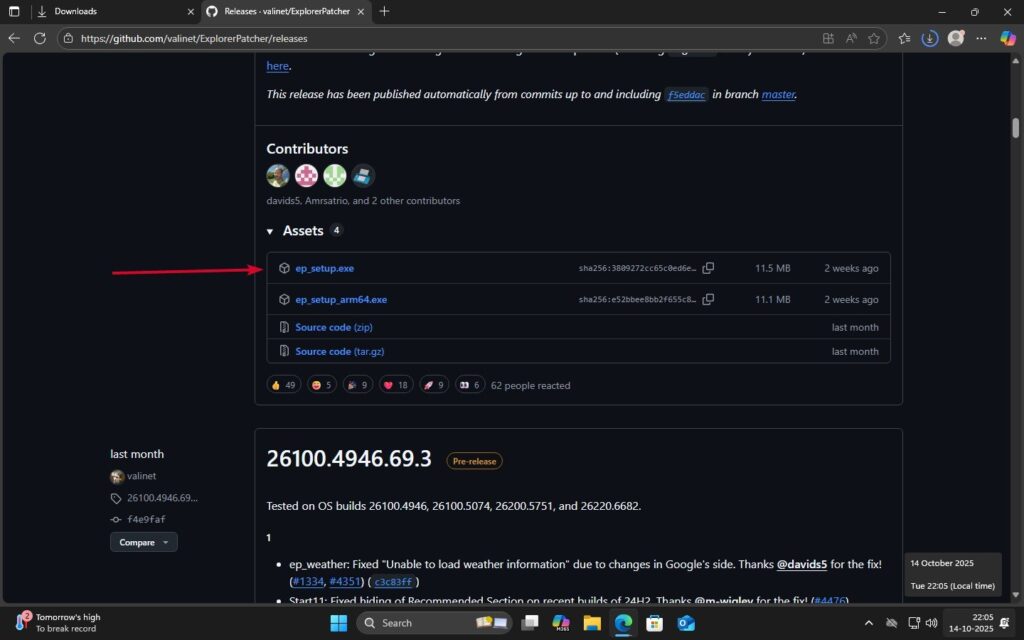
- Run the installer. It’ll automatically patch your Taskbar and restart Explorer.
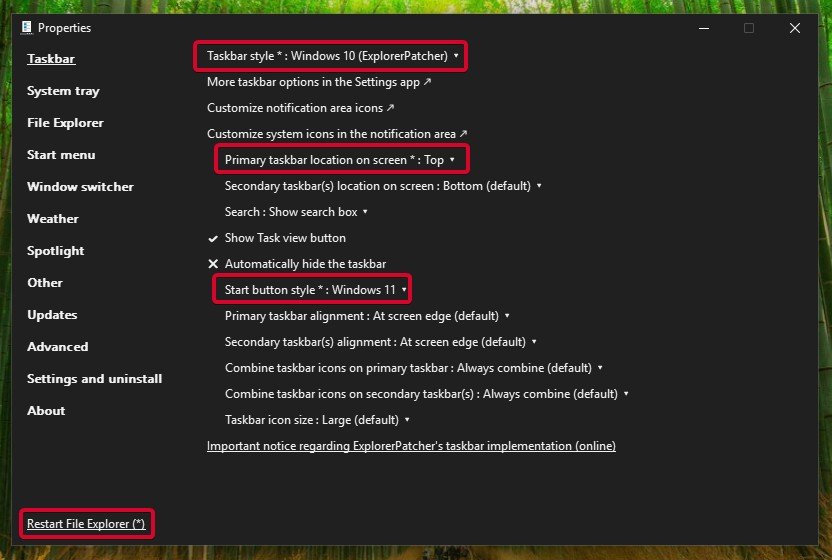
- Right-click your Taskbar > select Properties .
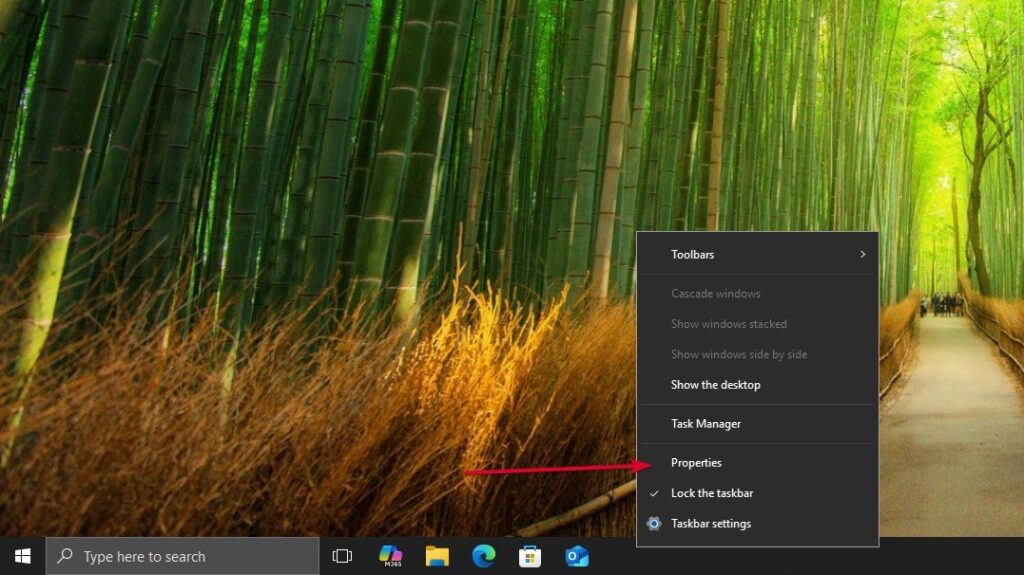
- In the Taskbar tab, find Primary taskbar location on screen > choose Top .
- Hit Restart File Explorer to apply changes.
Pros
- Completely free.
- Restores the old taskbar design (more control).
- Regularly updated by the community.
Cons
- Occasionally breaks after major Windows updates.
- Takes a little time to configure properly.
- Antivirus may flag it (false alarm) because it modifies system files.
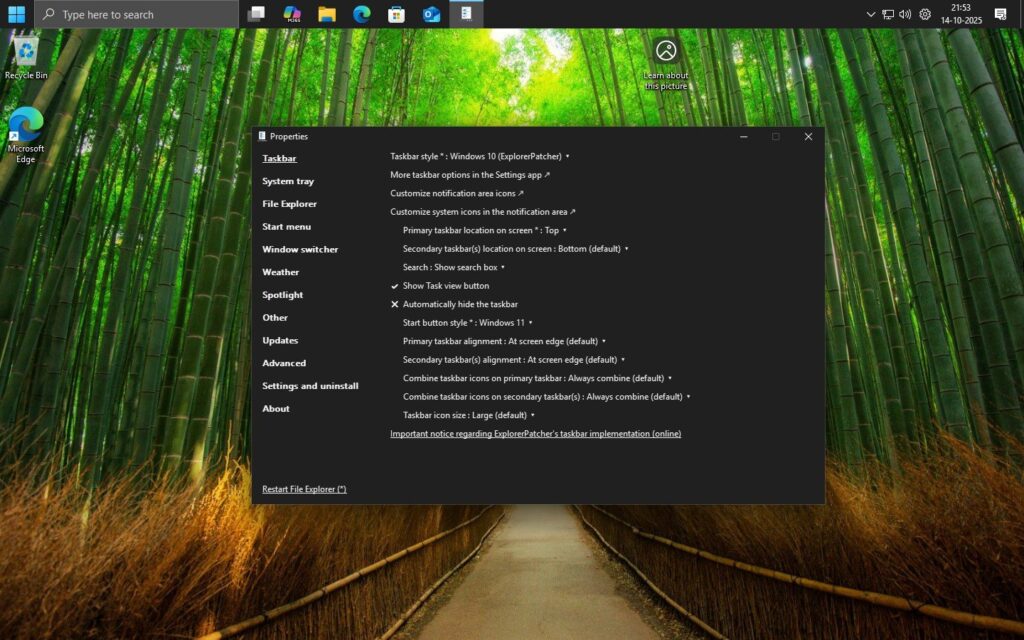
Note: After installing, disable automatic Windows updates until you’re sure ExplorerPatcher’s latest version supports your current build. This avoids crashes or visual bugs.
2. Start11 (Paid, but Polished)
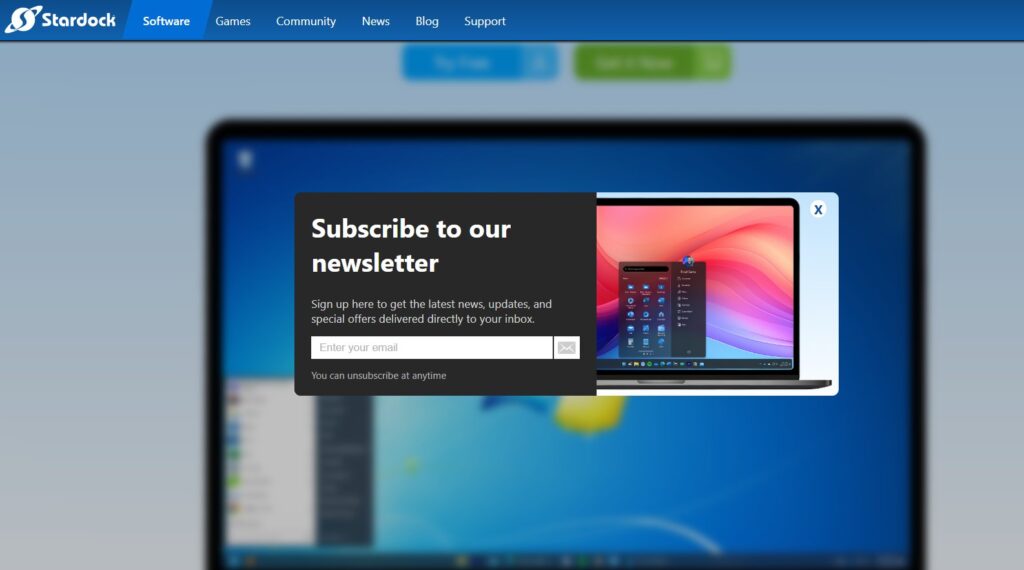
If you prefer something stable and beginner-friendly, Start11 by Stardock is a great choice. It’s a commercial app but offers a 30-day free trial, and it’s one of the few tools that still works perfectly on the latest Windows 11 builds (as of October 2025).
- Visit stardock.com/products/start11 .
- Download and install the app.
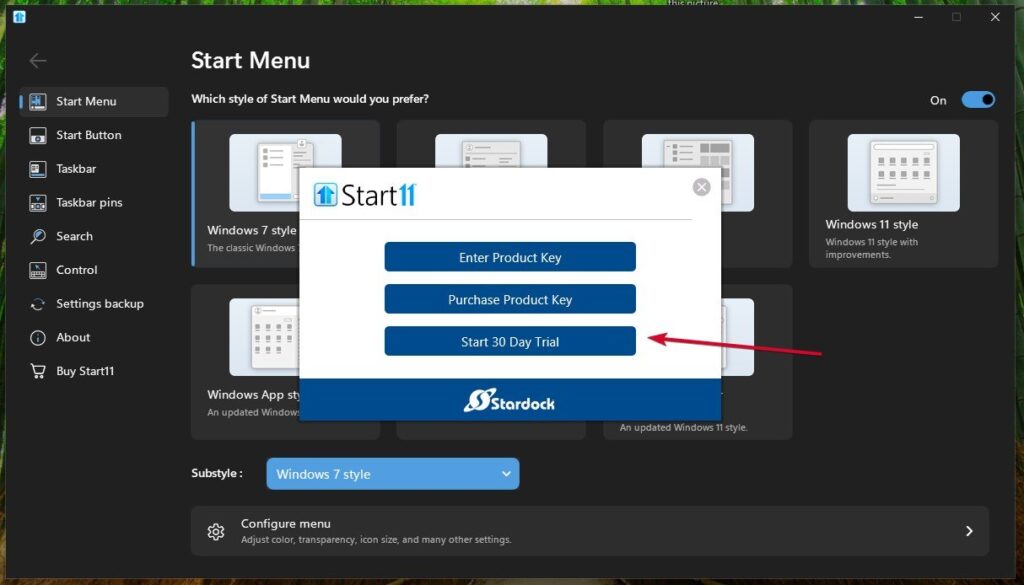
- During setup, choose Start 30 Day Trial or buy a license (about $9.99).
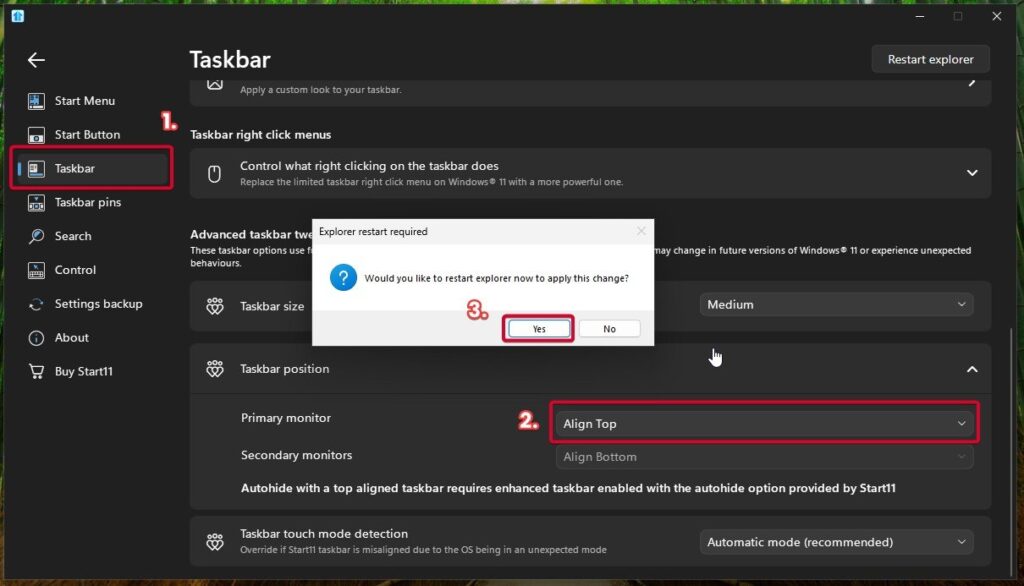
- Open Start11 > go to Taskbar settings.
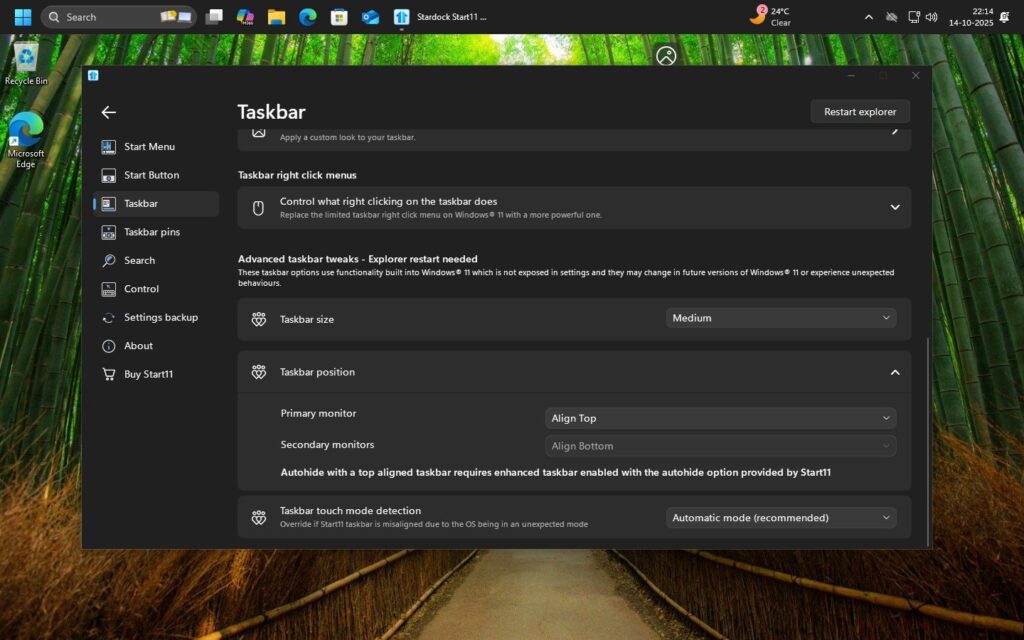
- Look for Taskbar position > select Top for the primary monitor.
- Confirm and apply.
Pros
- Very stable; rarely breaks after updates.
- Easy to use, even for beginners.
- Offers deep Start menu customization (Windows 7, 10, or 11 styles).
Cons
- Paid software (after trial).
- Doesn’t support left/right positioning, only Top.
- Slightly heavier on system resources than ExplorerPatcher.
If you want a “set it and forget it” solution, Start11 is hands-down the safest bet.
- 5 Tested Methods to Bypass Microsoft Account in OOBE on Windows 11
- How to Get Free Extended Security Updates (ESU) After Windows 10 End of Support
- Windhawk for Windows: The Ultimate Tool to Customize Your PC Experience
3. Windhawk Mods (For Power Users)
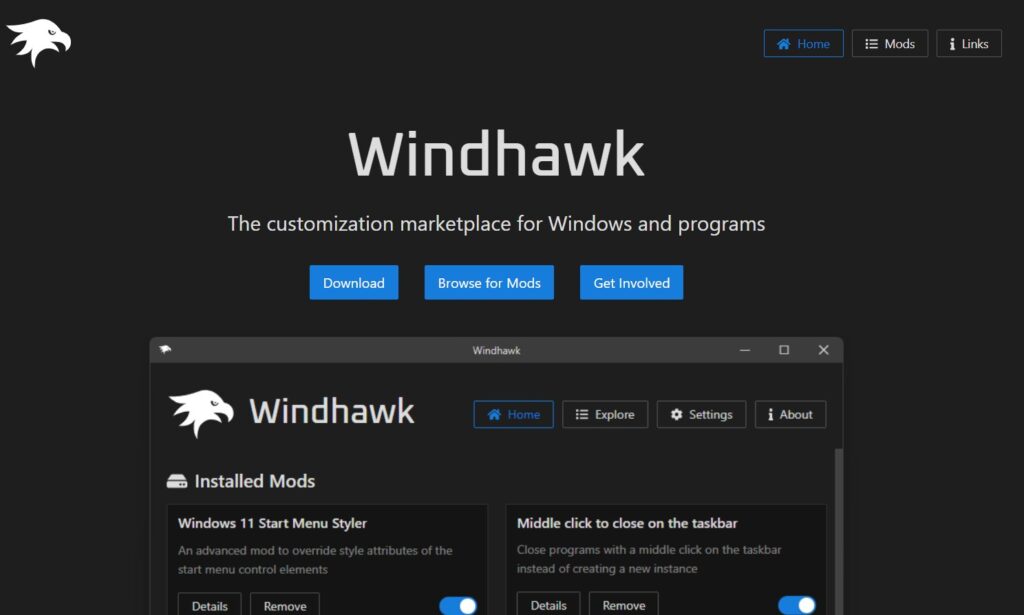
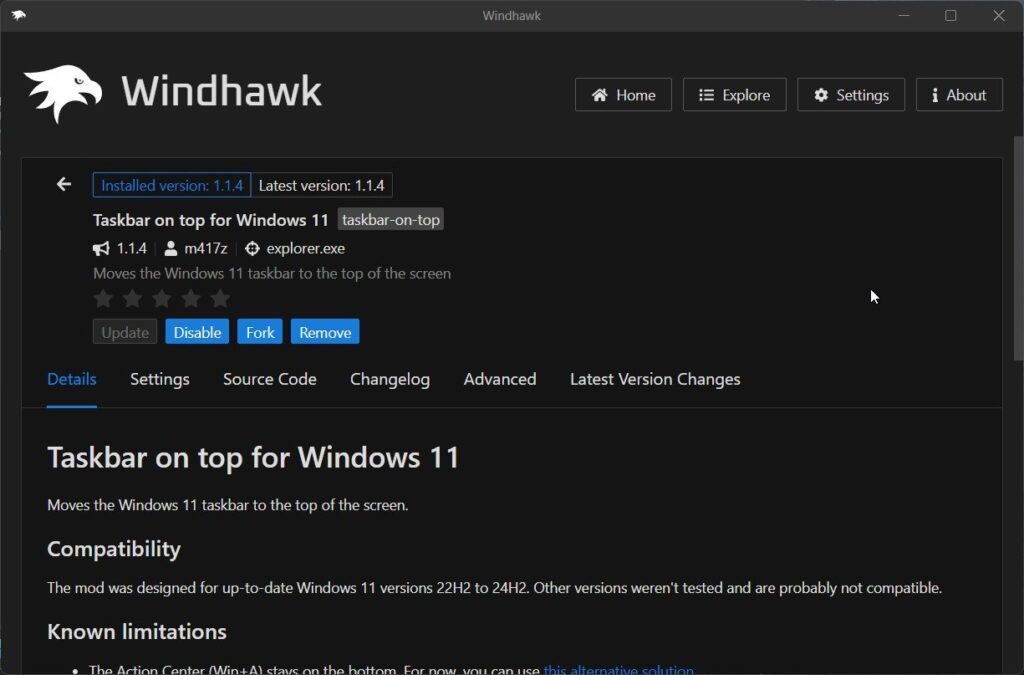
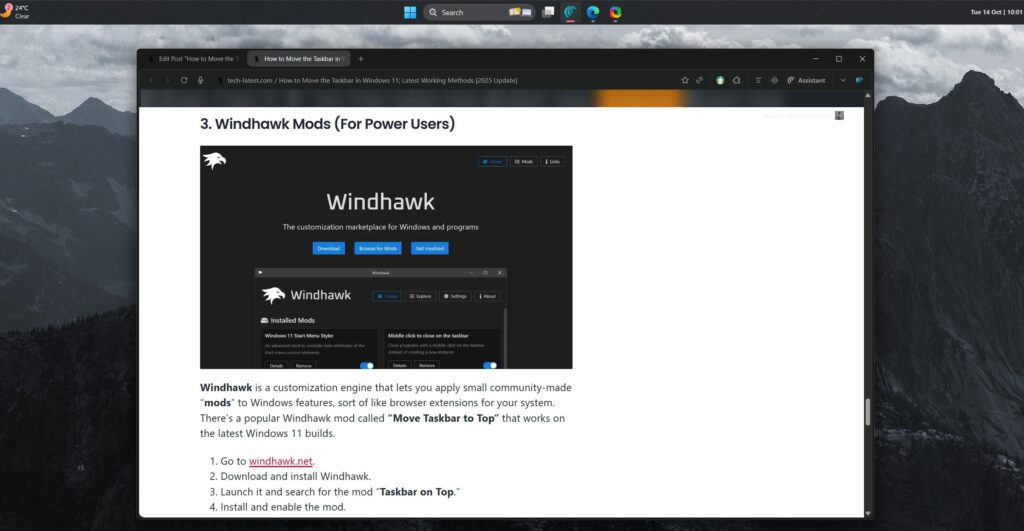
Windhawk is a customization engine that lets you apply small community-made “ mods ” to Windows features, sort of like browser extensions for your system. There’s a popular Windhawk mod called “Move Taskbar to Top” that works on the latest Windows 11 builds.
- Go to windhawk.net .
- Download and install Windhawk.
- Launch it and search for the mod “ Taskbar on Top .”
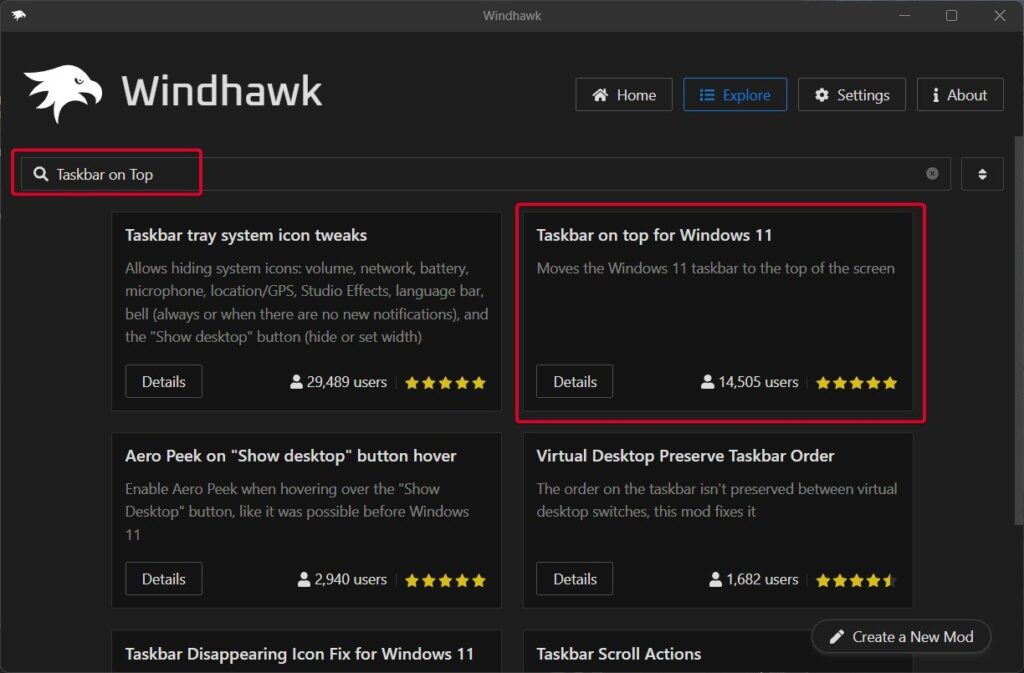
- Install and enable the mod.
- Restart Explorer or your PC.
Pros
- Works on the latest Windows builds (even 25H2).
- Modular, easy to enable or disable.
- Constantly updated by the community.
Cons
- Requires manual setup.
- Some mods may not be 100% stable.
- Because it injects code into Explorer, some antivirus software may warn you (again, false positives).
If you’re comfortable experimenting and want to stay up-to-date, Windhawk is fun and flexible.
So, that’s all we have for you about how to move the taskbar in Windows 11 (top, left, or right). We hope that this guide has helped you. For more info, comment below and let us know.
Enjoyed this article?
If TechLatest has helped you, consider supporting us with a one-time tip on Ko-fi. Every contribution keeps our work free and independent.
