Highlights
- HEIC is an image format that Apple started using with iOS 11 to compress images more efficiently, saving on both storage and transfer without losing image quality.
- But Windows can’t natively handle .HEIC files are sort of a drag if you ever try to view them or edit them.
- In this article, we look at a few different methods you can use to open and convert HEIC files on Windows 10 and Windows 11.

Have you ever tried to transfer some beautiful photos from your iPhone to your Windows computer only to find a ton of files that have a .HEIC extension that refuse to open? You’re not alone.
HEIC is a contemporary file format that Apple has developed to capture images at half the size of a traditional JPEG without sacrificing quality.
Don’t want to miss the best from TechLatest ? Set us as a preferred source in Google Search and make sure you never miss our latest.
The catch is that Windows doesn’t natively support it completely. So when you attempt to open them, you receive either an error message or a blank screen.
So, if that makes you furious and you are looking for a step-by-step guide to open HEIC files in Windows, then this guide is for you.
Content Table
What is an HEIC file?

HEIC is short for High-Efficiency Image Container and is part of the HEIF (High-Efficiency Image Format) standard.
This format was introduced by Apple in 2017 with iOS 11, and iPhones and iPads have employed it as the native format for saving photos since then.
But what makes HEIC different?
HEIC photos work by utilizing the HEVC (High-Efficiency Video Coding) image codec to compress image information. This means:
- Reduces file sizes but keeps the same image quality
- Combining two or more images in a file (like bursts or Live Photos)
- improved color and dynamic range support
While it’s awesome for saving space on your iPhone, dealing with HEIC files on Windows is a pain in the butt — particularly if you’re using older software and haven’t installed the necessary extensions.
Why Can’t I View HEIC Files Natively on Windows?
Even with advances in media format compatibility thanks to Windows 10 and 11, HEIC support isn’t included out of the box. Microsoft asks them to install two extensions to open HEIC files the right way.
- HEIF Image Extensions (Free)
- HEVC Video Extensions (Usually ₹85 / $0.99)
Without this, it will throw an error or show a blank screen when opening a .HEIC file.
How to Open HEIC Files in Windows 11/10 Photos App
If you don’t want to install any third-party software, here is a quick and easy way to open an HEIC file in Windows:
Step 1: Try Opening the File
- Find the HEIC file in File Explorer.
- Double-click it. If Windows prompts you for how you would like to open the file, select the Photos app.
If the following message appears: “ The file requires the HEIF Image Extension to be opened. “
Note that you will need the free HEIF plugin installed to use this.
Step 2: Download HEIF Image Extension
- Open the message and click the “ Download and install it now ” link.
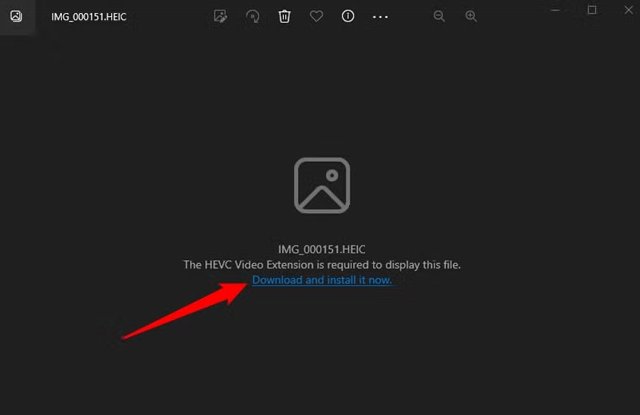
- The Microsoft Store will open the page for HEIF Image Extension .
- Click Install . The download is fast and free.
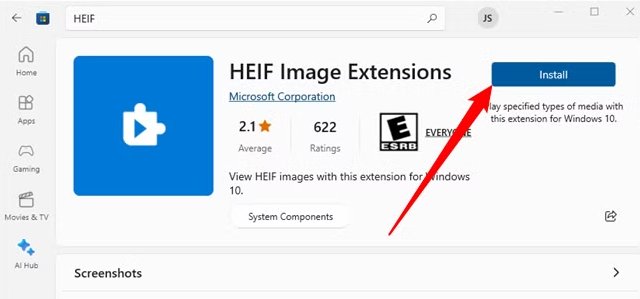
This includes HEIF support, which will let the Photos app read. HEIC metadata and images.
Step 3: Install HEVC Video Extensions (₹85 or $0.99) (Optional)
The HEIC format relies on the HEVC codec to properly decode the images. Sadly, this extension cannot be used free of charge in most countries. To get it:
- Head over to the Microsoft Store and look for HEVC Video Extensions .
- Click Purchase extension and then Install .

Note: It was previously possible to get the HEVC codec for free (through device manufacturers), but that method no longer works for 2025.
Step 4: Open Your HEIC Files
Once both extensions are installed:
- Open any .HEIC photo using the Photos app.
- You will view the image as if it were any old JPG or PNG.
You can also view thumbnails on File Explorer and use Windows tools such as Slideshow.
How to Convert HEIC to JPEG on Windows
While HEIC is a more efficient format, there are still many more apps, including image editors and web services, that work with JPEG, not to mention Windows apps.
Read on to learn how you can easily convert HEIC files to JPEG for free:
Option 1: CopyTrans HEIC for Windows
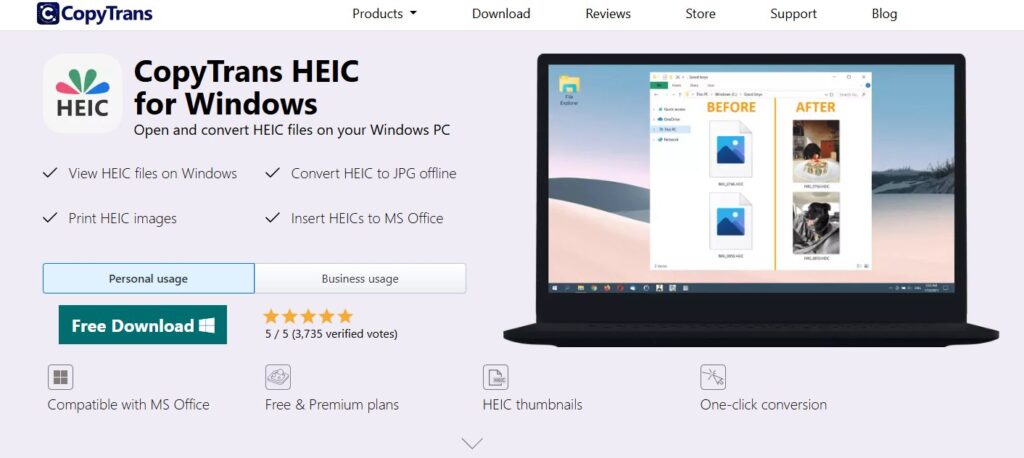
CopyTrans HEIC is a free utility that:
- Lets you open and view HEIC files in Window Photo Viewer.
- Adds a right-click “ Convert to JPEG ” option.
How to Use:
- Download CopyTrans HEIC for Windows from the official page and install it.
- Right-click on any HEIC file.
- Click “ Convert to JPEG with CopyTrans. “
- The JPEG will be saved in the same folder.
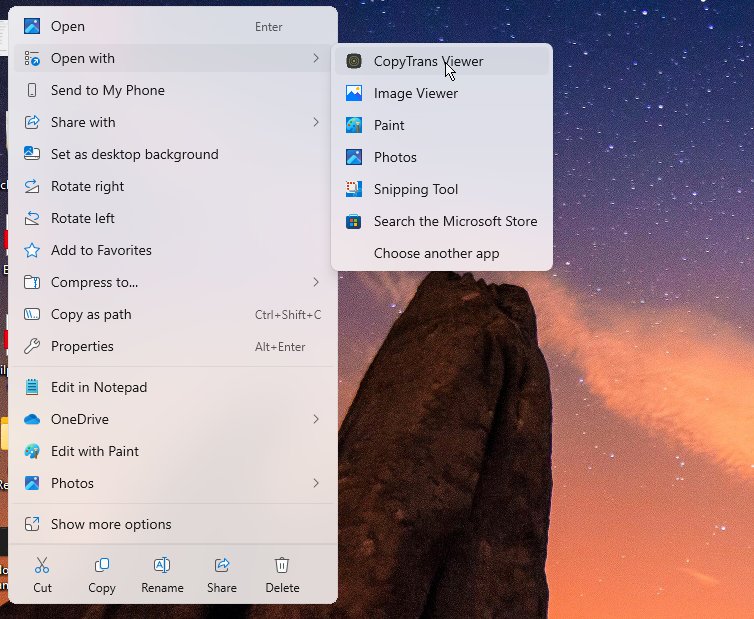
It’s a slim, non-invasive tool, and it’s good if you use an older version of Windows or don’t want to deal with Microsoft Store extensions.
Option 2: Use Online Tools (HEICtoJPG.com)
If you prefer not to download and install software, you can use web tools to get the job done in an image.
How to Use:
- Visit HEICtoJPG.com
- Drag and drop up to 5 HEIC files.
- Wait while it is being converted.
- Download the converted JPEG files.
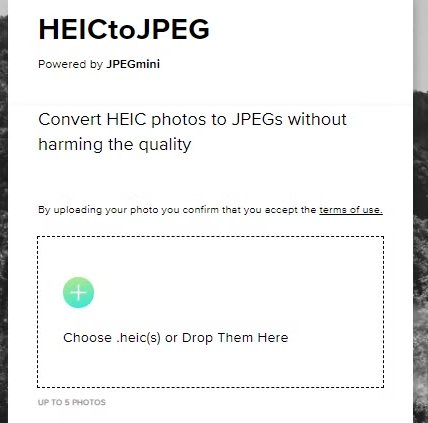
Note: Take care while uploading your personal pictures. HEICtoJPG is safe enough, but don’t upload sensitive documents to some random converter.
Final Thoughts
The HEIC format is sleek, smart, and forward-looking — but it’s still lagging behind when it comes to universal support. Fortunately, Windows 10 and 11 now offer an easier way to view and convert HEIC files in only a few clicks.
Whether it’s installing Microsoft’s official codecs, using CopyTrans for quick conversions, or just relying on online tools, you’re now ready to deal with HEIC images like a boss.
Enjoyed this article?
If TechLatest has helped you, consider supporting us with a one-time tip on Ko-fi. Every contribution keeps our work free and independent.
