Highlights
- Turn off Live Location or avoid opening Snapchat to freeze your last location without disappearing from the map.
- Ghost Mode hides your Bitmoji completely but makes it obvious you’re off the grid.
- Removing or limiting location access lets you quietly stop updates and fade off the map naturally.

Snapchat’s Snap Map is fun when you want to know what your friends are doing, where they are hanging out, and if they’re nearby. But let’s be honest, there are days when you don’t want everyone to know where you are.
Maybe you’re chilling at a café instead of going to class, or maybe you’re meeting someone quietly. Or maybe you just want privacy for a while without explaining anything to anyone. But users get confused about whether or not they can hide or pause their location without turning it off.
Don’t want to miss the best from TechLatest ? Set us as a preferred source in Google Search and make sure you never miss our latest.
Well, there are several ways you can pause your location without making it obvious or shutting off location services entirely. In this guide, we will tell you different methods that you can use to easily do this task.
Content Table
Why Pause Your Snapchat Location Instead of Turning It Off?
Here are a few reasons why you must pause your Snapchat location instead of turning it off:
- You want privacy for a few hours without friends assuming something weird.
- You don’t want your Bitmoji to suddenly disappear from the map (because people notice!).
- You want Snapchat to still work normally, just without updating your location every few seconds.
- You don’t want to explain to someone why you turned off location.
Pausing location keeps things normal on the surface , while giving you privacy behind the scenes.
How to Pause Snapchat Location Without Turning It Off
Here are some methods that you can use to easily pause Snapchat location instead of turning it off:
Method 1: Turn Off Live Location Sharing
Snapchat has a feature called Live Location . When it’s on, Snapchat updates your position constantly, even when you’re not using the app. So if you move from home to a friend’s place, Snap Map updates automatically.
- Open Snapchat
- Tap the Map icon at the bottom
- Tap the Gear icon (top right corner)
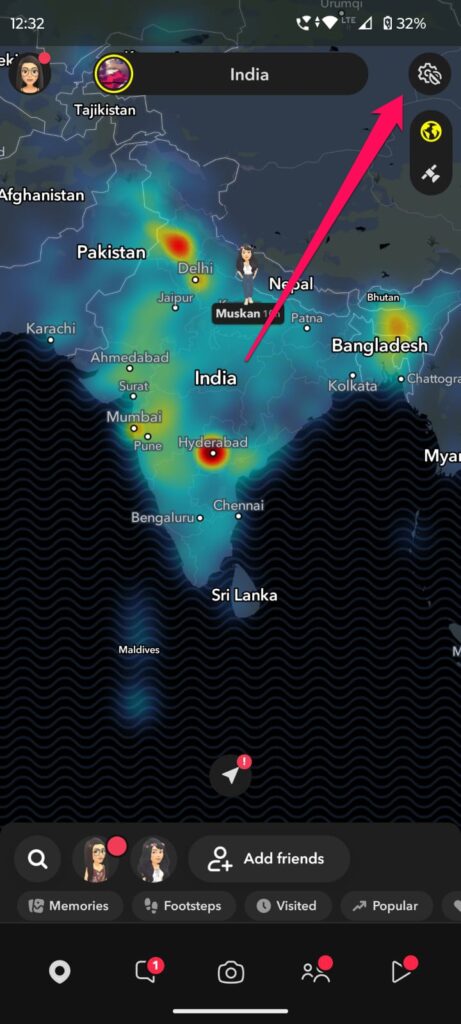
- Look for Live Location
- Toggle off or choose Hide My Live Location
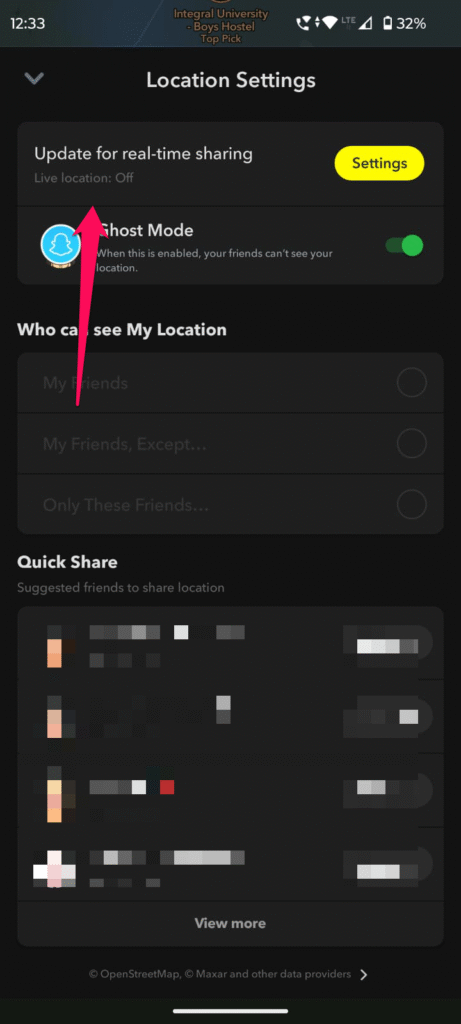
- Pick how long you want (3 hours, 24 hours, or until you turn it back on)
What This Does?
- Your location stops updating live
- Friends only see where you were last
- Your Bitmoji still appears, so nothing looks suspicious
When you’re stepping out quietly, but don’t want anyone guessing yet.
If someone checks your map, they’ll see your last place, not where you are right now. Smooth and subtle.
Method 2: Stay Logged Out (or Don’t Open the App)
This is the best trick, to pause your location but it works surprisingly well. Snapchat updates your location when you open the app. If you don’t open it, your last location stays frozen.
So if you are somewhere you don’t want people knowing, simply avoid opening Snapchat for a bit.
If you keep opening Snapchat out of habit (because let’s be real, we all do), turn off notifications temporarily or move Snapchat into a hidden folder so you forget about it for a few hours.
Short breaks, like a few hours out, a quiet evening, or a dinner you don’t want everyone knowing about.
But if you accidentally open Snapchat, it updates your location immediately, so be careful.
Method 3: Turn On Ghost Mode
Ghost Mode makes you disappear from Snap Map entirely. Nobody can see you, and your Bitmoji vanishes.
- Open Snap Map
- Tap Settings
- Toggle on Ghost Mode
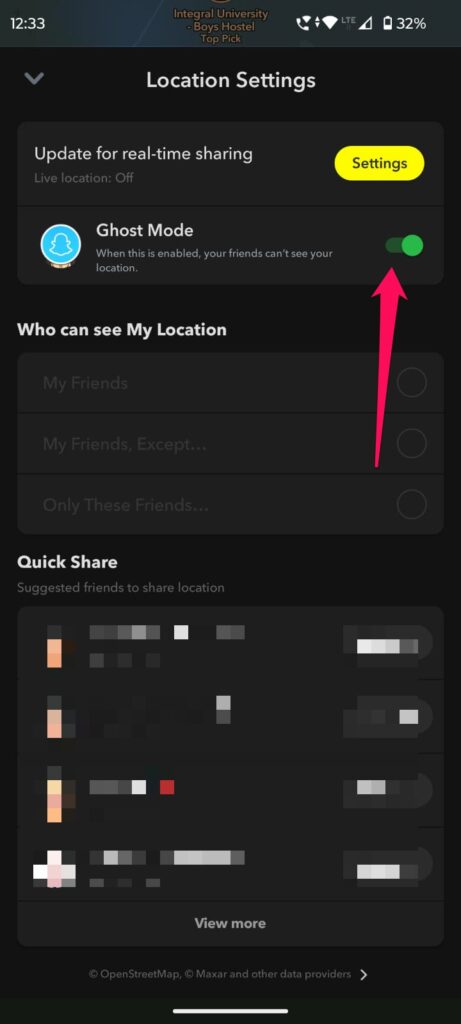
- Choose the duration (3 hours / 24 hours / until turned off)
Pros
- Total privacy
- No one sees anything
Cons
- Bitmoji disappears, people notice
- It’s the most “suspicious-looking” privacy mode
Ideal Scenario to Use
You don’t care if people realize you’re hiding, or you want full privacy for a while. Ghost Mode is like putting curtains on your digital windows. You’re not shutting the house, just blocking the view.
Method 4: Turn Off Precise Location
Phones have two types of location permissions:
- Precise (exact point on the map, down to street or building)
- Approximate (general area)
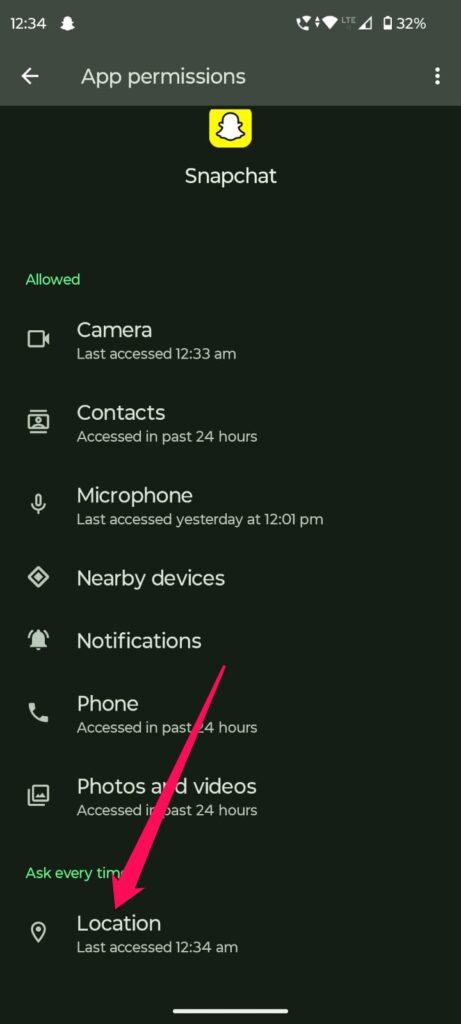
Snapchat needs a precise location for Snap Map to work perfectly. If you switch it off, Snapchat can’t pinpoint you exactly. Usually, it sticks to your older location or shows a less accurate area.
On Android
- Long-press Snapchat app
- Tap App info
- Go to Permissions.
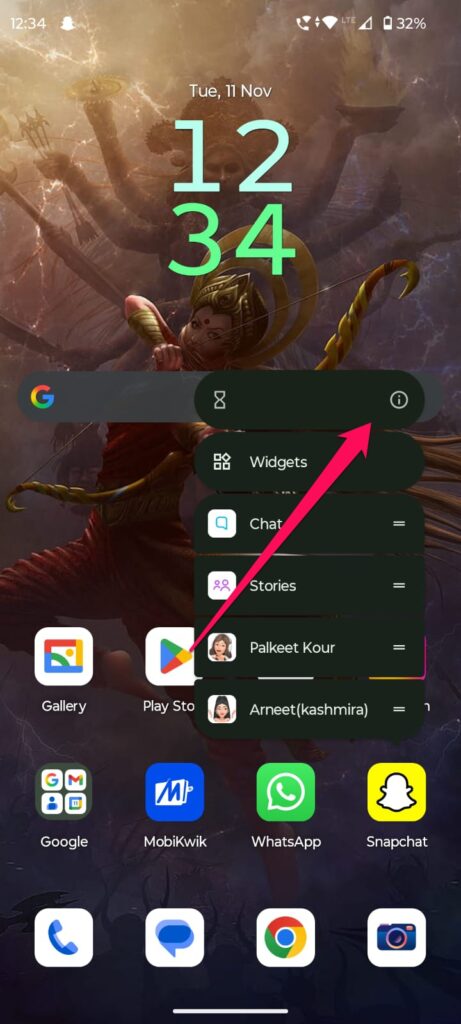
- Then, tap on the Location
- Turn off Precise Location
On iPhone
- Open Settings
- Scroll to Snapchat
- Tap Location
- Turn off Precise Location
Why This Works?
Snapchat gets enough to run normally, but not enough to track your exact moves.
It’s like giving Snapchat blurry vision; it sees your outline, not your exact spot. Perfect for light privacy without being obvious.
Method 5: Remove Location Access Entirely (Quietly)
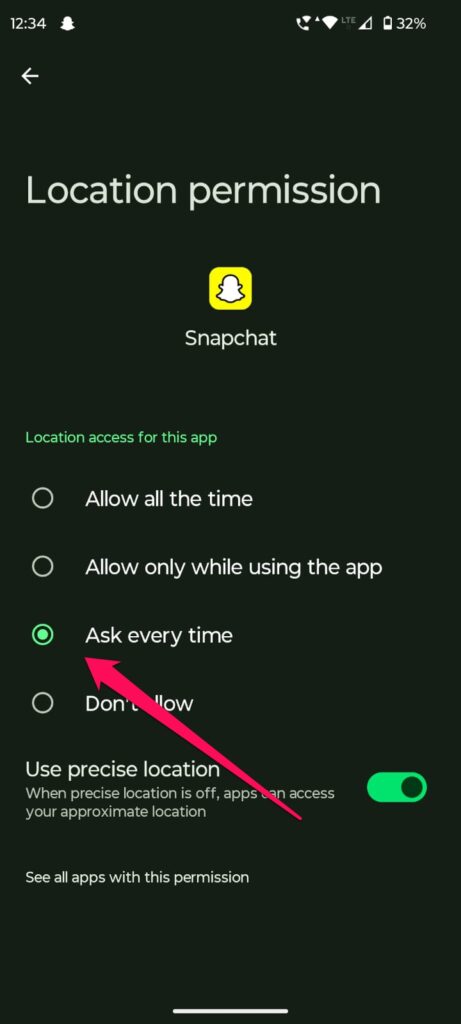
This method removes Snapchat’s location permission, but you stay logged in and active. For up to 24 hours, your Bitmoji will still appear, showing your last known spot . After a day, it disappears naturally.
On Android
- Long-press Snapchat
- Tap App Info
- Go to Permissions
- Tap Location
- Select Deny or Ask every time
On iPhone
- Open Settings
- Scroll & tap Snapchat
- Go to Location
- Pick Never
Instead of instantly going ghost, you fade away slowly, like you simply haven’t been active lately. Very natural.
Does Snapchat Remove Old Locations Automatically?
Yes. If Snapchat doesn’t get your location for 24 hours , your Bitmoji disappears automatically.
So even without changing settings, not using the app for a day gives you privacy.
This is why most methods above don’t look suspicious; your map status looks normal.
Final Thoughts
Snapchat has cool features, but nobody needs to feel like they’re constantly being watched. You don’t owe the internet or your friends a 24-hour location stream.
Pausing your location doesn’t mean you’re doing something wrong; it means you’re taking control. Whether it’s for a short moment of peace or a whole day offline, use these tricks confidently.
Enjoyed this article?
If TechLatest has helped you, consider supporting us with a one-time tip on Ko-fi. Every contribution keeps our work free and independent.
