Highlights
- iOS 26’s Liquid Glass design adds translucency, shine, and motion across the system, but it can be toned down for clarity.
- There’s no full “off” switch, but Accessibility settings like Reduce Transparency, Increase Contrast, and Reduce Motion make the UI mostly opaque.
- With the right combo of toggles, wallpapers, and icon styles, iOS 26 can look clean, solid, and easier on the eyes.
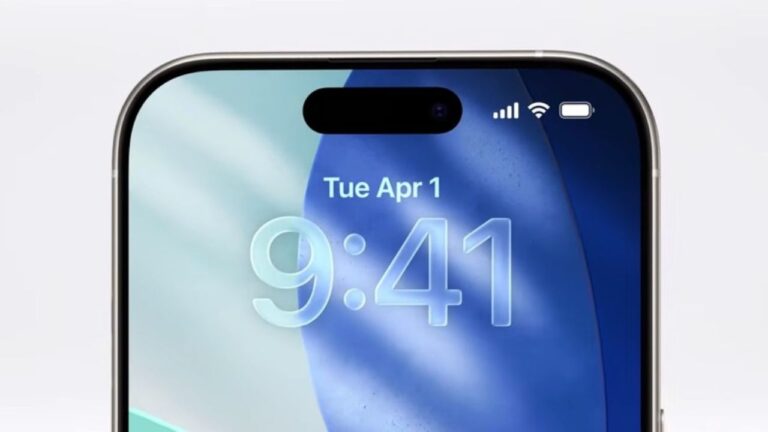
When Apple rolled out iOS 26 , the most noticeable change wasn’t a new app or feature; it was the refreshed design language called Liquid Glass .
Apple described it as “a glassy, translucent design that brings more depth and shine across the system.” It’s beautiful, yes, but not everyone loves it.
Don’t want to miss the best from TechLatest ? Set us as a preferred source in Google Search and make sure you never miss our latest.
For some people, exactly like me, the frosted backgrounds, layered menus, and shiny animations feel distracting.
Others say it makes text harder to read or even causes eye strain. And here’s the kicker: Apple didn’t add a single toggle to turn Liquid Glass off .
But don’t worry, you’re not stuck with it. iOS 26 has some powerful Accessibility settings that let you reduce Liquid Glass transparency in iOS 26 (or completely turn off ) the see-through, glossy effects.
In this guide, I’ll walk you through every setting, explain what it changes, and share extra tweaks that make iOS 26 feel sharper and easier to use. So let’s dive in.
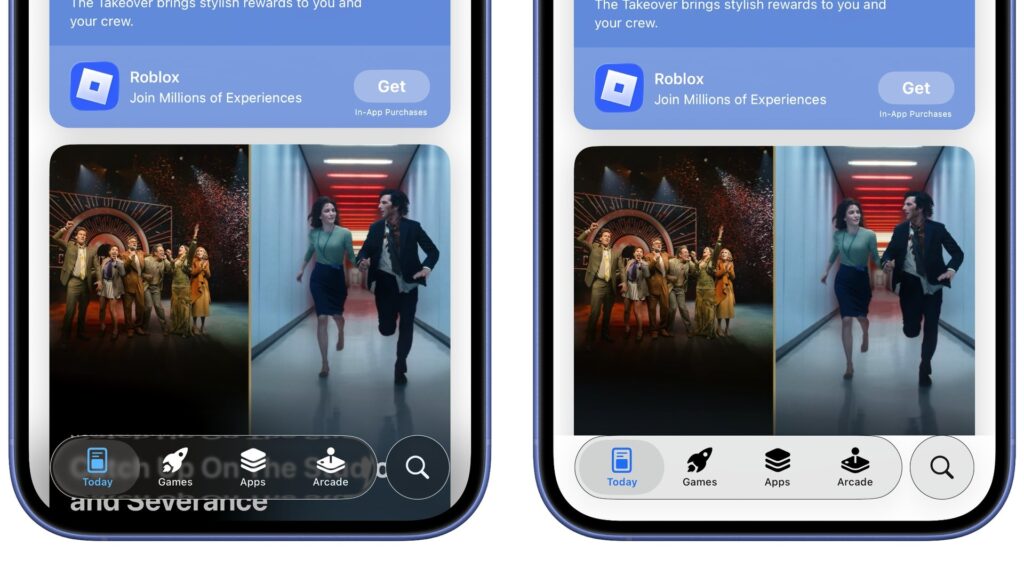
Left: iOS 26 with default settings, Right: iOS 26 with Reduce Transparency enabled (Credit: Foundry)
Content Table
How to Reduce or Turn Off Liquid Glass Transparency in iOS 26?
What Exactly Is Liquid Glass in iOS 26?
If you are not aware of it, Liquid Glass is Apple’s fancy name for a design style built around translucency, layering, and motion-driven lighting . Here’s what it includes:
- Translucent backgrounds : Panels like Control Center, notifications, the Dock, and app folders use a frosted-glass effect that blurs your wallpaper behind them.
- Shiny : Icons and menus pick up subtle lighting shifts, almost like glass under real light.
- Layered menus : Different parts of the UI overlap, allowing colors from the background to seep through.
- Motion highlights : Tilt your device, and lighting or shadows shift in response.
It’s Apple’s way of making iOS 26 feel fresh and dynamic. But if you value clarity over style , it can be a lot.
Why You May Want to Reduce It?
From my experience, and based on community feedback, here are the main reasons people disable or reduce Liquid Glass:
- Better readability : Solid backgrounds make text stand out more.
- Less visual fatigue : Constant blurs and animations can cause eye strain or headaches.
- Simpler look : Some just prefer the clean, opaque style of older iOS versions.
- Improved performance : Less graphical processing means smoother transitions and potentially better battery life.
Read : Flipkart BBD Sale: iPhone 16 Pro at ₹69,999 & More Jaw-Dropping iPhone Deals
Reduce Liquid Glass transparency in iOS 26
Step 1: Start With the Toggle
Turn On Reduce Transparency
This is the single most effective way to cut Liquid Glass.
Head to Settings → Accessibility → Display & Text Size → Reduce Transparency → On
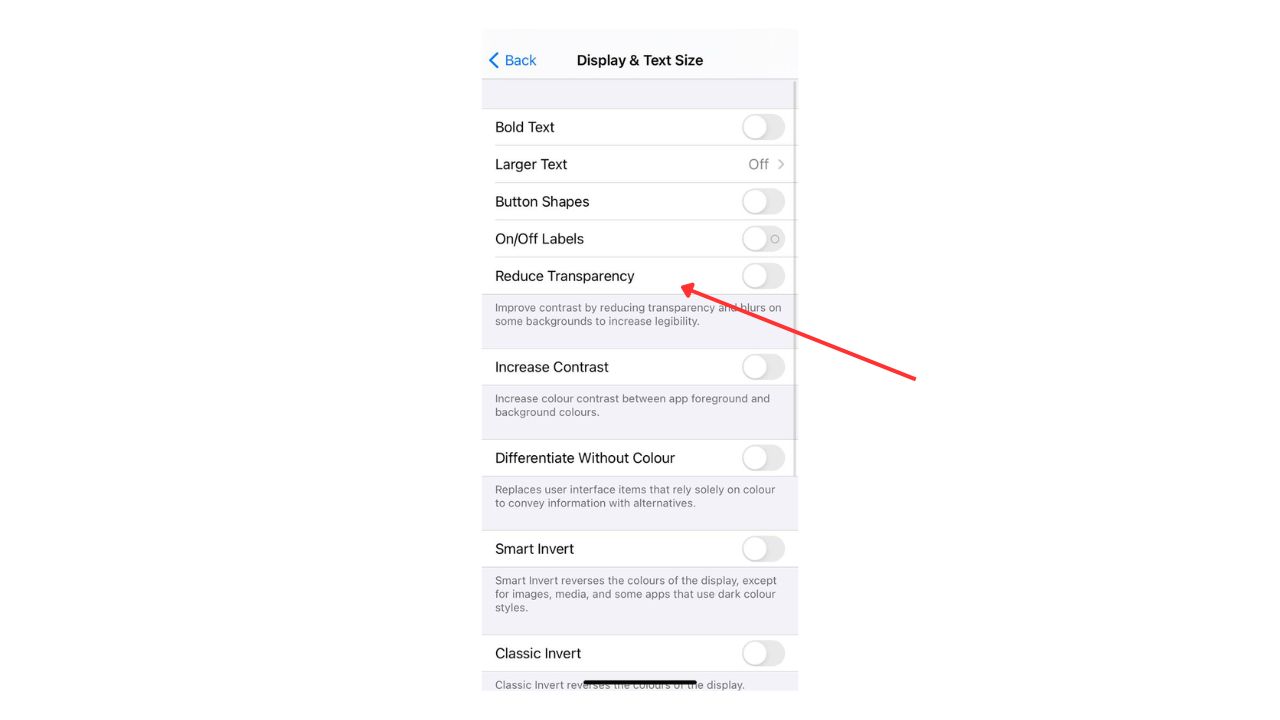
What it does:
- Replaces frosted glass panels (Control Center, Dock, notifications, folders) with more solid, opaque panels .
- Reduces background blur inside many Apple apps.
- Makes menus and buttons stand out against your wallpaper.
Once you enable this, you’ll instantly notice a sharper, more readable interface.
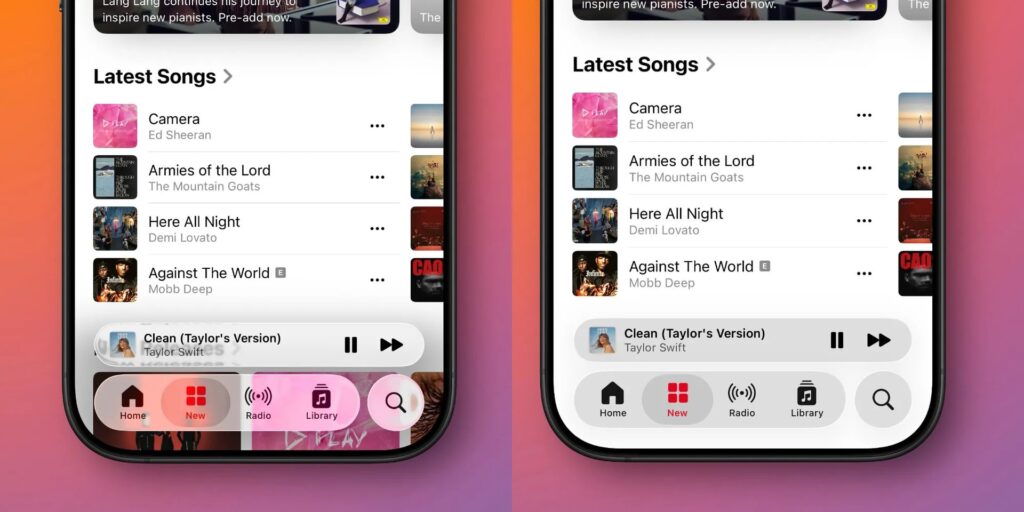
Left: iOS 26 with default settings, Right: iOS 26 with Reduce Transparency enabled
Step 2: Strengthen Contrast and Readability
Increase Contrast
Head to Settings → Accessibility → Display & Text Size → Increase Contrast → On
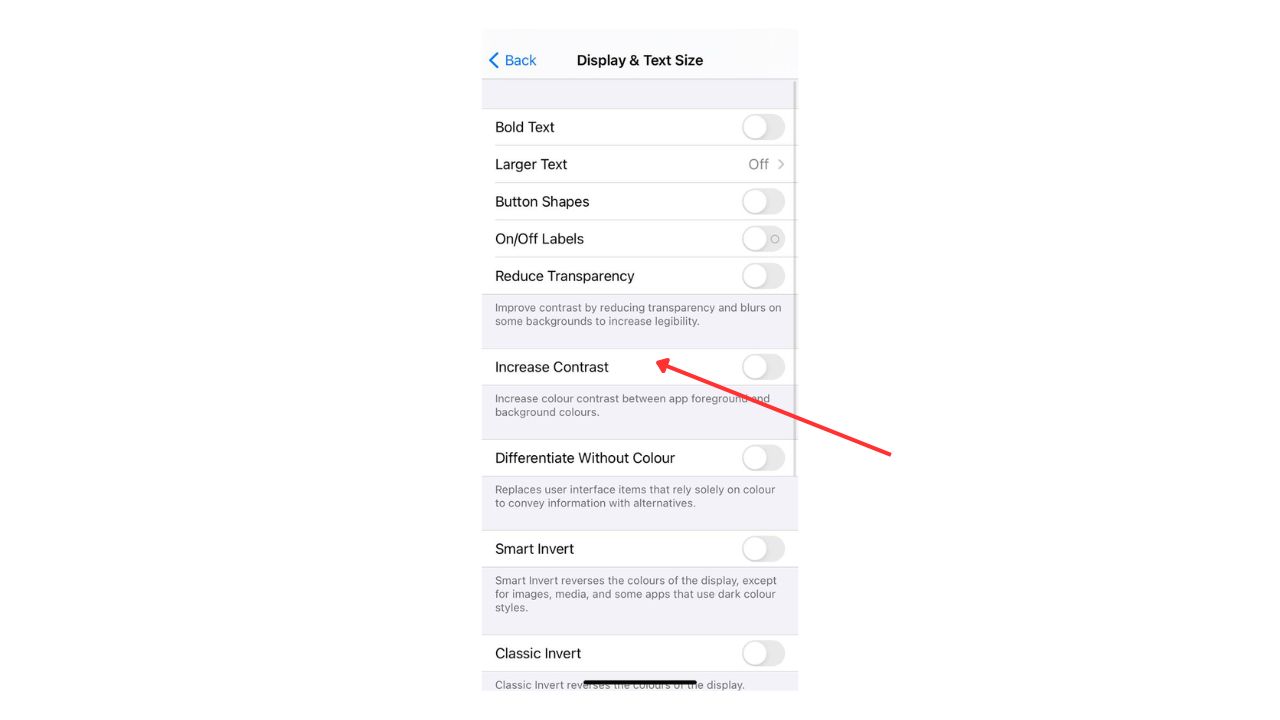
This enhances borders, button outlines, and shadows so elements don’t fade into the background. The effect is subtle but important.
Bold Text
Head to Settings → Accessibility → Display & Text Size → Bold Text → On
Thicker text improves legibility system-wide, from system menus to third-party apps that support iOS text settings.
Button Shapes
Head to Settings → Accessibility → Display & Text Size → Button Shapes → On
Adds underlines or shaded outlines to buttons, so you can clearly see what’s tappable.
Result: With these three toggles on, your device feels more solid and less like a glass panel floating above your wallpaper.
Step 3: Cut the Motion Effects
Liquid Glass isn’t only about transparency; it’s also about motion .
Reduce Motion
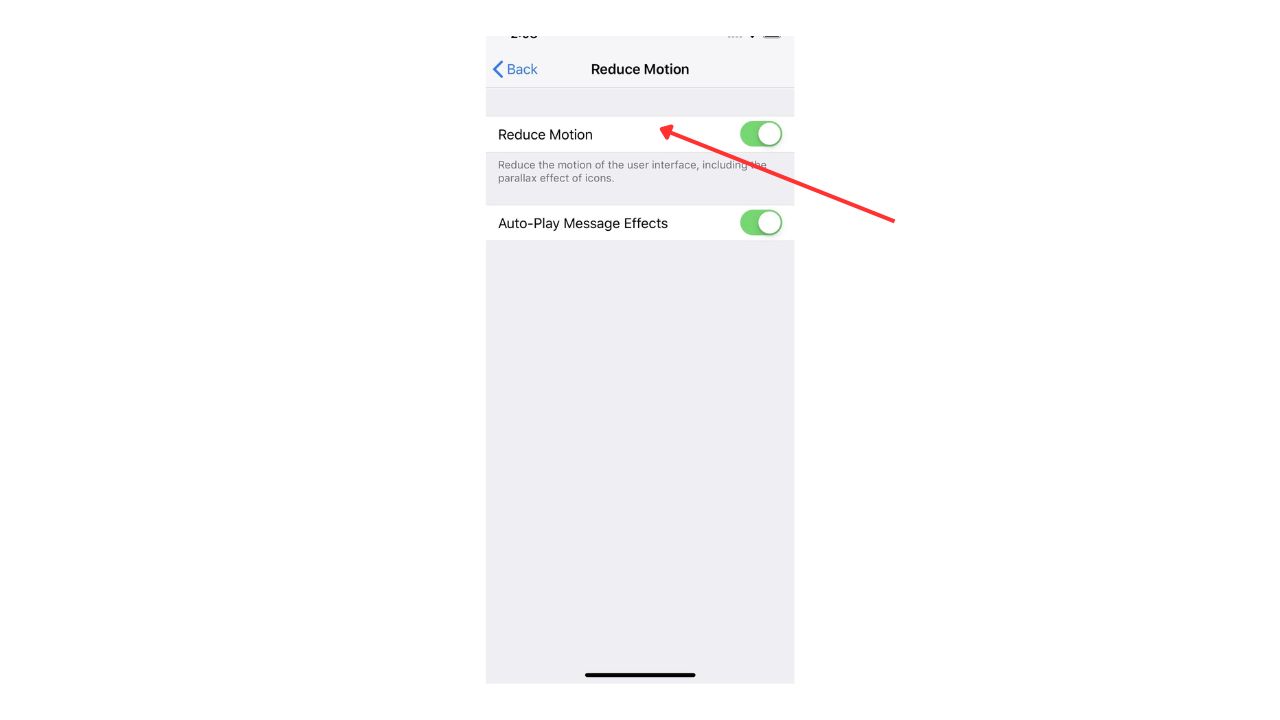
Head to Settings → Accessibility → Motion → Reduce Motion → On
- Stops parallax (the “floating” wallpaper effect).
- Replaces zooming transitions with cross-fades (if available).
- Makes animations faster and less “floaty.”
Prefer Cross-Fade Transitions
If you see this option under Motion, enable it too. It simplifies how windows and apps appear/disappear, making everything feel smoother and less dizzying.
Step 4: Adjust Your Icons
In iOS 26, Apple introduced new icon appearance options : Clear, Tinted, or Auto.
- Clear : See-through effect (more Liquid Glass).
- Tinted : More solid, colored backgrounds behind icons.
- Standard : Classic, opaque icons.
How to change it:
- Long-press on the Home Screen.
- Tap Edit or Customize .
- Choose Tinted or Standard.
Switching away from Clear icons reduces background noise and makes apps easier to spot.
Step 5: Bonus Tweaks for Maximum Comfort
Limit Frame Rate
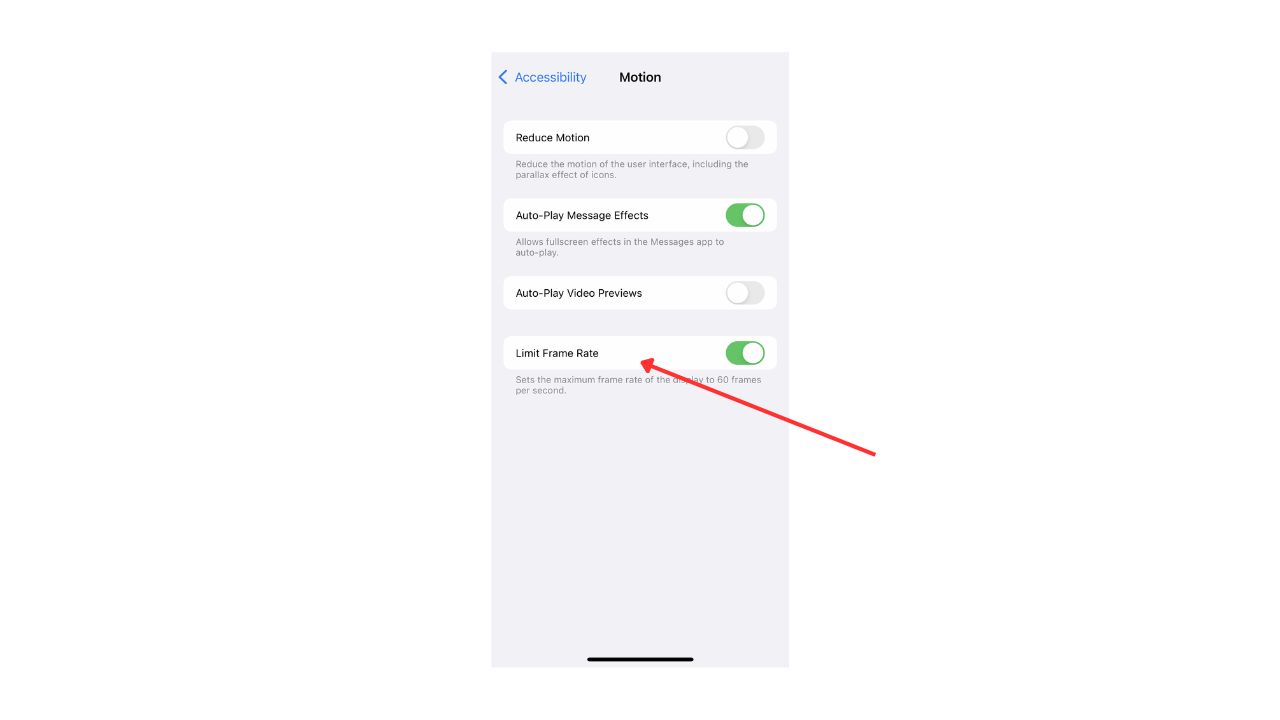
On devices with ProMotion (high refresh rate), you can lock the display to 60 Hz : Head to Settings → Display & Brightness → Limit Frame Rate → On
Why? A lower refresh rate reduces shimmer and makes motion effects less noticeable.
Wallpaper Choice
Even with Reduce Transparency enabled, a busy wallpaper can still shine through. Choose a plain, soft-colored wallpaper for maximum clarity.
Accessibility Shortcut
If you sometimes like the glossy look but want to switch quickly:
Head to Settings → Accessibility → Accessibility Shortcut → Select Reduce Transparency, Increase Contrast, etc.
Now, triple-click the Side/Home button to toggle between “glassy mode” and “readable mode.”
What These Changes Actually Do
Here’s a quick before-and-after summary:
- Control Center / Dock / Notifications → frosted glass replaced with solid backgrounds.
- Text → bolder, higher contrast, easier to scan.
- Animations → simplified, less zooming, fewer floating effects.
- Icons → more solid, less distraction from wallpaper.
In short: You still have iOS 26, but it feels closer to the classic opaque iOS style many people loved.
Why Apple Didn’t Add an “Off” Toggle
You might wonder: why not just give users a single toggle?
From what I’ve seen, Liquid Glass is baked deep into iOS 26. The translucency isn’t just decoration—it affects how icons, widgets, and layers render. Turning it off globally could break the design language.
Instead, Apple gave us Accessibility options . They’re flexible, and they let you customize the UI to your comfort.
During beta testing, user feedback actually led Apple to dial back transparency in later builds. That means Apple is listening, but for now, these toggles are the closest thing to “off.”
- Apple iPhone 17 Air Is Now Available; Here Are My Opinions
- Apple Watch Hypertension Alerts; Everything You Need to Know
- iPhone 17’s Major Center Stage Front Camera Upgrade; Here’s Everything
Wrapping It All
Overall, Liquid Glass in iOS 26 is shiny and modern, but it’s not for everyone. Thankfully, Apple gives us enough tools to change the look into something cleaner, more solid, and easier on the eyes.
If you follow this tutorial step by step, you’ll end up with an iPhone that looks less like glass and more like a straightforward, readable device like the old one.
Personally, I’ve kept Reduce Transparency, Increase Contrast, and Bold Text on permanently; it just makes everything feel clearer.
Enjoyed this article?
If TechLatest has helped you, consider supporting us with a one-time tip on Ko-fi. Every contribution keeps our work free and independent.
