Highlights
- Apple has an endless list of unique, high-quality accessories. When these accessories don’t work correctly with our devices, you’ll need to reset them.
- You will need to remove AirPods and AirPods Pro from your Apple device in order to reset them. It is also important to note that AirPods are compatible with devices other than Apple’s.
- Luckily, in this article, we have mentioned some of the methods using which you can easily remove AirPods from Apple ID.
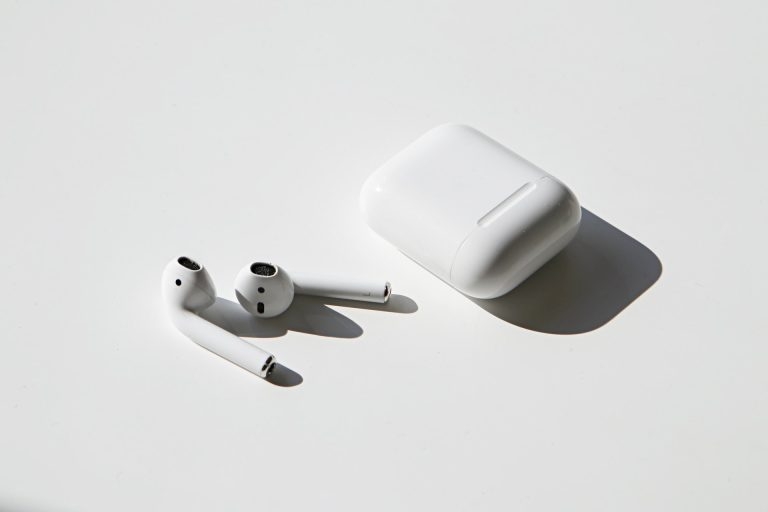
Do you recently purchased a new phone and now faces problem while connecting your AirPods to your new phone?
Well, this is something that users generally face this problem as they don’t know that before connecting their AirPods, they need to remove AirPods from their Apple ID.
Don’t want to miss the best from TechLatest ? Set us as a preferred source in Google Search and make sure you never miss our latest.
However, that’s the reason why I’m here. In this article, you will learn how to remove AirPods from an Apple ID. Therefore, let’s get started with the guide.
Content Table
Can I remove AirPods From Apple ID Without the Previous Owner?
Not at all! Without the previous owner’s assistance, you cannot complete this task. Afterward, you can set your own Apple ID once the previous owner removes his manually.
You need the old person’s help to run AirPods on your own iCloud ID, even if you’ve reset your AirPods and removed their data.
How to Remove AirPods From an Apple ID
Therefore, let’s check them out:
Use Find My App:
Your AirPods are initially locked to your Apple ID with a Pairing Lock. AirPods can be tracked easily using Find My and can be recognized and connected to all your devices without having to set them up repeatedly with Pairing Lock, which Apple uses to make AirPods easy to track.
It’s important to remove the Pairing Lock before passing along your AirPods. Otherwise, they won’t work.
It is possible to remove your AirPods from Apple ID using the Find My app on an iPhone, iPad, or Mac before giving them away or selling them. So, let’s check out the steps to do so:
- To pair your AirPods, ensure they are within the device’s pairing range.
- Ensure you’ve logged into the Find My app with the same Apple ID as the AirPods.
- To view the list of all your devices, swipe up in the Find My app.
- If you wish to remove an AirPod from your Apple ID, tap it.
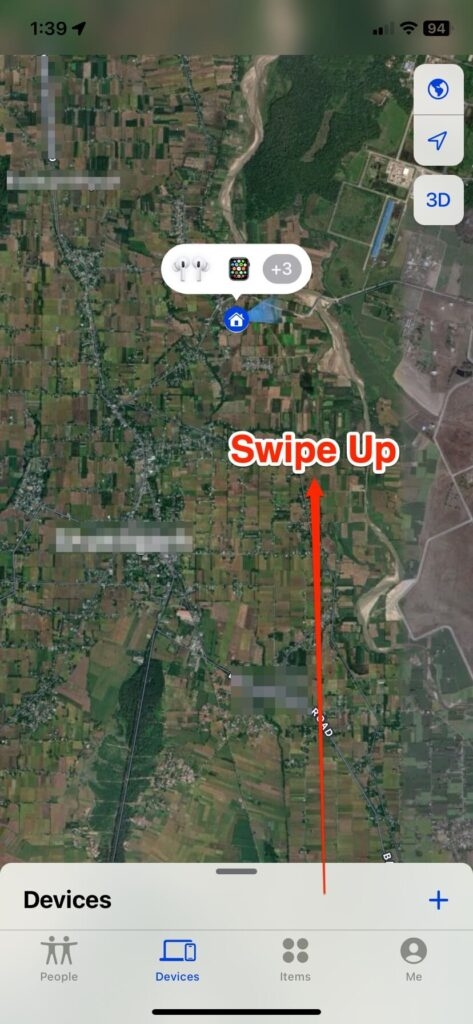
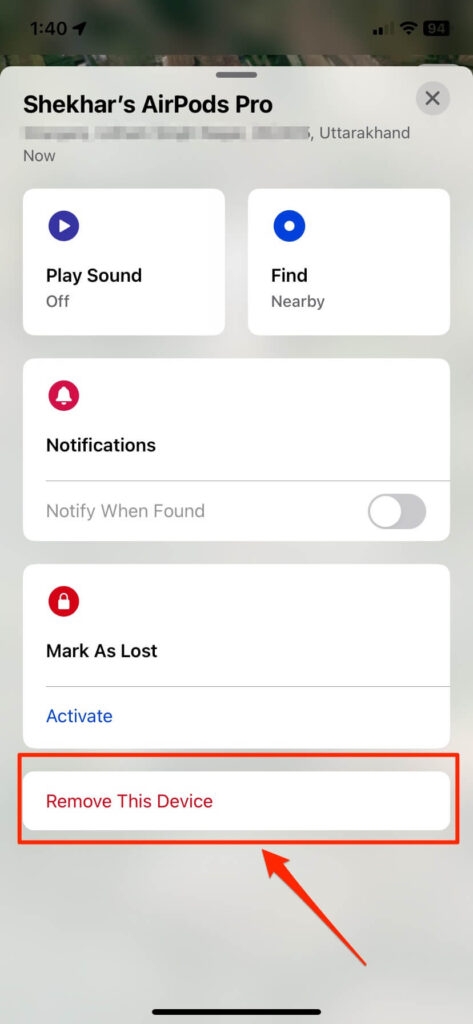
- Find out more about the AirPods by swiping up on the information.
- Select Remove This Device .
- Tap Remove in the pop-up window.
Using iCloud:
If the above method doesn’t work for you, you can just use iCloud to remove AirPods from Apple ID. Therefore, let’s get started with the guide:
- Use the Apple ID that is paired with the AirPods to log into iCloud.com .
- Then click Find My .
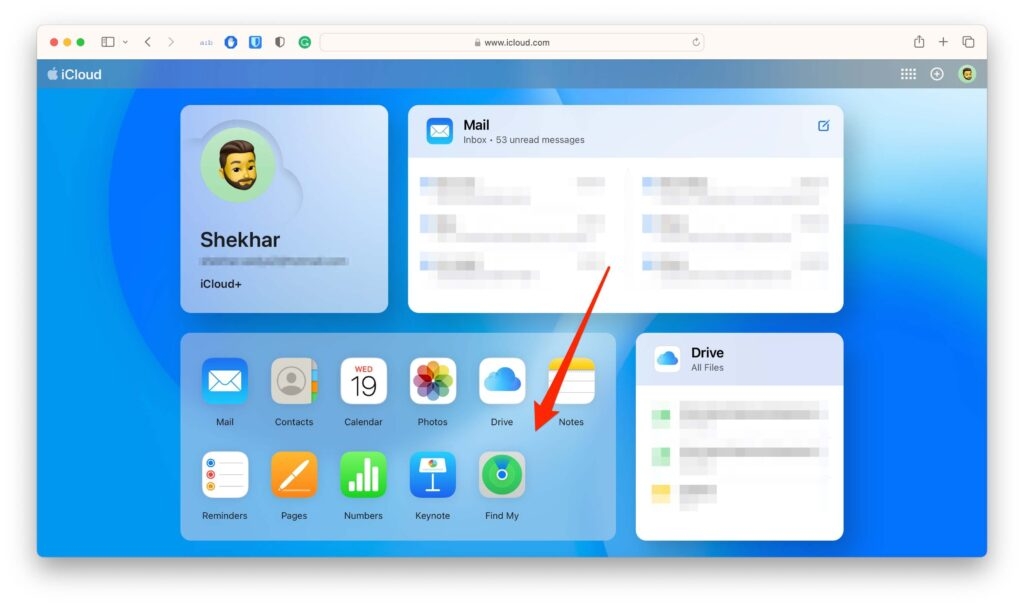
- Select All Devices .
- Select the AirPods you wish to remove.
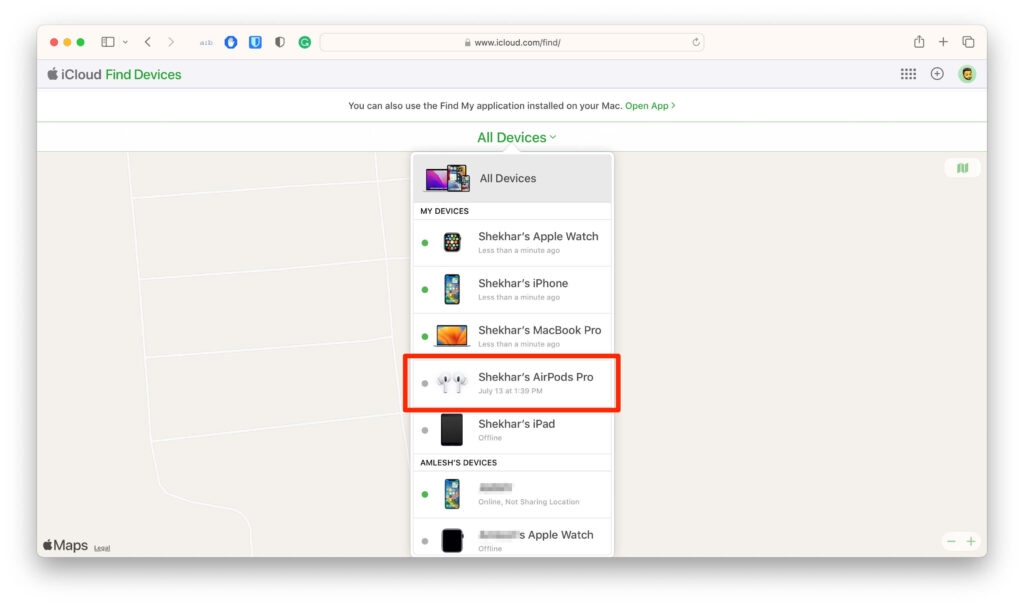
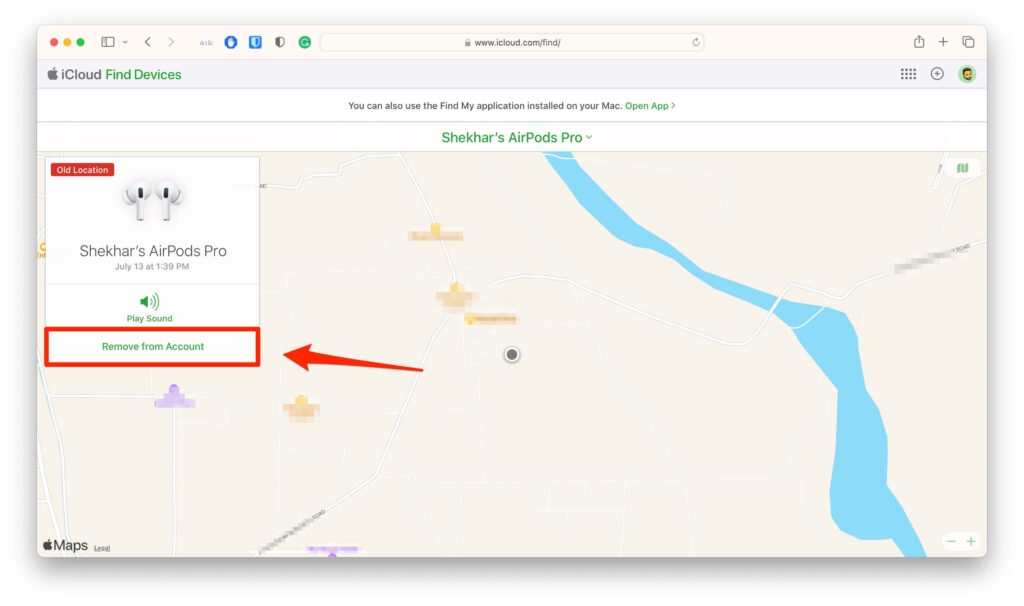
- Then click the Remove from Account button.
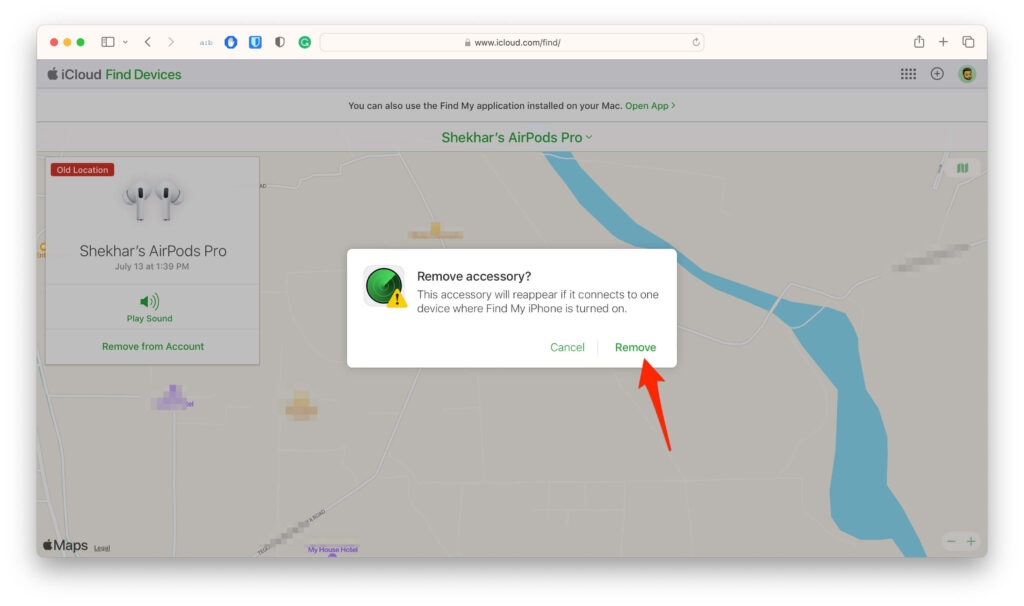
- Click Remove in the pop-up window.
How do I Reset AirPods?
AirPods will reset their settings once you reset them, enabling you to configure options once again. When you reset your AirPods, the settings for your AirPods will also be reset.
Using someone else’s AirPods with your iOS device requires that you have an Apple ID associated with the AirPods. Below are the steps you need to take to remove the AirPods from their Apple ID.
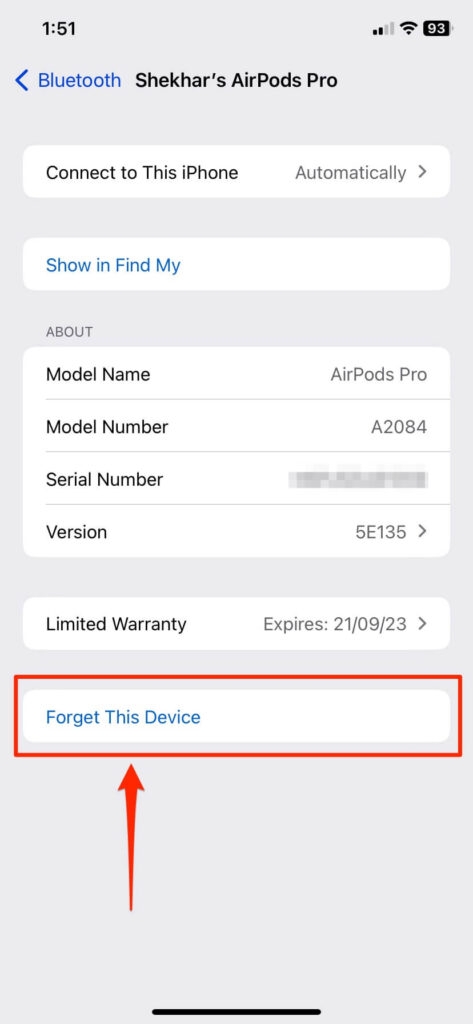
- Select Bluetooth from the device’s settings .
- You can then select the I icon next to them and select Forget This Device .
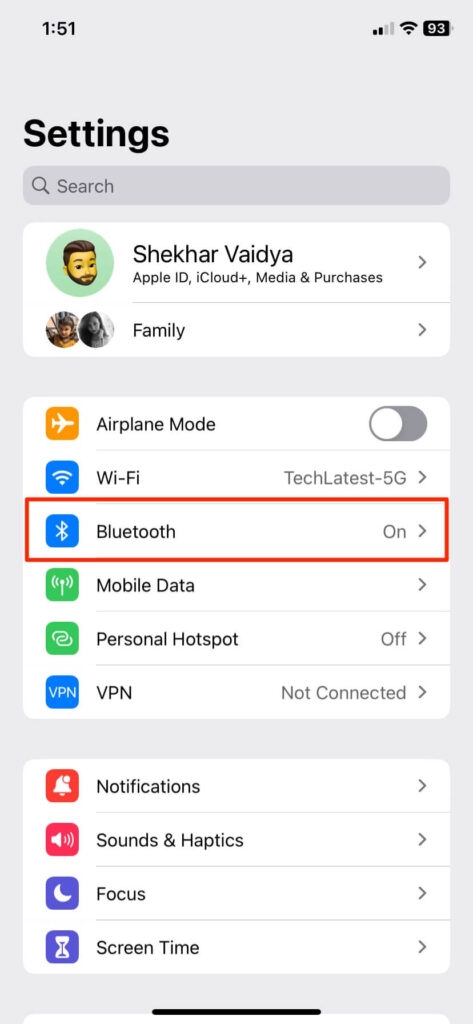
- Then, hit the Forget This Device and confirm your action by tapping on Forget This Device again.
- After that, place the headphones into the case and hold the Setup button for 15 seconds or until the status light turns amber.
- Lastly, re-pair them with your phone or computer.
Wrapping Up – Remove AirPods From Apple ID
So, that’s all about how to remove AirPods from Apple ID. It’s our hope that you find this article helpful. In the meantime, comment below and let us know if you have any doubts or queries regarding this topic.
Further Reading:
- 20+ Best AirPod Engraving Ideas
- Why is One AirPod Louder Than the Other?
- Why Do My Airpods Keep Pausing?
Enjoyed this article?
If TechLatest has helped you, consider supporting us with a one-time tip on Ko-fi. Every contribution keeps our work free and independent.
