When Face ID stopped working on their phones, many users experienced daily frustration. This issue can make your phone unlock, approve apps, and access accounts slower and inconvenient.
Instead of stressing, there are simple ways to fix Face ID without needing deep technical knowledge. Therefore, this guide will provide solutions, along with introducing you to an advanced iOS system repair tool to restore smooth function.
Don’t want to miss the best from TechLatest ? Set us as a preferred source in Google Search and make sure you never miss our latest.
Content Table
Part 1. What is the Problem with Face ID on the iPhone?
Before moving to solutions, it is essential to understand the common reasons behind Face ID problems:
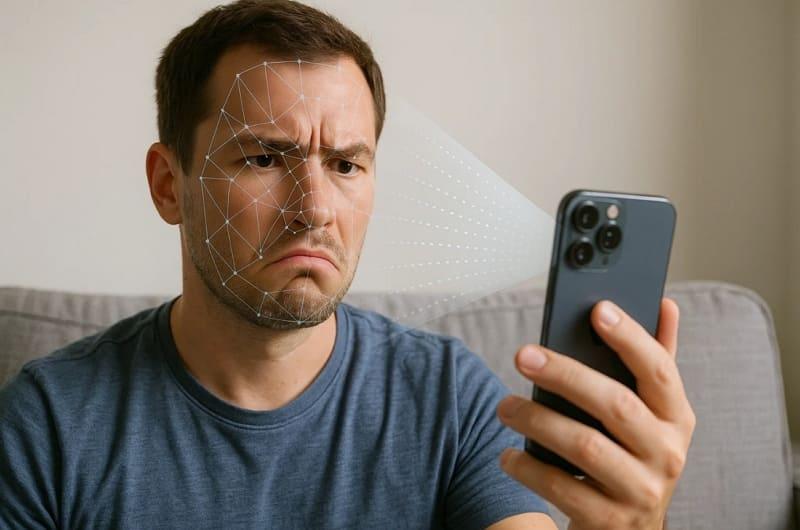
- It might not work if the front camera lens is dirty or if the facial features cannot be recognized.
- Bad lighting conditions also make it hard for sensors to gather accurate information.
- Drops of water can also damage the hardware and cause errors in the sensors.
- After an iPhone software update failed , the system may glitch, impacting Face ID performance.
- Face coverings can also obstruct key facial points needed for secure recognition each time.
Part 2. Resolve Face ID Not Working on iPhone – Dr.Fone – System Repair (iOS)
Dr.Fone – System Repair (iOS) provides a professional yet user-friendly solution for iPhone software restoration. This iOS system repair tool specializes in repairing 150+ iOS problems while keeping personal data safe.
It can resolve various issues, including black screens or boot loops, and even restore iPhones stuck on the Apple logo. With a 99% success rate and decades of experience, this software has already gained global user trust.
Moreover, the tool offers a Standard Repair mode that completes system recovery within minutes without deleting data. Besides, Advanced Mode allows deep-level repairs, restoring functionality when the standard repair mode option fails.
It also enables effortless upgrading between iOS versions, including iOS 26 Beta. While resolving the issue, it scans and shows you multiple compatible iOS versions to let you download your desired one.
Key Features
- iOS Downgrade : It allows safe downgrading from the newest beta version to the previous stable version.
- Data Protection: Personal data is saved for normal repairs, with no file loss, no leakage of personal information.
- Device Compatibility : It works with all iOS devices and versions, including iPhones or iPads, as well as iPod touch models.
Guide to Resolve Face ID Not Working on iPhone – Dr.Fone – System Repair (iOS)
Follow the steps below to find out how you can use this iOS system repair software to resolve any issues:
Step 1. Access iOS Repair to Resolve Face ID Not Working
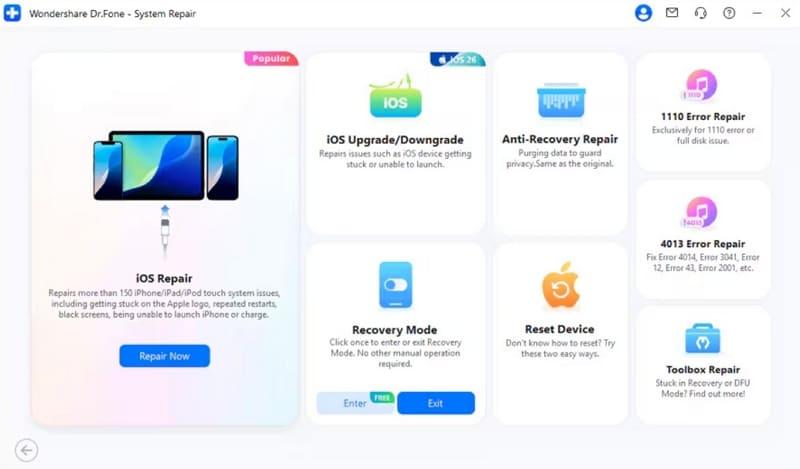
Upon running it, choose the “System Repair” tool and then opt for the “iPhone” option. Afterward, click the “Repair Now” button under “iOS Repair” and establish the connection between the iPhone and the computer.
Step 2. Download Your Desired iOS Firmware
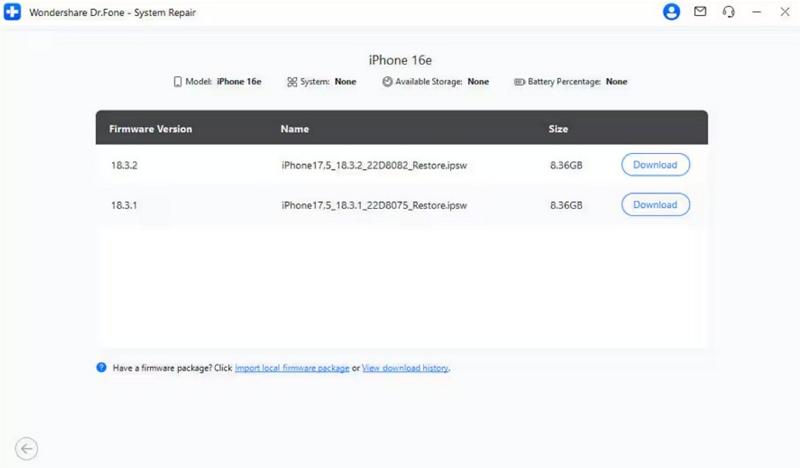
Subsequently, select the “Standard Repair” and put your device into the “Recovery Mode.” Once done, hit the “Enter Recovery Mode” button and later press the “Download” button upon seeing the available firmware options.
Step 3. Repair Face ID Not Working Problem
When the chosen iOS firmware is downloaded and verified, hit the “Repair Now” button and let the tool repair your device.

Part 3. Basic Methods to Resolve Face ID Not Working on iPhone
Sometimes, Face ID problems are not serious and can be solved using simple native settings. In case an iOS update fails or minor glitches occur, these basic methods often restore normal function:
Method 1. Force Restart Your iPhone
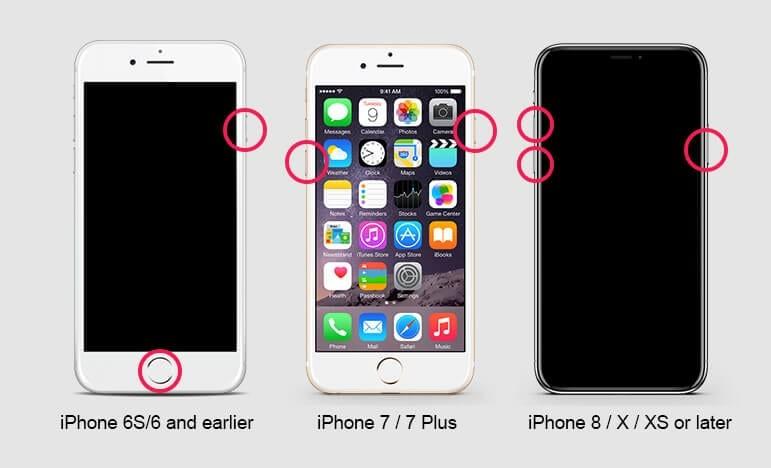
Many times, a force restart helps refresh your phone by clearing temporary glitches without deleting saved data. It forces the device to reload properly, which often fixes minor issues causing Face ID problems. So, follow the quick guidelines to understand how to perform this procedure:
- For iPhone 8 and Later : To initiate, you need to press and release the “Volume Up” button and do the same task with the “Volume Down” key. Here, hit the “Side” key until the Apple logo appears, then release.
- For iPhone 7 and Plus : Squeeze the “Volume Down” and “Side” keys together until the Apple logo shows, and release them.
- For iPhone 6 and Earlier : Press the “Home” and “Side” keys together for a few moments and release them when the Apple logo appears.
Method 2. Reset Face ID
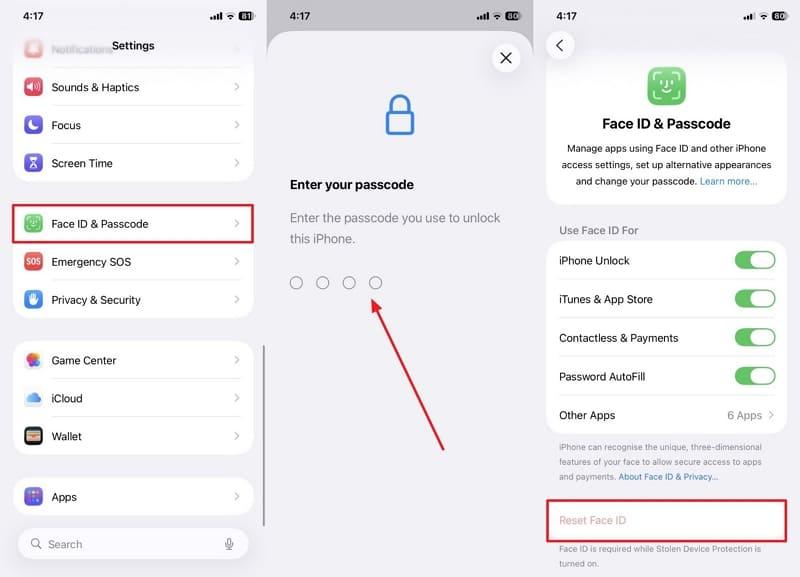
Apart from that, you can also reset Face ID, which removes the old face data and sets up a new one. Even when issues like an iPad unable to install an update appear, resetting Face ID often restores functionality. Take guidance from the following steps to reset the Face ID setup on your phone:
Instruction . Upon accessing the “Settings” app, tap the “Face ID & Passcode” option and input your current device’s passcode. Subsequently, disable the “Reset Face ID” toggle and then re-add your new Face ID.
Method 3. Reset All Settings
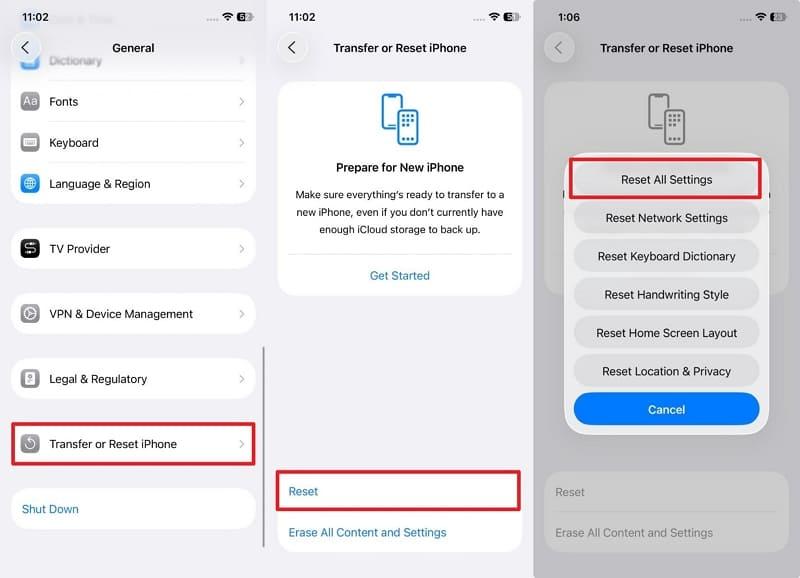
When you don’t prefer to use iOS system repair software , you can try to reset all settings to resolve this problem. It clears incorrect configurations that may cause Face ID to stop working correctly. Go through the instructions to find out how to reset all settings correctly:
Instructions . Go to the “General” section of your phone’s settings page, select the “Transfer or Reset iPhone” and opt for “Reset.” Then select the “Reset All Settings” option and enter your device passcode.
Conclusion
In summary, Face ID issues can be stressful, but simple solutions bring your iPhone back to normal. In case the problems continue despite trying basic fixes, using an iOS system repair tool is recommended. For effortless and complete data safety, Dr.Fone- System Repair (iOS) is the best choice.
Enjoyed this article?
If TechLatest has helped you, consider supporting us with a one-time tip on Ko-fi. Every contribution keeps our work free and independent.
