
Microsoft’s Windows is the best Operating System out there as it provides its users many features than any other desktop operating system. We are going to use one of the features to help you Schedule Windows 10 for Automatic Shutdown at a particular time.
Content Table
Schedule Windows 10 for Automatic Shutdown
Method 1: Using Task Scheduler to Schedule Shut down/Restart
- On pressing CTRL+R in windows the run box will popup. Then open taskschd.msc as shown below.

- The Task Scheduler will open after this. Click on “Create Basic Task” which is present in the rightmost side.

- Give the name of the task in the ‘Name’ box and write a description if you want to. Click on next after that.
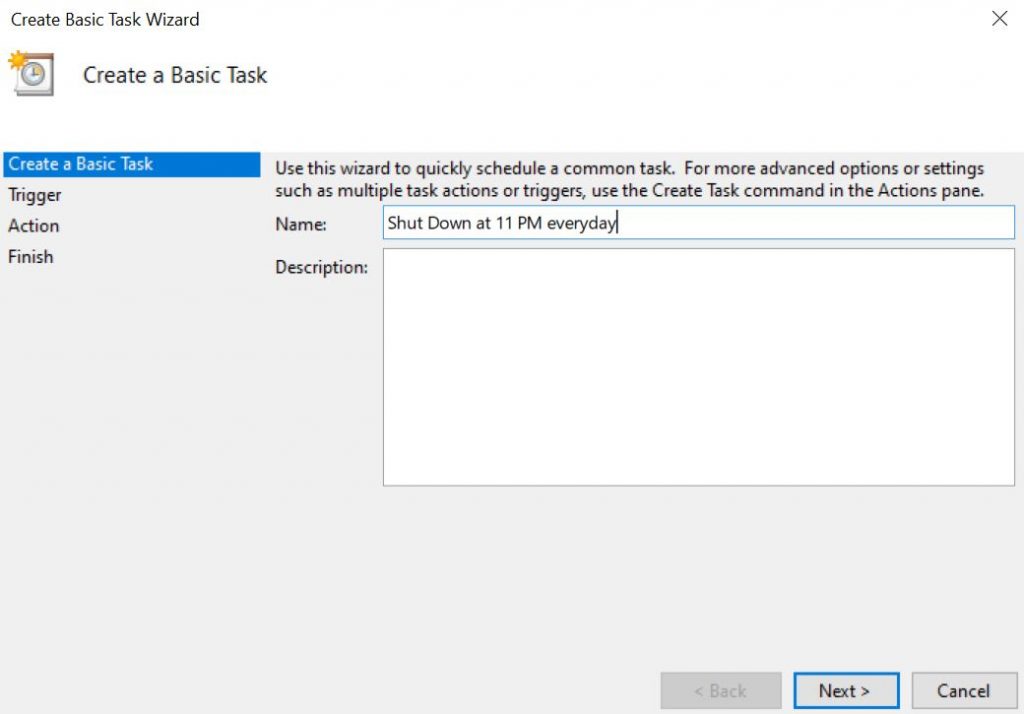
- Now you’ll be asked when you would want to schedule this task. Select ‘Daily’ to shut down at 11 PM every day. Then click on Next.

- You will be asked to set the start date and time on the next page. Set it according to your requirements.

- Choose the Start a program option on the next page.

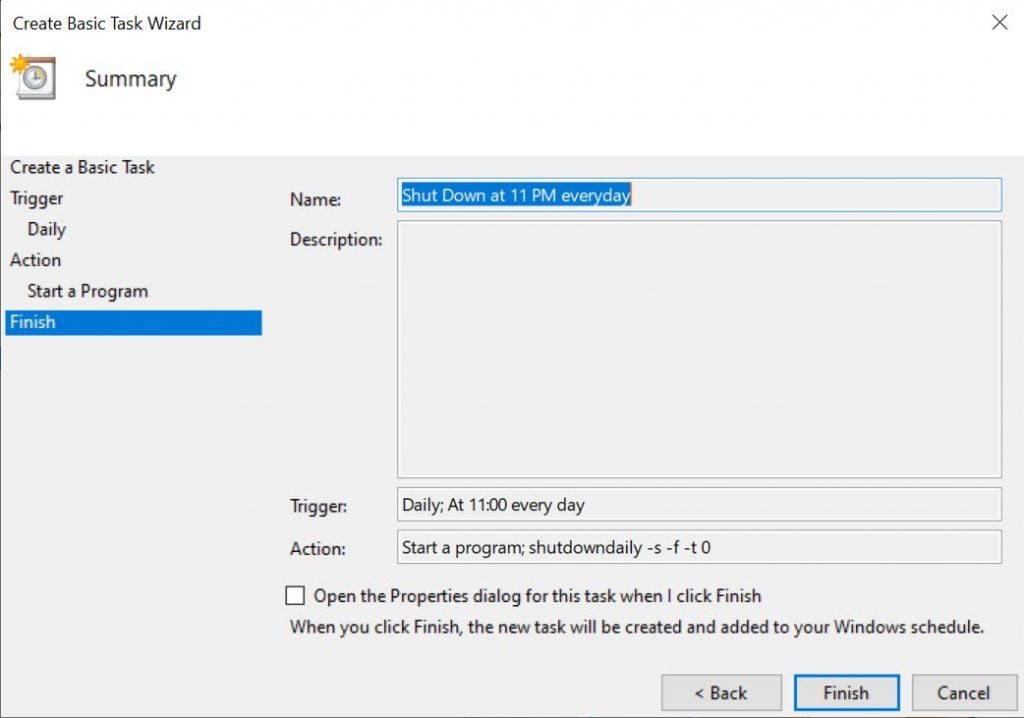
- Then on the next page, you need to add the script -s -f -t 0 in the Add Arguments box as shown below. If you’d want the shut down to commence after 60 seconds then replace 0 by 60 in the arguments section.

- Finally, on the last page click on finish and you are done. Your PC will shut down at 11 PM every day.
Method 2: Create a Shutdown Timer using Notepad
- Open the Notepad so that we can paste the code that we require to create the Shutdown timer.
- Now paste the code that is given below in Notepad.
@echo off
 :Start
 title Shutdown timer
 color 07
 echo Type in an amount of time (Seconds)
 set /p time=
 color 07
 :loop
 cls
 ping localhost -n 2 >nul
 set /a time=%time%-1
 echo %time%
 if %time% EQU 0 goto Timesup
 goto loop
 :Timesup
 title Time Is Up!
 ping localhost -n 2 >nul
 ping localhost -n 2 >nul
 color 07
 echo You have only 20 seconds before Windows Will shut down!
 ping localhost -n 20 >nul
 ping localhost -n 2 >nul
 ping localhost -n 2 >nul
 ping localhost -n 1 >nul
 ping localhost -n 1 >nul
 ping localhost -n 1 >nul
 goto Shutdown
 :Shutdown
 color 70
 echo Your Windows is now shutting down!
 ping localhost -n 1 >nul
 start C:\Windows\System32\Shutdown.exe -s

- Save the file in .bat mode. We have saved as TechLatest.bat. You can name the file the way you want.

- A command line will open up on double-clicking the .bat file we just saved. Now enter the time of amount in seconds and hit enter.

Don’t want to miss the best from TechLatest ? Set us as a preferred source in Google Search and make sure you never miss our latest.
There you go! Now you have your own shutdown timer!
- 6 Easy Steps to create a Password Protected Folder without any Software!
- How To Use SD Card As Internal Storage On Android in 8 easy steps!
- How to Send Self Destruct Messages in Messenger
Enjoyed this article?
If TechLatest has helped you, consider supporting us with a one-time tip on Ko-fi. Every contribution keeps our work free and independent.
